
What if you could reach your donors without an email address or a phone number? What if you could trigger a message to reach them at exactly the right moment, the second a donation comes in, the hour a campaign is about to close, and have it show up right on their screen? All it takes is a few minutes to set up.
Push notifications are also inexpensive, and that’s not a footnote, it’s the whole point. There’s no per-message fee eating into your budget the way there is with SMS. That matters because our goal at Charitable is to make sure every good cause, big or small, can raise the funds it needs no matter where in the world it operates.
In this guide, I’ll walk you through exactly how to set this up. No coding. No developer. Just a few clicks inside WordPress.
And because the channel is nearly free to run, you’re not stuck sending donation asks over and over the way you might be on a paid platform where every message costs something. You can send updates, thank-yous, impact stories, and more, without watching a budget shrink every time you hit send. Fewer forced asks means less donor fatigue, and I’ve included a full set of sample messages later in this guide so you’re not starting from a blank page.
First, let’s quickly cover what push notifications are, how they work, and how you can put them to use. Then I’ll walk you through the setup, step by step.
In This Guide
- What Are Push Notifications, and Why Should Your Nonprofit Use Them?
- What You’ll Need Before You Start
- How to Set Up PushEngage with Charitable (Step by Step)
- 10 Sample Notifications You Can Send This Week
- FAQ
What Are Push Notifications, and Why Should Your Nonprofit Use Them?
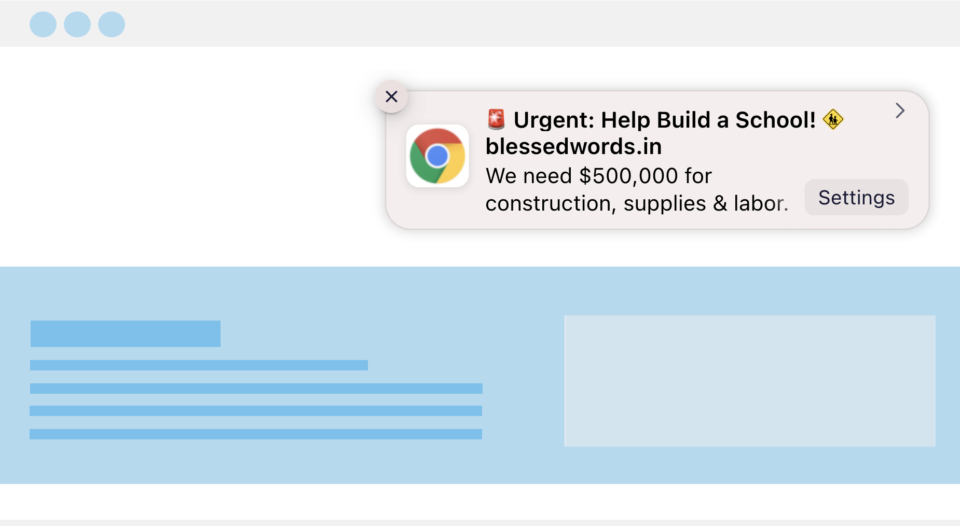
A web push notification is a small pop-up alert that shows up on a visitor’s desktop or phone after they’ve clicked “Allow” on your site, even if they’re not on your website at the time. Think of it like a text message, but free, and without ever needing a phone number.
For a nonprofit, that makes it one of the easiest channels to add on top of what you’re already doing:
- It’s free. There’s no per-message fee like SMS, and no ad spend required to reach the people who already opted in. There are free options for push notification software but if you want advanced features, the premium apps are still affordable!
- It doesn’t compete with a crowded inbox. Your notification shows up on the screen directly, not buried under twenty other emails.
- No personal data required. Donors opt in with one click. No email address, no phone number, nothing to type in.
- It reaches people even when they’re not on your site. Once someone opts in, you can reach them days or weeks later.
The tool that makes this possible is PushEngage. It’s what handles the “Allow notifications?” prompt on your site and keeps track of everyone who says yes. Once you have that in place, the next question is what you actually need before you turn it on.
Read more about PushEngage feature in Charitable »
What You’ll Need Before You Start
This setup uses two things working together:
- PushEngage plugin – handles the opt-in prompt on your site and stores your list of subscribers. This part is free no matter what.

- Charitable – handles the campaign side: when a notification should go out, what it says, and which campaign it’s tied to. If you’re on Charitable Lite, you can still install PushEngage and build a subscriber list. To get notifications that fire automatically off real donor activity, like a thank-you the second someone gives, you’ll need Charitable Pro.
If you don’t have Charitable Pro yet, you can get started with a plan and be up and running in a few minutes, with a 14-day money-back guarantee if it’s not the right fit.
This tutorial assumes you have Charitable installed on your site. If haven’t installed it yet, follow this guide: How to Install Charitable »
Now let’s get PushEngage installed.
How to Set Up PushEngage with Charitable (Step by Step)
None of this requires code. You’ll be working entirely inside your WordPress dashboard and the Charitable Campaign Builder.
Step 1: Install the free PushEngage plugin
Go to Plugins » Add New in your WordPress dashboard, search for “PushEngage,” and click Install, then Activate.
This takes less than a minute and doesn’t require anything beyond a WordPress login.
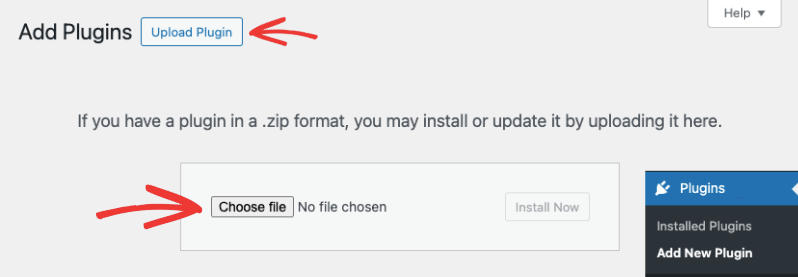
If you signed up for a PushEngage account, you’ll get a plugin file to download. You need to upload this under Plugins » Add New » Upload Plugin.
That’s it. Make sure the plugin is activated on your site.
Step 3: Set Up PushEngage in Charitable
Inside the Charitable Campaign Builder, in the left-hand sidebar, click Marketing, then choose PushEngage from the list of integrations.
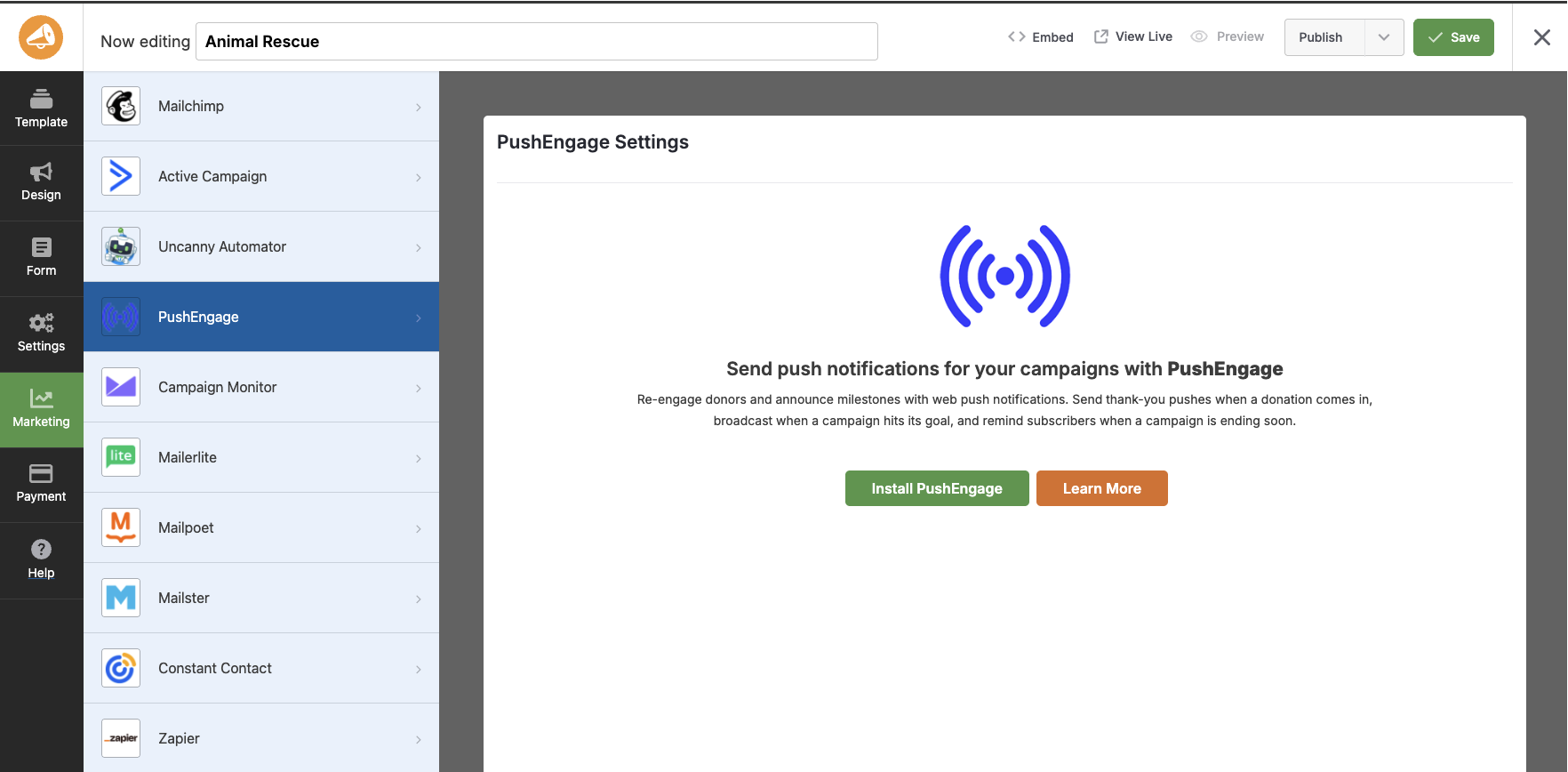
If you haven’t connected your account yet, you’ll see an Install PushEngage button right here.
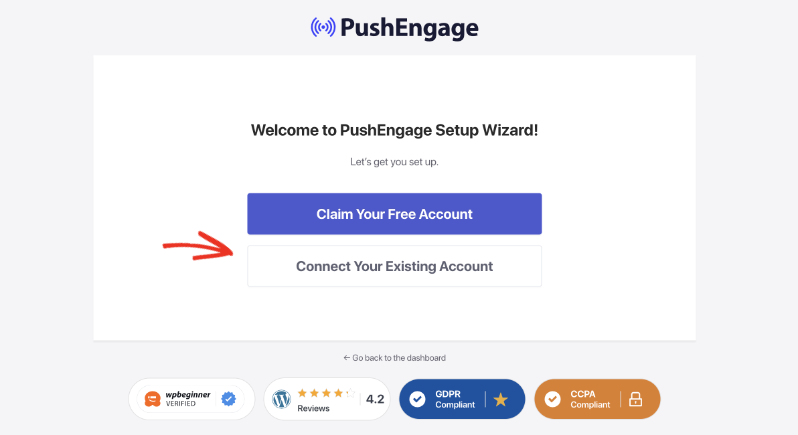
Click it and follow the on-screen instructions, and you can connect your account using the PushEngage wizard.
This will walk you through creating a free account (or logging in if you already have one) and connecting it to your site.
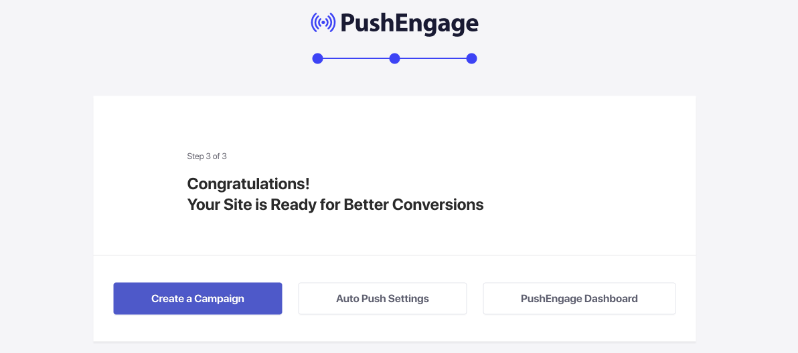
Once you log into your account, you’ll see this Congratulations screen.
Step 4: Turn on your triggers
Now, in your WordPress admin, head to Charitable » Campaigns and open any campaign.
You’ll see four triggers you can turn on for this campaign.
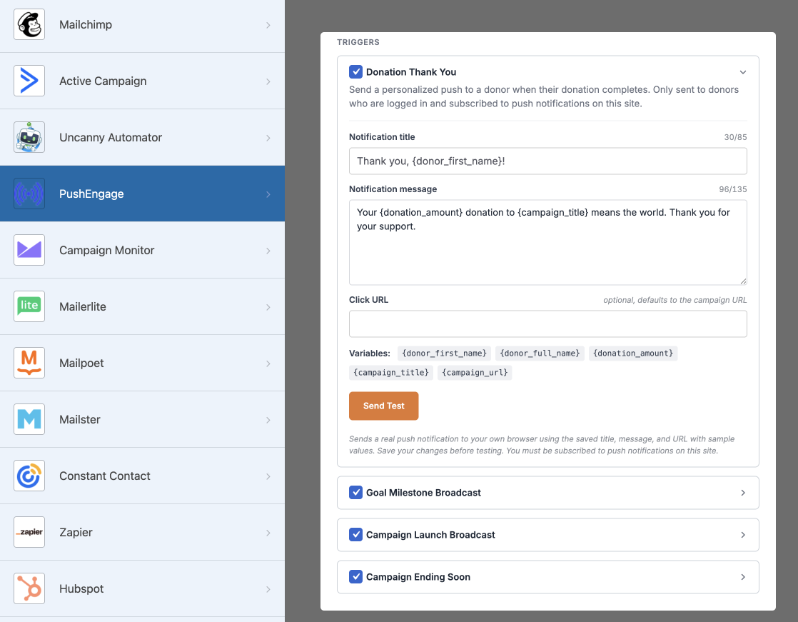
Toggle on whichever ones fit:
- Donation Thank You – sends automatically to a donor the moment their gift completes.
- Goal Milestone – broadcasts to your subscriber list when the campaign crosses 50%, 75%, and 100% of its goal.
- Campaign Launch – announces this campaign to everyone who’s opted in on your site.
- Ending Soon – reminds your list that the campaign is about to close.
You don’t need to turn all four on right away. If this is your first time, Donation Thank You and Goal Milestone are the easiest place to start, since they’re the ones donors respond to most.
Step 5: Write your message
Each trigger has its own editable title and message field.
You can drop in placeholders for the donor’s name, the campaign title, the amount raised, and the progress toward goal, so a message like
“Thank you, {donor_name}! You just helped us reach {amount_raised} toward {campaign_title}”
The code withint {} fills itself in automatically for every donor, without you writing it by hand each time.
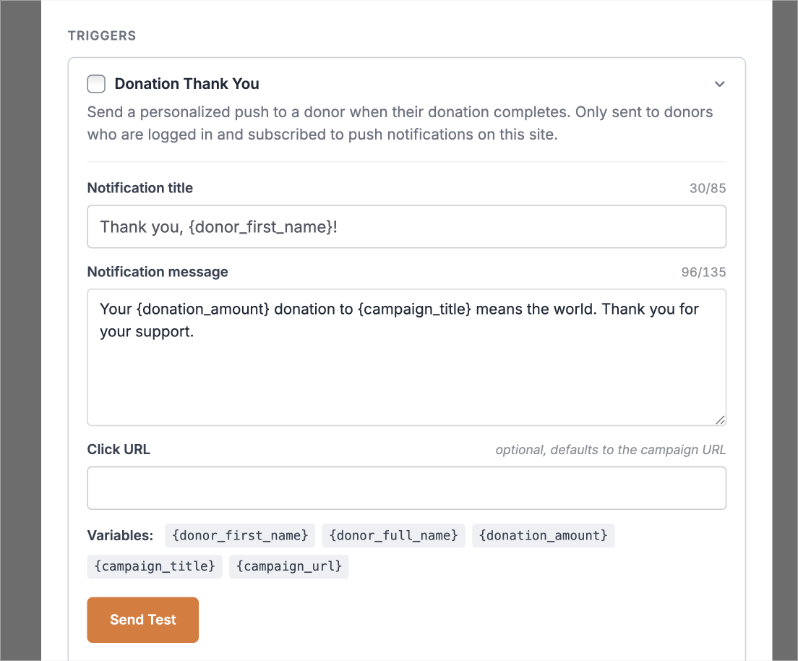
Add a link so people land somewhere useful, like the campaign page or a thank-you post.
Step 6: Preview and Send a test
At the bottom of the page, you’ll see a preview of your notification.
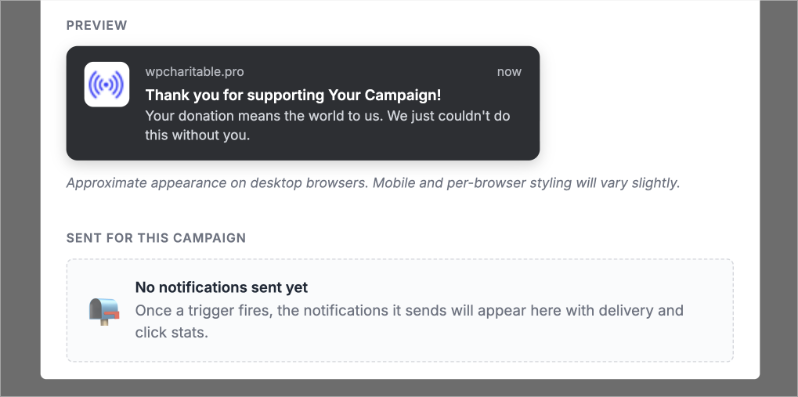
Before you publish, click Send Test. This shows you exactly what the notification will look like in a browser, so you can catch typos or a broken link before it reaches a single subscriber.
Step 7: Save and publish
Make sure you save your changes inside the Charitable builder.
That’s it. Your triggers are live, and from here on, Charitable and PushEngage handle the sending for you. You don’t need to remember to send anything manually.
From here, you can continue to also create and send push notifications inside PushEngage.
The only thing left is deciding what to actually say. That part trips people up more than the setup does, so here are 10 you can adapt right now.
10 Sample Notifications You Can Send This Week
A quick rule before the list: don’t make every notification an ask. Mix thank-yous and updates in with your donation requests, or donors start tuning you out. Here’s a simple mix to start with.
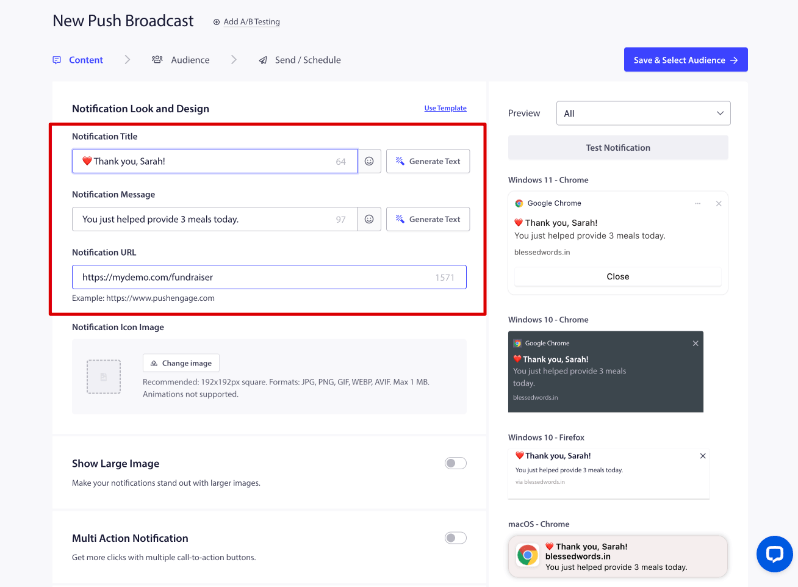
Thank-you messages
- “Thank you, Sarah! Your gift just helped provide 3 meals today.” (CTA: See your impact)
- “We got your donation! Here’s what it’s already doing to help.”
Campaign updates
- “We’re 75% toward our goal! Only $2,500 left to raise.”
- “32 donors joined today. Thank you for being part of this.”
- “This campaign closes in 48 hours.”
Donation asks
- “We’re $1,000 away from finishing this project. Can you help close the gap?”
- “Your donation will be matched today, dollar for dollar.”
Impact and story
- “Because of supporters like you, we’ve now provided 8,400 meals.”
- “Meet Ravi, one of the kids your last donation is helping.”
Notice the pattern: two thank-yous, three updates, two asks, and two impact stories. That’s a healthier mix than five asks in a row, and it’s the easiest way to keep your list engaged instead of tuning you out.
FAQ
Do I need a developer to set this up?
No. Everything above happens inside your WordPress dashboard and the Charitable Campaign Builder. There’s no code involved.
Is PushEngage really free?
Yes, the PushEngage plugin itself is free to install and use for your opt-in prompt and subscriber list. The automatic triggers inside Charitable that connect notifications to real donor activity, like Donation Thank You and Goal Milestone, are part of Charitable Pro.
Will this work if I don’t have an email list yet?
Yes. That’s actually the point. Push notification subscribers opt in with a single click, with no email address or phone number needed, so this works even if you have no email list at all.
How many notifications should I send?
There’s no fixed number, but try to balance asks with updates and thank-yous rather than sending an ask every time. A rough mix of one ask for every two or three non-ask messages keeps your list engaged without wearing them out.
Can I use this for more than donation campaigns?
The four built-in Charitable triggers are focused on campaigns, but PushEngage’s own dashboard lets you send additional one-off notifications to your full list, so you can also cover things like volunteer sign-ups or event reminders once you’re comfortable with the basics.
Once your first trigger is live, the biggest win is just letting it run for a few weeks and watching what donors respond to. You’ll know quickly which messages get clicks and which ones don’t, and you can adjust from there.
Charitable Has 1+ Million Downloads!
Trusted by millions to power successful fundraising campaigns. Try Charitable risk-free today.
✅ 14-day money-back guarantee
✅ Transparent pricing
✅ Code-free setup
Get free tips and resources right in your inbox, along with 60,000+ others. Subscribe to the Charitable newsletter →
Stay Connected for More Nonprofit Resources
For more tutorials and videos tailored to nonprofits, subscribe to our YouTube channel. We regularly publish expert tips, step-by-step guides on online donations, fundraising strategies, and practical resources to help your organization succeed.
🗞️ Get weekly tips and exclusive guides in your inbox
Join our newsletter →
🎥 Watch step-by-step tutorials and success stories
Subscribe to our YouTube channel →
👩🏽💻 Connect with our community and get daily nonprofit insights
Follow us on LinkedIn →
🥳 Fun reels and non-profit insights
Follow us on Instagram →
👀 Insightful & fun videos to help you grow your cause
Follow us on TikTok→
🌎 Subscribe and follow for general fundraiser tips
Get Fundraiser Tips on TikTok →
Powerful Fundraising Resources
🤖 Use Charitable with Your AI Assistant
⬇️ Download proven strategies, campaign ideas, and expert tools
Get the Fundraising Kit →
💸 Get Free Fundraising Resources
Head to the Charitable Fundraising Hub →
🤔 Got questions about Charitable?
Charitable FAQs →
🏎️ Take Charitable for a spin
Create your Charitable Demo →
Understand non-profit terms and jargon
Non-Profit Glossary →
% Looking for non-profit deals and discounts?
Best Non-Profit Deals and Discounts →







Leave a Reply