Would you like to display one of your campaigns on another page of your WordPress site – your homepage, an “About” page, or anywhere outside the campaign’s own URL? The [campaign] shortcode embeds a complete campaign – exactly as designed in the visual campaign builder, including the layout, story, progress bar, donors list, and donation form – onto any post, page, or widget area.
This guide will walk you through the steps to embed a single campaign using the shortcode.
Before you get started, make sure Charitable is installed and activated on your site, and that you’ve created at least one campaign.
In this guide
What the [campaign] Shortcode Does
The [campaign] shortcode renders a full campaign page inline – wherever the shortcode appears. It uses the same layout you designed in the visual campaign builder, so the embedded version matches what visitors would see on the campaign’s own URL.
This is useful when you want a campaign to live in more than one place. A common example: featuring your most active campaign on the site homepage, while keeping the campaign accessible at its own dedicated URL for sharing.
Note: The shortcode renders the entire campaign, including the donation form. If you only want the donation form (without the story, header, or progress bar), use [charitable_donation_form] instead.
How It Differs from Other Campaign Shortcodes
Charitable includes several campaign-related shortcodes, and it’s easy to mix them up. Here’s how to choose the right one:
[campaign]– Embeds one full campaign (visual builder layout). Use this when you want a specific campaign featured on another page.[campaigns]– Displays a grid or list of multiple campaigns. Use this for a campaign archive or “all causes” page. See the [campaigns] documentation.[charitable_donation_form]– Embeds only the donation form for a campaign – no story, no progress bar, no donor list. Use this when you’ve already written your own page content and just need the form. See the donation form embed guide.
Finding Your Campaign ID
Every campaign has a unique ID. To find it, head to Charitable » Campaigns in your WordPress admin. The ID appears in the campaigns list next to each campaign title.
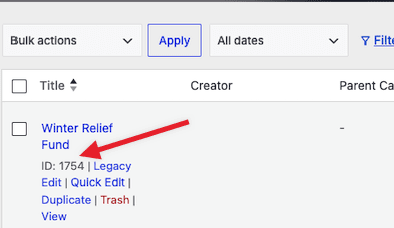
Note: Make sure you copy the numeric ID – not the campaign title or slug. The shortcode will not work with a campaign name.
Embedding a Specific Campaign
Once you have the campaign ID, you can drop the shortcode anywhere the WordPress editor accepts shortcodes – posts, pages, widget areas, or template parts.
The basic shortcode looks like this:
[campaign id="123"]Replace 123 with your actual campaign ID. When the page loads, Charitable will render the full campaign layout in place of the shortcode.
To add it through the block editor, insert a Shortcode block and paste the code into it. For page builders like Elementor, Divi, or WPBakery, use the builder’s shortcode widget – every major builder includes one.
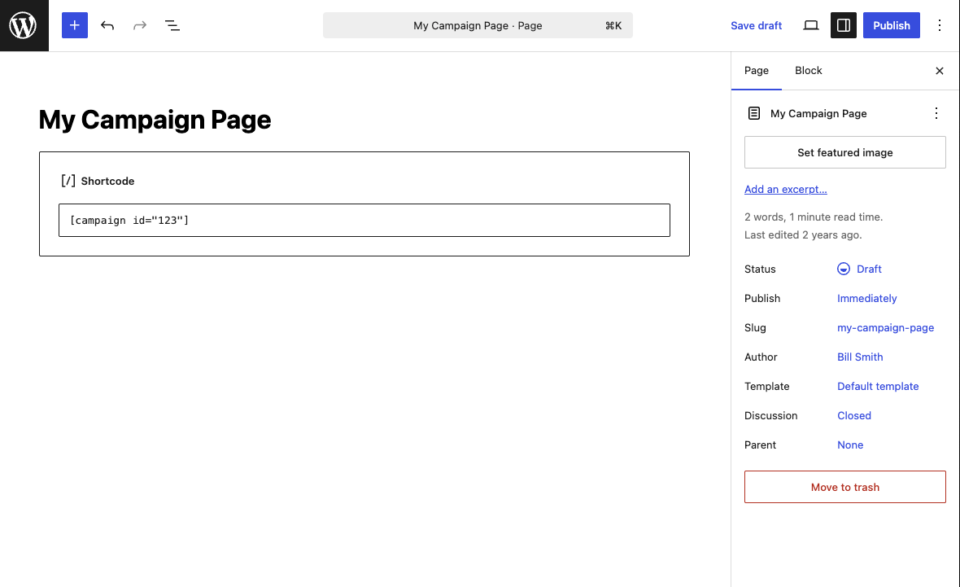
Note: If the campaign ID does not exist – or the campaign has been deleted or set to draft – the shortcode will display nothing. Always double-check the ID before publishing the page.
Using id=”current” in Custom Templates
For developers and theme authors, the id attribute accepts a special value: "current". When set this way, the shortcode renders whichever campaign post is being viewed in the current request.
[campaign id="current"]This is useful inside custom single-campaign templates, where you want the shortcode to dynamically render the campaign in scope – without hardcoding an ID. If the current post is not a campaign, the shortcode will display nothing.
Note: You won’t need this value for normal page embedding. It’s a developer convenience for templates that loop over campaign posts.
Using the Embed Wizard Instead
If you’d rather not work with shortcodes directly, Charitable includes an embed wizard that handles the same task with a guided interface. From the campaign builder, look for the Embed button at the top of the screen. The wizard lets you pick an existing page or create a new one, and it inserts the shortcode for you.
The wizard is the easiest path for non-technical users. The shortcode approach is faster if you already know where you want the campaign to appear and which campaign ID you need.
Testing Your Embedded Campaign
After saving the page, view it on the front end and confirm the campaign appears as expected. The embedded version should look identical to the campaign’s own page – same header, same story content, same donation form behavior.
Submit a test donation through the embedded form to confirm it processes correctly. Donations made through an embedded campaign are recorded against the same campaign as donations made on the campaign’s own URL – there is no separate tracking.
That’s it! You now know how to embed a complete campaign on any page or post using the [campaign] shortcode. Next, you may want to read the [campaigns] shortcode documentation if you’d like to display a grid of multiple campaigns, or browse the full Widgets & Shortcodes category for more embed options.
Shortcode Examples
The [campaign] shortcode has only one attribute – id – but it can be used in a variety of ways depending on where you want the campaign to appear. The examples below cover the most common scenarios.
1. Embedding a Specific Campaign
The simplest use of the shortcode. Replace 123 with the actual campaign ID from your campaigns list.
[campaign id="123"]2. Featuring a Campaign on Your Homepage
The same shortcode works for a homepage embed. Drop it into the homepage content (or a homepage template) to feature your most important campaign above the fold.
[campaign id="42"]Note: Some themes apply a content width to the homepage that is narrower than a standard page. If the embedded campaign looks cramped, switch the homepage to a full-width template.
3. Embedding Multiple Campaigns on One Page
You can use the shortcode more than once on the same page. Each instance renders its own campaign, separated by whatever content you place between them.
[campaign id="42"]

<h2>Or support our second cause:</h2>

[campaign id="55"]
Note: Embedding many campaigns on one page will increase the page weight. For longer lists, the [campaigns] shortcode is a lighter option.
4. Using id=”current” in a Theme Builder Template
When building a custom single-campaign template in Divi Theme Builder, Elementor Theme Builder, or a child theme, use the current keyword so the shortcode renders whichever campaign the visitor is viewing.
[campaign id="current"]5. Adding the Campaign in a Page Builder
Page builders like Elementor, Divi, and WPBakery all include a shortcode widget or module. The same shortcode goes inside it, exactly as you’d write it in the WordPress editor.
[campaign id="123"]Note: In WPBakery’s inline editor, an empty id will display a “Please select a campaign from the dropdown to preview” placeholder. Once you publish, the placeholder is replaced by the campaign.
6. Embedding in a Sidebar or Widget Area
For widget areas, add a Shortcode block (block-based widgets) or a legacy Text widget and paste the shortcode inside.
[campaign id="123"]Note: Campaign layouts are designed for full-width content areas. Narrow sidebars may cause the layout to wrap awkwardly — consider using a Donate Button or Progress Bar shortcode for sidebar placements instead.
7. Calling the Shortcode from PHP in a Custom Template
For developers building custom templates, the shortcode can be rendered directly from PHP using WordPress’s do_shortcode()function.
<?php echo do_shortcode( '[campaign id="123"]' ); ?>To render the current campaign inside a custom single-campaign template loop:
<?php echo do_shortcode( '[campaign id="current"]' ); ?>Frequently Asked Questions
Can I embed the same campaign on multiple pages?
Yes. The shortcode can be used on as many pages as you’d like, and all donations made through any of those pages will be recorded against the same campaign.
Will the embedded campaign use the same layout as the original?
Yes. The shortcode uses the layout you built in the visual campaign builder. Any change you make to the campaign design will automatically appear everywhere the shortcode is used.
Does the embedded campaign include the donation form?
Yes. The full campaign – story, progress bar, donor list, and donation form – all render together. If you only want the donation form, use [charitable_donation_form] instead.
What happens if the campaign is set to draft or deleted?
The shortcode will render nothing. The page itself will still load – but the campaign section will be empty. Always confirm the campaign is published before embedding it.
Can I embed a campaign in a sidebar widget?
Yes. Add a Shortcode block (or a legacy Text widget) to the widget area and paste the shortcode. Keep in mind the campaign layout is designed for full-width content areas, so it may look cramped in a narrow sidebar.