
Do you want to add a countdown timer to your fundraising campaign?
A campaign countdown timer can add a sense of urgency and nudge donors to give now and not delay.
It closes the gap where a donor thinks they’ll come back later to make the donation, and then life happens, and they don’t return.
In this guide, I’ll show you how to add a campaign countdown timer to your fundraising campaigns with just a few clicks. No coding or developer needed.
We will walk through it step by step so you learn how to set it up from scratch, customize it to match your campaign’s design, and configure what happens when the timer hits zero.
Most people have it live in under five minutes.
Note: To follow along with this guide, you’ll need a WordPress site. If you don’t have that set up, I recommend following this tutorial here:
What’s in this guide?
Why Countdown Timers Change Donor Behavior
Most people put things off. That includes donating.
When someone reads “Campaign ends December 31st,” their brain doesn’t really feel that deadline. It just thinks – yeah, I’ll do that later. And later usually means never.
A countdown timer changes that completely.
When someone sees “1 Day, 7 Hours, 22 Minutes” ticking down in real time, it stops feeling like a date on a calendar and starts feeling like something that’s actually happening. The question changes from “should I give?” to “wait, how much time do I actually have left?”
That shift matters.
And this isn’t about tricking anyone. Most donors who mean to give but don’t aren’t saying no to your cause – they’re just busy humans who got distracted and forgot. The timer gives genuinely interested people the nudge they needed to follow through.
It also just looks like something is happening. A campaign with a live countdown feels active and urgent. A campaign without one can feel like it’s just… sitting there. For a first-time visitor deciding whether to trust you, that energy makes a difference.
The timer works quietly in the background, on every page load, for every visitor. You set it once and it does the rest.
What the Campaign Countdown Timer Does
Before jumping into the steps, here’s a quick look at what we’ll create today:
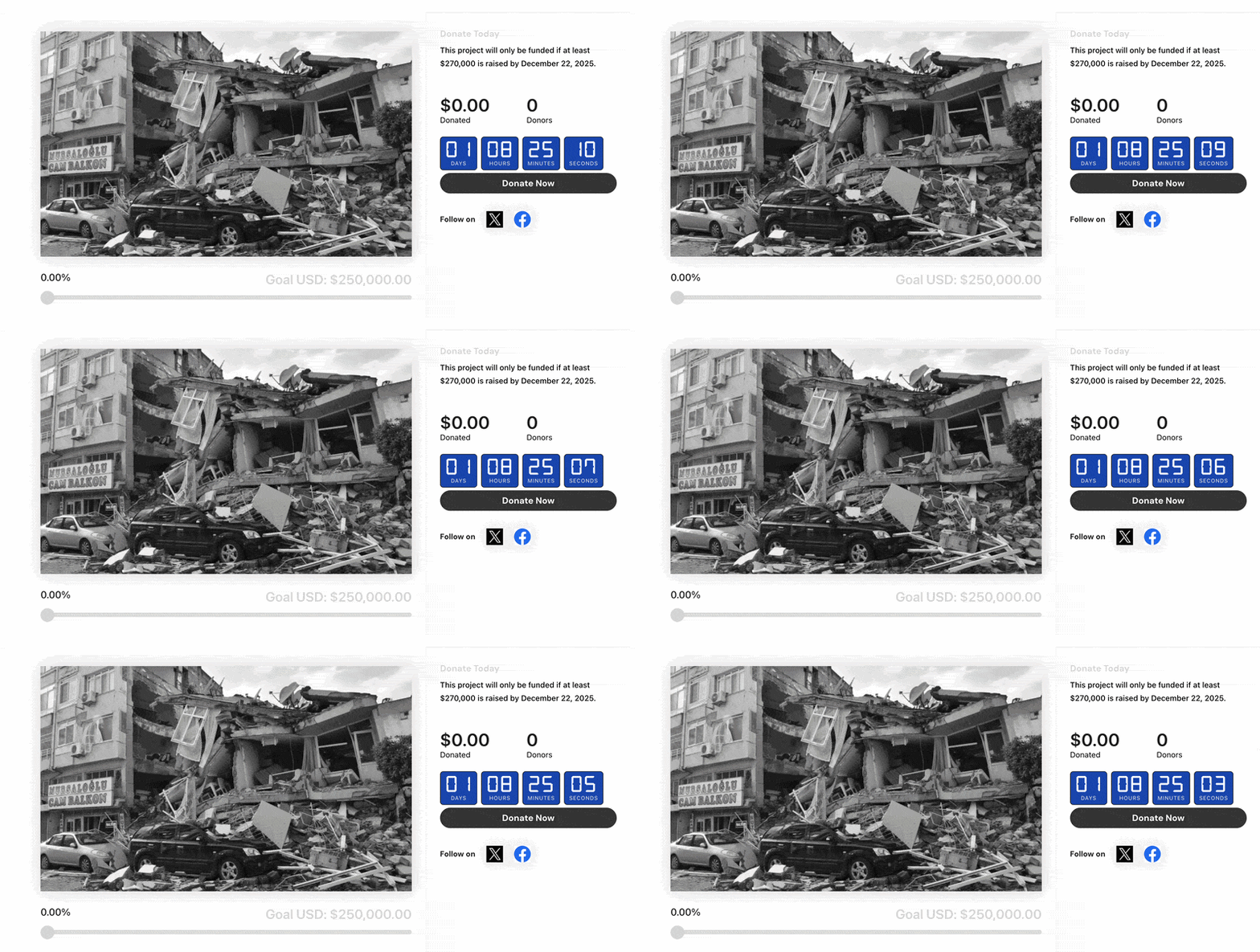
Here’s what the timer actually includes, so you know what to expect when you’re configuring it.
- Live countdown display: Shows days, hours, minutes, and seconds ticking down in real time. Reads your campaign’s end date automatically once it’s set.
- Celebration effects: Trigger Confetti or Fireworks animations when the campaign reaches zero. A small touch that turns the deadline into a moment worth marking.
- End-date text label: Choose to display the campaign’s closing date above the timer, below it, or not at all.
- Full color control: Set individual colors for the number text, label text, background, and border. Adjust font sizes and border radius from the settings panel, no CSS needed.
- Configurable end behavior: When the timer hits zero, choose to show a custom message, freeze the timer at 00:00:00:00, or hide the block entirely.
- Custom expired message: Write the exact text donors see when your campaign closes. The default says “Campaign Ended” but you can write anything that fits your story.
- Fully responsive: Works on every screen size without extra configuration.
Everything listed above is included in every Charitable Pro plan, with nothing locked behind a higher tier. If you’re on Basic, Plus, Pro, or Elite, you have the full feature set.
Read more about the Campaign Countdown »
What You Need Before You Start
Two things are required.
- First, you need a WordPress website.
- Second, you need the Charitable Pro plugin installed and activated on your site. Here’s a guide on how to install it »
If you already have Charitable Pro on your site, make sure to update your Charitable Pro plugin to the latest version available. Go to Dashboard » Updates in WordPress and look for Charitable. If an update is waiting, install it first.
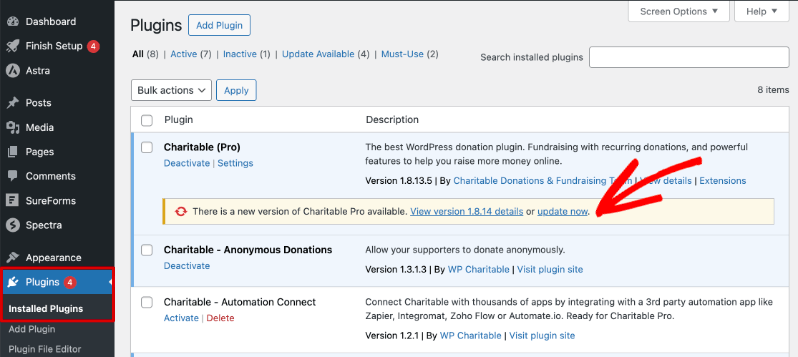
New features like this one ship with version updates, so running the latest version makes sure everything you see in this tutorial is actually available in your builder.
How to Add the Countdown Timer (Step by Step)
Step 1: Open Your Campaign in the Builder
In your WordPress dashboard, go to Charitable » Campaigns. You can add the countdown timer to any existing campaign or to a brand-new one. To create a new campaign, click Add New, choose a template, and enter the campaign builder.
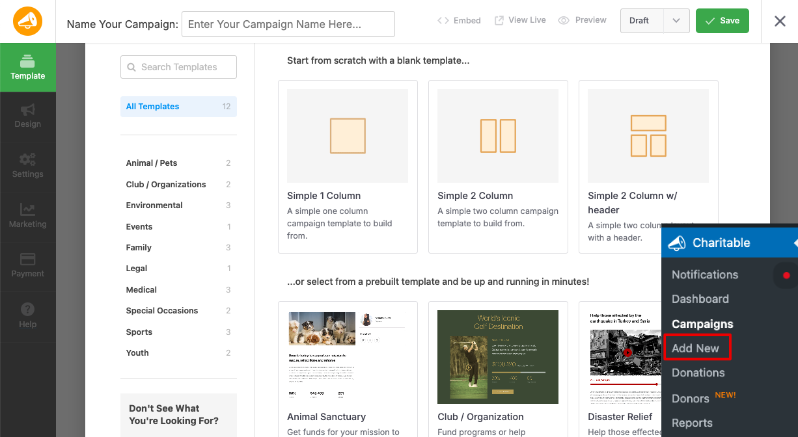
To edit an existing campaign, hover over its name and click Edit.
The campaign builder opens with your campaign layout in the center and the layout panel on the left. That’s where you’ll add the countdown block.
Step 2: Add the Countdown Block
In the left panel, find the Add Layout section. Scroll down to the Pro group and click Countdown. The block is added to your campaign canvas. You can drag it to wherever it makes the most sense in your campaign layout. Most campaigns place it near the top, close to the campaign goal bar, so it’s the first thing donors see.
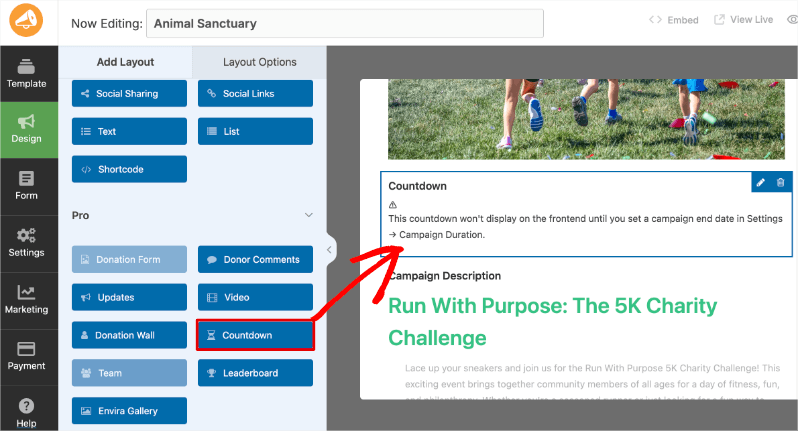
After adding the block, you may see a notice saying the countdown won’t display on the frontend until a campaign end date is set. That’s expected. The next step takes care of it.
Step 3: Set Your Campaign End Date
In the left panel, click Settings, then open General Settings. Find the Ending Date field and enter your campaign’s closing date and time. The timer reads this field automatically. Once you save, the preview in the builder will start showing the countdown.
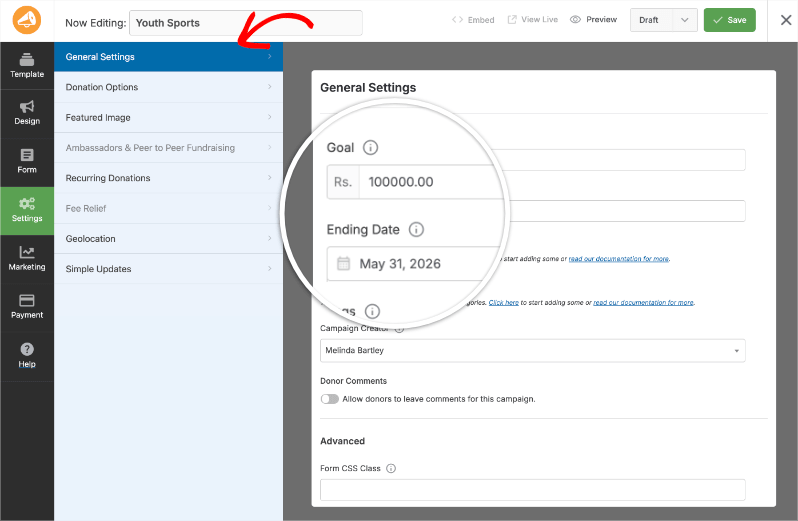
If you already set an end date when you created the campaign, you can skip this step. The timer picks up whatever date is already there.
Note: If you do not enter an end date, the countdown timer cannot function. The timer reads that date to run the countdown. If no end date is set, the block will appear in the campaign builder but won’t show on the live page.
Step 4: Customize Layout Options
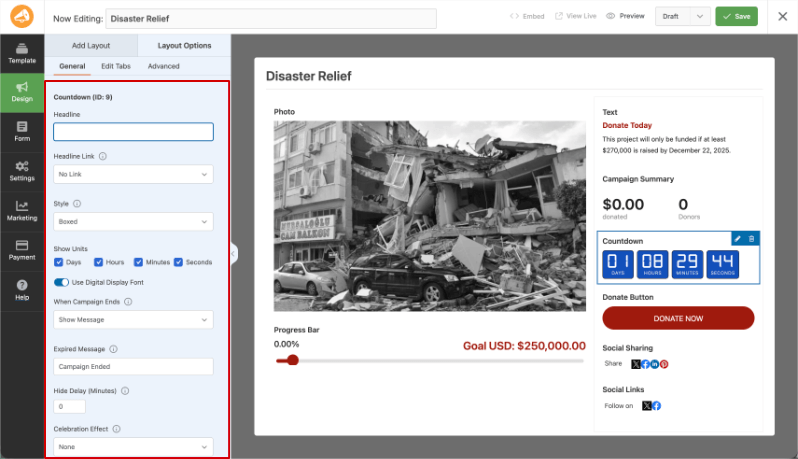
Click back to the Design tab in the left panel. Click on the Countdown block in your campaign canvas to select it. Then click Layout Options in the left panel. This is where all the customization lives.
Headlines and Styling
From here, you can change the headline text above the timer, adjust the display style, and work through all the appearance and behavior settings in the sections below. Take a few minutes to explore the panel before saving. Most of the settings have instant previews in the canvas.
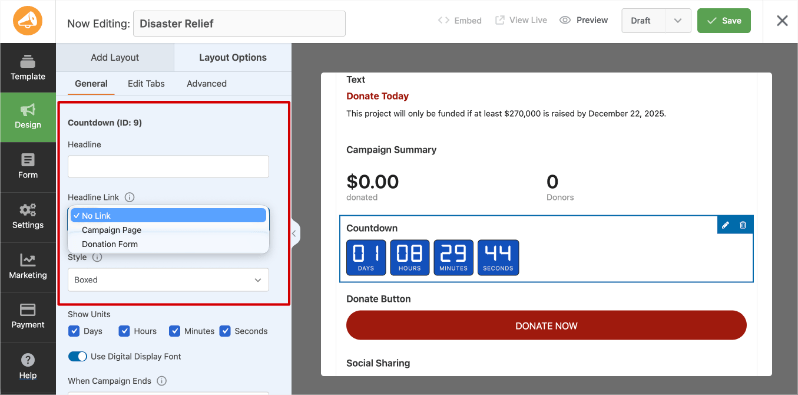
First, you can add your own headline and link to either the donation form or campaign page.
Below this, you can choose a Boxed or Inline style.
Next, you can choose what units of time are displayed that include Days, Hours, Minutes, and Seconds. I recommend using the Digital Display Font, it looks more modern.
What Happens When the Campaign Ends
Next, you can determine what happens when that timer hits 0. Charitable lets you:
- Show Message: The countdown is replaced by a text message you write. This is the most intentional option. You can thank donors, announce results, or redirect attention to your next campaign. If you pick this option, fill in the Expired Message field below it. The default text is “Campaign Ended” but write something that fits your story: “Thank you, we reached our goal” or “The match has closed, but you can still give” works better than a generic placeholder.
- Keep Timer at Zero: The display freezes at 00:00:00:00. This is a simple option that communicates the campaign has closed without removing the visual element entirely.
- Hide Countdown: The block disappears from the page when the campaign ends. Use this when you want the page to look clean after the deadline, or if you plan to leave the campaign page live for post-campaign donor follow-up.
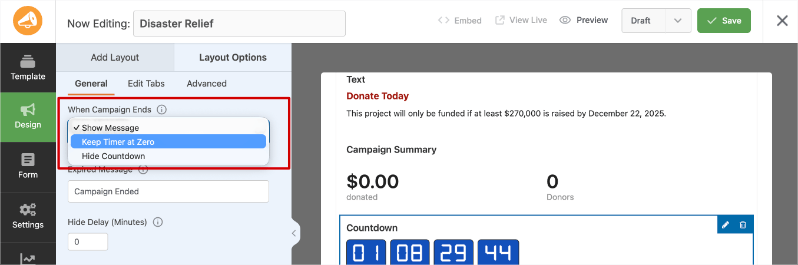
When the campaign ends, you can also choose to delay this action by a few minutes. This will allow donors to make last-minute donations even though the timer has run out.
Add a Celebration Effect
Under Celebration Effect, pick what happens the moment your campaign hits zero. Your options are Confetti, Fireworks, or None. Both animated options trigger a burst of visual energy when the timer runs out. It’s a small detail, but it turns what would otherwise be a flat “0:00:00:00” into a moment worth noticing, and sharing.
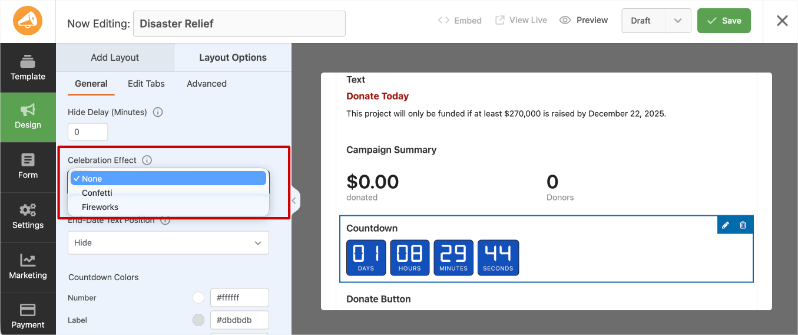
For year-end giving campaigns or campaigns with a matching gift deadline, Fireworks tends to land well. For smaller community campaigns, Confetti feels lighter.
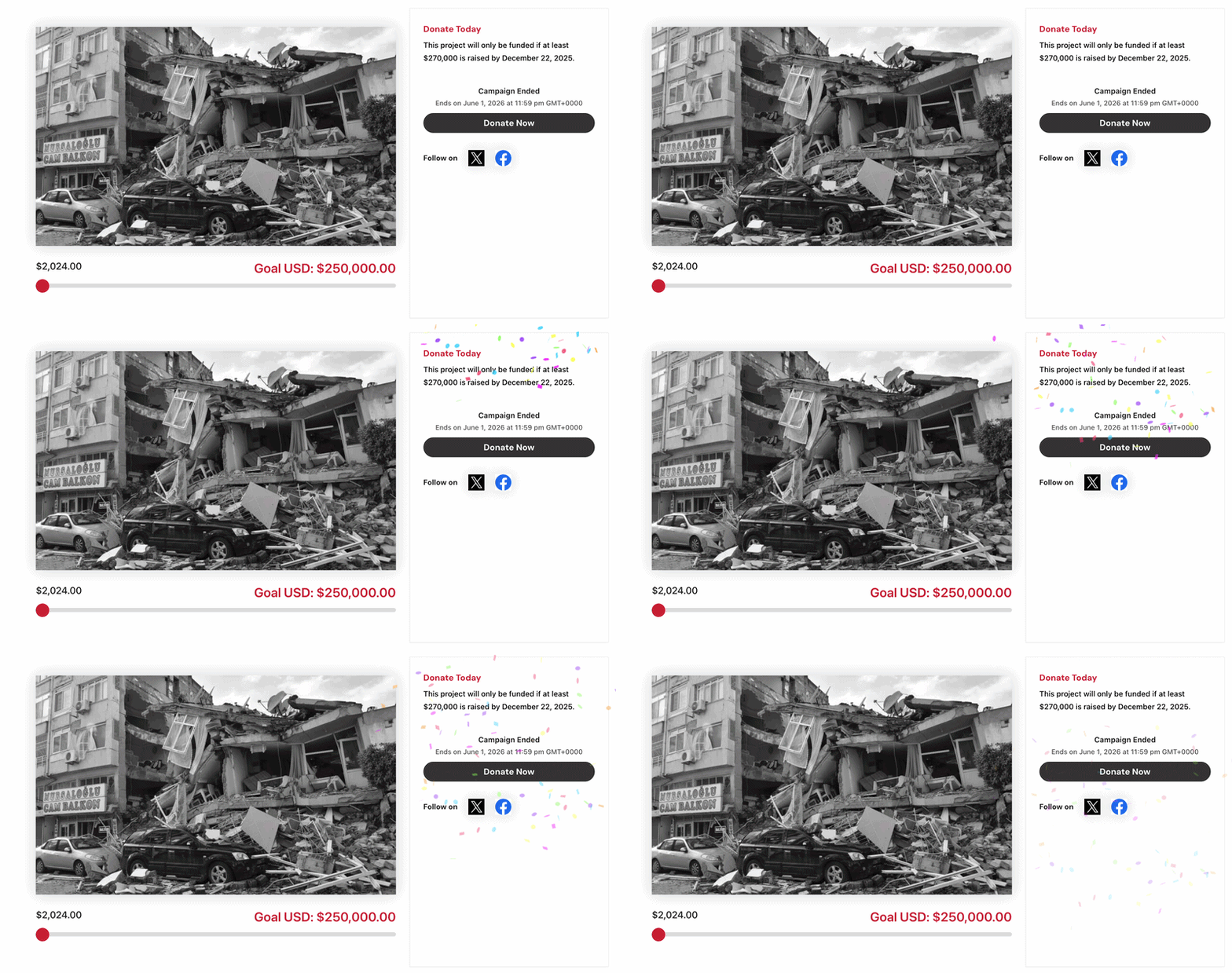
Here’s what confetti looks like. It’s simple and smaller.
Here’s what fireworks looks like.
It’s a big celebration for those who want to go big!
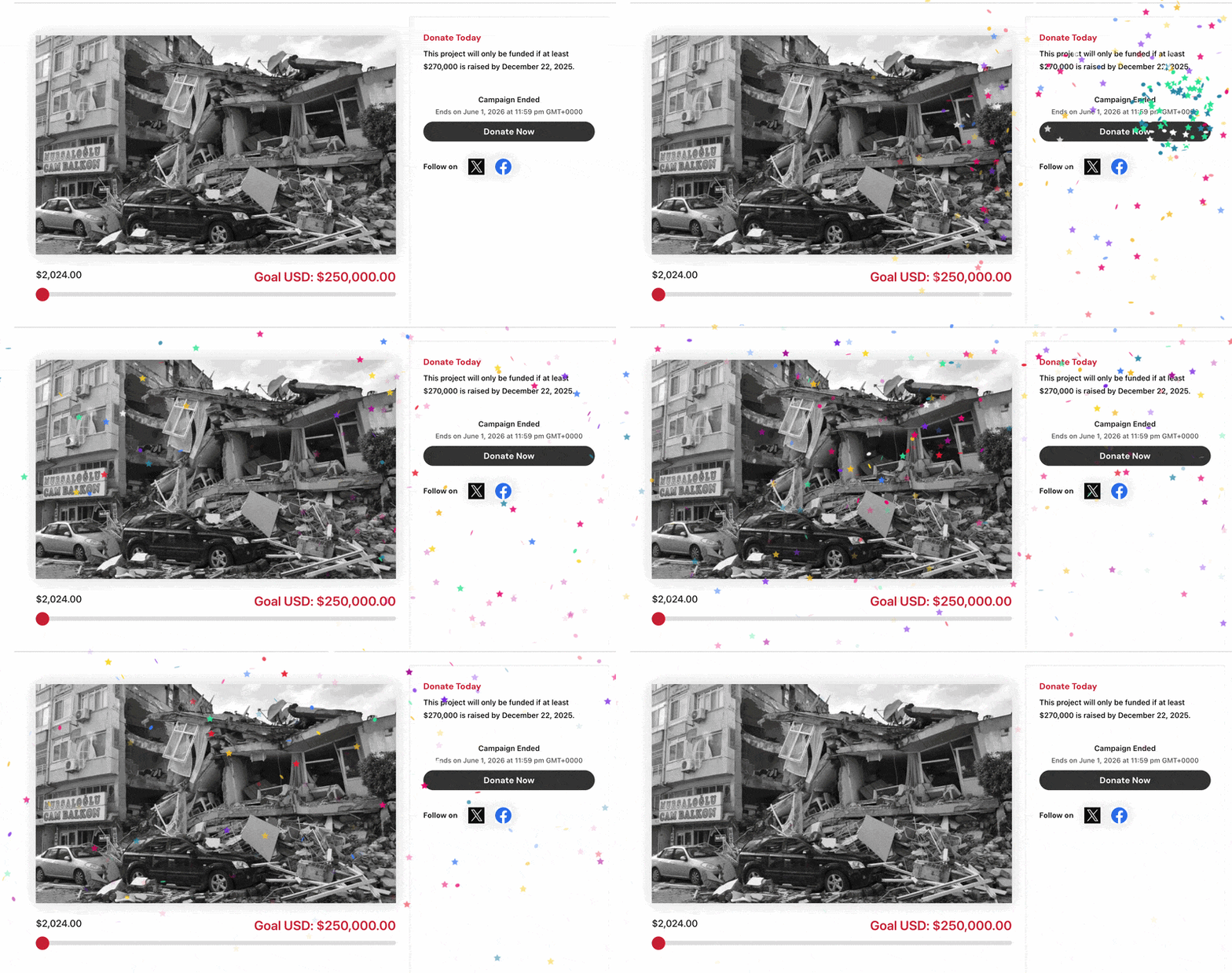
Either way, donors who are on the page when the timer hits zero get a finish-line moment instead of just a number change.
Set the End Date Text Position
The End-Date Text Position dropdown controls whether your campaign’s closing date appears above the timer, below it, or not at all. Showing the date adds clarity for donors who want the specific deadline spelled out, not just a ticking number.
Hiding it keeps the display cleaner and lets the countdown speak for itself.
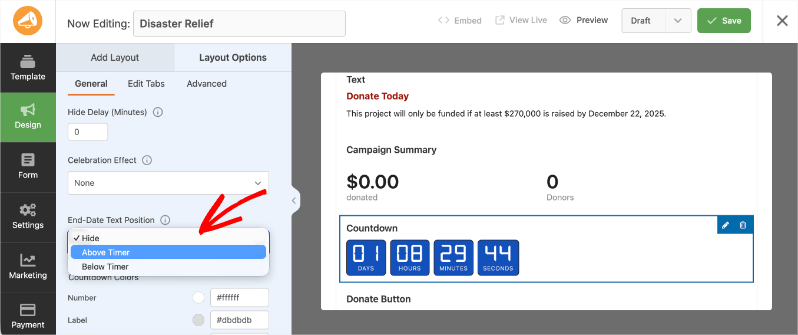
For most campaigns, showing the date below the timer is the clearest option. Donors see the countdown first, then the specific date as confirmation. But there’s no wrong answer here.
Preview both options and pick what reads better for your campaign’s visual layout.
Customize Countdown Colors
Under Countdown Colors, you can set independent colors for the number text, the label text (Days, Hours, Minutes, Seconds), the background, and the border. Font size and border radius controls are also here.
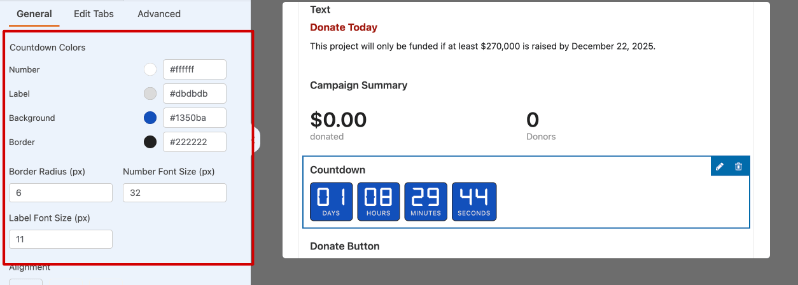
This is where the timer goes from looking like a generic widget to looking like it belongs on your campaign.
Match your number color to your campaign’s primary color, set a background that contrasts enough to read clearly on mobile, and adjust the border radius if you want rounded corners instead of a box shape.
The canvas updates in real time as you adjust, so you can iterate quickly without saving and previewing in a separate tab.
Step 5: Save and Preview
Click Save in the top right of the campaign builder. Then click Preview to open your campaign page in a new tab and see the timer as your donors will see it. Check it on your phone too. The timer is fully responsive, but it is worth confirming it reads clearly on a small screen before your campaign goes live.
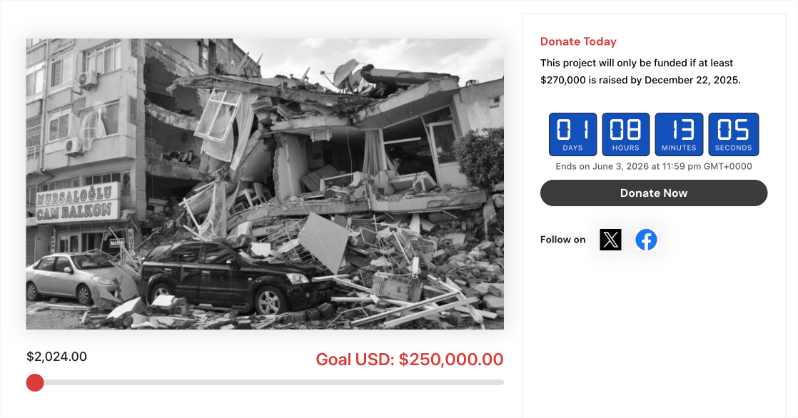
That’s the full setup. Start to finish, most people have the timer configured and live in under five minutes. If something looks off in the preview, go back to Layout Options, adjust, and save again. There is no limit to how many times you can iterate before the campaign goes live.
Tips for Getting More Out of Your Timer
The basic setup gets the timer live. These tips make it more effective.
Position the timer where the donors land first
Drag the countdown block near the top of your campaign layout, ideally right below your campaign title or above the donation form. Donors decide whether to engage in the first few seconds on any page. The timer needs to be in the part they see immediately, not buried below a long description they may never scroll to.
Pair the timer with a matching gift deadline
A countdown timer is most powerful when tied to a hard deadline that has real consequences for the donor. A campaign end date is effective. A matching gift expiration is more effective. “All donations are matched until December 31st” becomes significantly more compelling when paired with a timer showing donors exactly how many hours that match is still available. The combination of financial incentive and visible urgency is one of the strongest conversion setups available on a donation page.
Write your expired message before the campaign starts
This sounds small but matters. If you choose the Show Message option, the text donors see when your campaign closes is the last impression your campaign makes. Write something intentional. Thank donors by name if you can pull a dynamic field. Share a quick result: “We did it. 347 donors came together to raise $28,400.” Or redirect: “This campaign has closed. Help us continue this work year-round.” Leaving the default “Campaign Ended” in place is a missed opportunity every time.
Use a color that creates contrast, not decoration
The timer has to be readable at a glance, especially on mobile. Pick a number color and background combination with enough contrast that the digits are clear in direct light on a phone screen. A dark background with light numbers, or a light background with dark numbers, both work reliably. Matching the timer’s colors too closely to your campaign’s design palette can create a beautiful graphic that nobody can read under bad lighting conditions.
Mention the timer in your campaign email and social posts
The urgency the timer creates on the page is amplified when you prime donors before they arrive. “There are 48 hours left in our campaign, and you can see exactly how many minutes remain when you visit the page” gives donors a reason to go to your campaign page rather than just clicking donate from an email. The timer is part of the experience. Make sure your outreach treats it that way.
That’s it! That’s the whole
Frequently Asked Questions
Does the countdown timer work if I don’t set a campaign end date?
No. The timer reads your campaign’s end date to run the countdown. If no end date is set, the block appears in the campaign builder but will not display to visitors on the live page. Go to the campaign builder, click Settings, open General Settings, and fill in the Ending Date field. Once saved, the timer will start counting down automatically.
Can I add the countdown timer to an existing campaign that’s already running?
Yes. Open any existing campaign in the campaign builder, find the Countdown block in the Pro section of the Add Layout panel, click to add it, and configure it exactly as described in this tutorial. The timer will go live on the campaign page as soon as you save. There is no need to create a new campaign or restart anything.
What happens to the timer if a donor visits the page after the campaign has ended?
Whatever you configured in the When Campaign Ends setting.
- If you chose Show Message, they see your custom text.
- If you chose Keep Timer at Zero, they see the frozen 00:00:00:00 display.
- If you chose Hide Countdown, the timer block disappears and the page renders without it. All three options are intentional and display cleanly. No broken counter or empty space.
Can I use the countdown timer on multiple campaigns at the same time?
Yes. You can add a countdown timer to as many campaigns as you’re running. Each timer reads the end date of the campaign it’s on. There’s no limit to how many campaigns can have an active countdown at once.
Is the Campaign Countdown Timer available on Charitable Lite?
No. The countdown timer is available on all Charitable Pro plans: Basic, Plus, Pro, and Elite. If you’re currently on Charitable Lite and want to add this feature, upgrading to any paid plan gives you access starting at $69 per year for a single site, with a 14-day money-back guarantee on every plan.
Can I change the colors and design after the campaign is already live?
Yes, any time. Open the campaign in the builder, select the Countdown block, go to Layout Options, and adjust any setting you want. Save when done. The changes take effect immediately on the live campaign page. There is no need to take the campaign offline or create a new one.
Will the countdown timer slow down my campaign page?
No. The timer is lightweight and built into Charitable’s existing codebase. It does not load any additional third-party scripts or libraries. Page speed impact is negligible. If you’re running a site with other performance concerns, those are worth addressing separately, but the countdown timer itself is not a meaningful contributor.
A live countdown timer is one of those features that seems small until you see it on your campaign page. Then it’s hard to imagine launching without one. It takes five minutes to set up and works quietly in the background for the entire duration of your campaign, nudging every visitor toward action instead of “I’ll come back later.”
If you’re not yet on Charitable Pro, this is one of those features that makes the upgrade feel like a straightforward decision. Every Pro plan includes the countdown timer along with all the other tools for running serious fundraising campaigns on your own WordPress site, without platform fees, without sharing donor data with a third party, and without giving up control of your donor experience.
✅ 14-day money-back guarantee
✅ Transparent pricing
✅ Code-free setup
Charitable Has 1.2+ Million Downloads!
Trusted by millions to power successful fundraising campaigns. Try Charitable risk-free today.
✅ 14-day money-back guarantee
✅ Transparent pricing
✅ Code-free setup
Stay Connected for More Nonprofit Resources
For more tutorials and videos tailored to nonprofits, subscribe to our YouTube channel. We regularly publish expert tips, step-by-step guides on online donations, fundraising strategies, and practical resources to help your organization succeed.
🗞️ Get weekly tips and exclusive guides in your inbox
Join our newsletter →
🎥 Watch step-by-step tutorials and success stories
Subscribe to our YouTube channel →
👩🏽💻 Connect with our community and get daily nonprofit insights
Follow us on LinkedIn →
🥳 Fun reels and non-profit insights
Follow us on Instagram →
👀 Insightful & fun videos to help you grow your cause
Follow us on TikTok→
🌎 Subscribe and follow for general fundraiser tips
Get Fundraiser Tips on TikTok →
Powerful Fundraising Resources
🤖 Use Charitable with Your AI Assistant
⬇️ Download proven strategies, campaign ideas, and expert tools
Get the Fundraising Kit →
💸 Get Free Fundraising Resources
Head to the Charitable Fundraising Hub →
🤔 Got questions about Charitable?
Charitable FAQs →
🏎️ Take Charitable for a spin
Create your Charitable Demo →
Understand non-profit terms and jargon
Non-Profit Glossary →
% Looking for non-profit deals and discounts?
Best Non-Profit Deals and Discounts →





Leave a Reply