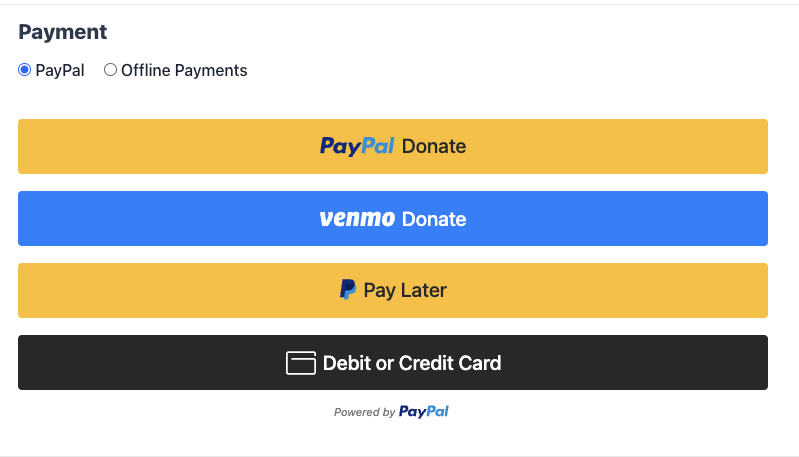
PayPal Commerce is a single, modern PayPal integration that lets your donors pay with PayPal, Venmo, Pay Later, credit and debit cards, Apple Pay, and Google Pay through one connection. One-click “Connect with PayPal” handles the setup, and donations and refunds flow through the standard Charitable donation admin without needing to log in to PayPal.
Available in Charitable Pro 1.8.15+ and Charitable 1.8.11 (which currently not supporting recurring donations / vaulting). It has been tested end-to-end on sandbox and live environments, and we will continue refining the experience based on customer feedback.
Key Features
- Accept donations via PayPal, Venmo, Pay Later, credit and debit cards, Apple Pay, and Google Pay through a single integration.
- Connect your PayPal business account in one click. No developer needed.
- Offer one-time donations and recurring donations from the same form.
- Choose between two recurring modes: PayPal-managed subscriptions, or Charitable-managed renewals using saved payment methods.
- Let returning donors save their PayPal account or card and reuse it on future donations.
- Refund and cancel donations directly from the WordPress admin.
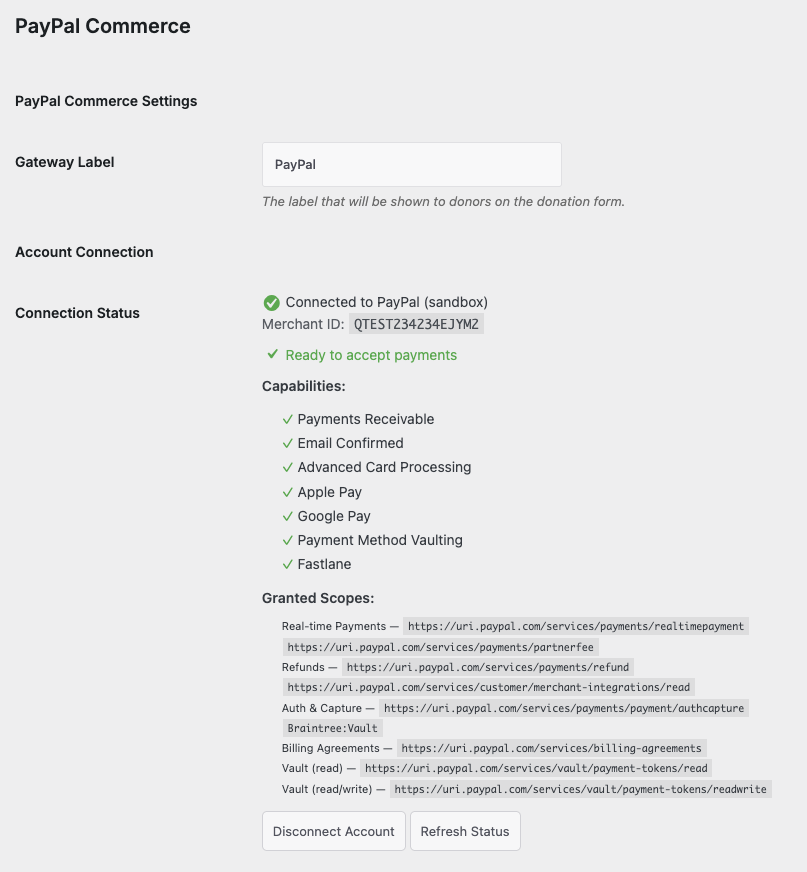
- See real-time PayPal capability status (Payments Receivable, Email Confirmed, Card Processing, Apple Pay, Google Pay, Payment Method Vaulting, Fastlane) in the connection panel.
- Donors who hit a PayPal-side error see clear, friendly messages with a recovery hint instead of a generic browser alert.
Why Use PayPal Commerce?
PayPal Commerce gives your donors the maximum number of ways to pay without making your team manage multiple gateways. A single connection unlocks PayPal, Venmo, Pay Later financing, full credit and debit card processing through PayPal’s PCI-compliant card fields, and the modern wallets (Apple Pay, Google Pay) all donors expect on a 2026-era donation form. Compared to the older Legacy PayPal integration, you get richer payment options, faster checkout, and admin tooling for refunds and recurring management without ever leaving WordPress.
See It In Action
Requirements
- Charitable Lite 1.8.11 or Charitable Pro 1.8.15 or later
- A PayPal business account (you can create one during the connection flow)
- WordPress 6.0+ and PHP 7.4+
- The
gdorimagickPHP extension if you plan to use receipt PDF generation (already required by Charitable core)
Getting Started
Activation
- In your WordPress admin, go to Charitable → Settings → Payment Gateways.
- Find PayPal Commerce in the gateway list and click Enable.
- Click Settings next to PayPal Commerce, then click the Connect with PayPal button.
- PayPal opens in a new window. Sign in to your PayPal business account (or create one) and approve the connection.
- PayPal redirects you back to WordPress. The connection panel will show your merchant ID and a checklist of granted capabilities.
That’s it. You can start accepting donations through PayPal Commerce immediately.
Test Mode vs Live Mode
PayPal Commerce respects Charitable’s standard Test Mode toggle. With Test Mode on, donations route through PayPal’s sandbox so you can validate the full donor flow without moving real money. Switch Test Mode off when you’re ready to accept live donations.
Saved payment methods are scoped per merchant: a card you saved in sandbox will not appear in live mode, and vice versa.
Configuration Options
After connecting, the PayPal Commerce Settings page exposes these options. Most defaults are sensible for a new installation, so you can typically leave them alone.
Payment Methods
| Setting | Type | Default | Description |
|---|---|---|---|
| Enable Venmo | Toggle | Off | Show the Venmo Donate button alongside PayPal. Venmo is US-only and requires the Pay Later capability on your PayPal account. |
| Enable Pay Later | Toggle | Off | Show PayPal’s Pay Later button (Pay in 4, PayPal Credit). Eligibility is determined by PayPal at checkout based on the donor’s region and the donation amount. |
| Enable Card Fields (ACDC) | Toggle | On | Render PayPal’s PCI-compliant credit and debit card fields directly on your donation form. Falls back to a standalone “Debit or Credit Card” button if PayPal hasn’t enabled Card Fields on your account yet. |
| Enable Apple Pay | Toggle | On | Show the Apple Pay button on Safari. Requires Apple Pay capability on your PayPal account. |
| Enable Google Pay | Toggle | On | Show the Google Pay button on Chrome. Requires Google Pay capability on your PayPal account. |
| Enable Fastlane | Toggle | On | Allow returning donors to check out with Fastlane (PayPal’s saved-checkout option for guests). |
| Fastlane Behavior | Select | Guests Only | Choose when Fastlane is offered: guests only, all donors, or never. |
Saved Payment Methods (Vaulting)
| Setting | Type | Default | Description |
|---|---|---|---|
| Enable Payment Method Vaulting | Toggle | On | Allow donors to save PayPal accounts and cards on the donation form for use on future donations. |
| Vaulting Option Display | Select | Opt-in | Choose how the “Save my payment method” option appears at checkout: opt-in (unchecked by default), opt-out (checked by default), or always save. |
| Vaulted Method Expiry (Days) | Number | (empty) | Number of days before unused saved methods are automatically expired. Leave empty for no expiration. |
Recurring Donations
| Setting | Type | Default | Description |
|---|---|---|---|
| Auto-vault for Recurring Donations | Toggle | On | Automatically save the donor’s payment method when they choose a recurring donation. Required for the renewal cron to charge later cycles. |
| Recurring Processing Mode | Radio | PayPal Subscriptions API | Choose how recurring donations are processed. Vault + Cron: your site stores the payment token and triggers each renewal. PayPal Subscriptions API: PayPal manages the renewal cycle automatically (requires Pro license; Lite sites automatically fall back to Vault + Cron with a small platform fee on each renewal). |
Recurring Mode Deep Dive
PayPal Commerce supports two distinct ways to handle recurring donations. Both work with the same donor experience, but the behind-the-scenes flow differs.
Vault + Cron (Merchant-managed)
When a donor chooses a recurring donation, your site saves their PayPal account or card as a vaulted token. On every cycle, Charitable’s cron triggers a fresh charge against that token through PayPal’s Orders API. You retain full control over retry behavior, dunning, and cancellations through Charitable’s recurring donations admin.
Works on Lite and Pro. Lite sites pay a small platform fee (3%) on each renewal capture; Pro sites pay no platform fee.
PayPal Subscriptions API (PayPal-managed)
When a donor chooses a recurring donation, your site creates a PayPal billing plan and a subscription. PayPal handles the renewal cycle automatically and notifies your site when each cycle bills. Donors can also see and manage the subscription in their own PayPal account.
Available on Pro only. Lite sites that select this mode automatically fall back to Vault + Cron, so donors never see an error.
Pro Activation on Existing Recurring Donations
If you activate Pro on a site that already has Lite recurring donations in flight, the platform fee is automatically dropped on the next renewal. You do not need to migrate the subscription, prompt the donor to re-approve, or take any other action. The fee gate is checked at every renewal based on your current license state.
Refunds and Cancellations
Refunds and cancellations are issued from the standard Charitable donation admin. You don’t need to log in to PayPal.
Refund a Donation
- Open the donation in Charitable → Donations.
- In Donation Actions, choose Refunded and check “Refund in PayPal Commerce automatically.”.
- Click Update Status.
If the refund succeeds, the donation status moves to Refunded and the refund ID is recorded in the donation log. If the refund fails (for example, PayPal returns “insufficient balance”), the donation status is reverted to Paid so your records and PayPal stay in sync.
Cancel a Recurring Donation
- Open the recurring donation in Charitable → Recurring Donations.
- In Donation Actions, choose Cancel in Gateway.
- Click Cancel Recurring Donation.
The cancellation is sent to PayPal so the donor isn’t billed again, and the recurring donation post is set to Cancelled in WordPress.
Donor-Facing Errors
When PayPal can’t process a donation (the merchant account is restricted, the card is declined, the country isn’t supported, etc.), donors see a plain-language inline notice on the donation form with a recovery hint. They never see a generic browser alert dialog.
Examples:
- “Online donations via PayPal are temporarily unavailable. Please try a different payment method, or contact us to complete your donation.”
- “Your payment method was declined. Please try a different card or use PayPal balance.”
- “Donations via PayPal are not supported from your country. Please try a different payment method.”
If the current visitor is signed in as an admin (capability manage_charitable_settings or manage_options), the inline notice additionally shows the underlying PayPal error text and the PayPal debug ID so you can triage without checking the logs.
Logs
Every PayPal API error is recorded in Charitable → Tools → Logs under the source paypal_commerce. Each entry includes:
- The friendly message the donor was shown
- The raw PayPal error text
- PayPal’s error issue code (e.g.,
PAYEE_ACCOUNT_RESTRICTED) - PayPal’s debug ID (for support tickets with PayPal)
- Donation context: amount, campaign, payment method
This is the fastest way to diagnose a customer report of “PayPal isn’t working.”
Troubleshooting
Donors see “Online donations via PayPal are temporarily unavailable.”
This message indicates PayPal has restricted your merchant account. Sign in to paypal.com with your business account, address any pending verification or compliance items, and then return to Charitable → Settings → Payment Gateways → PayPal Commerce and click Refresh Status to confirm the restriction is cleared.
The “Pay with Card” tab doesn’t render; only a “Debit or Credit Card” button shows.
PayPal hasn’t yet enabled the Advanced Card Processing (ACDC) capability on your account. The standalone Card button still accepts donations through a hosted PayPal popup. To enable inline card fields, log in to your PayPal business account, complete any pending verification steps, and return to the connection panel and click Refresh Status.
After disconnecting and reconnecting, the connection still shows the old merchant.
Clear your WordPress object cache (or restart your PHP-FPM service if a host-level cache is involved). The Refresh Status button forces a fresh capability check from PayPal.
Recurring donations never renew.
Check that Auto-vault for Recurring Donations is on and that WordPress cron is running on your server. For Vault + Cron mode, the renewal cron fires daily and charges each due recurring donation. Look in Charitable → Tools → Logs for entries from paypal_commerce to see if any renewal attempts have run or failed.
Refund button shows “No capture ID found” on a subscription donation.
This can happen if you attempt a refund within seconds of the donor approving the subscription, before PayPal has recorded the first transaction. Wait a few minutes and try again. The plugin will recover the capture ID from PayPal’s transaction history at refund time.
Developer Resources
Hooks & Filters
charitable_paypal_log_platform_fee_on_donation(filter, defaultfalse). Returntrueto append a “Platform fee” line to the donation log on every capture. Useful for sites that want full visibility into Lite-tier renewal fees.charitable_paypal_platform_fee_percentage(filter, default3). Adjust the platform fee percentage applied to Lite-tier donations.charitable_donation_cancellation_page(filter). Customize the page donors land on after cancelling a PayPal subscription approval.charitable_donation_cancellation_args(filter). Customize the query args appended to the donation cancellation URL.
WP-CLI
The plugin ships with one PayPal-specific WP-CLI command:
wp charitable paypal force-commerce-tier
Use this if Charitable detected your site as a Legacy PayPal site (e.g., it has imported donations from a legacy export, or an abandoned legacy gateway test) and you want to opt in to PayPal Commerce instead. Includes a --dry-run preview, and a required --confirm-recurring-impact acknowledgement when active legacy recurring donations are present.
Webhooks
Once you connect, the connection panel exposes your site’s webhook URL. Subscribe to these events in your PayPal Developer Dashboard:
CHECKOUT.ORDER.APPROVEDPAYMENT.CAPTURE.COMPLETEDPAYMENT.CAPTURE.DENIEDPAYMENT.CAPTURE.PENDINGPAYMENT.CAPTURE.REFUNDEDMERCHANT.ONBOARDING.COMPLETEDMERCHANT.PARTNER-CONSENT.REVOKED
For sandbox accounts you can also click Auto-Create Webhook to register them automatically.