
Are you ready to offer your donors the trusted convenience of PayPal for their donations? Enabling PayPal in Charitable allows you to easily accept contributions using one of the most recognized and reliable payment methods in the world.
With just a few clicks, you can enhance your fundraising efforts and provide a seamless donation experience.
In this guide, we’ll walk you through setting up PayPal as a payment gateway in Charitable, customizing its settings, and ensuring everything is running smoothly, so you can start accepting donations with confidence.
Enable PayPal Payment Gateway
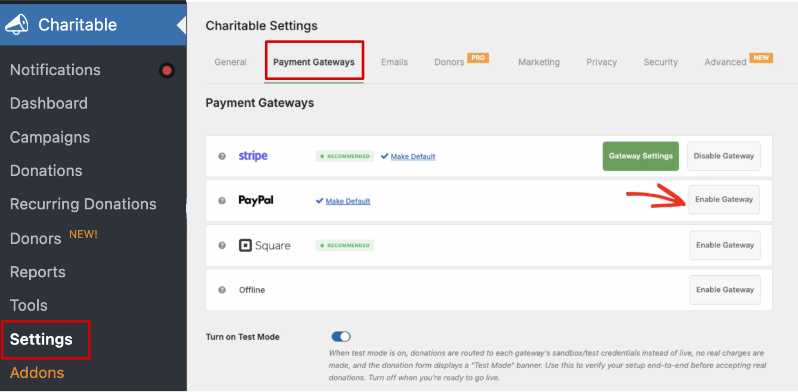
First, to enable PayPal, head to your WordPress admin. Go to Charitable » Settings » Payment Gateways tab. Here, you’ll see the PayPal option along with a button to “Enable Gateway”.
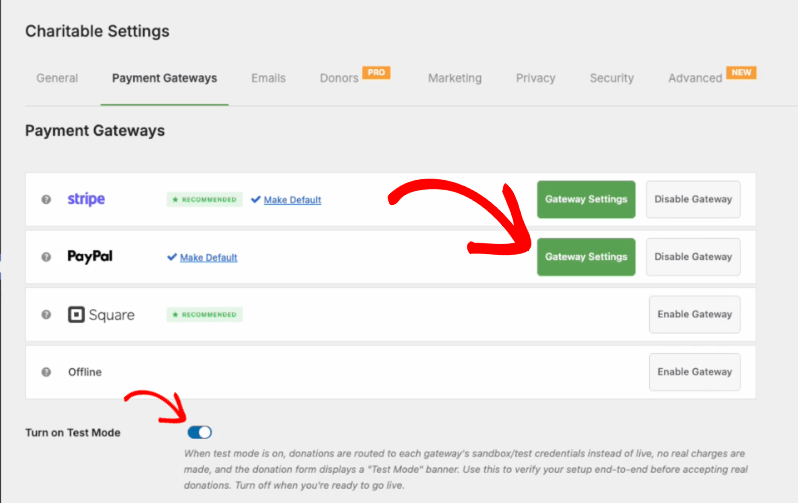
When you enable the gateway, a new green “Gateway Settings” button will appear.
At this point, we recommend first turning on Test Mode. This will allow you to set up the gateway safely without any transactions accidentally coming through when you’re not ready. When test mode is active, you should see an alert at the top.

Note: If you’re using Charitable Lite, there’s a 3% fee for every transaction along with PayPal charges. To remove the additional 3% charge, you’ll need to upgrade to Charitable Pro.
Connect to Your PayPal Account
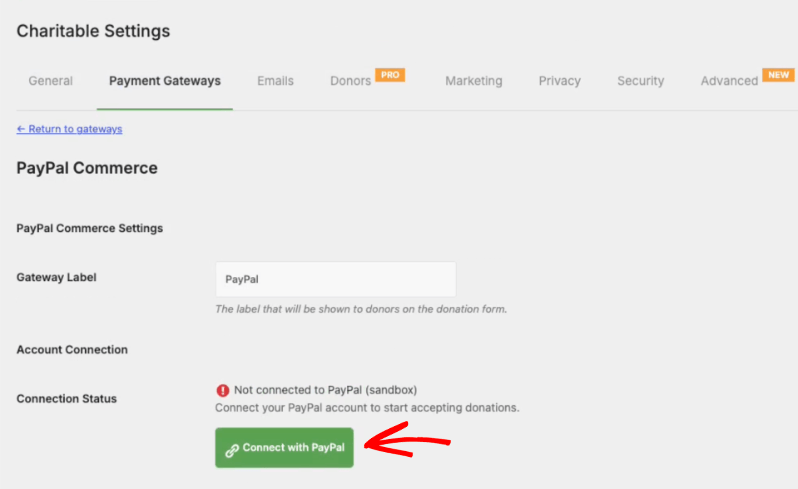
Now click on the Gateway Settings to go to the PayPal settings page.
On this page, you can now connect to PayPal with a few clicks. There’s absolutely no coding needed.
Start by hitting the green “Connect with PayPal” button.
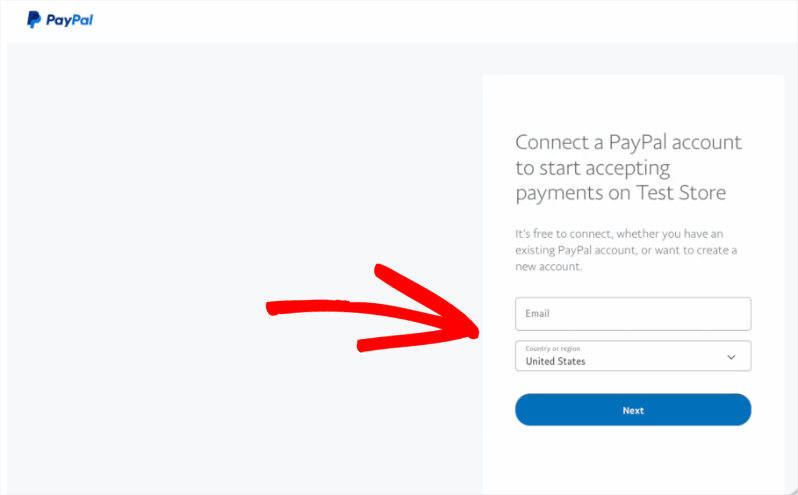
This will open up a new page to log in to your PayPal account. Enter your email and follow the onscreen instructions from PayPal.
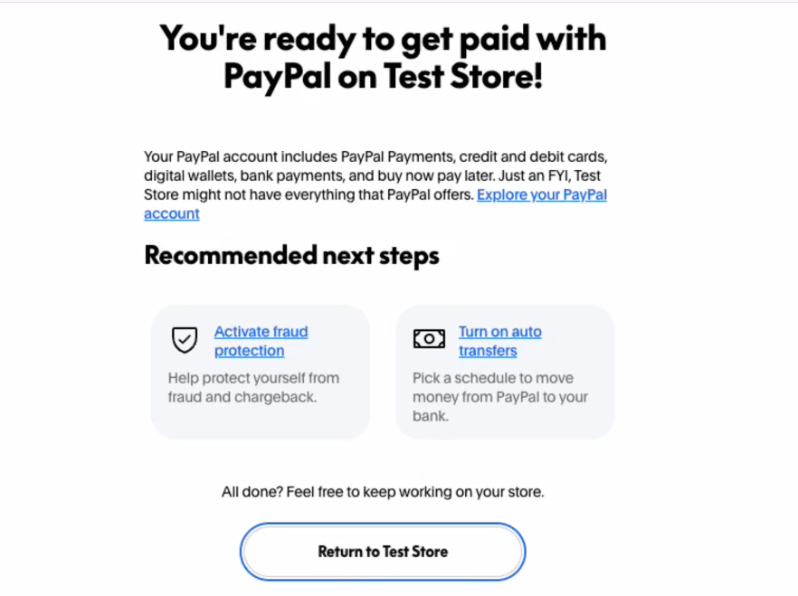
Once you’ve logged in, you’ll see a success message like this. This lets you know that you’re ready to get paid with PayPal on your eCommerce store.
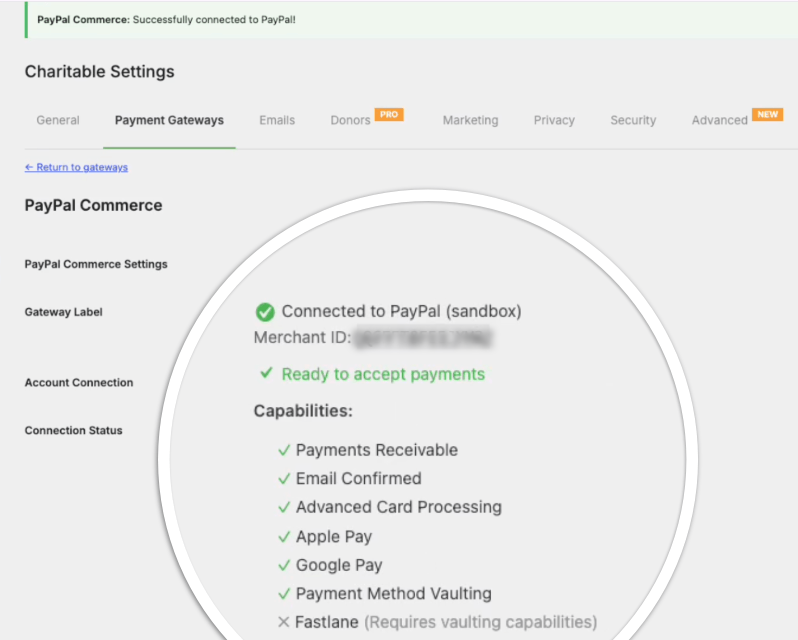
Back in your WordPress site, you’ll see that PayPal Commerce is successfully connected. Charitable also gives you a list of capabilities available to you. These include:
- Payments Receivable
- Email Confirmed
- Advanced Card Processing
- Apple Pay
- Google Pay
- Payment Method Vaulting
- Fastlane
Below this, you’ll see more settings and configurations to fine-tune your PayPal Commerce Gateway. We’ll go through the options available here.
Customizing PayPal Commerce Settings
Webhooks
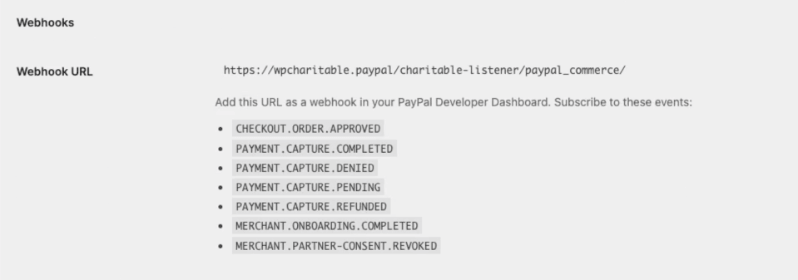
These are the webhooks available for developers to use:
- CHECKOUT.ORDER.APPROVED
- PAYMENT.CAPTURE.COMPLETED
- PAYMENT.CAPTURE.DENIED
- PAYMENT.CAPTURE.PENDING
- PAYMENT.CAPTURE.REFUNDED
- MERCHANT.ONBOARDING.COMPLETED
- MERCHANT.PARTNER-CONSENT.REVOKED
Button Customization
You can change the button color and shape here to match your donation form better. Use the drop down menus to see the options available here.

Enable More Payment Methods
Below the button customization options, you’ll see options to enable Venmo and Pay Later.
- Venmo is a highly popular mobile payment service owned by PayPal, primarily available only in the United States. It is designed to make it easy to send and receive money directly from your smartphone.
- “Pay Later” (often referred to broadly as Buy Now, Pay Later, or BNPL) is a type of short-term financing that allows consumers to make purchases and pay for them at a future date, often interest-free.
You can enable these options using the toggle button here.

Next, there are more advanced payment methods. These include:
- Card Fields (ACDC) – This shows credit and debit card fields directly on your site. It requires Advanced Card Processing approval
- Apple Pay – This requires Apple Pay approval from PayPal. It will appear to users on the Safari browser on Apple devices.
- Google Pay – Appears to donors using Chrome or Edge browsers with Google Pay enabled. This requires Google Pay approval from PayPal.
- Fastlane – Gives you an accelerated checkout for guest users.
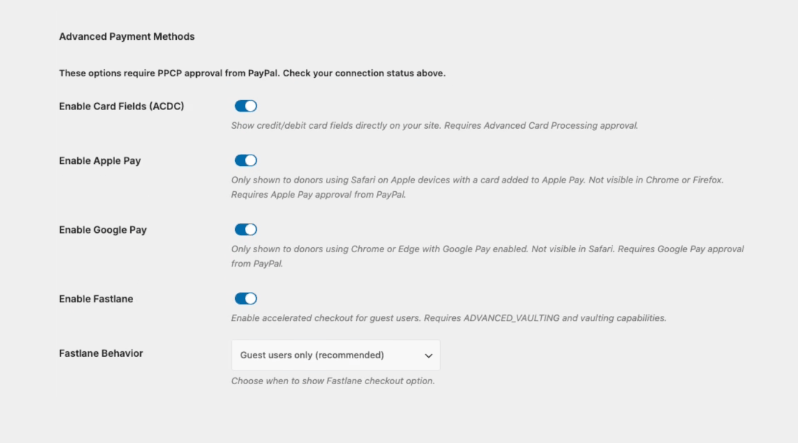
All of these options can be enabled/disabled using the toggle button.
Payment Method Vaulting
Payment Method Vaulting (often referred to simply as the PayPal Vault) is a feature used by merchants and businesses to securely save a customer’s payment information for future use.
Instead of a business storing your sensitive credit card or bank account details on their own servers – which is a massive security risk – they use PayPal’s Vault to handle it.
You can enable it using the toggle next to “Enable Payment Method Vaulting”.
When enabled, you can customize the settings thatt include:
- Vaulting Option Display: This decides how the option to save payment methods appears to users during checkout
- Auto-vault for Recurring Donations: When enabled, this automatically saves payment methods for recurring donations.
- Recurring Processing Mode: You can choose Vault+Cron (merchant-managed) or PayPal Subscriptions API (PayPal-managed)
- Vaulted Method Expiry (in Days): Number of days before stored methods go unused before they expire. You can leave it empty if you don’t want this data to expire.
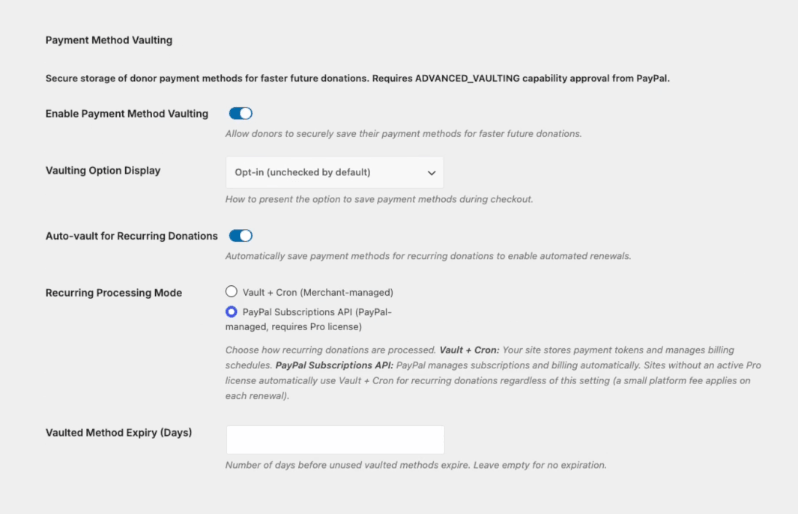
Once you’re done making changes, make sure you save changes before exiting this page.
Testing Your Donation Form with PayPal Commerce
We recommend running test transactions to ensure your transactions go through. Open any Charitable campaign, select an amount you want to donate. Scroll to the payment section and you should see PayPal appear like so:
Choose your preferred payment method and complete your donation.
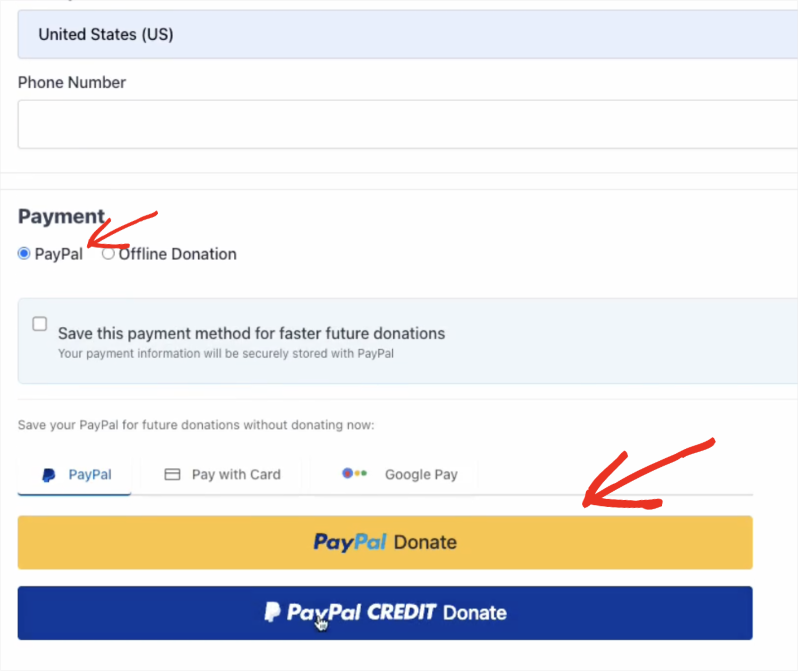
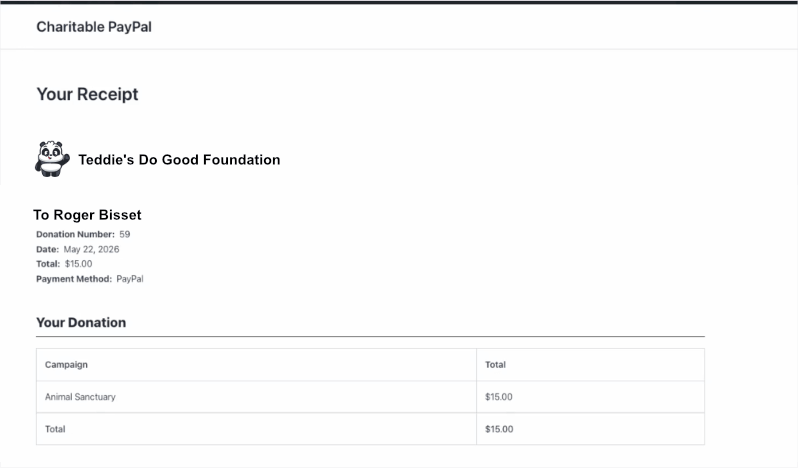
Once your donation is successful, your receipt will appear.
Here’s a sample:
Check Donation Records
Head over to Charitable » Donations. You can view the donation record list here. Choose the one you just made.
On the next page, you’ll see the Donation Details. This will show you the Payment method and the log which bears all the details of the Prder ID, PayPal capture ID, and gateway transaction ID.
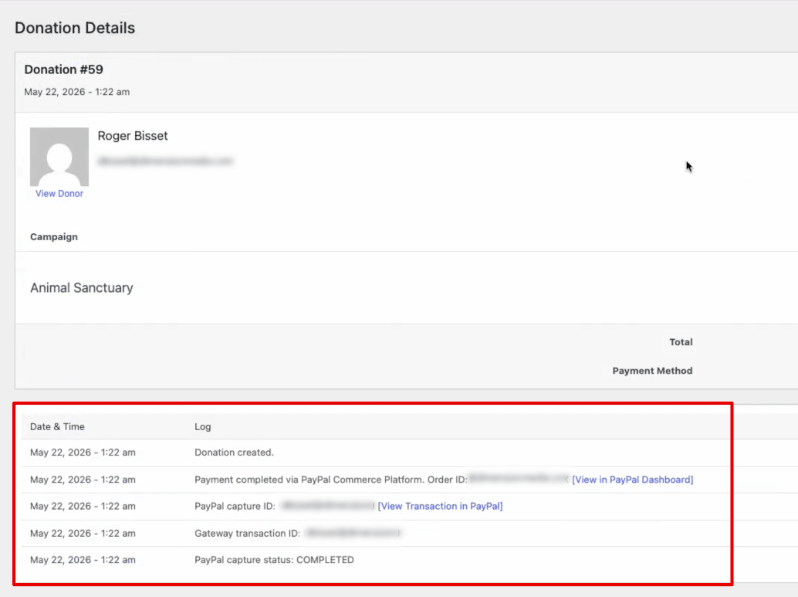
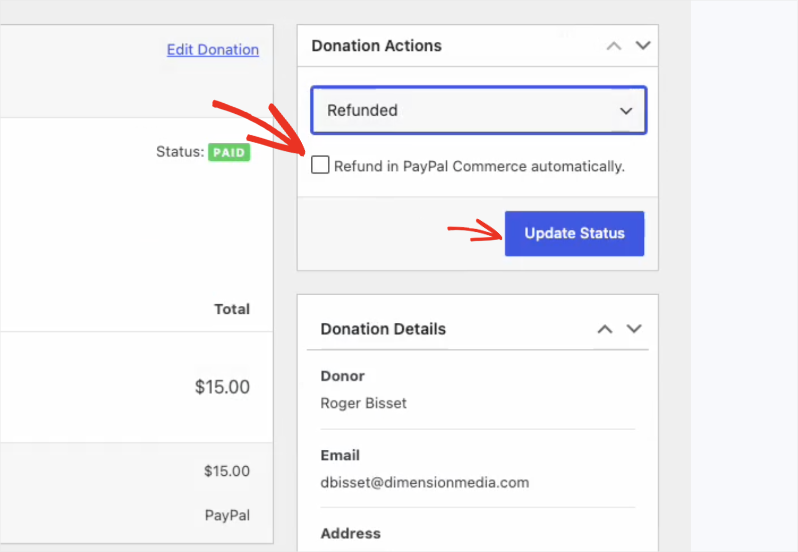
On the right panel of this screen, you’ll see Donation Actions.
Using the drop-down menu, you can choose to refund the donation
Check the box that reads “Refund in PayPal Commerce automatically.”
Then “Update Status” here.
This will ensure that the donation is refunded directly through PayPal.
When you’re done testing PayPal with Charitable, make sure you turn off Test Mode. Now live donations can come through to your non-profit.
Disconnecting PayPal Commerce
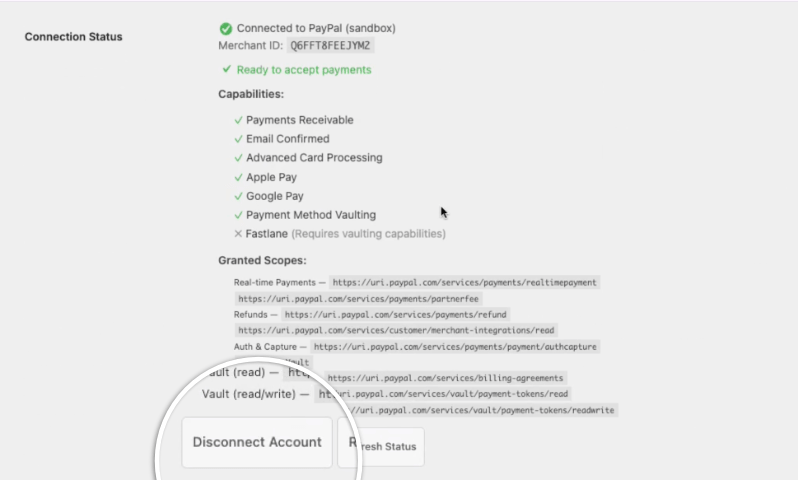
To disconnect PayPal, return to Charitable » Payment Gateways, click on the “Gateway Settings” next to PayPal.
On this page, find the “Disconnect Account” button under Connection Status.
Disabling the PayPal Gateway
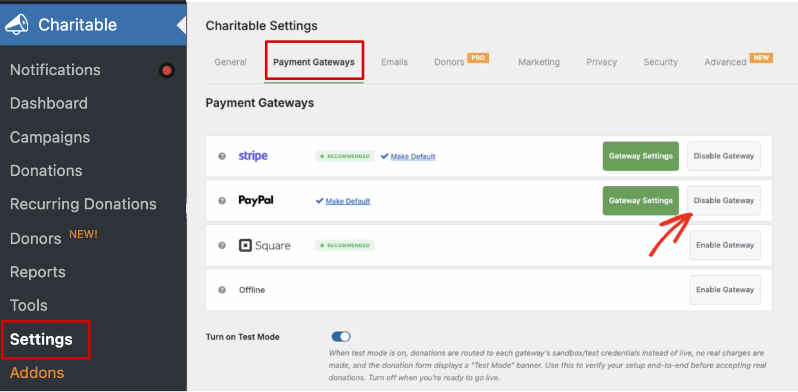
To disable the PayPal gateway, go to Charitable » Payment Gateways. Next to PayPal, you can click on the “Disable Gateway” button.
That’s it. You’ve learned how to set up and manage PayPal as a payment gateway in Charitable. Next, you may also want to learn about payment gateways:
You may also want to read our guide on Understanding Nonprofit Platform and Processing Fees (And How to Minimize Them) »
Need support? Have a question? If you are a lite/free user of Charitable, you can reach out to our team on the WordPress.org support forums. If you have an active license, feel to reach out us directly for priority support.
Stay Connected for More Nonprofit Resources
For more tutorials and videos tailored to nonprofits, subscribe to our YouTube channel. We regularly publish expert tips, step-by-step guides on online donations, fundraising strategies, and practical resources to help your organization succeed.
🗞️ Get weekly tips and exclusive guides in your inbox
Join our newsletter →
🎥 Watch step-by-step tutorials and success stories
Subscribe to our YouTube channel →
👩🏽💻 Connect with our community and get daily nonprofit insights
Follow us on LinkedIn →
🥳 Fun reels and non-profit insights
Follow us on Instagram →
👀 Insightful & fun videos to help you grow your cause
Follow us on TikTok→
🌎 Subscribe and follow for general fundraiser tips
Get Fundraiser Tips on TikTok →
Powerful Fundraising Resources
⬇️ Download proven strategies, campaign ideas, and expert tools
Get the Fundraising Kit →
💸 Get Free Fundraising Resources
Head to the Charitable Fundraising Hub →
🤔 Got questions about Charitable?
Charitable FAQs →
🏎️ Take Charitable for a spin
Create your Charitable Demo →
Understand non-profit terms and jargon
Non-Profit Glossary →
% Looking for non-profit deals and discounts?
Best Non-Profit Deals and Discounts →

