
Authorize.Net is a trusted payment gateway that lets you accept credit cards, debit cards, eChecks, and digital wallets like Google Pay and Apple Pay on your donation forms. This guide walks you through installing the addon, connecting your Authorize.Net account, and configuring every setting on the gateway’s settings page.
Authorize.Net is available in the Charitable Pro plugin – All plans (Basic, Plus, Pro, or Eliter)
What’s In This Guide?
Requirements
To use the extension, you will need an Authorize.Net account and an SSL certificate. Note that you can only set up an Authorize.Net account if your organisation is based in the United States, Canada, United Kingdom, Europe or Australia.
Additional Requirements:
- Charitable 1.6.30+
- PHP 5.3+ (5.6+ is recommended)
- An Authorize.Net account.
- An SSL certificate.
Note: The Charitable Authorize.Net integration supports card payments as well as ACH bank transfers (currently only available for U.S.-based Authorize.Net customers).
U.S. based organizations can take advantage of Authorize.Net’s E-check/direct ACH payments, providing your donors with the ability to pay directly from their bank account without using their credit or debit card at all. As an added bonus, the transaction fees charged by Authorize.Net on E-check payments are only 0.75%, meaning your organization gets more of the donor’s contribution.
Installing the Authorize.Net Addon
Installing Authorize.Net is the same as installing any other Charitable addon. Go to Charitable » Addons, find Authorize.Net in the list, install and activate it.
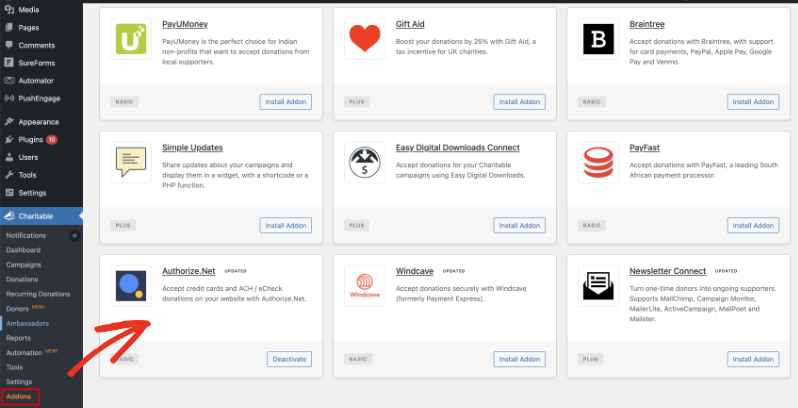
Note: If you’ve never installed a Charitable addon before, see our guide to installing Charitable extensions for more detail.
Enabling the Gateway
Go to Charitable » Settings » Payment Gateways. You’ll see Authorize.Net listed among the available gateway options.
Click “Enable Gateway” next to Authorize.Net to turn it on.
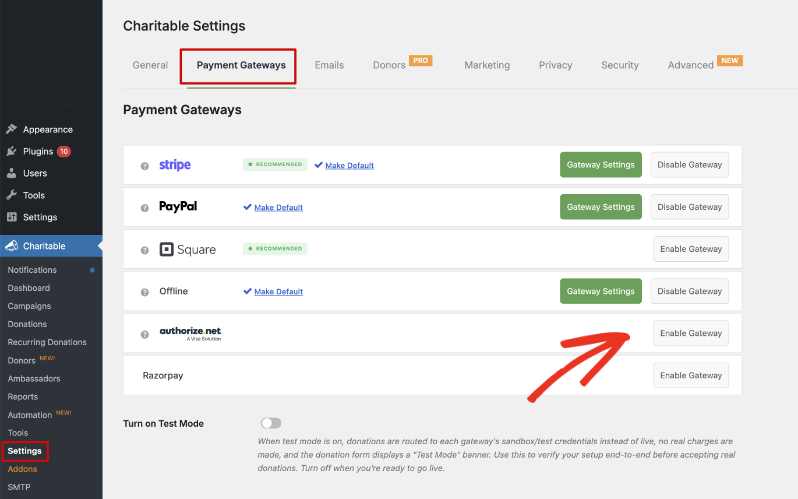
After the page reloads, a new “Gateway Settings” button appears next to Authorize.Net. Click it to open the gateway’s settings page, where you’ll add your credentials and configure the rest of the options covered below.
Adding Your API Credentials
At the top of the Authorize.Net settings page, you’ll see the Gateway Label field. This is the label your donors see when choosing a payment method on the donation form. It defaults to “Authorize.Net,” but you can change it to anything you like.
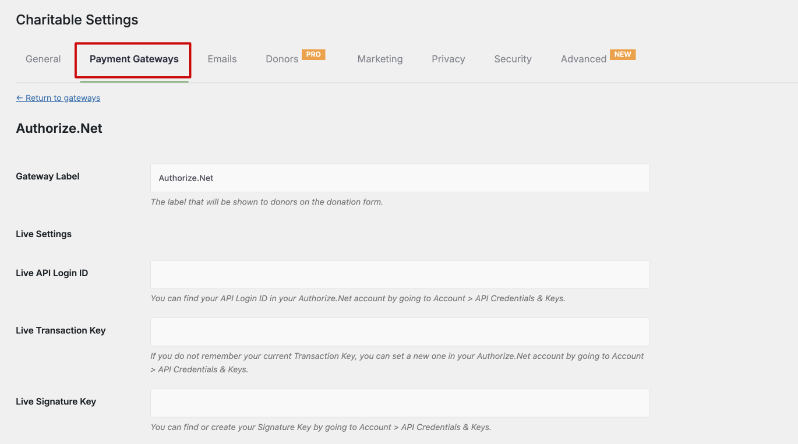
Below the Gateway Label, you’ll find Live Settings and Test Settings:
- Live Settings – Use the credentials from your live Authorize.Net account. Donations processed here charge real cards and bank accounts.
- Test Settings – Use the credentials from an Authorize.Net sandbox account. Donations processed here are simulated, so no money changes hands.
Pro tip: Create a free Authorize.Net sandbox account and add its credentials to Test Settings so you can test your donation forms end to end before switching over to Live Settings.
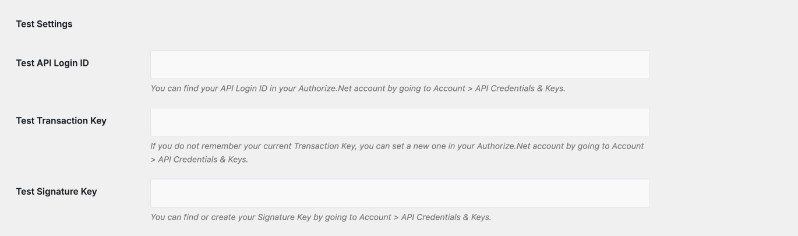
Each set of settings, Live and Test, needs the same three values: an API Login ID, a Transaction Key, and a Signature Key. Here’s how to find them in your Authorize.Net account.
Finding Your API Login ID, Transaction Key, and Signature Key
This part of the process happens inside your Authorize.net account. At the time of writing this guide, this is the process followed. We recommend referring to the official Authorize.net documentation for any updates to these steps.
- Sign in to the Authorize.Net Merchant Interface at account.authorize.net.
- Confirm you’re on the New Merchant Interface (2.0). If you’re not sure which version you’re using, Authorize.Net has a support article explaining how to check and switch between the Classic (1.0) and New (2.0) experiences.
- Click Account in the left navigation, then click “Account and API Settings.”
- Select “API Credentials & Keys” under Security Settings.
- Your API Login ID is listed under the API ID section on this page. Copy it into the API Login ID field in Charitable.
- To generate your Transaction Key or Signature Key, select “New Transaction Key” or “New Signature Key,” then click Submit.
- Check “Disable Old Transaction/Signature Key Immediately” if you want to deactivate the previous key right away. Leave it unchecked and the old key expires automatically after 24 hours.
- Request and enter the PIN sent to you for verification, then click Submit.
- Copy the new key and paste it into the matching field in Charitable right away.
Important Note: Authorize.Net only displays your Transaction Key and Signature Key once, at the moment you generate them. If you navigate away before copying it, you’ll need to generate a new key and update Charitable again.
Repeat these steps for your sandbox account to fill in the Test Settings fields, then click “Save Changes.”
Configuring Additional Gateway Settings
Under Misc, you’ll find “Show Accepted Card Logos.” Enable it to display the accepted card brand logos (Visa, Mastercard, American Express, Discover) beside the Card Number field on your donation form. When this is on, Charitable also highlights the matching brand’s logo as a donor types their card number.
Enabling E-check Payments
E-check lets donors with a US bank account give by entering their routing and account numbers instead of a card. You’ll need to turn on eCheck support in your Authorize.Net account before you can enable it in Charitable.
- Log in to your Authorize.Net account.
- Under “Products & Services,” click “eCheck.Net.”
- Fill out and submit the eCheck.Net application.
- Once Authorize.Net approves your application, go back to your Charitable Authorize.Net settings and turn on “Enable E-check Support” under E-check Settings.
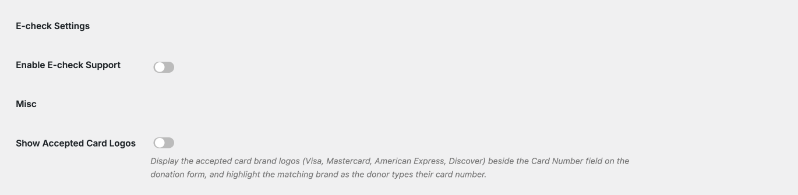
Note: The eCheck.Net application goes through an approval process with Authorize.Net, so this option won’t work until your application is approved. eCheck payments are only available to donors with a US bank account.
Syncing Required Fields
In your Authorize.Net account, you can choose which fields are required on your payment form, under Account » Payment Form » Form Fields. Some merchants require extra fields like a billing address for fraud prevention.
Rather than setting those same fields as required in both places, use the Sync Required Fields tool to pull your Authorize.Net form field settings into your Charitable donation form automatically.
- In Authorize.Net, go to Account » Payment Form » Form Fields and choose which fields are required.
- Back in Charitable, scroll to the Tools section of the Authorize.Net gateway settings.
- Click “Sync Required Fields.”

Charitable shows the date and time of the last sync underneath the button, so you always know whether your settings are current. Run the sync again anytime you change your required fields in Authorize.Net.
Supporting Multiple Currencies
Under Multi-Currency, you’ll see a list of Supported Currencies for the Authorize.Net gateway. Check the box next to each currency you want to accept.
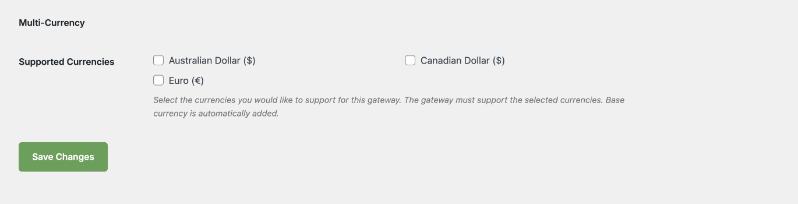
Your site’s base currency is added automatically and can’t be unchecked. Only select a currency here if Authorize.Net supports it for your account, since a mismatch will cause donations in that currency to fail.
Authorize.Net is available on all plans in the Charitable Pro plugin.
Not yet on Charitable Pro? You can get up to 50% off when you sign up for or upgrade to Charitable Pro. We want to ensure that you can try the advanced fundraising features like Recurring Donations, Donation Recovery, and more at a significantly reduced cost.
Join over a million satisfied Charitable Pro users today. Every purchase comes with a 14-day money-back guarantee, ensuring you’re supported every step of the way.
If you have any questions or need assistance, our support team is ready to help you make the most of these new features.
FAQs on Authorize.Net
What’s the difference between my API Login ID and my Merchant Interface login?
Your API Login ID identifies your account to Authorize.Net for transactions submitted from your website. It’s separate from the username and password you use to log in to the Merchant Interface, and it can’t be used to access your account directly.
Can I use the same API credentials on more than one website?
Yes. Your API Login ID, Transaction Key, and Signature Key can all be used across multiple websites under the same Authorize.Net account.
Why can’t I see my Transaction Key after I generate it?
Authorize.Net only shows the Transaction Key at the moment it’s created. Copy it into Charitable right away, because it won’t be displayed again in the Merchant Interface.
What happens if I don’t disable my old Transaction or Signature Key?
The old key expires automatically after 24 hours. During that window, it still works for hash and response validation, so donations already in progress won’t be interrupted.
Is eCheck available to donors outside the United States?
No. eCheck payments only work with US bank accounts. Donors outside the US will need to give by card instead.
Do I need both a live account and a sandbox account?
Only your live account is required to accept real donations. A sandbox account is optional but recommended, since it lets you test your donation forms with simulated transactions before you go live.


