
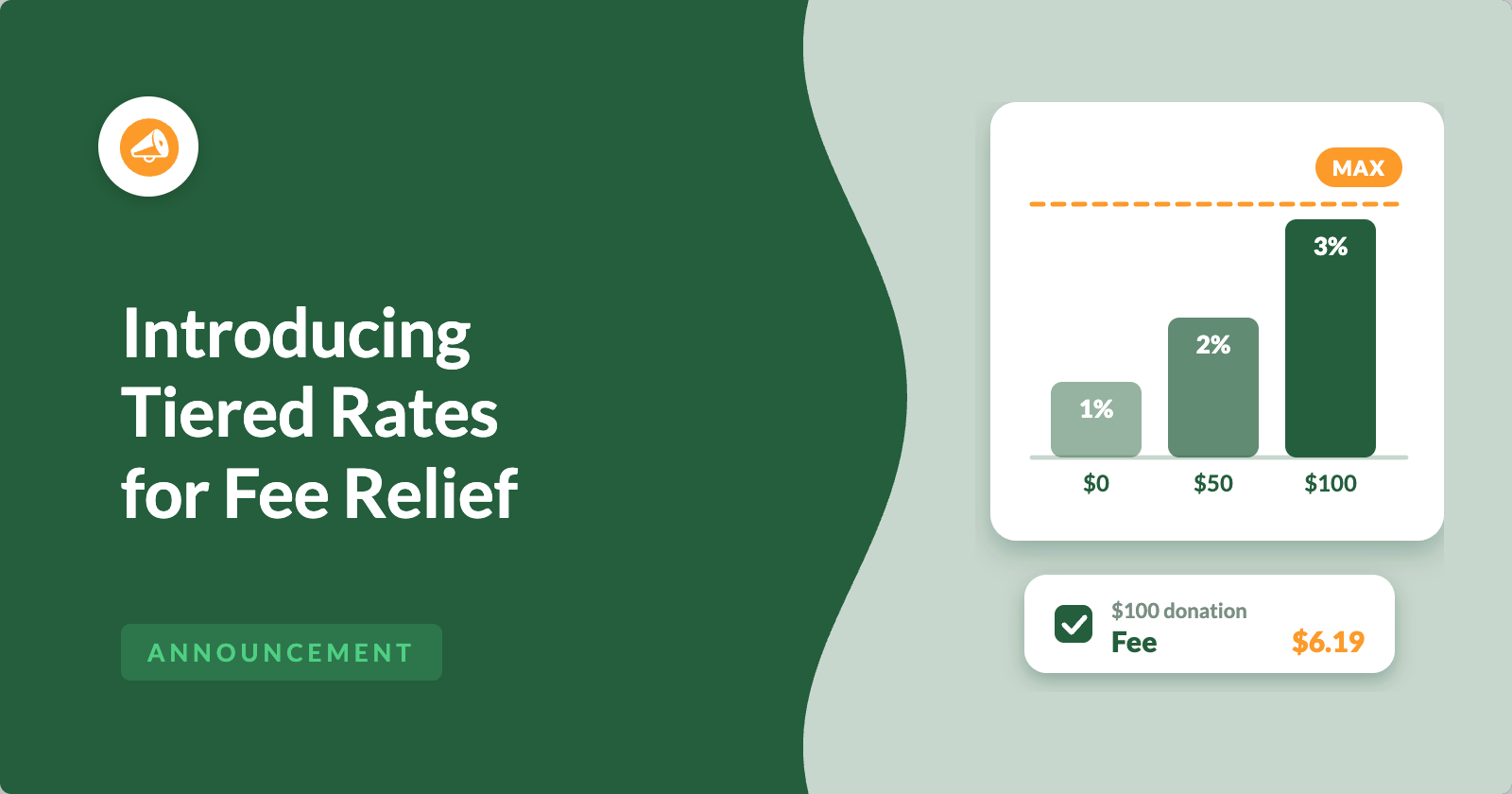
Charitable’s Fee Relief feature asks donors one short question at checkout. Would you like to cover the processing fee on this gift? Most donors say yes, and the organization keeps the full amount it was given.
Until now, that question used a single rate for each payment gateway. Several of you wrote in asking for something more specific, because a $10 gift and a $500 gift do not feel the same to the person giving them.
So we’ve added tiered rates. You can now set as many donation bands as you like on a gateway, and each band carries its own percentage and its own fixed amount.
There’s a new optional maximum fee too, so no donor is ever asked to cover more than a number you choose. 💸
Here’s What Tiered Rates Look Like
Before we go through the setup, here’s the screen itself. It lives under Charitable » Settings » Advanced » Fee Relief, where every payment gateway now has a Use Tiered Rates switch.
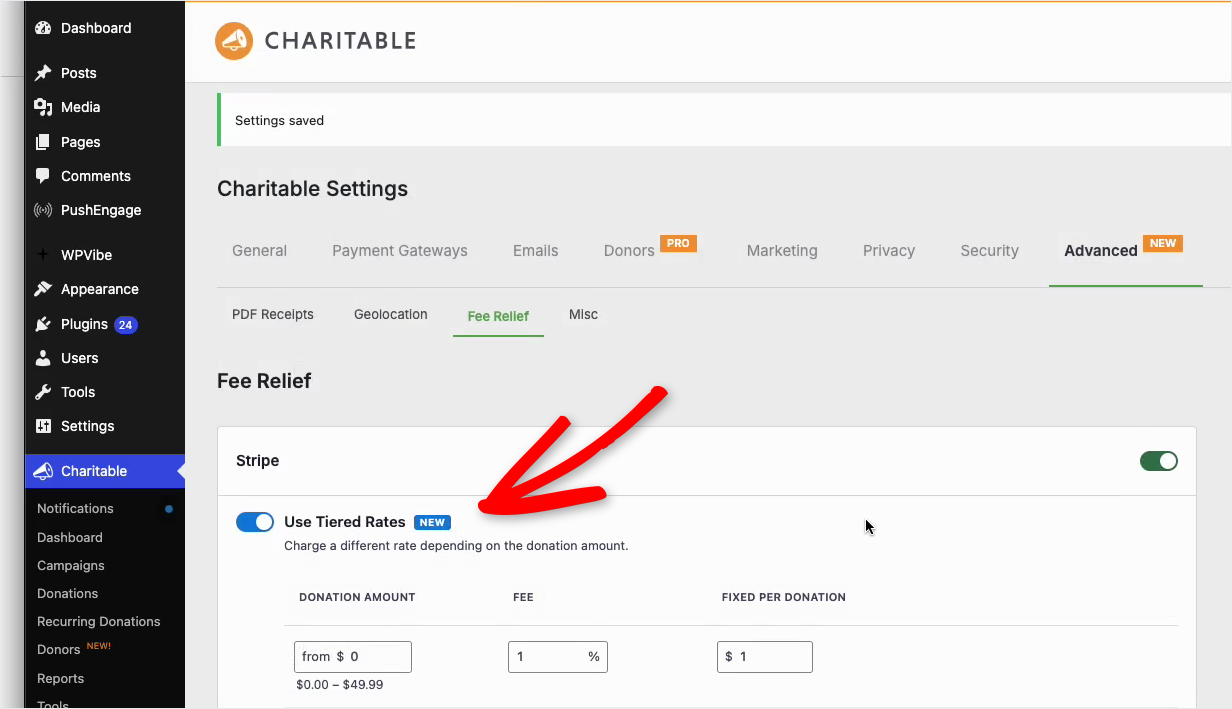
Stripe has the switch on here, so its rates are set band by band. The first band covers gifts under $50, and it asks for 1% plus $1.00.
Windcave and Payfast carry the same switch, and leaving it off keeps that gateway on a single rate. Each payment gateway is set up on its own.
See it in Action
Why Use Tiered Fee Relief
Processing a donation is rarely a flat percentage in practice. Most gateways charge a percentage of the gift plus a fixed amount for the transaction itself.
That fixed amount is a much bigger share of a small gift than a large one. On a $10 donation, 30 cents is another 3% all by itself. On a $500 donation you would barely notice it.
So a single rate for every gift means your smallest donors are asked for the largest share of what they gave. Bands let you go gentler at the bottom and be more accurate at the top.
If you want the background on what processors actually charge, we wrote up how nonprofit payment processing fees work in detail. There is also a walkthrough of how Fee Relief lifts what you actually receive.
When You’ll Feel the Difference
A few situations where bands earn their keep right away:
- 🪙 Small monthly gifts: a $5 or $10 recurring donor can be asked for a few cents instead of an amount that looks expensive next to the gift.
- 🎁 Major gifts: your top band can reflect what a large transaction really costs you, and the maximum fee keeps the number from getting alarming.
- 🏦 Pricing that changes with the amount: if your processor or your bank quotes you differently at different amounts, you can now mirror that band by band.
- ⛪ Churches with a wide range of giving: a $20 offering and a $2,000 pledge can each be asked for something sensible, whatever your church fundraising calendar looks like.
- 🧮 Forms with suggested amounts: put a band around each suggested amount and you know exactly what every button on the form will ask for.
How the Bands Work
Every row starts at a from amount, and it applies from there up to wherever the next row starts. A band is simply a range of donation amounts.

Charitable prints the range under each row while you type. The row starting at $50 shows $50.00 to $99.99 as soon as a row starting at $100 exists, and the last row has no upper limit at all.
You add a row with the plus button on the right and remove one with the ×. Only one rate is ever applied to a donation, picked by the band that donation lands in.
The Example Line Updates as You Type
Under the table sits a worked example, and it recalculates while you edit. It names the band, the percentage, the fixed amount and the rough total.
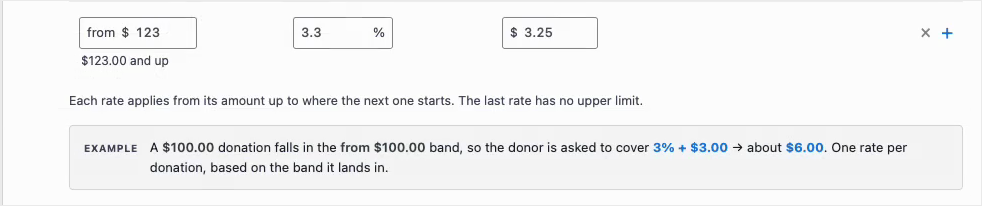
In the screenshot above it reads that a $100.00 donation falls in the from $100.00 band, so the donor is asked to cover 3% plus $3.00, which comes to about $6.00.
It’s a small addition, but it means you don’t need a calculator open to check whether you typed 3 or 0.3.
A Ceiling on the Largest Gifts
Each gateway also gets a Maximum fee field, and filling it in is optional. Whatever your bands work out to, the donor is never asked for more than this number.

Stripe is capped at $100 in that example. A $20,000 gift in the top band would work out far above that, and the fee stops at $100 instead.
A very large fee sitting next to a very large gift can put a donor off, and the cap keeps that number reasonable no matter how big the donation is.
Set It Per Payment Gateway
Bands belong to a gateway, not to your whole site. Stripe can run on 4 bands while Windcave and Payfast stay on a single percentage and fixed amount.
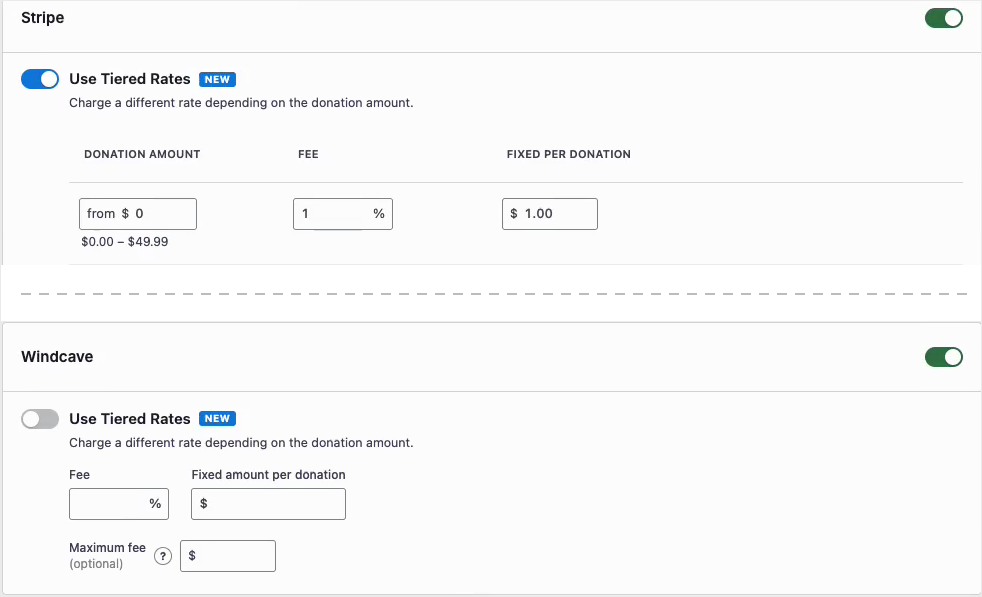
The maximum fee is per gateway too. Windcave in that screenshot has Use Tiered Rates switched off and shows one Fee field, one Fixed amount per donation field and its own Maximum fee.
If you only want bands on the gateway that carries most of your donations, that’s all you have to set up.
What the Donor Sees
Nothing about the donation form changes. The donor still sees a checkbox with the amount in it and the new total underneath.
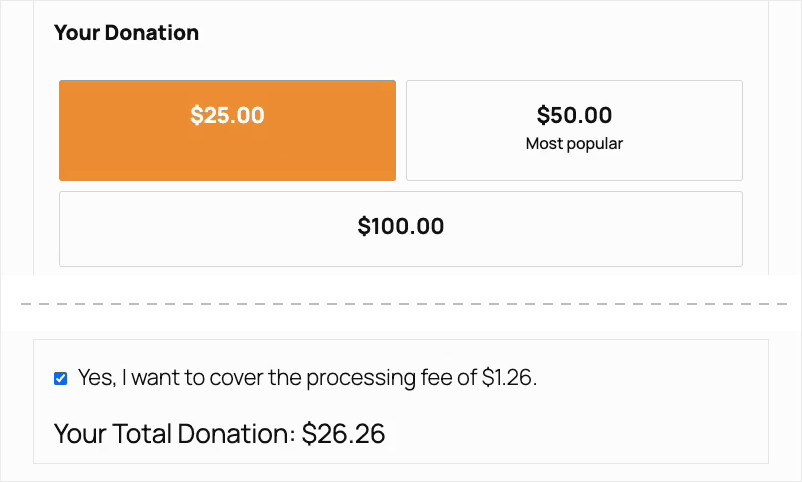
With the bands from earlier, a $25 gift lands in the first band. The form asks for $1.26 and shows a total of $26.26.
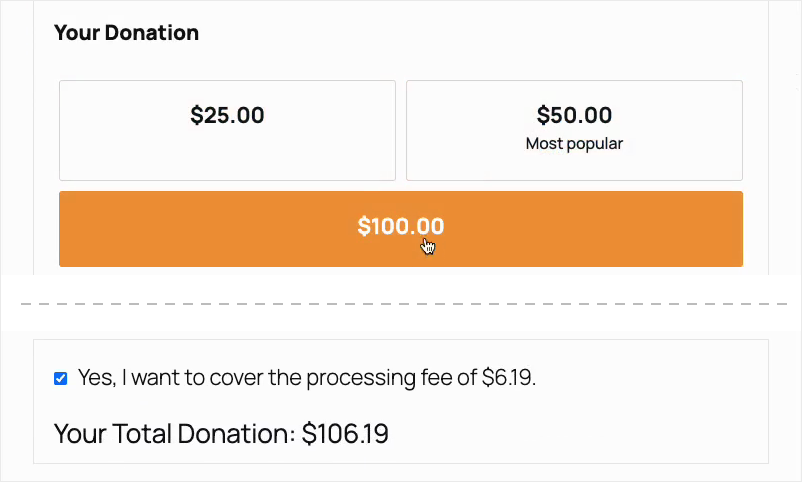
Pick $100 on that same form and the fee becomes $6.19, for a total of $106.19. Same form, same donor, different band.
Both numbers sit a little above the band rate on its own, because the default formula also covers the processing cost on the extra amount. That way your organization receives the full $25 or $100 the donor picked.
Set Up Tiered Rates in About 5 Minutes
To get started, head over to Charitable » Settings » Advanced » Fee Relief. Everything below happens on that screen.
Step 1: Turn On Tiered Rates for a Gateway
Find the gateway you want to change and switch on Use Tiered Rates. The table appears with a first row ready for you.
Step 2: Add Your First Band
For the first row, set the from amount to 0, then fill in the percentage and the fixed amount you want to ask for on your smallest gifts.

Step 3: Add the Bands Above It
Using the plus button, add a row, set its from amount, and give it its own percentage and fixed amount. Charitable works out the ranges and labels them underneath.
Step 4: Set a Maximum Fee If You Want One
The Maximum fee (optional) field sits just under the table. Anything you put there becomes the ceiling for that gateway.
Step 5: Read the Example, Then Save
Have a look at the example line to confirm the numbers behave the way you expect, then click Save Changes.
Your donation forms pick the new rates up straight away, so open a campaign page and try a couple of different amounts.
Read the Full Fee Relief Documentation →
Beyond the Basics
How the Checkbox Behaves by Default
The Default fee relief mode setting is unchanged and still decides what your donors meet. You can leave it disabled, show the checkbox unchecked, show it already checked, or opt every donor in automatically.
That choice can also be changed on a per-campaign basis, so a year-end appeal can behave differently from your everyday donation page.

Choosing Your Fee Formula
Fee relief formula stays as it was, with 2 options. The default adds enough to cover the processing cost on the extra amount, and the alternative simply adds your percentage and fixed fee together.
The settings screen shows what each one does with a $1,000 donation at 2.9% plus $0.30. That works out to $30.18 under the default and $29.30 under the alternative.

For Agencies and Developers
We released filters for templates and translations. See the full documentation for tiered fee relief for developers »
FAQs on Fee Relief Tiered Rates
Which plan includes tiered rates?
Tiered rates ship with Charitable’s Fee Relief feature, which is in the Charitable Pro plugin, Plus plan and higher.
Do I have to use bands?
No. Leave Use Tiered Rates switched off on a gateway and it keeps the single percentage and fixed amount it already had.
What happens to my current Fee Relief settings?
They stay exactly as they are. Nothing about your rates changes until you switch tiered rates on for a gateway yourself.
How many bands can I add?
As many as you need. Each new row is added with the plus button, and the last row always runs on with no upper limit.
Can one donation be charged 2 bands at once?
No. A single rate applies to each donation, chosen by the band that donation amount falls into.
Why is the amount on the form higher than my band rate?
The default formula also covers the processing cost on the extra amount, so your organization receives the whole gift. Switch to the second option under Fee relief formula if you would rather it just added your band rate.
Get Started With Tiered Rates
Tiered rates arrive in Fee Relief 1.3.0, available now in the Charitable Pro plugin on the Plus plan and higher. Update Fee Relief from Charitable » Addons, then open Charitable » Settings » Advanced » Fee Relief to set your first bands.
If you are new to the feature altogether, the Fee Relief feature page covers what it does before you turn anything on.
Read the Fee Relief Documentation →
Not Yet on a Charitable Paid Plan?
Charitable Has 1.2+ Million Downloads!
Trusted by millions to power successful fundraising campaigns. Try Charitable risk-free today.
✅ 14-day money-back guarantee
✅ Transparent pricing
✅ Code-free setup
What’s New in Charitable

Ask ChatGPT or Claude to Do Your Fundraising Tasks
Charitable now works with ChatGPT, Claude and other AI assistants. You type what you need in plain words, and it gets done on your own site.
Here are a few things you can ask.
- “Create a spring appeal campaign with a $5,000 goal.”
- “Record a $50 check that came in from Sarah Jones.”
- “How much did we raise last month?”
- “Which campaign is doing best this year?”
It works on the free version of Charitable too, with no coding and no addon to buy. Paid plans add donor lookups and giving history. Anyone can do it!
We also launched several powerful features and improvements recently:
🔁
Recurring Donations for Windcave
Windcave donors set a monthly gift up once, and Charitable bills every renewal on schedule.
⚡
A full-screen canvas that lays every automation out as a flow you can drag into place.
💳
Donors fix an expired card themselves, so a subscription keeps running instead of lapsing.
🧩
Native Elementor, WPBakery and Divi widgets for building campaign pages on the visual canvas.
We’ve been adding to Charitable constantly, features and improvements designed to help you raise more and serve your donors better. See everything we’ve shipped at the Charitable Changelog.
Not yet a Charitable Pro user? Sign up today and get up to 50% off on your plan. We’re confident you’ll love raising funds with Charitable. If, for any reason, Charitable is not the right fit for you, we’ll refund your purchase with our 14-day money-back guarantee. Get Charitable Pro Now »
Stay Connected for More Nonprofit Resources
For more tutorials and videos tailored to nonprofits, subscribe to our YouTube channel. We regularly publish expert tips, step-by-step guides on online donations, fundraising strategies, and practical resources to help your organization succeed.
🗞️ Get weekly tips and exclusive guides in your inbox
Join our newsletter →
🎥 Watch step-by-step tutorials and success stories
Subscribe to our YouTube channel →
👩🏽💻 Connect with our community and get daily nonprofit insights
Follow us on LinkedIn →
🥳 Fun reels and non-profit insights
Follow us on Instagram →
👀 Insightful & fun videos to help you grow your cause
Follow us on TikTok→
🌎 Subscribe and follow for general fundraiser tips
Get Fundraiser Tips on TikTok →
Powerful Fundraising Resources
🤖 Use Charitable with Your AI Assistant
⬇️ Download proven strategies, campaign ideas, and expert tools
Get the Fundraising Kit →
💸 Get Free Fundraising Resources
Head to the Charitable Fundraising Hub →
🤔 Got questions about Charitable?
Charitable FAQs →
🏎️ Take Charitable for a spin
Create your Charitable Demo →
Understand non-profit terms and jargon
Non-Profit Glossary →
% Looking for non-profit deals and discounts?
Best Non-Profit Deals and Discounts →







Leave a Reply