
Requires: Charitable Pro 1.8.18+
Settings > Emails gives you every email your site can send in one place, grouped by who receives it, with the editor right beside the list. Pick an email on the left, edit it on the right, and stay on the one screen.
Nothing about your emails changed underneath. Your existing subjects, content, and which emails are on or off all carried over exactly as they were. There is nothing to migrate and nothing to re-save.
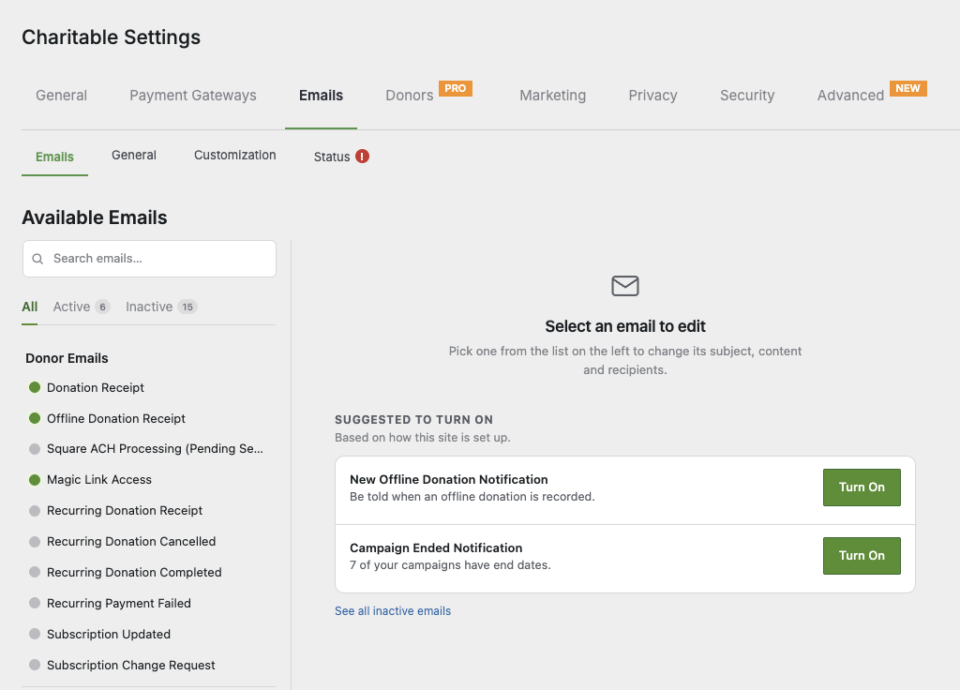
The four sub-tabs
| Sub-tab | What’s in it |
|---|---|
| Emails | Every individual email, grouped by audience, with the editor beside the list. |
| General | The settings every email shares, such as the from name and address. |
| Customization | Your logo, colors and footer: the look every email shares. |
| Status | Email Health and Recently Sent. Carries a badge when something needs attention. |
The groups
On the Emails sub-tab, your emails are grouped by who gets them, in this order:
- Donor Emails: receipts, thank-yous, anything that goes to the person who gave.
- Admin Notifications: what your team receives when something happens.
- Tributes, Rewards and Team & Creators: one group per add-on that brings its own emails. An add-on you do not have installed does not appear.
- System: password resets and other WordPress-level mail.
- More: anything that does not belong to a group above.
Editing an email
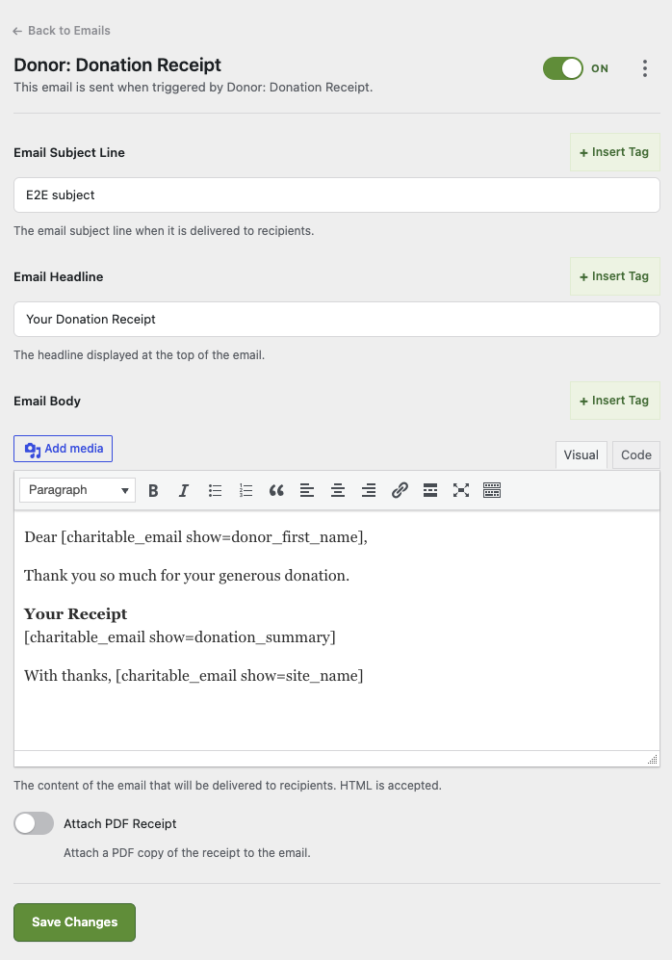
Click one in the list. The editor opens beside it with:
- The full WordPress editor, including the Add Media button, so you can put an image in an email without writing HTML.
- A live preview of what you are writing.
- Desktop and Mobile preview buttons. Most donors read on a phone, so Mobile is the view worth checking before you save.
The actions menu on an email, the ⋮ button, holds four things:
- Send test mails the email to you.
- Preview opens it full size.
- Copy from… pulls in the content of a different email, which is the fastest way to make a matching pair.
- Reset to default puts an email back to the content Charitable shipped.
Merge tags
Merge tags such as the donor’s first name or the donation amount work exactly as before.
One improvement: when you send yourself a test email, any tag with no value now shows a labelled placeholder, such as [donor first name not set], rather than a gap that reads like broken text. Real emails to real donors are unaffected.
The test email’s Data option is labelled Latest donation, which is what it always used. It has never sent made-up figures.
Email Health and Recently Sent
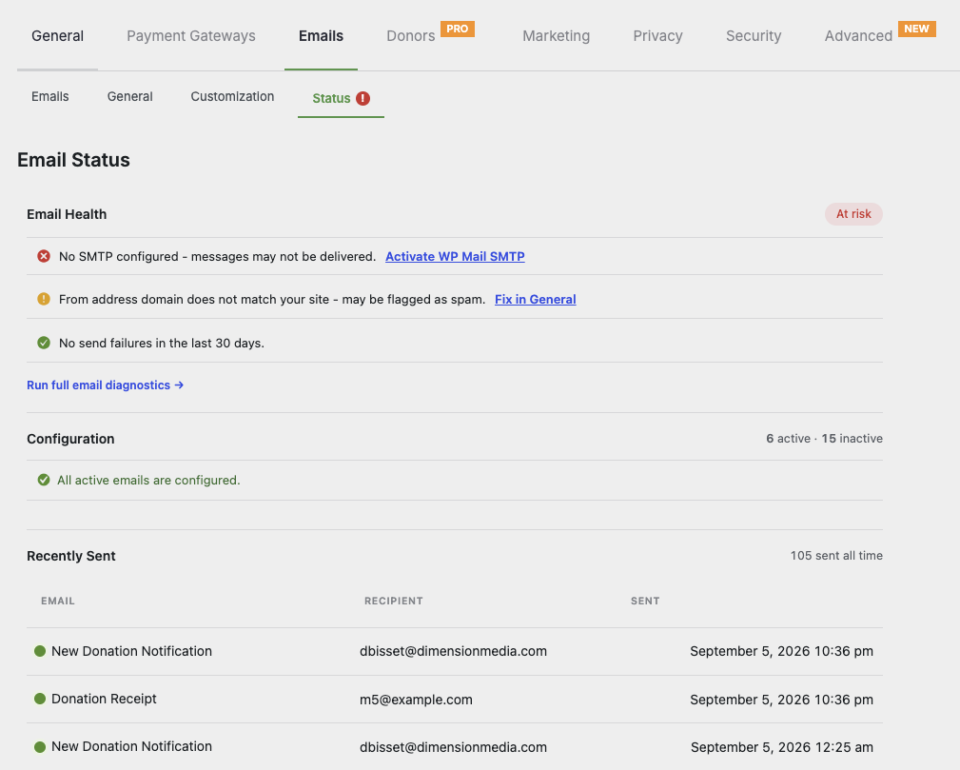
Both live on the Status sub-tab.
Email Health reports problems worth knowing about, most usefully emails that failed to send. Once you have dealt with something, dismiss its alert and it stays dismissed. When health is not OK, the Status sub-tab itself shows a badge, so you see it without going looking.
Recently Sent records what actually went out, including who it went to, which is the question support tickets usually turn on.
Prefer the single-table screen?
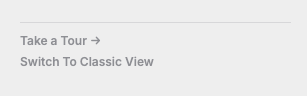
It is still available. There is a “View Classic” link in the lower left hand corner of the menu.
Take the tour!
Everything in the email manager covers the full tour, including the developer filter for adding your own group.


