If you are using Stripe as a payment gateway, you can now offer Apple Pay and/or Google Pay options on your donation forms in addition to credit cards. With more payment options, you can provide a better experience to your users, allowing them to donate using the payment of their choice.
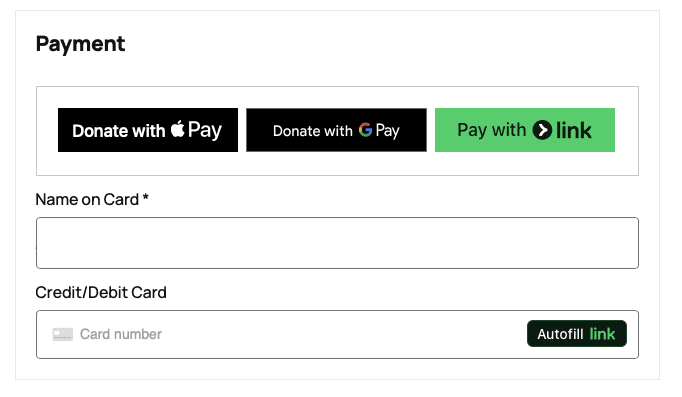
In this tutorial, we’ll guide you through enabling this feature and potentially increasing donation rates.
What You Need
- This feature is only available in the Charitable Pro plugin. Don’t have Charitable Pro plugin yet? You’ll need to create a Charitable account and then install the plugin on your site.
- You must be using the Stripe payment gateway and accepting credit card payments on your donation forms. If you have Stripe Checkout enabled, you will need to configure Stripe to accept payments in their hosted form.
Let’s get started.
Looking to set up PayPal Commerce. Head to our guide on Getting Started with PayPal Commerce »
Step 1: Accessing Charitable Stripe Settings
First, log into your WordPress admin dashboard.
Once logged in, go to Charitable » Settings page and open the Payment Gateways tab.
In the Payment Gateways tab, make sure Stripe is enabled.
You can access the Gateway Settings button that appears once it’s enabled.
Step 2: Enabling Google Pay
On the Gateway Settings page, you can enable Google Pay.
Google Pay is available on all modern browsers.
Some payment methods require setup actions from the customer. For example, a customer won’t see a Google Pay button if they don’t have Google Pay set up.
To enable Google Pay, you need to register your domain name with Stripe. Visit the Stripe documentation for details »
This step ensures that your website is authorized to use Google Pay.
Step 3: Enabling Apple Pay
Some payment methods require setup actions from the customer. For example, a customer won’t see an Apple Pay button if they don’t have Apple Pay set up.
To enable Apple Pay, you similarly need to register your domain name with Stripe. Visit the Stripe documentation for details »
In addition to domain registration, you’re also required to register directly with Apple: See their documentation here »
This registration confirms that you are an authorized merchant using Apple Pay.
Step 4: Enabling Link
- Link is enabled automatically. Not available on Firefox or Edge browsers.
Additional Info
- Stripe Express in Charitable requires a default amount to be set on a donation form. If your donation form does not have suggested donation methods, a default amount will be added if you have a custom donation amount enabled. You can change this amount via a code snippet like this one:
// Define the function to change the default amount
function my_custom_default_amount( $amount ) {
    // Change the default amount to '20.00'
    return '20.00';
}

// Add the filter to modify the default amount
add_filter( 'charitable_stripe_express_default_amount', 'my_custom_default_amount' );
Note: This is currently only available in Charitable Pro 1.8.6+. This is currently a beta feature.
Need more help? See our Documentation Library »