Adding Square payments for your donation forms in WordPress is a fairly simple process. Anyone can do it!
As one of the leading payment gateways for small and medium-sized businesses, it makes good sense to use Square to provide a flexible option for your donors to make payments via credit card.
I’ll quickly walk you through the steps to connect your donation forms with Square enabled.
Ready to start collecting payments via Square on your WordPress site? Just follow the steps below!
How to Add Square Payments to WordPress
Square is built into both Charitable Lite and Charitable Pro. The process is the same for both versions of our Charitable plugin.
Note: If you’re using Charitable Lite, the plugin is free to use, so you can launch campaigns and raise funds without any investment. However, for every transaction made using this Square integration, you’ll incur a 3% fee + Square processing fees. This fee is waved if you upgrade to Charitable Pro.
For this tutorial, we assume that you already have the Charitable plugin activated on your WordPress website. In case you haven’t done that yet, head over to the Charitable Plans page. Select your plan and register for an account. Follow our guide here: How to Install Charitable in WordPress »
Step 2: Enable Square Gateway In Payment Settings
We’ve built the Square integration into Charitable’s core. This means you don’t need any addons or extensions to use this.
In your WordPress dashboard, go to Charitable » Settings » Payment Gateways tab.
Here, you’ll see Stripe and Square are ready to use. You can enable/disable each gateway here with just the click of a button.
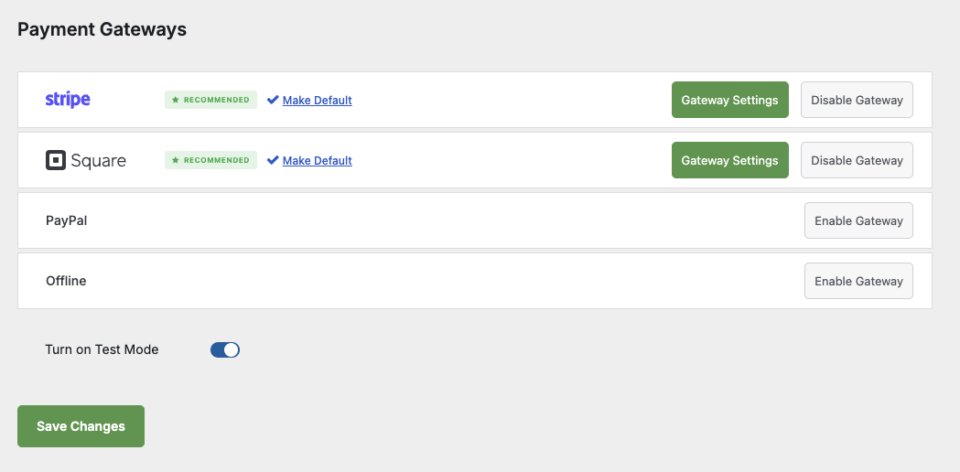
Before you proceed, we strongly recommend turning on Test Mode. This will allow you to configure your gateway and test transactions before you make it live on your site. This is a security measure to ensure no one accidentally sends money while you are still setting up.
Now when a gateway is enabled, you will see a green Gateway Settings button. By clicking on this, you’ll be directed to the page where you can connect your Square account.
Step 3: Connect Square to Your WordPress Site
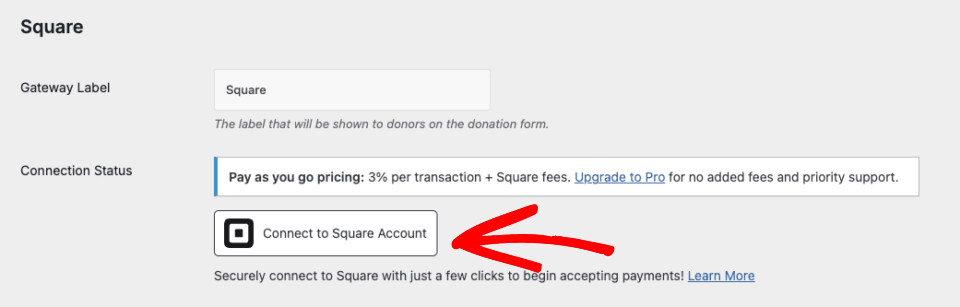
On the Gateway Settings page, scroll down the payment settings page to the Square section. You’ll see a field labeled Connection Status.
Click the Connect to Square Account button.
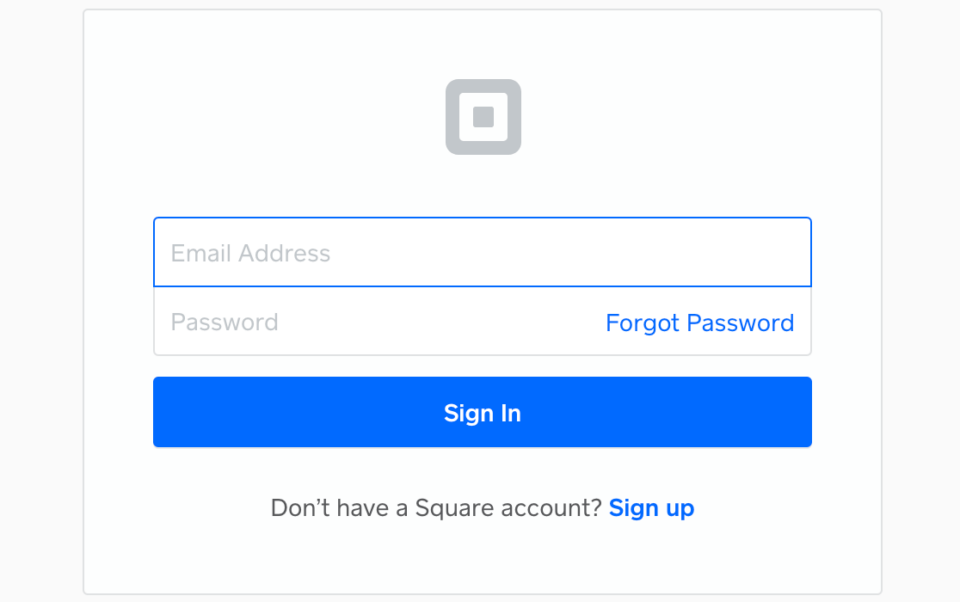
This will redirect you to the Square login page. Enter your email address and password, then click on Sign in.
In order to connect Square to Charitable, you need to grant specific permissions to Charitable related to your account. Click on the Allow button to proceed.
You will now be taken back to the Charitable payments settings page. Once the connection settings are configured properly, you’ll see a green checkmark and a ‘Success’ message next to Connection Status.

If you’ve added multiple business locations to your Square account, you’ll need to select one of them as your primary location using the Business Location dropdown.

Once done with the connection settings, don’t forget to click on the Save button.
We recommend running a few test transactions to ensure your payments are successful. Once you’re confident, turn off test mode and your website can now receive payments through Square.
Step 4: Set Up Webhooks
We highly recommend you set up webhooks so that your site can receive live feedback from Square. All you have to do is copy the webhook URL into your Square webhook settings, and enable a few events as well. There’s no coding involved.
This will allow Charitable to receive real-time updates when a payment is completed or refunded through Square. With this, your Charitable forms will stay in sync with Square so payment statuses are always up to date.
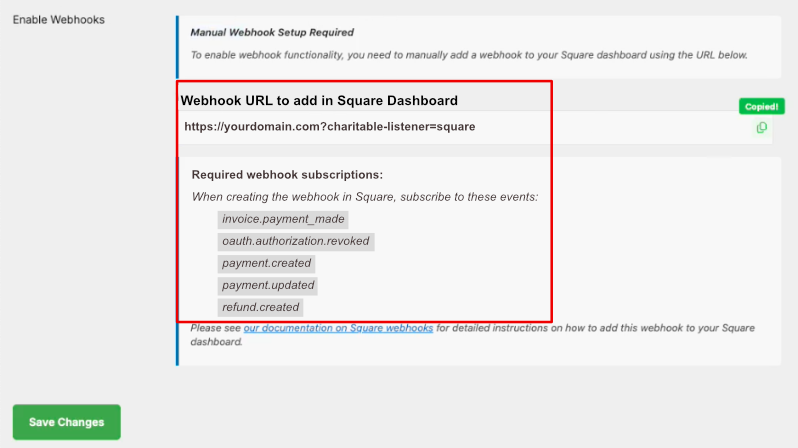
It takes about 5 to 10 minutes to do this. Follow our guide here: How to Set Up Square Webhooks »
Step 5: Create Your Campaign
With your payment gateway ready, you’re all set to create and launch fundraising campaigns. If you haven’t already, head over to Charitable » Campaigns » Add New.
This will open up a library of templates to choose from. Select the one that suits your cause best.
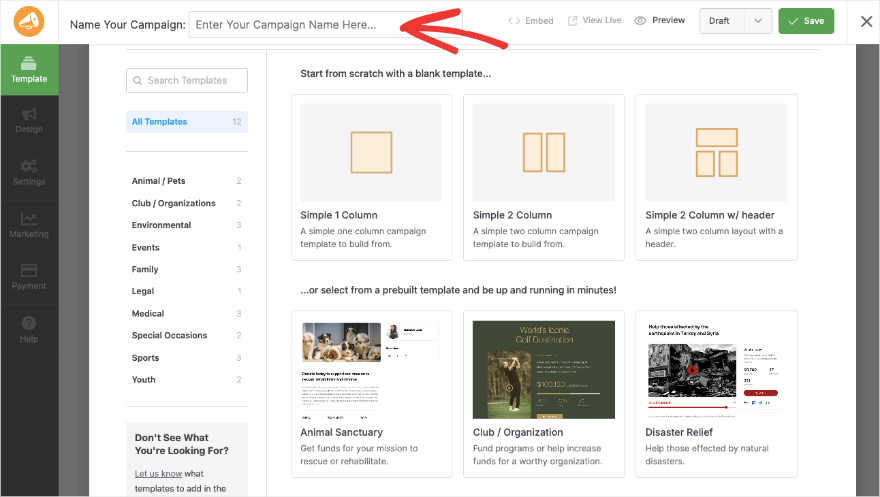
Once you select a template, the campaign builder will open. This is a visual builder so you’ll see a preview of your donation form as it would look when it’s live. You can make changes to this preview – there’s no technical knowledge needed.
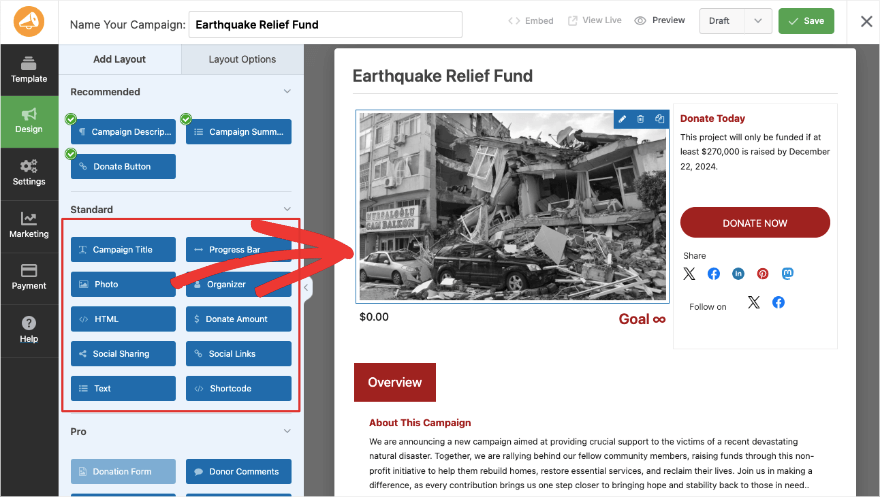
You can customize your campaign by changing the content, images, and fields in the campaign. For more detailed instructions, see our guide on Getting Started with Charitable »
In the Payment settings tab in the far-left menu of the campaign builder, you can see that Square is enabled. You can access the Payment Gateway Settings here in case you need to make any changes.
That’s it. You can save your campaign and publish it to make it live.
Adding Square Payments – FAQs
Here are some of the frequently asked questions about collecting Square payments in WordPress.
Can I use Google Pay and Apple Pay with Square?
Both Google Pay and Apple Pay are supported in Charitable’s Square integration. Each requires you to go through additional steps to use these payment methods.
Are there any security measures in place to protect sensitive customer information when using Square Payments on WordPress?
Charitable is a secure plugin and takes measures to ensure that sensitive customer details remain hidden. The payments you collect via Charitable capture details of the customer’s submission, but it hides their credit card number. That means even you, as a business owner, can’t see sensitive details like card numbers, so you can guarantee customer privacy and security with your Square payment forms created with Charitable.
Can I track and manage my transactions directly from my WordPress dashboard with Square Payments?
Yes, Charitable includes comprehensive payment tracking features, just like making a donation with any other payment method.
Does Charitable support refunding one time payments made by Square?
Yes. You can refund donations from the “edit donation” screen in the “actions” dropdown, and check off “refund directly from gateway”.
Does Charitable support recurring donations with Square?
Yes. You must have the recurring addon installed and activated.
I’ve been using a previous version of the Square addon. How is this addon different?
If you are using a Charitable “legacy” beta Square addon, this addon is currently still supported. Feel free to reach out to support if you want to ask specific questions if you are considering upgrading.