
Installing Charitable Stripe Connect is the same as installing any other Charitable extension. If you’re not sure how to do that, we recommend first reading our guide to installing Charitable extensions.
You will also need to install and activate Charitable Stripe, if it is not already activated.
Getting Started
Register your platform with Stripe
Setting up a new platform
The first step before you can start using Stripe Connect is to create your platform.
- Log into your Stripe dashboard.
- Click on Settings in the left hand sidebar.
- In the “Connect” section, click on Get Started.
- On the following page, click on the blue Get Started button.
- For the type of integration, select “Platform or Marketplace” and click Continue.
- On the following page, click on Complete your platform profile and follow the prompts to complete the setup.
Set up redirects for your platform
Once you have set up your platform, you need to find your client ID and set up redirects for your platform.
- Click on Settings in the left hand sidebar.
- In the “Connect” section, click on Settings.
- Scroll down to the “Integration” section. Development and Production settings should be exactly the same as the value you have for the “Site Address URL” setting in WordPress (Settings > General).
Configure other Charitable settings
You now have everything you need to configure your Stripe Connect settings in Charitable.
- In a new tab, open up your WordPress dashboard.
- Go to Charitable > Settings > Payment Gateways and click on the Gateway Settings button. The first section of the Stripe settings are the normal settings that are added by the Stripe extension (see docs). Scroll down to the Stripe Connect section (pictured below):
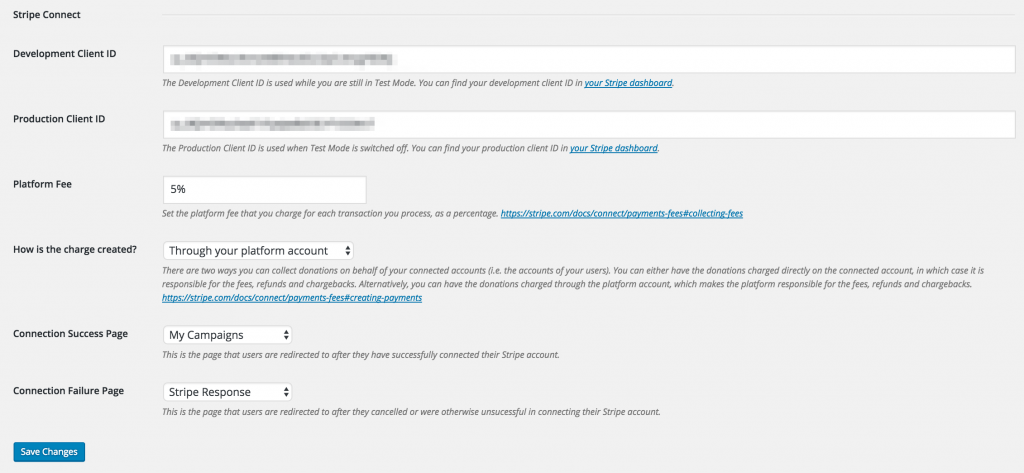
You will find the Development Client ID and Production Client ID for your development and production connect platforms in your Stripe Connect settings on the same page where you added your redirect URLs (see above). Copy and paste the “Live mode client ID” setting to the “Production Client ID” setting in Charitable. You will find the “Test mode client ID” setting in Stripe by toggling the “View test data” setting.
The Platform Fee is a percentage fee that your platform charges. You can set this to 0 to charge no fee.
How is the charge created allows you to choose whether transactions are made on the platform’s account or whether they are made directly on the campaign creator’s account. This is a very important setting, since it affects who is responsible for paying the Stripe fees, refunds and chargebacks. From the Stripe docs:
Directly on the connected account: The connected account is responsible for the fees, refunds, and chargebacks. The payment itself will appear as a charge in the connected account.
Through your platform account: Provides much more customizability but makes the platform account responsible for the fees, refunds, and chargebacks. The payment appears as a charge in the platform account, along with a transfer from the platform account to the connected account.
For more information about how these two different integration methods work, please refer to the Stripe documentation to understand how this impacts you.
Finally, for the Connection Success Page and Connection Failure Page options, select the two pages you created earlier and save your changes.
Example: Understanding the difference between direct charges and platform charges
To better understand the difference between charges made directly on the connected account and those made through the platform account, consider an example.
Assume you are charging a platform fee of 2% and a campaign creator’s campaign receives a $100 donation.
With direct charges, the campaign creator’s account will see a $100 payment come in, with the full details about the donor & donation. If they click on the payment in Stripe, under Fee they’ll see the total fee which will include both Stripe’s fee (~$3.20) and your platform fee ($2). So the net amount they will receive in their payout for that payment is $94.80. In your platform’s Stripe account, you’ll see a $2 application fee under the Connect dashboard area — you won’t see a payment record under Payments (since the payment exists on the connected account). So the breakdown of who gets what:
- Platform – $2
- Campaign creator – $94.80
With platform charges, the campaign’s creator will see a $100 payment come in, but they get very little information about the actual donation. All they can really see is the amount of the donation and the total fees deducted, which in this scenario will be $2 — only the platform’s fee, not Stripe’s fee, since the platform is covering that. In the platform’s Stripe account, you’ll see the payment record under Payments, with the transfer to the campaign creator shown under the Connect dashboard area. Breakdown of who gets what:
- Platform – $-1.20 ($2 minus $3.20)
- Campaign creator – $98
The major differences between the two is the amount of information that both parties receive (whoever handles the charge gets more information, basically), and how the money is split. Obviously with the latter, there is a danger of losing money on each donation unless you set a platform fee that is sufficient to cover the expense.
Setting up Success & Failure pages
You can use any page for the “Connection Success Page” and “Connection Failure Page” settings. To dynamically show content on the page based on the response that Stripe returns when a user is returned from connecting their account, use the [charitable_stripe_connect_response] on both pages.
See below for more details about the shortcode.
Enable Stripe Connect for Automatic Payouts
The next step is to enable Stripe Connect as a method for sending money to your campaign creators. Go to Charitable > Settings > Ambassadors. If it isn’t already enabled, check the box to allow Ambassadors to raise money for “Personal Causes”. Then change the “How Will You Send Money to Ambassadors” setting to Stripe Connect and save your changes.
With this set up, campaign creators will be automatically redirected to Stripe after they submit a campaign for the first time, so that they can connect their account.
Checking whether a campaign creator has connected Stripe
When you edit a campaign via the WordPress dashboard, you can check whether the campaign creator has connected their Stripe account by opening the “Funds Recipient” tab. When they have connected their account, this will display their Access Token and Stripe User ID.
Note: It is important to remember that if the campaign creator has not connected their Stripe account, they will not receive donations towards their campaign automatically.
Shortcodes
[charitable_stripe_connect_response]
The [charitable_stripe_connect_response] shortcode is used to display a message to the user after they have tried to connect their Stripe account. It will display a success message when they have connected their account successfully, and an error when they have not. There are three available parameters:
error_header: The header displayed before the error message when the connection failed or was cancelled. Default: “Something went wrong with connecting your Stripe account”.success: The message displayed when the connection succeeded. Default: “Your Stripe account has been successfully connected.”show_retry_link: Whether to display a link to try again after a failed connection. This allows the user to return to Stripe and try again straight away.
[charitable_stripe_connect_status]
The [charitable_stripe_connect_status] is used to display whether the user has successfully connected their Stripe account. If they have not, it will also include a link/button to allow the user to proceed to Stripe and connect their account. There are four available parameters:
button_text: The text to display in the link/button to Stripe. Default: “Connect Now”.button_class: The class to apply to the link/button. Empty by default.connected: The message to display when the user has connected Stripe. Default: “Your Stripe account has been successfully connected.”not_connected: The message to display when the user has not connected Stripe. Default: “You haven’t connected your Stripe account yet.”
[charitable_profile]
In addition to the two shortcodes above, Charitable Stripe Connect automatically adds a new field to the [charitable_profile] shortcode that displays whether the user has connected their Stripe account.



