Charitable makes it easy to set up customized PDF receipts that you and your donor can generate and download instantly. Donors can also choose to send the donation receipts to their email right after they make a contribution.
This guide will show you how to customize your receipts and configure settings to exactly what you need for your organization.
Table of Contents
Minimum requirements:
- PHP 7.2+
- Charitable 1.6.59+
Set Up and Customize PDF Receipts
In your WordPress admin menu, go to the Charitable » Settings page. Here, you’ll see a menu at the top of the page from which you can select the Advanced tab.
Now you should be on the PDF Receipts settings page. Let’s go through the settings available here.
First, you can choose to allow donors to send the receipt to their email. Charitable will automatically detect the email they entered in the donation form, generate a receipt, and send it to their email.
Below this, you can also allow users to download their receipts from their own donor dashboard. If you haven’t enabled the dashboard, learn how to do that here: How to Use the Donor Dashboard »
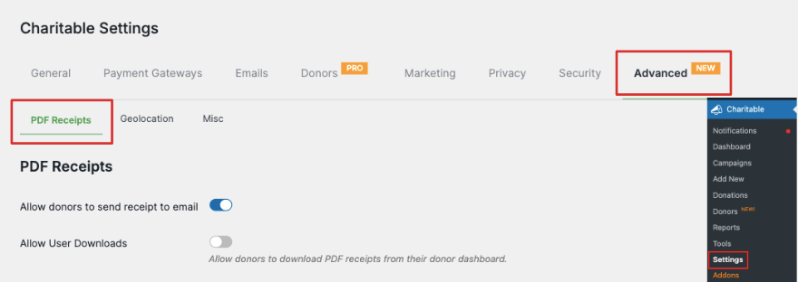
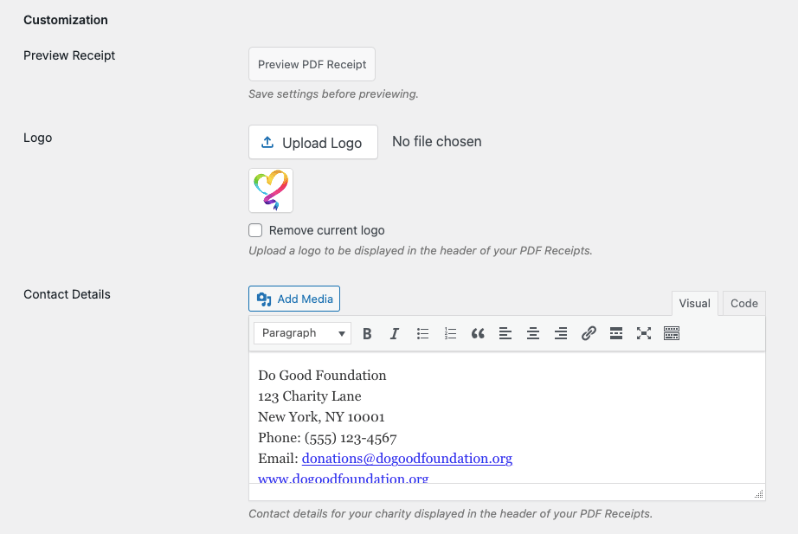
Next, you can customize the receipt with your logo and contact details. Use the ‘Upload Logo’ button to select your logo file and add it to your receipt.
Below that, you can add your contact details such as your address, phone number, email address, and so on. You can also add media files here if you want to display an image.
Now you’ll see a list of options below the contact details box. These are the labels that will appear in your receipt for the different fields.
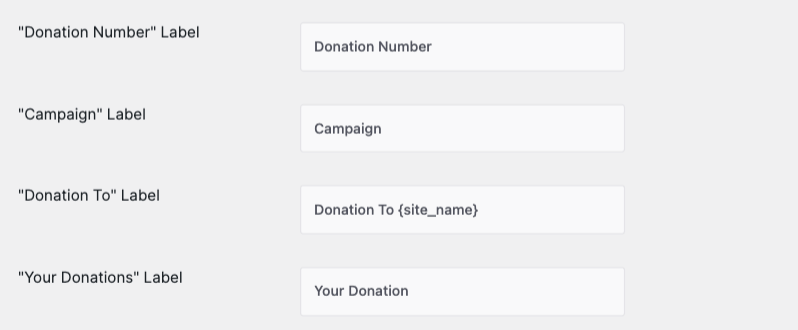
In these settings, you can customize all these labels:
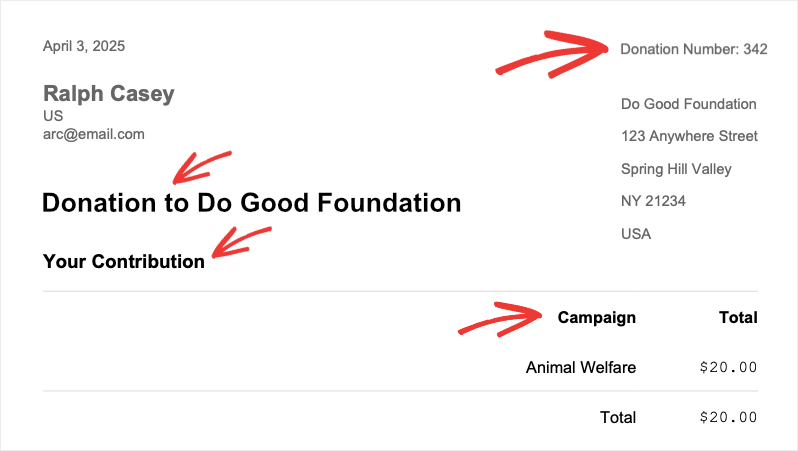
Donation Number: Shows the donation or receipt number.
Campaign: Shows which campaign they donated to
Donation To: Appears before the foundation or non-profit’s name
Your Donations: Appears above the contribution details, amount, and total.
Keep in mind, you’re only changing the text for the field names that appear in your donation receipt. The details, such as the donation number, the campaign name, and your site’s name, will automatically be fetched by Charitable and displayed in your receipt.
Here’s a sample receipt where we’ve customized ‘Your Donation’ to ‘Your Contribution’:
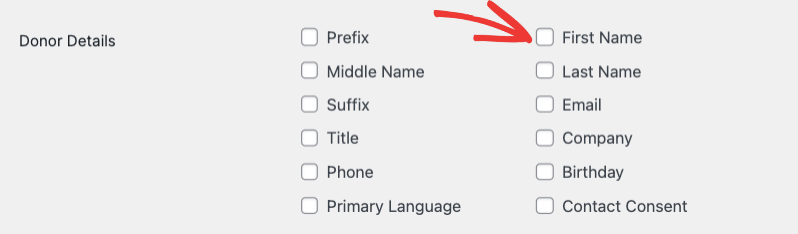
Next, you’ll see a section where you can choose what donor details appear in the receipt, such as their name and contact details. We recommend displaying their prefix, first and last name, email, and one contact detail.
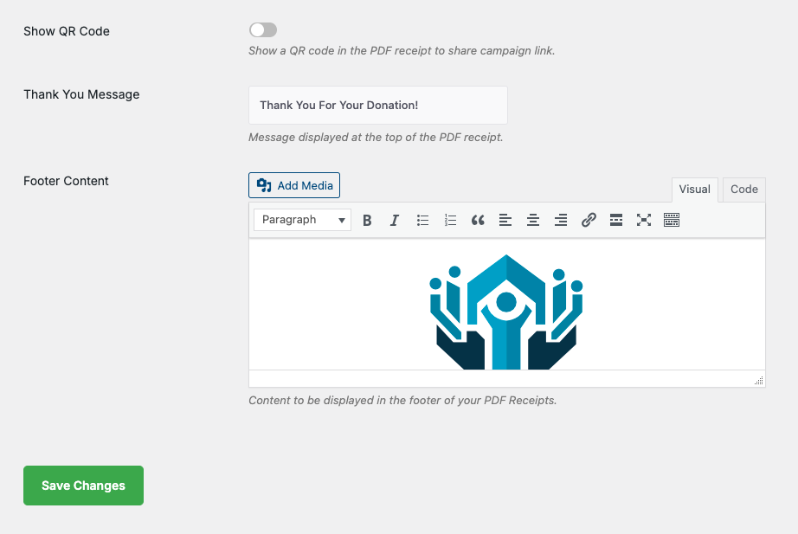
Below this, you can choose to add a QR code that contains a campaign link to share. There’s also an option to add a thank you message that is displayed at the top of the receipt.
Finally, you can customize the footer of your receipt to include your logo or any images you want to display. You can also add important information here about your organization, what the contribution will help with, or a personalized message.
That’s it. Make sure you save your changes to store your customizations.
Next, we’ll show you how to send these receipts in an email.
How To Send Donation Receipts by Email
Charitable lets you set up emails that are sent automatically to your donor as soon as they make a contribution.
Go to the Charitable » Settings page and open the Emails tab.
Here, you’ll see a variety of emails available that you can enable or disable with just a click.
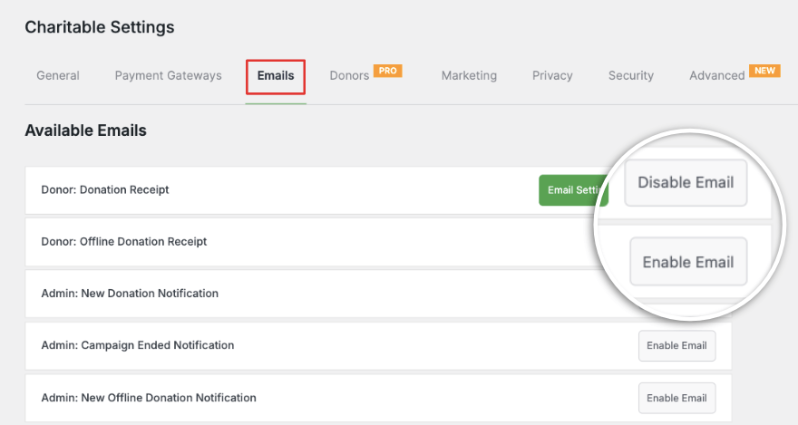
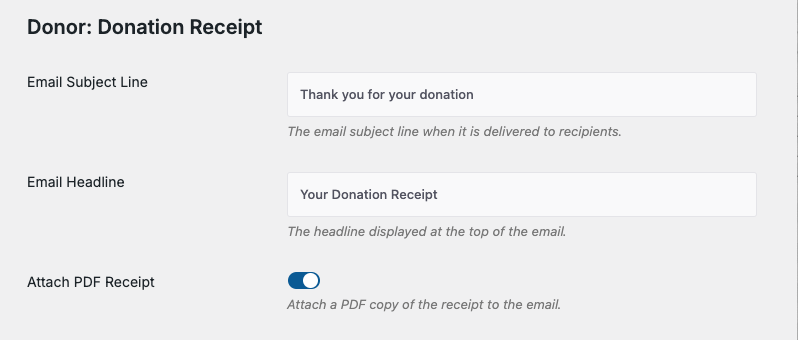
The Donation Receipt is enabled by default. Click on the ‘Email Settings’ button to customize this email. On the next page, you can enter your own subject line and headline.
There’s also a toggle switch to attach a PDF receipt to the email. It will be generated in the format and style you created above.
Below this, you can customize the body of the email. Charitable makes it easy for you to add the information you want without any technical know-how. There’s a list of shortcodes available that you can simply copy and paste into your email.
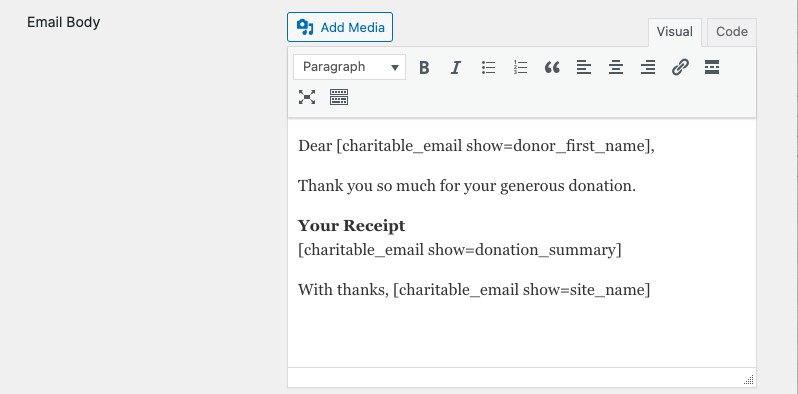
So, for example, if you want to include the full name of the donor, you can use [charitable_email show=donor] in your email.
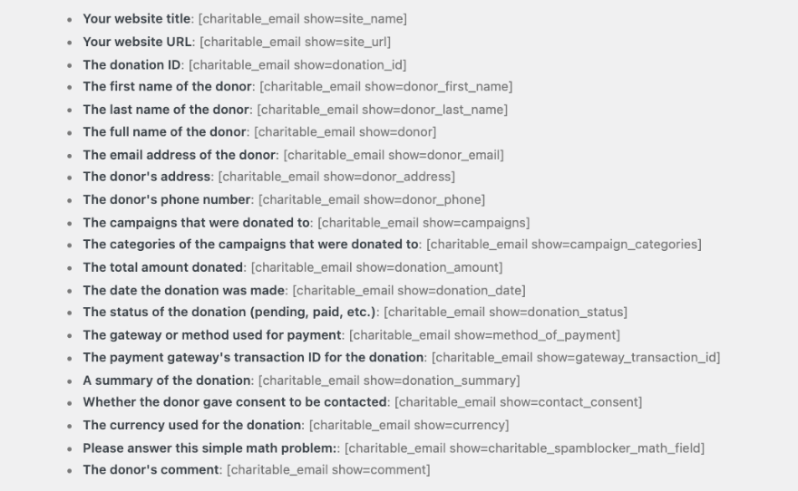
Like this, you can customize your email to include a summary of the donation, the donor’s contact details, your website title, and so much more. The most important shortcodes you’ll need for your email are below:
- Your website title: [charitable_email show=site_name]
- Your website URL: [charitable_email show=site_url]
- Donation ID: [charitable_email show=donation_id]
- First name of the donor: [charitable_email show=donor_first_name]
- Last name of the donor: [charitable_email show=donor_last_name]
- Full name of the donor: [charitable_email show=donor]
- Donor’s email address: [charitable_email show=donor_email]
- Donor’s address: [charitable_email show=donor_address]
- Donor’s phone number: [charitable_email show=donor_phone]
- Campaigns that were donated to: [charitable_email show=campaigns]
- Total amount donated: [charitable_email show=donation_amount]
- Date the donation was made: [charitable_email show=donation_date]
- Gateway or method used for payment: [charitable_email show=method_of_payment]
- Payment gateway’s transaction ID for the donation: [charitable_email show=gateway_transaction_id]
- A summary of the donation: [charitable_email show=donation_summary]
- Whether the donor gave consent to be contacted: [charitable_email show=contact_consent]
- The donor’s comment: [charitable_email show=comment]
Once you’ve customized the email, Charitable gives you an option to preview your email to make sure it all looks good.

When you’re ready, hit the ‘Save Changes’ button to store your customizations.
How To Download a PDF Receipt as an Admin
Charitable lets you download PDF receipt any time you need from your WordPress dashboard.
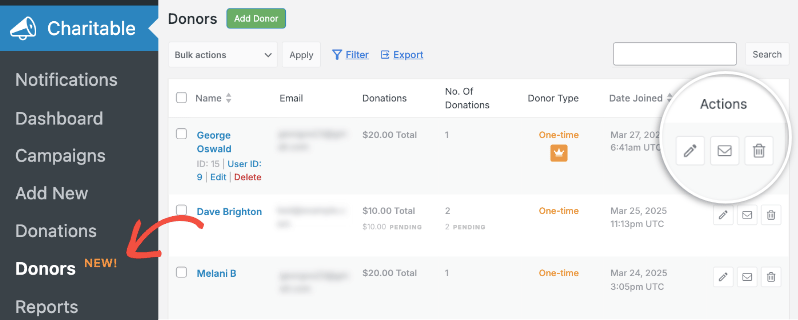
Go to the Charitable » Donors page. Here, you’ll see a list of donors. You can use the search bar to look for the donor that made the contribution.
Use the pencil icon or the ‘Edit’ button to access the donor’s profile.
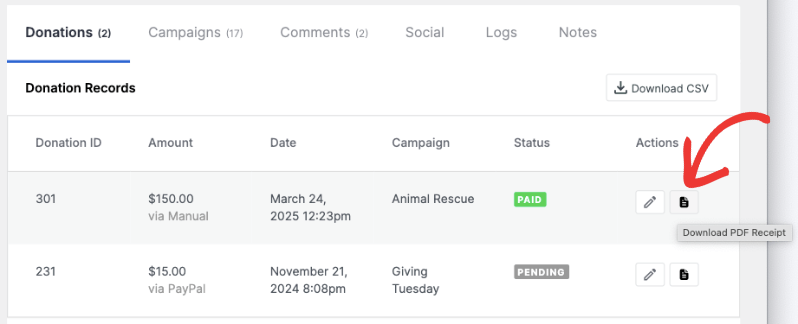
On the donor profile page, scroll to the last section, which shows you the list of donations made by the donor. There’s a PDF icon next to every donation. Simply click on this icon against the donation record you need, and the PDF receipt will download to your computer.
Now let’s also see how your donor can download the receipt on their own through their own donor dashboard.
How To Download a PDF Receipt as a Donor
Your donor can log into their donor dashboard using their login credentials.
Inside, they can access their profile, donations, campaigns, comments, and settings.
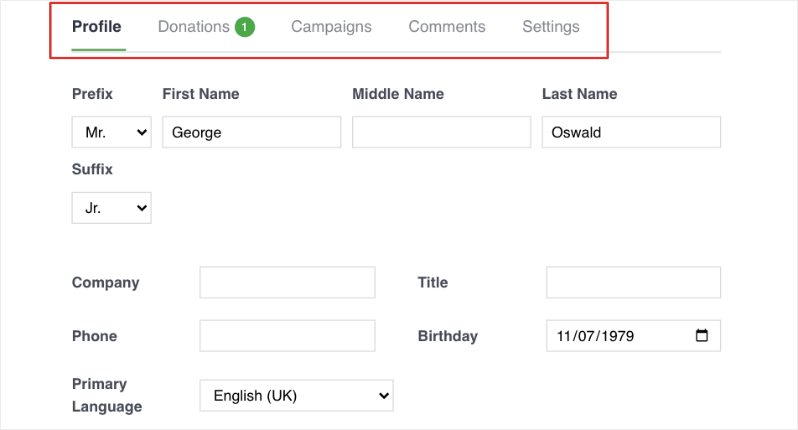
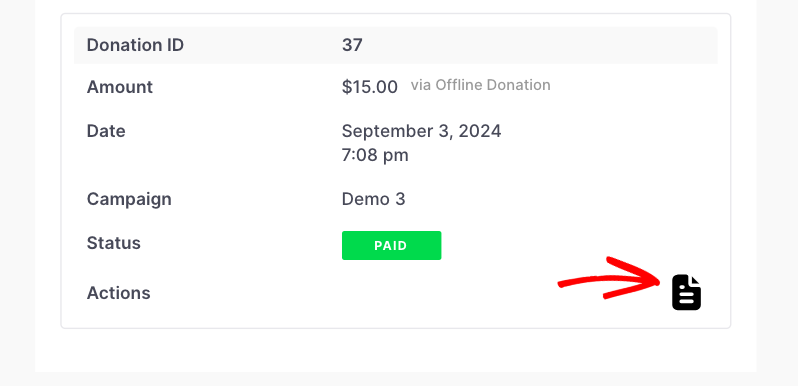
Under Donations, they can see a list of all the donations they’ve made. They can click on the PDF icon here to instantly download the receipt they need.
How Donors Can Send Their Receipt To Themselves or Someone Else
Your donors can easily send receipts to themselves or someone else, providing them with an easy way to share a receipt with their partner or accountant, for example.
On the donation receipt page that appears after a donor makes a contribution succesfully, there is an option to download it as well as Send to Email.
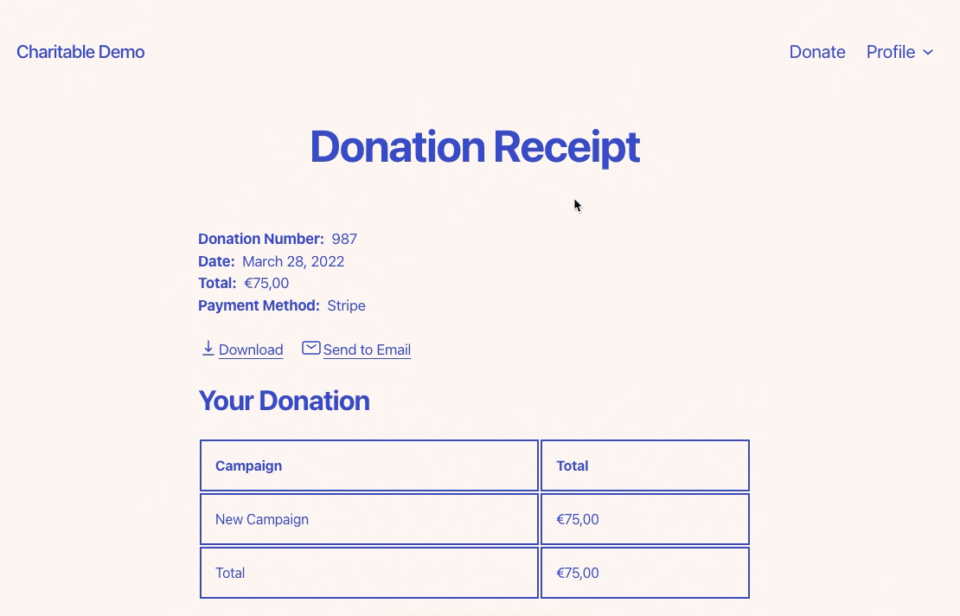
It’s a simple feature designed to make life easier for your donors by providing them with the tools they need after they donate.
How to Reduce The Load On Your Server
PDF generation can be taxing on your website, especially if you receive lots of donations, so the Charitable PDF Receipts feature provides ways to lessen the load.
Instead of attaching PDF receipts to your donation emails automatically, you can disable this option and instead provide donors with a direct link to a page where they can download a PDF receipt.
This defers the PDF generation until the time when donors need it.
After they are generated, PDF receipts are kept for up to 2 hours before being deleted, avoiding unnecessary bloat while also avoiding repeat generation of the same PDF in a short period of time.
FAQs on PDF Donation Receipts
Can donors automatically receive PDF receipts via email after making a donation?
Yes, donors can receive PDF receipts automatically via email. In the PDF Receipts settings, you can enable the option to allow donors to send receipts to their email.
Charitable will automatically detect the email address from the donation form, generate the receipt, and send it to them. You can also attach the PDF receipt to the donation receipt email that’s sent automatically after contributions.
What information can I customize on the PDF receipts?
You can customize several elements including your organization’s logo, contact details (address, phone, email), field labels (like changing “Your Donation” to “Your Contribution”), donor details that appear on the receipt, thank you messages, footer content, and even add a QR code with a campaign link. The actual donation data like amounts and campaign names are automatically populated by Charitable.
Can I allow donors to download the PDF receipt instead of attaching it in the email?
Yes, you can keep the PDF attachment option disabled. Your donors can still access their PDF receipt via their donation receipt on your website, and you can also include a direct link for your donors to download a PDF in your donation emails.
Where do donors access their PDF receipts if they want to download them later?
Donors can access their PDF receipts through the donor dashboard. Once logged in, they can navigate to the Donations section where they’ll see a list of all their contributions. Each donation has a PDF icon next to it that they can click to instantly download their receipt.
How do I enable the donor dashboard so supporters can access their receipts?
Follow the How to Use the Donor Dashboard guide to properly configure this feature for your donors.
Can I preview donation receipt emails before they’re sent to donors?
Yes, Charitable provides a preview option for donation receipt emails. After customizing your email content with the available shortcodes, you can use the preview feature to see exactly how the email will look before saving your changes and sending it to donors.
What shortcodes are available for customizing donation receipt emails?
Charitable offers numerous shortcodes including donor information like [charitable_email show=donor] for full name, donation details like [charitable_email show=donation_amount] for the total amount, campaign information, payment methods, transaction IDs, and even donor comments. These shortcodes automatically pull the relevant information for each specific donation.
How can I, as an admin, download PDF receipts for any donor?
Go to Charitable » Donors in your WordPress dashboard, find the specific donor (you can use the search function), and click the edit button or pencil icon to access their profile. Scroll to the donations section where you’ll see PDF icons next to each donation record. Click the icon to download the receipt for that specific contribution.
Do I need technical knowledge to set up and customize PDF receipts?
No technical knowledge is required. Charitable provides an intuitive interface where you can upload logos with a simple button, add contact details in text fields, customize labels through dropdown menus, and use pre-made shortcodes that you can copy and paste into your email templates. The system handles all the technical aspects automatically.
Now you know how to manage donation receipts for your donors. Next, you’ll also want to learn about how to use the Donor Management System »