
Charitable Documentation

Learn how to make the most of Charitable with clear, step-by-step instructions.

How to install and activate Charitable extensions

Charitable extensions are normal WordPress plugins which add extra features to Charitable.

1. Make sure you have activated your license

When you purchase a plugin license through wpcharitable.com, you will receive a single code to register Charitable as a paid (or a “pro” version, not a lite or free version).

After you make your purchase, check your email for the Purchase Receipt email.
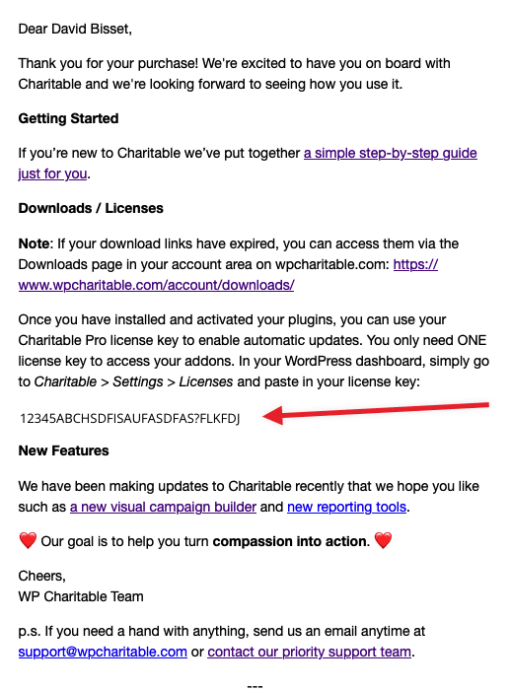
Important: Can’t find email? Don’t worry. This code can also be found in your account dashboard on wpcharitable.com.

Once you activate your license in Charitable with this code you will be able to install Charitable extensions two ways.

2. Install the addon manually via wpcharitable.com.

You can download your plugin(s) through the wpcharitable.com account area. Simply log in using the account created when you made your purchase and then download the plugin from the Downloads tab.
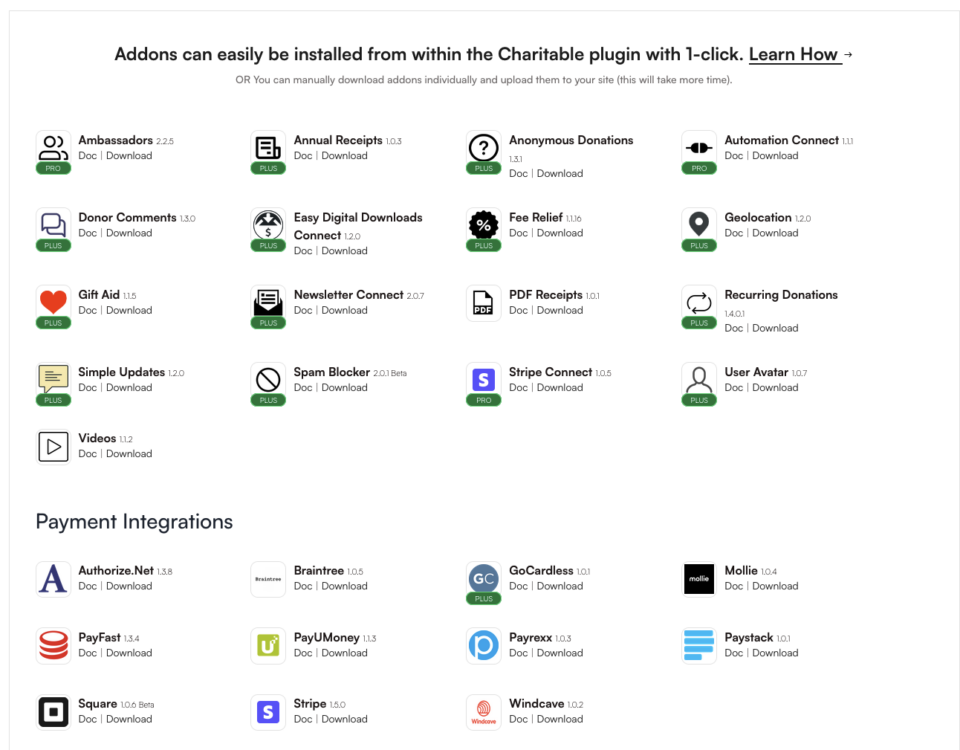
Once you download a zip file of an extension you can install it on your site in one of two ways:

  1. Install it in the WordPress dashboard — the recommended approach.
  2. Install it through FTP.

How to install a plugin in your WordPress dashboard

You can install a Charitable extension in your WordPress dashboard. This is the way we recommend installing Charitable extensions, since it’s the easiest.

In your WordPress dashboard, go to Plugins > Add New:

Next, click on the Upload Plugin in the top left corner, attach the zip file you downloaded earlier, and finally click Install Now.

Skip ahead to find out how to activate your plugin.

How to install a plugin via FTP

If you have FTP access to your website server and you are comfortable with using an FTP program like Cyberducks or Filezilla, you can follow the steps below to install with FTP.

First of all, you will need to unzip the zip file you downloaded earlier. You will be uploading the plugin folder, not the zip file itself.

Next, log in to your website server using FTP. Navigate to the /wp-content/plugins directory in your WordPress installation files.

Upload the plugin folder to the plugins directory to install it.

Activate the plugin

Now that you have installed the plugin, the final step is to activate it.

If you installed the plugin via the WordPress dashboard, simply click on the Activate Plugin button:
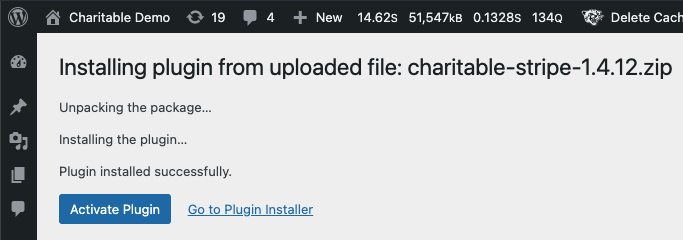
You can also activate plugins by going to Plugins > Installed Plugins.

3. Installing via the addons screen in Charitable

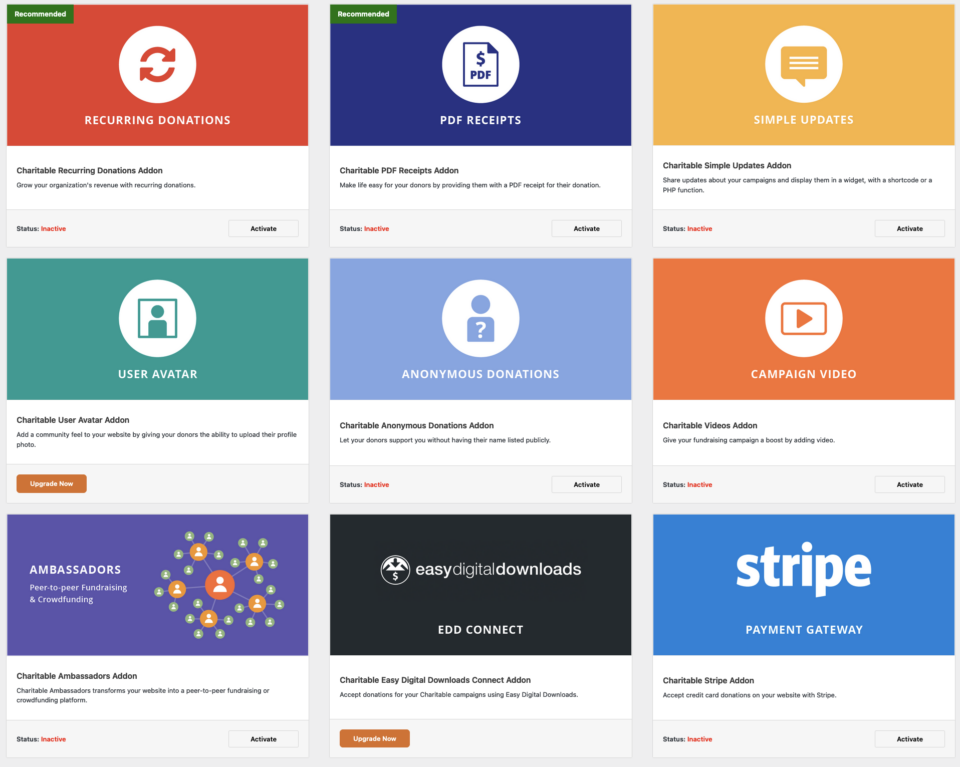
You can also do a one-click install of an extension or addon you have available in your plan by going to the addons screen in the Charitable menu.

Still have questions? We’re here to help!

Last Modified:

What's New In Charitable

🔔 Subscribe to get our latest updates
📧 Subscribe to Emails

Email Subscription

Join our Newsletter

We won’t spam you. We only send an email when we think it will genuinely help you. Unsubscribe at any time!

Integration New

Build Beautiful Fundraising Pages Visually with WPBakery Integration

We are excited to announce our brand-new integration with WPBakery, one of the most popular WordPress page builders, designed to help you create stunning layouts for your campaigns without touching a single line of code.

The Ultimate Design Experience

Designing your nonprofit’s website should be as simple as your mission is powerful. Now, you can bring Charitable functionality directly into your WPBakery workflow, using native elements to build high-converting donation pages and campaign grids in seconds.

🖱️ Drag-and-Drop Building: Easily add donation forms, campaign progress bars, and “Donate Now” buttons to your layouts using the WPBakery elements you already know and love.

🎨 Total Creative Control: Customize the look and feel of your fundraising elements using WPBakery’s native design options. Adjust margins, padding, and borders to ensure your campaigns fit perfectly with your site’s branding.

📱 Seamlessly Responsive: Every element is built to be fully responsive and mobile-friendly, ensuring your donors have a smooth, professional experience whether they are giving from a phone, tablet, or desktop.

Integration New

🖼️ Add Image Galleries to Fundraising Campaigns With Envira Gallery

Showcase the impact of your mission like never before. We are excited to announce our brand-new integration with Envira Gallery, the best WordPress gallery plugin, designed to help you tell your story through powerful, high-performance visuals.

The Ultimate Storytelling Experience

A picture is worth a thousand words – and now, it’s worth even more for your fundraising. Connect your visual impact directly to your cause by creating stunning, responsive galleries that engage donors and drive contributions.

🖼️ Visual Impact: Easily create beautiful, fast-loading galleries to show your nonprofit’s work in action, from field reports to event highlights.

🔗 Seamless Connection: Link gallery images directly to your fundraising campaigns, making it effortless for inspired visitors to go from viewing a photo to making a donation.

📱 Perfectly Responsive: Whether your donors are on a phone, tablet, or desktop, your galleries will look professional and load lightning-fast, ensuring a smooth experience on every device.

Integration New

👉🏻 New Divi Integration In Charitable Pro

Bring the power of Charitable directly into your favorite page builder and maintain total creative control with our brand-new Divi integration.

The Ultimate Design Experience

No more switching back and forth or relying on complex shortcodes. Use dedicated Divi modules to build, style, and launch high-converting donation pages without ever leaving the Divi Builder.

⚡ Native Divi Modules: Effortlessly drag and drop your donation forms, progress bars, and campaign details exactly where you want them.

⚙️ Visual Customization: Tweak colors, fonts, and spacing using Divi’s familiar design settings to ensure your fundraiser matches your brand perfectly.

🚀 Live Visual Editing: See your changes in real-time. What you see in the builder is exactly what your donors will see, ensuring a seamless giving experience every time.

donation form New

👉🏻 New Campaign Selector For Donation Forms

Take your campaign management to the next level. Find the perfect fundraiser for any page and stay in your creative flow with our new Campaign Selector integration.

The Ultimate Selection Tool

No more hunting for IDs or creating one page for every donation form. Use the new Campaign Selector to allow users to switch to a campaign with no code.

⚡ Instant Search: Quickly find any campaign leaving your page or post.

⚙️ Editor Agnostic: Whether you’re using the Block Editor, Elementor, or WPBakery, selecting your campaigns is now a unified experience.

🚀 Real-Time Previews: See exactly which campaign you’ve selected instantly, ensuring your donors always see the right cause.

Integration New

WordPress Command Palette Integration

Take your fundraising workflow to the next level. Speed up your site management and stay in your creative flow with our new WordPress Command Palette integration.

Supercharge Your Workflow
Navigate your fundraising dashboard faster than ever.

The Ultimate Keyboard Shortcut Hit Cmd + K (or Ctrl + K) to launch the Command Palette and manage your campaigns instantly.

⚡ Instant Navigation: Jump directly to your Campaigns, Donations, or Settings from anywhere in the editor.

➕ Quick Create: Start a new fundraising campaign or add a manual donation with a single command.

Efficiency Redefined
The tools you need, exactly when you need them.

⚙️ Contextual Actions: See relevant Charitable commands based on whether you’re editing a page or viewing your reports.

🚀 Seamless Integration: Built directly into the WordPress core experience for a lightweight, native feel.

