Charitable Blog

Everything you need to know about Charitable and our team.

How to Add a Stripe Donation Button in WordPress

How to Add a Stripe Donation Button in WordPress

Last updated on

  • By

Looking to add a donation button to your WordPress site? Stripe is one of the most secure and professional options. What I love is that it keeps your donors right there on your website instead of redirecting them somewhere else.

I’ve run my own non-profit site and here’s what I’ve learned: the easier you make it to donate, the more donations you’ll receive. 

In this step-by-step tutorial, I’ll show you exactly how to add a Stripe donation button to your WordPress site. No coding required. You can do this in the next 15 minutes.

Let’s begin.

Do you prefer to learn through video tutorials? Check out our step-by-step tutorial on how to set up your fundraiser with Stripe integration:

Now on to our tutorial here.

What You Need

While there are several WordPress donation plugins available, Charitable stands out as the most straightforward solution for adding Stripe donations to your website. I’ve found it to be the most user-friendly option, especially for those who aren’t technically inclined.
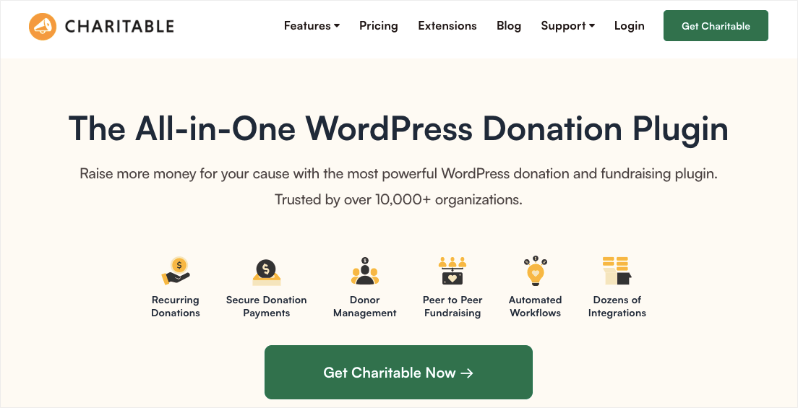
WPCharitable homepage

Charitable comes with Stripe built into the plugin. You won’t need any extensions or addons for this to work. The best part is that you won’t even need API keys and other info. You simply need to log into your Stripe account to make the connection. It’s that easy.

Charitable has both a lite and pro version. The lite version is completely free to use and it includes Stripe, however, there’s a 3% transaction fee + Stripe fees. With the Pro version, the 3% fee disappears and you only incur any fees charged by Stripe.

The Pro version not only enables Stripe payments but also includes recurring donations, multiple currency support, and advanced donor management tools – features that typically require various plugins with other solutions.

What really sets Charitable apart is how seamlessly it integrates with WordPress. The donation buttons and forms match your website’s design automatically, creating a professional look that builds trust with your donors. Plus, donors can complete their contributions without ever leaving your site, which significantly increases donation completion rates.

What I love about Charitable is its user-friendly approach to Stripe integration. This helps ensure you’re not losing potential donors to a complicated donation process.

Remember, the easier you make it for people to donate, the more likely they are to follow through.

Ready to get started? Let’s move on to setting up the plugin.

Step 1: Setting Up Charitable

First things first, let’s get Charitable installed and configured on your WordPress site. I’ll walk you through this initial setup process step by step.

Start by logging into your WordPress dashboard. Head over to Plugins » Add New and search for “Charitable.” You’ll see the free version of Charitable in the results. Click “Install Now” and then “Activate.” This gives you the foundation we need to build on.
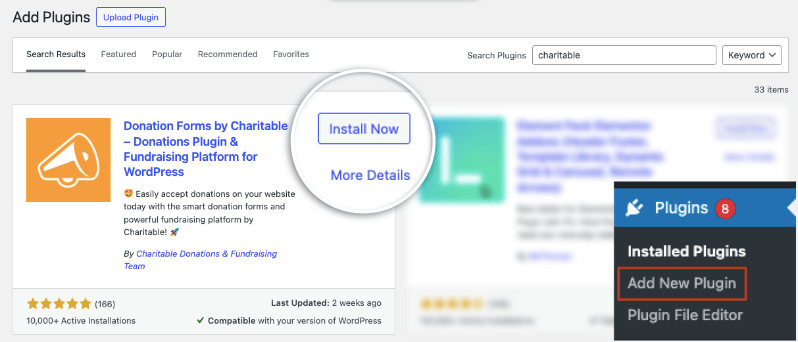
Install Charitable

For the Pro version, visit Charitable’s website and purchase a plan. Then you’ll get your own account with a license key.
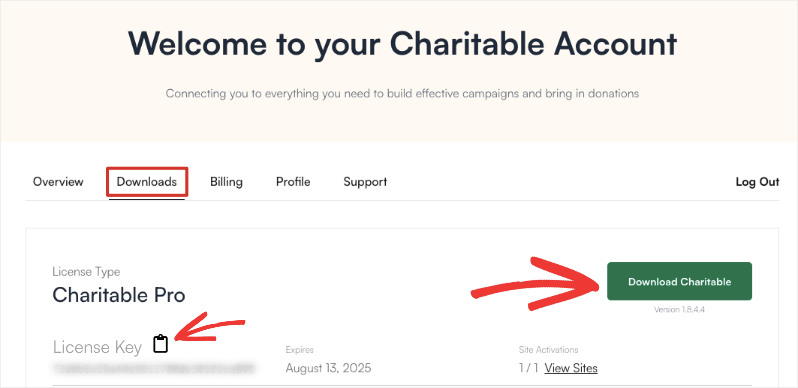
Download plugin and copy license key

Copy this key and go to Charitable » Settings » License in your WordPress dashboard and enter your key. This unlocks the Stripe functionality and other premium features.

One thing that stands out about Charitable is that as soon as you activate the plugin, it launches an onboarding wizard. This takes you through all the important steps to get you set up with the essentials including Stripe.

You can follow the setup wizard if you’re comfortable with that or continue to follow along.

Step 2: Enabling the Stripe Gateway

Now headover to the ‘Payment Gateways’ tab, and you’ll see the Stripe gateway ready to be enabled.
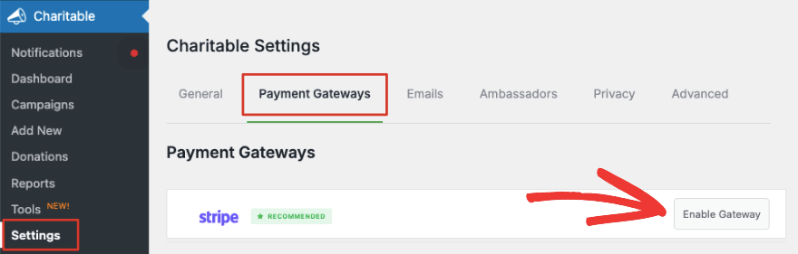
Enable Stripe payment gateway

Before we enable this, you need to know about test mode. You’ll see this below the list of gateways available.
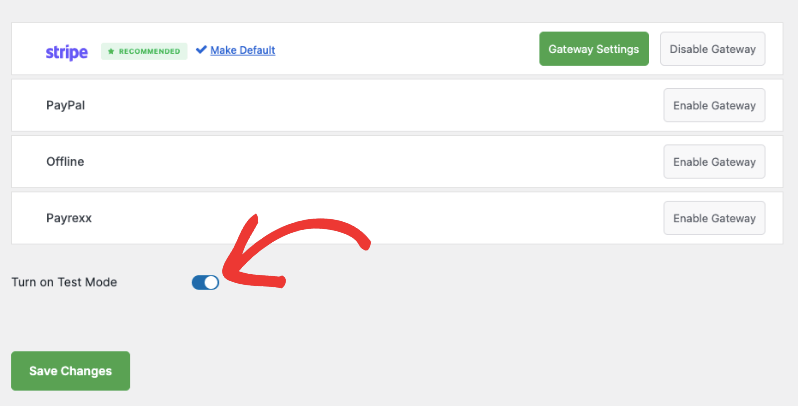
Turn on test mode for payment gateways

Test mode is a crucial feature in Charitable that lets you safely experiment with donations before going live. When you’re first setting up your donation system, you need to make sure everything works smoothly. Test mode lets you simulate the entire donation process without charging actual credit cards. 

Pro tip: I always recommend making at least 2-3 test donations with different amounts to ensure everything works as expected. This includes testing both one-time and recurring donations if you’re using them.

Now you can enable the Stripe Gateway and you’ll automatically redirect you to the Stripe settings page. Or you can use the green ‘Gateway Settings’ button to access the same page.

On the next page, you can add a label for this gateway. It’s prefilled with ‘Stripe’ for you but you can change that if you need.
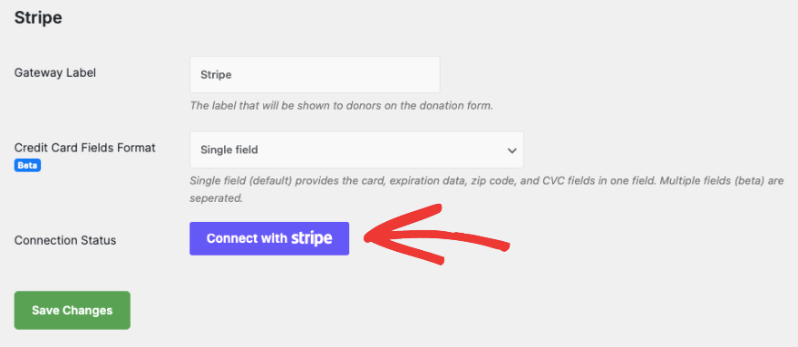
Connect with Stripe

Below this, you’ll see Credit Card Fields Format. This lets you decide how you want customers to enter their credit card information. There are 2 options here:

  • Single Field asks for the card number, expiration date, zip code, and CVC fields in one field.
  • Multiple Fields creates a separate field for each item.

Here’s what it will look like on the front end:
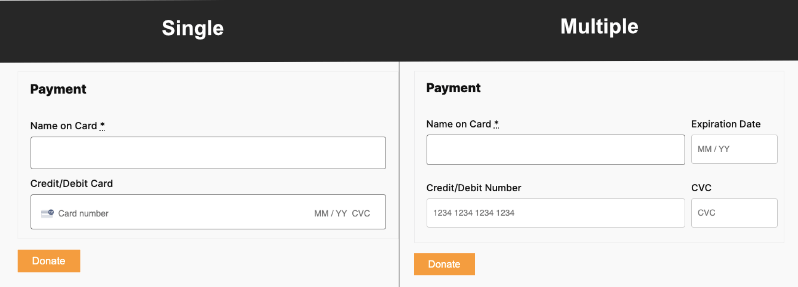
Single vs multiple payment fields

After you choose the Credit Card Fields format, click on the ‘Connect with Stripe’ button.

This will take you to the Stripe page where you can log into your account. If you don’t have an account, you can enter your email address and you’ll be able to sign up for a Stripe account.
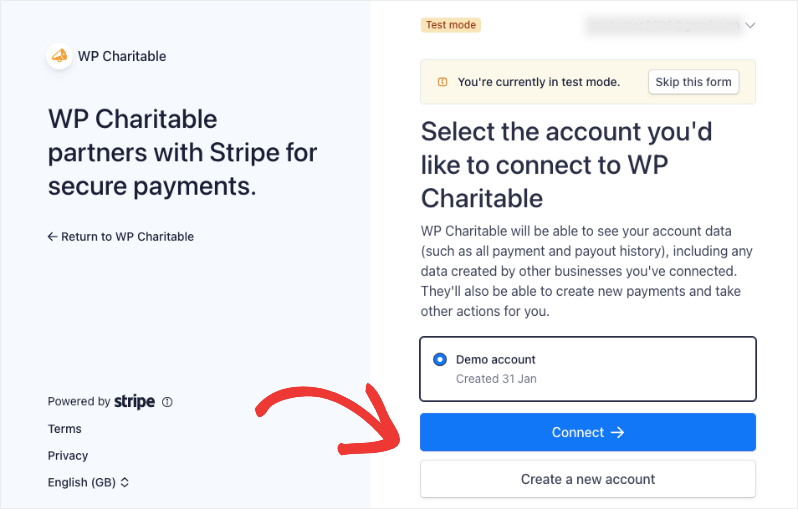
Connect Stripe account on Stripe page

Once you’re logged into your Stripe account, use the ‘Return to WP Charitable’ link on the left. This will take you back to your WordPress dashboard and you’ll see the Connection Status should either say ‘Connected in test mode’ or ‘Connected in live mode’ depending on which mode you chose earlier.
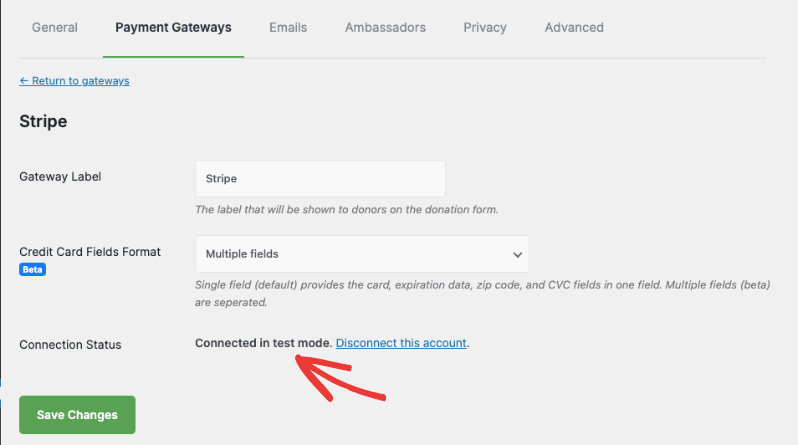
Stripe connected in test mode

Now you’re ready to add the Stripe donate button to your fundraiser and donation campaigns.

Step 3: Adding the Stripe Donate Button to Your Campaigns

Head over to Charitable » Campaigns page in your WordPress dashboard. Here, you can ‘Add a New Campaign’.
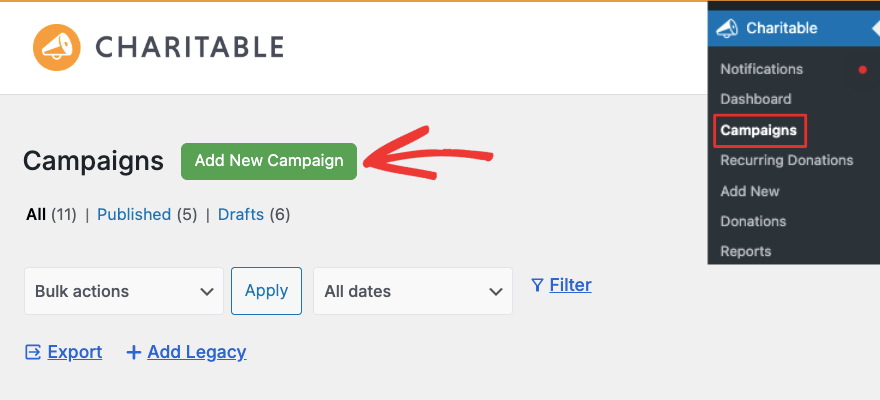
Add new campaign

This will open up the template library where you can give your campaign a name. Then you can browse through the templates available and choose the right one for your fundraiser. Keep in mind that all these templates are editable, so you can change just about anything you need.
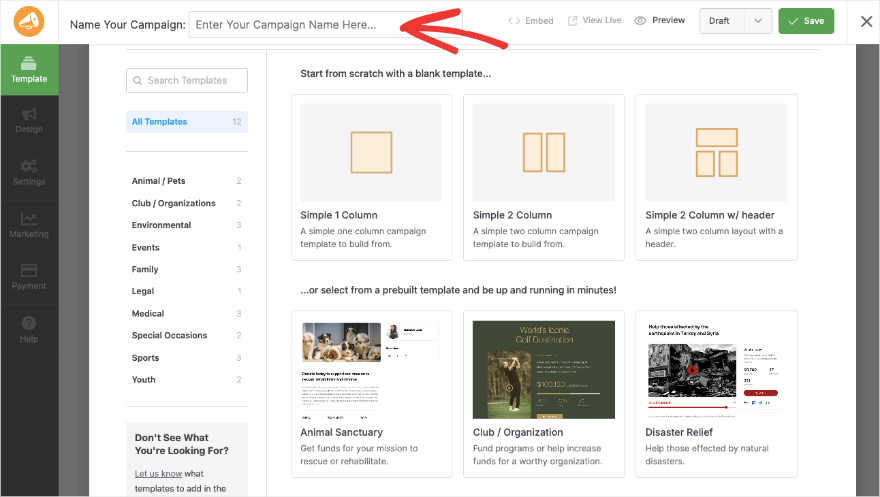
Template library

I’m going to choose the Disaster Relief template. This will open up the visual campaign builder where you can edit your campaign.

On the left, you’ll see a taskbar with fields you can drag and drop into your campaign. There are fields like photos, progress bar, social sharing, donation amounts, and more.

On the right is a visual preview of your campaign. You can directly edit this preview which makes it easy to see what your campaign will look like when it’s live on your site.
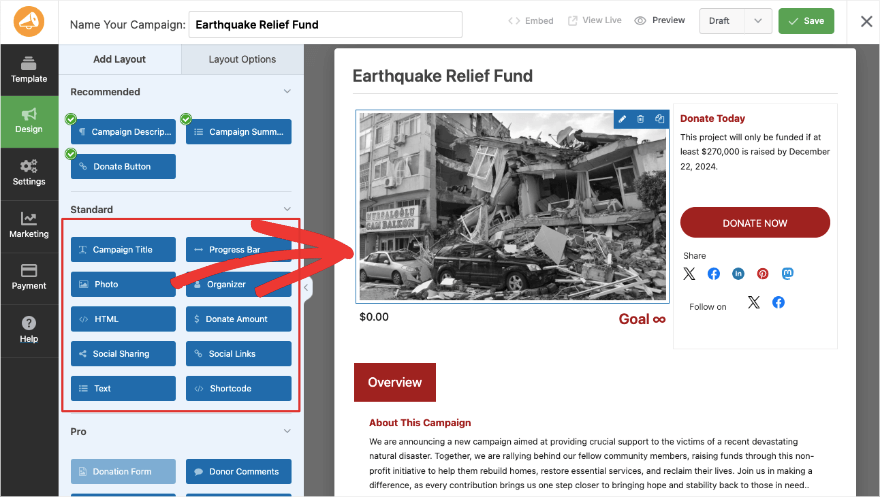
Charitable drag and drop visual builder

If you choose a field in the preview, editing options will open on the left. So for instance, select the ‘Donate Now’ button.

On the left, you can edit the text of the button, the alignment, and width.
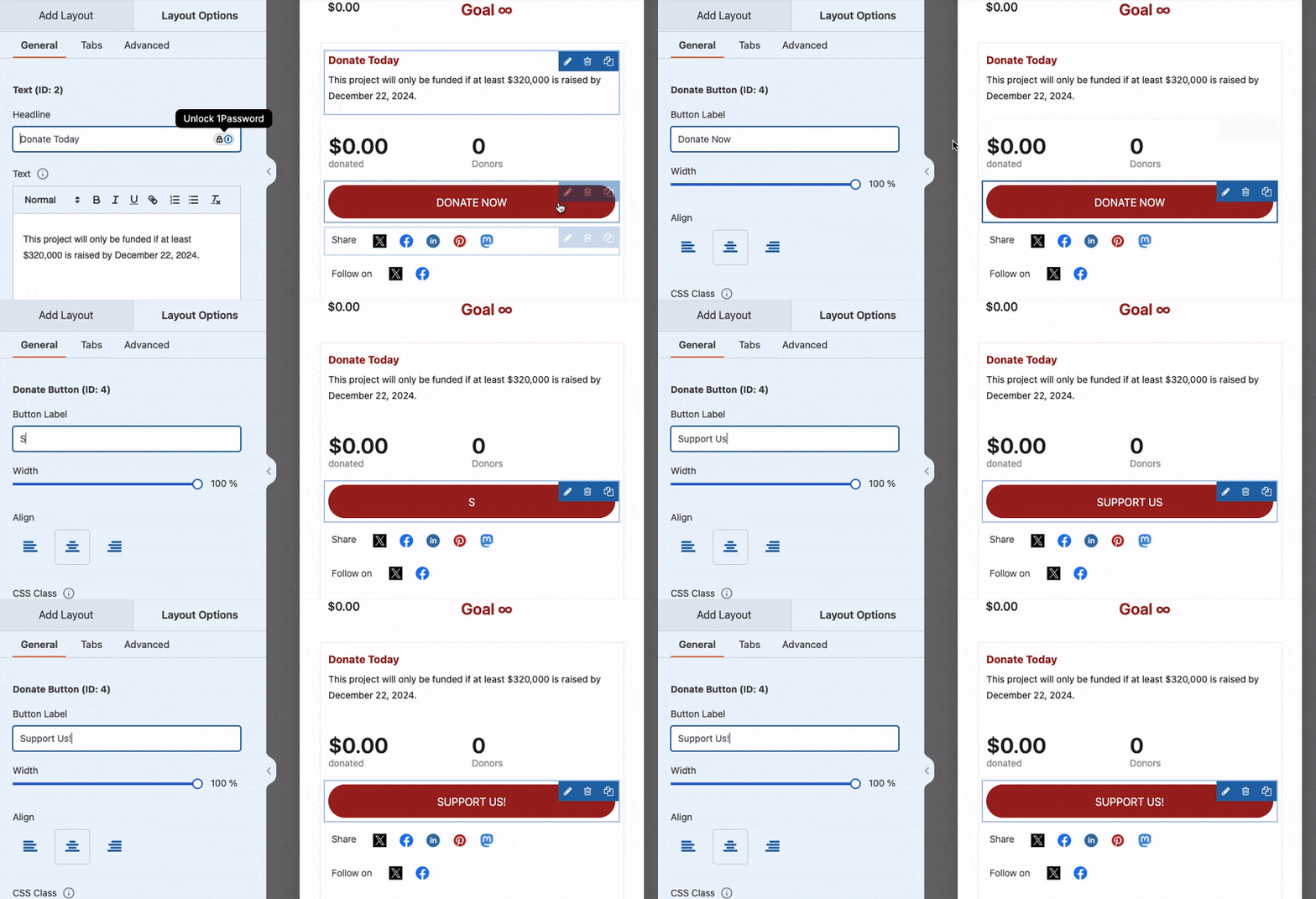
Edit donate button

If you switch from the General to the Advanced tab, you’ll get options to choose different button styles, sizes, colors, and more.
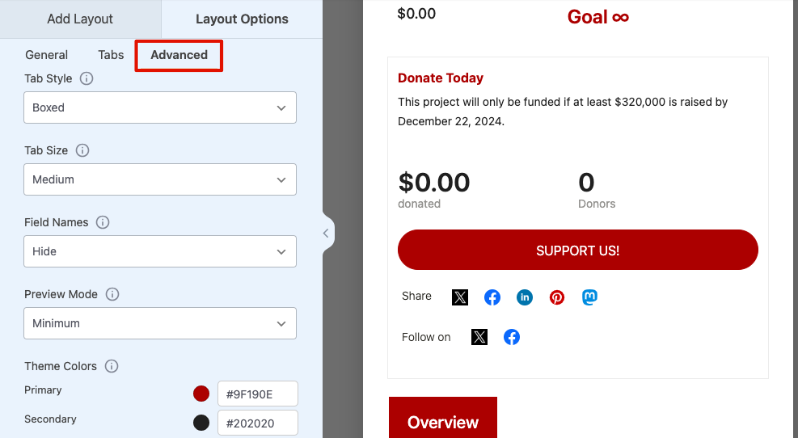
Donation button styles

Stripe is already integrated into Charitable, so the button here will automatically use the enable gateway which is Stripe.

At the top of this campaign builder, you can save and publish the campaign.
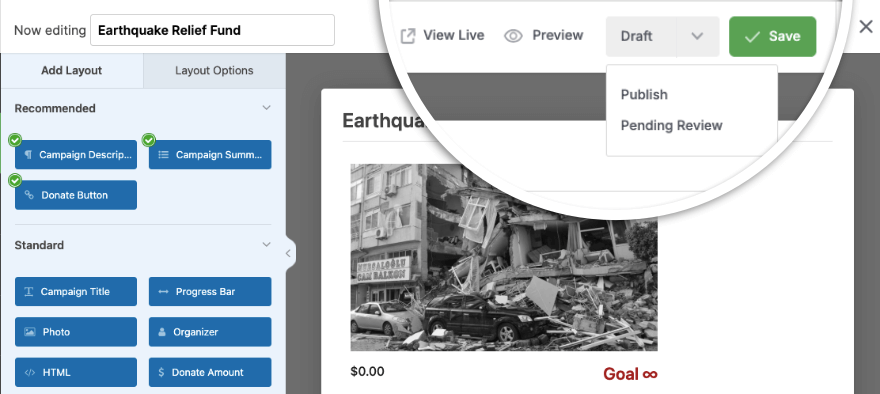
Save and publish campaign

To add this campaign to your WordPress site, open up a page or post. I’m using the WordPress block editor here.

You can add a new block, search for ‘Charitable’ and select the ‘Charitable Campaign’ block.

This will add a new block along with a dropdown menu from which you can choose the campaign you want to display.
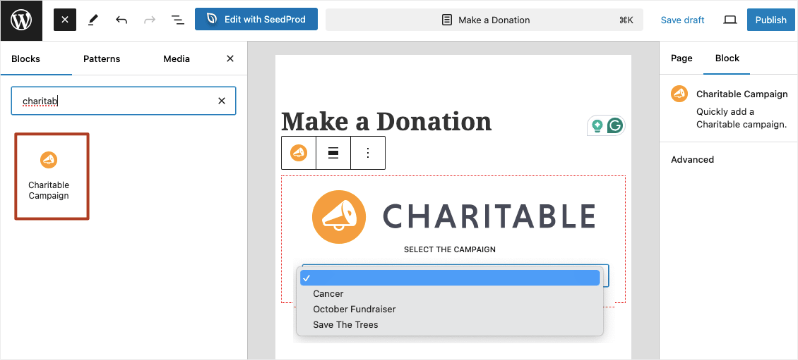
Add Charitable campaign to block editor

That’s it! You’ve added a Stripe Donation button in WordPress. When you visit this campaign on your site, you’ll see your stunning new button that’s powered by Stripe payments.

You can continue to build and launch more fundraisers for your cause.

Need more help creating fundraiser campaigns? Check out our step-by-step set up guide.

Once you launch fundraisers, Charitable has built-in reports to show you how your campaigns are performing, who are your top donors, real-time activity, and so much more. Learn more about Fundraising Reports you need »
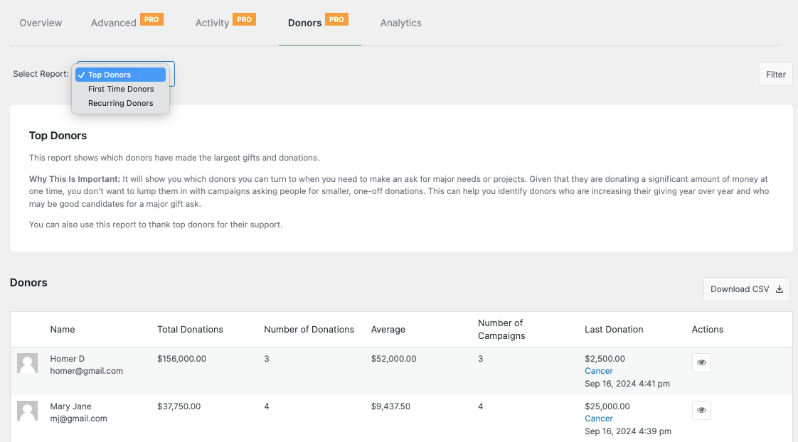
Top donors report

I hope you found this guide helpful. You may also want to see our other Payment Integrations available.


author avatar
Melinda Bartley
I’m the senior writer at Charitable, with over 15 years of experience in content creation, digital marketing, and SEO. Beyond my professional role, I’m the co-founder and trustee of a non-profit organization committed to animal rescue and welfare. Throughout my career, I’ve helped build 17+ blogs – many from the ground up, transforming them into successful marketing platforms that drive traffic, boost brand visibility, and generate revenue.

Disclosure: Our content is reader-supported. This means if you click on some of our links, then we may earn a commission. We only recommend products that we believe will add value to our readers.

Leave a Reply

Your email address will not be published. Required fields are marked *

Get free tips and resources right in your inbox, along with 60,000+ others

Join our Newsletter

We won’t spam you. We only send an email when we think it will genuinely help you. Unsubscribe at any time!

Featured Video:

Watch more videos on our YouTube channel.

What's New In Charitable

View The Latest Updates
🔔 Subscribe to get our latest updates
📧 Subscribe to Emails

Email Subscription

Join our Newsletter

We won’t spam you. We only send an email when we think it will genuinely help you. Unsubscribe at any time!

ambassadors New

🖨️ Introducing Fliers and Posters: Raise Money Away From the Screen!

A lot of peer-to-peer fundraising happens away from a screen: at the finish line of a 5K, on a school noticeboard, in an office kitchen. Charitable Ambassadors 3.4.7 adds 2 printables, a fundraiser flier carrying each fundraiser’s own story and QR code, and a recruitment poster that signs new fundraisers up. Both open as a normal web page and print straight from the browser. Why this is important:

  • 🏁 A flier for every fundraiser: Each one carries that fundraiser’s own photo, story and goal, with a QR code that opens their page rather than your main campaign.
  • 📌 A poster that recruits: It shows “Now Recruiting” above your campaign name with a large QR code that opens your sign-up form, so someone can start fundraising without waiting on a link from you.
  • 🪄 No design tool needed: Both printables render as a normal web page and print from the browser, with no PDF plugin and no designer.
  • 📄 2 flier layouts: Hand out carries the full story for giving to friends and family, and Post up carries a short hook with 5 tear-off tabs for a noticeboard.
  • 🛡️ Off until you switch it on: Fliers stay off after the update until you enable them under Charitable » Ambassadors » Other » Fliers, and only the owner or an administrator can open one.

Check out our announcement here.

author avatar
Melinda Bartley
I'm the senior writer at Charitable, with over 15 years of experience in content creation, digital marketing, and SEO. Beyond my professional role, I'm the co-founder and trustee of a non-profit organization committed to animal rescue and welfare. Throughout my career, I've helped build 17+ blogs - many from the ground up, transforming them into successful marketing platforms that drive traffic, boost brand visibility, and generate revenue.
Improvement Payments

💸 Introducing Tiered Rates for Fee Relief: Match the Ask to the Gift!

Fee Relief asks your donors one short question at checkout: would you like to cover the processing fee on this gift? Until now that question used a single rate for every donation on a gateway, so a $10 gift and a $500 gift were asked for the same percentage. Fee Relief 1.3.0 lets you set as many donation bands as you like, each carrying its own rate. Why this is important:

  • 🪙 Gentler on small gifts: A fixed transaction cost is a far bigger share of a $10 donation than a $500 one, so bands let you ask for less at the bottom.
  • 🎚️ As many bands as you need: Each band carries its own percentage and its own fixed amount, and the top band runs on with no upper limit.
  • 🛑 An optional ceiling: A Maximum fee field stops any donor being asked for more than a number you choose, however large the gift.
  • 🔌 Set per payment gateway: Stripe can run on four bands while Windcave and Payfast stay on a single rate, because bands belong to a gateway and not to your whole site.
  • 🛡️ Nothing changes until you say so: Your current rates stay exactly as they are until you switch Use Tiered Rates on under Charitable » Settings » Advanced » Fee Relief.

Check out our announcement here.

author avatar
Melinda Bartley
I'm the senior writer at Charitable, with over 15 years of experience in content creation, digital marketing, and SEO. Beyond my professional role, I'm the co-founder and trustee of a non-profit organization committed to animal rescue and welfare. Throughout my career, I've helped build 17+ blogs - many from the ground up, transforming them into successful marketing platforms that drive traffic, boost brand visibility, and generate revenue.
Donations Improvement

📊 Your Pro Dashboard Can Now Compare, Export, and Score!

Most fundraising dashboards only tell you how much you have raised. Charitable Pro 1.8.19 rebuilds the dashboard and the Reports Overview around the harder questions: whether anything is broken, whether this period beat the last one, and which single change would make the most difference today. Why this is important:

  • 📈 Every figure has a trend: Pick a period and the tiles and the chart move together, with each total shown against the previous period.
  • 🗓️ Charts that stay readable: Short ranges group donations day by day, while longer ranges group by week or month, so a full year reads as a curve instead of a flat line.
  • 🔀 Compare any 2 periods: Not just consecutive ones, so you can ask how this December did against last December. That matters because fundraising is seasonal.
  • 📤 Export the whole summary: Send the full overview out as CSV or PDF, ready for a board pack or a funder report.
  • 🎯 Score your setup for free: Have your fundraising setup scored, so the one change worth making next is the one you can see.

Check out our announcement here.

author avatar
Melinda Bartley
I'm the senior writer at Charitable, with over 15 years of experience in content creation, digital marketing, and SEO. Beyond my professional role, I'm the co-founder and trustee of a non-profit organization committed to animal rescue and welfare. Throughout my career, I've helped build 17+ blogs - many from the ground up, transforming them into successful marketing platforms that drive traffic, boost brand visibility, and generate revenue.
Feature New

🎟️ Introducing Charitable Events: Sell Tickets Inside Your Campaigns!

Most nonprofits sell event tickets in one tool and collect donations in another, which leaves two sets of reports and a manual match at the end of the year. Charitable Events brings both together, selling tickets through the same donation forms and payment gateways you already run in Charitable. Why this is important:

  • 🎟️ Every ticket is a donation: Ticket sales run through the gateway you already use and count toward the campaign goal, with everything managed under Charitable » Events.
  • 📱 QR check-in from any phone: Each attendee gets their own QR code on the receipt, and volunteers scan at the door through a check-in link that needs no WordPress account.
  • 🧾 Receipts ready for tax time: Give each ticket type a fair market value, and Charitable puts the correct tax-deductible amount on every donor receipt.
  • 📋 Attendee details at checkout: Ask every guest for a meal choice, shirt size, or access needs, with a separate attendee record created for each ticket.
  • 🗓️ Blocks and calendars included: Three editor blocks plus Sugar Calendar and The Events Calendar support put your events where supporters already look.

Check out our announcement here.

author avatar
Melinda Bartley
I'm the senior writer at Charitable, with over 15 years of experience in content creation, digital marketing, and SEO. Beyond my professional role, I'm the co-founder and trustee of a non-profit organization committed to animal rescue and welfare. Throughout my career, I've helped build 17+ blogs - many from the ground up, transforming them into successful marketing platforms that drive traffic, boost brand visibility, and generate revenue.
ai New

🚀 Unleash AI Power in Charitable!

Your AI assistant can now build, edit, and manage your Charitable fundraising campaigns directly — just by asking. With Charitable Pro adding write support for the WordPress Abilities API, tools like ChatGPT, Claude, and Cursor can handle full administrative actions safely through MCP. Why this is important:

  • 🤖 Campaign creation in plain language: Prompt your assistant with a goal like “Set up a fundraiser for the shelter with a $5,000 goal”, and it builds a real draft campaign complete with suggested donation tiers.
  • 🎨 Instant donation form tweaks: Add custom fields, change button colors, or reorder elements without diving into form settings.
  • 📝 Offline gift logging: Tell your assistant about cash or check gifts, and it will match donor emails and record transactions into your history.
  • 🛡️ Safety and control by default: Write access stays strictly off until turned on in Charitable » Tools » AI MCP, keeping read-only reporting safe by default.
  • 📜 Full audit logging: Every change made by an AI assistant is tracked under Charitable » Tools » Logs, so you always know who (or what) updated your site.

Check out our announcement here.

author avatar
Melinda Bartley
I'm the senior writer at Charitable, with over 15 years of experience in content creation, digital marketing, and SEO. Beyond my professional role, I'm the co-founder and trustee of a non-profit organization committed to animal rescue and welfare. Throughout my career, I've helped build 17+ blogs - many from the ground up, transforming them into successful marketing platforms that drive traffic, boost brand visibility, and generate revenue.