Charitable Documentation

Learn how to make the most of Charitable with clear, step-by-step instructions.

How to Allow & Manage Donor Comments

Do you want to give donors an option to leave a message with their donation?

This Donor Comments feature lets you do that with just a few clicks. Once enabled, donor comments can help build community engagement and transparency by giving donors a voice to share their support.

This guide will walk you through the process of enabling and managing donor comments on your donation campaigns.

Table of Contents

Enabling Donor Comments

To allow donor comments on your campaigns, go to the Charitable » Settings page. Here, open the Donors tab and then choose Donor Comments from the submenu.

In this settings page, you’ll see “Enable Donor Comments” with a toggle button next to it. Click this button to enable donor comments feature in the Charitable plugin.
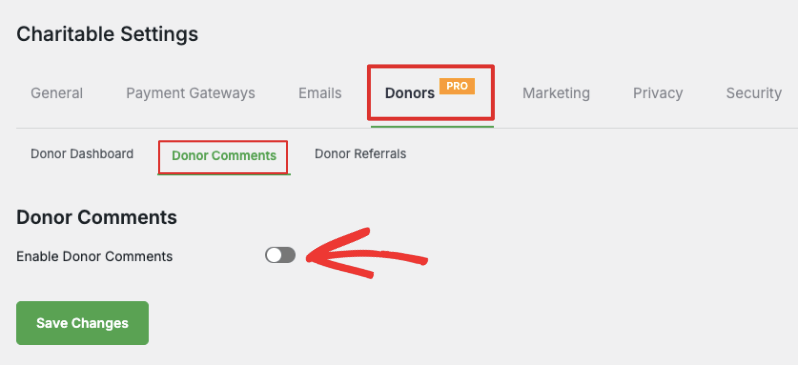
Enable donor comments

Make sure you hit the ‘Save Changes’ button to store your changes.

Configure Donor Comments Settings

When you enable donor comments, new settings will appear on the same page. There are two options here: Show donor comments and comment instructions.

Show Donor Comments in Campaign
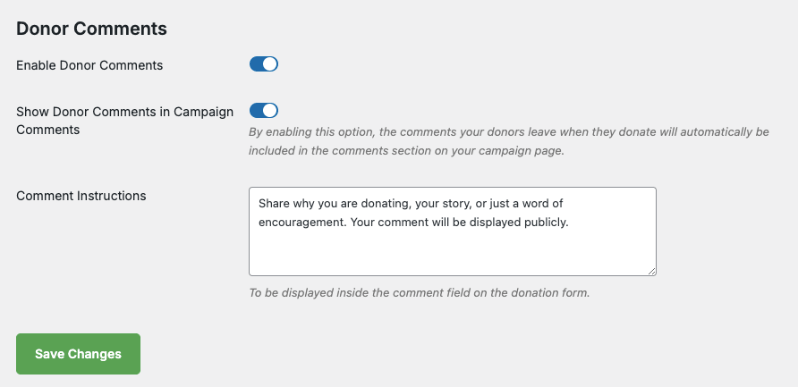
Donor Comments settings page

You can show or hide donor comments on Campaign Pages.

  • Hide: If you choose to hide donor comments, donors can leave messages but only you and your team will be able to view these comments in the donor management system. The donor can view their comments inside their own donor dashboard (if you’ve enabled it).
  • Show: If you choose to show comments, then comments will be publicly viewable. So anyone who can view your campaign page, can also view comments from donors.

Add Comment Instructions

Below this, there is a field called ‘Comment Instruction’. You can enter custom instructions that will appear to your donors inside the comment field in the donation form.

A default message has already been entered for you, but you can edit this as per your needs.

Hit the ‘Save Changes’ button to store your changes.

Now you’ve enabled and configured the donor comments feature on your website. Next, Charitable lets you enable/disable it on individual campaigns that you create. We’ll learn how to do that next.

Important Note: Charitable gives you the flexibility to choose which campaigns can have comments. For this reason, the plugin does not automatically enable the comments section on all campaigns. You need to switch on comments inside the settings of individual campaigns.

Enable Comments in Campaign

Head over to Charitable » Campaigns. Here, you can create a new campaign or edit an existing one.

Inside the campaign builder, in the left menu, choose the Settings » General Settings tab.

On this page, you’ll see a toggle button to enable Donor Comments for this campaign. Click the button to enable comments for this campaign.
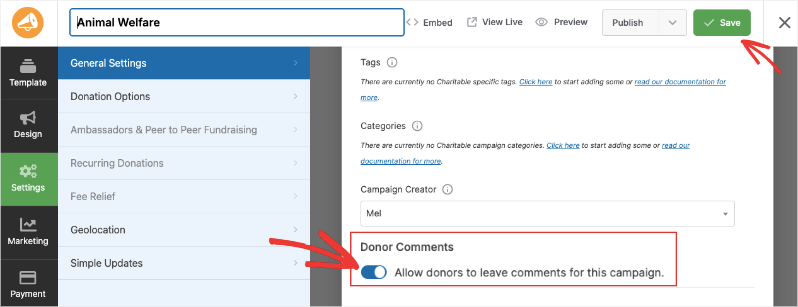
Allow donor comments in campaign settings

Now you can save and publish the campaign.

When a donor chooses to make a contribution, they will see an option to Leave a Comment in the donation form.

Here is an example of that:
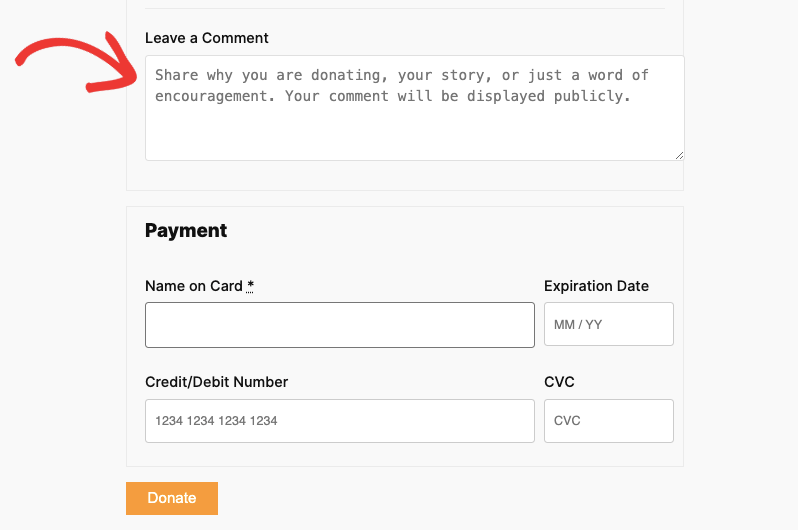
Leave a comment in donation form

Displaying Comments Section in Your Campaign

To display the donor comments in your campaign for the public to view, in the campaign builder, go to the Design tab. Scroll to the Pro section in the left panel.

Select the Donor Comments field and drag and drop into your campaign where you would like it to appear.
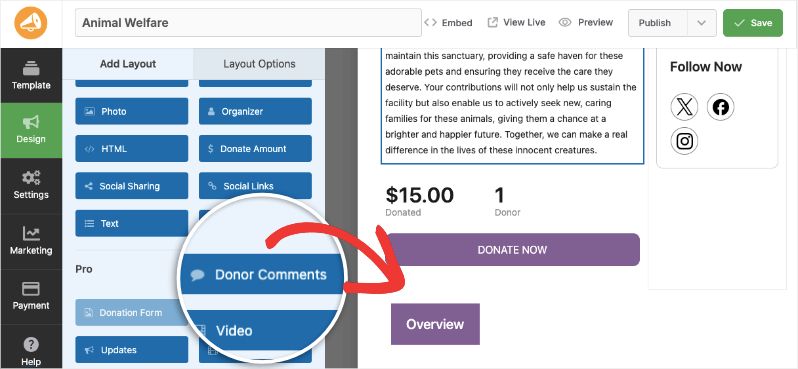
Add donor comments to campaign

When you save your campaign, the comments section will appear in the campaign.

Managing Comments

Charitable Comments can be managed through the default WordPress Comments page as well as inside the Charitable dashboard.

Managing Donor Comments in WordPress

In the left menu of your WordPress menu, open the Comments page. You’ll see a list of all comments donors have left. You can see the donor name, comment text, the campaign, and the date.

Here, you can approve, reject, edit or reply to comments directly from the WordPress dashboard. You can also send them to spam or trash.
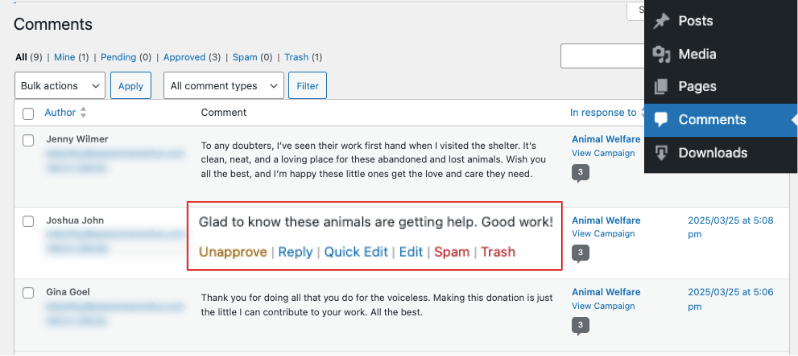
Manage comments in WordPress

Note: Since donor comments are added as regular comments, they will automatically go through the same Akismet SPAM filtering that regular comments do, if you have Akismet installed.

Managing Donor Comments in Charitable

Inside the Charitable dashboard, go to the Donors tab and edit any donor. Scroll down and you’ll see a section with options to view different tabs: Donations, Campaigns, Comments, Social, Logs, and Notes.

Under the Comments tab, you can view, edit, and delete all comments left by the donor.
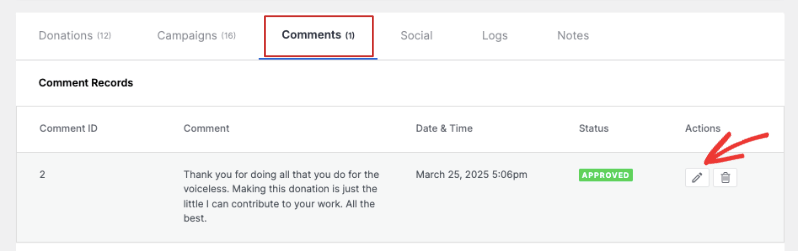
Comments in donor dashboard

Let Donors View & Manage Their Own Comments

If you want to allow donors to manage their own comments, you need to enable the Donor Dashboard. Follow this guide to Enable and Manage the Donor Dashboard »

Once done, your donors can log into their donor account and view all their donations, manage recurring contributions, view comments, and download their donation receipts.

To view comments, donors can log into their account and open the donor dashboard. They’ll see a Comments tab under which all their comments will appear.
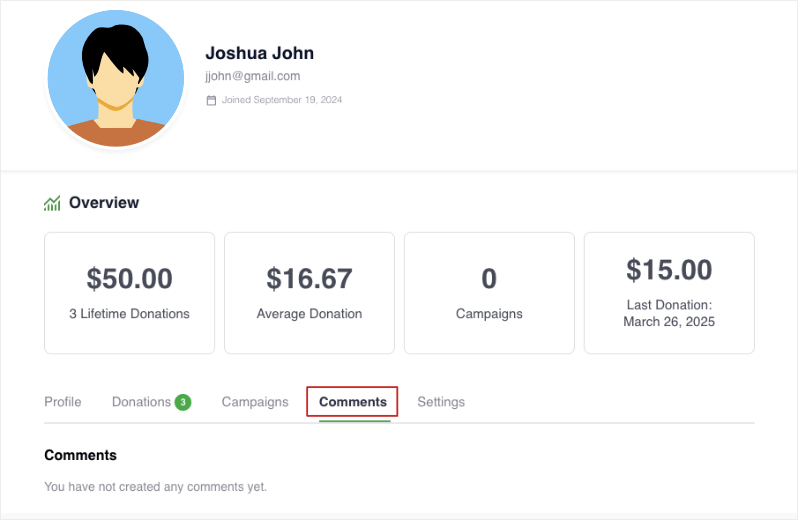
Comments in donor dashboard

That’s it. You’ve learned how to allow and manage comments in Charitable.

To maximize this feature, head over to the full breakdown of Donor Comments »

Next, you may also want to learn how to use the Donor Management System and explore Donor Referrals and what they can do for your cause.
Still have questions? We’re here to help!

Last Modified:

What's New In Charitable

View The Latest Updates
🔔 Subscribe to get our latest updates
📧 Subscribe to Emails

Email Subscription

Join our Newsletter

We won’t spam you. We only send an email when we think it will genuinely help you. Unsubscribe at any time!

Campaigns New

🧡 Modal Donate Button: Turn Any Click into a Contribution

Instead of redirecting users to a new URL, the lightweight Modal Donation Button allows donors to complete their gift in a sleek, focused popup, keeping them engaged with your content while they support your cause.

What’s New:

  • Zero-Friction Giving: Open your donation form in a responsive modal overlay. Donors stay on the same page, reducing drop-off.

  • 🖱️ Place it Anywhere: Use the dedicated WordPress block or a simple shortcode to drop a donate button into sidebars, footers, or even mid-sentence in your storytelling.

  • 🎨 Full Design Control: Match your brand perfectly with customizable background colors, hover effects, border radius, and font sizes—all without touching a single line of CSS.

Whether you need a simple “Donate Now” link or a high-converting popup button, the Modal Donate Button gives you the flexibility to raise more with less effort.

donation form Donations New

💵 Mini Donation Widget: Show The Impact Of Every Dollar!

Not every donor who wants to give will navigate to your campaign page. Meet them exactly where they are by placing a fully functional giving experience directly on any page or post.

💬 Show the impact of every dollar: Attach custom messages to each preset amount so donors understand exactly what their gift provides.
🔄 Monthly and one-time giving: Supports a tabbed interface with independent amounts and impact statements for recurring giving programs.
🎨 Match your brand: Easily set accent colors and control size or alignment to fit the widget naturally into your layout without CSS.
⚡ Reduce donor friction: Open the donation form in a modal overlay to keep donors on the page and reduce drop-off.

Donations Live New

👉🏻 Showcase Real Momentum with the Donations Feed

Give your donors a reason to trust. Our new feed lets you display a living, breathing record of people showing up for your cause.

🤝 Build instant trust: Overcome donor hesitation by showing a proven track record of community support.
💬 Highlight donor stories: Display real donor comments and locations to show the human side of your fundraising.
🛠️ Drop it anywhere: Easily add the block to your homepage, campaign pages, or confirmation screens in seconds.
📈 Curate your feed: Group multiple donations from the same person or sort by highest amounts to encourage larger gifts.

Campaigns New

🎨 Campaign Showcase: Pro Level Display, No Coding Needed.

Display your causes with style and make it easier than ever for donors to find the right campaign. We are excited to announce the brand-new Campaign Showcase, a powerful, no-code tool designed to help you create beautiful, high-converting campaign grids and carousels.

The Ultimate Discovery Experience

Your mission deserves to be seen. With the Campaign Showcase, you can move beyond simple lists and create dynamic displays that highlight your most urgent needs, helping donors connect with the causes they care about most.

⚡ No-Code Customization: Effortlessly change layouts, columns, and styles with a single click. Whether you want a clean grid or an interactive carousel, you can match your organization’s look without any CSS or JavaScript.

🎯 Advanced Search & Filter: Empower your supporters with real-time filtering. Donors can quickly sort through campaigns by tags, popularity, or “ending soon,” making it easy to find exactly where their help is needed.

💰 Quick Donate Integration: Boost your conversions with instant giving. The Showcase allows donors to contribute via a modal popup directly from the display, featuring pre-selected amounts for a faster, friction-free experience.

Addon New

🤯 New Addon: Campaign Updates

Keep your supporters informed and engaged with every step of your progress! Share the ongoing impact of your mission and build lasting trust with your donor community!

The Ultimate Engagement Tool

Fundraising is a journey, not a one-time event. Now, you can easily provide real-time updates directly on your campaign pages, ensuring your donors stay connected to the causes they care about most.

📣 Easy Storytelling: Quickly post text updates, milestones, or field reports to show exactly how donations are being put to work, keeping the momentum alive throughout your fundraiser.

🏗️ Visual Builder Integration: Seamlessly add the Updates block anywhere on your page using our drag-and-drop builder, or use a simple shortcode to display news in widgets and sidebars.

📩 Build Donor Trust: By consistently sharing progress and success stories, you create a transparent giving experience that encourages recurring support and deeper community involvement.