Enabling Cash App payments provides your donors with a convenient and secure way to donate quickly from their phones.
This tutorial will guide you through the process of setting up Cash App payments in Charitable.
Cash App payments can be enabled through the Stripe payment gateway within Charitable.
Note: The Cash App payment method is available exclusively for Stripe accounts registered in the United States.
Step 1: Enabling Stripe Payments
Before you can enable Cash App payments, you must first ensure that Stripe is enabled within Charitable.
In your WordPress dashboard, navigate to Charitable » Settings » Payment Gateways tab.
If Stripe is not already enabled, activate it. Then follow our guide to connect your Stripe account to Charitable.
After enabling Stripe and saving your changes, click the ‘Gateway Settings’ button.
This will open the Stripe configuration page where you can manage various payment methods, including Cash App.
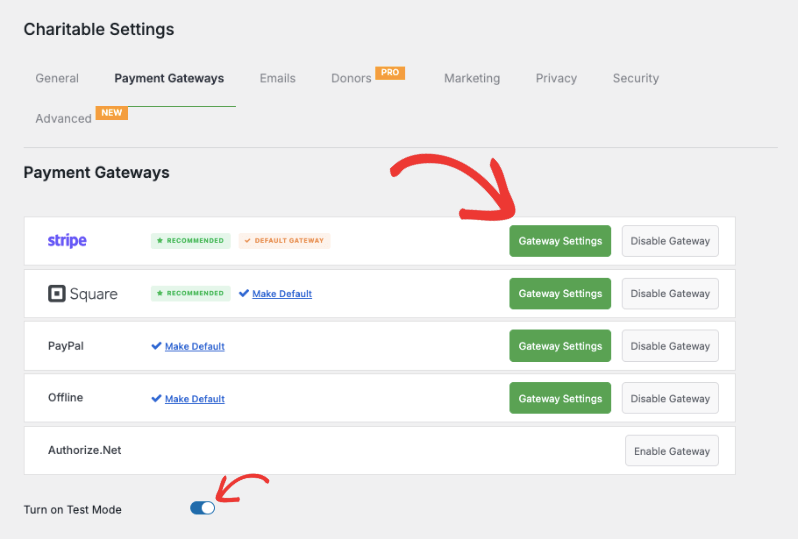
We recommend turning on Test Mode and saving your changes. This will allow you to thoroughly test the payment process without processing real transactions.
Step 2: Accessing Gateway Settings
Inside the Gateway Settings page, enable Cash App from the list of available payment methods. All you have to do is click the toggle siwtch to turn it on.
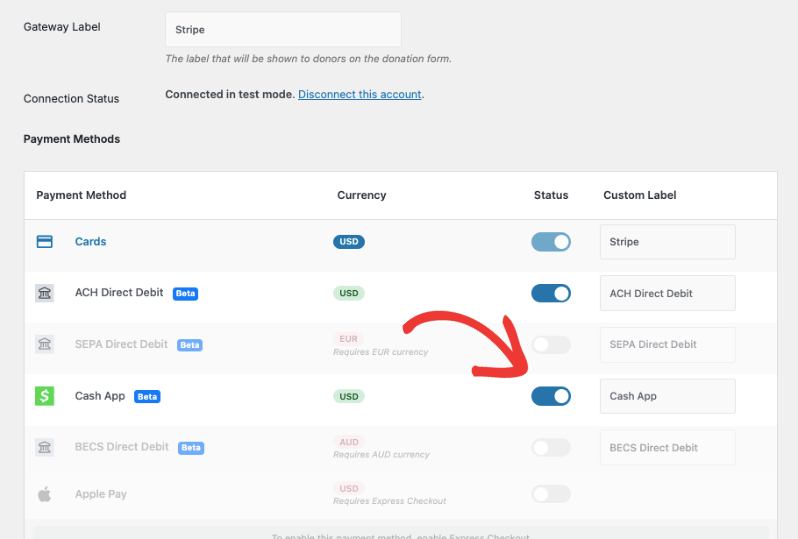
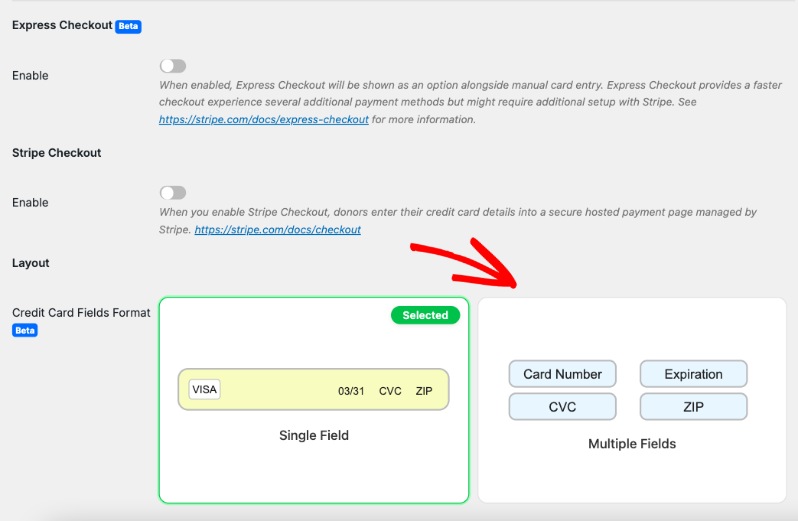
On the same page, you can also configure other Stripe settings like Express Checkout and Stripe Checkout.
You can also choose the layout of your credit card fields and how they appear on your donation form.
Next, you’ll need to add your statement descriptor. This is the description that will appear on your donors’ bank statements. By default, it shows the campaign title.
Below the statement descriptor settings, you’ll find fields to add your Stripe Live Key and Live Publishable Key, as well as your Test Keys if using Test Mode.
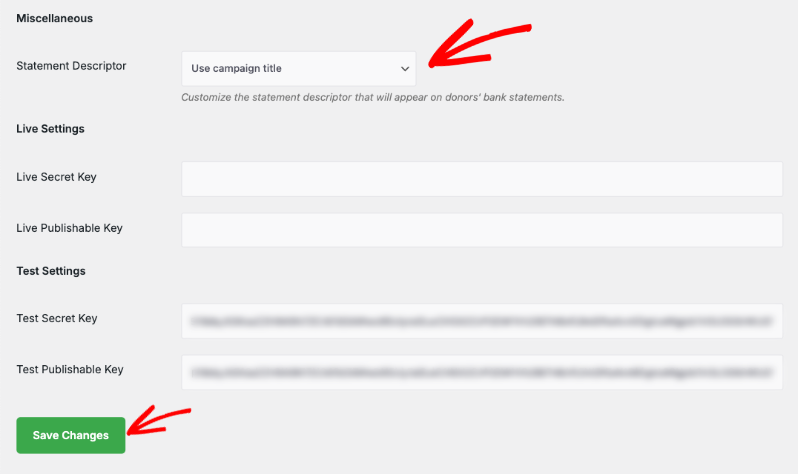
Remember to save your settings by clicking the ‘Save Changes’ button after making any modifications.
Step 3: Testing Your Cash App Setup
Once you’ve saved your settings, it’s time to test your Cash App integration!
Navigate to a campaign page on your website. Initiate a donation to access the donation form.
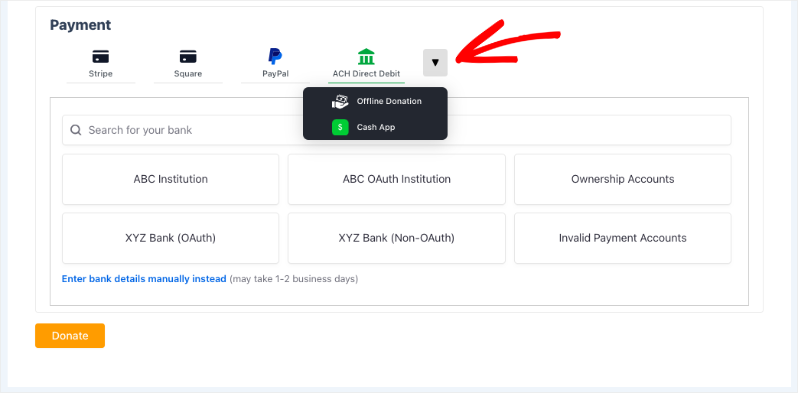
In the Payment section, you should now see Cash App as a payment option.
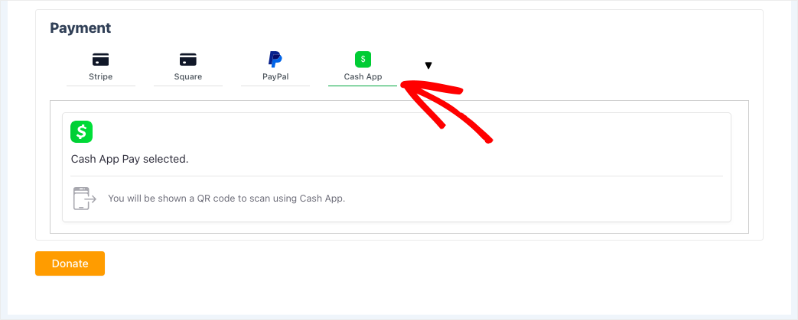
If you don’t see it immediately, a dropdown menu with additional payment options will be available.
Select Cash App here.
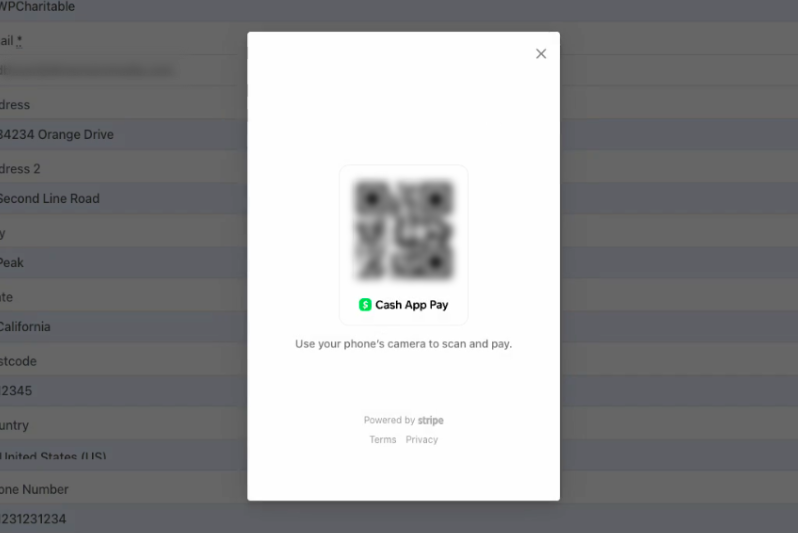
A Cash App QR code will appear, prompting you to scan with your phone’s camera to pay. Follow the on-screen instructions to complete the donation.
If you are using test mode, you can simulate a scan.
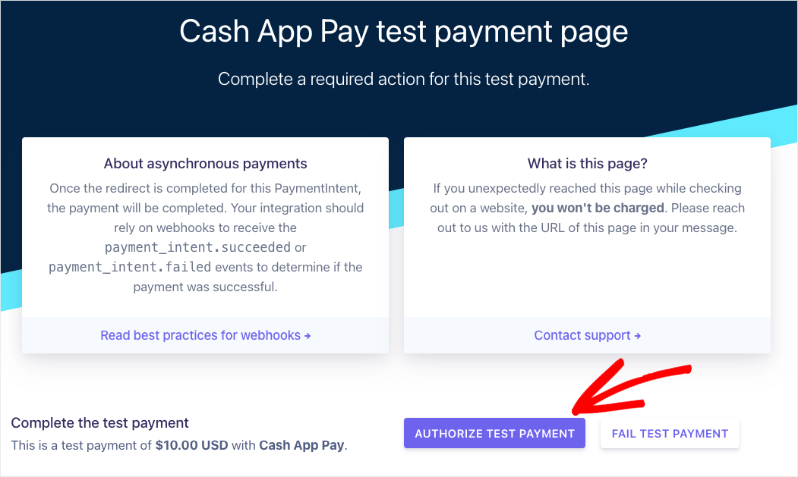
This will take you to the Cash App Pay test payment page.
Here, you can authorize a test payment and even check a fail test payment.
When your payment is successful, you’ll see the donation receipt appear on screen.
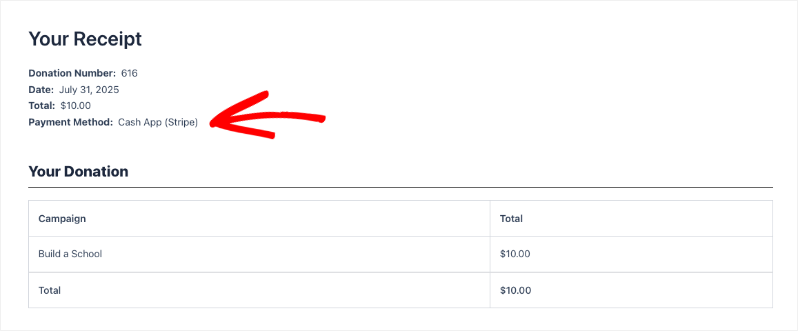
Congratulations! You have successfully set up and tested Cash App via Charitable!
Viewing Your Cash App Donations
Now that you’ve successfully set up Cash App, let’s explore how to view and manage your donations.
You can find all your donation records under Charitable » Donations. Here, all donations are organized neatly for easy access.
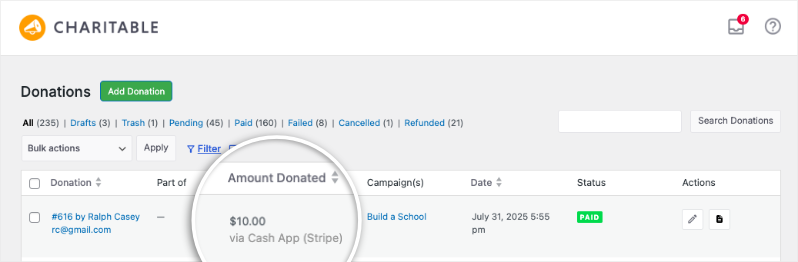
You’ll see key information like the donor’s name, the donation amount, the payment gateway used – in this case, Cash App (Stripe), the campaign name, the date of the donation, and the payment status.
If you click to view or edit a specific donation record, you’ll find detailed payment method information, including the specifics of the Cash App transaction. This allows you to easily review and track payments received via this method.
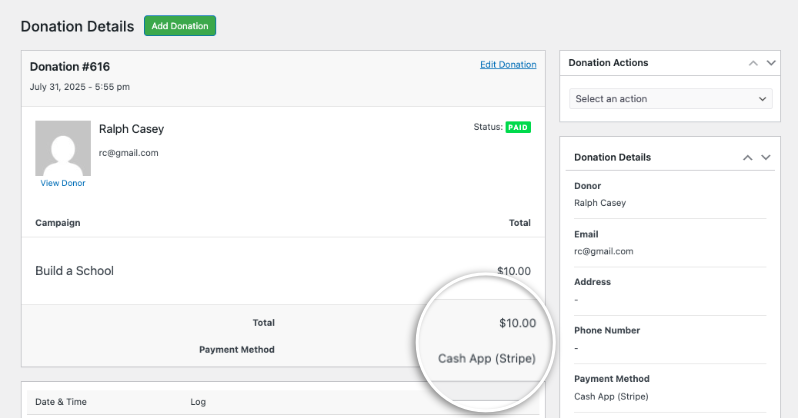
That’s it! You now know how to set up and view your Cash App donations within Charitable.
FAQs – Cash App Payments in Charitable
Here are some frequently asked questions regarding setting up and using Cash App payments in Charitable:
What is Cash App?
Cash App is a secure payment method that allows donors to make donations directly from their phone.
Do I need a separate account to process Cash App?
No, you can process Cash App payments through your existing Stripe account.
What information do you need to provide to enable Cash App?
You will need your Stripe live keys (if applicable) and to ensure Stripe is enabled.
What is a QR code?
A QR code is a code that can be scanned with your phone’s camera to quickly make a payment.
How can I test Cash App Payments?
You can use Stripe’s test mode to simulate a scan and check a success or fail payment.
Where can I view my donation records?
You can view all donations under Charitable » Donations.
Interested in offering more payment options to your donors? See our list of payment integrations »