Requires the Charitable Pro plugin 1.8.18 or later, and WordPress 6.9 or later.
Charitable can now be operated by an AI assistant. You connect an assistant such as Claude or ChatGPT to your site, then ask for what you want in plain English, and the assistant does the work in Charitable for you.
“Set up a fundraiser for the animal shelter with a $5,000 goal.” “Who are our biggest supporters?” “Someone posted a check for $250, record it.”

What’s in This Guide
There is nothing to install in Charitable. If you are running 1.8.18 on WordPress 6.9 or later, the operations are already registered and waiting for a client to connect. The one Charitable setting you will touch is write access, in step 4.
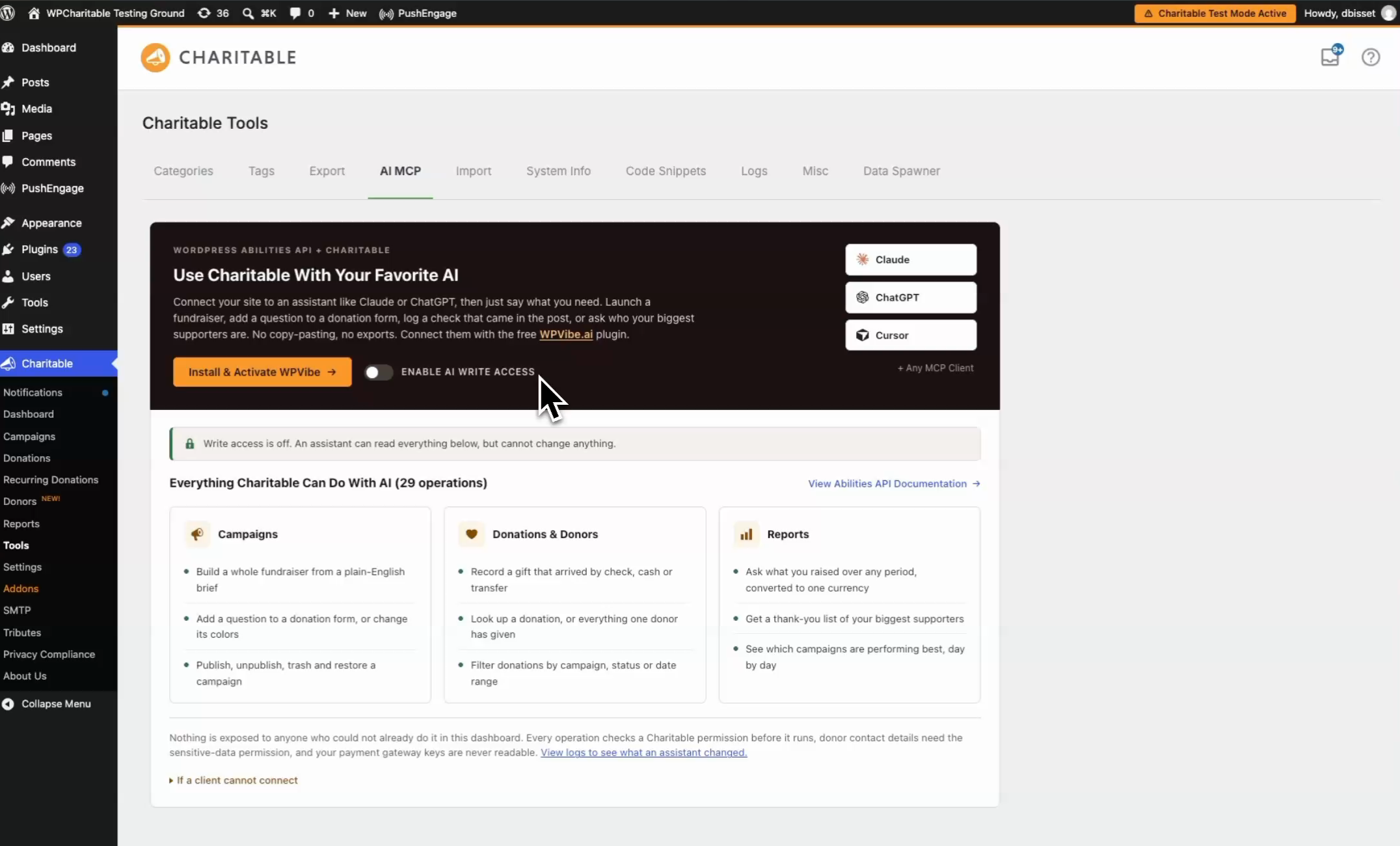
For more detailed documentation, everything about Charitable + AI is here »
What You Need
- WordPress 6.9 or later. This is built on the WordPress Abilities API, which arrived in 6.9. On 6.8 or earlier nothing registers and nothing about your site changes.
- The Charitable Pro plugin, version 1.8.18 or later.
- An assistant that can connect to WordPress. Assistants reach your site through a connector, and the standard for this is called MCP. WPVibe, built by SeedProd, is one such connector and works with Charitable out of the box. Any client that reads the WordPress Abilities API will see Charitable’s operations the same way.
- An administrator account on your site, or one with the Charitable capabilities for the work you want done. The assistant acts as whoever you connect it as, so read What It Can and Cannot Touch below.
- Nothing else. An assistant starts out able to read but not change anything. Turning writing on is step 4, and it is a deliberate, separate decision.
You do not need a Charitable addon for this, and you do not need to paste an API key into Charitable’s settings.
Step 1: Add the Connector to Your Assistant
This varies by client, so follow your connector’s own instructions. For most, you add it once to your account and it is then available wherever you are signed in.
In ChatGPT, for example, WPVibe is a listed app. You will find it under Plugins, and you choose “Install plugin” and sign in.
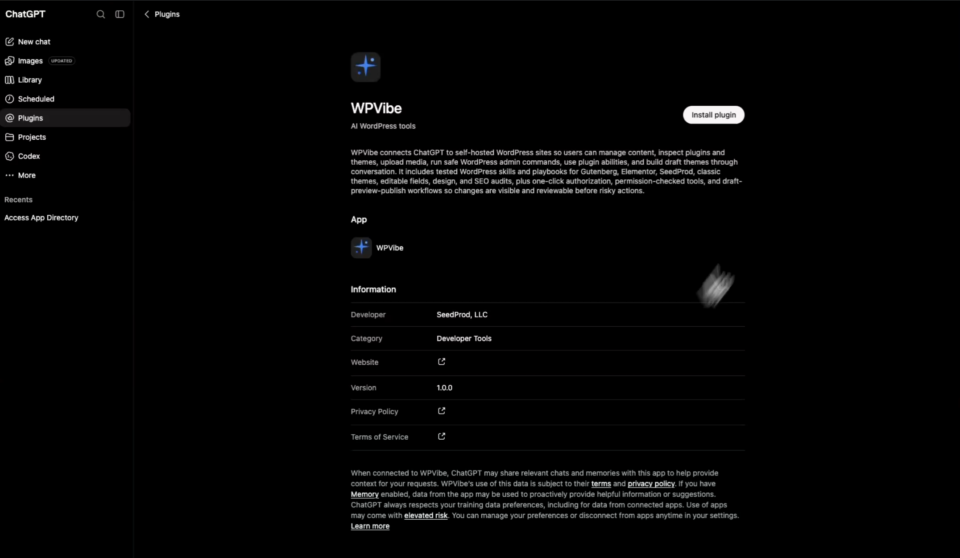
Note: In Claude, Claude Code, Cursor, and Windsurf, you add the connector by its MCP server address instead. Your connector will show you the address to use.
Step 2: Create an Application Password
An application password is how WordPress lets a program sign in as you without your real password. It is built into WordPress and you can revoke it at any time.
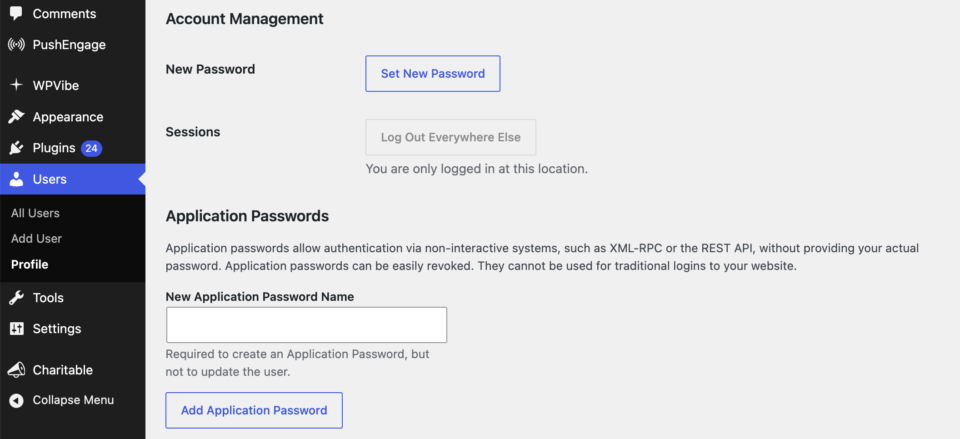
- In your WordPress dashboard, go to Users » Profile.
- Scroll to Application Passwords.
- Type a name you will recognize later. The name of your assistant is a good choice.
- Click “Add New Application Password”.
- Copy the password now. WordPress shows it once and cannot show it again. If you lose it, delete the entry and create another.
Keep it to yourself. An application password acts as your user account, so anything done with it appears in your dashboard authored by you.
Pro tip: If several people use assistants on one site, give each person their own application password. The Abilities log will then show you who did what.
Important Note: The Application Passwords section only appears on sites served over HTTPS. If your site is not on HTTPS yet, that is the thing to fix first.
Step 3: Connect Your Site
Tell your assistant to connect your site, and give it the address, your username and the application password.
Most connectors will also offer to hand you a one-click approval link instead, so you never type the password at all. Take that route if it is offered.
Once the site is connected, Charitable » Tools » AI MCP will confirm it.
Step 4: Turn On Write Access
A newly connected assistant can read, but not change anything. That is deliberate. Connecting is a safe act on its own, and you decide separately whether an assistant may create campaigns, record donations or publish anything.
Until you turn writing on, an assistant can answer every question about your fundraising, such as what you raised, who your biggest supporters are, and what a campaign looks like. It will refuse to change anything, and explain what to switch on.
- Go to Charitable » Tools » AI MCP.
- Turn on “Enable AI Write Access”.
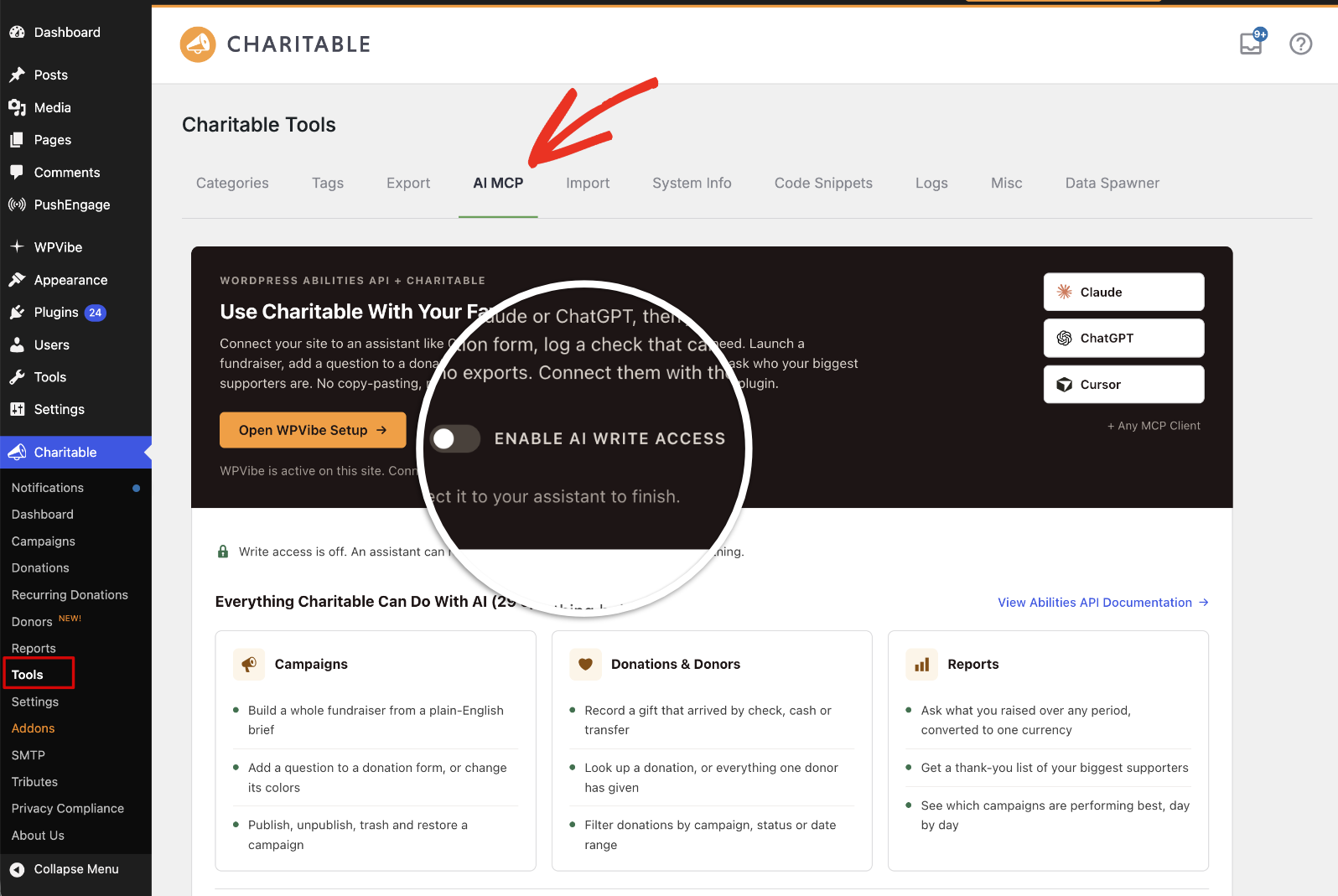
That is the whole step, and it saves as you click. Turn it back off whenever you like.
Reads keep working either way, and anything an assistant changes is recorded under Charitable » Tools » Logs so you can always see what happened.
Note: Leaving write access off is a perfectly good way to use this. A read-only assistant is genuinely useful for reporting and answering questions, and it cannot alter a single campaign.
Step 5: Check It Worked
Ask 2 questions.
“What WordPress sites do I have connected?” Your site should come back by name.
“What can my Charitable site do?” You will see the operations grouped the way the plugin is, covering your plugin, site and payment gateway status, then campaigns, donations, donors and reports.
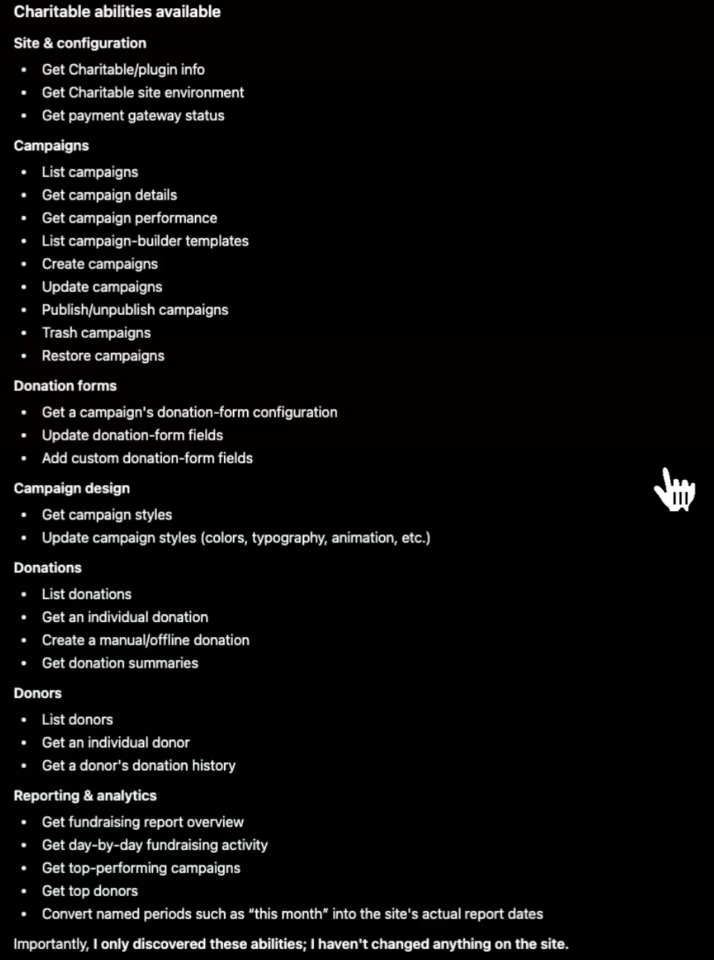
In 1.8.18 that is 29 operations, split as 3 that report your plugin, site and payment gateway status, 14 for campaigns, 4 for donations, 3 for donors and 5 for reports. The number grows as we add to Charitable, so treat it as a sign the connection is working rather than a fixed figure.
Important Note: If the site connects but you see no Charitable operations at all, the connection is fine and something else is wrong. Check that WordPress is 6.9 or later and the Charitable Pro plugin is 1.8.18 or later.
Try These First
Ask in your own words. You never need to name an operation or fill in a form, because working out which one to use is the assistant’s job.
These all work whether or not you turned on write access, except where noted.
- “Set up a fundraiser for the animal shelter, $5,000 goal, ending at the end of next month.” Needs write access. You get a real campaign built in the Campaign Builder, with a template’s layout and colors and a ladder of suggested donation amounts scaled to your goal, not an empty draft.
- “Add a question to that form asking how they heard about us.” Needs write access.
- “Make the donate button green.” Needs write access.
- “Who are our biggest supporters?” Ranked over your whole history, which is what that question usually means. Ask for a period if you want one.
- “Which campaign has raised the most?”
- “Someone posted a check for $250 from Jane Smith, record it.” Needs write access. It will ask you for the donor’s email address, and it should, because donors are matched on their email. Inventing one would split or merge real donor records.
- “Why aren’t my donations showing up?” It can read your gateway and test-mode status and give you a real answer.
Pro tip: Say the period in your own words. “Last quarter” and “this month” are turned into real dates in your site’s own timezone, so you get the period you meant rather than a running total of everything you have ever raised.
What It Can and Cannot Touch
Nothing is exposed to anyone who could not already do it in the dashboard. Every operation checks a Charitable capability before it runs, so an assistant connected as a Campaign Manager can do less than one connected as an administrator.
A few limits are useful to know up front:
- Changes are off until you turn them on. A connected assistant reads immediately and cannot change anything until an administrator enables write access under Charitable » Tools » AI MCP. This sits on top of the permission checks, not instead of them.
- Payment credentials are never readable. Your Stripe, PayPal and Square keys are not included in anything an assistant can see, whoever is asking.
- Donor lists never include email or postal addresses. Reading a named donor’s contact details requires the sensitive-data capability, so one permitted read cannot become a bulk export of your donor file.
- There is no permanent delete for a campaign. Deleting one would orphan the donation records that point at it, so an assistant can move a campaign to the trash, which is reversible, and nothing more. It will also refuse to trash a campaign that already has donations unless you confirm.
Keeping an Eye on It
Two places in your dashboard:
The Abilities Log
Go to Charitable » Tools » Logs, set the first drop-down to Abilities and click “Filter”.
Every change an assistant makes is recorded here, with what it did, when, and which operation it used. Refusals are recorded too, so you can see the times an assistant tried something and was stopped.
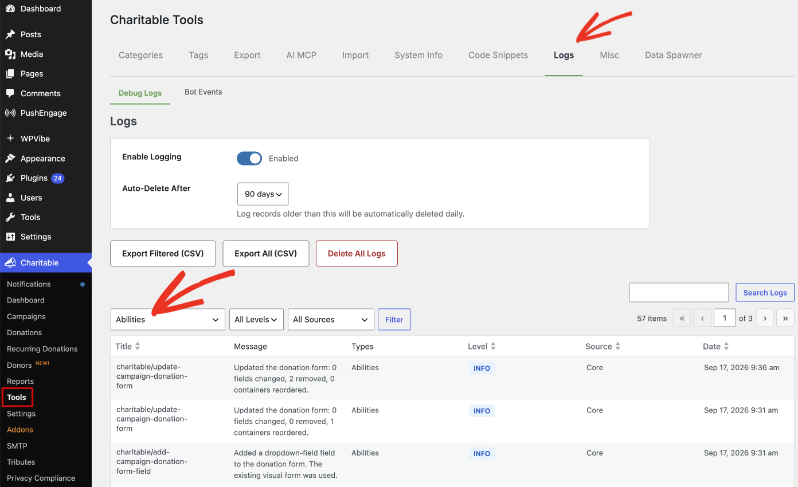
Pro tip: Use “Export Filtered (CSV)” on that screen if you need to hand the record to someone else.
The Abilities API Section of System Info
Charitable » Tools » System Info has an Abilities API section, and it is the first place to look if a client connects but cannot see your data.
It tells you whether the API is available, how many Charitable operations are registered and how many of those can write, whether write access is on, which MCP clients are active, whether anything is blocking REST requests, and what the last operation and the last refusal were.
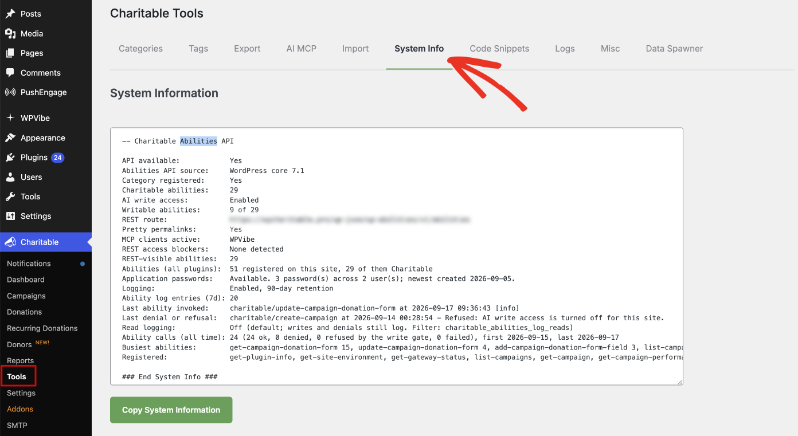
Pro tip: Click “Copy System Information” and paste it into a support ticket. It saves a round of questions.
FAQs on AI Assistants in Charitable
Do I need to pay for a second AI subscription?
No. This works with the assistant you already use, and Charitable does not add an AI subscription of its own.
Can an assistant publish a campaign without me seeing it?
Not unless you have turned write access on and asked it to. Campaigns it creates arrive as drafts, so a person still decides what goes live.
Can an assistant delete my campaigns?
It can move a campaign to the trash, which you can undo. There is no operation that deletes a campaign permanently, and it will refuse to trash a campaign that already has donations unless you confirm.
Why does it keep asking me for a donor’s email address?
Because donors are matched on their email address rather than their name. Without it, a new record could be created for someone who has given before, or 2 different people could be merged.
How do I disconnect an assistant?
Turn “Enable AI Write Access” off to stop any changes straight away. To cut the connection entirely, revoke the application password under Users » Profile. Charitable keeps working normally either way.
I am on WordPress 6.8. What happens?
Nothing registers and nothing about your site changes. The Abilities API arrived in WordPress 6.9, so an assistant will connect to your site and find no Charitable operations at all.
That’s it! You’ve connected an AI assistant to Charitable.
Next, Everything AI Assistants Can Do in Charitable covers the full list of all 29 operations, how permissions map to roles, and what is deliberately out of reach.
Helpful Links
🤝 Get help when you need it
Connect with Customer Support →
📑 Find the guide you need
Browse the Documentation Hub →
⬇️ Download proven strategies, campaign ideas, and expert tools
🔗 Let your AI Assistant do the fundraising work for you.
Connect Charitable to your AI assistant →
💸 Get Free Fundraising Resources
Head to the Charitable Fundraising Hub →
🤔 Got questions about Charitable?
Charitable FAQs →
Need help understanding non-profit terms and jargon?
See our Non-Profit Glossary →