
Charitable lets you connect your donation campaigns to Google Analytics, enabling you to track donation performance and gain valuable insights into your fundraising efforts. By integrating Google Analytics, you can monitor key metrics, understand donor behavior, and optimize your campaigns for increased impact.
Prerequisites
- You have an active Charitable donation plugin on your WordPress website
- You have access to a Google Analytics account with administrative permissions.
- You will need the Google Analytics addon which requires Charitable Pro 1.8.6+.
- PHP 7.2+
If you have not already set up Google Analytics and connected it to your website, you’ll need to do that now. It takes 5 minutes. Follow this guide: How to Install Google Analytics in WordPress for Beginners
Quick Steps (Set up in a minute)
- Paste your GA4 measurement ID (
G-XXXXXXXXXX) into Charitable » Settings » Advanced. - (Optional) Paste your Measurement Protocol API Secret to enable server-side tracking for off-site gateways. Generate one in GA4 Admin » Data Streams » your stream » Measurement Protocol API secrets.
- Click “Test GA4 Connection”. This fires a real test event with
debug_modeon. Pass or fail with a descriptive error in seconds.
Step 1: Finding Your Google Analytics Measurement ID
To connect Charitable to Google Analytics, you’ll need your Google Analytics Measurement ID. This unique identifier allows Charitable to send donation data to your Google Analytics property.
Navigate to the Google Analytics website and sign in to the Google account associated with your Google Analytics property.
- If you have multiple Google Analytics accounts, ensure you select the correct one.
- Within the account, select the correct property for which you want to track Charitable donation data.
In the left-hand navigation menu, click Admin. Then, in the Property column, click on Data Streams.
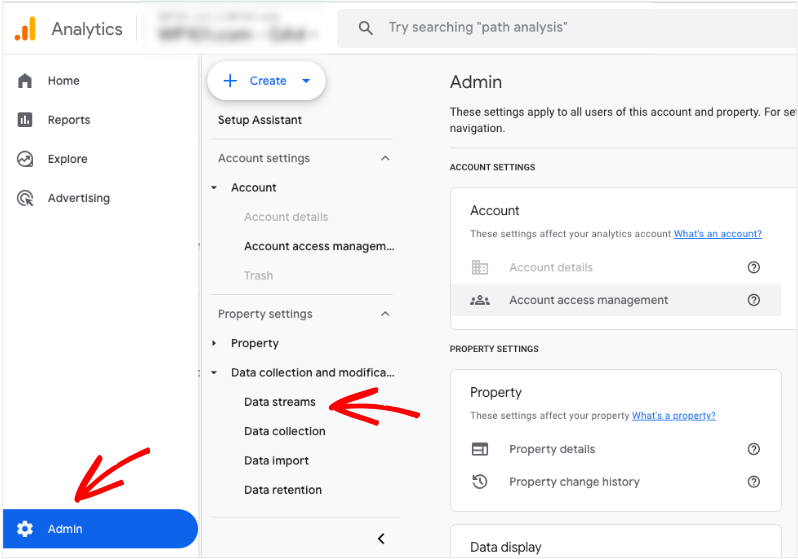
You will see a list of data streams. In the right-hand section (Stream Details), you will find your Measurement ID. It typically begins with “G-” followed by a series of letters and numbers (e.g., G-XXXXXXXXXX).
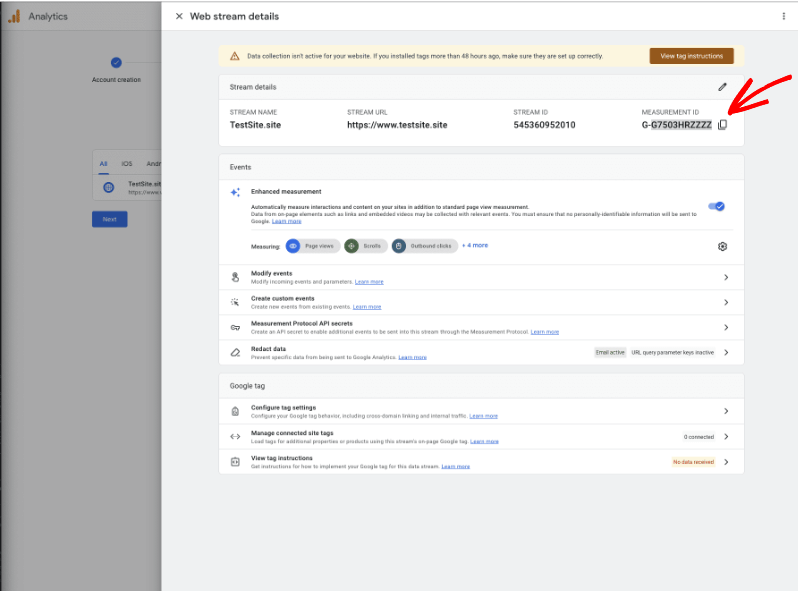
If you have not already set up a data stream for your website, click “+ Add Stream”. Click on the website data stream associated with your donation website.
Note: Your Measurement ID is case-sensitive. Copy and paste it exactly to avoid errors. Also, ensure you are using the Measurement ID and not the legacy Tracking ID.
Step 2: Adding Google Analytics Measurement ID In Charitable
Once you have located your Google Analytics Measurement ID, you can connect it to your Charitable donation platform.
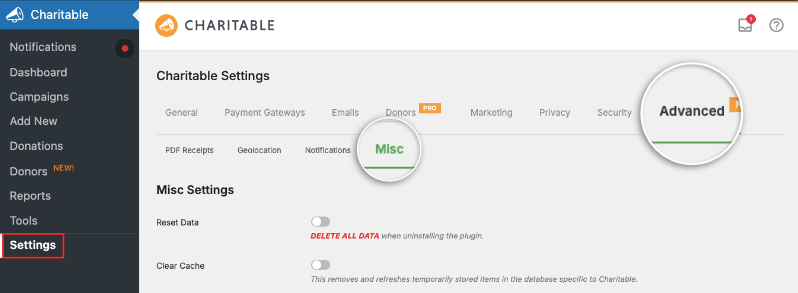
In your WordPress admin dashboard, go to Charitable » Settings. From the settings menu, click on the Advanced » Misc tab.
Scroll down to find a field labeled Google Analytics. Here, Paste your Google Analytics Measurement ID into the Google Analytics field.
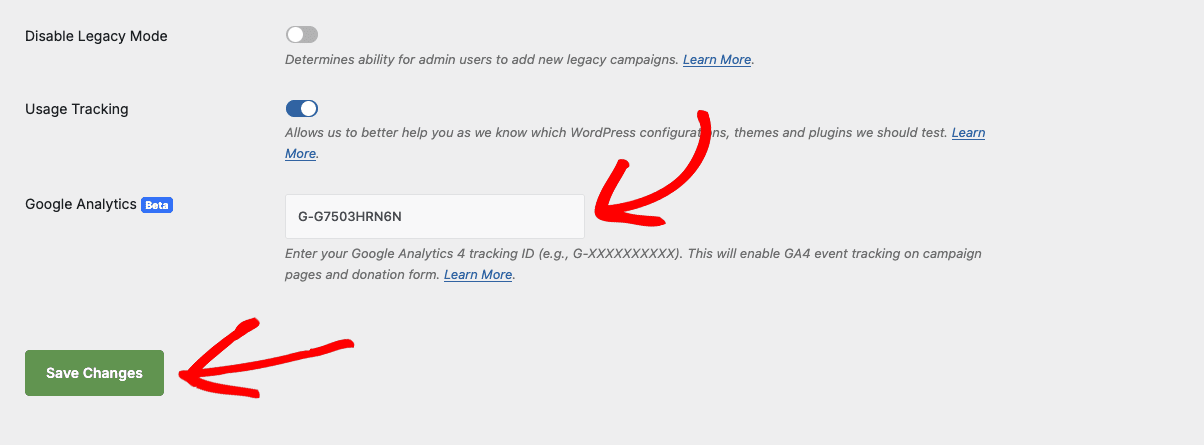
Click the Save Changes button located at the bottom of the page.
That’s it! Your Charitable platform is now configured to send donation data to your Google Analytics property. Please allow up to 24 hours for the data to begin appearing in your Google Analytics reports.
Step 3: Viewing Data On Google Analytics
Once the connection is established, donation data will be sent to your Google Analytics property. Here’s how to access these reports.
In your Google Analytics property, navigate to Reports » Events.
You will see a list of events tracked by Charitable.
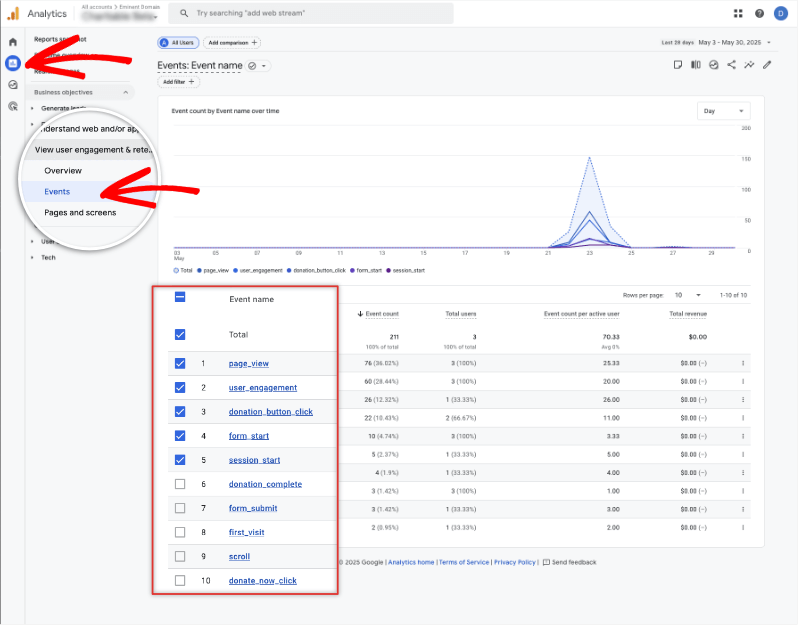
Click on the desired event (e.g., Donation_Complete) to view detailed reports. This can include data such as:
- Event Count: Total number of donations
- Event Value: Total revenue generated from donations
- By Country: Donation from specific places
- Device category: Device being used.
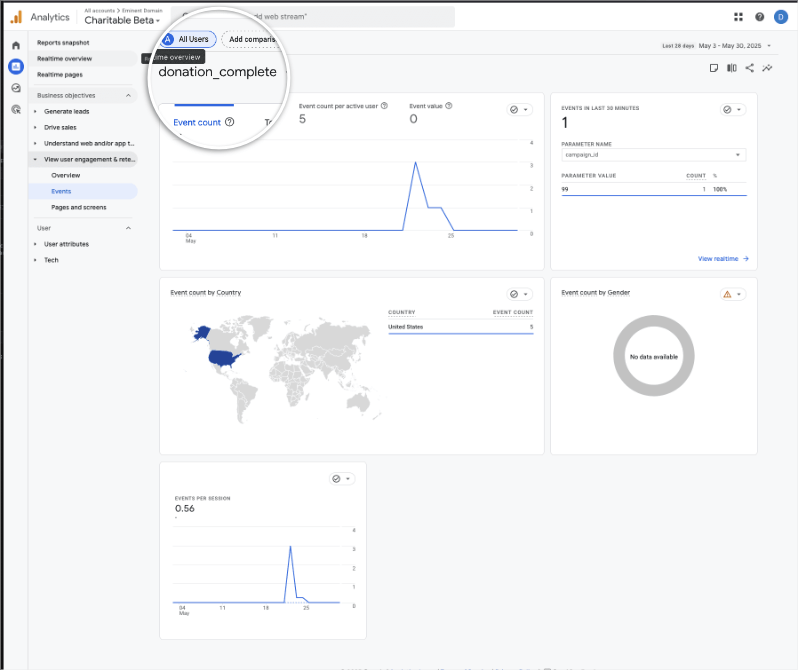
Like this, you can view detailed reports for every event category that’s being tracked.
What Charitable Data Is Tracked
This integration lets you track every donation, even off-site.
PayPal redirects, Stripe webhooks, admin-confirmed offline donations – donations that complete after the donor has closed their tab. The server-side Measurement Protocol path catches every conversion the browser path misses, so your GA4 Monetization reports match your Charitable dashboard.
Both paths share an idempotency flag – there is no double-counting between the browser receipt page and the server-side webhook fire.
Charitable provides a set of event parameters that are sent to GA4 to provide more context about donation activity. These parameters will help with filtering and analysing data. It’s important to note that some information might not always be available to send due to how campaigns and donation pages can be customized.
If a parameter can’t be captured (like campaign information or donation amount), the corresponding data string value will default to “unknown.” This is to avoid tracking partial or invalid data.
Here is a breakdown of the information sent with each event.
1. Donation_button_click – Campaign Donation Buttons
This event triggers when a user clicks on a campaign donation button.
campaign_id: The ID of the campaign associated with the button.campaign_name: The name of the campaign.donation_amount: The amount associated with the donation button.event_category: Always set to ‘Donation’.event_label: Always set to ‘Donation Button Click’
2. Donate_now_click – Clicking Donation Button on Form
This event triggers when a user clicks the donation button on donation form.
campaign_id: The ID of the campaign associated with the donation form.campaign_name: The name of the campaign.donation_amount: The amount associated with the donation form.event_category: Always set to ‘Donation’.event_label: Always set to ‘Donation Button Now Click’
3. Donation_complete – Form Processing Complete
This event is triggered when a donation form processing is complete.
campaign_id: The ID of the campaign.campaign_name: The name of the campaign.donation_amount: The amount of the donation.donation_id: Unique Charitable’s Donation ID.event_category: Always set to ‘Donation’.event_label:‘Form Processing Complete’
Creating and Modifying Events in Google Analytics
Google Analytics 4 (GA4) automatically tracks an array of events from your website.
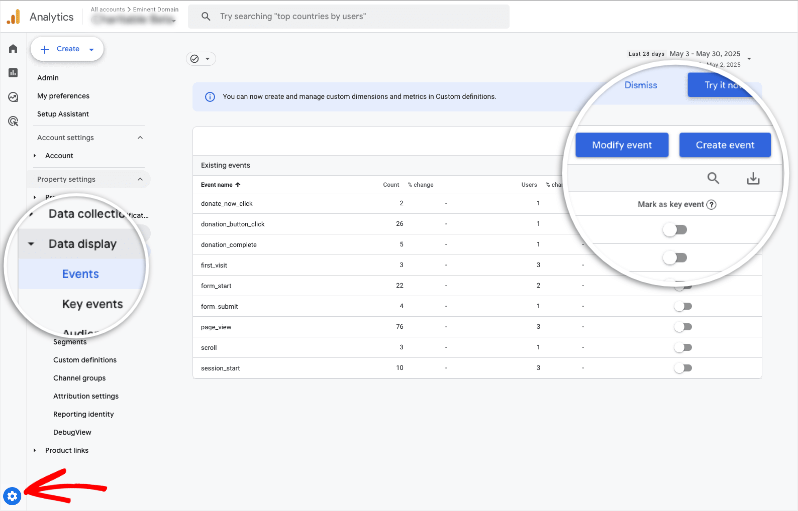
In your GA4 property, in the left-hand menu, you’ll see a Settings gear icon. Go to this Admin Settings page. In the new left-hand menu, open the Events tab under ‘Property Settings’.
Here, you can view what events that are being tracked.
You’ve successfully connected Charitable to Google Analytics 4 (GA4), enabling powerful tracking of your donation campaigns. By implementing these steps and understanding the data parameters sent by Charitable, you can gain valuable insights into donor behavior, optimize fundraising strategies, and maximize impact.
Using UTMs with Charitable Campaigns
This integration includes full UTM capture: utm_source, utm_medium, utm_campaign, utm_term, utm_content, utm_id. Includes utm_term and utm_id that most competitors miss.
UTMs persist for 30 days in first-party cookies, attach to every donation at submission time, and surface in two places:
- GA4 reports – mapped to GA4’s standard
source/medium/campaign/term/content/campaign_idevent params for purchase and refund events. Native attribution reports work out of the box. - The donation admin record – a “Google Analytics” panel on the donation edit screen shows captured UTMs, GA4 clientid and sessionid, consent state at the moment of donation, and timestamps for fired events. Multi-touch attribution-ready, last-touch by default.
Privacy-First By Default
The addon ships full Google Consent Mode v2 – required for EEA traffic since Google’s March 2024 enforcement. Without it, denied EEA users disappear from GA4 entirely. With it, GA4 still receives modeled conversions and cookieless pings.
- WP Consent API integration with Cookiebot, CookieYes, Complianz, Iubenda, and OneTrust. Server-side events honor consent captured at donation insert.
- Donor IP anonymization – IPs are truncated to /24 (IPv4) or /48 (IPv6) before transmission. Country-level geolocation is preserved, the donor’s exact IP never persists.
- Hashed donor identity – emails are normalized (lowercase + subaddress stripped) and SHA-256-hashed before becoming the GA4
user_id. Cross-device session stitching without exposing PII to your reports. - Multi-role tracking exclusion – keep internal QA / staff traffic out of your reports without configuring an IP filter.
Next, we’ll cover frequently asked questions on Google Analytics and Charitable.
FAQs on Connecting Google Analytics and Charitable
1. How can Google Analytics help with my fundraising efforts?
Google Analytics can provide valuable insights into how visitors interact with your donation pages, offering data on user behavior, traffic sources, and conversion rates. By tracking metrics such as page views, bounce rates, and referral sources, you can better understand the effectiveness of your fundraising campaigns and optimize them for better performance.
2. What key metrics should I track with Google Analytics?
Some important metrics to track include:
- Conversion Rate: The percentage of visitors who complete a donation.
- Bounce Rate: The percentage of visitors who leave the site after viewing only one page.
- Average Session Duration: How long, on average, users stay on your site.
- Source/Medium: The channels through which visitors arrive at your site (e.g., organic search, paid ads, social media).
3. How do I set up Google Analytics to track donations?
To track donations, you can use event tracking and set up goals within Google Analytics. Event tracking allows you to track specific actions, such as clicks on a “Donate” button, while goals can help measure the completion of donation forms. Setting up both involves adding tracking code to your website and configuring Google Analytics accordingly.
4. What is event tracking, and how can it be used to track donations?
Event tracking is a feature in Google Analytics that lets you monitor interactions on your website that don’t trigger a page load, such as button clicks or form submissions. To track donations, you’ll configure events when a user clicks your “Donate” button or successfully completes a donation form.
5. How do I set up goals in Google Analytics for donation completions?
To set up a goal, go to the Admin section of your Google Analytics account, select “Goals,” and create a new goal. You can use the “Destination” goal type if your donation process redirects to a “Thank You” page after completion. Specify the URL of this page as the destination to track successful donations.
6. What are some common challenges in tracking donations with Google Analytics?
Some challenges include accurately tracking donor journeys, dealing with donor privacy concerns, ensuring tracking code is implemented correctly, and handling multi-channel attribution to understand where donations originate.
7. How can I use Google Analytics data to improve my donation forms?
You can use Google Analytics data to identify pages with high bounce rates or low conversion rates, indicating where drop-offs occur. Through A/B testing and analyzing different user segments, you can refine form design, simplify the donation process, and tailor messaging to increase conversions.
8. What privacy considerations should be taken into account when using Google Analytics for fundraising?
It’s important to comply with data protection regulations like GDPR. This involves ensuring you have user consent for tracking, anonymizing IP addresses, and providing visitors with information on how their data will be used. Always ensure your privacy policy is up-to-date and transparent.
9. What happens if I change my Google Analytics account after connecting Charitable?
If you change your Google Analytics account, you will need to disconnect Charitable from the original account and reconnect it to the new one. This ensures that donation data is sent to the correct property. Be sure to re-enter the correct Google Analytics Measurement ID in Charitable Settings.
10. Why isn’t donation data appearing in Google Analytics reports?
- Check Connection: Verify that you’ve entered the correct Google Analytics ID in Charitable.
- Data Delay: Allow up to 24-48 hours for data to appear in Google Analytics.
- Verify Event Settings: Confirm that the right events are set up. For example, the right name is set up.
- Sampling: High-volume donation activity can cause data sampling in Google Analytics.
- Real-Time Reports: Check reports in GA4.
11. Why is the “unknown” showing up for the campaign information?
If the information is set to unknown, it suggests that the campaign is not being sent to GA4. Please check the campaign setup or form settings for how the campaign information is being sent.
12. Can I track other events in addition to donations?
Yes, it’s possible to customize events in Google Analytics.
13. How do I troubleshoot if a specific event is not showing up?
- Ensure that you have enabled the required tracking events.
- Clear your browser cache and cookies to ensure you are loading the latest data.
- Contact support.
You’re now equipped to gain valuable insights, optimize your fundraising efforts, and amplify your impact.
Did you know Charitable also provides Fundraising Reports right inside your WordPress dashboard? Learn about built-in reports here »


