Charitable Documentation

Learn how to make the most of Charitable with clear, step-by-step instructions.

How to Use Charitable Widgets in Elementor

Charitable now includes native integration with the Elementor page builder, featuring four purpose-built widgets that allow you to create professional donation pages without any coding knowledge.

These widgets seamlessly integrate with your existing Elementor designs and provide full control over your fundraising content.

This guide will show you how to use the Charitable widgets inside the Elementor builder.

Don’t have Charitable yet? You’ll need to install it first. The Elementor widgets feature is available in the Charitable Pro plugin).

Table of Contents

Finding Charitable Widgets in Elementor

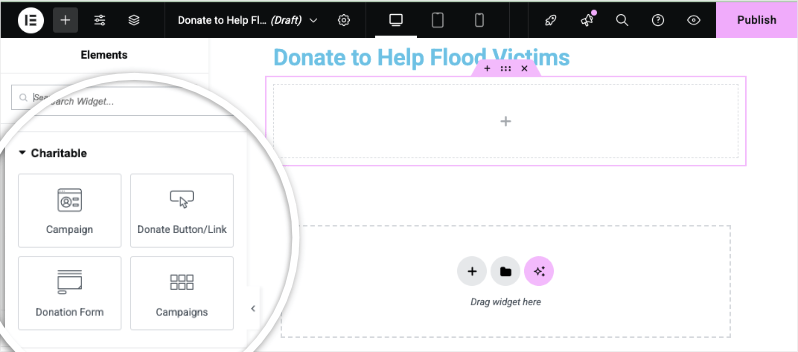
When you create pages with the Elementor page builder, on the left taskbar, you can click on the + icon to access the Elements menu.
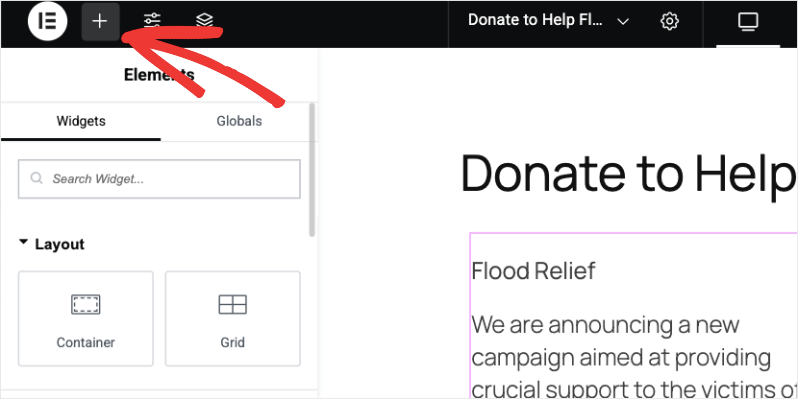
Plus icon in Elementor

You can search for these widgets, for example, to search for the donate button, simply type “donate” in the search bar and you’ll see it populate. You can also scroll down to find four ready-made Charitable widgets that seamlessly integrate with your design:

  1. Campaigns
  2. Donate Button
  3. Donation Form
  4. Campaigns (Gallery style)
Charitable Elementor widgets

Adding the Campaigns Widget

The Campaigns widget lets you showcase individual campaigns with all their compelling details.

To add this widget to your page, drag and drop it into your design where you would like it to appear.
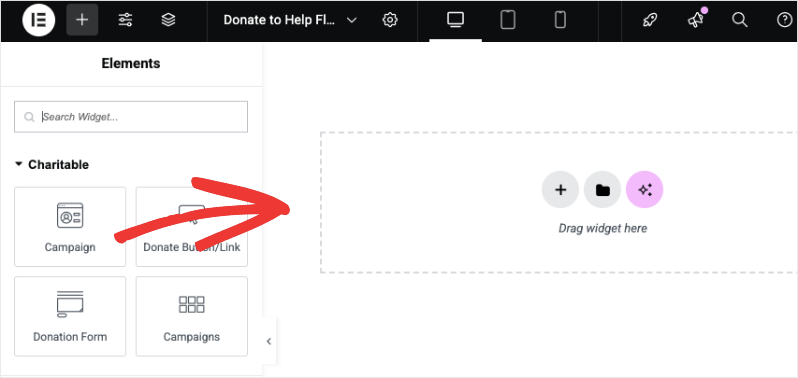
Add campaign in Elementor

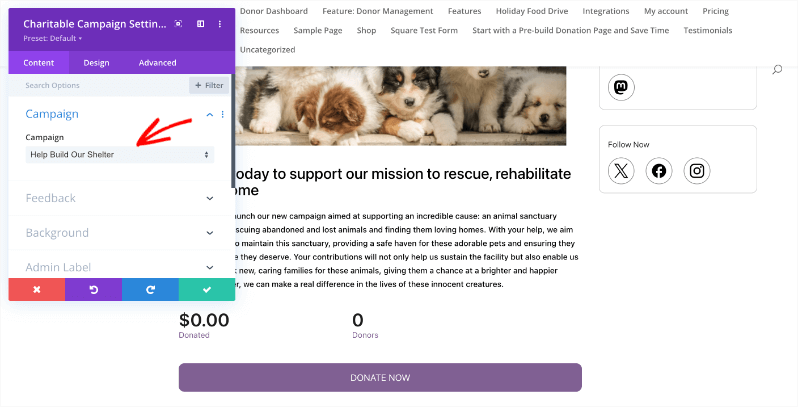
In the left taskbar, you can add a title for this section. Below that, a dropdown menu appears. Select your campaign and a preview will appear in your design.
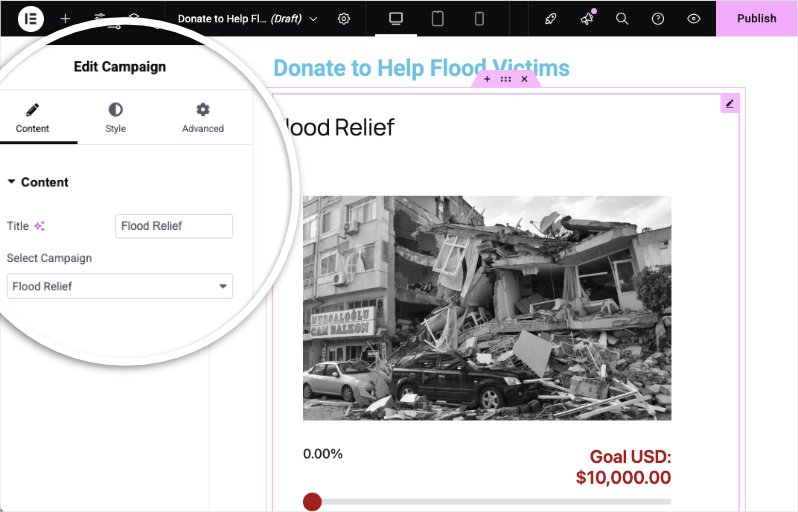
Charitable campaign Elementor widget

Now you can preview, save, and publish with ease.

Adding the Donate Button Widget

This Donate button widget is perfect for adding donation CTAs throughout your site – in your header, sidebar, or at the end of blog posts.

To add this simple “Donate” button to your page, drag and drop the widget into your page design.
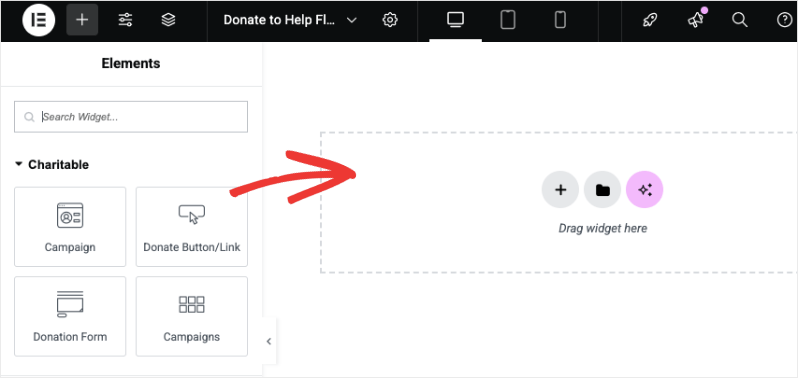
Add donate button in Elementor

Now you can add a label for the button. This is the text that will show up inside the button.

Belore that, you can select your campaign that you want for this button.
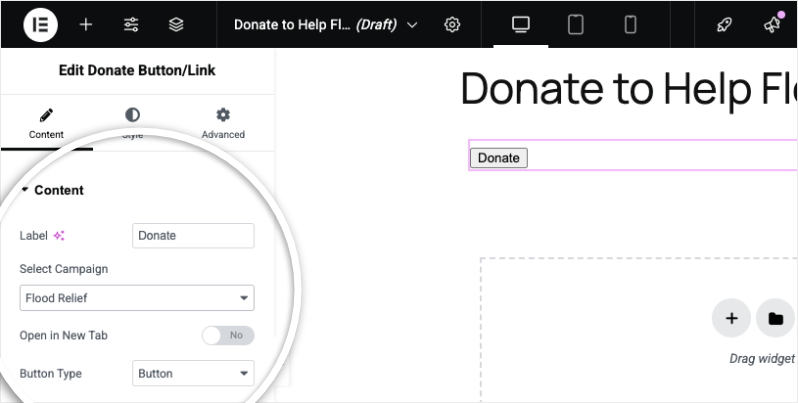
Donate button Elementor widget

If you want the campaign to open in a new tab, use the toggle switch here to enable that feature.

The last option here lets you show this widget as a Button or as Link text.

Adding the Donation Form Widget

Add the Donation Form widget to your page design by dragging and dropping it.
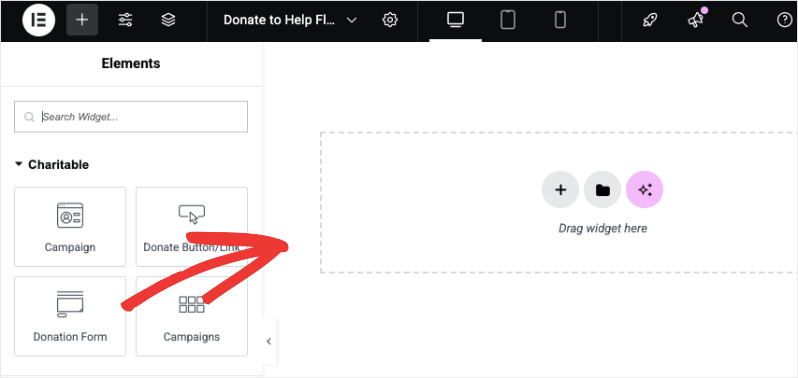
Add donate form in Elementor

The preview the form directly in the Elementor builder (due to how forms work), just hit the preview button or publish to see it live.
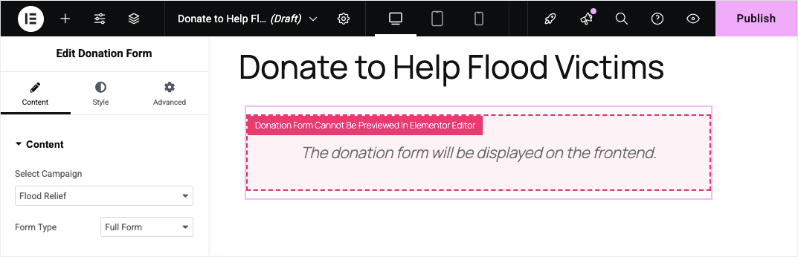
Donation form Elementor widget

You can preview your page design or hit the publish button to see your form in action.

Adding the Campaigns Widget

The Campaigns widget lets you create a gallery of your campaigns. This allows donors to see all the campaigns you want to showcase and they can donate according to their passion and inclination.
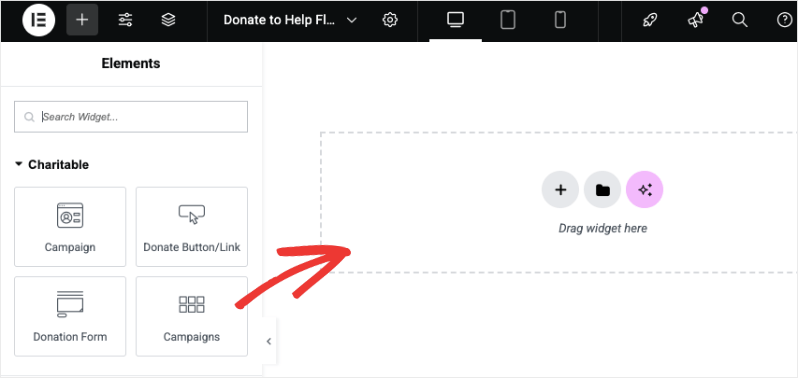
Add campaigns in Elementor

When you add the Campaigns widget to your page, you’ll see all your campaigns appear like so with options to edit the gallery on in the left taskbar:
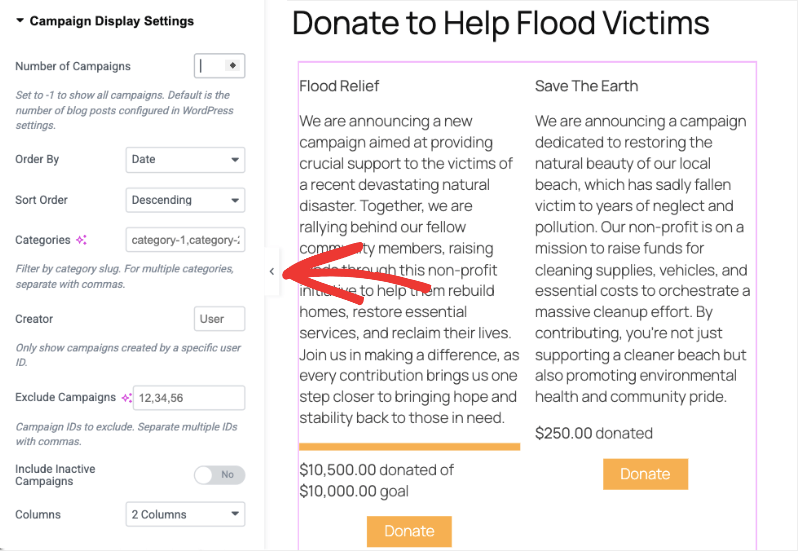
Display campaigns settings

In this taskbar, you can tweak the settings:

  • How many campaigns to display
  • Order by Date, Popularity, Ending Soon, Title or Random
  • Sort by ascending or descending order
  • Add categories
  • Show campaigns created by a specific users
  • Exclude specific campaigns if needed
  • Include/Exclude inactive campaigns
  • Column layout (2, 3, 4 columns)

This widget lets you create all sorts of filtered views to create the campaign showcase you need.

The Campaigns widget is helpful to organize and showcase your projects and fundraisers. Here a few ways in which you can use this widget in pages:

  • Campaign Gallery
  • Ways to Give
  • Partner Projects
  • Community Collaborations
  • Sponsored Campaigns
  • Peer-to-peer Fundraisers
  • Ambassador Campaigns
  • Double Your Impact
  • Cause Spotlights

Now you’ve learned how to add these widgets to your pages in Elementor. Next, let’s learn how to style them.

Styling The Charitable Widgets in Elementor

For all the four widgets, you can style them with the regular Elementor Styling options.

Under the Style or Advanced tab, standard Elementor button styling options are available.
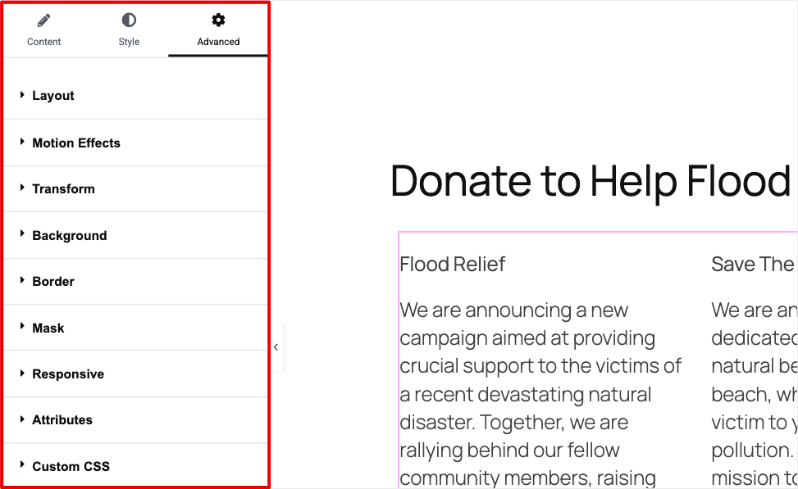
Style and advanced tabs in elementor

Here, you can:

  • Modify colors, typography, padding, borders
  • Change alignment, width, size, position
  • Add hover effects and animations
  • Add CSS ID and classes
  • Change the background

Once you’ve added and customized your widget, make sure you save your changes. Preview and publish your page in Elementor.

That’s it. Not sure how to create a fundraiser? Learn How to Set Up Your First Campaign »
Still have questions? We’re here to help!

Last Modified:

What's New In Charitable

🔔 Subscribe to get our latest updates
📧 Subscribe to Emails

Email Subscription

Join our Newsletter

We won’t spam you. We only send an email when we think it will genuinely help you. Unsubscribe at any time!

Improvement New Security

📣 New Security Features

We’ve introduced a suite of new security tools to give you total control over who accesses your forms, plus a new way to tidy up your database.

Advanced Security Suite

Layered protection: Cloudflare, ReCAPTCHA, IP Controls, and Rate Limiting.

We have overhauled our security settings to stop bots without blocking real donors.

  • 🤖 Flexible Protection: Choose between Google reCAPTCHA v3 or the privacy-first Cloudflare Turnstile to block bots invisible.

  • 🚦 Rate limiting: Stop spam floods by limiting how many submissions an IP address can make in a set timeframe.

  • 🛑 Total control: Use the new IP Blacklist to block bad actors instantly, or the IP Whitelist to let your team bypass checks during testing.

The Clean Donation Tool

Go from “Testing” to “Live” in seconds.

Finished setting up your site and need to get rid of all those test transactions?

  • 🧹 Sweep it clean: Bulk delete test donations and donor records with a single click.

  • 📉 Accurate reporting: Ensure your revenue stats are 100% accurate for launch day.

  • ⚙️ Reset sequences: Automatically resets sequential invoice numbering.

donation form New

🏗️ Visual Donation Form Builder

Building the perfect donation form just got easier. We have completely reimagined how you create forms with a new drag-and-drop interface.

Design Visually, in Real-Time

No coding, no guessing. Just point, click, and build.

Say goodbye to confusing settings pages. You can now edit your form and see exactly what your donors will see, instantly.

  • 🖱️ Drag & Drop: Easily add fields like names, addresses, or file uploads by dragging them exactly where you want them.

  • 🎨 Customize everything: Click any field to tweak labels, placeholders, and requirement settings on the fly.

  • 👁️ Live preview: See your changes immediately as you make them—ensure your form flows perfectly before you hit publish.

Flexible & Powerful

Works with all your existing campaigns.

  • 🧩 Deep customization: Add custom HTML, shortcodes, or CSS classes for advanced branding.

  • ⚙️ Smart fields: Collect exactly what you need with support for dropdowns, checkboxes, dates, and hidden fields.

Leaderboards New

🏆 Donor Leaderboards!

Turn your fundraising into a community event. Recognize your most generous supporters and inspire friendly competition with our new leaderboard tools.

Gamify Your Fundraising

Celebrate your top donors and encourage others to climb the ranks.

Create a public “Hall of Fame” to give your donors the recognition they deserve.

  • 🎨 Two stunning layouts: Choose the List View for a clean, data-rich table or the Card View for a modern, visual grid with avatars.

  • 🥇 Automatic highlights: The top 3 supporters get special Trophy and Crown icons to make them stand out.

  • 🧩 Place it anywhere: Add it to any page using the new Gutenberg Block, or drop it directly into your campaign using the Visual Builder.

Total Customization

You decide what to show and what to hide.

  • ⚙️ Flexible data: Choose to display or hide donation amounts, donor counts, or avatars.

  • 🔄 Lifetime stats: Works seamlessly with Recurring Donations to show a donor’s all-time total impact.

Improvement New templates

🎨 New Templates & List Builder

Launch faster and design better. We’ve added three professional campaign templates and a versatile new content block to help you tell your story.

3 New Campaign Templates

Ready-to-use designs for specific fundraising needs.

Don’t start from scratch. Pick a template tailored to your cause and launch in minutes.

  • 🎄 Holiday Fundraiser: A warm, festive design perfect for year-end giving, toy drives, or food pantries.

  • 🎓 School Fundraiser: Built for PTAs and sports teams. clearly highlights goals like playground upgrades or classroom tech.

  • Church Fundraiser: A trustworthy layout designed for building funds, mission trips, and tithes.

The New “List” Block

Organize your campaign details without writing code.

Make your campaign pages easier to scan and more visually engaging with our new builder block.

  • 📝 Flexible layouts: Choose from 3 distinct styles to display sponsorship levels, donation perks, or project goals.

  • 🎨 Rich customization: Add colorful headlines, support for emojis, and unlimited list items.

  • 👣 Smart footers: Include a built-in footer for extra context or a final Call to Action.