
Die Migration von GiveWP zu Charitable ist ein einfacher Prozess, mit dem Sie Ihre Spender, Kampagnen und Spenden verschieben können, ohne wichtige Daten zu verlieren.
Wenn Sie zu Charitable wechseln, können Sie Ihre Aufzeichnungen einfach mit dem integrierten Import-Tool übernehmen.
In diesem Tutorial führen wir Sie durch jeden Schritt – vom Export Ihrer Daten aus GiveWP bis zum Import in Charitable. Wenn Sie GiveWP auf Ihrer Website aktiv haben, müssen Sie nur ein paar Schaltflächen klicken und schon sind Sie fertig!
Sie benötigen keine besonderen technischen Fähigkeiten, um uns zu folgen, nur ein paar Minuten und Zugriff auf Ihr WordPress-Dashboard.
Sind Sie noch nicht sicher, ob Sie zu Charitable wechseln sollen? Sehen Sie sich GiveWP vs. Charitable » an
Bevor Sie beginnen
Bevor Sie von GiveWP migrieren, ist es eine gute Idee, sicherzustellen, dass alles gesichert und einsatzbereit ist. Sie benötigen Zugriff auf Ihr WordPress-Dashboard, auf dem sowohl GiveWP als auch Charitable installiert sind.
Hier erfahren Sie, was Sie vor dem Beginn überprüfen sollten:
- Sichern Sie Ihre Website. Erstellen Sie immer ein aktuelles Backup Ihrer WordPress-Website und Datenbank. Dies stellt sicher, dass Sie Ihre Daten wiederherstellen können, falls etwas schief geht. Benötigen Sie eine kostenlose Backup-Lösung? Probieren Sie Duplicator.
- Bestätigen Sie Ihre Daten. Stellen Sie sicher, dass Ihre GiveWP-Kampagnen, Spenden und Spenderdatensätze vollständig und aktuell sind.
- Melden Sie sich als Administrator an. Sie benötigen Administratorzugriff, um Daten aus GiveWP zu exportieren und in Charitable zu importieren.
- Installieren und aktivieren Sie Charitable. Wenn Sie dies noch nicht getan haben, installieren Sie Charitable und stellen Sie sicher, dass es aktiv ist. Sehen Sie sich So installieren Sie das Charitable Plugin » an
- Wissen Sie, was importiert werden kann. Das Import-Tool von Charitable ermöglicht es Ihnen, Spender, Spenden und Kampagnen von GiveWP zu übertragen.
Sobald Sie diese Punkte überprüft haben, sind Sie bereit, von GiveWP zu Charitable zu migrieren. Sie können zwei Methoden verwenden:
- Automatische Migration
- Manueller CSV-Import
1. Automatische Migration von GiveWP zu Charitable
Bitte beachten Sie: Die Beta-Funktionen für den Live-Import von GiveWP werden jetzt nur noch angezeigt, wenn:
define( ‘CHARITABLE_GIVEWP_IMPORT_DEBUG’, true );
Siehe: Charitable Debug-Modus
Wenn Sie GiveWP auf Ihrer Website aktiviert haben, können Sie Elemente mit nur einem Klick importieren. Sie müssen keine Dateien herunterladen und in Charitable hochladen. Dies ist die einfachste Methode, um von GiveWP zu migrieren.
Gehen Sie zuerst zu Ihrem WordPress-Dashboard. Wählen Sie hier im linken Menü den Tab Charitable » Tools » Import. Wählen Sie hier die Option GiveWP.
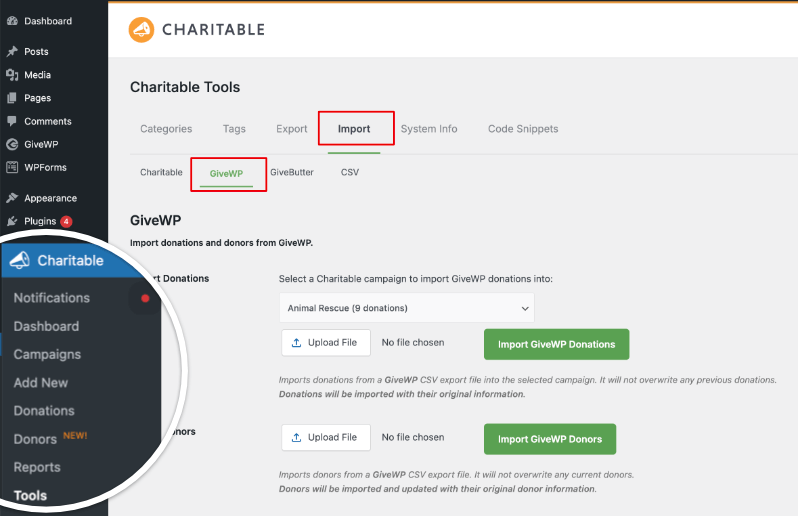
Auf dieser Seite sehen Sie Optionen zum Hochladen von Dateien von GiveWP. Dies können wir überspringen, wenn Sie die automatische Methode verwenden.
Scrollen Sie auf dieser Seite nach unten, und Sie sehen Optionen für:
- Kampagnen importieren
- Einzelne Spenden
- Wiederkehrende Spenden
- Spender.
Kampagnen importieren
Unter dieser Option können Sie einfach die Kampagne, die Sie importieren möchten, aus dem Dropdown-Menü auswählen und auf die Schaltfläche „GiveWP-Kampagne importieren“ klicken.
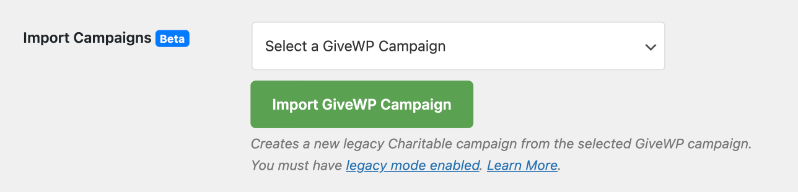
Dadurch wird eine neue Legacy-Charitable-Kampagne erstellt.
Hinweis: Diese Funktion erfordert, dass der Legacy-Modus aktiviert ist. Standardmäßig aktiviert Charitable Legacy-Kampagnen. Wenn diese auf Ihrer Website deaktiviert wurde, finden Sie diese Option unter Charitable » Einstellungen » Erweitert » Diverses. Weitere Details finden Sie unter Legacy-Kampagnen »
Einzelne Spenden importieren
Bevor Sie beginnen: Damit die Funktion für einzelne Spenden funktioniert, benötigen Sie das Gebührenentlastungs-Addon. Sie können dies unter Charitable » Addons aktivieren. Sehen Sie hier, wie Sie Addons installieren und aktivieren »
Wenn Sie fertig sind, können Sie Ihre Spenden von GiveWP importieren, indem Sie auf die Schaltfläche „Einzelne Spenden importieren“ klicken.

Dadurch werden speziell einmalige Spendenaufzeichnungen abgerufen und in Charitable übernommen. Spendenaufzeichnungen, die als wiederkehrend markiert sind, werden ignoriert.
Wiederkehrende Spenden importieren
Für wiederkehrende Spenden muss das Add-on „Recurring Donations“ aktiviert sein.
Sehen Sie hier, wie Sie Add-ons installieren und aktivieren »
Charitable erkennt und ruft automatisch alle Spendenaufzeichnungen ab, die als „wiederkehrend“ markiert sind.

Wenn Sie auf die Schaltfläche „Wiederkehrende Spenden importieren“ klicken, synchronisiert sich Charitable mit GiveWP, sammelt Ihre Daten und importiert sie in Charitable. Das war's.
Spender importieren
Um Ihre Spenderdaten zu importieren, können Sie diese Option verwenden. Wenn GiveWP auf Ihrer Website aktiv ist, erkennt Charitable die Spenderdaten automatisch.
Sobald Sie auf „GiveWP-Spender importieren“ klicken, beginnt Charitable automatisch mit dem Import der Spenderdaten, die Sie in GiveWP haben.
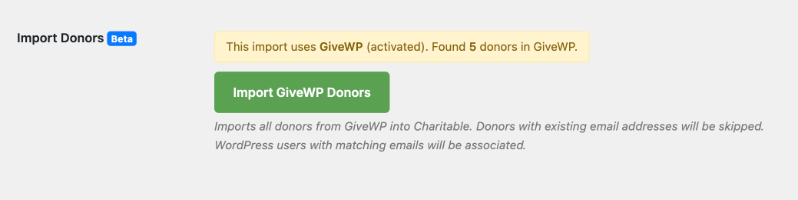
Wenn eine E-Mail-Adresse eines Spenders bereits in Charitable erkannt wird, überspringt Charitable diese.
Wenn Sie außerdem einen WordPress-Benutzer auf Ihrer Website mit einer übereinstimmenden E-Mail-Adresse haben, verknüpft Charitable den Spenderdatensatz mit diesem WordPress-Benutzer.
Das war's. So einfach ist die Migration von GiveWP zu Charitable. Sie sind jetzt bereit, mit Charitable Kampagnen zu erstellen und alles mit Leichtigkeit zu verwalten.
2. Manuell von GiveWP mit CSV-Import migrieren
Charitable ermöglicht Ihnen auch die Migration von jeder Plattform (einschließlich GiveWP) mithilfe von CSV-Importoptionen. Befolgen Sie die nachstehenden Schritte:
Schritt 1: Exportieren Sie Ihre Daten aus GiveWP
In diesem Abschnitt exportieren Sie Ihre wichtigsten Spendeninformationen aus GiveWP in CSV-Dateien, die Sie später in Charitable importieren können. GiveWP enthält integrierte Tools zum Exportieren von Spenden und Spendern als CSV-Dateien.
Melden Sie sich als Administrator bei Ihrem WordPress-Dashboard an. Gehen Sie zu Spenden » Tools » Exporte.
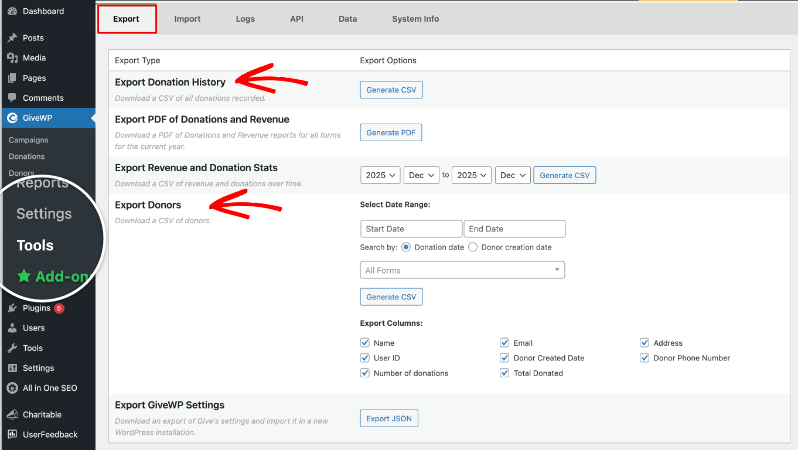
Auf diesem Bildschirm sehen Sie verschiedene Exportoptionen für Spenden, Spender und Einnahmen.
Spendenhistorie exportieren
Suchen Sie im Tab „Export“ nach Spendenhistorie exportieren. Wenn Sie auf „CSV generieren“ klicken, öffnet sich eine neue Seite, auf der Sie Ihre Filter auswählen können, z. B. den Datumsbereich oder ein bestimmtes Spendenformular, oder Sie lassen sie so eingestellt, um alle Spenden zu exportieren.

Klicken Sie auf CSV generieren , um eine CSV-Datei Ihrer Spendenhistorie auf Ihren Computer herunterzuladen.
Spender exportieren
Gehen Sie zurück zu Spenden » Tools » Exporte und suchen Sie Spender exportieren. Wählen Sie den Datumsbereich und optional ein bestimmtes Formular, wenn Sie nur Spender für bestimmte Kampagnen wünschen.
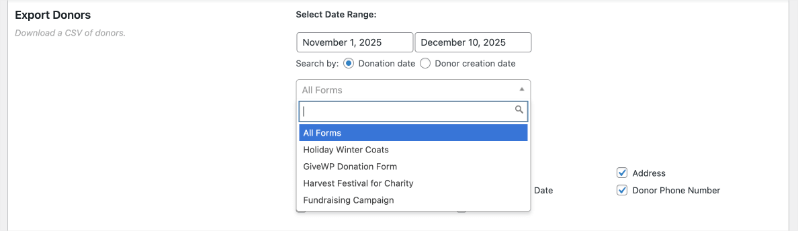
Legen Sie fest, welche Spenderfelder enthalten sein sollen, z. B. Name, E-Mail, Adresse, Anzahl der Spenden und Gesamtbetrag der Spenden.
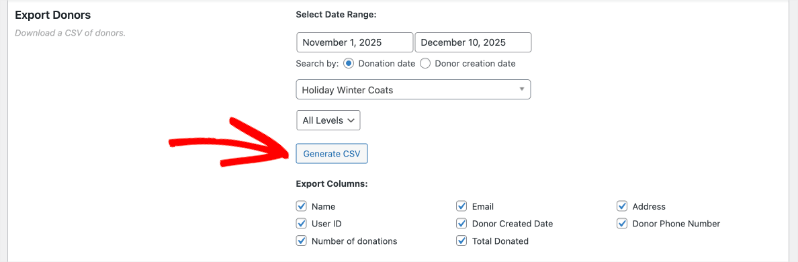
Klicken Sie auf CSV generieren , um Ihre Spender-CSV-Datei herunterzuladen.
Wir empfehlen, diese Dateien in einem separaten Ordner auf Ihrem Computer zu speichern, damit Sie sie leichter finden, wenn Sie sie in Charitable importieren möchten.
Exportieren Sie alle zusätzlichen Berichte, die Sie benötigen
- Wenn Sie eine Zusammenfassung der Einnahmen und Spenden nach Datum wünschen, können Sie im selben Exporte-Tab auch Einnahmen und Spendenstatistiken exportieren verwenden.
- Dieser Bericht kann nicht in Charitable importiert werden, kann aber für Ihre Unterlagen oder Abgleiche hilfreich sein.
Sobald Sie Ihre Spenden- und Spender-CSV-Dateien heruntergeladen haben, speichern Sie diese an einem sicheren Ort auf Ihrem Computer. Sie werden diese Dateien in den nächsten Schritten beim Import in Charitable verwenden.
Schritt 2: Bereiten Sie Ihre CSV-Dateien vor
Bevor Sie in Charitable importieren, nehmen Sie sich einen Moment Zeit, um die CSV-Dateien zu öffnen und zu überprüfen, die Sie aus GiveWP exportiert haben. Dies hilft, Fehler während des Imports zu vermeiden und erleichtert die korrekte Zuordnung Ihrer Daten zu Charitable.
- Öffnen Sie jede CSV-Datei in einem Tabellenkalkulationsprogramm wie Excel, Google Sheets oder Numbers, damit die Daten leicht zu überblicken sind.
- Stellen Sie sicher, dass die Spaltenüberschriften klar sind und dass jede Datenzeile in der richtigen Spalte steht, ohne verschobene Zellen oder seltsame Zeichen.
Stellen Sie als Nächstes sicher, dass Ihre Datei korrekt gespeichert und zum Hochladen bereit ist.
- Bestätigen Sie, dass das Dateiformat .csv und nicht ein anderes Format wie .xls oder .xlsx ist.
- Wenn Sie Änderungen vornehmen, speichern Sie die Datei erneut als CSV, damit sie mit dem Import-Tool von Charitable kompatibel bleibt.
Sie müssen nicht jede Spalte umbenennen, um sie genau an Charitable anzupassen, da Sie jede Spalte während des Importvorgangs dem richtigen Feld zuordnen werden.
Schritt 3: Importieren Sie Ihre Daten in Charitable
Jetzt sind Sie bereit, Ihre GiveWP-Daten mit dem Import-Tool in Ihrem WordPress-Dashboard in Charitable zu übertragen. Dieser Prozess verwendet die gerade überprüften CSV-Dateien und ermöglicht es Ihnen, jede Spalte den richtigen Feldern in Charitable zuzuordnen.
Melden Sie sich als Administrator bei Ihrem WordPress-Dashboard an.
Gehen Sie zu Charitable » Tools » Import.
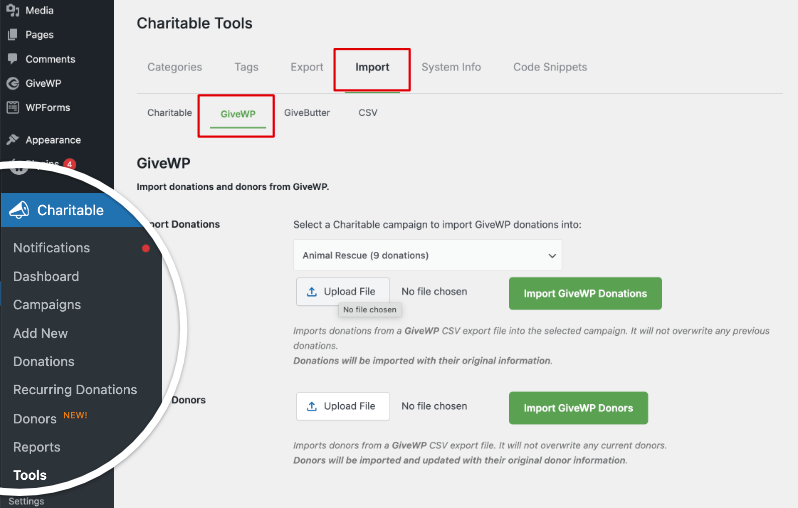
Auf diesem Bildschirm sehen Sie ein Menü mit Optionen, darunter Charitable, GiveWP, GiveButter und CSV. Öffnen Sie den Tab GiveWP.
Hier sehen Sie Optionen zum Hochladen einer CSV-Datei und zur Auswahl der Art der zu importierenden Daten, z. B. Spender oder Spenden.
Schritt 4: Laden Sie Ihre CSV-Datei in Charitable hoch
Sie können Spenden in bestimmte Kampagnen innerhalb von Charitable importieren. Wählen Sie Ihre Kampagne und klicken Sie dann auf die Schaltfläche Datei hochladen, um die Spenden-Datei auf Ihrem Computer auszuwählen.
Klicken Sie dann auf die Schaltfläche GiveWP-Spenden importieren, um Ihre Spenden-Datensätze zu importieren.

Spenden werden mit allen ursprünglichen Informationen von GiveWP übernommen. Charitable überschreibt keine früheren Spenden.
Als Nächstes können Sie auch Spender importieren. Verwenden Sie die Schaltfläche Datei hochladen, um die Spender-Datei auszuwählen, die Sie aus GiveWP exportiert haben.

Klicken Sie auf die Schaltfläche GiveWP-Spender importieren, und Charitable erledigt den Rest. Nach Abschluss des Imports sehen Sie eine Bestätigungsmeldung, die Ihnen mitteilt, wie viele Datensätze erfolgreich importiert wurden.
Nachdem der Import abgeschlossen ist, ist es wichtig zu überprüfen, ob alles in Charitable korrekt aussieht.
- Gehen Sie zu Charitable » Spenden, um Ihre importierten Spenden zu überprüfen und zu bestätigen, dass Beträge, Daten und Kampagnen korrekt aussehen.
- Gehen Sie zu Charitable » Spender und Charitable » Kampagnen, um zu überprüfen, ob Spendernamen, E-Mails und Kampagnentitel wie erwartet angezeigt werden.
Wenn etwas nicht stimmt, z. B. fehlende Spender oder falsche Beträge, vergleichen Sie einige Datensätze in Charitable mit Ihrer ursprünglichen GiveWP CSV-Datei, um zu sehen, ob eine Spalte während des Imports dem falschen Feld zugeordnet wurde.
Schritt 5: Bereinigung und Testen
Sobald Sie mit Ihren migrierten Daten zufrieden sind, können Sie eine schnelle Bereinigung und einen abschließenden Test durchführen.
- Machen Sie eine kleine Testspende auf Ihrer Website, um zu bestätigen, dass Charitable neue Spenden korrekt erfasst.
- Wenn Sie sicher sind, dass alles funktioniert und Ihre Daten sicher in Charitable gespeichert sind, können Sie GiveWP deaktivieren oder entfernen, wenn Sie es auf Ihrer WordPress-Website nicht mehr benötigen.
Nächste Schritte in Charitable
Sobald Ihre Daten sicher in Charitable gespeichert sind, können Sie Ihre neuen Spendentools nutzen, um Ihre Spendenaktionen auszubauen. Charitable bietet Ihnen flexible Kampagnen, einfache Spenderverwaltung und leistungsstarke Optionen zum Sammeln und Verfolgen von Spenden in Ihrem WordPress-Dashboard.
Hier ist eine Kurzanleitung, um mit Charitable zu beginnen und Ihre erste Kampagne zu erstellen »
Hier sind einige hilfreiche Dinge, die Sie als Nächstes tun können:
- Erstellen oder bearbeiten Sie Ihre Kampagnen unter Charitable » Kampagnen , damit sie Ihren aktuellen Spendenaufrufen und Zielen entsprechen.
- Fügen Sie Ihre Spendenformulare zu wichtigen Seiten Ihrer Website hinzu, damit Besucher schnell und einfach spenden können.
- Entdecken Sie Funktionen wie Spender-Dashboards, wiederkehrende Spenden und E-Mail-Belege, um Unterstützern ein reibungsloses Spenden-Erlebnis zu bieten.
Nachdem Ihre GiveWP-Daten migriert und Charitable eingerichtet sind, können Sie sich auf das Wesentliche konzentrieren: die Unterstützung Ihrer Mission zu erhöhen.
GiveWP vs. Charitable – Häufig gestellte Fragen
Haben Sie eine Frage zu Charitable vs. GiveWP? Sehen Sie sich die folgende Liste unserer am häufigsten gestellten Fragen an. Wenn Ihre Frage hier nicht aufgeführt ist, kontaktieren Sie uns bitte.
Was unterscheidet Charitable von GiveWP?
Charitable wird von einem Team entwickelt, das die Herausforderungen und Bedürfnisse von gemeinnützigen Organisationen wie Ihrer versteht. Wir haben das Plugin speziell entwickelt, um die täglichen Bedürfnisse von gemeinnützigen Organisationen zu erfüllen und alle wesentlichen Fundraising-Tools auf einer Plattform bereitzustellen – ohne versteckte Gebühren, verwirrende Add-ons oder künstliche Einschränkungen. Hier sind die Hauptunterschiede:
- Erschwingliche Preise – Charitable kostet deutlich weniger als GiveWP, beginnend bei nur 69 $ für das gesamte Jahr.
- Großzügiger kostenloser Plan – Alles, was Sie zum Spenden sammeln benötigen, ist kostenlos enthalten, und Sie können bei Bedarf ein Upgrade durchführen.
- Mehr Zahlungsoptionen – Größere Auswahl an Zahlungs-Gateway-Integrationen, einschließlich globaler und lokaler Anbieter.
- All-Inclusive-Pakete – Keine teuren Zusatzleistungen erforderlich; Funktionen sind Standard
Gibt es Einschränkungen hinsichtlich der Anzahl von Kampagnen oder Spendenformularen mit Charitable?
Nein. Charitable ermöglicht es Ihnen, von Anfang an unbegrenzte Spendenkampagnen und -formulare zu erstellen – ohne kostenpflichtige Upgrades oder Einschränkungen.
Kann ich wiederkehrende Spenden mit Charitable verwalten?
Ja! Charitable enthält robuste Funktionen für wiederkehrende Spenden, sodass Ihre Unterstützer wöchentlich, monatlich oder nach einem benutzerdefinierten Zeitplan spenden können, was Ihnen hilft, ein zuverlässiges, stetiges Einkommen zu erzielen. Sie benötigen einen Plus-Plan, der nur 99 US-Dollar pro Jahr kostet, was im Vergleich zu GiveWPs Preis von 349 US-Dollar pro Jahr ein Schnäppchen ist.
Was ist der Preisunterschied zwischen Charitable und GiveWP?
GiveWP ist 3,5-mal teurer als Charitable.
Charitable beginnt bei nur 69 US-Dollar pro Jahr für wesentliche Funktionen wie unbegrenzte Spendenformulare, vollständige Spendenverwaltung, Berichte, PDF-Belege und E-Mails. GiveWP beginnt bei 149 US-Dollar pro Jahr für ähnliche Funktionen.
Für erweiterte Funktionen kostet GiveWP 349 US-Dollar pro Jahr. Sie erhalten alle gleichen Funktionen und mehr im Charitable Pro-Tarif für nur 199 US-Dollar pro Jahr.
Lässt sich Charitable mit meinen bevorzugten Tools und Diensten integrieren?
Charitable arbeitet nahtlos mit vielen beliebten Plattformen zusammen, darunter MailChimp, ActiveCampaign, Constant Contact, HubSpot, MailPoet, Zapier und mehr.
Ist Charitable einfach einzurichten und zu verwenden?
Ja. Charitable ist so konzipiert, dass es für jeden einfach zu bedienen ist – ohne Programmierung und anfängerfreundlich. Wir haben einen Einrichtungsassistenten integriert, der Sie durch den Prozess führt, damit Sie Ihre erste Kampagne in Minuten statt Stunden oder Tagen einrichten und starten können!
Welche Art von Support bietet Charitable an?
Lite-Benutzer können Fragen im WordPress-Supportforum stellen. Kunden des Charitable Pro-Plugins können uns über den Support-Kanal kontaktieren. Sie erhalten freundlichen, reaktionsschnellen Support von einem Team, das Erfahrung darin hat, gemeinnützige Organisationen zum Erfolg zu verhelfen. Wir sind hier, um Fragen zu beantworten und alle Probleme schnell zu lösen.
Wird Charitable weiterhin neue Funktionen und Updates erhalten?
Ja. Bei Charitable hören wir immer auf Ihr Feedback und suchen es aktiv, um unsere Plattform noch besser zu machen. Wir entwickeln uns ständig weiter – wir fügen neue Funktionen hinzu, verbessern bestehende Tools und aktualisieren regelmäßig unser Plugin, um die Kompatibilität mit WordPress-Updates sicherzustellen. Jede Verbesserung und Sicherheitserweiterung wird durch echtes Feedback von gemeinnützigen Organisationen wie Ihrer vorangetrieben.
Weitere Informationen
Hier sind einige der beliebtesten Anleitungen und Hilfsartikel für neue Benutzer:
- Zahlungs-Gateways einrichten
- Spenden im WordPress-Dashboard erstellen und bearbeiten
- Verwendung des Spenderverwaltungssystems
- Verbindung mit Google Analytics
- Probleme mit nicht gesendeten Spenden-E-Mails
- Spenden-E-Mails vom Dashboard erneut senden
- Widgets und Shortcodes
Mehr Tipps zum Fundraising und Ratschläge für gemeinnützige Organisationen?
Wir teilen regelmäßig praktische Anleitungen, bewährte Strategien und Insider-Tipps, um Ihnen zu helfen, mehr Spenden zu sammeln und stärkere Spenderbeziehungen aufzubauen. Schließen Sie sich Tausenden von gemeinnützigen Organisationen an, die unsere besten Inhalte direkt erhalten:
- Abonnieren Sie unseren Newsletter – Erhalten Sie wöchentliche Tipps und exklusive Anleitungen in Ihrem Posteingang
- Abonnieren Sie unseren YouTube-Kanal – Sehen Sie sich Schritt-für-Schritt-Anleitungen und Erfolgsgeschichten an
- Folgen Sie uns auf LinkedIn – Vernetzen Sie sich mit unserer Community und erhalten Sie tägliche Einblicke in Non-Profit-Organisationen
- Folgen Sie uns auf TikTok – Aufschlussreiche & unterhaltsame Videos, die Ihnen helfen, Ihre Sache voranzubringen
- Folgen Sie uns auf Instagram – Lustige Reels mit Einblicken und Tipps für gemeinnützige Organisationen
Kein Schnickschnack, nur umsetzbare Ratschläge von Menschen, die die Herausforderungen verstehen, denen Sie täglich gegenüberstehen.


