
Möchten Sie ein Spendenformular auf einer Seite einbetten?
Wenn Sie eine Spendenkampagne erstellen, macht es Charitable einfach, ein einfaches Spendenformular für diese Kampagne überall auf Ihrer Website einzufügen. So können Sie ein einfaches Spendenformular anstelle einer vollwertigen Spendenkampagne anzeigen.
Schritt 1: Erstellen Sie eine Spendenkampagne
Gehen Sie zu Ihrem WordPress-Dashboard und navigieren Sie zu Charitable » Neu hinzufügen. Hier können Sie eine Vorlage auswählen und Ihre Kampagne mit dem Drag-and-Drop-Builder anpassen.
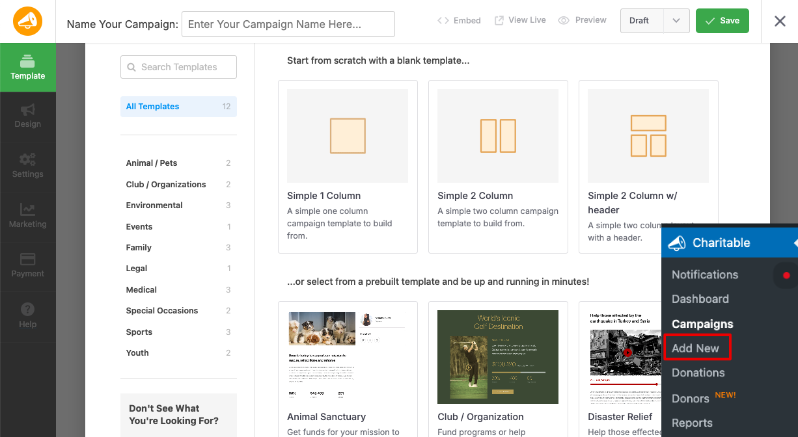
Stellen Sie sicher, dass Sie Ihre Kampagne veröffentlichen und speichern.
Wenn Sie detailliertere Anweisungen benötigen, folgen Sie unserer Anleitung, wie Sie Ihre erste Kampagne erstellen »
Schritt 2: Holen Sie sich Ihre Kampagnen-ID
Wenn Sie eine Kampagne erstellen, weist Charitable ihr eine Kampagnen-ID zu. Wir haben diese ID an 2 Stellen in Charitable leicht zugänglich gemacht.
1. Einbetten-Assistent
Stellen Sie im Kampagnen-Builder sicher, dass Sie Ihre Kampagne im oberen Menü veröffentlichen und speichern. Dann gibt es eine Schaltfläche Einbetten, mit der Sie den Einbetten-Assistenten öffnen können.
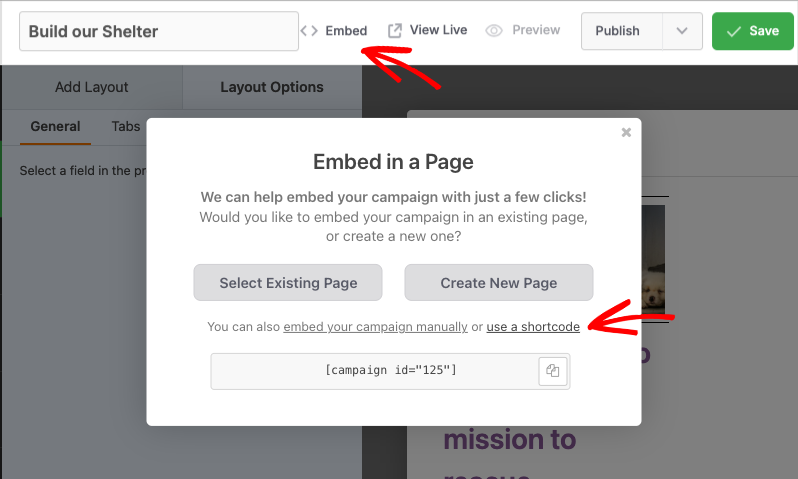
Klicken Sie auf den Link „Shortcode verwenden“, und die Kampagnen-ID wird angezeigt.
2. Kampagnen-Tab
Sie können die Kampagnen-ID auch finden, indem Sie zu Charitable » Kampagnen gehen. Die ID wird unter dem Kampagnennamen angezeigt.
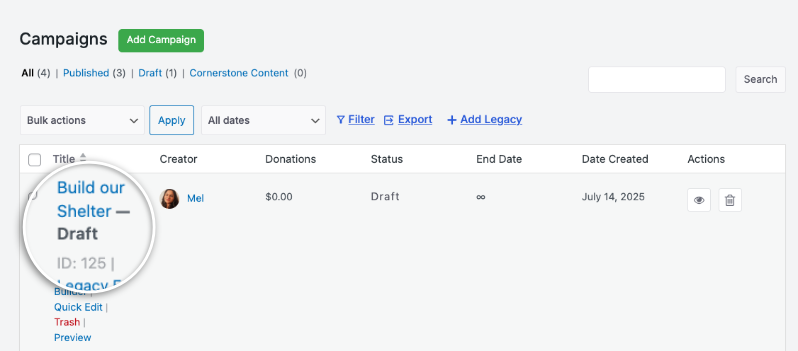
Jetzt, da Sie Ihre Kampagnen-ID haben, müssen Sie sie nur noch dort einfügen, wo sie erscheinen soll.
Schritt 3: Fügen Sie den Shortcode zum Beitrag oder zur Seite hinzu
Bearbeiten Sie die Seite oder den Beitrag auf Ihrer WordPress-Website, auf der Sie das Spendenformular platzieren möchten.
Jetzt können Sie Ihr Spendenformular mit diesem Shortcode hinzufügen:
[charitable_donation_form campaign_id=123]
Ersetzen Sie „123“ durch die ID Ihrer Kampagne.
Das war's. Sie haben jetzt ein einfaches Spendenformular, das Sie mit Ihren Spendern teilen können.
Haben Sie Ihr Spendenformular noch nicht erstellt? Sehen Sie hier, wie Sie ein Spendenformular in Charitable erstellen:
Möchten Sie die Vorlage für das Spendenformular auf Ihrer Website ändern? Folgen Sie dieser Anleitung: Vorlagen für Spendenformulare wechseln »
Tipps und Ratschläge für Spendenaktionen
Wir teilen regelmäßig praktische Anleitungen, bewährte Strategien und Insider-Tipps, um Ihnen zu helfen, mehr Spenden zu sammeln und stärkere Spenderbeziehungen aufzubauen. Schließen Sie sich Tausenden von gemeinnützigen Organisationen an, die unsere besten Inhalte direkt erhalten:
- Abonnieren Sie unseren Newsletter – Erhalten Sie wöchentliche Tipps und exklusive Anleitungen in Ihrem Posteingang
- Abonnieren Sie unseren YouTube-Kanal – Sehen Sie sich Schritt-für-Schritt-Anleitungen und Erfolgsgeschichten an
- Folgen Sie uns auf LinkedIn – Vernetzen Sie sich mit unserer Community und erhalten Sie tägliche Einblicke in Non-Profit-Organisationen
- Folgen Sie uns auf TikTok – Aufschlussreiche & unterhaltsame Videos, die Ihnen helfen, Ihre Sache voranzubringen
- Folgen Sie uns auf Instagram – Lustige Reels und Tipps für gemeinnützige Organisationen
FAQs zu Charitable Spendenformular-Vorlagen
Welche Spendenformular-Vorlagen sind in Charitable verfügbar?
In Charitable können Sie zwischen zwei vorgefertigten Vorlagen für Spendenformulare wählen: der Standardvorlage und der Minimalvorlage. Um Vorlagen zu wechseln, navigieren Sie zum WordPress-Dashboard und gehen Sie zu Charitable » Einstellungen. Unter dem Reiter Allgemein öffnen Sie die Seite Spendenformular und wählen Sie Ihre gewünschte Vorlage über das Dropdown-Menü Formularvorlage aus.
Kann ich das Erscheinungsbild meiner Spendenformulare anpassen?
Ja. Sie können Farben, Formularvorlagen (Standard oder Minimal) und Optionen für die Feldanzeige anpassen. Sie können auch benutzerdefiniertes CSS und Code-Snippets verwenden.
Ich habe Einstellungen geändert, aber sie werden nicht angezeigt. Was soll ich tun?
Klicken Sie immer auf „Änderungen speichern“, nachdem Sie Änderungen vorgenommen haben. Wenn die Änderungen immer noch nicht angezeigt werden, versuchen Sie, Ihren Website-Cache zu leeren, wenn Sie ein Caching-Plugin verwenden.
Was ist der Unterschied zwischen der Anzeige von Spendenformularen „auf derselben Seite“ und „auf einer separaten Seite“?
- Gleiche Seite: Das Spendenformular erscheint direkt auf Ihrer Kampagnenseite
- Separate Seite: Spender werden zu einer speziellen Spendenseite weitergeleitet
- Modal: Das Formular erscheint in einer Popup-Überlagerung
Wählen Sie basierend auf Ihrer Präferenz für Benutzererfahrung und Seitendesign.
Ich bin neu bei Charitable. Wo soll ich anfangen?
Folgen Sie dieser Erste-Schritte-Anleitung hier und beginnen Sie mit dem Setup-Assistenten, der beim ersten Installieren von Charitable erscheint. Er dauert etwa 5 Minuten und führt Sie durch die wesentlichen Konfigurationsschritte, einschließlich der Zahlungsabwicklung und der Erstellung Ihrer ersten Kampagne. Wenn Sie den Assistenten verpasst haben, können Sie alle diese Einstellungen manuell über Charitable » Einstellungen aufrufen.
Wo erhalte ich Unterstützung, wenn ich Probleme habe?
- Kostenlose Benutzer: Nutzen Sie die Support-Foren von WordPress.org
- Pro-Benutzer: Kontaktieren Sie den Support direkt für prioritäre Unterstützung
- Dokumentation: Sehen Sie sich die umfassende Dokumentationsbibliothek an
- Community: Treten Sie dem Newsletter bei und folgen Sie den sozialen Kanälen für Tipps und Updates
Gibt es Video-Tutorials?
Ja! Abonnieren Sie den Charitable YouTube-Kanal für Schritt-für-Schritt-Anleitungen und Erfolgsgeschichten.
Wir hoffen, diese FAQs helfen Ihnen weiter!
Benötigen Sie Unterstützung? Haben Sie eine Frage? Wenn Sie ein Lite-/kostenloser Benutzer von Charitable sind, können Sie sich an unser Team in den Support-Foren von WordPress.org wenden, und unser Team wird zeitnah antworten. Wenn Sie eine aktive Lizenz haben, können Sie sich gerne direkt an uns wenden, um Prioritätsunterstützung zu erhalten.
Sie möchten vielleicht auch erfahren, So verwenden Sie das Spenderverwaltungssystem »


