
Sind Sie bereit, Ihre erste Kampagne (mit einem Spendenformular) mit Charitable zu erstellen? Wenn Sie die Schritt-für-Schritt-Anleitungen in diesem Leitfaden befolgen, können Sie Ihre erste Kampagne in nur wenigen Minuten einfach erstellen und auf Ihrer Website veröffentlichen.
Stellen Sie vor Beginn sicher, dass Sie Charitable installiert und aktiviert haben.
Hinzufügen einer neuen Kampagne
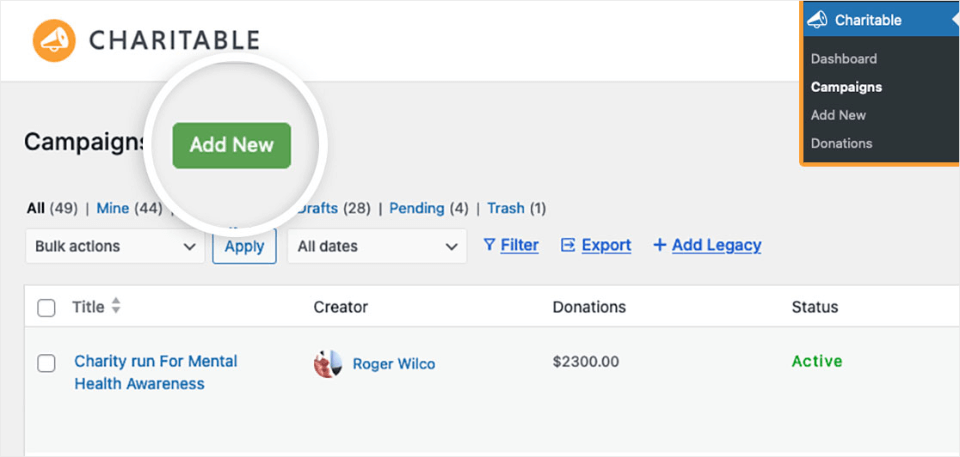
Um zu beginnen, müssen Sie in Ihrem WordPress-Adminbereich angemeldet sein. Klicken Sie dort auf "Charitable" in der Admin-Seitenleiste, um zur Seite "Kampagnen" zu gelangen. Klicken Sie dann auf die Schaltfläche Neu hinzufügen, um den Charitable-Kampagnen-Builder zu starten und ein neues Formular zu erstellen.
Auswählen einer Kampagnenvorlage
Nun gelangen Sie zum Bildschirm Vorlage auswählen. Dies ist eine Bibliothek mit vorgefertigten Vorlagen und Layouts, die im linken Menü übersichtlich kategorisiert sind. Sie können diese Filter oder die Suchleiste hier verwenden, um schnell zu finden, was Sie brauchen.
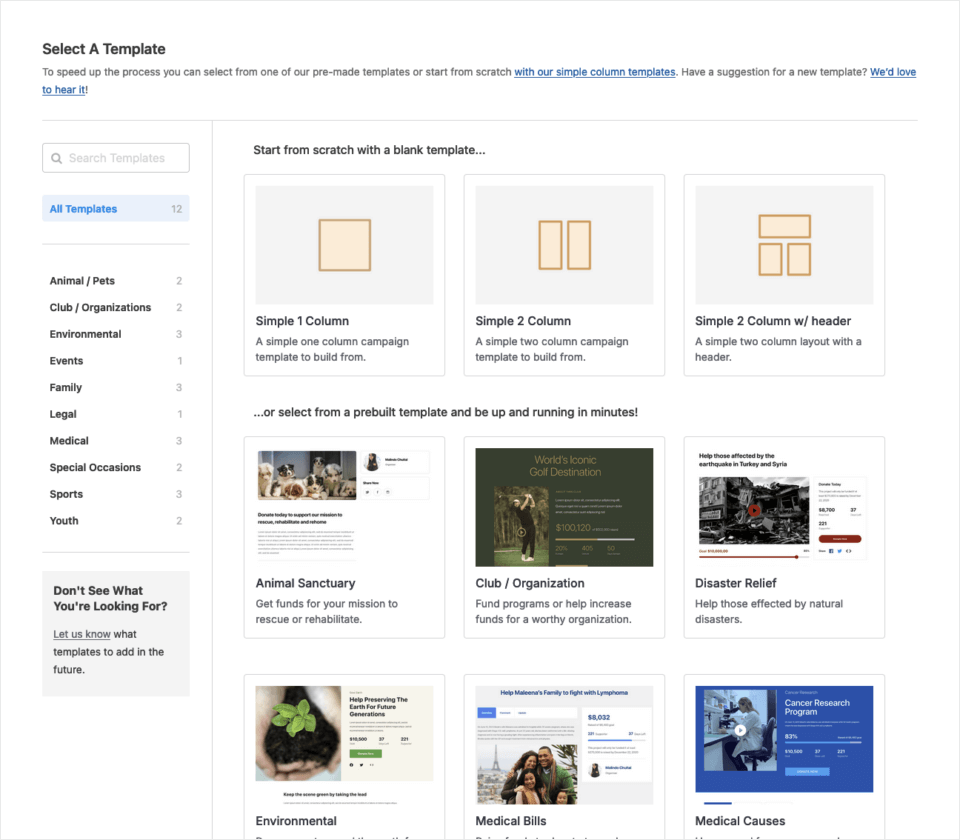
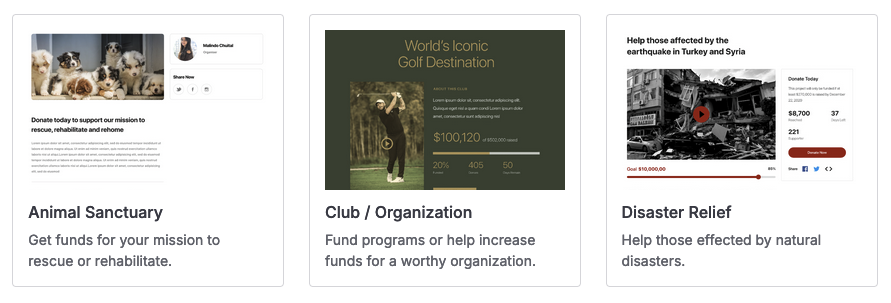
Mit Charitable gibt es zwei allgemeine Arten von Vorlagen zur Auswahl. Für den Anfang bietet Charitable vorgefertigte Vorlagen (die grundlegende Komponenten einer Kampagnenseite enthalten, die Sie anpassen können, um so schnell wie möglich einsatzbereit zu sein.
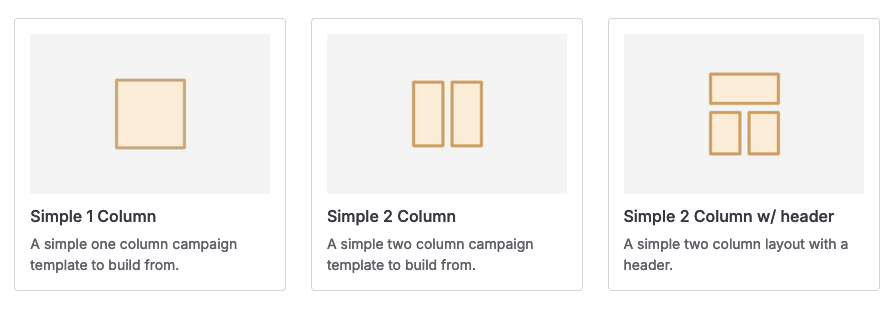
Wenn Sie Ihre Kampagne lieber von Grund auf neu erstellen möchten, wählen Sie eine der "einfachen Spalten"-Vorlagen (diese bieten nur das Layout der Seite – Sie fügen alle Felder manuell hinzu).
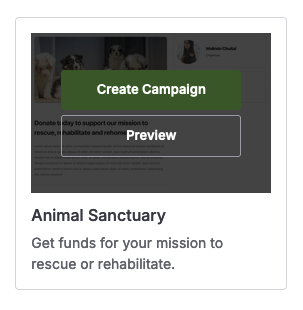
Hinweis: Die Kampagne in diesem Tutorial verwendet die Tierheim-Vorlage. Wenn Sie mit der Maus über die Vorlage fahren, erhalten Sie die Option, sie in der Vorschau anzuzeigen, um zu sehen, wie sie aussieht und funktioniert, bevor Sie beginnen.
Fahren Sie mit der Maus zurück über die Miniaturansicht der Tierheim-Vorlage und klicken Sie auf Kampagne erstellen, um zu beginnen.
Anpassen Ihrer Kampagne
Sobald Sie eine Vorlage ausgewählt haben, öffnet sich der Kampagnen-Builder auf dem Bildschirm Felder. Hier können Sie das Design Ihrer Kampagne anpassen.
Benennen Ihrer Kampagne
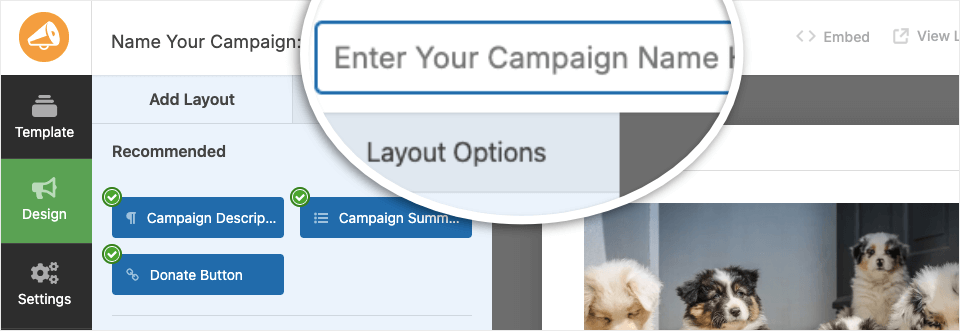
Eines der ersten Dinge, die Sie tun sollten, ist, Ihre Kampagne zu benennen, damit Sie sie später leicht identifizieren können. Sie können den Namen der Kampagne in das Textfeld oben im Builder eingeben.
Kampagnenfelder
Die linke Leiste zeigt Ihnen die möglichen Felder, die Sie zu Ihrer Kampagne hinzufügen können. Einige Felder sind möglicherweise nicht verfügbar, abhängig davon, welche Felder Sie bereits hinzugefügt haben, Ihrer Charitable-Lizenz und den von Ihnen installierten und aktivierten Erweiterungen.
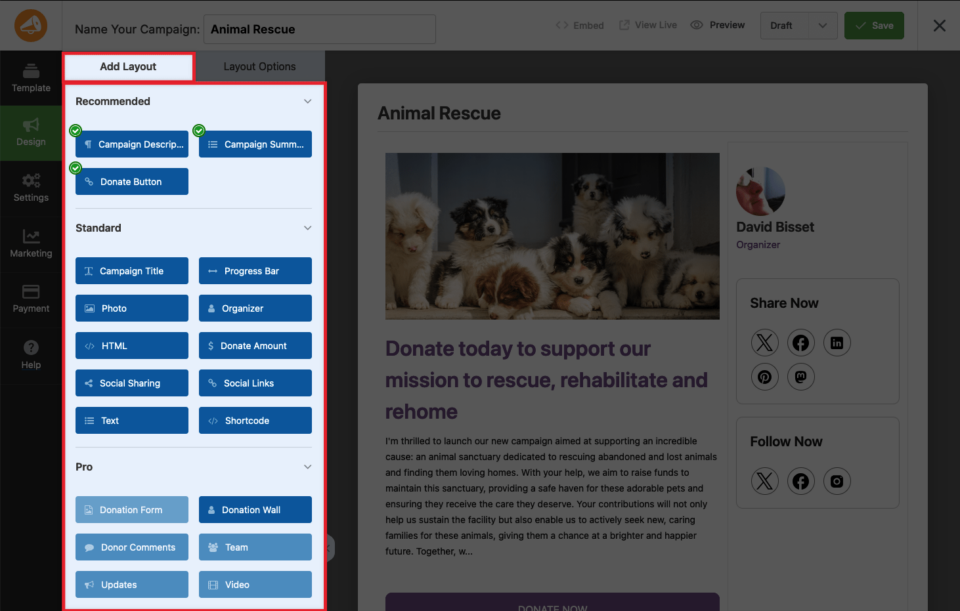
Die Felder sind in drei Typen unterteilt:
- Empfohlen: Diese Felder werden dringend empfohlen, da sie grundlegende Informationen oder Funktionalitäten jeder Kampagnenseite bieten. Ein grünes Häkchen bedeutet, dass mindestens eines davon bereits auf Ihrer Kampagnenseite vorhanden ist.
- Standard: Einige Standardfelder (aber nicht alle) finden sich oft auf Kampagnenseiten und fügen zusätzliche Funktionalität und Informationen hinzu. Sie können beispielsweise ein Feld für Fotos, ein Feld für soziale Links oder ein generisches HTML-Feld zu fast jedem benutzerdefinierten HTML hinzufügen.
- Pro: Die Mehrheit der Pro-Felder ist für Benutzer mit einer aktiven Lizenz und installierten und aktivierten Charitable-Erweiterungen verfügbar. Diese bieten normalerweise mehr Funktionalität als Standardfelder – und können eine Kampagne wirklich zum Strahlen bringen!
Im rechten Bereich sehen Sie eine bearbeitbare Vorschau Ihrer Kampagne.
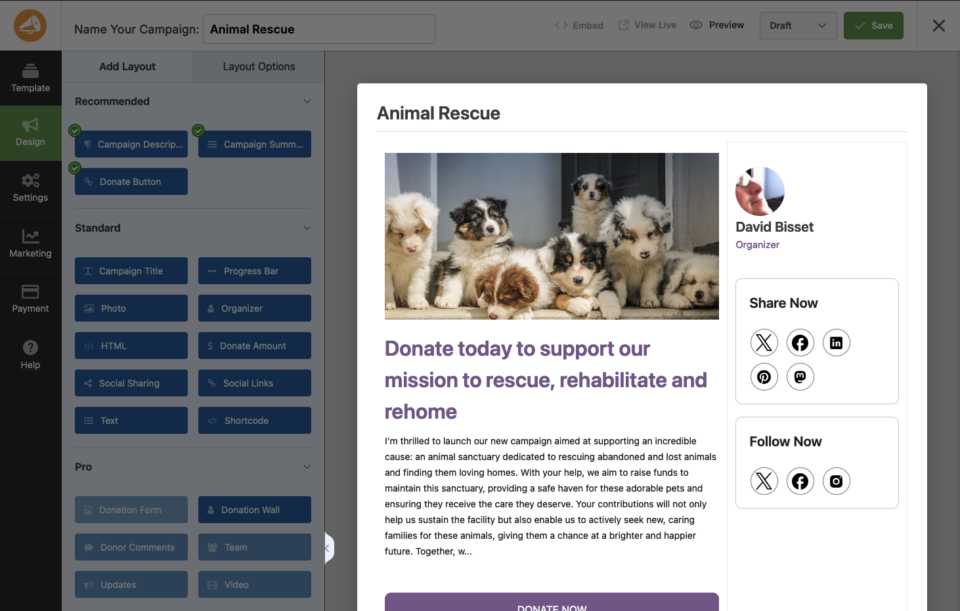
Um ein Feld zu Ihrer Kampagne hinzuzufügen, können Sie es direkt in die Kampagnenvorschau ziehen und dort ablegen. Um Text zu bearbeiten, klicken Sie einfach auf das Feld in der Formularvorschau. Eine Bearbeitungs-Taskleiste wird im linken Menü geöffnet, wo Sie den Inhalt anpassen können.
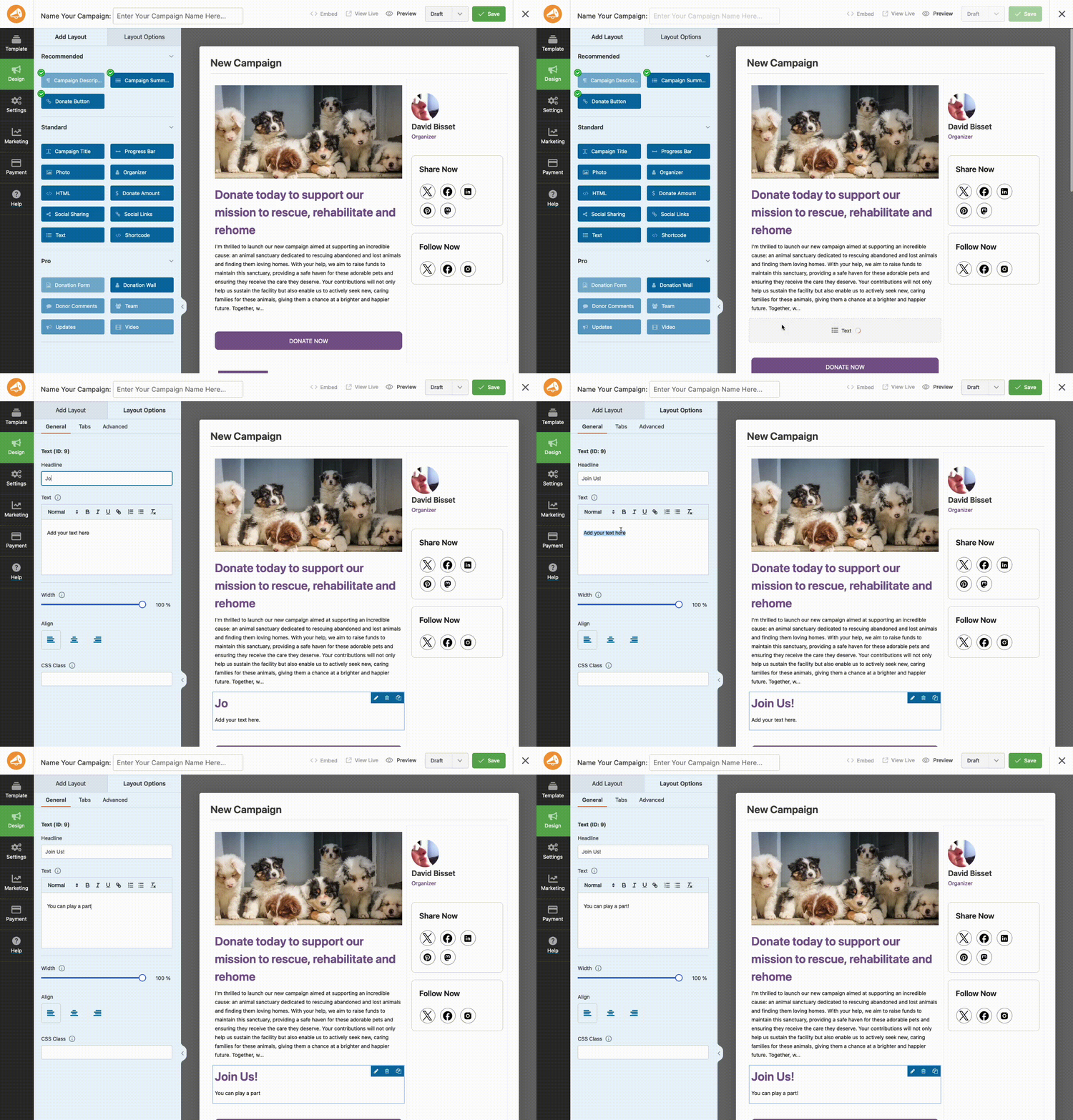
Ebenso können Sie auf jedes Feld wie Bilder, soziale Freigaben und Schaltflächen klicken, um Änderungen vorzunehmen. Wenn Sie beispielsweise auf das Bild klicken, werden auf der linken Seite Bearbeitungsoptionen geöffnet, wo Sie Ihr eigenes Bild hochladen können, um das im Vorlage ersetzte zu ersetzen.
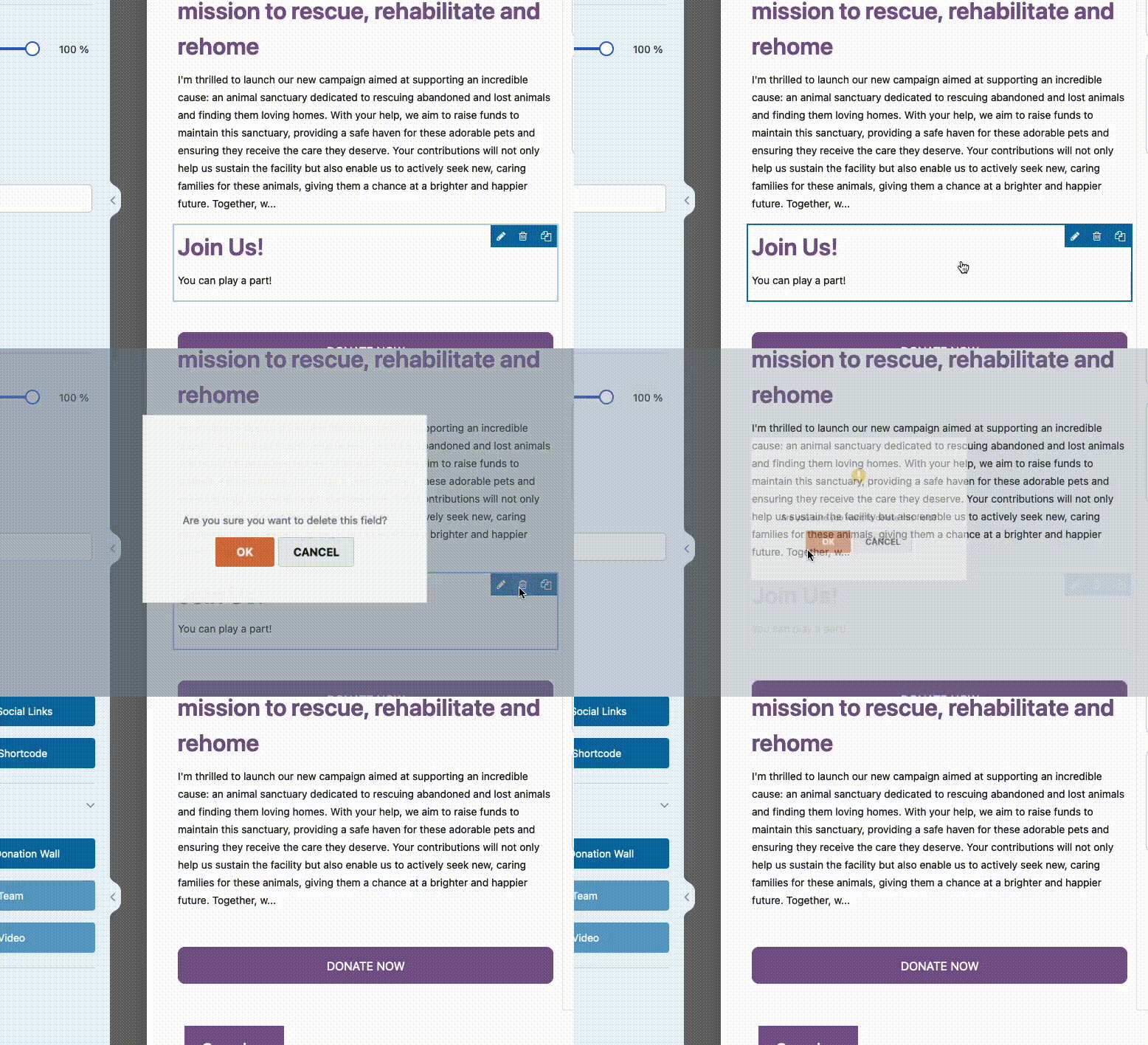
Um ein Feld aus Ihrer Kampagne zu löschen, können Sie mit der Maus darüber fahren und auf das Papierkorbsymbol klicken.
Zugriff auf Feldoptionen
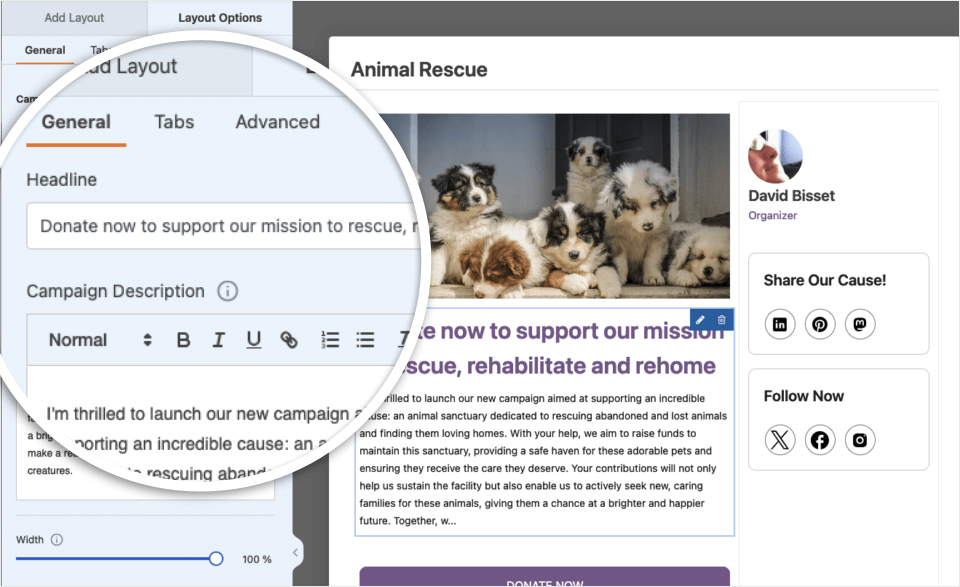
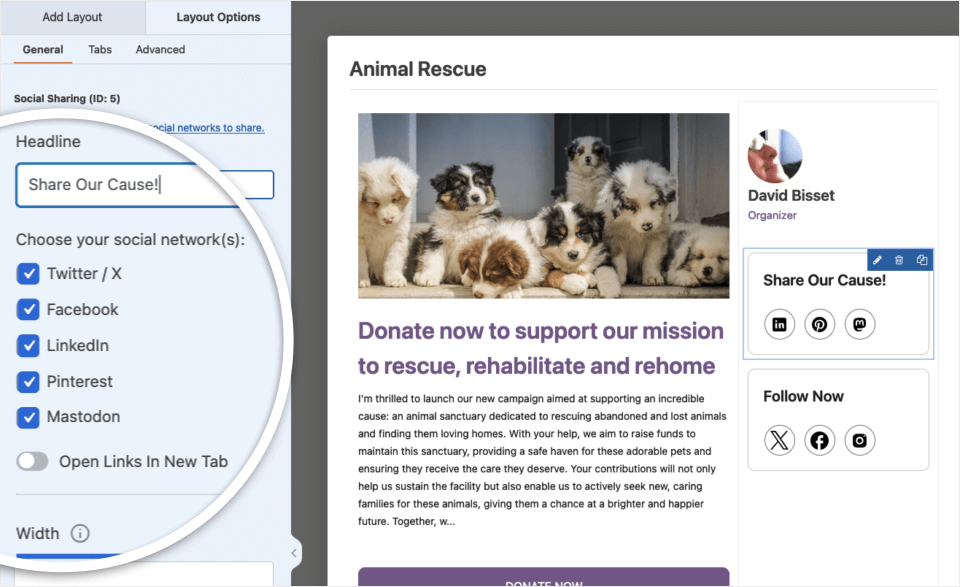
Feldoptionen ermöglichen es Ihnen, die Details und Einstellungen jedes Feldes zu konfigurieren, wie z. B. dessen Bezeichnung und Ausrichtung.
Um die verfügbaren Optionen für ein Feld anzuzeigen und zu bearbeiten, klicken Sie darauf im Vorschaufenster. Die Feldoptionen werden dann im linken Bereich des Kampagnen-Builders angezeigt. Unterschiedliche Felder haben unterschiedliche Optionen, je nachdem, welche Funktionalität sie bieten.
Bearbeiten von Formulareinstellungen
Um auf die Einstellungen Ihrer Kampagne zuzugreifen, klicken Sie auf die Registerkarte Einstellungen auf der linken Seite des Formular-Builders. Hier können Sie Kampagnenziele, Enddaten, Tags und vieles mehr hinzufügen. Gehen wir es Schritt für Schritt durch.
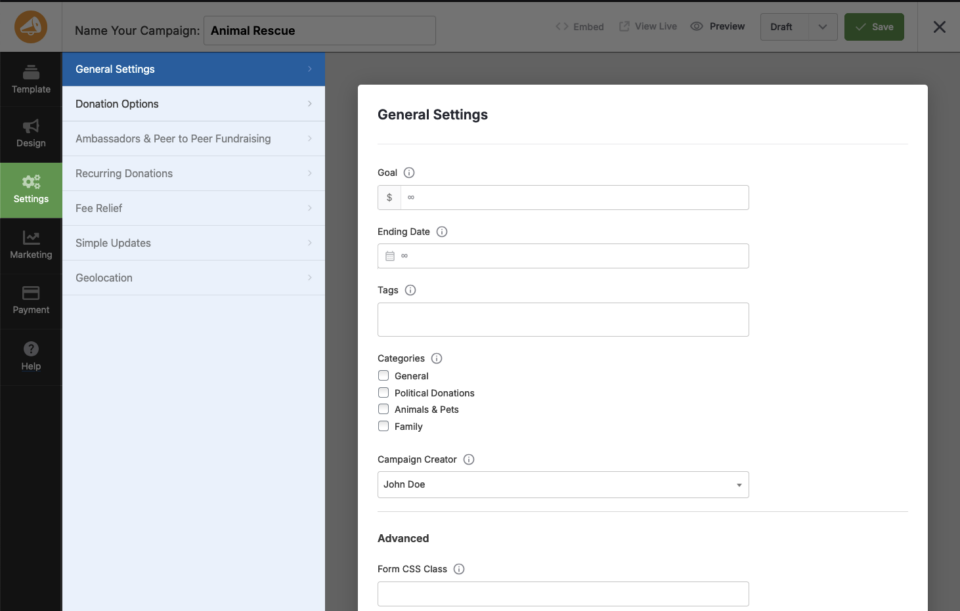
Festlegen eines Kampagnenziels
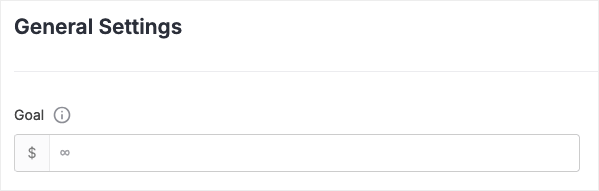
Um das monetäre Ziel Ihrer Kampagne festzulegen, besuchen Sie die Registerkarte Allgemeine Einstellungen und geben Sie eine Zahl ein, die das Kampagnenziel darstellt (wie viel Sie mit der Kampagne erreichen möchten). Sie können dieses Ziel jederzeit ändern und es auch leer lassen, wenn kein Ziel vorhanden ist (z. B. möchten Sie so viele Spenden wie möglich sammeln).
Festlegen eines Kampagnenenddatums
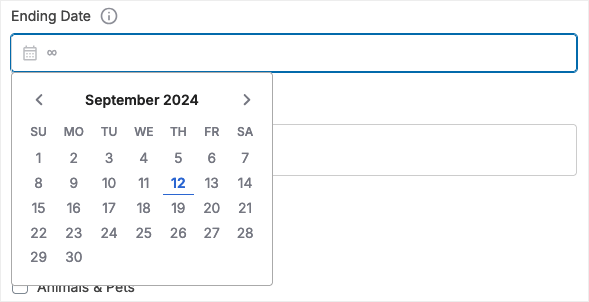
Auf derselben Registerkarte Allgemeine Einstellungen können Sie auch ein Enddatum für eine Kampagne festlegen – ein Datum, an dem die Kampagne automatisch geschlossen wird und keine Spenden mehr angenommen werden.
Festlegen von Spendenoptionen
Sie können anpassen, wie die Spendenoptionen auf dem Spendenformular Ihrer Kampagne aussehen, indem Sie die Registerkarte Spendenoptionen besuchen. Hier können Sie Spendenbeträge vorschlagen (damit Benutzer mit einem Klick einen Spendenbetrag auswählen können). Sie können auch entscheiden, ob der Benutzer einen benutzerdefinierten Spendenbetrag eingeben kann, und einen Mindestbetrag für eine Spende festlegen.
Speichern und Veröffentlichen Ihrer Kampagne
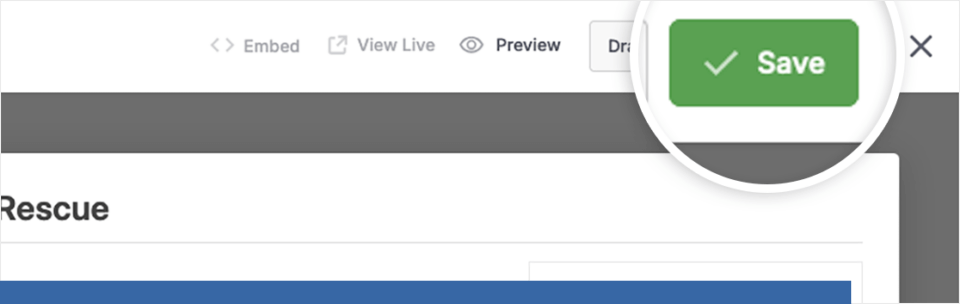
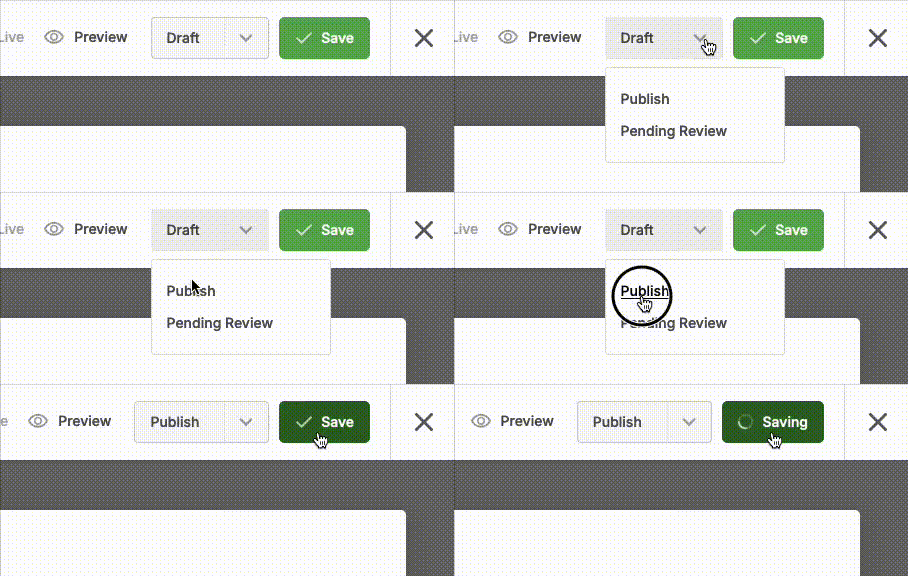
Sie können Ihre Kampagne jederzeit speichern. Wenn Sie mit der Konfiguration der Einstellungen Ihrer Kampagne fertig sind, klicken Sie oben auf dem Bildschirm auf die Schaltfläche Speichern, um Ihre Änderungen zu speichern.
Sie können Änderungen bearbeiten und speichern, während sich die Kampagne im Entwurfsmodus befindet, so oft Sie möchten. Sobald Sie entschieden haben, dass Ihre Kampagne live geschaltet werden kann, ändern Sie den Status in der Dropdown-Liste oben auf der Seite von Entwurf zu Veröffentlichen… und klicken Sie auf die Schaltfläche Speichern (wenn Sie WordPress schon einmal verwendet haben, ist dieses Konzept ähnlich wie bei Entwürfen/veröffentlichten Blogbeiträgen).
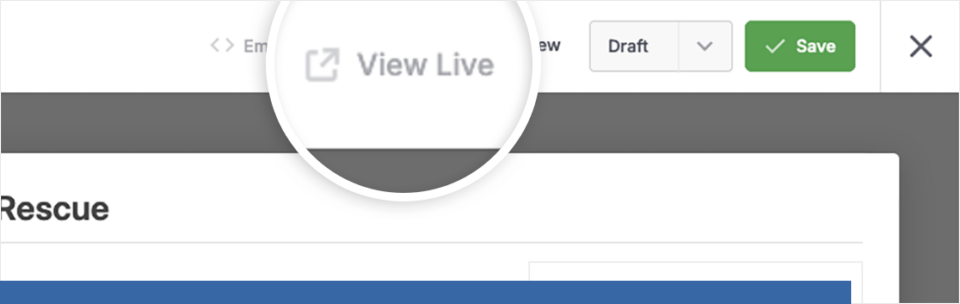
Sobald Ihre Kampagne live ist, können Sie sie anzeigen, indem Sie auf Live anzeigen klicken. Wenn Sie darauf klicken, gelangen Sie zur URL, unter der die Kampagne standardmäßig angezeigt wird – Charitable generiert die Seite für Sie basierend auf Ihrem WordPress-Theme.
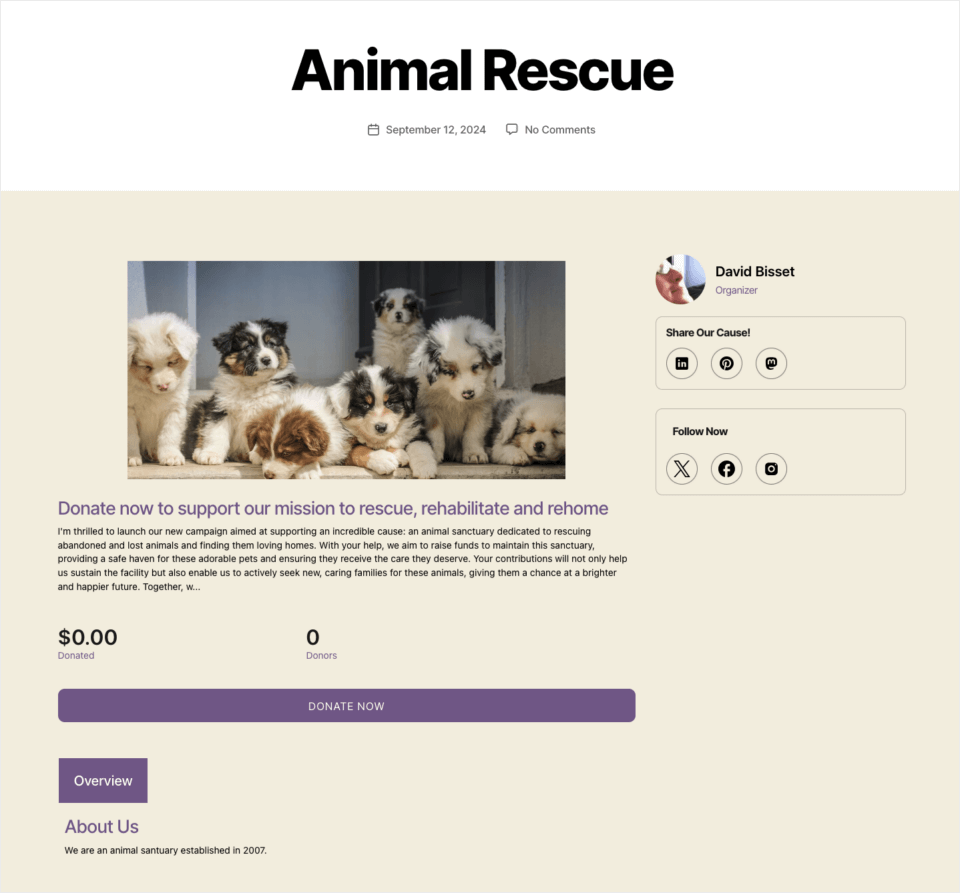
Nun, da Sie die Kampagnenseite im Frontend Ihrer WordPress-Website mit Ihrer aktivierten Vorlage anzeigen, können Sie das Spendenformular testen, indem Sie auf die Schaltfläche Spenden klicken, die bereits in der Kampagnenvorlage enthalten war.
Hinweis: In diesem Tutorial haben wir das Standard-WordPress-Theme Twenty Twenty verwendet. Das Erscheinungsbild Ihrer Kampagne hängt von Ihrem Theme und allen Plugins ab, die den Code und das Aussehen Ihrer Website beeinflussen könnten.
Hier ist ein Beispiel dafür, wie die Kampagne aussehen wird, sobald Sie
Anzeigen von Kampagnen auf Ihrer Website
Es gibt verschiedene Möglichkeiten, Ihre Kampagnen zu Ihrer Website hinzuzufügen. Wie wir oben bereits gesehen haben, kann Charitable die URL für Sie generieren (und die Spendenseite, wenn Sie dies in Ihren allgemeinen Einstellungen ausgewählt haben).
Einbetten einer Kampagne
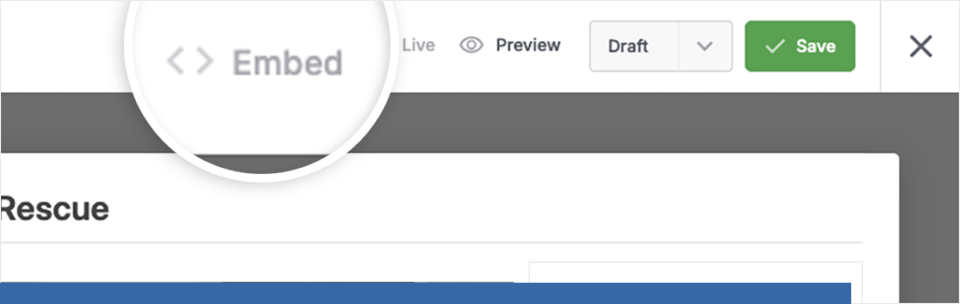
Aber Charitable gibt Ihnen die Flexibilität, Kampagnen mit anderen Methoden hinzuzufügen. Sobald Sie mit der Anpassung Ihrer Kampagne fertig sind, können Sie den Einbettungsassistenten direkt aus dem Kampagnen-Builder verwenden, indem Sie auf die Schaltfläche Einbetten klicken.
Von hier aus haben Sie die Möglichkeit, entweder eine neue Seite zu erstellen, auf der Ihre Kampagne eingebettet werden soll, oder eine vorhandene Seite auszuwählen, zu der Ihre Kampagne hinzugefügt werden soll.
Shortcode
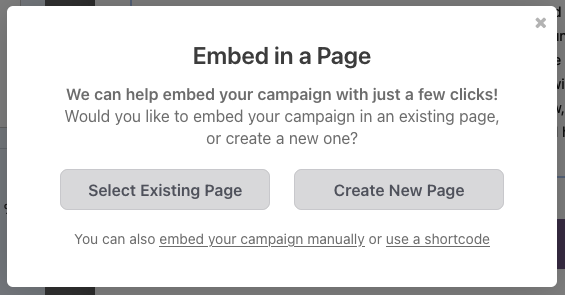
Sie haben auch die Möglichkeit, den WordPress-Shortcode zu erhalten, wenn Sie diese Kampagne manuell einbetten möchten (besonders nützlich für benutzerdefinierte WordPress-Websites oder wenn Sie einen Seitenersteller wie Elementor oder Beaver Builder verwenden).
Kampagnenblock
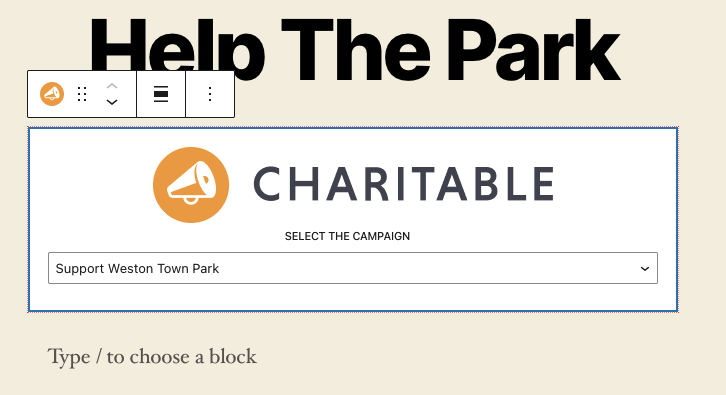
Schließlich gibt es im WordPress-Editor einen fertigen Charitable-Block. Alles, was Sie tun müssen, ist, einen neuen Block zu Ihrer Seite oder Ihrem Beitrag hinzuzufügen und nach dem Block „Charitable Campaign“ zu suchen. Wenn Sie ihn zu Ihrer Seite oder Ihrem Beitrag hinzufügen, sehen Sie ein Dropdown-Menü, mit dem Sie auswählen können, welche Kampagne Sie anzeigen möchten.
Herzlichen Glückwunsch!
Das ist alles! Sie wissen jetzt, wie Sie Kampagnen mit Charitable erstellen.
Bitte testen Sie Ihre Kampagne anschließend. Schauen Sie in unserem Dokumentationsbereich nach Antworten auf häufig gestellte Fragen und Möglichkeiten, Ihre Charitable-Kampagnen und Spendenformulare weiter anzupassen.


