
Migrating from GiveWP to Charitable is a simple process that helps you move your donors, campaigns, and donations without losing any important data.
If you’re switching to Charitable, you can easily bring over your records using the built-in import tool.
In this tutorial, we’ll walk you through each step – from exporting your data from GiveWP to importing it into Charitable. If you have GiveWP active on your site, you need to click a few buttons, and you’re done!
You don’t need any special technical skills to follow along, just a few minutes and access to your WordPress dashboard.
Not sure whether to switch to Charitable yet? See GiveWP vs Charitable »
Before you start
Before migrating from GiveWP, it’s a good idea to make sure everything is backed up and ready to go. You’ll need access to your WordPress dashboard, where both GiveWP and Charitable are installed.
Here’s what to check before you begin:
- Back up your site. Always keep a recent backup of your WordPress site and database. This ensures you can restore your data if something goes wrong. Need a free backup solution? Try Duplicator.
- Confirm your data. Make sure your GiveWP campaigns, donations, and donor records are complete and up to date.
- Log in as an admin. You’ll need admin access to export data from GiveWP and import it into Charitable.
- Install and activate Charitable. If you haven’t already, install Charitable and make sure it’s active. See How to Install the Charitable Plugin »
- Know what can be imported. Charitable’s import tool allows you to move donors, donations, and campaigns from GiveWP.
Once you’ve checked these points, you’re ready to migrate from GiveWP to Charitable. There are two methods you can use:
- Automatic Migration
- Manual CSV Import
1. Automatic Migration from GiveWP to Charitable
Please note: The beta GiveWP live import features will now only be visible when:
define( ‘CHARITABLE_GIVEWP_IMPORT_DEBUG’, true );
See: Charitable Debug mode
If you have GiveWP activated on your site, you can import items with just a click. You don’t have to download and upload any files to Charitable. This is the easiest method to migrate from GiveWP.
First, go to your WordPress dashboard. Here, in the left menu, select the Charitable » Tools » Import tab. Here, choose the GiveWP option.
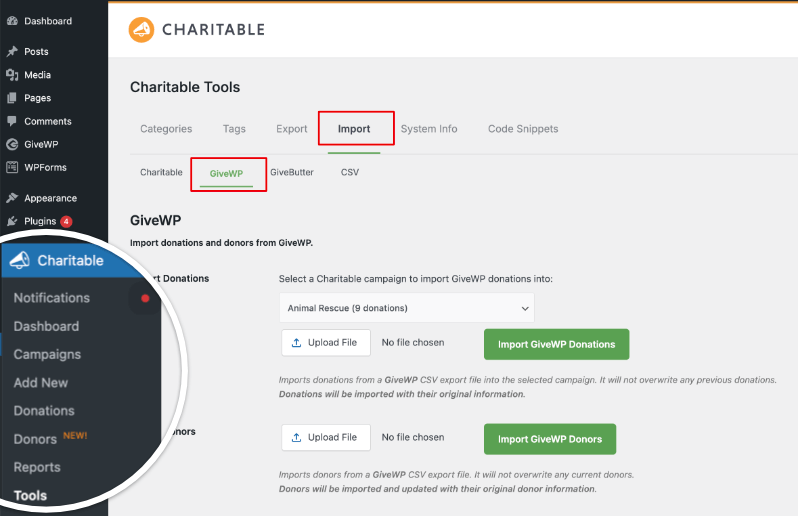
On this page, you’ll see options to upload files from GiveWP. We can skip that if you’re using the automatic method.
Scroll down this page, and you’ll see options to:
- Import Campaigns
- Single Donations
- Recurring Donations
- Donors.
Import Campaigns
Under this option, you can simply select the campaign you want to import from the dropdown menu available and click on the “Import GiveWP Campaign” button.
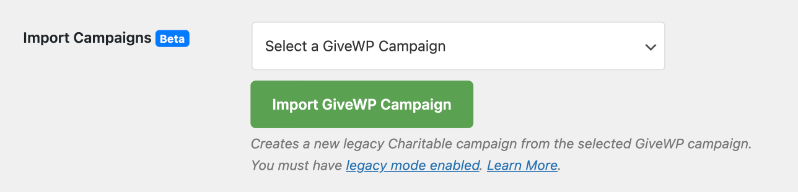
This will create a new legacy Charitable campaign.
Note: This feature requires Legacy Mode to be enabled. By default, Charitable enables legacy campaigns. If it has been disabled on your site, you can find this option under Charitable » Settings » Advanced » Misc. See Legacy Campaigns for more details »
Import Single Donations
Before you start, for single donations feature to work, you need the Fee Relief addon. You can activate this under Charitable » Addons. See how to install and activate addons »
Once done, you can import your donations from GiveWP by clicking on the “Import Single Donations” button.

This will specifically fetch one-time donation records and bring them into Charitable. It will ignore donation records marked as recurring.
Import Recurring Donations
For recurring donations, you need to have the Recurring Donations addon activated.
See how to install and activate addons »
Charitable will automatically detect and fetch all the donation records marked as “recurring”.

When you click on the button “Import Recurring Donations”, Charitable will sync with GiveWP, gather your data and import it into Charitable. That’s it.
Import Donors
To import your donor records, you can use this option. With GiveWP active on your site, Charitable will auto-detect the donor records.
Once you click on “Import GiveWP Donors”, Charitable will automatically start importing the donor records you have in GiveWP.
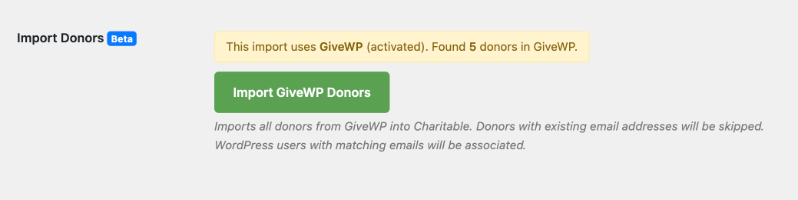
If a donor’s email address is detected in Charitable already, Charitable will skip it.
Also, if you have a WordPress user on your site with a matching email, Charitable will associate the donor record to that WordPress user.
That’s it. That’s how easy it is to migrate from GiveWP to Charitable. You are now ready to start creating your campaigns with Charitable and managing it all with ease.
2. Migrate Manually From GiveWP Using CSV Import
Charitable also lets you migrate from any platform (including GiveWP) using CSV import options. Follow the steps below:
Step 1: Export Your Data from GiveWP
In this section, you will export your key donation data from GiveWP into CSV files that you can later import into Charitable. GiveWP includes built-in tools for exporting donations and donors as CSV files.
Log in to your WordPress dashboard as an administrator. Go to Donations » Tools » Exports.
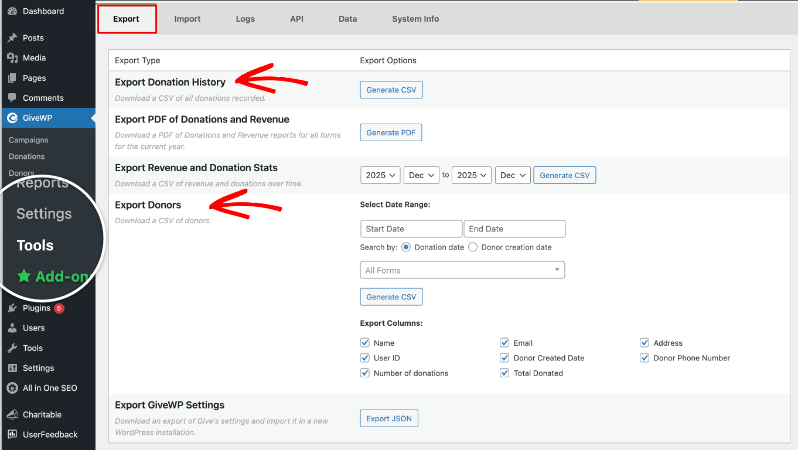
On this screen, you will see several export options for donations, donors, and revenue.
Export donation history
In the Export tab, look for Export Donation History. When you click on “Generate CSV”, a new page will open where you can choose your filters, such as date range or specific donation form, or leave them set to export all donations.

Click Generate CSV to download a CSV file of your donation history to your computer.
Export donors
Back under Donations » Tools » Exports, find Export Donors. Choose the date range and optionally a specific form if you only want donors for certain campaigns.
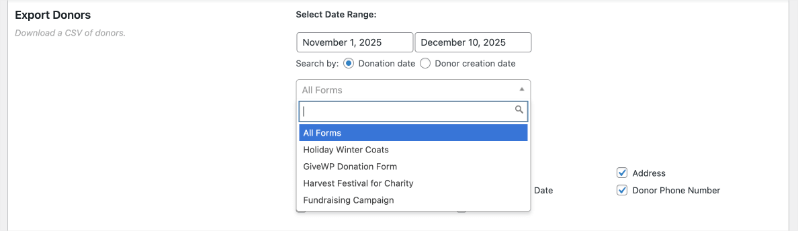
Decide which donor fields to include, such as name, email, address, number of donations, and total donated.
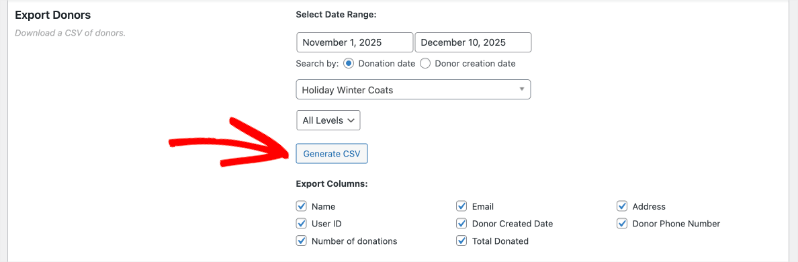
Click Generate CSV to download your donors CSV file.
We recommend storing these files in a separate folder on your computer so it’s easier to find them when you’re ready to import it into Charitable.
Export any extra reports you need
- If you want a summary of revenue and donations by date, you can also use Export Revenue and Donation Stats in the same Exports tab.
- This report cannot be imported into Charitable but can be helpful for your records or reconciliation.
Once you have downloaded your donation and donor CSV files, store them somewhere safe on your computer. You will use these files in the next steps when importing into Charitable.
Step 2: Prepare your CSV files
Before importing into Charitable, take a moment to open and review the CSV files you exported from GiveWP. This helps avoid errors during import and makes it easier to map your data into Charitable correctly.
- Open each CSV file in a spreadsheet tool like Excel, Google Sheets, or Numbers so the data is easy to scan.
- Check that the column headers are clear and that each row of data sits in the right column, with no shifted cells or strange characters.
Next, make sure your file is saved correctly and ready for upload.
- Confirm the file format is .csv and not another format like .xls or .xlsx.
- If you make any edits, save the file again as CSV to keep it compatible with Charitable’s import tool.
You do not have to rename every column to match Charitable exactly, because you will map each column to the right field during the import step.
Step 3: Import your data into Charitable
Now you are ready to bring your GiveWP data into Charitable using the import tool in your WordPress dashboard. This process uses the CSV files you just reviewed and lets you map each column to the right fields in Charitable.
Log in to your WordPress dashboard as an administrator.
Go to Charitable » Tools » Import.
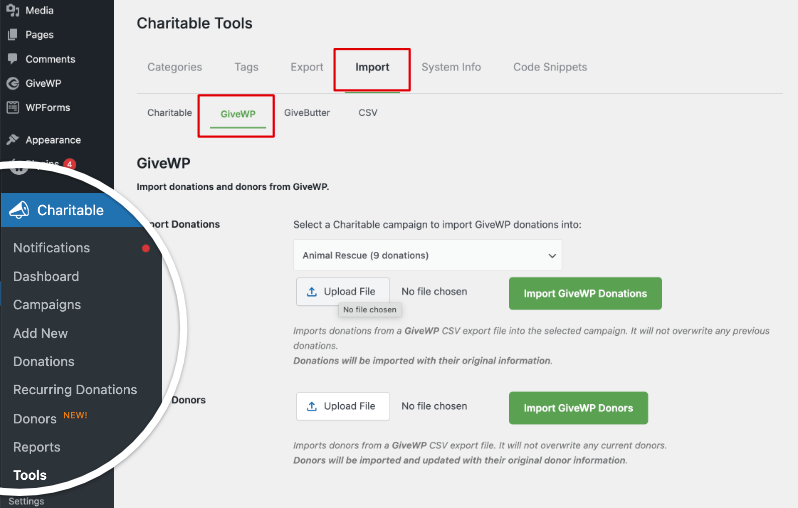
On this screen, you’ll see a menu with options that include Charitable, GiveWP, GiveButter, and CSV. Open the GiveWP tab.
Here, you will see options to upload a CSV file and choose what type of data you are importing, such as donors or donations.
Step 4: Upload your CSV file in Charitable
You can import Donations into specific campaigns inside Charitable. Choose your campaign and then click the Upload File button to select the donation file on your computer.
Then choose the Import GiveWP Donations button to import your donation records.

Donations will be brought over from GiveWP with all their original information. Charitable will not overwrite any previous donations.
Next you can also import Donors. Use the Upload File button to choose the donors file you exported from GiveWP.

Click the Import GiveWP Donors button and Charitable will do the rest. Once the import is complete, you will see a confirmation message telling you how many records were imported successfully.
After the import finishes, it is important to check that everything looks right in Charitable.
- Go to Charitable » Donations to review your imported donations and confirm that amounts, dates, and campaigns look correct.
- Go to Charitable » Donors and Charitable » Campaigns to check that donor names, emails, and campaign titles appear as expected.
If something looks off, such as missing donors or incorrect amounts, compare a few records in Charitable with your original GiveWP CSV file to see if a column may have been mapped to the wrong field during import.
Step 5: Clean up and Testing
Once you are happy with your migrated data, you can do a quick cleanup and final test.
- Make a small test donation on your site to confirm that Charitable is recording new donations correctly.
- When you are confident everything is working and your data is safely in Charitable, you can deactivate or remove GiveWP if you no longer need it in your WordPress site.
Next Steps in Charitable
Once your data is safely in Charitable, you are ready to start using your new donation tools to grow your fundraising. Charitable gives you flexible campaigns, easy donor management, and powerful options for collecting and tracking donations in your WordPress dashboard.
Here’s a quick guide to Get started with Charitable as well as to Create Your First Campaign »
Here are a few helpful things to do next:
- Create or tweak your campaigns under Charitable » Campaigns so they match your current appeals and goals.
- Add your donation forms to key pages on your site so visitors can give quickly and easily.
- Explore features like donor dashboards, recurring donations, and email receipts to give supporters a smooth giving experience.
With your GiveWP data migrated and Charitable set up, you can focus on what matters most growing support for your mission.
GiveWP vs Charitable – Frequently Asked Questions
Do you have a question about Charitable vs GiveWP? See the list below for our most frequently asked questions. If your question is not listed here, please contact us.
What makes Charitable different from GiveWP?
Charitable is built by a team that understands the struggles and needs of non-profits like yours. We’ve specifically designed the plugin to meet the everyday needs of nonprofits, providing all essential fundraising tools in one platform—without hidden fees, confusing add-ons, or artificial limits. Here are the main differences:
- Affordable Pricing – Charitable costs significantly less than GiveWP starting at just $69 for the entire year.
- Generous Free Plan – Everything you need to start fundraising is included free and you can upgrade as you grow
- More Payment Options – Wider range of payment gateway integrations including global and local providers
- All-Inclusive Plans – No expensive add-ons needed; features come standard
Are there any limits on the number of campaigns or donation forms with Charitable?
No. Charitable lets you create unlimited donation campaigns and forms from day one—no paid upgrades or restrictions.
Can I manage recurring donations with Charitable?
Yes! Charitable includes robust recurring donation features so your supporters can contribute weekly, monthly, or on a custom schedule, helping you achieve a reliable, steady income. You need a Plus plan that costs just $99 per year, which is a steal compared to GiveWP’s pricing of $349 per year.
What’s the price difference between Charitable and GiveWP?
GiveWP is 3.5x more expensive compared to Charitable.
Charitable starts at just $69 per year for essential features like unlimited donation forms, full donation managament, reports, PDF receipts, and emails. GiveWP starts at $149 per year for similar features.
For advanced features, GiveWP costs $349 per year. You’ll get all the same features and more on the Charitable Pro plan for just $199 per year.
Does Charitable integrate with my favorite tools and services?
Charitable works seamlessly with many popular platforms, including MailChimp, ActiveCampaign, Constant Contact, HubSpot, MailPoet, Zapier, and more.
Is Charitable easy to set up and use?
Yes. Charitable is designed to be easy for anyone to use – no coding and beginner-friendly. We’ve included a setup wizard that guides you through the process so you can set up and launch your first campaign in minutes, not hours, not days!
What kind of support does Charitable offer?
Lite users can post questions in the WordPress support forum. Charitable Pro plugin customers can reach out to us through the support channel. You’ll receive friendly, responsive support from a team experienced in helping charities succeed. We’re here to answer questions and resolve any issues quickly.
Will Charitable continue to get new features and updates?
Yes. At Charitable, we are always listening to and actively seeking your feedback to make our platform even better. We are constantly innovating – adding new features, enhancing existing tools, and regularly updating our plugin to ensure compatibility with WordPress updates. Every improvement and security enhancement is driven by real feedback from nonprofits like yours.
More Information
Here are some of the more popular “how to” guides and help articles for new users:
- Setting up Payment Gateways
- Create and Edit Donations in the WordPress Dashboard
- How to Use the Donor Management System
- Connect to Google Analytics
- Issues With Donation Emails Not Sending
- Resend Donation Emails from the Dashboard
- Widgets And Shortcodes
Want more fundraising tips and nonprofit advice?
We regularly share practical guides, proven strategies, and insider tips to help you raise more funds and build stronger donor relationships. Join thousands of nonprofits who get our best content delivered straight to them:
- Join our newsletter – Get weekly tips and exclusive guides in your inbox
- Subscribe to our YouTube channel – Watch step-by-step tutorials and success stories
- Follow us on LinkedIn – Connect with our community and get daily nonprofit insights
- Follow us on TikTok – Insightful & fun videos to help you grow your cause
- Follow us on Instagram – Fun reels with non-profit insights and tips
No fluff, just actionable advice from people who understand the challenges you face every day.

