
Migrer de GiveWP vers Charitable est un processus simple qui vous aide à déplacer vos donateurs, campagnes et dons sans perdre aucune donnée importante.
Si vous passez à Charitable, vous pouvez facilement importer vos enregistrements à l'aide de l'outil d'importation intégré.
Dans ce tutoriel, nous vous guiderons à chaque étape – de l'exportation de vos données depuis GiveWP à leur importation dans Charitable. Si vous avez GiveWP actif sur votre site, vous devez cliquer sur quelques boutons, et c'est fait !
Vous n'avez besoin d'aucune compétence technique particulière pour suivre, juste quelques minutes et l'accès à votre tableau de bord WordPress.
Vous n'êtes pas encore sûr de vouloir passer à Charitable ? Voir GiveWP vs Charitable »
Avant de commencer
Avant de migrer depuis GiveWP, il est conseillé de s'assurer que tout est sauvegardé et prêt. Vous aurez besoin d'accéder à votre tableau de bord WordPress, où GiveWP et Charitable sont installés.
Voici ce qu'il faut vérifier avant de commencer :
- Sauvegardez votre site. Conservez toujours une sauvegarde récente de votre site WordPress et de votre base de données. Cela garantit que vous pouvez restaurer vos données si quelque chose se passe mal. Besoin d'une solution de sauvegarde gratuite ? Essayez Duplicator.
- Confirmez vos données. Assurez-vous que vos campagnes, dons et enregistrements de donateurs GiveWP sont complets et à jour.
- Connectez-vous en tant qu'administrateur. Vous aurez besoin d'un accès administrateur pour exporter les données de GiveWP et les importer dans Charitable.
- Installez et activez Charitable. Si ce n'est pas déjà fait, installez Charitable et assurez-vous qu'il est actif. Voir Comment installer le plugin Charitable »
- Sachez ce qui peut être importé. L'outil d'importation de Charitable vous permet de déplacer les donateurs, les dons et les campagnes de GiveWP.
Une fois que vous avez vérifié ces points, vous êtes prêt à migrer de GiveWP vers Charitable. Il existe deux méthodes que vous pouvez utiliser :
- Migration automatique
- Importation manuelle par CSV
1. Migration automatique de GiveWP vers Charitable
Veuillez noter : Les fonctionnalités d'importation directe GiveWP en bêta ne seront désormais visibles que lorsque :
define( ‘CHARITABLE_GIVEWP_IMPORT_DEBUG’, true );
Voir : Mode de débogage Charitable
Si vous avez GiveWP activé sur votre site, vous pouvez importer des éléments en un seul clic. Vous n'avez pas besoin de télécharger et d'importer de fichiers dans Charitable. C'est la méthode la plus simple pour migrer depuis GiveWP.
Tout d'abord, allez dans votre tableau de bord WordPress. Ici, dans le menu de gauche, sélectionnez l'onglet Charitable » Outils » Importer. Ici, choisissez l'option GiveWP.
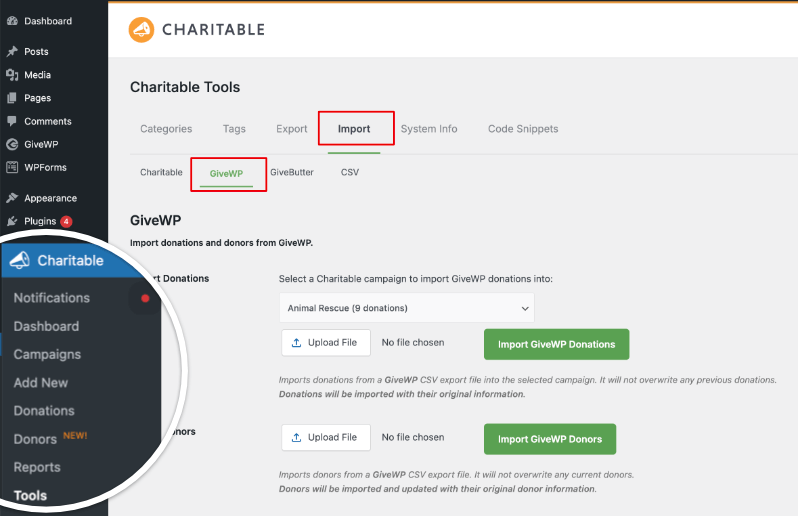
Sur cette page, vous verrez des options pour télécharger des fichiers de GiveWP. Nous pouvons ignorer cela si vous utilisez la méthode automatique.
Faites défiler cette page, et vous verrez des options pour :
- Importer les campagnes
- Dons uniques
- Dons récurrents
- Donateurs.
Importer les campagnes
Sous cette option, vous pouvez simplement sélectionner la campagne que vous souhaitez importer dans le menu déroulant disponible et cliquer sur le bouton « Importer la campagne GiveWP ».
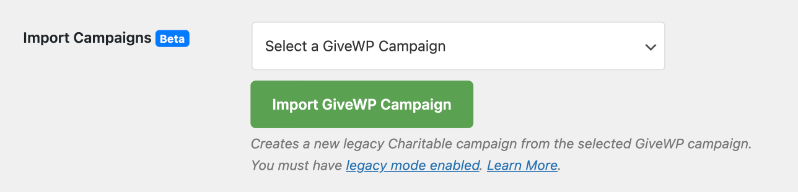
Ceci créera une nouvelle campagne caritative héritée.
Note : Cette fonctionnalité nécessite que le mode hérité soit activé. Par défaut, Charitable active les campagnes héritées. Si cela a été désactivé sur votre site, vous pouvez trouver cette option sous Charitable » Paramètres » Avancé » Divers. Voir Campagnes héritées pour plus de détails »
Importer les dons uniques
Avant de commencer, pour que la fonctionnalité de dons uniques fonctionne, vous avez besoin du module complémentaire Réduction des frais. Vous pouvez l'activer sous Charitable » Modules complémentaires. Voir comment installer et activer les modules complémentaires »
Une fois terminé, vous pouvez importer vos dons de GiveWP en cliquant sur le bouton « Importer les dons uniques ».

Ceci récupérera spécifiquement les enregistrements de dons uniques et les importera dans Charitable. Il ignorera les enregistrements de dons marqués comme récurrents.
Importer les dons récurrents
Pour les dons récurrents, vous devez avoir le module complémentaire Dons récurrents activé.
Voir comment installer et activer les modules complémentaires »
Charitable détectera et récupérera automatiquement tous les enregistrements de dons marqués comme « récurrents ».

Lorsque vous cliquerez sur le bouton « Importer les dons récurrents », Charitable se synchronisera avec GiveWP, rassemblera vos données et les importera dans Charitable. C'est tout.
Importer les donateurs
Pour importer vos enregistrements de donateurs, vous pouvez utiliser cette option. Avec GiveWP actif sur votre site, Charitable détectera automatiquement les enregistrements de donateurs.
Une fois que vous cliquerez sur « Importer les donateurs GiveWP », Charitable commencera automatiquement à importer les enregistrements de donateurs que vous avez dans GiveWP.
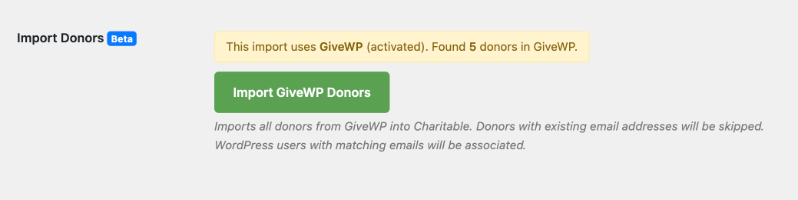
Si l'adresse e-mail d'un donateur est déjà détectée dans Charitable, Charitable l'ignorera.
De plus, si vous avez un utilisateur WordPress sur votre site avec une adresse e-mail correspondante, Charitable associera l'enregistrement du donateur à cet utilisateur WordPress.
C'est tout. C'est aussi simple que cela de migrer de GiveWP vers Charitable. Vous êtes maintenant prêt à commencer à créer vos campagnes avec Charitable et à tout gérer en toute simplicité.
2. Migrer manuellement depuis GiveWP en utilisant l’importation CSV
Charitable vous permet également de migrer depuis n'importe quelle plateforme (y compris GiveWP) en utilisant les options d'importation CSV. Suivez les étapes ci-dessous :
Étape 1 : Exportez vos données depuis GiveWP
Dans cette section, vous exporterez vos données de dons clés de GiveWP dans des fichiers CSV que vous pourrez ensuite importer dans Charitable. GiveWP inclut des outils intégrés pour exporter les dons et les donateurs sous forme de fichiers CSV.
Connectez-vous à votre tableau de bord WordPress en tant qu'administrateur. Allez dans Dons » Outils » Exportations.
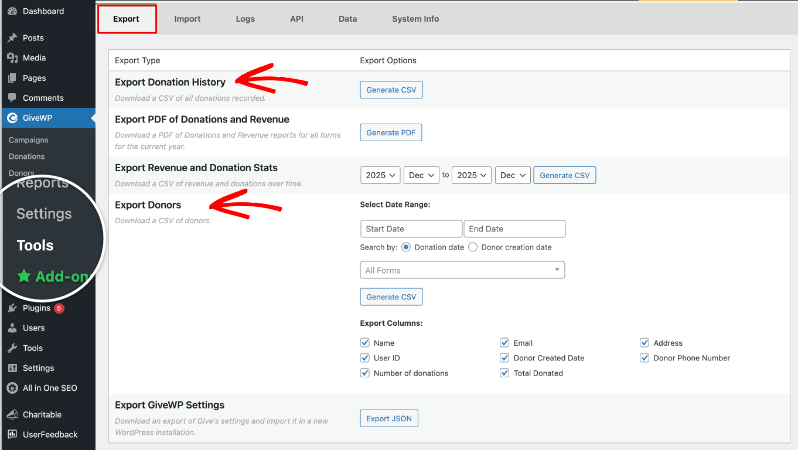
Sur cet écran, vous verrez plusieurs options d'exportation pour les dons, les donateurs et les revenus.
Exporter l'historique des dons
Dans l'onglet Exportation, recherchez Exporter l'historique des dons. Lorsque vous cliquerez sur « Générer CSV », une nouvelle page s'ouvrira où vous pourrez choisir vos filtres, tels que la plage de dates ou un formulaire de don spécifique, ou les laisser définis pour exporter tous les dons.

Cliquez sur Générer CSV pour télécharger un fichier CSV de votre historique de dons sur votre ordinateur.
Exporter les donateurs
Sous Donations » Outils » Exportations, trouvez Exporter les donateurs. Choisissez la plage de dates et éventuellement un formulaire spécifique si vous ne souhaitez que les donateurs de certaines campagnes.
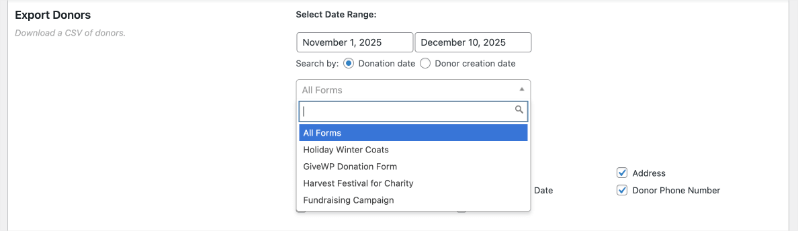
Décidez quels champs de donateur inclure, tels que le nom, l'e-mail, l'adresse, le nombre de dons et le montant total donné.
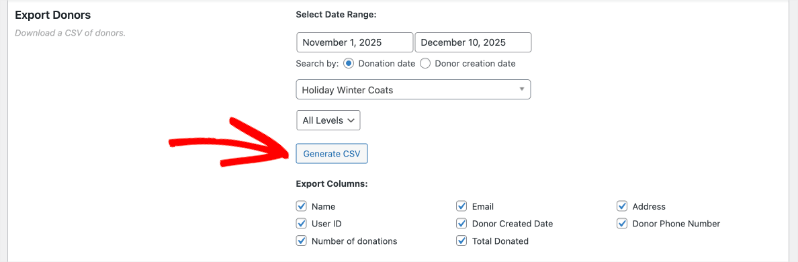
Cliquez sur Générer le CSV pour télécharger votre fichier CSV de donateurs.
Nous vous recommandons de stocker ces fichiers dans un dossier séparé sur votre ordinateur afin qu'il soit plus facile de les retrouver lorsque vous serez prêt à les importer dans Charitable.
Exportez tous les rapports supplémentaires dont vous avez besoin
- Si vous souhaitez un résumé des revenus et des dons par date, vous pouvez également utiliser Exporter les statistiques de revenus et de dons dans le même onglet Exports.
- Ce rapport ne peut pas être importé dans Charitable, mais il peut être utile pour vos archives ou votre rapprochement.
Une fois que vous avez téléchargé vos fichiers CSV de dons et de donateurs, stockez-les en lieu sûr sur votre ordinateur. Vous utiliserez ces fichiers dans les étapes suivantes lors de l'importation dans Charitable.
Étape 2 : Préparez vos fichiers CSV
Avant d'importer dans Charitable, prenez un moment pour ouvrir et examiner les fichiers CSV que vous avez exportés de GiveWP. Cela permet d'éviter les erreurs lors de l'importation et facilite la correspondance de vos données avec Charitable correctement.
- Ouvrez chaque fichier CSV dans un outil de tableur comme Excel, Google Sheets ou Numbers afin que les données soient faciles à parcourir.
- Vérifiez que les en-têtes de colonne sont clairs et que chaque ligne de données se trouve dans la bonne colonne, sans cellules décalées ni caractères étranges.
Ensuite, assurez-vous que votre fichier est correctement enregistré et prêt pour le téléchargement.
- Confirmez que le format du fichier est .csv et non un autre format comme .xls ou .xlsx.
- Si vous apportez des modifications, enregistrez à nouveau le fichier au format CSV pour qu'il reste compatible avec l'outil d'importation de Charitable.
Vous n'avez pas besoin de renommer chaque colonne pour qu'elle corresponde exactement à Charitable, car vous associerez chaque colonne au bon champ lors de l'étape d'importation.
Étape 3 : Importez vos données dans Charitable
Vous êtes maintenant prêt à importer vos données GiveWP dans Charitable à l'aide de l'outil d'importation de votre tableau de bord WordPress. Ce processus utilise les fichiers CSV que vous venez d'examiner et vous permet de faire correspondre chaque colonne aux bons champs dans Charitable.
Connectez-vous à votre tableau de bord WordPress en tant qu'administrateur.
Allez à Charitable » Outils » Importation.
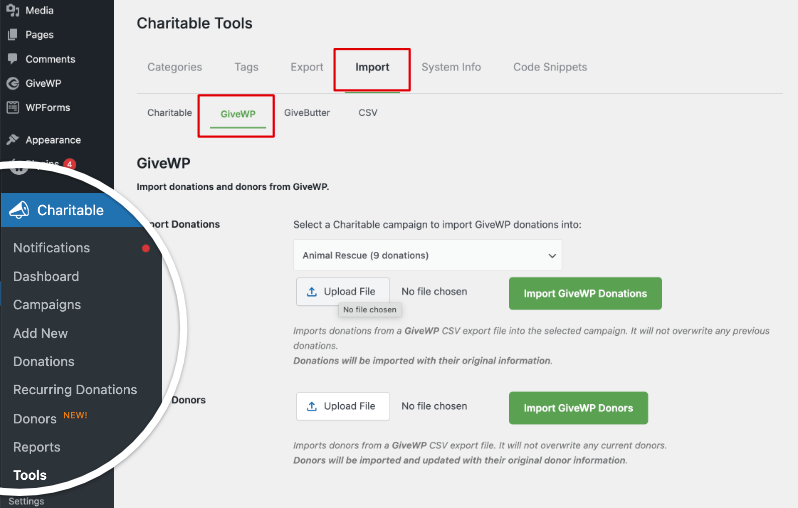
Sur cet écran, vous verrez un menu avec des options incluant Charitable, GiveWP, GiveButter et CSV. Ouvrez l'onglet GiveWP.
Ici, vous verrez des options pour télécharger un fichier CSV et choisir le type de données que vous importez, tels que les donateurs ou les dons.
Étape 4 : Téléchargez votre fichier CSV dans Charitable
Vous pouvez importer des dons dans des campagnes spécifiques au sein de Charitable. Choisissez votre campagne, puis cliquez sur le bouton Télécharger le fichier pour sélectionner le fichier de dons sur votre ordinateur.
Choisissez ensuite le bouton Importer les dons GiveWP pour importer vos enregistrements de dons.

Les dons seront transférés de GiveWP avec toutes leurs informations d'origine. Charitable n'écrasera aucun don précédent.
Ensuite, vous pouvez également importer des donateurs. Utilisez le bouton Télécharger le fichier pour choisir le fichier de donateurs que vous avez exporté de GiveWP.

Cliquez sur le bouton Importer les donateurs GiveWP et Charitable s'occupera du reste. Une fois l'importation terminée, vous verrez un message de confirmation indiquant le nombre d'enregistrements importés avec succès.
Après la fin de l'importation, il est important de vérifier que tout semble correct dans Charitable.
- Allez à Charitable » Dons pour examiner vos dons importés et confirmer que les montants, les dates et les campagnes semblent corrects.
- Allez à Charitable » Donateurs et Charitable » Campagnes pour vérifier que les noms des donateurs, les e-mails et les titres des campagnes apparaissent comme prévu.
Si quelque chose semble incorrect, comme des donateurs manquants ou des montants erronés, comparez quelques enregistrements dans Charitable avec votre fichier CSV GiveWP d'origine pour voir si une colonne a été mappée au mauvais champ lors de l'importation.
Étape 5 : Nettoyage et tests
Une fois que vous êtes satisfait de vos données migrées, vous pouvez effectuer un nettoyage rapide et un test final.
- Effectuez un petit don de test sur votre site pour confirmer que Charitable enregistre correctement les nouveaux dons.
- Lorsque vous êtes sûr que tout fonctionne et que vos données sont en sécurité dans Charitable, vous pouvez désactiver ou supprimer GiveWP si vous n'en avez plus besoin sur votre site WordPress.
Prochaines étapes dans Charitable
Une fois que vos données sont en sécurité dans Charitable, vous êtes prêt à commencer à utiliser vos nouveaux outils de dons pour développer votre collecte de fonds. Charitable vous offre des campagnes flexibles, une gestion facile des donateurs et des options puissantes pour collecter et suivre les dons dans votre tableau de bord WordPress.
Voici un guide rapide pour Commencer avec Charitable ainsi que pour Créer Votre Première Campagne »
Voici quelques actions utiles à entreprendre ensuite :
- Créez ou modifiez vos campagnes sous Charitable » Campagnes pour qu'elles correspondent à vos appels et objectifs actuels.
- Ajoutez vos formulaires de don sur des pages clés de votre site pour que les visiteurs puissent donner rapidement et facilement.
- Explorez des fonctionnalités telles que les tableaux de bord des donateurs, les dons récurrents et les reçus par e-mail pour offrir aux supporters une expérience de don fluide.
Avec vos données GiveWP migrées et Charitable configuré, vous pouvez vous concentrer sur ce qui compte le plus : accroître le soutien à votre mission.
GiveWP vs Charitable – Foire aux questions
Vous avez une question sur Charitable vs GiveWP ? Consultez la liste ci-dessous pour nos questions les plus fréquemment posées. Si votre question n'est pas listée ici, veuillez nous contacter.
Qu'est-ce qui différencie Charitable de GiveWP ?
Charitable est développé par une équipe qui comprend les difficultés et les besoins des organisations à but non lucratif comme la vôtre. Nous avons spécifiquement conçu le plugin pour répondre aux besoins quotidiens des organisations à but non lucratif, en fournissant tous les outils essentiels de collecte de fonds sur une seule plateforme, sans frais cachés, add-ons complexes ou limites artificielles. Voici les principales différences :
- Tarification abordable – Charitable coûte nettement moins cher que GiveWP, à partir de seulement 69 $ pour toute l'année.
- Plan gratuit généreux – Tout ce dont vous avez besoin pour commencer à collecter des fonds est inclus gratuitement et vous pouvez passer à la version supérieure à mesure que vous grandissez
- Plus d'options de paiement – Large gamme d'intégrations de passerelles de paiement, y compris des fournisseurs mondiaux et locaux
- Forfaits tout compris – Pas de modules coûteux nécessaires ; les fonctionnalités sont standard
Y a-t-il des limites au nombre de campagnes ou de formulaires de don avec Charitable ?
Non. Charitable vous permet de créer des campagnes et des formulaires de don illimités dès le premier jour, sans mises à niveau payantes ni restrictions.
Puis-je gérer les dons récurrents avec Charitable ?
Oui ! Charitable inclut des fonctionnalités robustes de dons récurrents pour que vos supporters puissent contribuer chaque semaine, chaque mois ou selon un calendrier personnalisé, vous aidant à obtenir un revenu fiable et stable. Vous avez besoin d'un plan Plus qui coûte seulement 99 $ par an, ce qui est une aubaine par rapport au prix de 349 $ par an de GiveWP.
Quelle est la différence de prix entre Charitable et GiveWP ?
GiveWP est 3,5 fois plus cher que Charitable.
Charitable commence à seulement 69 $ par an pour des fonctionnalités essentielles telles que des formulaires de dons illimités, une gestion complète des dons, des rapports, des reçus PDF et des e-mails. GiveWP commence à 149 $ par an pour des fonctionnalités similaires.
Pour les fonctionnalités avancées, GiveWP coûte 349 $ par an. Vous obtiendrez toutes les mêmes fonctionnalités et plus encore avec le plan Charitable Pro pour seulement 199 $ par an.
Charitable s'intègre-t-il avec mes outils et services préférés ?
Charitable fonctionne de manière transparente avec de nombreuses plateformes populaires, notamment MailChimp, ActiveCampaign, Constant Contact, HubSpot, MailPoet, Zapier, et plus encore.
Charitable est-il facile à configurer et à utiliser ?
Oui. Charitable est conçu pour être facile à utiliser par tout le monde – sans codage et adapté aux débutants. Nous avons inclus un assistant de configuration qui vous guide tout au long du processus afin que vous puissiez configurer et lancer votre première campagne en quelques minutes, pas en quelques heures, pas en quelques jours !
Quel type de support Charitable offre-t-il ?
Les utilisateurs Lite peuvent poser des questions sur le forum de support WordPress. Les clients du plugin Charitable Pro peuvent nous contacter via le canal de support. Vous recevrez un support amical et réactif de la part d'une équipe expérimentée dans l'aide aux organisations caritatives pour réussir. Nous sommes là pour répondre aux questions et résoudre rapidement tout problème.
Charitable continuera-t-il à recevoir de nouvelles fonctionnalités et mises à jour ?
Oui. Chez Charitable, nous sommes toujours à l'écoute et recherchons activement vos commentaires pour améliorer notre plateforme. Nous innovons constamment – ajoutant de nouvelles fonctionnalités, améliorant les outils existants et mettant régulièrement à jour notre plugin pour assurer la compatibilité avec les mises à jour de WordPress. Chaque amélioration et renforcement de la sécurité est motivé par les commentaires réels d'organisations à but non lucratif comme la vôtre.
Plus d'informations
Voici quelques-uns des guides « comment faire » et articles d'aide les plus populaires pour les nouveaux utilisateurs :
- Configuration des passerelles de paiement
- Créer et modifier des dons dans le tableau de bord WordPress
- Comment utiliser le système de gestion des donateurs
- Se connecter à Google Analytics
- Problèmes d'envoi d'e-mails de don non envoyés
- Renvoyer les e-mails de don depuis le tableau de bord
- Widgets et shortcodes
Vous voulez plus de conseils en matière de collecte de fonds et de conseils pour les organisations à but non lucratif ?
Nous partageons régulièrement des guides pratiques, des stratégies éprouvées et des conseils d'initiés pour vous aider à collecter plus de fonds et à établir des relations plus solides avec vos donateurs. Rejoignez des milliers d'organisations à but non lucratif qui reçoivent notre meilleur contenu directement :
- Rejoignez notre newsletter – Recevez des conseils hebdomadaires et des guides exclusifs dans votre boîte de réception
- Abonnez-vous à notre chaîne YouTube – Regardez des tutoriels étape par étape et des histoires de réussite
- Suivez-nous sur LinkedIn – Connectez-vous avec notre communauté et obtenez des informations quotidiennes sur les organisations à but non lucratif
- Suivez-nous sur TikTok – Vidéos instructives et amusantes pour vous aider à développer votre cause
- Suivez-nous sur Instagram – Reels amusants avec des idées et des conseils pour les organisations à but non lucratif
Pas de blabla, juste des conseils concrets de personnes qui comprennent les défis auxquels vous êtes confrontés chaque jour.


