
Êtes-vous prêt à créer votre première campagne (avec un formulaire de don) avec Charitable ? En suivant les instructions étape par étape de ce guide, vous pouvez facilement créer et publier votre première campagne sur votre site en quelques minutes.
Avant de commencer, assurez-vous d'avoir installé et activé Charitable sur votre site.
Ajout d'une nouvelle campagne
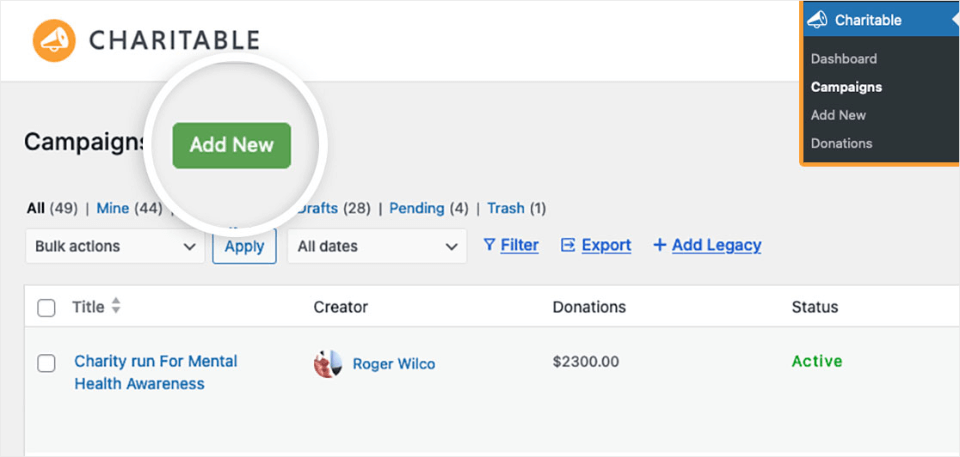
Pour commencer, vous devrez être connecté à votre espace d'administration WordPress. Une fois sur place, cliquez sur Charitable dans la barre latérale d'administration pour accéder à la page Campagnes. Ensuite, pour créer un nouveau formulaire, cliquez sur le bouton Ajouter pour lancer le constructeur de campagnes Charitable.
Sélection d'un modèle de campagne
Vous arriverez maintenant à l'écran Sélectionner un modèle. Il s'agit d'une bibliothèque de modèles et de mises en page préfabriqués, classés proprement dans le menu de gauche. Vous pouvez utiliser ces filtres ou la barre de recherche ici pour trouver rapidement ce dont vous avez besoin.
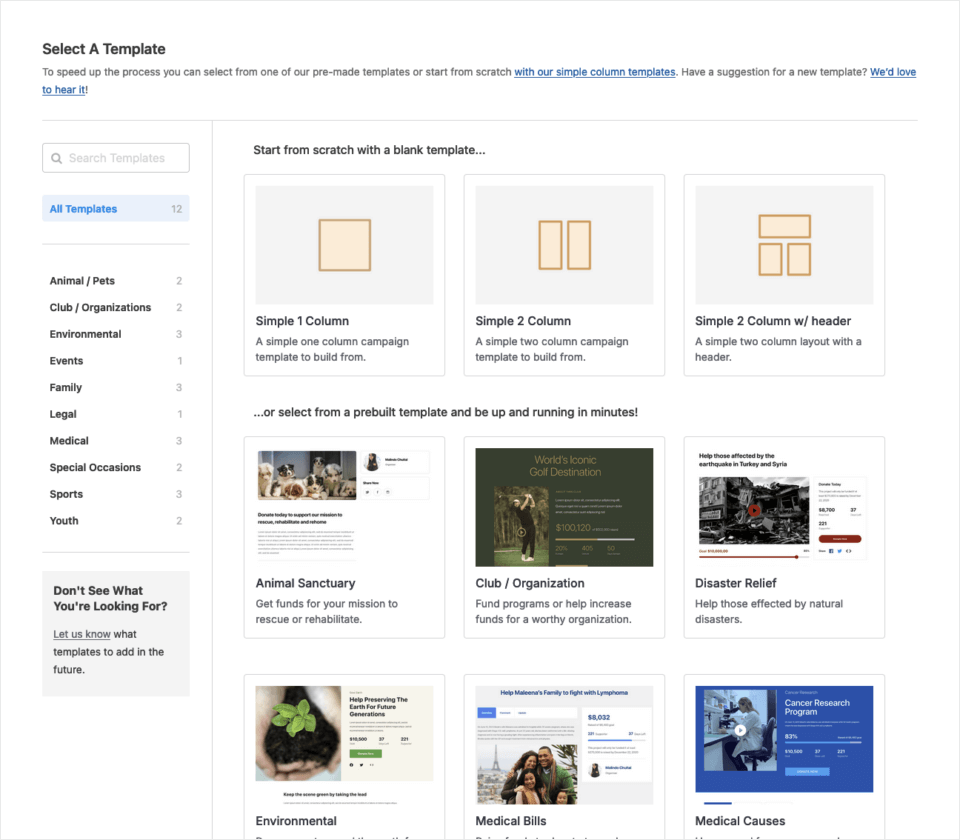
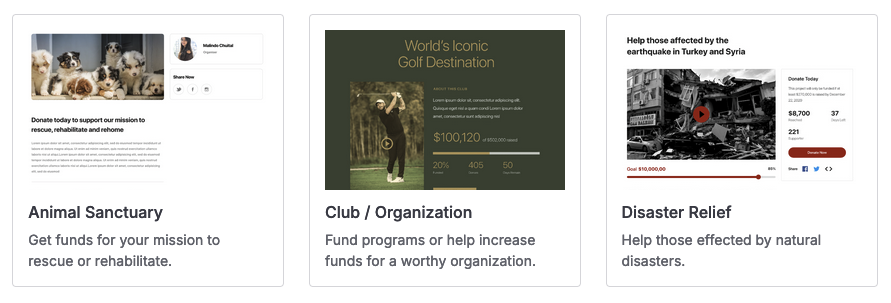
Avec Charitable, il existe deux types généraux de modèles parmi lesquels choisir. Pour commencer, Charitable propose des modèles pré-construits (qui contiennent les composants de base d'une page de campagne prêts à être personnalisés et à vous permettre de démarrer le plus rapidement possible).
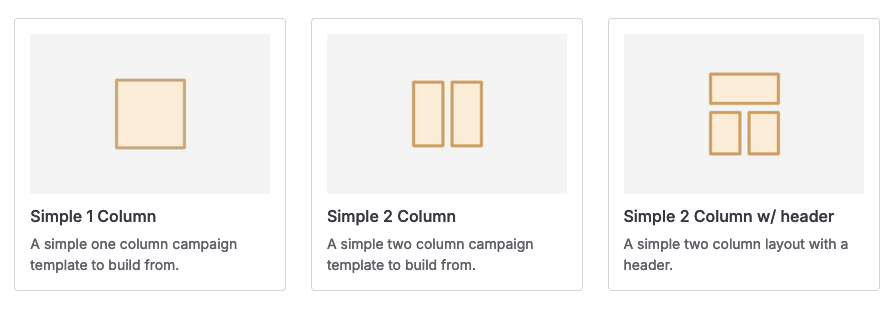
Si vous préférez construire votre campagne entièrement à partir de zéro, sélectionnez l'un des modèles "colonnes simples" (ceux-ci ne font que fournir la mise en page de la page – vous ajoutez les champs manuellement).
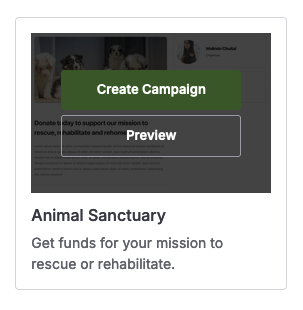
Remarque : La campagne de ce tutoriel utilise le modèle Sanctuaire animal. Lorsque vous passez votre souris sur le modèle, vous aurez la possibilité de le prévisualiser pour voir à quoi il ressemble et comment il fonctionne avant de commencer.
Passez à nouveau la souris sur la miniature du modèle Sanctuaire animal et cliquez sur Créer une campagne pour commencer.
Personnalisation de votre campagne
Une fois que vous avez sélectionné un modèle, le constructeur de campagne s'ouvrira sur l'écran Champs. C'est là que vous pouvez personnaliser la conception de votre campagne.
Nommage de votre campagne
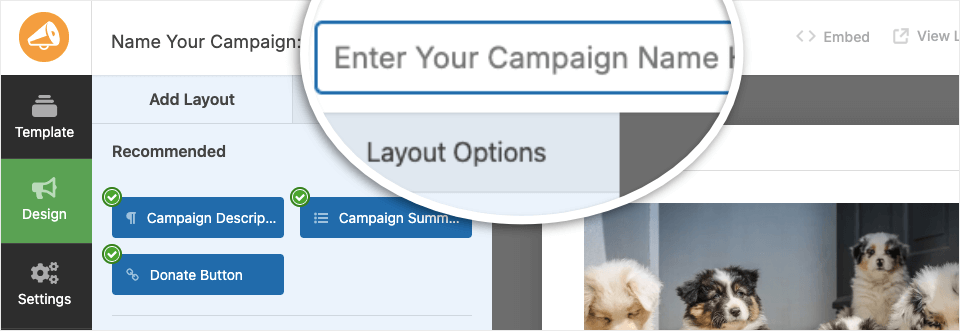
L'une des premières choses que vous devriez faire est de nommer votre campagne pour vous aider à l'identifier facilement plus tard. Vous pouvez taper le nom de la campagne dans la zone de texte en haut du constructeur.
Champs de la campagne
Le panneau de gauche vous montrera les champs possibles que vous pouvez ajouter à votre campagne. Certains champs peuvent ne pas être disponibles en fonction des champs que vous avez déjà ajoutés, de votre licence Charitable et des extensions que vous avez installées et activées.
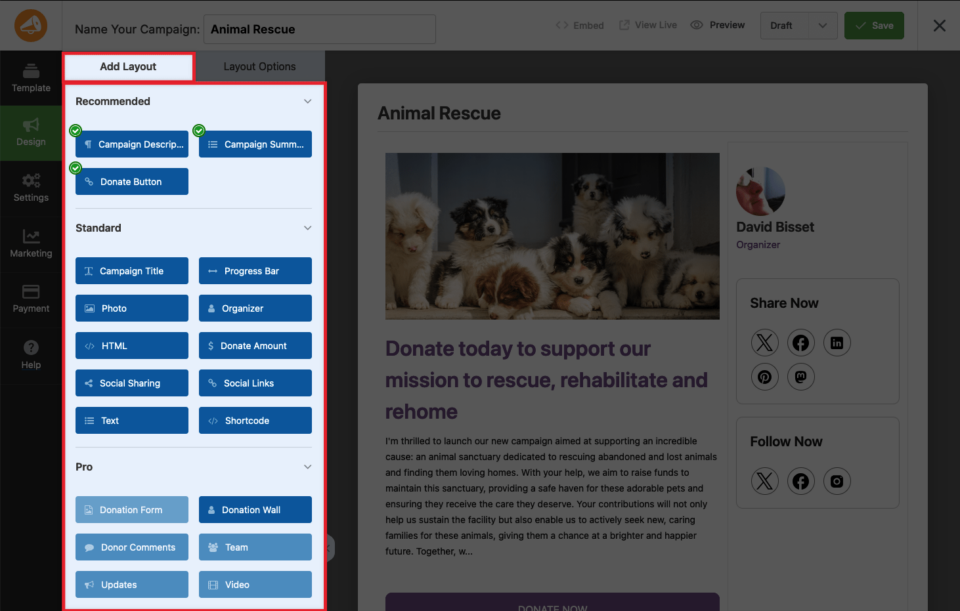
Les champs sont classés en trois types :
- Recommandé : Ces champs sont fortement recommandés car ils offrent des informations ou des fonctionnalités de base pour toute page de campagne. Une coche verte signifie qu'au moins un existe déjà sur votre page de campagne.
- Standard : Certains champs standard (mais pas tous) se retrouvent souvent sur les pages de campagne et ajoutent des fonctionnalités et des informations supplémentaires. Par exemple, vous ajoutez un champ Photo, un champ Liens sociaux ou un champ HTML générique à presque tout HTML personnalisé.
- Pro : La majorité des champs pro sont disponibles pour les utilisateurs disposant d'une licence active et des extensions Charitable installées et activées. Ceux-ci offrent généralement plus de fonctionnalités que les champs standard – et peuvent vraiment faire briller une campagne !
Dans le panneau de droite, vous verrez un aperçu modifiable de votre campagne.
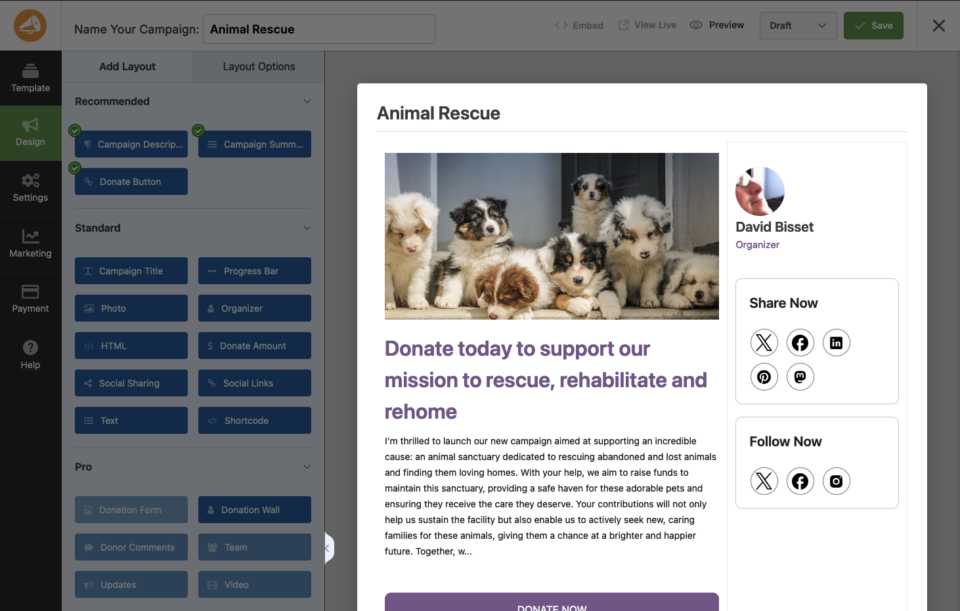
Pour ajouter un champ à votre campagne, vous pouvez le faire glisser directement dans l'aperçu de la campagne. Pour modifier du texte, cliquez simplement sur le champ dans l'aperçu du formulaire. Une barre d'outils d'édition s'ouvrira dans le menu de gauche où vous pourrez personnaliser le contenu.
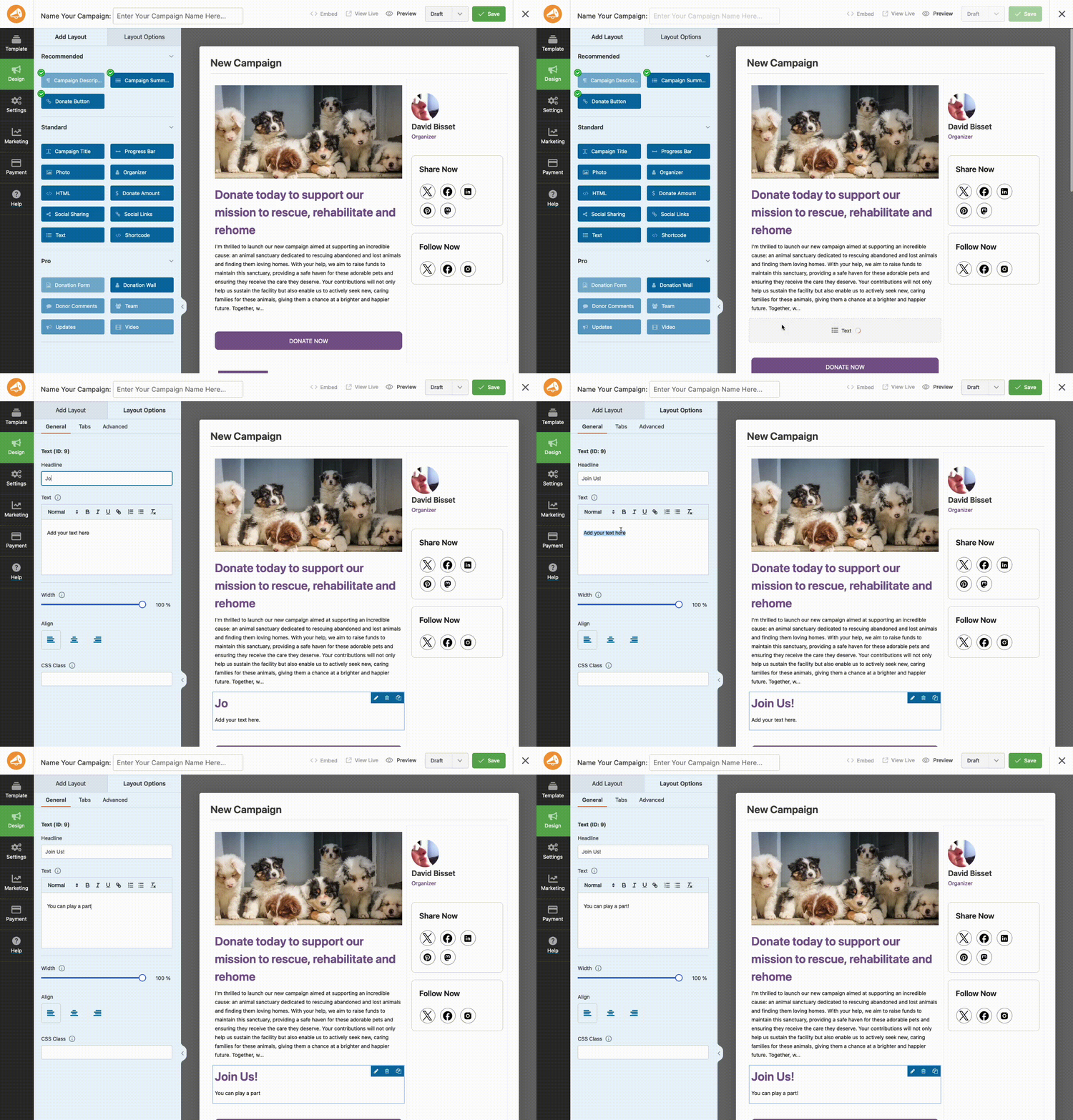
De même, vous pouvez cliquer sur n'importe quel champ, tel que l'image, le partage social et les boutons, pour apporter des modifications. Par exemple, si vous cliquez sur l'image, les options d'édition s'ouvriront à gauche où vous pourrez télécharger votre propre image pour remplacer celle du modèle.
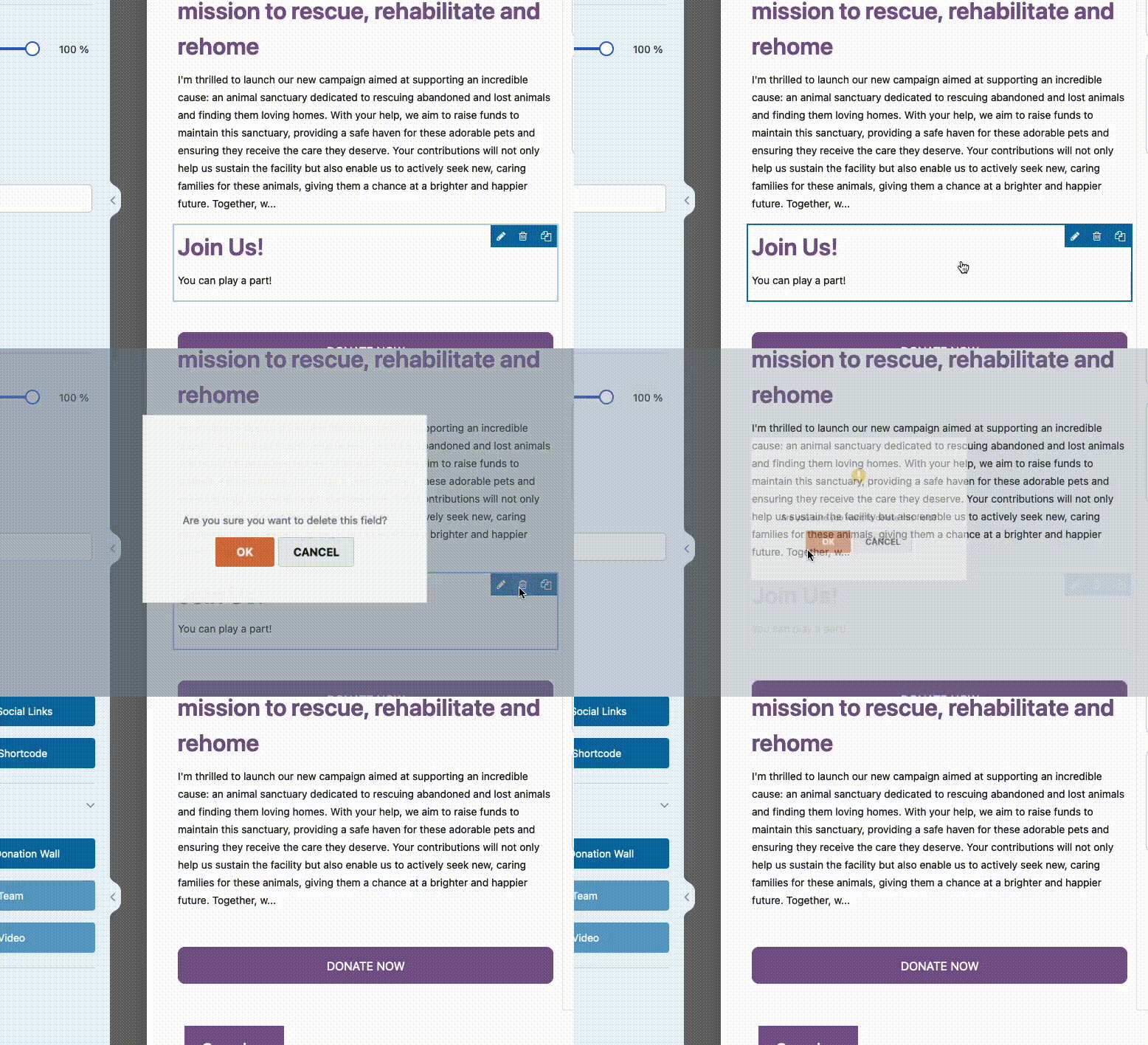
Pour supprimer un champ de votre campagne, vous pouvez le survoler et cliquer sur l'icône de la corbeille.
Accès aux options de champ
Les options de champ vous permettent de configurer les détails et les paramètres de chaque champ, tels que son libellé et son alignement.
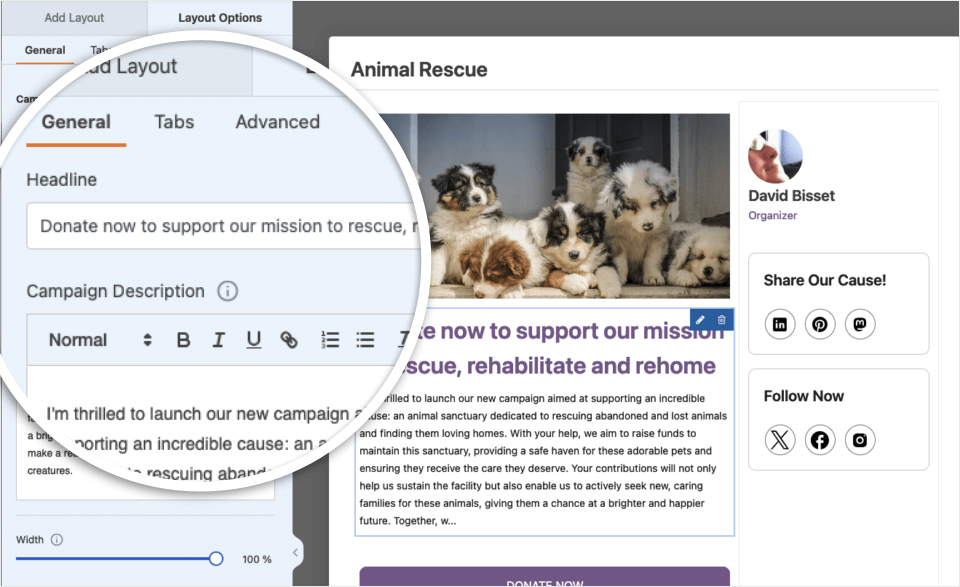
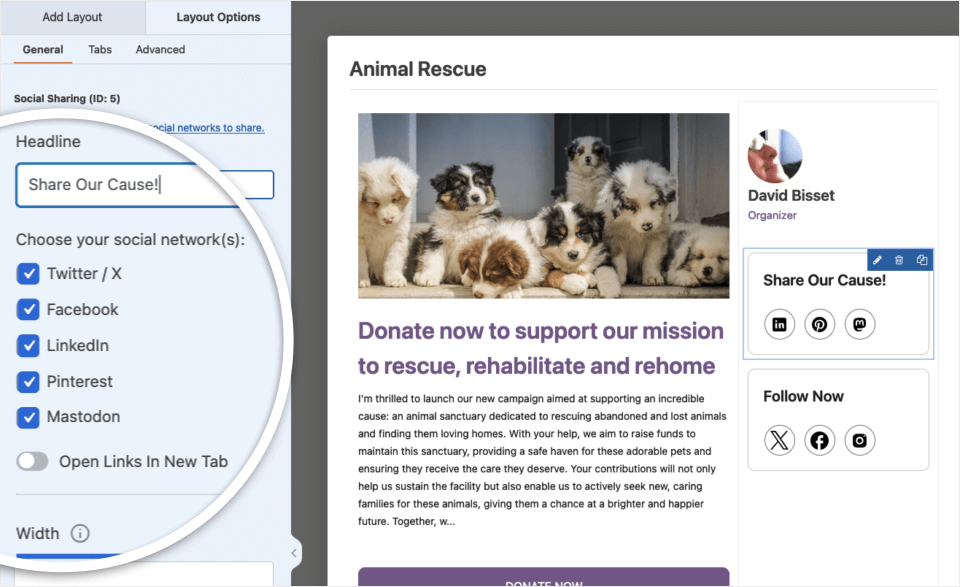
Pour afficher et modifier les options disponibles pour un champ, cliquez dessus dans le panneau d'aperçu. Les options du champ apparaîtront alors dans le panneau de gauche du constructeur de campagne. Différents champs auront différentes options, en fonction des fonctionnalités qu'ils fournissent.
Modification des paramètres du formulaire
Pour accéder aux paramètres de votre campagne, cliquez sur l'onglet Paramètres sur le côté gauche du constructeur de formulaire. Ici, vous pouvez ajouter des objectifs de campagne, des dates de fin, des balises et bien plus encore. Passons en revue étape par étape.
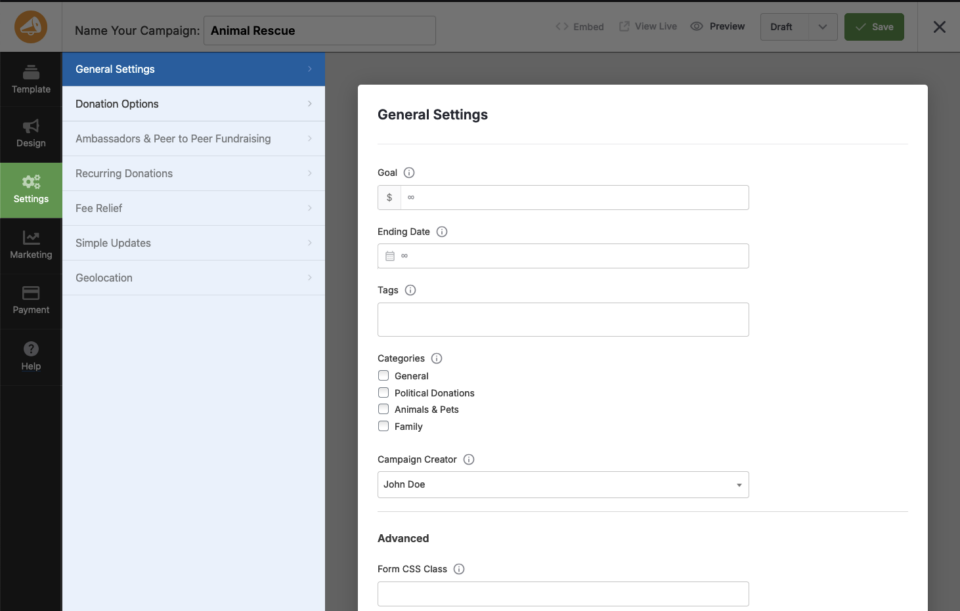
Définition d'un objectif de campagne
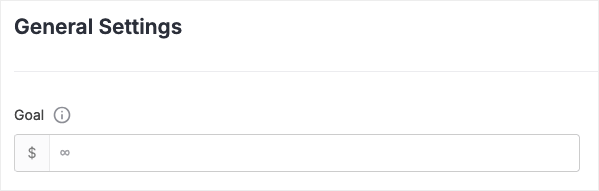
Pour définir l'objectif monétaire de votre campagne, visitez l'onglet Paramètres généraux et vous pourrez saisir un nombre pour représenter l'objectif de la campagne (combien vous souhaitez que la campagne atteigne). Vous pouvez modifier cet objectif à tout moment, et vous pouvez également laisser cet objectif vide s'il n'y a pas d'objectif (par exemple : vous souhaitez collecter autant de dons que possible).
Définition d'une date de fin de campagne
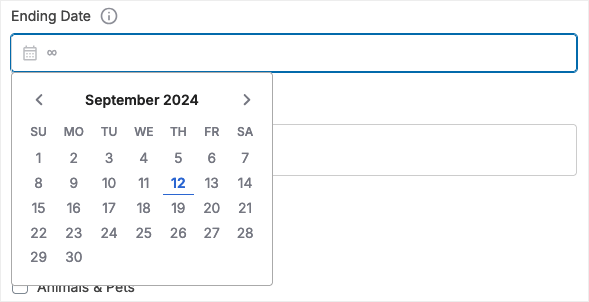
Dans le même onglet Paramètres généraux, vous pouvez également définir une date de fin pour une campagne – une date à laquelle la campagne se fermera automatiquement et cessera d'accepter les dons.
Définition des options de don
Vous pouvez personnaliser les options de don sur le formulaire de don associé à votre campagne en visitant l'onglet Options de don. Ici, vous pouvez proposer des dons suggérés (afin que les utilisateurs puissent cliquer en 1 clic pour choisir un montant de don). Vous pouvez également décider si l'utilisateur peut saisir un montant personnalisé pour un don, ainsi que définir un montant minimum pour un don.
Sauvegarde et publication de votre campagne
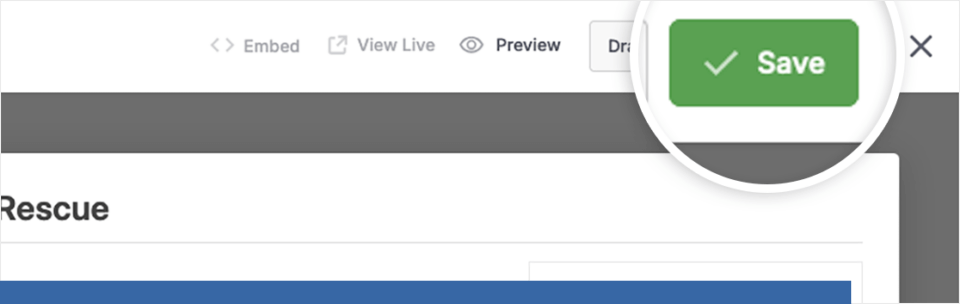
Vous pouvez enregistrer votre campagne à tout moment. Une fois que vous avez terminé de configurer les paramètres de votre campagne, cliquez sur le bouton Enregistrer en haut de l'écran pour enregistrer vos modifications.
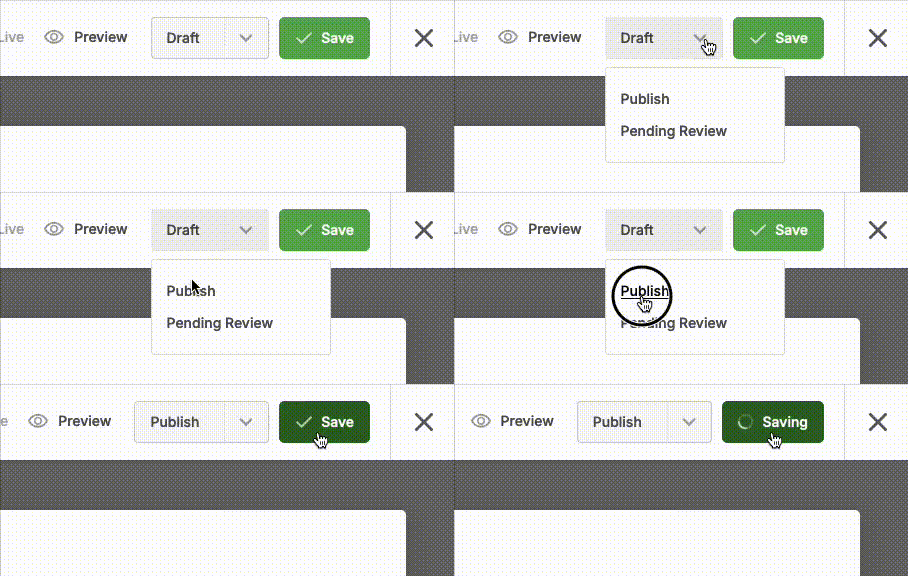
Vous pouvez modifier et enregistrer les modifications tant que la campagne est en mode « brouillon » autant de fois que vous le souhaitez. Une fois que vous avez décidé qu'elle est prête à rendre votre campagne publique, changez le statut dans le menu déroulant en haut de la page de Brouillon à Publier… et appuyez sur le bouton Enregistrer (si vous avez déjà utilisé WordPress, ce concept est similaire aux brouillons/articles de blog publiés).
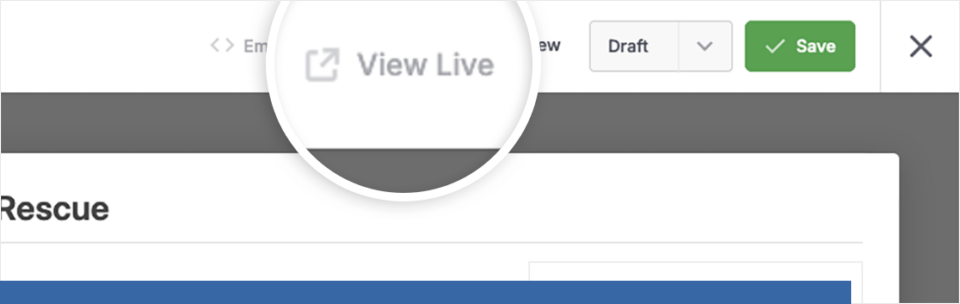
Une fois votre campagne en ligne, vous pouvez la visualiser en cliquant sur Voir en ligne. Cliquer ici vous amène à l'URL de l'endroit où la campagne se trouve par défaut – Charitable génère la page pour vous en fonction de votre thème WordPress.
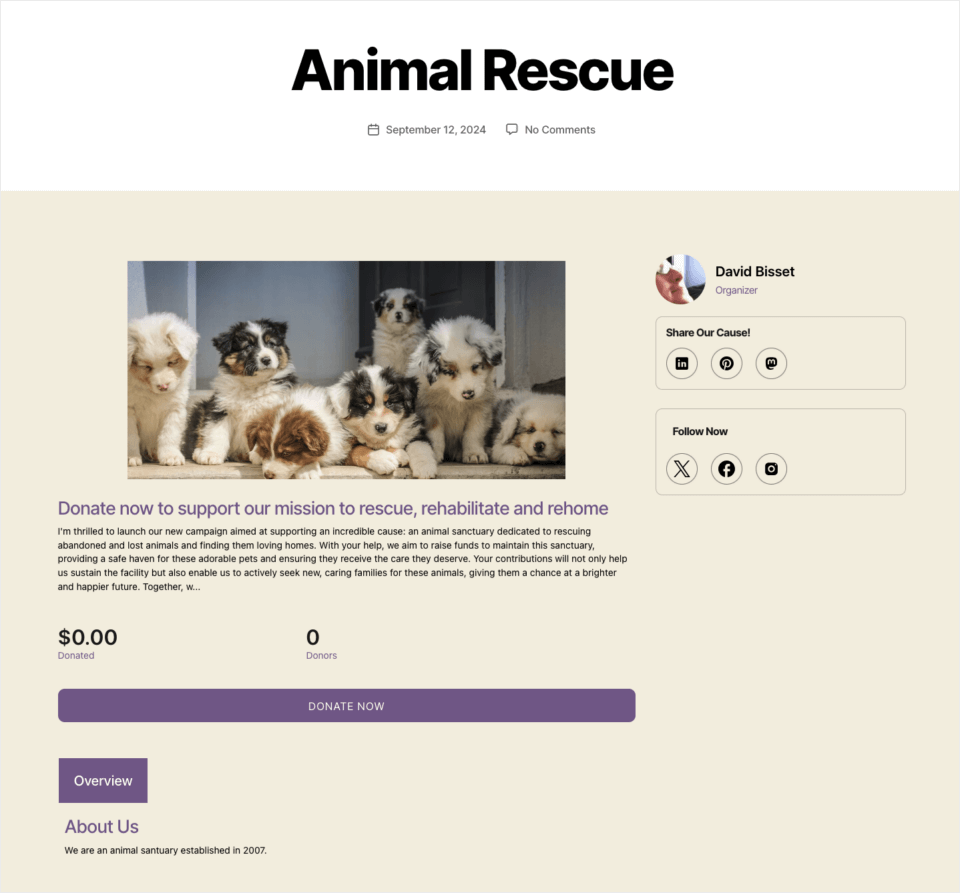
Maintenant que vous visualisez la page de la campagne sur le front-end de votre site WordPress en utilisant votre modèle activé, vous pouvez continuer et tester le formulaire de don en cliquant sur le bouton Donner qui était déjà inclus dans le modèle de campagne.
Remarque : Dans ce tutoriel, nous avons utilisé le thème WordPress par défaut Twenty Twenty. L'apparence de votre campagne dépendra de votre thème et de tout plugin susceptible d'affecter le code et l'apparence de votre site web.
Voici un exemple de l'apparence de la campagne une fois que vous
Affichage des campagnes sur votre site
Il existe plusieurs façons d'ajouter vos campagnes à votre site. Nous avons déjà vu ci-dessus que Charitable peut générer l'URL pour vous (et la page de don, si vous l'avez sélectionnée dans vos paramètres généraux).
Intégration d'une campagne
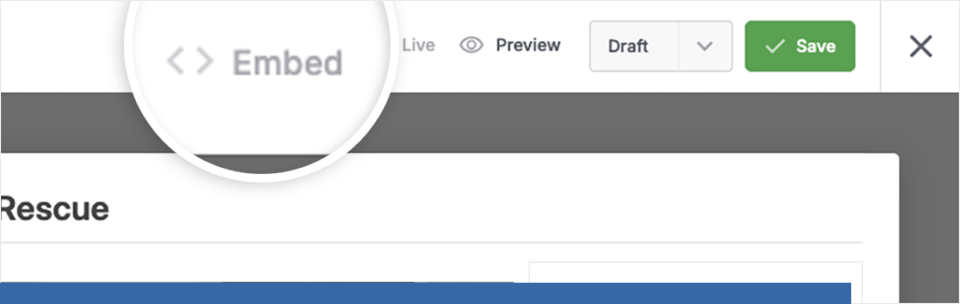
Mais Charitable vous donne la flexibilité d'ajouter des campagnes par d'autres méthodes. Une fois que vous avez terminé la personnalisation de votre campagne, vous pouvez utiliser l'Assistant d'intégration directement depuis le constructeur de campagne en cliquant sur le bouton Intégrer.
À partir d'ici, vous aurez la possibilité de créer une nouvelle page pour intégrer votre campagne, ou de sélectionner une page existante pour y ajouter votre campagne.
Raccourci
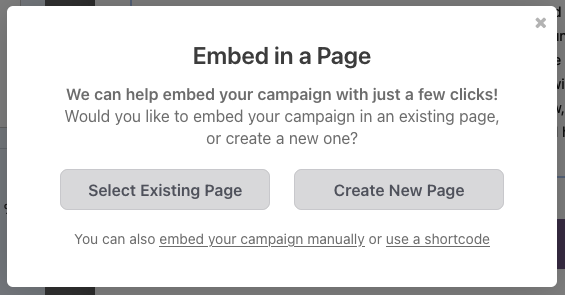
Vous avez également la possibilité d'obtenir le shortcode WordPress si vous souhaitez intégrer cette campagne manuellement (particulièrement utile pour les sites WordPress plus personnalisés, ou si vous utilisez un constructeur de page comme Elementor ou Beaver Builder).
Bloc de campagne
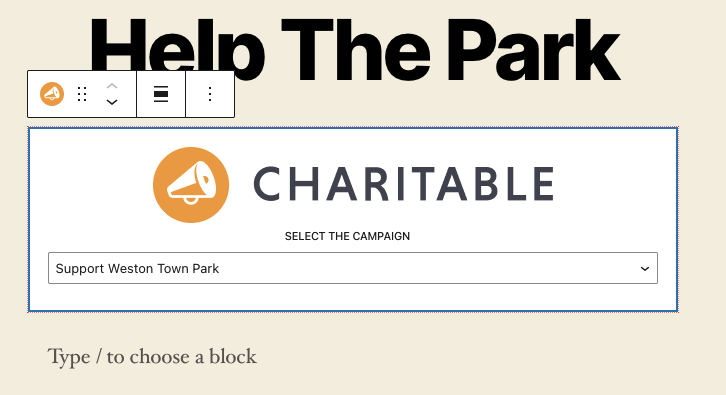
Enfin, dans l'éditeur WordPress, il existe un bloc Charitable prêt à l'emploi. Tout ce que vous avez à faire est d'ajouter un nouveau bloc à votre page ou article et de rechercher le bloc « Charitable Campaign ». Lorsque vous l'ajoutez à votre page ou article, vous verrez un menu déroulant qui vous permettra de sélectionner la campagne que vous souhaitez afficher.
Félicitations !
C'est tout ! Vous savez maintenant comment créer des campagnes avec Charitable.
Ensuite, assurez-vous de tester votre campagne. Consultez notre section de documentation pour trouver des réponses aux questions courantes et des moyens de personnaliser davantage vos campagnes et formulaires de don Charitable.


