
Voulez-vous intégrer un formulaire de don sur une page ?
Lorsque vous créez une campagne de dons, Charitable facilite l'ajout d'un simple formulaire de don pour cette campagne n'importe où sur votre site. Cela vous permet d'afficher un simple formulaire de don au lieu d'une campagne de collecte de fonds complète.
Étape 1 : Créer une campagne de collecte de fonds
Rendez-vous sur votre tableau de bord WordPress et allez dans Charitable » Ajouter nouveau. Ici, vous pouvez choisir un modèle et personnaliser votre campagne à l'aide du constructeur par glisser-déposer.
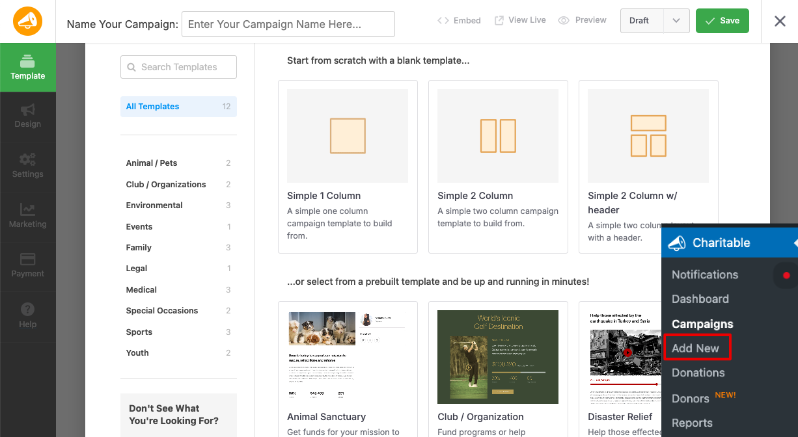
Assurez-vous de publier et d'enregistrer votre campagne.
Si vous avez besoin d'instructions plus détaillées, suivez notre guide sur comment créer votre première campagne »
Étape 2 : Obtenir votre ID de campagne
Lorsque vous créez une campagne, Charitable lui attribuera un ID de campagne. Nous avons rendu cet ID facilement accessible dans Charitable à 2 endroits.
1. Assistant d'intégration
Dans le constructeur de campagne, assurez-vous de Publier et Enregistrer votre campagne dans le menu supérieur. Ensuite, il y a un bouton Intégrer que vous pouvez utiliser pour ouvrir l'assistant d'intégration.
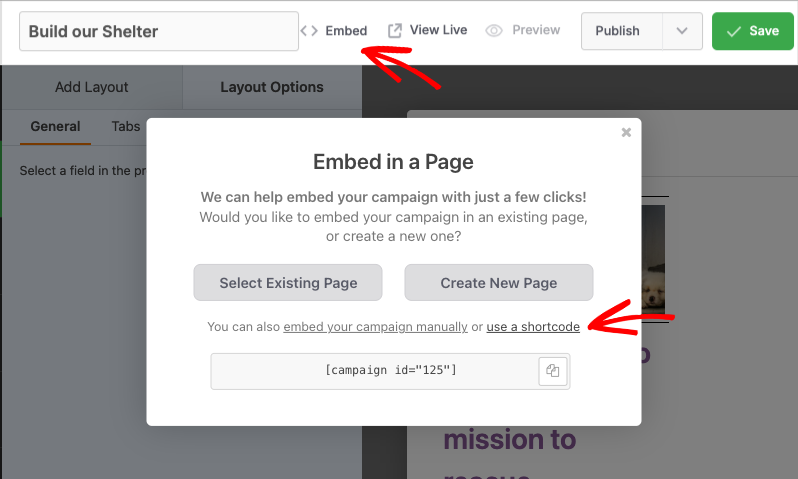
Cliquez sur le lien « Utiliser un shortcode » et l'ID de la campagne apparaîtra.
2. Onglet Campagnes
Vous pouvez également trouver l'ID de la campagne en allant dans Charitable » Campagnes. Vous verrez l'ID répertorié sous le nom de la campagne.
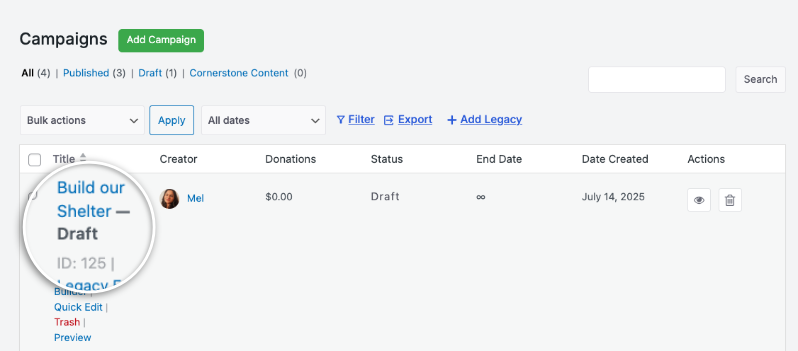
Maintenant que vous avez votre ID de campagne, il ne vous reste plus qu'à l'ajouter là où vous souhaitez qu'il apparaisse.
Étape 3 : Ajouter le shortcode à l'article ou à la page
Modifiez la page ou l'article de votre site WordPress où vous souhaitez placer le formulaire de don.
Vous pouvez maintenant ajouter votre formulaire de don en utilisant ce shortcode :
[charitable_donation_form campaign_id=123]
Remplacez « 123 » par l'ID de votre campagne.
C'est tout. Vous avez maintenant un simple formulaire de don que vous pouvez partager avec vos donateurs.
Vous n'avez pas encore créé votre formulaire de don ? Regardez comment créer un formulaire de don dans Charitable ici :
Vous souhaitez modifier le modèle de formulaire de don sur votre site ? Suivez ce guide : Comment changer les modèles de formulaire de don »
Conseils et astuces pour la collecte de fonds
Nous partageons régulièrement des guides pratiques, des stratégies éprouvées et des conseils d'initiés pour vous aider à collecter plus de fonds et à établir des relations plus solides avec vos donateurs. Rejoignez des milliers d'organisations à but non lucratif qui reçoivent notre meilleur contenu directement :
- Rejoignez notre newsletter – Recevez des conseils hebdomadaires et des guides exclusifs dans votre boîte de réception
- Abonnez-vous à notre chaîne YouTube – Regardez des tutoriels étape par étape et des histoires de réussite
- Suivez-nous sur LinkedIn – Connectez-vous avec notre communauté et obtenez des informations quotidiennes sur les organisations à but non lucratif
- Suivez-nous sur TikTok – Vidéos instructives et amusantes pour vous aider à développer votre cause
- Suivez-nous sur Instagram – Reels amusants et conseils pour les organisations à but non lucratif
FAQ sur les modèles de formulaire de don Charitable
Quels sont les modèles de formulaire de don disponibles dans Charitable ?
Dans Charitable, vous pouvez choisir entre deux modèles de formulaire de don préconçus : le modèle Standard et le modèle Vue minimale. Pour changer de modèle, accédez au tableau de bord WordPress et allez dans Charitable » Paramètres. Sous l'onglet Général, ouvrez la page Formulaire de don et utilisez le menu déroulant Modèle de formulaire pour sélectionner le modèle souhaité.
Puis-je personnaliser l’apparence de mes formulaires de don ?
Oui. Vous pouvez personnaliser les couleurs, les modèles de formulaire (standard ou minimal) et les options d'affichage des champs. Vous pouvez également utiliser du CSS personnalisé et des extraits de code.
J’ai modifié les paramètres mais ils ne s’affichent pas. Que dois-je faire ?
Cliquez toujours sur « Enregistrer les modifications » après avoir effectué des modifications. Si les modifications n’apparaissent toujours pas, essayez de vider le cache de votre site Web si vous utilisez un plugin de mise en cache.
Quelle est la différence entre afficher les formulaires de don « sur la même page » et « sur une page séparée » ?
- Même page : Le formulaire de don apparaît directement sur votre page de campagne
- Page séparée : Les donateurs sont redirigés vers une page de don dédiée
- Modale : Le formulaire apparaît dans une fenêtre contextuelle
Choisissez en fonction de vos préférences en matière d'expérience utilisateur et de conception de page.
Je suis complètement nouveau sur Charitable. Par où dois-je commencer ?
Suivez ce guide de démarrage ici et commencez avec l'assistant de configuration qui apparaît lors de la première installation de Charitable. Cela prend environ 5 minutes et vous guidera à travers les étapes de configuration essentielles, y compris la configuration des paiements et la création de votre première campagne. Si vous avez manqué l'assistant, vous pouvez accéder à tous ces paramètres manuellement via Charitable » Paramètres.
Où puis-je obtenir de l'aide en cas de problème ?
- Utilisateurs gratuits : Utilisez les forums de support de WordPress.org
- Utilisateurs Pro : Contactez directement le support pour une assistance prioritaire
- Documentation : Consultez la bibliothèque complète de documentation
- Communauté : Rejoignez la newsletter et suivez les canaux sociaux pour des astuces et des mises à jour
Existe-t-il des tutoriels vidéo ?
Oui ! Abonnez-vous à la chaîne YouTube Charitable pour des tutoriels étape par étape et des histoires de réussite.
Nous espérons que ces FAQ vous seront utiles !
Besoin d'aide ? Vous avez une question ? Si vous êtes un utilisateur lite/gratuit de Charitable, vous pouvez contacter notre équipe sur les forums de support de WordPress.org et notre équipe répondra rapidement. Si vous avez une licence active, n'hésitez pas à nous contacter directement pour un support prioritaire.
Vous voudrez peut-être aussi apprendre Comment utiliser le système de gestion des donateurs »


