
Souhaitez-vous envoyer vos données de dons caritatifs à votre CRM, outil d'e-mail, feuille de calcul ou application de chat dès qu'un don est effectué ? Zapier connecte Charitable à des milliers d'applications, de sorte que les nouveaux dons, les renouvellements récurrents, les inscriptions de donateurs et les étapes importantes des campagnes peuvent chacun déclencher un flux de travail dans n'importe quel service que vous utilisez déjà.
Ce guide vous guidera à travers les étapes pour connecter Charitable à Zapier et créer votre premier Zap.
Remarque : L'intégration Zapier de Charitable nécessite Charitable Pro et le module complémentaire Automation Connect (plan Pro ou supérieur).
Avant de commencer, assurez-vous que Charitable Pro est installé et activé sur votre site.
Génération d'une clé API
L'intégration Zapier est fournie via le module complémentaire Charitable Automation Connect. Consultez Installation des extensions pour les étapes d'installation générales si vous ne l'avez pas encore activé.
Zapier se connecte à votre site Charitable à l'aide d'une clé API – une longue chaîne unique qui prouve que Zapier est autorisé à lire vos données de dons et à écouter les événements. Chaque clé appartient à un utilisateur WordPress, et vous pouvez avoir plusieurs clés actives en même temps, avec une clé par intégration.
Depuis l'administration WordPress, allez dans Charitable » Automatisation et basculez vers l'onglet Clés API.
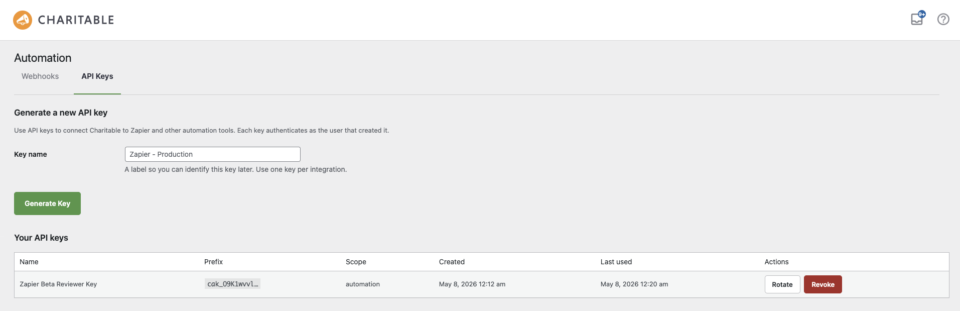
Dans le champ Nom de la clé en haut de la page, tapez une étiquette qui explique où la clé sera utilisée – par exemple « Zapier production » ou « Zapier – réviseur ». L'étiquette est interne uniquement, jamais partagée avec Zapier ni visible par les donateurs. Lorsque vous êtes prêt, cliquez sur Générer la clé.
La nouvelle clé apparaît dans le tableau Vos clés API ci-dessous, et la valeur complète en texte brut est affichée une seule fois en haut de la page.
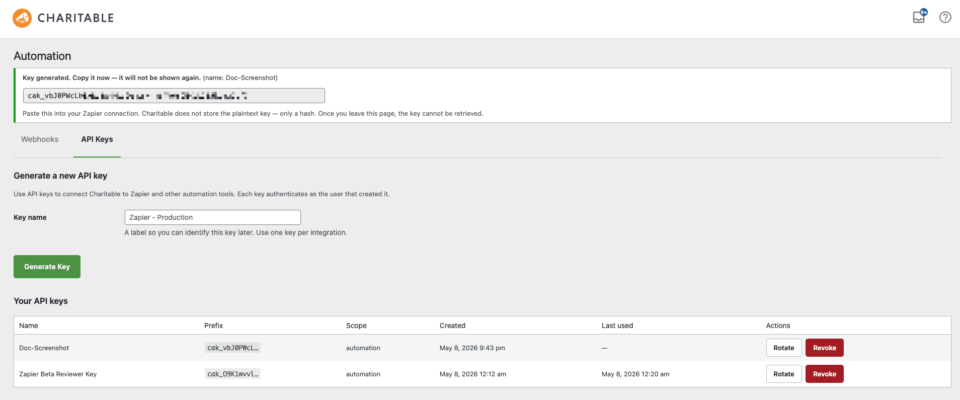
Remarque : Assurez-vous de copier la clé immédiatement. La valeur en texte brut n'est affichée qu'une seule fois et ne peut pas être récupérée ultérieurement. Si vous la perdez, générez une nouvelle clé et mettez à jour Zapier avec la nouvelle valeur.
Connecter Charitable à Zapier
Avec votre clé API en main, l'étape suivante se déroule dans Zapier.
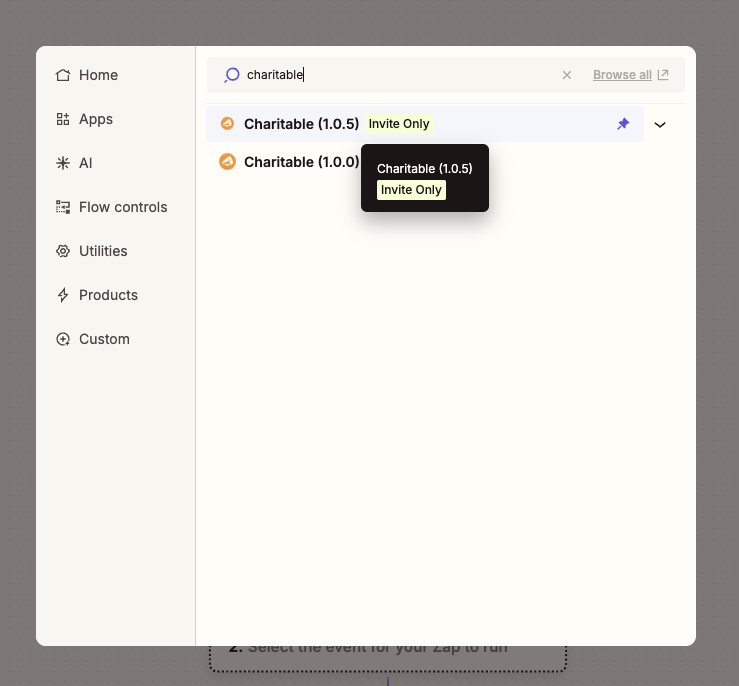
Depuis l'éditeur Zap, recherchez Charitable dans le sélecteur d'applications et sélectionnez-le. Zapier vous demandera deux informations.
- URL du site – l'adresse de votre site Charitable, par exemple
https://example.org. N'incluez pas de barre oblique finale. Zapier ajoute automatiquement le reste du chemin. - Clé API – collez la chaîne
cak_…que vous avez générée à l'étape précédente.
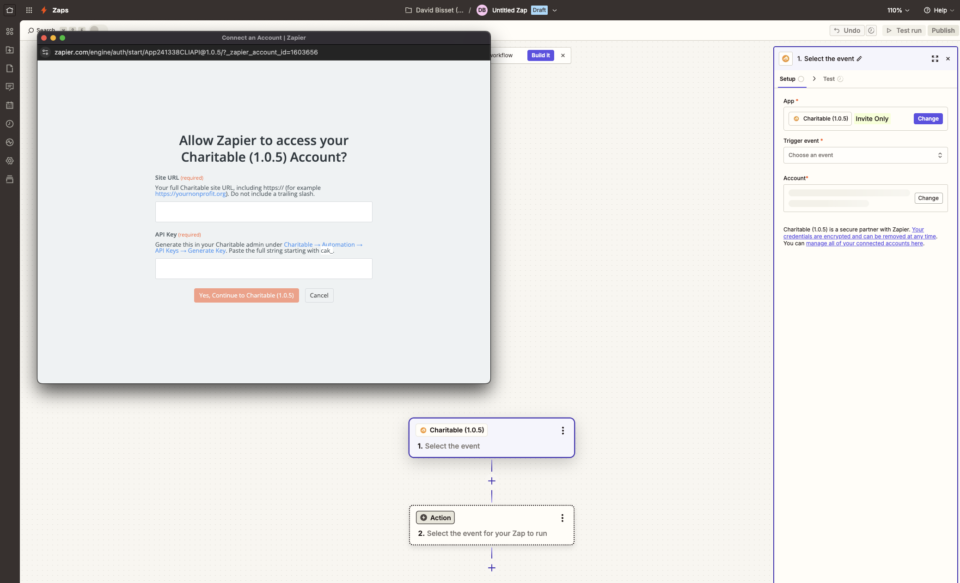
Après confirmation, Zapier envoie une requête de test à votre site. Une confirmation de succès verte signifie que la connexion fonctionne et que Zapier peut désormais voir vos dons, donateurs et campagnes.
Remarque : Si votre site impose le SSL, l'URL du site doit commencer par https://. Une incohérence entre le schéma d'URL et la configuration réelle du site est la cause la plus fréquente d'échec de connexion.
Événements déclencheurs
Un déclencheur est un événement qui se produit sur votre site Charitable et qui lance un Zap. Charitable fournit dix événements de déclenchement.
- Nouvelle Donnée – se déclenche au moment où une nouvelle ligne de don est créée sur votre site, quel que soit le statut du paiement. Choisissez ceci si vous souhaitez enregistrer toutes les tentatives, y compris celles en attente.
- Don Complété – se déclenche lorsqu'un don est marqué comme complété par sa passerelle de paiement. Choisissez ceci pour les séquences de remerciement et les reçus post-don.
- Don Remboursé – se déclenche lorsqu'un don est remboursé, en totalité ou en partie. Utile pour la réconciliation comptable et les flux de travail relationnels avec les donateurs.
- Nouvel Abonnement Récurrent – se déclenche lorsqu'un donateur met en place un nouveau plan de don récurrent. Choisissez ceci pour intégrer les donateurs récurrents dans une liste CRM distincte.
- Don Récurrent Renouvelé – se déclenche à chaque fois qu'un don récurrent est facturé avec succès. Choisissez ceci pour les e-mails de remerciement pour renouvellement ou l'enregistrement CRM de chaque renouvellement.
- Abonnement Récurrent Annulé – se déclenche lorsqu'un plan récurrent est annulé, soit par le donateur, soit par un administrateur. Choisissez ceci pour les campagnes de reconquête et pour mettre à jour les étapes du cycle de vie CRM.
- Paiement Récurrent Échoué – se déclenche lorsqu'une charge récurrente planifiée échoue. Choisissez ceci pour les flux de travail de relance et les alertes de récupération de donateurs.
- Objectif de Campagne Atteint – se déclenche la première fois que les dons d'une campagne dépassent son objectif. L'événement est enregistré une fois par campagne, il ne se répète donc jamais. Choisissez ceci pour les messages de célébration à votre équipe ou à votre conseil d'administration.
- Campagne Terminée – se déclenche lorsque qu'une campagne atteint sa date de fin. Choisissez ceci pour déclencher des rapports de fin de campagne et des communications de clôture.
- Donateur pour la Première Fois – se déclenche lorsque le tout premier don complété d'un donateur est enregistré. Choisissez ceci pour les séquences de bienvenue et la gestion des donateurs pour la première fois.
Tous les déclencheurs se déclenchent instantanément au moment où l'événement se produit sur votre site – il n'y a aucun délai de sondage. Chaque déclencheur peut également être limité à une campagne spécifique dans l'éditeur Zap, de sorte que le Zap ne s'exécute que pour cette campagne. Pour un filtrage plus avancé – par passerelle de paiement, montant du don, e-mail du donateur ou tout autre champ de charge utile – ajoutez une étape Filtrer par Zapier juste après le déclencheur.
Étapes d'action et de recherche
Une action est quelque chose que Zapier fait sur votre site Charitable à la fin d'un Zap. Une recherche est une action qui recherche des données et les transmet aux étapes suivantes. Charitable fournit deux de chaque.
- Créer Donateur (action) – ajoute un nouvel enregistrement de donateur à Charitable. Si un donateur avec le même e-mail existe déjà, l'enregistrement existant est renvoyé à la place, donc cette étape peut être utilisée de manière répétée sans créer de doublons.
- Mettre à Jour Donateur (action) – met à jour un donateur existant par e-mail ou par ID de donateur. Seuls les champs que vous fournissez sont modifiés ; tout le reste reste tel quel.
- Trouver un donateur par e-mail (recherche) – recherche un donateur de Charitable par e-mail et renvoie son dossier complet. Le Zap peut être configuré pour s'arrêter ou continuer lorsqu'aucun résultat n'est trouvé.
- Trouver une campagne (recherche) – recherche une campagne par slug ou ID et renvoie le dossier complet, y compris le total actuel des dons et l'objectif.
Création et test de votre premier Zap
La manière la plus rapide de confirmer que l'intégration fonctionne de bout en bout est de créer un petit Zap et de le regarder se déclencher.
Depuis l'éditeur Zap, choisissez Nouveau don comme déclencheur et sélectionnez votre compte Charitable connecté. Zapier récupérera un don réel récent de votre site afin que vous puissiez mapper les champs par rapport à la forme réelle des données, et non à des échantillons synthétiques.
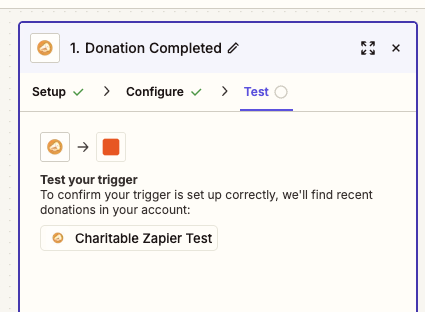
Pour l'étape d'action, choisissez un service que vous utilisez déjà – Email by Zapier, Slack, Google Sheets, ou votre CRM. Mappez le nom du donateur et le montant du don dans les champs de l'action, puis publiez le Zap.
Une fois le Zap activé, effectuez un petit don de test sur votre site. Un don de 1 $ par votre méthode de paiement habituelle convient parfaitement. En quelques secondes, Zapier reçoit l'événement et l'action s'exécute.
Si quelque chose ne se déclenche pas comme prévu, l'onglet Historique Zap dans Zapier affiche la charge utile exacte envoyée par Charitable et toute erreur de l'étape d'action, ce qui permet de repérer facilement un mappage de champ manquant ou une valeur mal nommée.
Dépannage
Zapier signale « Échec de l'authentification » lorsque je sauvegarde la connexion
Cela signifie que Zapier a reçu une erreur HTTP de votre site. Confirmez que la clé API est la chaîne complète cak_… – elle est plus longue que la plupart des clés courtes auxquelles vous êtes peut-être habitué. L'URL du site doit pointer vers la racine de l'installation WordPress, et non vers un sous-répertoire ou un domaine CDN. Si votre site impose le SSL, l'URL doit commencer par https://.
Mon Zap ne se déclenche pas lorsqu'un don est effectué
Tout d'abord, confirmez que le Zap est publié et activé dans le tableau de bord Zap. Les Zaps à l'état de brouillon ne reçoivent pas d'événements. S'il est publié, ouvrez l'onglet Historique Zap dans Zapier – les événements envoyés par Charitable y apparaîtront avec leur charge utile complète. Si rien n'apparaît dans l'historique, votre site peut bloquer les appels HTTPS sortants ; les causes courantes sont les plugins de sécurité agressifs, les pare-feu de requêtes ou les environnements de staging où le trafic sortant est restreint.
L'écran de configuration du déclencheur affiche des échantillons synthétiques au lieu de mes dons réels
La configuration du déclencheur récupère vos trois enregistrements correspondants les plus récents afin que vous puissiez mapper les champs par rapport à des formes réelles. Si seuls des échantillons synthétiques apparaissent, votre site n'a pas encore d'enregistrements récents de ce type. Effectuez un petit don de test, puis cliquez sur Trouver de nouveaux enregistrements dans l'éditeur Zap pour actualiser la liste.
J'ai changé ma clé API et maintenant rien ne fonctionne
Les clés d'API sont liées à la connexion Zapier, pas aux Zaps individuels. Lorsque vous régénérez une clé, tous les Zaps utilisant l'ancienne clé cessent de recevoir des événements. La solution la plus rapide consiste à ouvrir la liste des connexions Zapier, à modifier la connexion Charitable existante et à y coller la nouvelle valeur cak_… – cela met à jour tous les Zaps utilisant cette connexion en une seule fois.
C'est tout ! Charitable est maintenant connecté à Zapier et vous pouvez acheminer les événements de dons, de donateurs et de campagnes vers n'importe laquelle des milliers d'applications prises en charge par Zapier. Ensuite, consultez Filtrer les Zaps Charitable par campagne pour cadrer les Zaps individuels, et la Référence des champs Zapier Charitable pour la liste complète des champs envoyés par chaque déclencheur.
FAQ
Puis-je avoir plus d'un compte Zapier connecté en même temps ?
Oui. Chaque connexion Zapier utilise une clé d'API, et vous pouvez générer autant de clés que nécessaire depuis Charitable » Automatisation » Clés d'API. Une clé distincte par intégration facilite la révocation de l'accès pour un seul outil sans perturber les autres.
Les déclencheurs s'activent-ils pour les dons effectués avant l'installation du module complémentaire ?
Non. Les déclencheurs ne s'activent que pour les événements qui se produisent après la publication et l'écoute d'un Zap. Pour migrer des données historiques, exportez-les depuis Charitable » Dons et importez-les directement dans votre application de destination.
Zapier voit-il les détails de la carte de paiement de mes donateurs ?
Non. Charitable ne stocke jamais les numéros de carte, et les données que Zapier reçoit ne contiennent que les champs du profil du donateur, les montants des dons, les détails de la campagne et les identifiants de transaction de la passerelle.
Puis-je utiliser Zapier sur un réseau multisite ?
Oui, mais chaque site du réseau a besoin de sa propre licence Charitable Pro, de son propre module complémentaire Automation Connect et de sa propre clé d'API. Les connexions Zapier sont par site, pas par réseau.
Comment révoquer une clé sans tout casser ?
Dans le tableau Vos clés d'API de l'onglet Charitable » Automatisation » Clés d'API, chaque clé dispose d'une action Révoquer au niveau de la ligne. La révocation d'une clé prend effet immédiatement et arrête tous les Zaps utilisant cette clé. Générez d'abord un remplacement, mettez à jour la connexion Zapier, puis révoquez l'ancienne pour éviter les interruptions.



