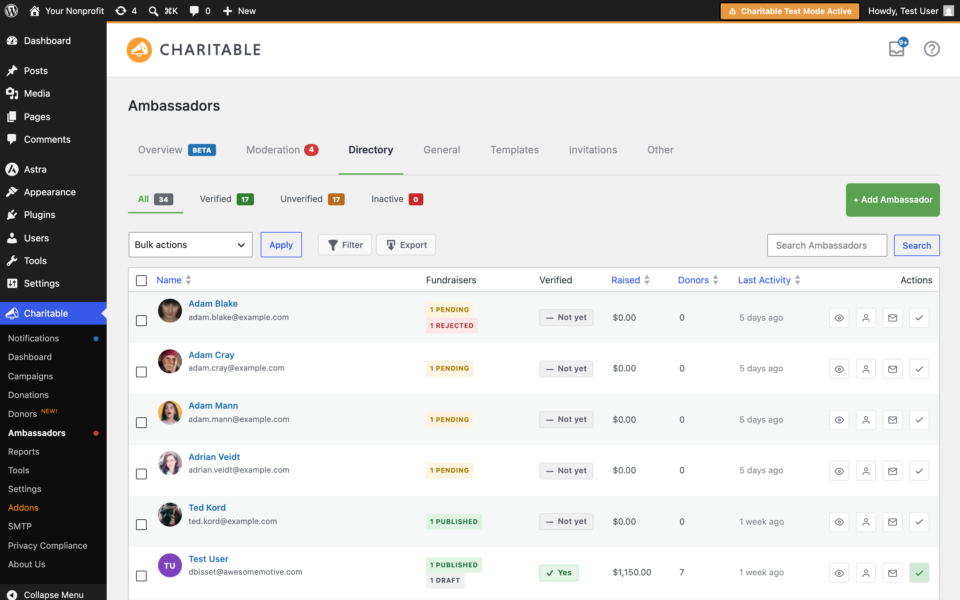
Installation
Die Installation von Charitable Ambassadors ist identisch mit der Installation anderer Charitable-Erweiterungen. Wenn Sie nicht sicher sind, wie das geht, empfehlen wir Ihnen, zuerst unseren Leitfaden zur Installation von Charitable-Erweiterungen zu lesen.
Einrichtung
Sobald Sie Charitable Ambassadors installiert und aktiviert haben, sind noch einige abschließende Schritte erforderlich, bevor Ihre Unterstützer Peer-to-Peer-Spendenaktionen oder Crowdfunding-Kampagnen auf Ihrer Website erstellen können.
Einrichtung der Botschafter-Seiten
Wenn Sie zuvor eine Profilseite in Charitable mit dem [charitable_profile] Shortcode erstellt haben, richtet Charitable Ambassadors automatisch ein paar Seiten für Sie ein, relativ zur URL Ihrer Profilseite.
Unter der Annahme, dass Sie „Pretty Permalinks“ aktiviert haben, finden Sie diese unter:
| Seite | Zweck | Ort |
|---|---|---|
| Kampagnen-Einreichungsseite | Hier erstellen und reichen Botschafter eine Kampagne ein. | https://www.yoursite.org/{profile page slug}/submit-campaign/ |
| Meine Kampagnen-Seite | Hier können Botschafter ihre bestehenden Kampagnen sehen. | https://www.yoursite.org/{profile page slug}/my-campaigns/ |
Sie bevorzugen etwas mehr Kontrolle über diese Seiten? Lesen Sie weiter, um zu erfahren, wie Sie Ihre eigenen Seiten unten erstellen können.
Optional: Benutzerdefinierte Kampagnen-Einreichungsseite erstellen
Das Erstellen einer Kampagnen-Einreichungsseite ist recht einfach:
- Gehen Sie zu Seiten > Neu hinzufügen.
- Geben Sie Ihrer Kampagne einen Namen und fügen Sie im Inhaltsbereich diesen Shortcode hinzu:
[charitable_submit_campaign]. - Veröffentlichen Sie Ihre Seite.
- Gehen Sie zu Charitable > Einstellungen > Allgemein.
- Wählen Sie für die Einstellung „Kampagnen-Einreichungsseite“ die Seite aus, die Sie gerade erstellt haben.
- Klicken Sie auf Änderungen speichern.
Hinweis: Wenn Sie die automatisch generierte Seite „Kampagne einreichen“ zuvor zu Ihrem Menü hinzugefügt haben, müssen Sie diese durch die neue ersetzen. Bearbeiten Sie einfach Ihr Menü, entfernen Sie die alte Seite und fügen Sie Ihre neue hinzu.
Optional: Benutzerdefinierte Meine Kampagnen-Seite erstellen
Das Erstellen einer benutzerdefinierten Meine Kampagnen-Seite ist im Grunde derselbe Prozess wie oben für die Erstellung einer Kampagnen-Einreichungsseite beschrieben:
- Gehen Sie zu Seiten > Neu hinzufügen.
- Geben Sie Ihrer Kampagne einen Namen und fügen Sie im Inhaltsbereich diesen Shortcode hinzu:
[charitable_my_campaigns]. - Veröffentlichen Sie Ihre Seite.
- Gehen Sie zu Charitable > Einstellungen > Allgemein.
- Wählen Sie für die Einstellung „Meine Kampagnen-Seite“ die Seite aus, die Sie gerade erstellt haben.
- Klicken Sie auf Änderungen speichern.
Hinweis: Wenn Sie die automatisch generierte Seite „Meine Kampagnen“ zuvor zu Ihrem Menü hinzugefügt haben, müssen Sie diese durch die neue ersetzen. Bearbeiten Sie einfach Ihr Menü, entfernen Sie die alte Seite und fügen Sie Ihre neue hinzu.
Hinzufügen Ihrer Botschafter-Seiten zu einem Menü
Dazu können Sie sie einfach zu einem Ihrer WordPress-Menüs hinzufügen.
- Gehen Sie in Ihrem WordPress-Dashboard zu Design > Menüs.
Hinweis: Wenn Sie Menüs lieber bearbeiten möchten, während Sie die Änderungen auf Ihrer Website in der Vorschau anzeigen, gehen Sie stattdessen zu Design > Anpassen > Menüs. - Wählen Sie das Menü aus, zu dem Sie die Seitenlinks hinzufügen möchten.
- Klicken Sie im Feld „Menüpunkte“ auf Wohltätig.
Hinweis: Wenn Sie keine „Wohltätig“-Box sehen, stellen Sie sicher, dass Sie die neueste Version von Charitable verwenden und prüfen Sie die Bildschirmoptionen, um sicherzustellen, dass die Option „Wohltätig“ dort aktiviert ist. - Wählen Sie die Seiten „Eine Kampagne einreichen“ und „Meine Kampagnen“ aus und klicken Sie auf Zum Menü hinzufügen.
- Klicken Sie auf Menü speichern.
Hinweis: Wenn Sie dies im Customizer tun, vergessen Sie nicht, auf Speichern & Veröffentlichen zu klicken, wenn Sie fertig sind.
An diesem Punkt ist Ihre Website bereit für Ihre Unterstützer, um Kampagnen zu erstellen!
Einstellungen
Nachdem Sie nun erfolgreich die Möglichkeit eingerichtet haben, dass Ihre Unterstützer Kampagnen erstellen können, empfehlen wir Ihnen, sich mit den Ihnen zur Verfügung stehenden Optionen mit Charitable Ambassadors vertraut zu machen.
Wenn Sie die obigen Schritte befolgt haben, um benutzerdefinierte Seiten für „Meine Kampagnen“ und „Kampagneneinreichung“ zu erstellen, werden Sie bereits bemerkt haben, dass Sie einige Ambassador-spezifische Seiteneinstellungen über Charitable > Einstellungen > Allgemein konfigurieren können.
Die meisten anderen Einstellungen befinden sich nur ein paar Tabs weiter, zugänglich über Charitable > Einstellungen > Ambassadors.
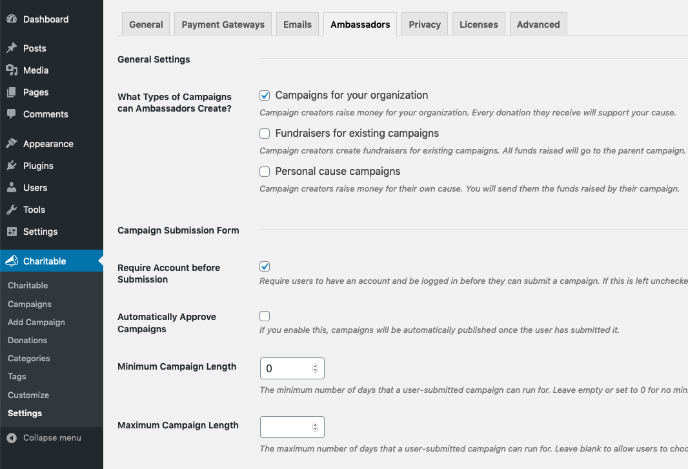
Allgemeine Einstellungen
Welche Arten von Kampagnen können Ambassadors erstellen?
Standardmäßig unterstützt Charitable drei verschiedene Arten von Kampagnen:
| Art der Kampagne | So funktioniert's | Wer erhält die Gelder |
|---|---|---|
| Kampagnen für Ihre Organisation | Eine Kampagne, die Geld für Ihre Organisation sammelt. Sie gilt als übergeordnete Kampagne und ist im Allgemeinen kein Teil einer größeren Spendenkampagne. | Ihre Organisation |
| Spendenaktionen für bestehende Kampagnen | Eine Kampagne, die Gelder für eine bestehende Kampagne sammelt. Dies ist großartig, wenn Sie eine große Spendenkampagne durchführen und möchten, dass Leute Spendenaktionen dafür erstellen können. | Ihre Organisation |
| Persönliche Spendenkampagnen | Eine Kampagne, die Geld für den eigenen Zweck des Erstellers sammelt. Dies ist für Crowdfunding-Websites geeignet. Wenn Sie eine gemeinnützige Organisation sind, möchten Sie dies wahrscheinlich deaktiviert lassen. | Der Kampagnenersteller |
Einstellungen für das Kampagneneinreichungsformular
Diese Einstellungen gelten für alle Kampagneneinreichungen, unabhängig von der Art der Kampagne.
Konto vor Einreichung erforderlich
Wählen Sie, ob Kampagnenersteller ein Konto erstellen sollen, bevor sie eine Kampagne einreichen können, oder danach.
Beachten Sie, dass in beiden Fällen irgendwann ein Konto erstellt werden muss.
Eine detailliertere Übersicht über diese beiden Optionen finden Sie hier:
Kampagnen automatisch genehmigen
Wenn diese Option aktiviert ist, werden Kampagnen automatisch als Veröffentlicht markiert und können sofort Spenden erhalten.
Wenn Sie Kampagnen lieber manuell genehmigen möchten, lassen Sie diese Option deaktiviert.
Minimale Kampagnenlänge
Wählen Sie die minimale Länge von Kampagnen auf der Website in Tagen. Wenn Sie dieses Feld leer lassen oder auf 0 setzen, gibt es keine minimale Kampagnenlänge.
Maximale Kampagnenlänge
Wählen Sie aus, wie lange Kampagnen laufen können. Wenn Sie möchten, dass Kampagnenersteller Kampagnen beliebiger Länge erstellen können, lassen Sie dieses Feld leer.
Feldeinstellungen
Hier können Sie anpassen, wie verschiedene Felder im Kampagnenformular funktionieren:
| Feld | Optionen |
|---|---|
| Enddatum | Wählen Sie, ob Kampagnenersteller ein bestimmtes Enddatum für ihre Kampagne festlegen oder stattdessen eine Dauer festlegen. |
| Kategorien | Zeigen Sie das Kategoriefeld als Liste von Kontrollkästchen, als Dropdown-Auswahlfeld oder deaktivieren Sie es ganz. |
| Schlagwörter | Zeigen Sie das Tag-Feld als Liste von Kontrollkästchen, als Dropdown-Auswahlfeld oder deaktivieren Sie es ganz. |
| Spendenoptionen | Wählen Sie, ob Sie Kampagnenerstellern erlauben möchten, vorgeschlagene Spendenbeträge für ihre Kampagne festzulegen. |
| Wiederkehrende Spenden | Wählen Sie, ob Kampagnenersteller wiederkehrende Spenden für ihre Kampagne aktivieren können. Hinweis: Dies wird nur angezeigt, wenn das Feld „Spendenoptionen“ aktiviert ist und Sie das Plugin „Wiederkehrende Spenden“ aktiv haben. |
Einstellungen für persönliche Anliegen
Wenn Sie die Option „Persönliche Anliegen-Kampagnen“ nicht aktiviert haben, sehen Sie diese Einstellungen nicht.
Wie senden Sie Geld an Botschafter?
Wählen Sie aus, wie Sie Geld an Kampagnenersteller senden, wenn diese Spenden erhalten.
Derzeit gibt es zwei Hauptoptionen, die unten aufgeführt sind.
| Option | Verteilungstyp | Beschreibung |
|---|---|---|
| PayPal | Manuell | Sie werden die Gelder manuell auf das PayPal-Konto des Kampagnenerstellers überweisen. |
| Stripe Connect | Automatisch | Wenn eine Spende getätigt wird, wird das Geld automatisch an den Kampagnenersteller gesendet. Hinweis: Diese Option ist nur verfügbar, wenn Sie das Plugin Stripe Connect aktiviert haben. |
Lesen Sie die Dokumentation, um mehr darüber zu erfahren, wie Stripe Connect funktioniert:
E-Mail-Marketing-Einstellungen
Wenn Sie die Erweiterung Newsletter Connect nicht aktiv haben, sehen Sie diese Einstellungen nicht.
Kampagnenersteller zum E-Mail-Marketing-Verteiler hinzufügen
Wählen Sie den Opt-in-Modus für Kampagnenersteller. Optionen sind:
- Deaktiviert – Kampagnenersteller werden keiner E-Mail-Marketing-Liste hinzugefügt.
- Kontrollkästchen für Opt-in, standardmäßig nicht aktiviert
- Kontrollkästchen für Opt-in, standardmäßig aktiviert
- Automatische Opt-in-Funktion – Kampagnenersteller werden automatisch zu einer E-Mail-Marketingliste hinzugefügt.
E-Mail-Marketingliste
Wählen Sie die Liste aus, zu der Kampagnenersteller hinzugefügt werden sollen.
Einstellungen für den Spendenbericht von Kampagnenerstellern
Diese Einstellungen gelten für die exportierbaren Spendenberichte, die Kampagnenerstellern zur Verfügung gestellt werden können.
Kampagnenerstellern den Export des Spendenverlaufs erlauben
Wählen Sie aus, ob Kampagnenersteller auf einen CSV-Bericht aller Spenden zugreifen können sollen, die für ihre Kampagne eingegangen sind.
Persönliche Details für Spender einschließen
Wenn Kampagnenersteller auf den Bericht zugreifen können, wählen Sie aus, ob sie den Namen, die E-Mail-Adresse, die Adresse und die Telefonnummer von nicht-anonymen Spendern für ihre Kampagnen sehen können.
Spenden von anonymen Spendern haben automatisch diese Felder ausgelassen.
Kampagneneinstellungen
Charitable Ambassadors fügt dem Kampagnen-Editor im Adminbereich einige neue Felder hinzu, innerhalb der Meta-Box Kampagneneinstellungen.
In der linken Spalte der Meta-Box sehen Sie mehrere neue Registerkarten:
Einreichungsdetails
Art der Kampagne
Die vom Benutzer eingereichte Art der Kampagne. Eine davon:
- Kampagnen für Ihre Organisation
- Spendenaktionen für bestehende Kampagnen
- Persönliche Spendenkampagnen
Übergeordnete Kampagne
Die übergeordnete Kampagne dieser Kampagne. Die übergeordnete Kampagne spiegelt alle Spenden wider, die diese Kampagne erhalten hat.
Einreichungsdaten
Alle Details, die der Kampagnenersteller bei der Einreichung seiner Kampagne angegeben hat.
Peer-to-Peer-Fundraising
Wenn Sie die Option „Fundraiser für bestehende Kampagnen“ nicht aktiviert haben, sehen Sie diese Registerkarte nicht.
Peer-to-Peer-Fundraiser für diese Kampagne zulassen
Ob Peer-to-Peer-Fundraiser (d. h. Kind-Kampagnen) für diese Kampagne aktiviert werden sollen.
Unterstützte Fundraiser-Typen
Wählen Sie aus, ob Team- und Einzel-Fundraiser, nur Teams oder nur Einzelpersonen zugelassen werden sollen.
Teammitglieder auf Teamseiten anzeigen
Wählen Sie aus, ob die Teammitglieder auf Teamseiten angezeigt werden sollen.
Fundraiser-Titel
Wählen Sie aus, ob Fundraiser ihren eigenen Titel festlegen können oder ob ein Titel automatisch basierend auf ihrem Namen generiert wird.
Enddatum des Spendenlaufs
Wählen Sie, ob Spendenläufer ein Enddatum für ihren Spendenlauf festlegen können.
Wenn die übergeordnete Kampagne ein Enddatum hat, wird diese Option deaktiviert und alle Peer-to-Peer-Spendenläufe übernehmen automatisch das Enddatum der übergeordneten Kampagne.
Ziel des Spendenlaufs
Wählen Sie, ob Spendenläufer ein Ziel für ihren Spendenlauf festlegen können.
Standardziel für Spendenläufe
Legen Sie ein Standardziel für Peer-to-Peer-Spendenläufe fest. Lassen Sie das Feld leer, um kein Standardziel zu haben.
Inhalt des Spendenlaufs
Wählen Sie, ob Spendenläufer ihren eigenen Text zum Spendenlauf hinzufügen können oder ob immer der Standardinhalt für Spendenläufe verwendet werden soll.
Standardinhalt für Spendenläufe
Der Standardinhalt, der auf Peer-to-Peer-Spendenseiten angezeigt wird.
Beitragsbild für Spendenläufe
Wählen Sie, ob Spendenläufer ihr eigenes Beitragsbild hochladen können oder ob immer das Standardbild verwendet werden soll.
Standard-Beitragsbild für Spendenläufe
Legen Sie ein Standard-Beitragsbild für alle Peer-to-Peer-Spendenseiten fest.
E-Mails
Charitable Ambassadors fügt einige neue E-Mails hinzu, die optional aktiviert und an Ihre Bedürfnisse angepasst werden können.
| Empfänger | Wann sie gesendet wird | |
|---|---|---|
| Admin: Benachrichtigung über neue Kampagne | Ein oder mehrere Administratoren | Wenn eine neue Kampagne von einem Botschafter eingereicht wurde. |
| Admin: Eingereichte Kampagne erfordert Aktion | Ein oder mehrere Administratoren | Wenn eine Kampagne eingereicht wurde, der Botschafter jedoch eine Benutzeraktion abschließen muss. |
| Kampagnenersteller: Eingereichte Kampagne erfordert Aktion | Der Kampagnenersteller | Wenn der Kampagnenersteller eine Kampagne eingereicht hat, aber eine Aktion abschließen muss, bevor sie bearbeitet werden kann. |
| Kampagnenersteller: Kampagne eingereicht | Der Kampagnenersteller | Wenn der Kampagnenersteller eine neue Kampagne eingereicht hat. |
| Kampagnenersteller: Kampagne genehmigt | Der Kampagnenersteller | Wenn die Kampagne des Kampagnenerstellers von einem Website-Administrator genehmigt wurde. |
| Kampagnenersteller: Kampagne endet bald | Der Kampagnenersteller | Wenn die Kampagne des Kampagnenerstellers in wenigen Tagen endet. |
| Kampagnenersteller: Kampagne beendet | Der Kampagnenersteller | Wenn die Kampagne des Kampagnenerstellers beendet wurde. |
| Kampagnenersteller: Spendenbenachrichtigung | Der Kampagnenersteller | Wenn die Kampagne des Kampagnenerstellers eine Spende erhalten hat. |
| Teammitglied: Einladung zum Beitritt zum Team | Teammitglied | Wenn jemand eingeladen wird, einem Team beizutreten. |
Shortcodes
[charitable_submit_campaign]
Der [charitable_submit_campaign] Shortcode ermöglicht es Ihnen, ein Kampagnenformular auf einer Seite anzuzeigen.
Weitere Informationen zu den optionalen Argumenten mit Anwendungsbeispielen finden Sie in der Shortcode-Dokumentation: Shortcode für Kampagneneinreichung.
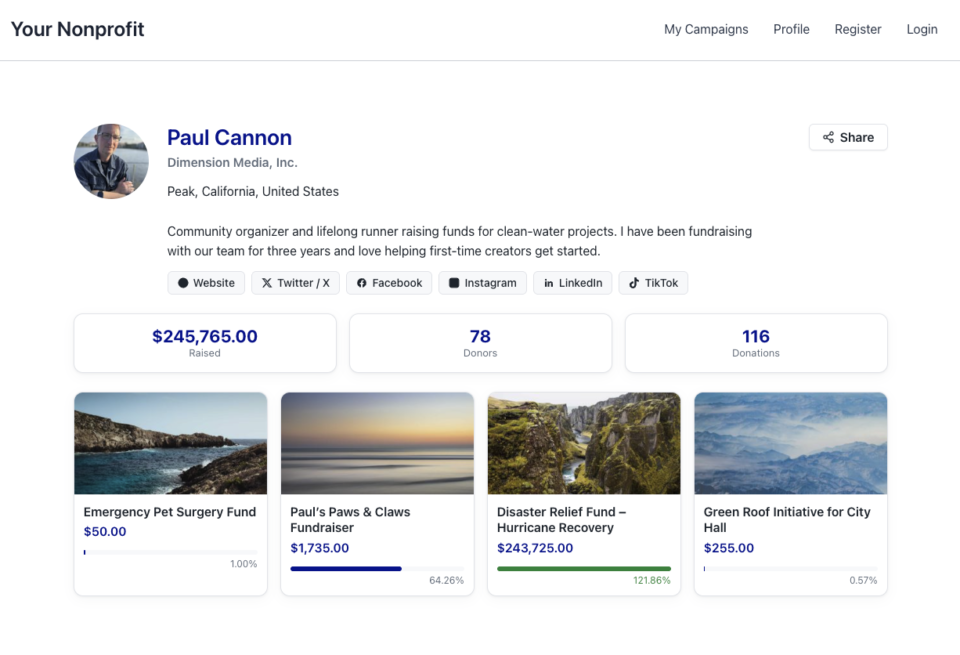
[charitable_my_campaigns]
Der [charitable_my_campaigns] Shortcode zeigt die Kampagnen des angemeldeten Benutzers an. Es gibt keine Parameter.
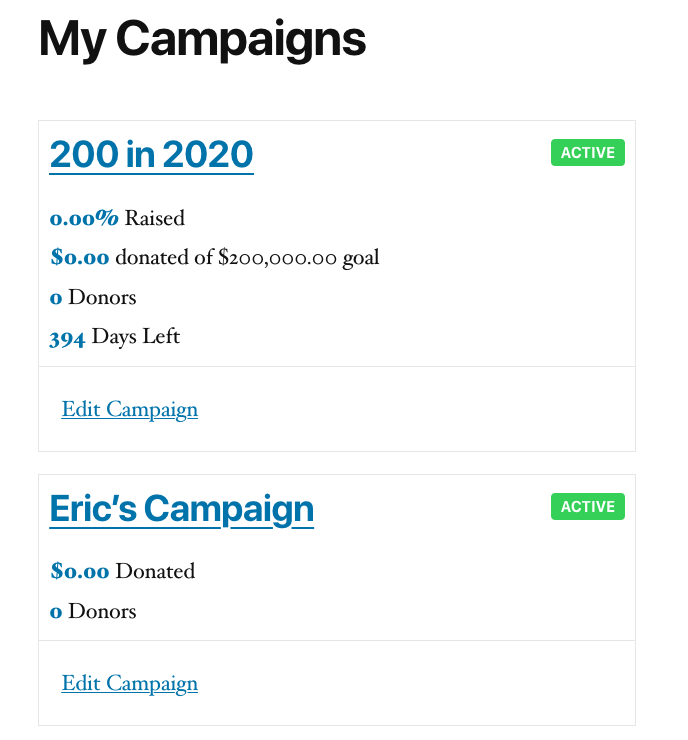
Nutzung
[charitable_my_campaigns][charitable_creator_donations]
Der [charitable_creator_donations] Shortcode ermöglicht es Ihnen, eine Tabelle mit den Spenden hinzuzufügen, die vom aktuell angemeldeten Benutzer erhalten wurden.
Nutzung
[charitable_creator_donations][charitable_fundraise_button]
Der [charitable_fundraise_button] Shortcode fügt einen Link oder Button hinzu, auf den Benutzer klicken können, um zum Spendenformular für eine bestimmte Kampagne zu gelangen.
Weitere Informationen zu den Parametern finden Sie in der Dokumentation: Shortcode für Spendenaufruf-Button.
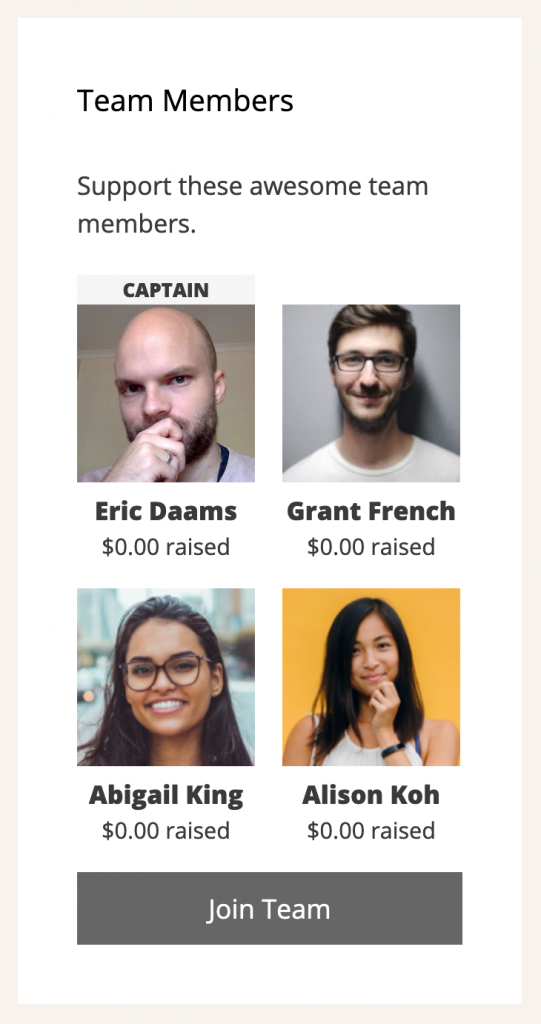
[charitable_team_members]
Der [charitable_team_members] Shortcode fügt ein Raster hinzu, das die Mitglieder eines bestimmten Fundraising-Teams anzeigt.
Mehr erfahren: Shortcode für Teammitglieder.
Widgets
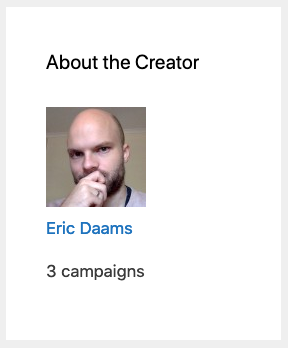
Widget für Kampagnenersteller
Zeigt Informationen über den Ersteller einer Kampagne an. Dies kann so konfiguriert werden, dass es für die aktuell angezeigte Kampagne angezeigt wird oder um den Ersteller einer bestimmten Kampagne anzuzeigen.
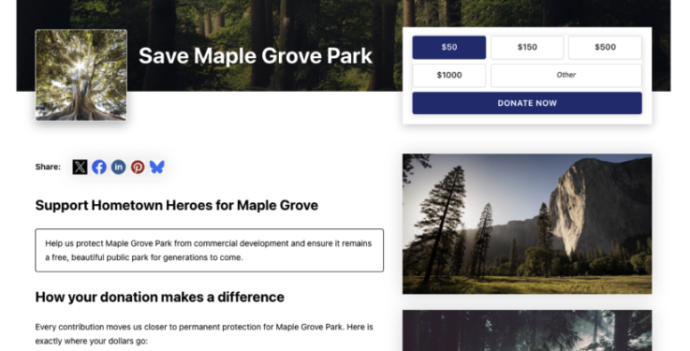
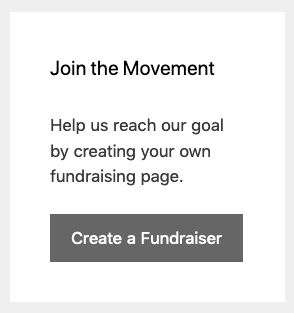
Widget für Spendenaufruf-Button
Zeigt einen Button an, damit Personen eine Spendenaktion für eine Kampagne erstellen können.
Sie können einen Widget-Titel festlegen, die Kampagne auswählen, den Button-Text anpassen, eine optionale Beschreibung hinzufügen und entweder einen Link oder einen Button anzeigen.
Widget für Teammitglieder
Das Widget „Teammitglieder“ ermöglicht es Ihnen, alle Teammitglieder des aktuellen oder eines bestimmten Teams anzuzeigen. Sie können einen Titel festlegen, den Button-Text anpassen, auswählen, in wie vielen Spalten die Mitglieder angezeigt werden sollen, und eine optionale Beschreibung hinzufügen.