
Die Installation von Charitable Stripe Connect ist dieselbe wie die Installation jeder anderen Charitable-Erweiterung. Wenn Sie nicht sicher sind, wie das geht, empfehlen wir Ihnen zunächst unseren Leitfaden zur Installation von Charitable-Erweiterungen zu lesen.
Sie müssen außerdem Charitable Stripe installieren und aktivieren, falls es noch nicht aktiviert ist.
Erste Schritte
Registrieren Sie Ihre Plattform bei Stripe
Einrichten einer neuen Plattform
Der erste Schritt, bevor Sie Stripe Connect verwenden können, ist die Erstellung Ihrer Plattform.
- Melden Sie sich in Ihrem Stripe-Dashboard an.
- Klicken Sie in der linken Seitenleiste auf Einstellungen.
- Klicken Sie im Abschnitt „Connect“ auf Los geht’s.
- Klicken Sie auf der folgenden Seite auf die blaue Schaltfläche Los geht’s.
- Wählen Sie für die Art der Integration „Plattform oder Marktplatz“ und klicken Sie auf Weiter.
- Klicken Sie auf der folgenden Seite auf Vervollständigen Sie Ihr Plattformprofil und folgen Sie den Anweisungen, um die Einrichtung abzuschließen.
Richten Sie Weiterleitungen für Ihre Plattform ein
Sobald Sie Ihre Plattform eingerichtet haben, müssen Sie Ihre Client-ID finden und Weiterleitungen für Ihre Plattform einrichten.
- Klicken Sie in der linken Seitenleiste auf Einstellungen.
- Klicken Sie im Abschnitt „Connect“ auf Einstellungen.
- Scrollen Sie nach unten zum Abschnitt „Integration“. Die Entwicklungs- und Produktionseinstellungen sollten genau mit dem Wert übereinstimmen, den Sie für die Einstellung „Website-Adress-URL“ in WordPress (Einstellungen > Allgemein) haben.
Konfigurieren Sie weitere Charitable-Einstellungen
Sie haben jetzt alles, was Sie brauchen, um Ihre Stripe Connect-Einstellungen in Charitable zu konfigurieren.
- Öffnen Sie in einem neuen Tab Ihr WordPress-Dashboard.
- Gehen Sie zu Charitable > Einstellungen > Zahlungs-Gateways und klicken Sie auf die Schaltfläche Gateway-Einstellungen. Der erste Abschnitt der Stripe-Einstellungen sind die normalen Einstellungen, die von der Stripe-Erweiterung hinzugefügt werden (siehe Dokumentation). Scrollen Sie nach unten zum Abschnitt Stripe Connect (siehe Abbildung unten):
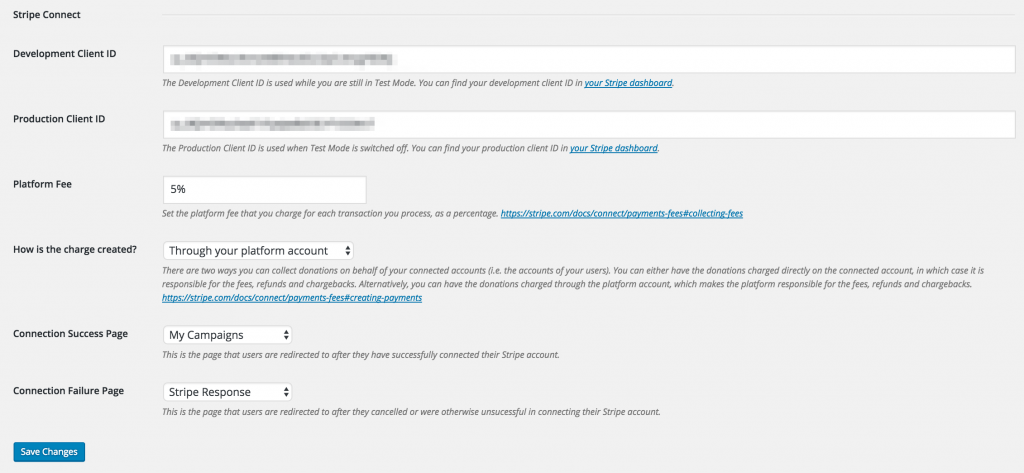
Die Entwicklungs-Client-ID und Produktions-Client-ID für Ihre Entwicklungs- und Produktions-Connect-Plattformen finden Sie in Ihren Stripe Connect-Einstellungen auf derselben Seite, auf der Sie Ihre Weiterleitungs-URLs hinzugefügt haben (siehe oben). Kopieren Sie die Einstellung „Live-Modus-Client-ID“ und fügen Sie sie in die Einstellung „Produktions-Client-ID“ in Charitable ein. Die Einstellung „Testmodus-Client-ID“ finden Sie in Stripe, indem Sie die Einstellung „Testdaten anzeigen“ umschalten.
Die Plattformgebühr ist eine prozentuale Gebühr, die Ihre Plattform erhebt. Sie können diese auf 0 setzen, um keine Gebühr zu erheben.
Wie die Belastung erstellt wird ermöglicht es Ihnen zu wählen, ob Transaktionen auf dem Konto der Plattform oder direkt auf dem Konto des Kampagnenerstellers getätigt werden. Dies ist eine sehr wichtige Einstellung, da sie beeinflusst, wer für die Zahlung der Stripe-Gebühren, Rückerstattungen und Rückbuchungen verantwortlich ist. Aus den Stripe-Dokumenten:
Direkt auf dem verbundenen Konto: Das verbundene Konto ist für die Gebühren, Rückerstattungen und Rückbuchungen verantwortlich. Die Zahlung selbst wird als Belastung auf dem verbundenen Konto angezeigt.
Über Ihr Plattformkonto: Bietet wesentlich mehr Anpassungsmöglichkeiten, macht aber das Plattformkonto für die Gebühren, Rückerstattungen und Rückbuchungen verantwortlich. Die Zahlung wird als Belastung auf dem Plattformkonto angezeigt, zusammen mit einer Überweisung vom Plattformkonto auf das verbundene Konto.
Weitere Informationen darüber, wie diese beiden verschiedenen Integrationsmethoden funktionieren, finden Sie in der Stripe-Dokumentation, um zu verstehen, wie sich dies auf Sie auswirkt.
Wählen Sie schließlich für die Optionen Erfolgsseite der Verbindung und Fehlerseite der Verbindung die beiden zuvor erstellten Seiten aus und speichern Sie Ihre Änderungen.
Beispiel: Den Unterschied zwischen direkten und Plattformgebühren verstehen
Um den Unterschied zwischen Belastungen, die direkt auf dem verbundenen Konto vorgenommen werden, und denen, die über das Plattformkonto vorgenommen werden, besser zu verstehen, betrachten Sie ein Beispiel.
Angenommen, Sie berechnen eine Plattformgebühr von 2 % und die Kampagne eines Kampagnenerstellers erhält eine Spende von 100 $.
Bei direkten Belastungen sieht das Konto des Kampagnenerstellers eine Zahlung von 100 $, mit allen Details zum Spender & zur Spende. Wenn sie auf die Zahlung in Stripe klicken, sehen sie unter Gebühr die Gesamtgebühr, die sowohl die Stripe-Gebühr (~3,20 $) als auch Ihre Plattformgebühr (2 $) enthält. Der Nettobetrag, den sie für diese Zahlung in ihrer Auszahlung erhalten, beträgt also 94,80 $. Auf dem Stripe-Konto Ihrer Plattform sehen Sie eine Anwendungsgebühr von 2 $ im Bereich des Connect-Dashboards – Sie sehen keinen Zahlungsdatensatz unter Zahlungen (da die Zahlung auf dem verbundenen Konto existiert). Hier ist die Aufschlüsselung, wer was bekommt:
- Plattform – 2 $
- Kampagnenersteller – 94,80 $
Bei Plattformbelastungen sieht der Kampagnenersteller eine Zahlung von 100 $, erhält aber nur sehr wenige Informationen über die eigentliche Spende. Alles, was er wirklich sehen kann, ist der Spendenbetrag und die abgezogenen Gesamtgebühren, die in diesem Szenario 2 $ betragen – nur die Plattformgebühr, nicht die Stripe-Gebühr, da die Plattform diese übernimmt. Auf dem Stripe-Konto der Plattform sehen Sie den Zahlungsdatensatz unter Zahlungen, wobei die Überweisung an den Kampagnenersteller im Bereich des Connect-Dashboards angezeigt wird. Aufschlüsselung, wer was bekommt:
- Plattform – -1,20 $ (2 $ abzüglich 3,20 $)
- Kampagnenersteller – 98 $
Die Hauptunterschiede zwischen den beiden sind die Menge der Informationen, die beide Parteien erhalten (wer auch immer die Transaktion abwickelt, erhält im Grunde mehr Informationen) und wie das Geld aufgeteilt wird. Offensichtlich besteht bei Letzterem die Gefahr, bei jeder Spende Geld zu verlieren, es sei denn, Sie legen eine Plattformgebühr fest, die ausreicht, um die Kosten zu decken.
Einrichten von Erfolgs- & Fehlerseiten
Sie können jede Seite für die Einstellungen „Verbindungserfolgsseite“ und „Verbindungsfehlgeschlagene Seite“ verwenden. Um dynamisch Inhalte auf der Seite basierend auf der Antwort anzuzeigen, die Stripe zurückgibt, wenn ein Benutzer von der Verbindung seines Kontos zurückkehrt, verwenden Sie [charitable_stripe_connect_response] auf beiden Seiten.
Weitere Details zum Shortcode finden Sie unten.
Stripe Connect für automatische Auszahlungen aktivieren
Der nächste Schritt ist die Aktivierung von Stripe Connect als Methode zum Senden von Geld an Ihre Kampagnenersteller. Gehen Sie zu Charitable > Einstellungen > Botschafter. Wenn es noch nicht aktiviert ist, aktivieren Sie das Kontrollkästchen, um Botschaftern zu erlauben, Geld für „Persönliche Anliegen“ zu sammeln. Ändern Sie dann die Einstellung „Wie werden Sie Geld an Botschafter senden“ zu Stripe Connect und speichern Sie Ihre Änderungen.
Mit dieser Einrichtung werden Kampagnenersteller beim ersten Einreichen einer Kampagne automatisch zu Stripe weitergeleitet, damit sie ihr Konto verbinden können.
Prüfen, ob ein Kampagnenersteller Stripe verbunden hat
Wenn Sie eine Kampagne über das WordPress-Dashboard bearbeiten, können Sie überprüfen, ob der Kampagnenersteller sein Stripe-Konto verbunden hat, indem Sie die Registerkarte „Geldfundempfänger“ öffnen. Wenn sie ihr Konto verbunden haben, werden hier ihr Zugriffstoken und ihre Stripe-Benutzer-ID angezeigt.
Hinweis: Es ist wichtig zu bedenken, dass der Kampagnenersteller, wenn er sein Stripe-Konto nicht verbunden hat, automatisch keine Spenden für seine Kampagne erhält.
Shortcodes
[charitable_stripe_connect_response]
Der Shortcode [charitable_stripe_connect_response] wird verwendet, um dem Benutzer nach dem Versuch, sein Stripe-Konto zu verbinden, eine Nachricht anzuzeigen. Er zeigt eine Erfolgsmeldung an, wenn sie ihr Konto erfolgreich verbunden haben, und einen Fehler, wenn nicht. Es gibt drei verfügbare Parameter:
error_header: Die Überschrift, die vor der Fehlermeldung angezeigt wird, wenn die Verbindung fehlgeschlagen ist oder abgebrochen wurde. Standard: „Bei der Verbindung Ihres Stripe-Kontos ist etwas schiefgelaufen“.success: Die Nachricht, die angezeigt wird, wenn die Verbindung erfolgreich war. Standard: „Ihr Stripe-Konto wurde erfolgreich verbunden.“show_retry_link: Ob ein Link angezeigt werden soll, um es nach einem fehlgeschlagenen Verbindungsversuch erneut zu versuchen. Dies ermöglicht es dem Benutzer, zu Stripe zurückzukehren und es sofort erneut zu versuchen.
[charitable_stripe_connect_status]
Der [charitable_stripe_connect_status] wird verwendet, um anzuzeigen, ob der Benutzer sein Stripe-Konto erfolgreich verbunden hat. Wenn nicht, enthält er auch einen Link/Button, der es dem Benutzer ermöglicht, zu Stripe zu gelangen und sein Konto zu verbinden. Es gibt vier verfügbare Parameter:
button_text: Der Text, der im Link/Button zu Stripe angezeigt werden soll. Standard: „Jetzt verbinden“.button_class: Die Klasse, die auf den Link/Button angewendet werden soll. Standardmäßig leer.connected: Die Nachricht, die angezeigt wird, wenn der Benutzer Stripe verbunden hat. Standard: „Ihr Stripe-Konto wurde erfolgreich verbunden.“not_connected: Die Nachricht, die angezeigt wird, wenn der Benutzer Stripe nicht verbunden hat. Standard: „Sie haben Ihr Stripe-Konto noch nicht verbunden.“
[charitable_profile]
Zusätzlich zu den beiden obigen Shortcodes fügt Charitable Stripe Connect automatisch ein neues Feld zum Shortcode [charitable_profile] hinzu, das anzeigt, ob der Benutzer sein Stripe-Konto verbunden hat.


