
Charitable verfügt über integrierte Stripe-Zahlungen. Sie müssen keine API-Schlüssel verwenden oder Webhooks manuell konfigurieren. Melden Sie sich einfach in Ihrem Stripe-Konto an, um die Verbindung herzustellen.
Hinweis: Stellen Sie vor Beginn sicher, dass Sie Charitable installieren auf Ihrer WordPress-Website. Da Stripe in Charitable integriert ist, müssen Sie keine Add-ons oder Erweiterungen für die grundlegende Stripe-Funktionalität installieren.
Hier ist ein Inhaltsverzeichnis, das Ihnen die Navigation erleichtert:
- Aktivieren des Stripe-Zahlungsgateways
- Verbinden Ihres Stripe-Kontos
- Stripe-Einstellungen in Ihrer Kampagne
Aktivieren des Stripe-Zahlungsgateways
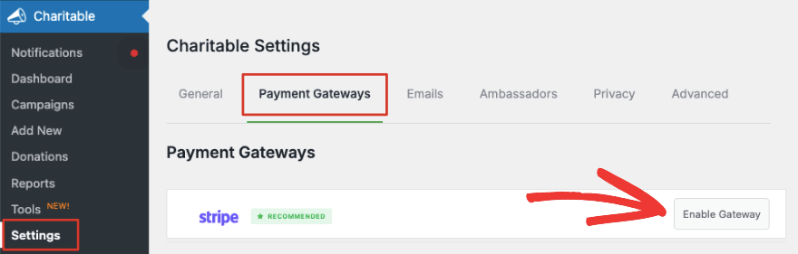
Navigieren Sie in Ihrem WordPress-Admin-Panel zum Tab Charitable » Einstellungen » Zahlungsgateways. Sie sehen den Stripe-Tab zusammen mit der Option 'Gateway aktivieren'.
Bevor Sie dies aktivieren, sehen Sie auch die Option, 'Testmodus' unter der Liste der Gateways zu aktivieren. Wir empfehlen die Verwendung des Testmodus, wenn Sie ein neues Gateway aktivieren, um sicherzustellen, dass Sie alles korrekt eingerichtet haben, bevor Sie auf Ihrer Website live gehen.
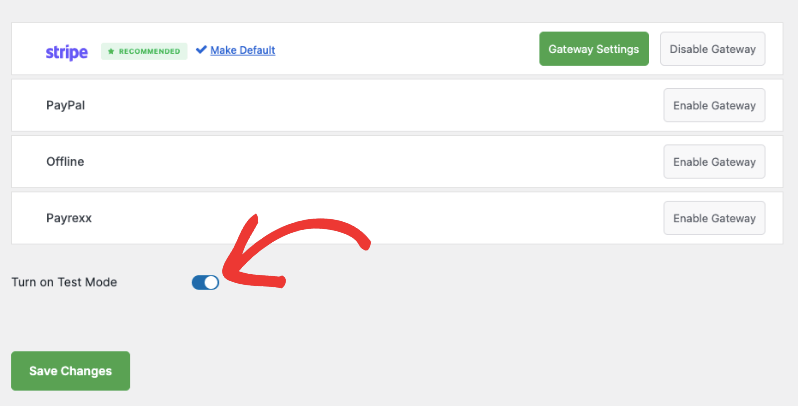
Stellen Sie sicher, dass Sie auf die Schaltfläche 'Änderungen speichern' klicken, um den Testmodus zu aktivieren.
Jetzt können Sie auf die Schaltfläche 'Gateway aktivieren' neben Stripe klicken und werden automatisch zur Stripe-Einstellungsseite weitergeleitet.
Hinweis: Wenn Sie ein Gateway aktivieren, erscheint eine grüne Schaltfläche 'Gateway-Einstellungen'. Sie können diese verwenden, um jederzeit auf die Einstellungsseite zuzugreifen, wenn Sie sie benötigen.
Verbinden Ihres Stripe-Kontos
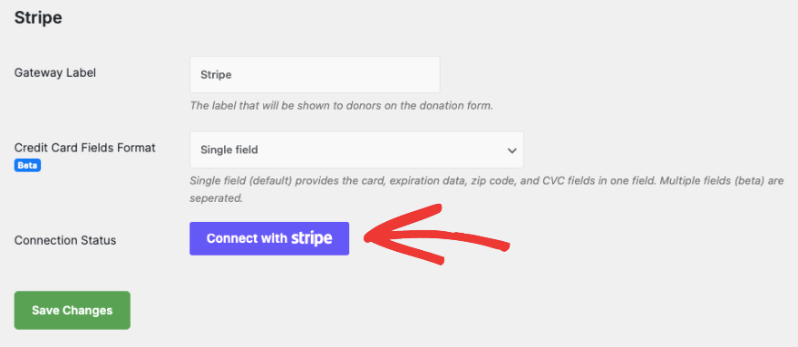
Auf der nächsten Seite können Sie eine Bezeichnung für dieses Gateway hinzufügen. Es ist bereits mit „Stripe“ vorausgefüllt, aber Sie können dies bei Bedarf ändern.
Hinweis: Es fällt eine Gebühr von 3 % für jede Transaktion zuzüglich der Stripe-Gebühren an, wenn Sie Charitable Lite verwenden. Um die zusätzliche Gebühr von 3 % zu entfernen, müssen Sie auf Charitable Pro upgraden.
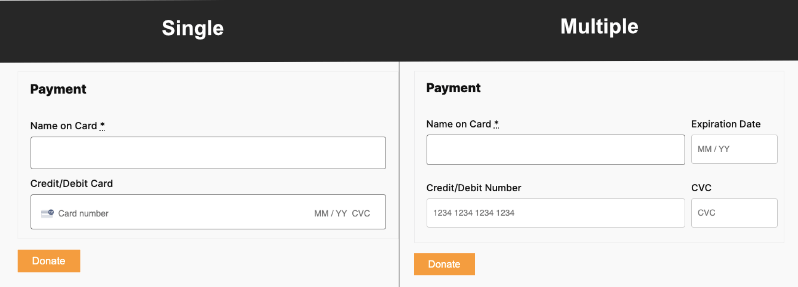
Darunter sehen Sie das Format der Kreditkartenfelder. Hier können Sie entscheiden, wie Kunden ihre Kreditkarteninformationen eingeben sollen. Es gibt 2 Optionen:
- Ein einzelnes Feld fragt nach Kartennummer, Ablaufdatum, Postleitzahl und CVC-Feldern in einem Feld.
- Mehrere Felder erstellen für jeden Eintrag ein separates Feld.
So sieht es im Frontend aus:
Nachdem Sie das Format der Kreditkartenfelder ausgewählt haben, klicken Sie auf die Schaltfläche 'Mit Stripe verbinden'.
Dies führt Sie zur Stripe-Seite, auf der Sie sich in Ihr Konto einloggen können. Wenn Sie noch kein Konto haben, können Sie Ihre E-Mail-Adresse eingeben und sich für ein Stripe-Konto anmelden.
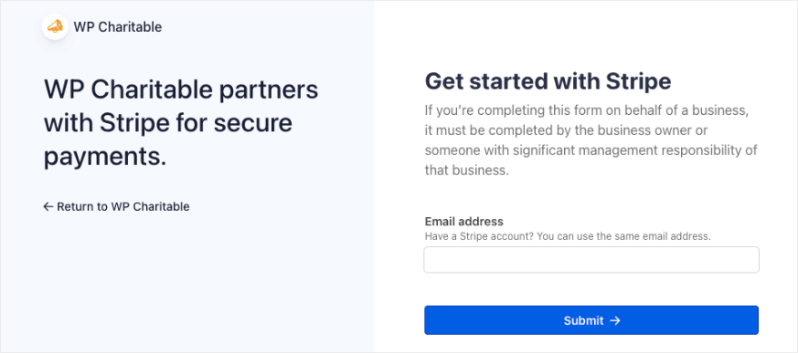
Sobald Sie in Ihrem Stripe-Konto angemeldet sind, verwenden Sie den Link „Zurück zu WP Charitable“ auf der linken Seite. Dies bringt Sie zurück zu Ihrem WordPress-Dashboard und Sie sehen, dass der Verbindungsstatus entweder „Im Testmodus verbunden“ oder „Im Live-Modus verbunden“ lautet, je nachdem, welchen Modus Sie zuvor gewählt haben.
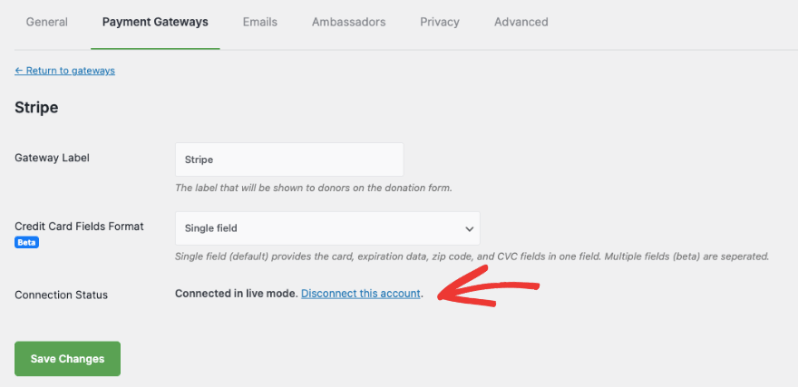
Wenn Sie dieses Stripe-Konto jemals entfernen müssen, können Sie hier den Link 'Dieses Konto trennen' verwenden.
Jetzt sind Sie bereit, Spenden mit dem Stripe-Zahlungsgateway anzunehmen.
Stripe-Einstellungen in Ihrer Kampagne
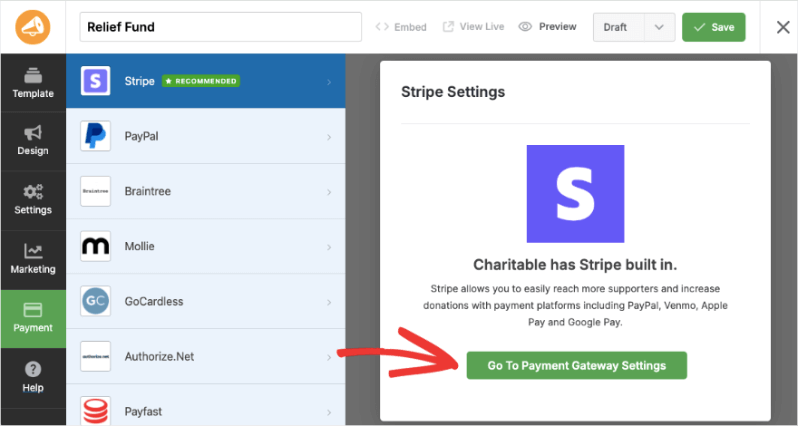
Wenn Sie eine Spendenkampagne mit Charitable erstellen, sehen Sie unter dem Tab Zahlung im linken Menü, dass Stripe aktiviert ist. Wenn Sie die Einstellungen anpassen müssen, gibt es hier eine Schaltfläche für den einfachen Zugriff, die Sie direkt zur Seite mit den Zahlungsgateway-Einstellungen führt.
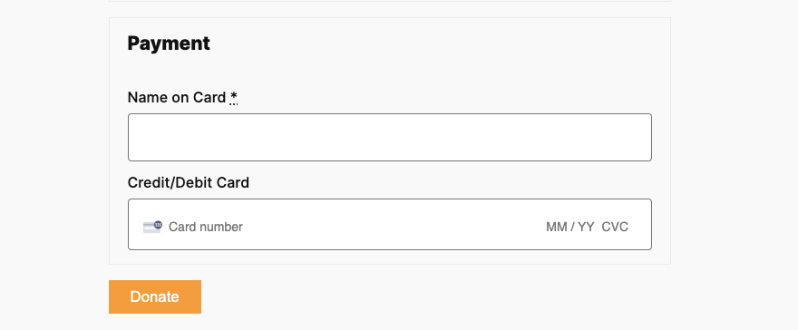
Wenn Sie Ihre Kampagne veröffentlichen, erscheinen je nach den von Ihnen mit Stripe aktivierten Zahlungsoptionen auf Ihrem Spendenformular wie folgt:
Das ist alles. Sie sind bereit, Ihre Spendenkampagnen zu erstellen und Spenden über Stripe anzunehmen. Hier ist die Anleitung zum Erstellen einer Spendenkampagne.
Möchten Sie andere Zahlungsoptionen einrichten? Besuchen Sie unsere Dokumentationsseite für Einrichtung von Zahlungsgateways.
Häufig gestellte Fragen
Haben Sie eine Frage zur Verwendung von Stripe in Charitable? Sehen Sie sich die Liste unten für unsere am häufigsten gestellten Fragen an. Wenn Ihre Frage hier nicht aufgeführt ist, dann kontaktieren Sie uns bitte.
Speichert Charitable Kreditkartennummern?
Nein. Charitable speichert keine Kreditkartennummern oder ähnliche sensible Abrechnungsinformationen.
Kann ich das Aussehen der Kreditkartenfelder von Stripe ändern?
Sie können das Erscheinungsbild über benutzerdefiniertes CSS ändern. Charitable bietet auch für Stripe eine „Name/Kreditkarte“ (Standard) und eine Multi-Formular-Option (vier Felder zur Eingabe der Kreditkarteninformationen von Stripe).
Welche Gebühren fallen bei der Verwendung von Stripe in Charitable an?
Stripe erhebt eine Transaktionsgebühr, die je nach Land variiert. Details finden Sie in Stripes Preisgestaltung.
Wenn Sie Charitable mit einer gültigen Lizenz verwenden (siehe unsere Preisgestaltungsseite), fallen über die von Stripe hinaus keine zusätzlichen Gebühren oder Kosten an.
Zusätzlich zu den Stripe-Preisen berechnet Charitable eine zusätzliche Gebühr von 3 % für Transaktionen. Diese Gebühr entfällt, wenn Sie Charitable mit einer aktiven Lizenz verwenden.
Unterstützt Charitable wiederkehrende Spenden mit Stripe?
Ja, erfahren Sie mehr über unser Addon für wiederkehrende Spenden.


