
Charitable’s Recurring Donations addon lets you turn one-time supporters into long-term, sustaining donors. With this extension, you can add flexible recurring giving options to any campaign, choose between simple “make this monthly” checkboxes or fully customized recurring plans, and let donors pick the schedule that works best for them.
How to Install Recurring Donations
Installing the Charitable Recurring Donations plugin is the same as installing any other Charitable extension. If you’re not sure how to do that, we recommend first reading our guide to installing Charitable extensions.
Activate Recurring Donations Inside the Campaign Builder
Go to Charitable » Campaigns in your WordPress admin. Add a new campaign or edit an existing one.
Inside the campaign builder, go to the Settings tab from the far-left menu. Here, click on the Recurring Donations tab.
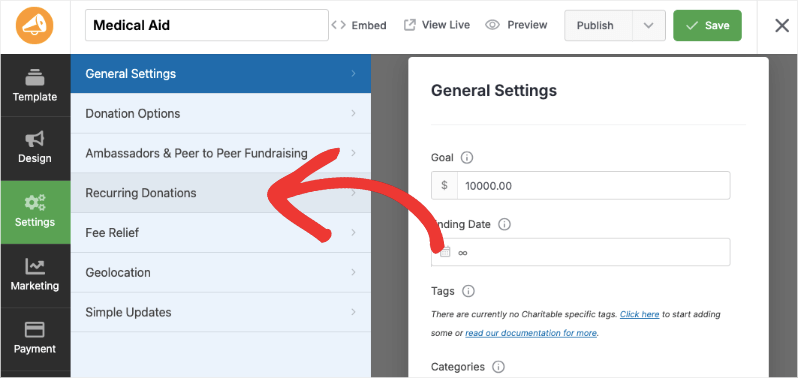
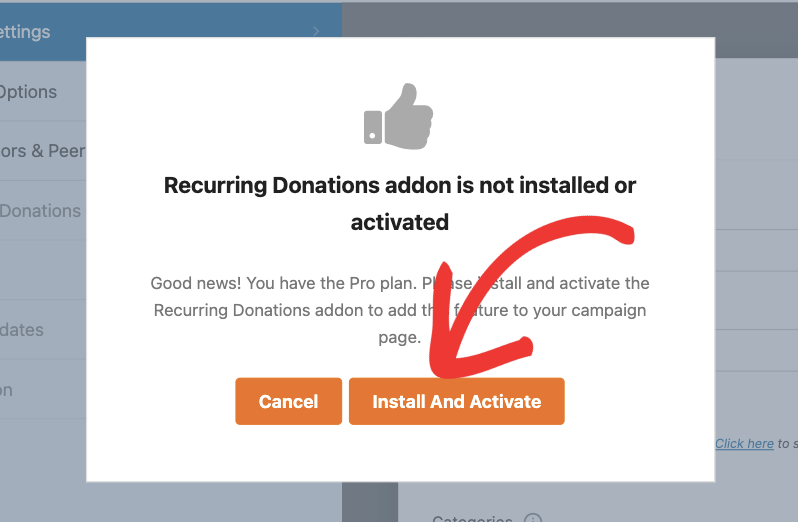
A popup will appear that lets you know that the Recurring Donations addon is not installed. Click on the Install and Activate button here and Charitable will begin to automatically install the addon for you.
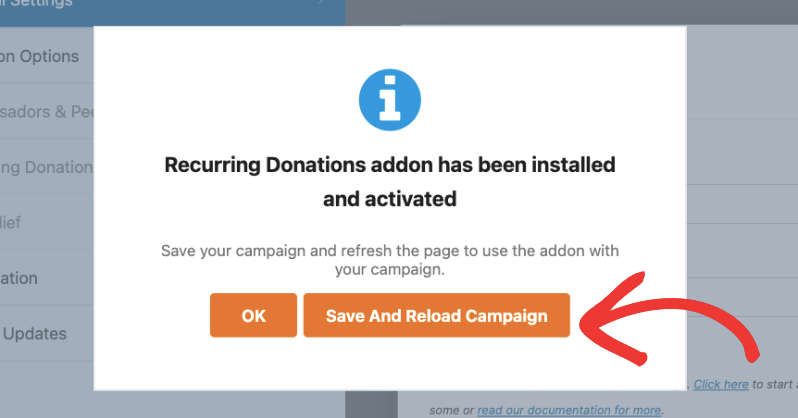
Once it has been installed and activated, you’ll see a success message. Click on the Save and Reload Campaign button to refresh the page and start using the addon.
If the process is successful, move ahead and customize your recurring donation options. In case this process failed for you, there may be restrictions placed by your hosting provider. You’ll need to install the addon manually.
Install Recurring Donations Manually
First, log into your Charitable account at wpcharitable.com. Go to the Downloads tab and scroll down to the addons section.
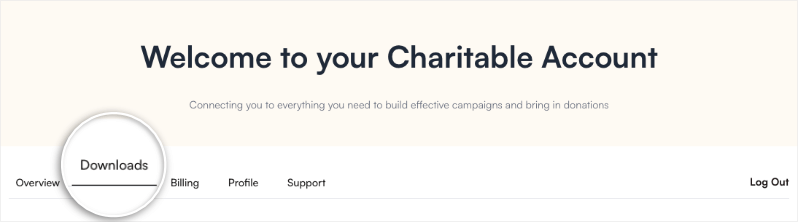
Here, find the Recurring Donations add-on. and download the file to your computer.
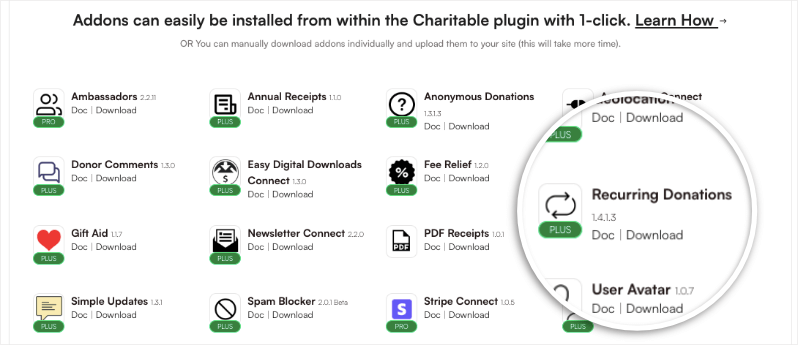
In your WordPress admin, go to Plugins » Add New » Upload Plugin.
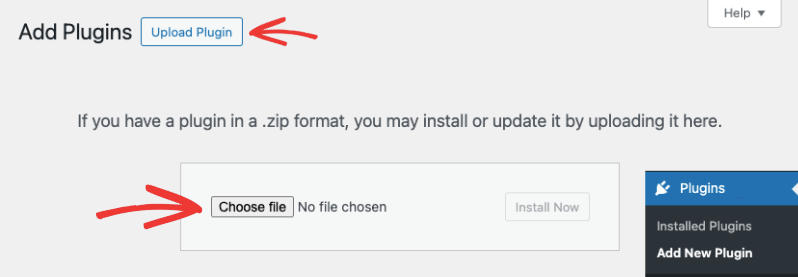
Select the Recurring Donations addon file from your computer and click the Install Now button. Once installed, click the Activate Plugin button.

Once done, you’ll see a success message. Now you’re ready to use recurring donations in your campaigns.
Customize Recurring Donation Options
Go to the Charitable » Campaigns page inside your WordPress admin. Edit any campaign for which you want to enable recurring donations.
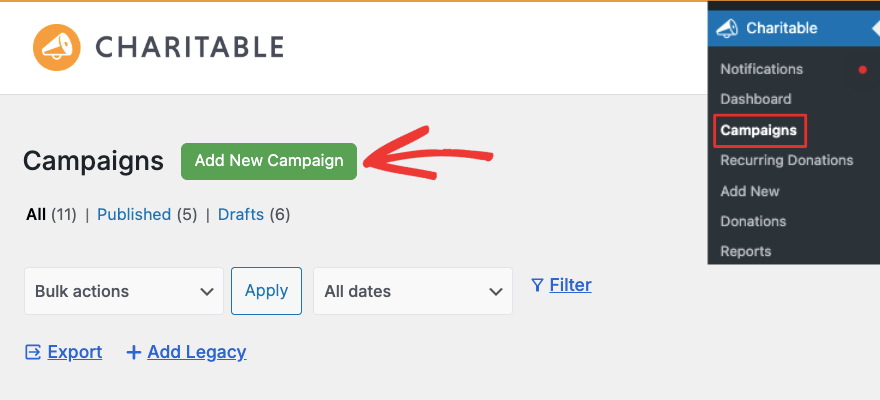
Inside the campaign builder, go to the Settings » Donation Options tab.
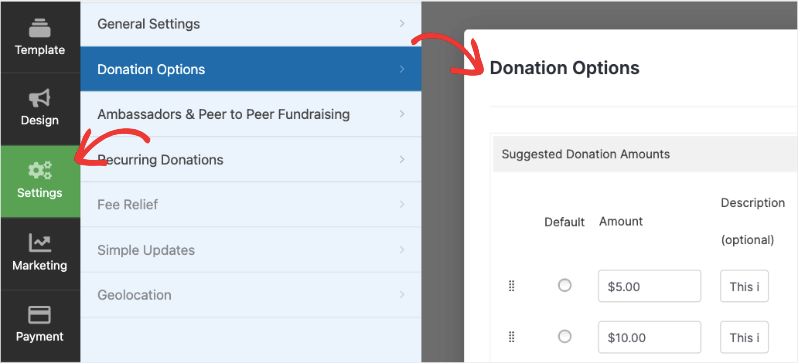
Scroll down and you’ll see a Recurring Donations section available now. There’s a toggle button that lets you enable recurring donation options on this campaign. Simply click on it to activate it.
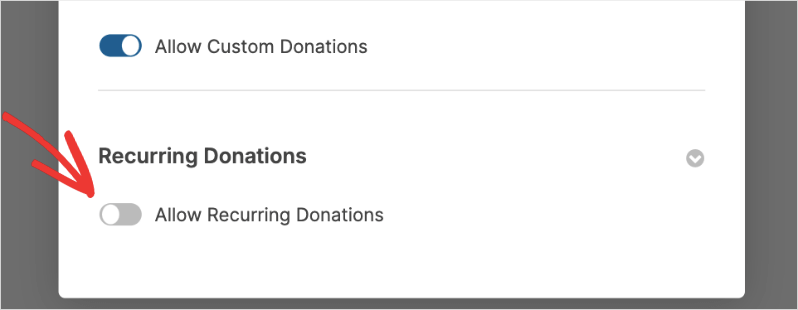
Now new options will appear that let you configure your recurring donations.
First, you can choose between Simple and Advanced recurring donations.
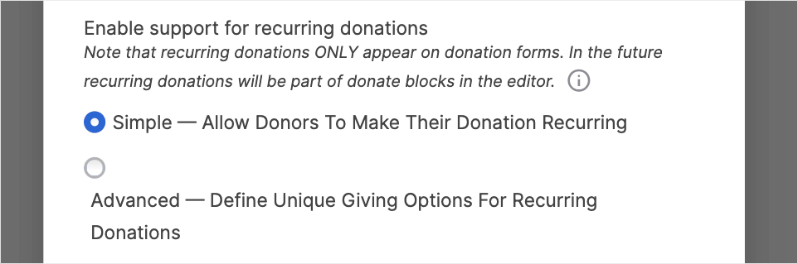
Simple – Allow donors to make their donation recurring
If you choose the Simple option, a single check box will be added to your donation form like this:
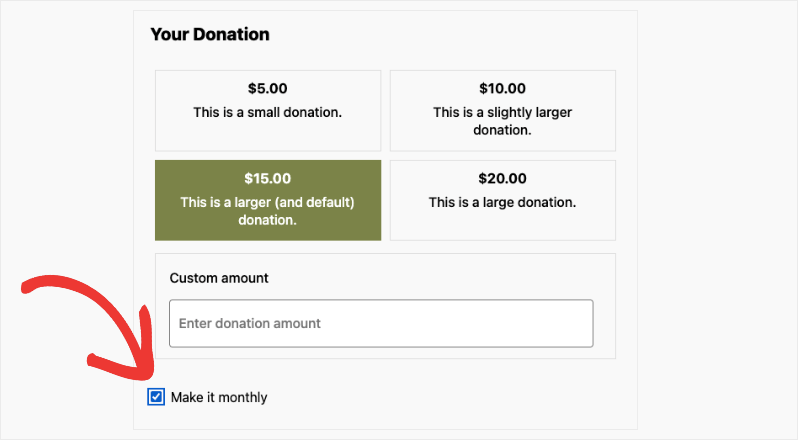
Donors can check it to make their contributions every month. Charitable will handle the process for you, billing the donor every month on the set date.
Advanced – Define unique giving options for recurring donations
If you choose the Advanced option, you can fine tune the recurring donation options that appear to donors. Here’s a sample of what an advanced recurring donation form can look like:
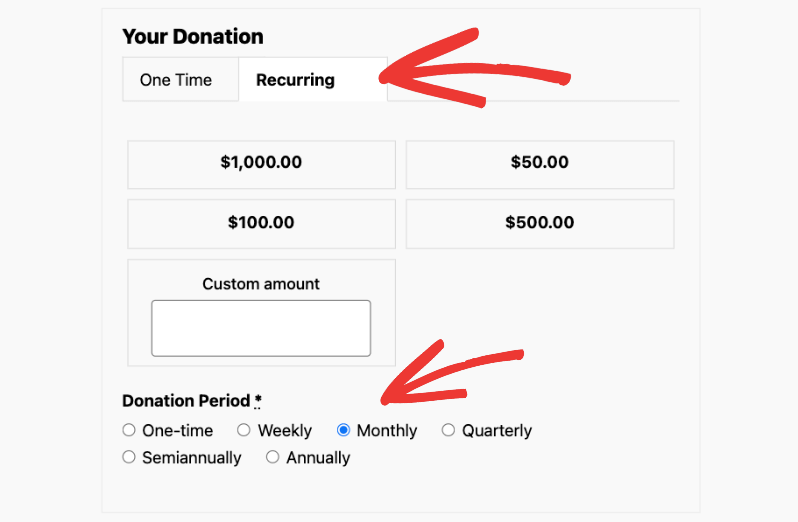
Customize Amounts and Tabs
First, you can add suggested amounts along with descriptions for each amount.
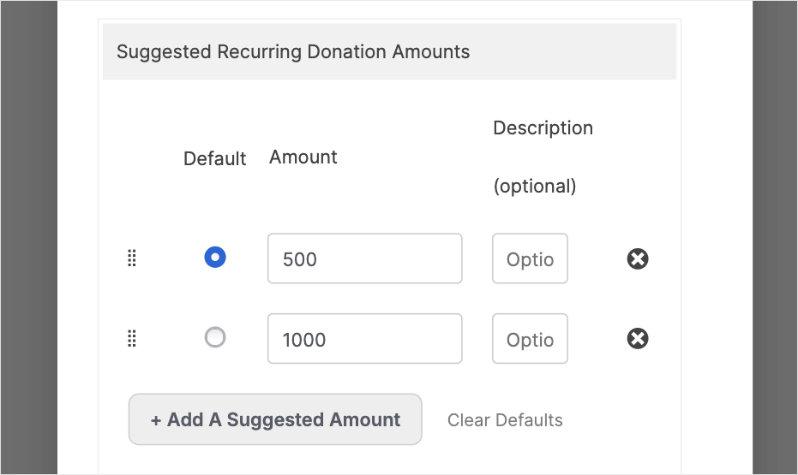
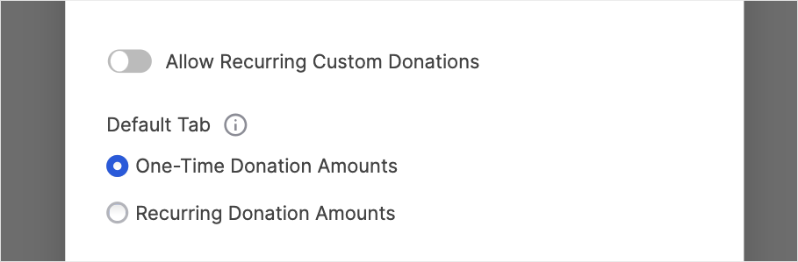
You can also allow the donor to choose their own amount by turning on the option to “Allow Recurring Custom Donations”
Below this, Charitable lets you choose which tab should appear by default to the donors – One-time donations or Recurring Donations.
Choose Donation Period
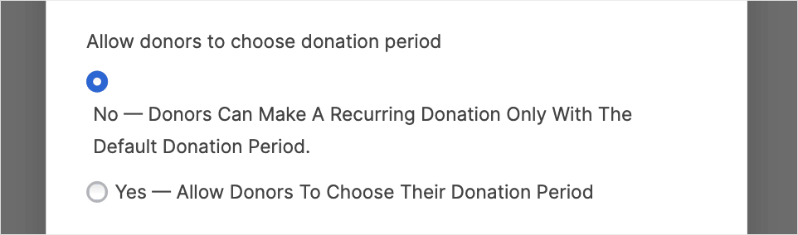
Next, you can set a default recurring donation period or give your donors choices.
Option 1: Restricted (No Donor Choice)
If you choose this option “No — Donors can make a recurring donation only with the default donation period.”, you’ll set one fixed recurring donation period that applies to all donors.
You’ll need to select how often donors will be billed from these intervals: weekly, monthly, quarterly, semiannually, or yearly. This creates a standardized donation schedule across your donor base.

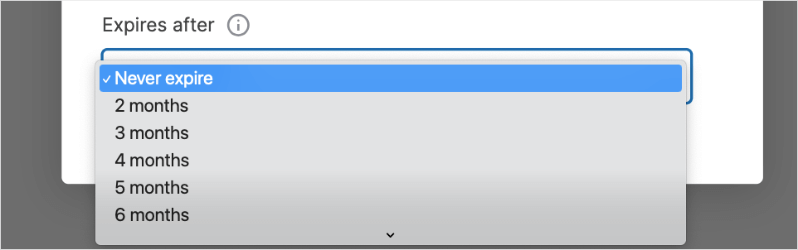
You’ll also have the ability to set whether these recurring donations should never expire or have a specific end date such as 2 months, 6 months, up to 24 months.
Option 2: Flexible (Yes to Donor Choice)
If you choose to give donors a choice, select “Yes – Allow donors to choose their donation period”.
This option provides more flexibility by allowing donors to choose their preferred donation schedule. Here, you’ll need to make two key decisions:
First, you’ll set a default period that appears as the pre-selected option when donors land on your donation page. You can choose from:
- One-Time
- Weekly
- Monthly
- Quarterly
- Semiannual
- Yearly
This default should reflect what you believe most donors would prefer or what works best for your organization.
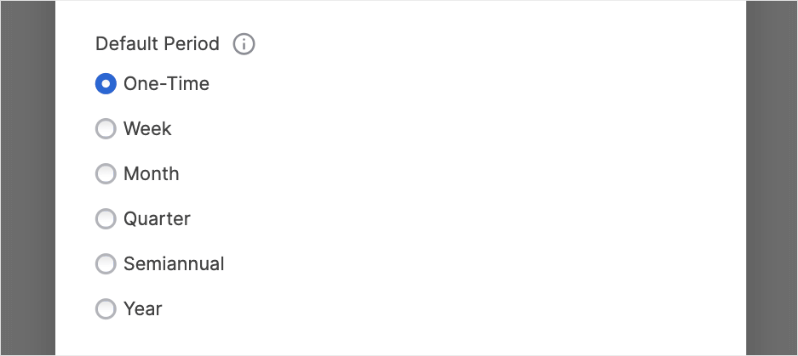
Second, you’ll select which donation periods to make available as options to your donors. You can offer any combination of:
- One-Time
- Weekly
- Monthly
- Quarterly
- Semiannual
- Yearly
This gives donors the freedom to choose a schedule that best fits their financial planning.
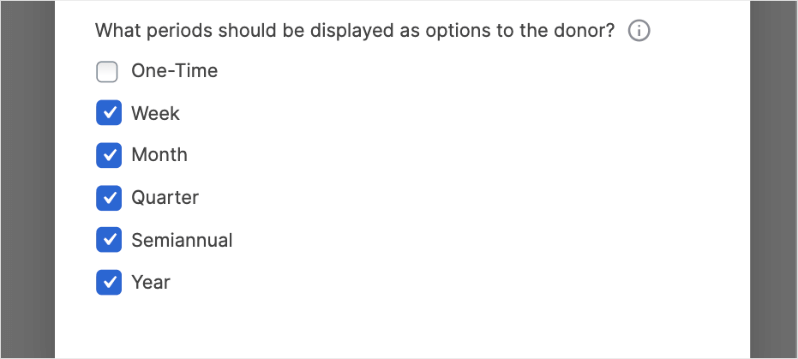
Once you’ve configured your options here, make sure to save your changes using the Save button in the top-right corner of the builder.
Now, you can preview or visit your live campaign. When you click on your Donate button, the donation form will appear and you’ll see the recurring donation options that you’ve configured.
View and Manage Recurring Donations
Charitable automatically records and safely stores all your recurring donations for you. You can access this by going to the Charitable » Recurring Donations page.
Here, you’ll see a list of your recurring donors along with:
- Amount donated
- Campaigns
- Date
- Related Donations
- Status
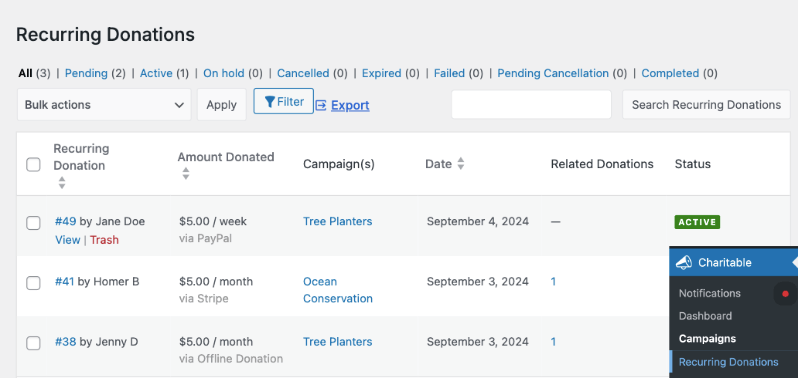
There are actions you can take on this page. First, you can view individual donor records and delete them.
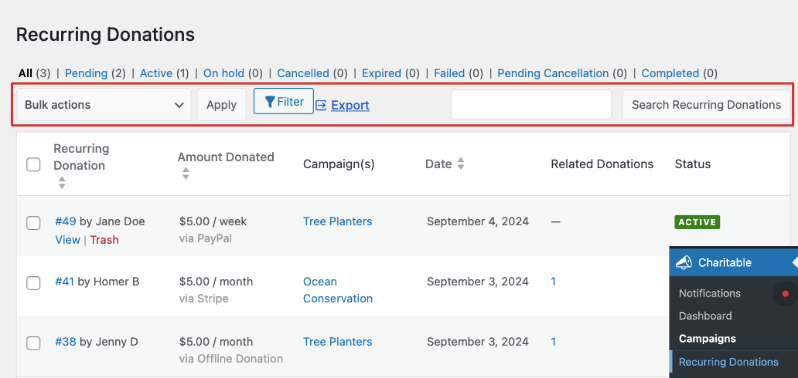
From the top menu, you can also export this list to use offline or with other tools. You can also use the search bar to quickly find the donor record you’re looking for.
Viewing Your Recurring Donations Report
Charitable comes with built-in reports and metrics to give you valuable insights into your donations.
Go to Charitable » Reports in your WordPress admin. Under the Donors tab, there is a dropdown menu to select your report. Choose the Recurring Donors option and click on the Filter button on the right.
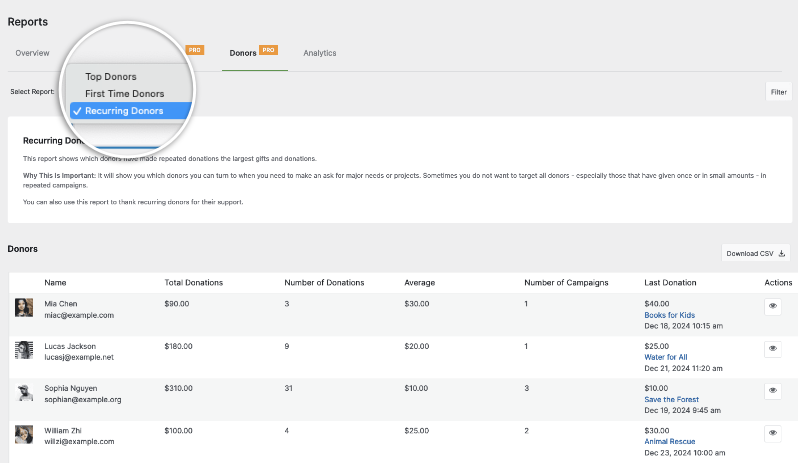
Now you can view a list of your donors along with:
- Total donations
- Number of donations
- Average
- Number of campaigns
- Last donation.
There are Action icons available on the far-right column. You can use this to view the campaign of this donation record. Charitable also gives you the option to download a CSV file of this report.
Custom Emails For Recurring Donations
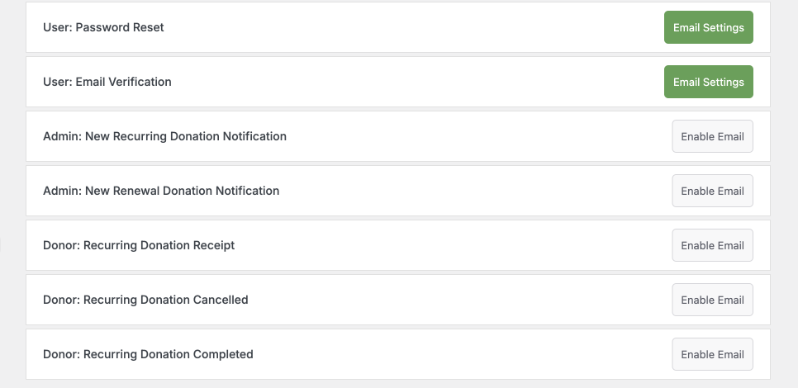
Recurring Donations adds new emails, which can be enabled and configured in the Charitable Settings.
Here are the emails you can enable and customize:
- Admin notification of new recurring donation
- Admin notification when a recurring donation is renewed
- Donor notification of new and renewal donations
- Donor recurring donation receipt
- Donor confirmation of cancelled recurring donation
Email Hierarchy
If you have enabled both the “Donor: Donation Receipt” and the “Donor: Recurring Donation Receipt” emails, a recurring donation will trigger the “Donor: Recurring Donation Receipt” and not both receipt emails. If only one is enabled, then a Donor will receive the enabled email as their receipt. This separation allows you to optionally fine tune the emails sent to recurring donors.
New Email Shortcodes
Recurring Donations adds a new shortcode for emails:
[charitable_email show="recurring_summary"]
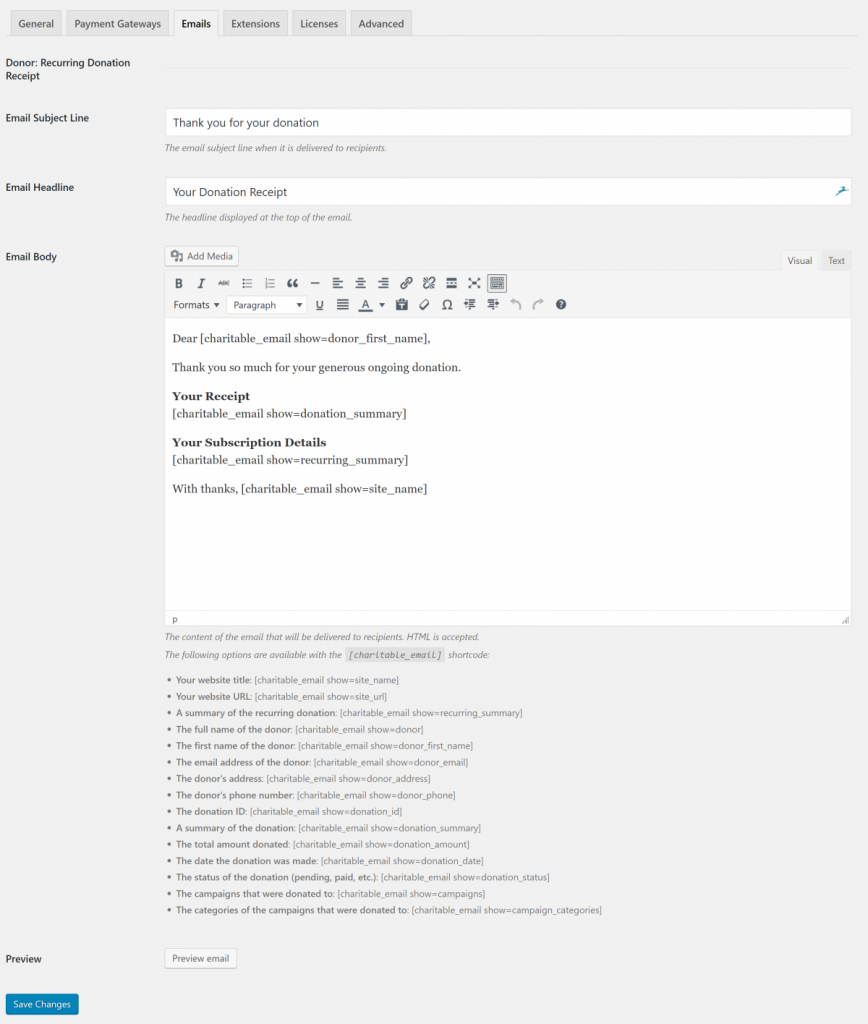
This shortcode adds a new table displaying the recurring donation’s amount, frequency, status, and start date.
Gateway Setup Instructions
Depending on which payment gateway you use, you may need to follow some extra steps to get Recurring Donations up and running.
Stripe
As of Charitable Stripe 1.3.0, no additional setup steps should be required for Recurring Donations to work. Charitable handles everything under the hood.
Note: If you are using a previous version of our Stripe integration, or you notice that recurring donations are not being marked as active automatically, you may need to manually set up a Stripe webhook. Find out how to set up a Stripe webhook.
Authorize.Net
As of Charitable Authorize.Net 1.2.0, no additional setup steps are required for Recurring Donations to work. Charitable handles everything under the hood.
PayFast
No additional setup steps are required.
Cancelling Donations
As of Recurring Donations version 1.1, recurring donations can be cancelled by the site owner from the admin or by the donor from the My Accounts area.
Note: Once a recurring donation is created, the automatic renewals are handled by the payment processor and will continue to be charged even if you deactivate the Recurring Donations plugin or Charitable itself.
Cancelling in the Admin
When view the details for a particular Recurring Donation, you will see Cancel in Gateway as an option in the Donations Actions meta box for recurring donations made via a gateway that supports this feature. You may need to update your gateway plugin to see this feature.
Clicking the Cancel Recurring Donation button will cancel the recurring donation with the gateway, mark the recurring donation as cancelled locally at your site, and if enabled at Charitable > Settings > Emails, send the donor an email confirming that their recurring donation has been cancelled.
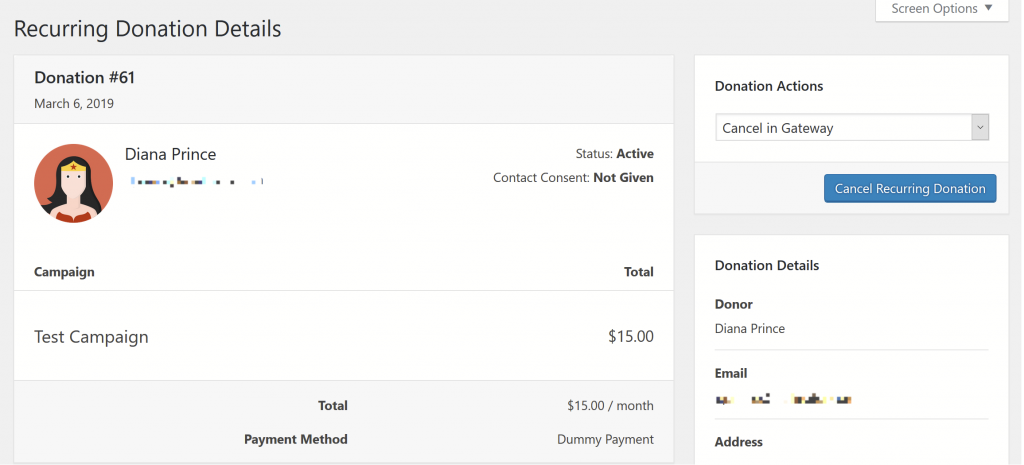
Note: If you do not see the “Cancel in Gateway” option it means that the recurring donation cannot be cancelled by Charitable. Make sure that you are using the most recent version of Charitable Recurring Donations as well as the payment gateway integration you are using.
If you are using the most recent versions of all extensions and you still do not see this option, you will need to cancel the recurring donation within the payment gateway settings.
Cancelling from the My Donations area
It’s also possible for the donor to cancel their own subscription from within their My Donations area. By default a link to a donor’s Recurring Donations will be added to the output of the [charitable_my_donations] shortcode.
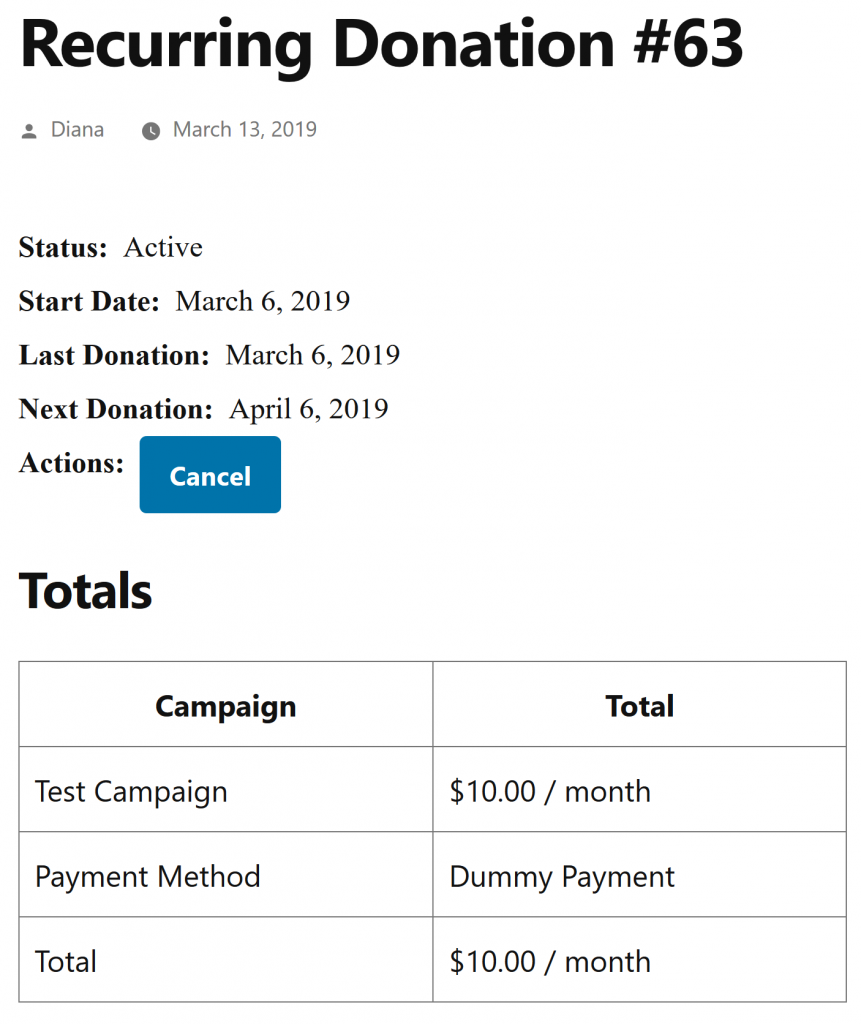
Once they view their Recurring Donations, they can “View Details” of a specific recurring donation, depending on whether the gateway supports cancellation, they will see a “Cancel” button under Actions.
Shortcodes
If you wish to hide the link to a donor’s Recurring Donations from their “My Accounts” area, you can modify the [charitable_my_donations] to hide shortcode by adding the hide_recurring=1 parameter (ex: [charitable_my_donations hide_recurring=1]).
Recurring donations supports its own [charitable_my_recurring_donations] shortcode if you’d prefer to list the recurring donations in an alternative location.
Incompatibility
Please note: Recurring Donations does not work with the following extensions:
- PayUMoney
- Easy Digital Downloads Connect
That’s it. Next, learn more about the Donor Management System and how to use it.



