Charitable Blog

Everything you need to know about Charitable and our team.

How to Add a Stripe Donation Button in WordPress

How to Add a Stripe Donation Button in WordPress

Last updated on

  • By

Looking to add a donation button to your WordPress site? Stripe is one of the most secure and professional options. What I love is that it keeps your donors right there on your website instead of redirecting them somewhere else.

I’ve run my own non-profit site and here’s what I’ve learned: the easier you make it to donate, the more donations you’ll receive. 

In this step-by-step tutorial, I’ll show you exactly how to add a Stripe donation button to your WordPress site. No coding required. You can do this in the next 15 minutes.

Let’s begin.

Do you prefer to learn through video tutorials? Check out our step-by-step tutorial on how to set up your fundraiser with Stripe integration:

Now on to our tutorial here.

What You Need

While there are several WordPress donation plugins available, Charitable stands out as the most straightforward solution for adding Stripe donations to your website. I’ve found it to be the most user-friendly option, especially for those who aren’t technically inclined.
WPCharitable homepage

Charitable comes with Stripe built into the plugin. You won’t need any extensions or addons for this to work. The best part is that you won’t even need API keys and other info. You simply need to log into your Stripe account to make the connection. It’s that easy.

Charitable has both a lite and pro version. The lite version is completely free to use and it includes Stripe, however, there’s a 3% transaction fee + Stripe fees. With the Pro version, the 3% fee disappears and you only incur any fees charged by Stripe.

The Pro version not only enables Stripe payments but also includes recurring donations, multiple currency support, and advanced donor management tools – features that typically require various plugins with other solutions.

What really sets Charitable apart is how seamlessly it integrates with WordPress. The donation buttons and forms match your website’s design automatically, creating a professional look that builds trust with your donors. Plus, donors can complete their contributions without ever leaving your site, which significantly increases donation completion rates.

What I love about Charitable is its user-friendly approach to Stripe integration. This helps ensure you’re not losing potential donors to a complicated donation process.

Remember, the easier you make it for people to donate, the more likely they are to follow through.

Ready to get started? Let’s move on to setting up the plugin.

Step 1: Setting Up Charitable

First things first, let’s get Charitable installed and configured on your WordPress site. I’ll walk you through this initial setup process step by step.

Start by logging into your WordPress dashboard. Head over to Plugins » Add New and search for “Charitable.” You’ll see the free version of Charitable in the results. Click “Install Now” and then “Activate.” This gives you the foundation we need to build on.
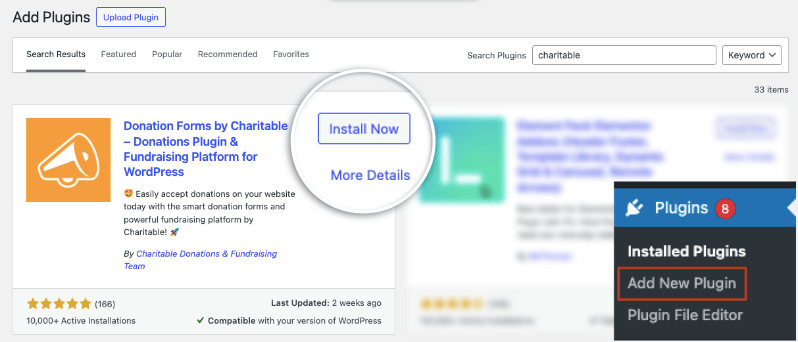
Install Charitable

For the Pro version, visit Charitable’s website and purchase a plan. Then you’ll get your own account with a license key.
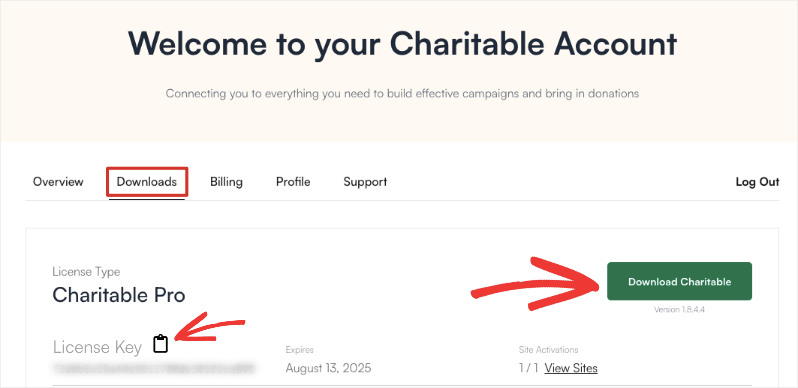
Download plugin and copy license key

Copy this key and go to Charitable » Settings » License in your WordPress dashboard and enter your key. This unlocks the Stripe functionality and other premium features.

One thing that stands out about Charitable is that as soon as you activate the plugin, it launches an onboarding wizard. This takes you through all the important steps to get you set up with the essentials including Stripe.

You can follow the setup wizard if you’re comfortable with that or continue to follow along.

Step 2: Enabling the Stripe Gateway

Now headover to the ‘Payment Gateways’ tab, and you’ll see the Stripe gateway ready to be enabled.
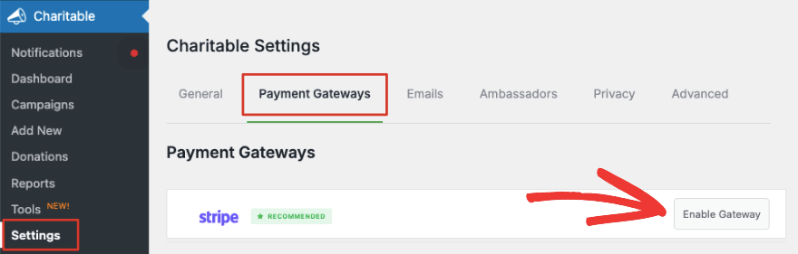
Enable Stripe payment gateway

Before we enable this, you need to know about test mode. You’ll see this below the list of gateways available.
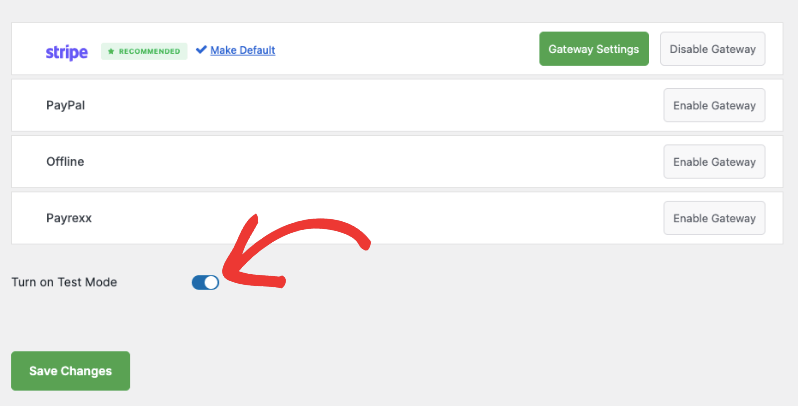
Turn on test mode for payment gateways

Test mode is a crucial feature in Charitable that lets you safely experiment with donations before going live. When you’re first setting up your donation system, you need to make sure everything works smoothly. Test mode lets you simulate the entire donation process without charging actual credit cards. 

Pro tip: I always recommend making at least 2-3 test donations with different amounts to ensure everything works as expected. This includes testing both one-time and recurring donations if you’re using them.

Now you can enable the Stripe Gateway and you’ll automatically redirect you to the Stripe settings page. Or you can use the green ‘Gateway Settings’ button to access the same page.

On the next page, you can add a label for this gateway. It’s prefilled with ‘Stripe’ for you but you can change that if you need.
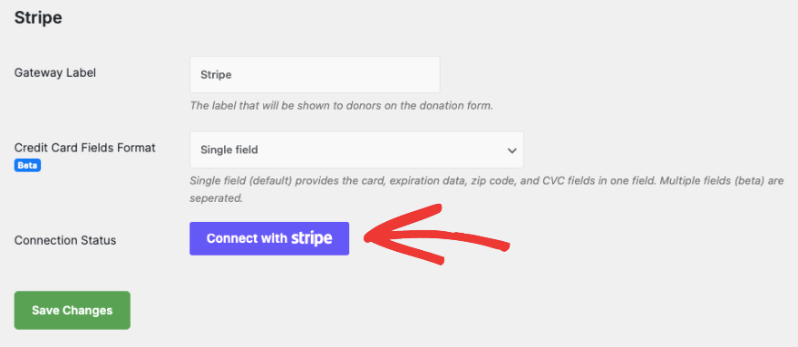
Connect with Stripe

Below this, you’ll see Credit Card Fields Format. This lets you decide how you want customers to enter their credit card information. There are 2 options here:

  • Single Field asks for the card number, expiration date, zip code, and CVC fields in one field.
  • Multiple Fields creates a separate field for each item.

Here’s what it will look like on the front end:
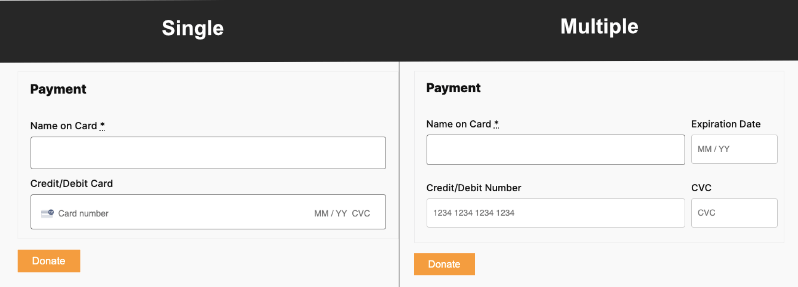
Single vs multiple payment fields

After you choose the Credit Card Fields format, click on the ‘Connect with Stripe’ button.

This will take you to the Stripe page where you can log into your account. If you don’t have an account, you can enter your email address and you’ll be able to sign up for a Stripe account.
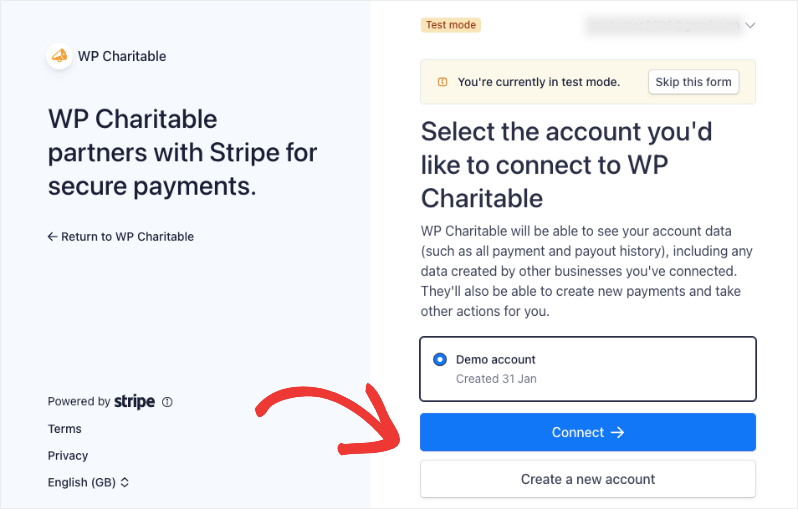
Connect Stripe account on Stripe page

Once you’re logged into your Stripe account, use the ‘Return to WP Charitable’ link on the left. This will take you back to your WordPress dashboard and you’ll see the Connection Status should either say ‘Connected in test mode’ or ‘Connected in live mode’ depending on which mode you chose earlier.
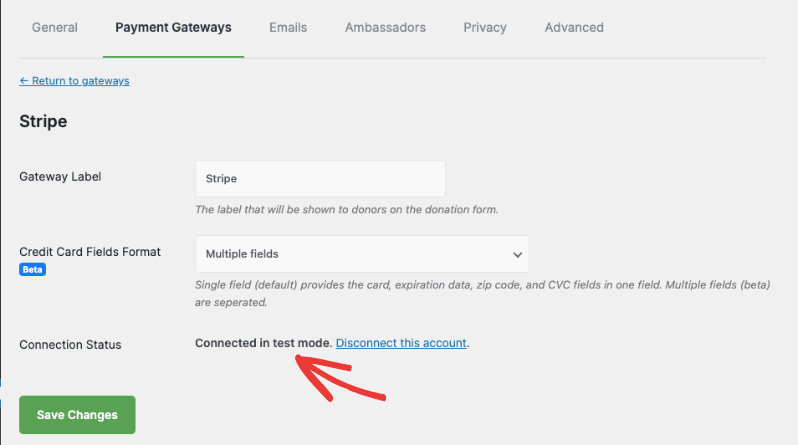
Stripe connected in test mode

Now you’re ready to add the Stripe donate button to your fundraiser and donation campaigns.

Step 3: Adding the Stripe Donate Button to Your Campaigns

Head over to Charitable » Campaigns page in your WordPress dashboard. Here, you can ‘Add a New Campaign’.
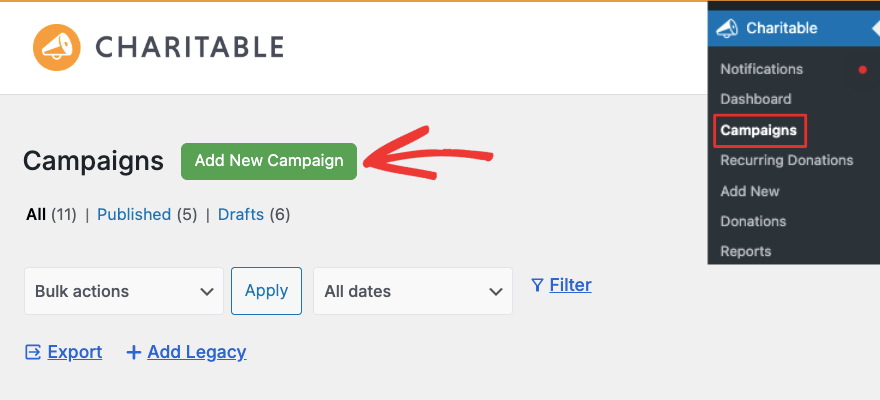
Add new campaign

This will open up the template library where you can give your campaign a name. Then you can browse through the templates available and choose the right one for your fundraiser. Keep in mind that all these templates are editable, so you can change just about anything you need.
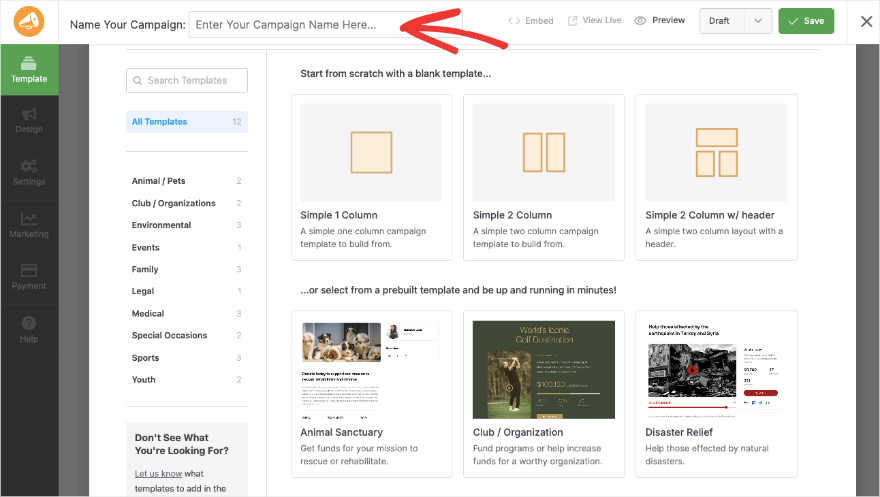
Template library

I’m going to choose the Disaster Relief template. This will open up the visual campaign builder where you can edit your campaign.

On the left, you’ll see a taskbar with fields you can drag and drop into your campaign. There are fields like photos, progress bar, social sharing, donation amounts, and more.

On the right is a visual preview of your campaign. You can directly edit this preview which makes it easy to see what your campaign will look like when it’s live on your site.
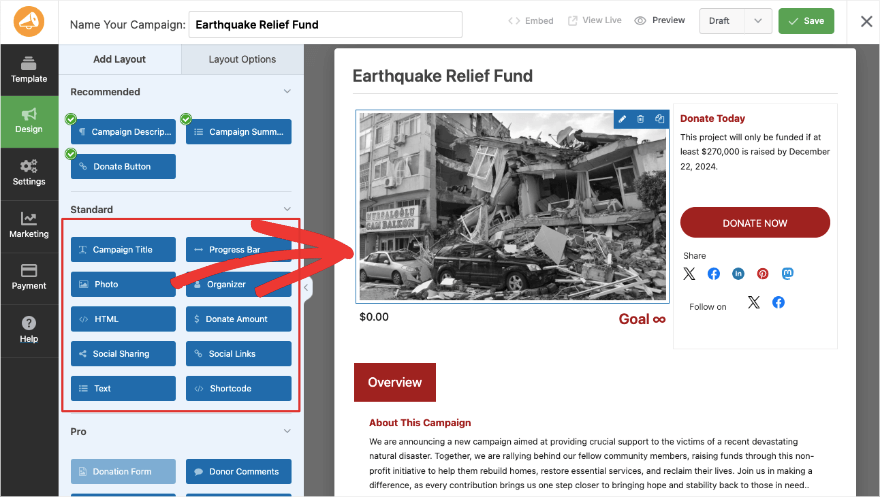
Charitable drag and drop visual builder

If you choose a field in the preview, editing options will open on the left. So for instance, select the ‘Donate Now’ button.

On the left, you can edit the text of the button, the alignment, and width.
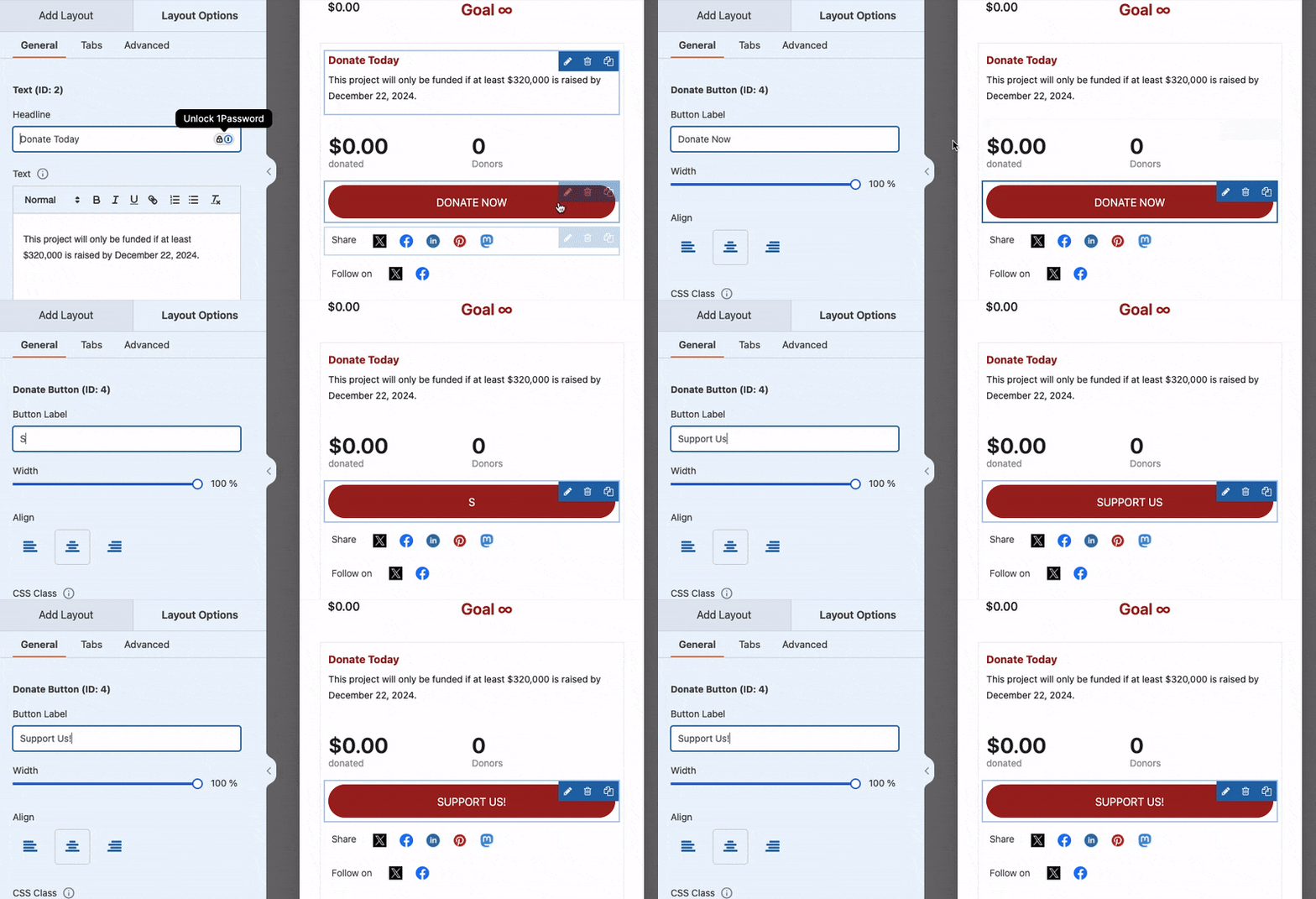
Edit donate button

If you switch from the General to the Advanced tab, you’ll get options to choose different button styles, sizes, colors, and more.
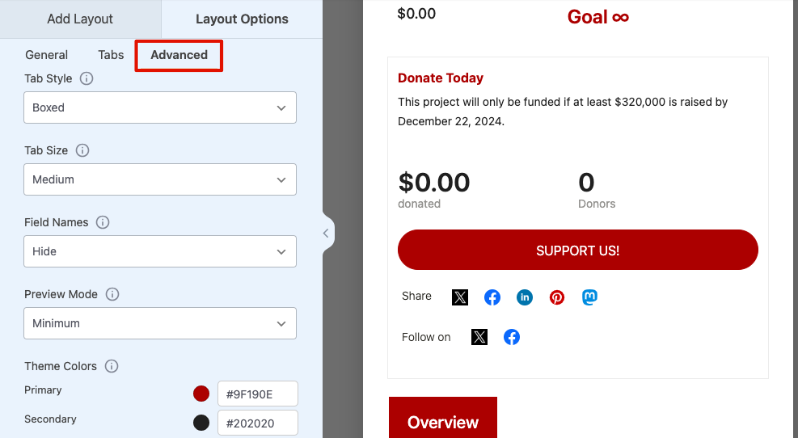
Donation button styles

Stripe is already integrated into Charitable, so the button here will automatically use the enable gateway which is Stripe.

At the top of this campaign builder, you can save and publish the campaign.
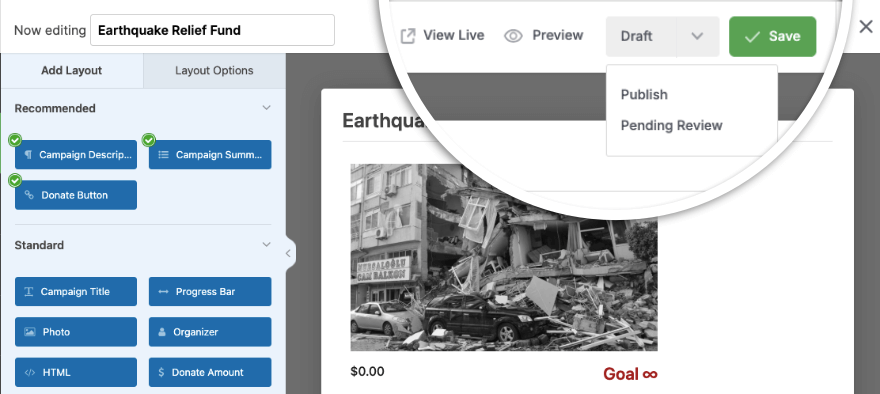
Save and publish campaign

To add this campaign to your WordPress site, open up a page or post. I’m using the WordPress block editor here.

You can add a new block, search for ‘Charitable’ and select the ‘Charitable Campaign’ block.

This will add a new block along with a dropdown menu from which you can choose the campaign you want to display.
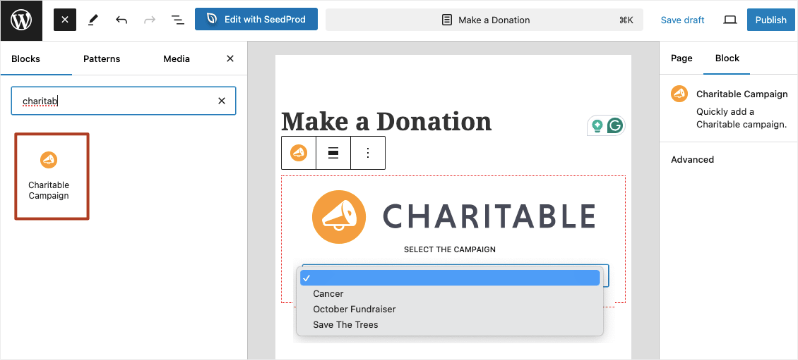
Add Charitable campaign to block editor

That’s it! You’ve added a Stripe Donation button in WordPress. When you visit this campaign on your site, you’ll see your stunning new button that’s powered by Stripe payments.

You can continue to build and launch more fundraisers for your cause.

Need more help creating fundraiser campaigns? Check out our step-by-step set up guide.

Once you launch fundraisers, Charitable has built-in reports to show you how your campaigns are performing, who are your top donors, real-time activity, and so much more. Learn more about Fundraising Reports you need »
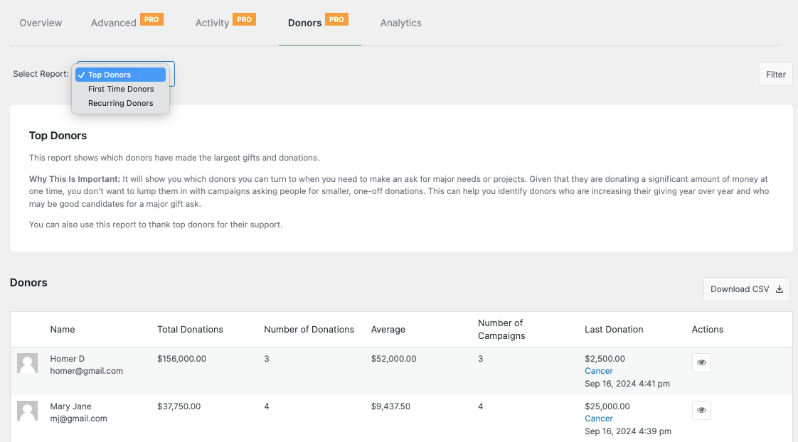
Top donors report

I hope you found this guide helpful. You may also want to see our other Payment Integrations available.


author avatar
Melinda Bartley
I’m the senior writer at Charitable, with over 15 years of experience in content creation, digital marketing, and SEO. Beyond my professional role, I’m the co-founder and trustee of a non-profit organization committed to animal rescue and welfare. Throughout my career, I’ve helped build 17+ blogs – many from the ground up, transforming them into successful marketing platforms that drive traffic, boost brand visibility, and generate revenue.

Disclosure: Our content is reader-supported. This means if you click on some of our links, then we may earn a commission. We only recommend products that we believe will add value to our readers.

Leave a Reply

Your email address will not be published. Required fields are marked *

Get free tips and resources right in your inbox, along with 60,000+ others

Join our Newsletter

We won’t spam you. We only send an email when we think it will genuinely help you. Unsubscribe at any time!

Featured Video:

Watch more videos on our YouTube channel.

What's New In Charitable

🔔 Subscribe to get our latest updates
📧 Subscribe to Emails

Email Subscription

Join our Newsletter

We won’t spam you. We only send an email when we think it will genuinely help you. Unsubscribe at any time!

Integration New

Add Image Galleries to Fundraising Campaigns With Envira Gallery

Showcase the impact of your mission like never before. We are excited to announce our brand-new integration with Envira Gallery, the best WordPress gallery plugin, designed to help you tell your story through powerful, high-performance visuals.

The Ultimate Storytelling Experience

A picture is worth a thousand words – and now, it’s worth even more for your fundraising. Connect your visual impact directly to your cause by creating stunning, responsive galleries that engage donors and drive contributions.

🖼️ Visual Impact: Easily create beautiful, fast-loading galleries to show your nonprofit’s work in action, from field reports to event highlights.

🔗 Seamless Connection: Link gallery images directly to your fundraising campaigns, making it effortless for inspired visitors to go from viewing a photo to making a donation.

📱 Perfectly Responsive: Whether your donors are on a phone, tablet, or desktop, your galleries will look professional and load lightning-fast, ensuring a smooth experience on every device.

author avatar
Melinda Bartley
I'm the senior writer at Charitable, with over 15 years of experience in content creation, digital marketing, and SEO. Beyond my professional role, I'm the co-founder and trustee of a non-profit organization committed to animal rescue and welfare. Throughout my career, I've helped build 17+ blogs - many from the ground up, transforming them into successful marketing platforms that drive traffic, boost brand visibility, and generate revenue.
Integration New

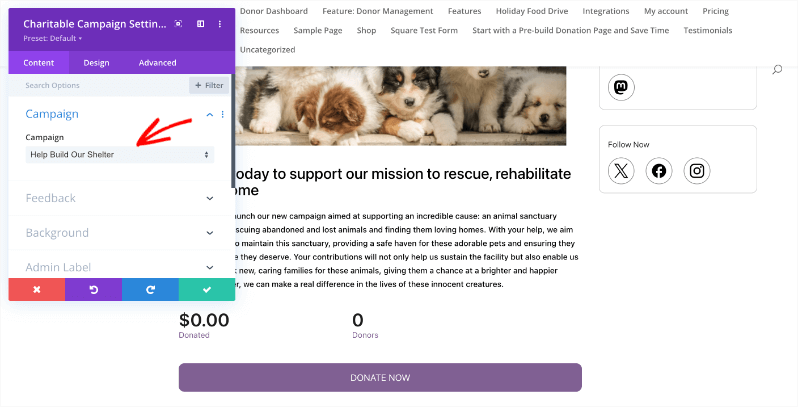
👉🏻 New Divi Integration In Charitable Pro

Bring the power of Charitable directly into your favorite page builder and maintain total creative control with our brand-new Divi integration.

The Ultimate Design Experience

No more switching back and forth or relying on complex shortcodes. Use dedicated Divi modules to build, style, and launch high-converting donation pages without ever leaving the Divi Builder.

⚡ Native Divi Modules: Effortlessly drag and drop your donation forms, progress bars, and campaign details exactly where you want them.

⚙️ Visual Customization: Tweak colors, fonts, and spacing using Divi’s familiar design settings to ensure your fundraiser matches your brand perfectly.

🚀 Live Visual Editing: See your changes in real-time. What you see in the builder is exactly what your donors will see, ensuring a seamless giving experience every time.

author avatar
Melinda Bartley
I'm the senior writer at Charitable, with over 15 years of experience in content creation, digital marketing, and SEO. Beyond my professional role, I'm the co-founder and trustee of a non-profit organization committed to animal rescue and welfare. Throughout my career, I've helped build 17+ blogs - many from the ground up, transforming them into successful marketing platforms that drive traffic, boost brand visibility, and generate revenue.
donation form New

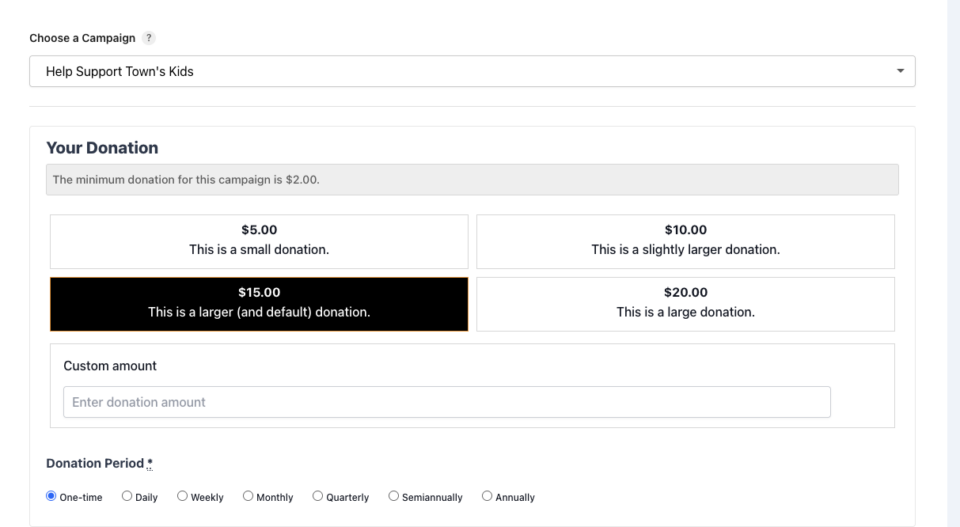
👉🏻 New Campaign Selector For Donation Forms

Take your campaign management to the next level. Find the perfect fundraiser for any page and stay in your creative flow with our new Campaign Selector integration.

The Ultimate Selection Tool

No more hunting for IDs or creating one page for every donation form. Use the new Campaign Selector to allow users to switch to a campaign with no code.

⚡ Instant Search: Quickly find any campaign leaving your page or post.

⚙️ Editor Agnostic: Whether you’re using the Block Editor, Elementor, or WPBakery, selecting your campaigns is now a unified experience.

🚀 Real-Time Previews: See exactly which campaign you’ve selected instantly, ensuring your donors always see the right cause.

author avatar
Melinda Bartley
I'm the senior writer at Charitable, with over 15 years of experience in content creation, digital marketing, and SEO. Beyond my professional role, I'm the co-founder and trustee of a non-profit organization committed to animal rescue and welfare. Throughout my career, I've helped build 17+ blogs - many from the ground up, transforming them into successful marketing platforms that drive traffic, boost brand visibility, and generate revenue.
Integration New

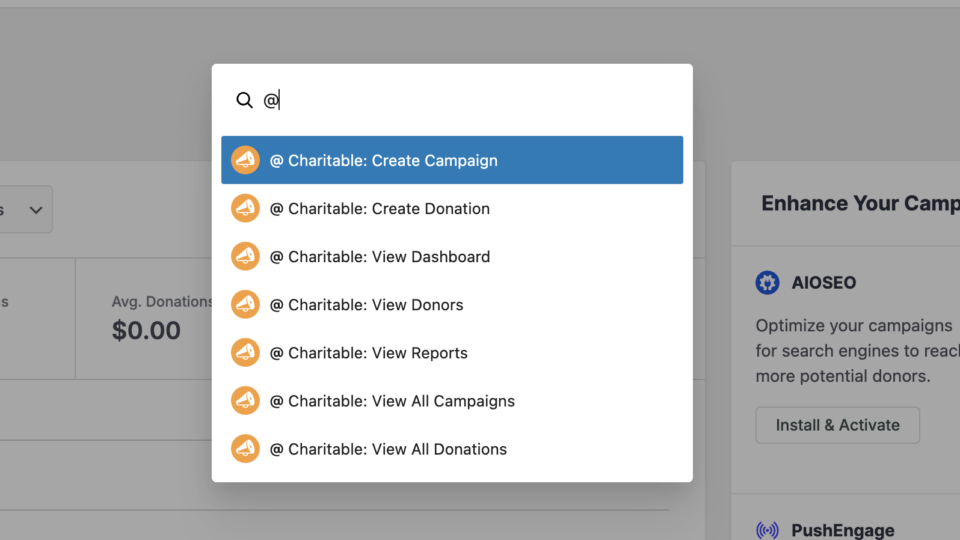
WordPress Command Palette Integration

Take your fundraising workflow to the next level. Speed up your site management and stay in your creative flow with our new WordPress Command Palette integration.

Supercharge Your Workflow
Navigate your fundraising dashboard faster than ever.

The Ultimate Keyboard Shortcut Hit Cmd + K (or Ctrl + K) to launch the Command Palette and manage your campaigns instantly.

⚡ Instant Navigation: Jump directly to your Campaigns, Donations, or Settings from anywhere in the editor.

➕ Quick Create: Start a new fundraising campaign or add a manual donation with a single command.

Efficiency Redefined
The tools you need, exactly when you need them.

⚙️ Contextual Actions: See relevant Charitable commands based on whether you’re editing a page or viewing your reports.

🚀 Seamless Integration: Built directly into the WordPress core experience for a lightweight, native feel.

author avatar
Melinda Bartley
I'm the senior writer at Charitable, with over 15 years of experience in content creation, digital marketing, and SEO. Beyond my professional role, I'm the co-founder and trustee of a non-profit organization committed to animal rescue and welfare. Throughout my career, I've helped build 17+ blogs - many from the ground up, transforming them into successful marketing platforms that drive traffic, boost brand visibility, and generate revenue.
Improvement New Security

📣 New Security Features

We’ve introduced a suite of new security tools to give you total control over who accesses your forms, plus a new way to tidy up your database.

Advanced Security Suite

Layered protection: Cloudflare, ReCAPTCHA, IP Controls, and Rate Limiting.

We have overhauled our security settings to stop bots without blocking real donors.

  • 🤖 Flexible Protection: Choose between Google reCAPTCHA v3 or the privacy-first Cloudflare Turnstile to block bots invisible.

  • 🚦 Rate limiting: Stop spam floods by limiting how many submissions an IP address can make in a set timeframe.

  • 🛑 Total control: Use the new IP Blacklist to block bad actors instantly, or the IP Whitelist to let your team bypass checks during testing.

The Clean Donation Tool

Go from “Testing” to “Live” in seconds.

Finished setting up your site and need to get rid of all those test transactions?

  • 🧹 Sweep it clean: Bulk delete test donations and donor records with a single click.

  • 📉 Accurate reporting: Ensure your revenue stats are 100% accurate for launch day.

  • ⚙️ Reset sequences: Automatically resets sequential invoice numbering.

author avatar
Melinda Bartley
I'm the senior writer at Charitable, with over 15 years of experience in content creation, digital marketing, and SEO. Beyond my professional role, I'm the co-founder and trustee of a non-profit organization committed to animal rescue and welfare. Throughout my career, I've helped build 17+ blogs - many from the ground up, transforming them into successful marketing platforms that drive traffic, boost brand visibility, and generate revenue.