
Charitable inclut une fonctionnalité de partage social intégrée qui permet à vos sympathisants de faire facilement passer le mot sur votre campagne et ses progrès.
Avant de commencer, assurez-vous d'avoir le plugin Charitable installé et activé sur votre site WordPress.
Suivez ce guide si vous ne l'avez pas encore fait : Comment installer Charitable »
La fonctionnalité de partage social est disponible sur Charitable Lite et Charitable Pro.
Dans ce guide
Étape 1 : Ajout du bloc de partage social
Tout d'abord, ouvrez Charitable dans votre tableau de bord WordPress et créez une campagne »
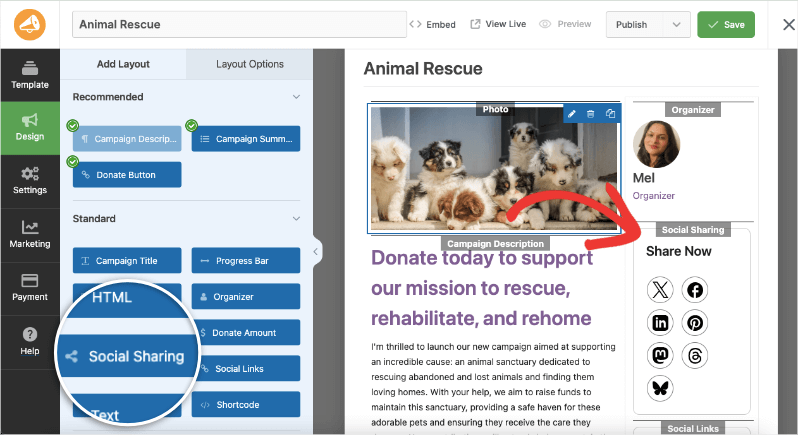
Dans le constructeur de campagne, vous verrez un aperçu de votre campagne à droite, ainsi qu'un menu de blocs à gauche.
Faites glisser le bloc de partage social dans la conception de votre campagne là où vous souhaitez qu'il apparaisse.
Étape 2 : Sélection des options de médias sociaux
Lorsque vous sélectionnez le bloc de partage social dans l'aperçu de votre campagne, un menu de paramètres s'ouvrira dans la barre des tâches de gauche. Ici, vous pouvez ajouter un titre pour ce bloc qui apparaîtra dans votre campagne.
Ci-dessous, vous pouvez activer/désactiver les options de médias sociaux en cochant les cases à côté du nom de la plateforme.
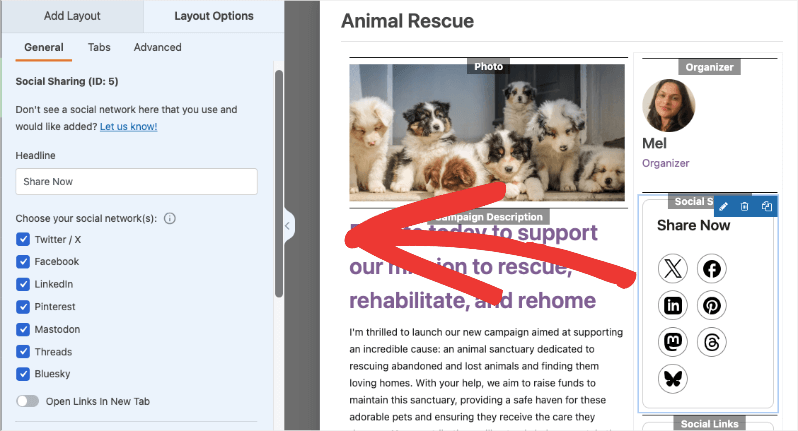
Vous pouvez également choisir d'ouvrir ces liens dans un nouvel onglet.
Les plateformes prises en charge incluent :
- X (Twitter)
- YouTube
- Threads
- Bluesky
- Mastodon
Seules les plateformes sociales que vous activez apparaîtront sur votre page de campagne.
Cliquez sur le bouton Enregistrer les modifications en haut à droite de votre écran. Visitez maintenant votre campagne et testez ces liens.
Lorsqu'un donateur clique sur le lien, il sera redirigé vers cette plateforme de médias sociaux et le lien de votre campagne y sera automatiquement ajouté.
Vous pourriez également vouloir lire notre guide pour installer les extensions Charitable.
FAQ sur le partage social
Qu'est-ce que la fonctionnalité de liens sociaux ?
La fonctionnalité de partage social vous permet d'ajouter facilement les liens de médias sociaux de votre organisation à vos pages de campagne de collecte de fonds. Les sympathisants peuvent rapidement trouver et suivre vos profils, vous aidant ainsi à bâtir une communauté en ligne plus forte.
Dois-je installer des plugins supplémentaires pour ajouter des liens sociaux ?
Non ! La fonctionnalité de partage social de Charitable fonctionne dès le départ. Aucun plugin supplémentaire requis.
Puis-je ajouter des liens sociaux à la campagne après sa publication ?
Oui ! Vous pouvez modifier vos campagnes à tout moment et activer/désactiver les liens de partage social. Les modifications sont enregistrées lorsque vous cliquez sur le bouton Enregistrer .
J’ai modifié les paramètres, mais ils ne s’affichent pas. Que dois-je faire ?
Cliquez toujours sur « Enregistrer les modifications » après avoir effectué des modifications. Si les modifications n’apparaissent toujours pas, essayez de vider le cache de votre site Web si vous utilisez un plugin de mise en cache.
Puis-je personnaliser l'apparence de mon bloc de partage social ?
Oui. Sélectionnez le bloc de partage social dans le constructeur de campagne. Ensuite, dans le menu des paramètres à gauche, ouvrez l'onglet Avancé. Ici, vous trouverez des options pour personnaliser la taille, la police, la couleur, et plus encore.
Quelle est la différence entre Charitable Lite et Pro ?
Charitable Lite est gratuit mais inclut des frais de transaction de 3 %. Les plans Pro éliminent ces frais et incluent des fonctionnalités avancées telles que les dons récurrents, la gestion des donateurs, la collecte de fonds pair-à-pair, et plus de passerelles de paiement.
Où puis-je obtenir de l'aide en cas de problème ?
- Utilisateurs gratuits : Utilisez les forums de support de WordPress.org
- Utilisateurs Pro : Contactez directement le support pour une assistance prioritaire
- Documentation : Consultez la bibliothèque complète de documentation
- Communauté : Rejoignez la newsletter et suivez les canaux sociaux pour des astuces et des mises à jour
Existe-t-il des tutoriels vidéo ?
Oui ! Abonnez-vous à la chaîne YouTube Charitable pour des tutoriels étape par étape et des histoires de réussite.
Vous avez besoin d'aide ? Vous avez une question ? Si vous êtes un utilisateur lite/gratuit de Charitable, vous pouvez contacter notre équipe sur les forums de support de WordPress.org. Si vous avez une licence active, n'hésitez pas à nous contacter directement pour un support prioritaire.


