Instalación
Instalar Embajadores de Caridad es lo mismo que instalar cualquier otra extensión de Caridad. Si no está seguro de cómo hacerlo, le recomendamos que primero lea nuestra guía para instalar extensiones de Caridad.
Configuración
Una vez que tenga Embajadores de Caridad instalado y activado, hay algunos pasos finales requeridos antes de que sus patrocinadores puedan comenzar a crear recaudaciones de fondos entre pares o campañas de crowdfunding en su sitio web.
Configuración de las páginas de Embajadores
Si previamente ha creado una página de Perfil en Caridad, utilizando el shortcode [charitable_profile], entonces Embajadores de Caridad configurará automáticamente un par de páginas para usted, relativas a la URL de su página de Perfil.
Suponiendo que tiene los permalinks bonitos activados, los encontrará aquí:
| Página | Propósito | Ubicación |
|---|---|---|
| Página de envío de campañas | Aquí es donde los Embajadores crean y envían una campaña. | https://www.yoursite.org/{profile page slug}/submit-campaign/ |
| Página Mis Campañas | Aquí es donde los Embajadores pueden ver sus campañas existentes. | https://www.yoursite.org/{profile page slug}/my-campaigns/ |
¿Prefiere tener un poco más de control sobre estas páginas? Siga leyendo para descubrir cómo puede crear sus propias páginas a continuación.
Opcional: Crear una página de envío de campañas personalizada
Crear una página de envío de campañas es bastante sencillo:
- Vaya a Páginas > Añadir nueva.
- Dé un nombre a su campaña y, en el área de contenido, añada este shortcode:
[charitable_submit_campaign]. - Publique su página.
- Vaya a Caridad > Ajustes > General.
- Para el ajuste "Página de envío de campañas", seleccione la página que acaba de crear.
- Haga clic en Guardar cambios.
Nota: Si previamente añadió la página generada automáticamente "Enviar una campaña" a su menú, necesitará actualizarla por la nueva. Simplemente edite su menú, eliminando la página antigua y añadiendo la nueva.
Opcional: Crear una página personalizada de Mis Campañas
Crear una página personalizada de Mis Campañas es el mismo proceso básico que se describe anteriormente para crear una página de envío de campañas:
- Vaya a Páginas > Añadir nueva.
- Dé un nombre a su campaña y, en el área de contenido, añada este shortcode:
[charitable_my_campaigns]. - Publique su página.
- Vaya a Caridad > Ajustes > General.
- Para el ajuste "Página Mis Campañas", seleccione la página que acaba de crear.
- Haga clic en Guardar cambios.
Nota: Si previamente añadió la página generada automáticamente "Mis Campañas" a su menú, necesitará actualizarla por la nueva. Simplemente edite su menú, eliminando la página antigua y añadiendo la nueva.
Añadir sus páginas de Embajadores a un menú
Para hacerlo, simplemente puede añadirlas a uno de sus menús de WordPress.
- Vaya a Apariencia > Menús en su panel de WordPress.
Nota: Si prefiere editar los menús mientras previsualiza los cambios en su sitio, vaya a Apariencia > Personalizar > Menús en su lugar. - Selecciona el menú donde deseas agregar los enlaces de la página.
- Desde el cuadro de elementos del menú, haz clic en Charitable.
Nota: Si no ves un cuadro “Charitable”, asegúrate de tener la última versión de Charitable y revisa las Opciones de pantalla para asegurarte de que la opción “Charitable” esté marcada allí. - Marca las páginas “Enviar una campaña” y “Mis campañas” y haz clic en Añadir al menú.
- Haz clic en Guardar menú.
Nota: Si lo estás haciendo en el Personalizador, no olvides hacer clic en Guardar y publicar cuando hayas terminado.
¡En este punto, tu sitio web está listo para que tus seguidores comiencen a crear campañas!
Configuración
Ahora que has configurado con éxito la capacidad para que tus seguidores creen campañas, te recomendamos que te familiarices un poco con las opciones disponibles con Embajadores de Charitable.
Si has seguido los pasos anteriores que muestran cómo crear páginas personalizadas de Mis campañas y Envío de campañas, ya habrás notado que puedes configurar algunos ajustes de página específicos para Embajadores a través de Charitable > Ajustes > General.
La mayoría de los demás ajustes están a un par de pestañas de distancia, accesibles a través de Charitable > Ajustes > Embajadores.
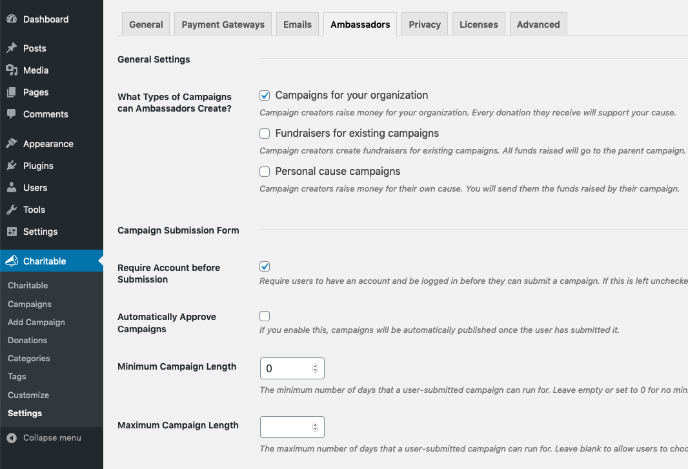
Ajustes generales
¿Qué tipos de campañas pueden crear los Embajadores?
Directamente, Charitable admite tres tipos diferentes de campañas:
| Tipo de campaña | Cómo funciona | Quién recibe los fondos |
|---|---|---|
| Campañas para tu organización | Una campaña que recauda dinero para tu organización. Se considera una campaña de nivel superior y, por lo general, no forma parte de una campaña de recaudación de fondos más grande. | Tu organización |
| Recaudadores de fondos para campañas existentes | Una campaña que recauda fondos para una campaña existente. Esto es genial si estás ejecutando una gran campaña de recaudación de fondos y quieres que la gente pueda crear páginas de recaudación de fondos para ella. | Tu organización |
| Campañas de causas personales | Una campaña que recauda dinero para la causa del creador. Esto es adecuado para sitios web de crowdfunding. Si eres una organización sin fines de lucro, probablemente querrás dejar esto desmarcado. | El creador de la campaña |
Ajustes del formulario de envío de campañas
Estos ajustes se aplican a todos los envíos de campañas, independientemente del tipo de campaña.
Requerir cuenta antes del envío
Elige si los creadores de campañas deben crear una cuenta antes de poder enviar una campaña, o después.
Ten en cuenta que en cualquier caso, eventualmente se les requerirá crear una cuenta.
Para un resumen más detallado de estas dos opciones, lee esto:
Aprobar campañas automáticamente
Cuando esta opción está habilitada, las campañas se marcan automáticamente como Publicar y pueden comenzar a recibir donaciones de inmediato.
Si prefieres aprobar las campañas manualmente, deja esta opción desactivada.
Duración Mínima de la Campaña
Elige la duración mínima de las campañas en el sitio web, en días. Si dejas este campo vacío o lo estableces en 0, no habrá una duración mínima para la campaña.
Duración Máxima de la Campaña
Elige cuánto tiempo pueden durar las campañas. Si deseas permitir que los creadores de campañas creen campañas de cualquier duración, deja este campo en blanco.
Configuración de Campos
Aquí puedes personalizar cómo funcionan los diferentes campos en el formulario de la campaña:
| Campo | Opciones |
|---|---|
| Fecha de Finalización | Elige si los creadores de campañas elegirán una fecha de finalización específica para su campaña o establecerán una duración en su lugar. |
| Categorías | Muestra el campo de categoría como una lista de casillas de verificación, un menú desplegable o desactívalo por completo. |
| Etiquetas | Muestra el campo de etiquetas como una lista de casillas de verificación, un menú desplegable o desactívalo por completo. |
| Opciones de donación | Elige si se permite a los creadores de campañas establecer importes de donación sugeridos para su campaña. |
| Donaciones recurrentes | Elige si los creadores de campañas pueden habilitar donaciones recurrentes para su campaña. Nota: esto solo se muestra si el campo Opciones de Donación está habilitado y tienes activo el plugin de Donaciones Recurrentes. |
Configuración de Causas Personales
Si no has habilitado la opción "Campañas de causas personales", no verás estas configuraciones.
¿Cómo Enviarás Dinero a los Embajadores?
Elige cómo enviarás dinero a los creadores de campañas cuando reciban donaciones.
Actualmente hay dos opciones principales, descritas a continuación.
| Opción | Tipo de Distribución | Descripción |
|---|---|---|
| PayPal | Manual | Transferirás manualmente los fondos a la cuenta de PayPal del creador de la campaña. |
| Stripe Connect | Automático | Cuando se realiza una donación, el dinero se envía automáticamente al creador de la campaña. Nota: Esta opción solo está disponible si tienes activado el plugin Stripe Connect. |
Para más información sobre cómo funciona Stripe Connect, lee su documentación:
Configuración de Marketing por Correo Electrónico
Si no tienes activa la extensión Newsletter Connect, no verás estas configuraciones.
Suscribir a los creadores de campañas a la lista de marketing por correo electrónico
Elige el modo de suscripción para los creadores de campañas. Las opciones incluyen:
- Desactivado – Los creadores de campañas no se añadirán a una lista de marketing por correo electrónico.
- Casilla de suscripción, no marcada por defecto
- Casilla de suscripción, marcada por defecto
- Suscripción automática – Los creadores de campañas se añadirán automáticamente a una lista de marketing por correo electrónico.
Lista de marketing por correo electrónico
Elige la lista a la que deseas que se añadan los creadores de campañas.
Configuración del informe de donaciones de creadores de campañas
Estas configuraciones se aplican a los informes de donaciones exportables que se pueden proporcionar a los creadores de campañas.
Permitir a los creadores de campañas exportar el historial de donaciones
Elige si los creadores de campañas podrán acceder a un informe CSV de todas las donaciones realizadas a su campaña.
Incluir detalles personales de los donantes
Si los creadores de campañas pueden acceder al informe, elige si podrán ver el nombre, correo electrónico, dirección y número de teléfono de los donantes no anónimos de sus campañas.
Las donaciones de donantes anónimos omitirán automáticamente esos campos.
Configuración de Campaña
Charitable Ambassadors añade algunos campos nuevos al editor de campañas en el administrador, dentro del cuadro meta de Configuración de la campaña.
En la columna izquierda del cuadro meta, verás varias pestañas nuevas:
Detalles de la presentación
Tipo de campaña
El tipo de campaña enviado por el usuario. Uno de:
- Campañas para tu organización
- Recaudadores de fondos para campañas existentes
- Campañas de causas personales
Campaña principal
La campaña principal de esta campaña. La campaña principal reflejará cualquier donación recibida por esta campaña.
Datos de la presentación
Todos los detalles proporcionados por el creador de la campaña al enviar su campaña.
Recaudación de fondos de persona a persona
Si no has activado la opción "Recaudadores para campañas existentes", no verás esta pestaña.
Permitir recaudadores peer to peer para esta campaña
Si se permiten recaudadores peer to peer (es decir, campañas secundarias) para esta campaña.
Tipos de recaudador admitidos
Elige si se permiten recaudadores de equipo e individuales, solo de equipo o solo individuales.
Mostrar miembros del equipo en las páginas del equipo
Elige si se muestran los miembros del equipo en las páginas del equipo.
Título de la recaudación de fondos
Elija si las recaudaciones de fondos pueden establecer su propio título o si se generará automáticamente un título basado en su nombre.
Fecha de finalización de la recaudación de fondos
Elija si las recaudaciones de fondos pueden establecer una fecha de finalización para su recaudación de fondos.
Si la campaña principal tiene una fecha de finalización, esta opción estará deshabilitada y todas las recaudaciones de fondos entre pares compartirán automáticamente la fecha de finalización de la campaña principal.
Objetivo de la recaudación de fondos
Elija si las recaudaciones de fondos pueden establecer un objetivo para su recaudación de fondos.
Objetivo predeterminado de la recaudación de fondos
Establezca un objetivo predeterminado para las recaudaciones de fondos entre pares. Deje en blanco para no tener un objetivo predeterminado.
Contenido de la recaudación de fondos
Elija si las recaudaciones de fondos pueden agregar su propio texto sobre la recaudación de fondos o si siempre se debe usar el contenido predeterminado de la recaudación de fondos.
Contenido predeterminado de la recaudación de fondos
El contenido predeterminado que se muestra en las páginas de recaudación de fondos entre pares.
Imagen destacada de la recaudación de fondos
Elija si las recaudaciones de fondos pueden cargar su propia imagen destacada o si siempre se debe usar la imagen predeterminada.
Imagen destacada predeterminada para las recaudaciones de fondos
Establezca una imagen destacada predeterminada para todas las páginas de recaudación de fondos entre pares.
Correos electrónicos
Los embajadores benéficos añaden bastantes correos electrónicos nuevos, que se pueden habilitar y personalizar opcionalmente para satisfacer sus necesidades.
| Correo electrónico | Destinatario | Cuándo se envía |
|---|---|---|
| Admin: Notificación de nueva campaña | Uno o más administradores | Cuando un Embajador ha enviado una nueva campaña. |
| Admin: Campaña enviada requiere acción | Uno o más administradores | Cuando se ha enviado una campaña pero el Embajador tiene que completar alguna acción del usuario. |
| Creador de campaña: Campaña enviada requiere acción | El creador de la campaña | Cuando el creador de la campaña ha enviado una campaña, pero tiene que completar alguna acción antes de que pueda ser procesada. |
| Creador de campaña: Campaña enviada | El creador de la campaña | Cuando el creador de la campaña ha enviado una nueva campaña. |
| Creador de campañas: Campaña aprobada | El creador de la campaña | Cuando la campaña del creador de campañas ha sido aprobada por un administrador del sitio. |
| Creador de campañas: Campaña finalizando | El creador de la campaña | Cuando la campaña del creador de campañas está finalizando en unos días. |
| Creador de campañas: Campaña finalizada | El creador de la campaña | Cuando la campaña del creador de campañas ha finalizado. |
| Creador de campañas: Notificación de donación | El creador de la campaña | Cuando la campaña del creador de campañas ha recibido una donación. |
| Miembro del equipo: Invitación para unirse al equipo | Miembro del equipo | Cuando alguien es invitado a unirse a un equipo. |
Códigos cortos
[charitable_submit_campaign]
El shortcode [charitable_submit_campaign] te permite mostrar un formulario de campaña en una página.
Para más información sobre sus argumentos opcionales, con ejemplos de uso, consulta la documentación del shortcode: Shortcode Enviar Campaña.
[charitable_my_campaigns]
El shortcode [charitable_my_campaigns] muestra las campañas del usuario conectado. No tiene parámetros.
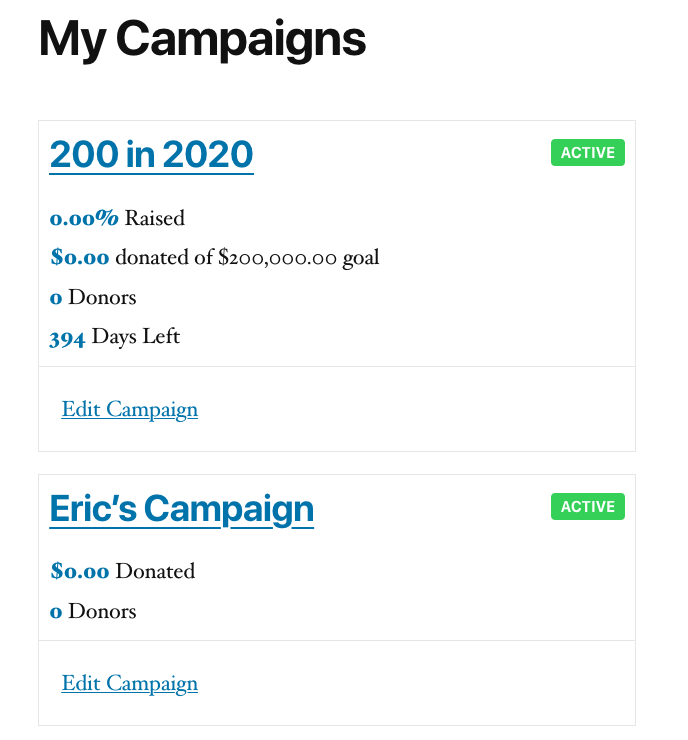
Uso
[charitable_my_campaigns][charitable_creator_donations]
El shortcode [charitable_creator_donations] te permite añadir una tabla que muestra las donaciones recibidas por el usuario conectado actualmente.
Uso
[charitable_creator_donations][charitable_fundraise_button]
El shortcode [charitable_fundraise_button] añade un enlace o botón en el que la gente puede hacer clic para ir al formulario de recaudación de fondos para una campaña en particular.
Consulta su documentación para más información sobre sus parámetros: Shortcode Botón de Recaudación.
[charitable_team_members]
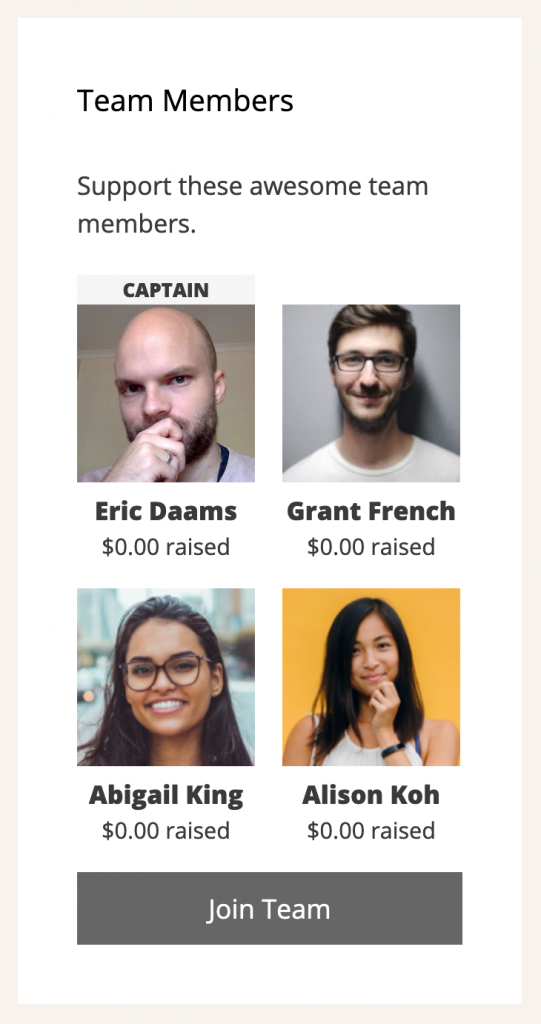
El shortcode [charitable_team_members] añade una cuadrícula que muestra los miembros de un equipo de recaudación de fondos en particular.
Descubre más: Shortcode Miembros del Equipo.
Widgets
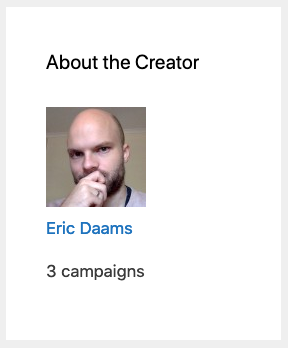
Widget Creador de Campañas
Muestra información sobre el creador de una campaña. Esto se puede configurar para que se muestre para la campaña que se está viendo actualmente, o para mostrar el creador de una campaña específica.
Widget Botón de Recaudación
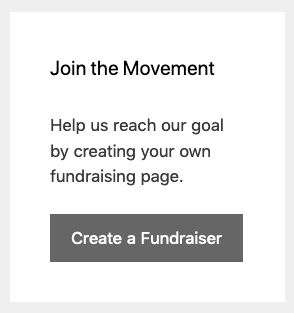
Muestra un botón para que la gente cree una recaudación de fondos para una campaña.
Puedes establecer un título para el widget, elegir la campaña, personalizar el texto del botón, añadir una descripción opcional y mostrar un enlace o un botón.
Widget de Miembros del Equipo
El widget Miembros del Equipo te permite mostrar todos los miembros del equipo actual, o de un equipo específico. Puedes establecer un título, personalizar el texto del botón, elegir en cuántas columnas mostrar a los miembros y añadir una descripción opcional.