
Instalar Charitable Stripe Connect es lo mismo que instalar cualquier otra extensión de Charitable. Si no estás seguro de cómo hacerlo, te recomendamos primero leer nuestra guía para instalar extensiones de Charitable.
También necesitarás instalar y activar Charitable Stripe, si aún no está activado.
Empezar
Registra tu plataforma en Stripe
Configuración de una nueva plataforma
El primer paso antes de poder empezar a usar Stripe Connect es crear tu plataforma.
- Inicia sesión en tu panel de Stripe.
- Haz clic en Configuración en la barra lateral izquierda.
- En la sección “Connect”, haz clic en Empezar.
- En la página siguiente, haz clic en el botón azul Empezar.
- Para el tipo de integración, selecciona “Plataforma o Marketplace” y haz clic en Continuar.
- En la página siguiente, haz clic en Completar el perfil de tu plataforma y sigue las instrucciones para completar la configuración.
Configura las redirecciones para tu plataforma
Una vez que hayas configurado tu plataforma, necesitas encontrar tu ID de cliente y configurar las redirecciones para tu plataforma.
- Haz clic en Configuración en la barra lateral izquierda.
- En la sección “Connect”, haz clic en Configuración.
- Desplázate hacia abajo hasta la sección “Integración”. La configuración de desarrollo y producción debe ser *exactamente* la misma que el valor que tienes para la configuración “URL de dirección del sitio” en WordPress (Configuración > General).
Configura otros ajustes de Charitable
Ahora tienes todo lo que necesitas para configurar tus ajustes de Stripe Connect en Charitable.
- En una nueva pestaña, abre tu panel de WordPress.
- Ve a Charitable > Configuración > Pasarelas de pago y haz clic en el botón Configuración de pasarelas. La primera sección de la configuración de Stripe son los ajustes normales que añade la extensión de Stripe (ver documentación). Desplázate hacia abajo hasta la sección Stripe Connect (en la imagen a continuación):
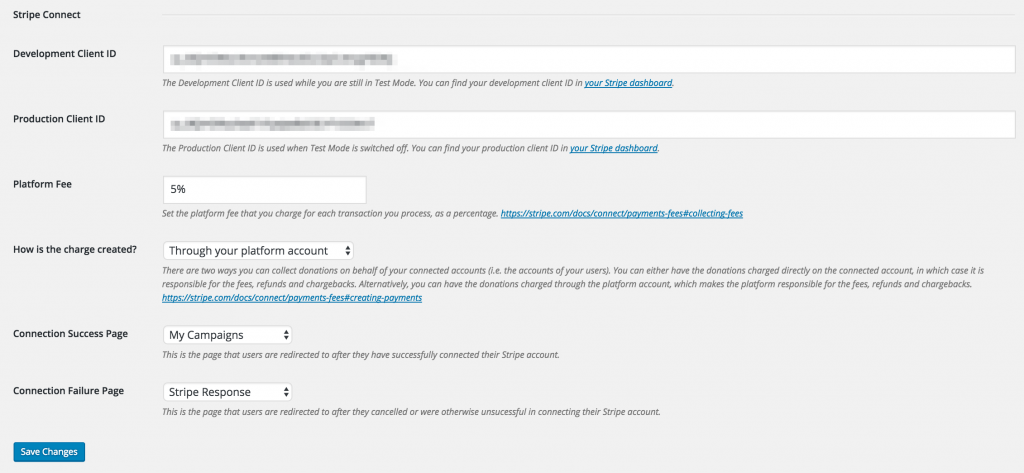
Encontrarás el ID de cliente de desarrollo y el ID de cliente de producción para tus plataformas de conexión de desarrollo y producción en la configuración de Stripe Connect en la misma página donde añadiste tus URL de redirección (ver arriba). Copia y pega la configuración “ID de cliente en modo en vivo” en la configuración “ID de cliente de producción” en Charitable. Encontrarás la configuración “ID de cliente en modo de prueba” en Stripe cambiando la configuración “Ver datos de prueba”.
La Tarifa de plataforma es una tarifa porcentual que cobra tu plataforma. Puedes establecerla en 0 para no cobrar ninguna tarifa.
Cómo se crea el cargo le permite elegir si las transacciones se realizan en la cuenta de la plataforma o si se realizan directamente en la cuenta del creador de la campaña. Esta es una configuración muy importante, ya que afecta quién es responsable de pagar las tarifas de Stripe, los reembolsos y las devoluciones de cargo. De la documentación de Stripe:
Directamente en la cuenta conectada: La cuenta conectada es responsable de las tarifas, los reembolsos y las devoluciones de cargo. El pago en sí aparecerá como un cargo en la cuenta conectada.
A través de la cuenta de su plataforma: Proporciona mucha más personalización, pero hace que la cuenta de la plataforma sea responsable de las tarifas, los reembolsos y las devoluciones de cargo. El pago aparece como un cargo en la cuenta de la plataforma, junto con una transferencia de la cuenta de la plataforma a la cuenta conectada.
Para obtener más información sobre cómo funcionan estos dos métodos de integración diferentes, consulte la documentación de Stripe para comprender cómo le afecta esto.
Finalmente, para las opciones de Página de éxito de la conexión y Página de fallo de la conexión, seleccione las dos páginas que creó anteriormente y guarde sus cambios.
Ejemplo: Entender la diferencia entre cargos directos y cargos de plataforma
Para comprender mejor la diferencia entre los cargos realizados directamente en la cuenta conectada y los realizados a través de la cuenta de la plataforma, considere un ejemplo.
Suponga que está cobrando una tarifa de plataforma del 2% y la campaña de un creador de campaña recibe una donación de $100.
Con cargos directos, la cuenta del creador de la campaña verá un pago de $100, con todos los detalles sobre el donante y la donación. Si hacen clic en el pago en Stripe, en Tarifa verán la tarifa total que incluirá tanto la tarifa de Stripe (aprox. $3.20) como la tarifa de su plataforma ($2). Por lo tanto, el monto neto que recibirán en su pago por ese pago es de $94.80. En la cuenta de Stripe de su plataforma, verá una tarifa de aplicación de $2 en el área del panel de Connect; no verá un registro de pago en Pagos (ya que el pago existe en la cuenta conectada). Por lo tanto, el desglose de quién obtiene qué:
- Plataforma – $2
- Creador de campaña – $94.80
Con cargos de plataforma, el creador de la campaña verá un pago de $100, pero obtendrá muy poca información sobre la donación real. Todo lo que realmente pueden ver es el monto de la donación y las tarifas totales deducidas, que en este escenario serán $2, solo la tarifa de la plataforma, no la tarifa de Stripe, ya que la plataforma la cubre. En la cuenta de Stripe de la plataforma, verá el registro de pago en Pagos, con la transferencia al creador de la campaña que se muestra en el área del panel de Connect. Desglose de quién obtiene qué:
- Plataforma – $-1.20 ($2 menos $3.20)
- Creador de campaña – $98
Las principales diferencias entre ambos son la cantidad de información que reciben ambas partes (quien gestiona el cargo recibe más información, básicamente) y cómo se divide el dinero. Obviamente, con esto último, existe el peligro de perder dinero en cada donación a menos que establezcas una comisión de plataforma que sea suficiente para cubrir los gastos.
Configuración de páginas de éxito y error
Puedes usar cualquier página para la configuración de "Página de éxito de la conexión" y "Página de fallo de la conexión". Para mostrar dinámicamente contenido en la página basándose en la respuesta que Stripe devuelve cuando un usuario regresa después de conectar su cuenta, usa el código corto [charitable_stripe_connect_response] en ambas páginas.
Consulta a continuación para más detalles sobre el código corto.
Habilita Stripe Connect para pagos automáticos
El siguiente paso es habilitar Stripe Connect como método para enviar dinero a los creadores de tu campaña. Ve a Charitable > Ajustes > Embajadores. Si aún no está habilitado, marca la casilla para permitir que los Embajadores recauden dinero para "Causas Personales". Luego, cambia la configuración "Cómo Enviarás Dinero a los Embajadores" a Stripe Connect y guarda tus cambios.
Con esta configuración, los creadores de campañas serán redirigidos automáticamente a Stripe después de enviar una campaña por primera vez, para que puedan conectar su cuenta.
Comprueba si un creador de campaña ha conectado Stripe
Cuando editas una campaña a través del panel de WordPress, puedes comprobar si el creador de la campaña ha conectado su cuenta de Stripe abriendo la pestaña “Destinatario de Fondos” . Cuando hayan conectado su cuenta, se mostrará su Token de Acceso y su ID de Usuario de Stripe.
Nota: Es importante recordar que si el creador de la campaña no ha conectado su cuenta de Stripe, no recibirá donaciones para su campaña automáticamente.
Códigos cortos
[charitable_stripe_connect_response]
El código corto [charitable_stripe_connect_response] se utiliza para mostrar un mensaje al usuario después de que haya intentado conectar su cuenta de Stripe. Mostrará un mensaje de éxito cuando haya conectado su cuenta correctamente y un error cuando no lo haya hecho. Hay tres parámetros disponibles:
error_header: El encabezado que se muestra antes del mensaje de error cuando la conexión falló o fue cancelada. Por defecto: “Algo salió mal al conectar tu cuenta de Stripe”.success: El mensaje que se muestra cuando la conexión tuvo éxito. Por defecto: “Tu cuenta de Stripe se ha conectado correctamente.”show_retry_link: Si se debe mostrar un enlace para intentarlo de nuevo después de una conexión fallida. Esto permite al usuario volver a Stripe e intentarlo de nuevo de inmediato.
[charitable_stripe_connect_status]
El código corto [charitable_stripe_connect_status] se utiliza para mostrar si el usuario ha conectado su cuenta de Stripe correctamente. Si no lo ha hecho, también incluirá un enlace/botón para permitir al usuario proceder a Stripe y conectar su cuenta. Hay cuatro parámetros disponibles:
button_text: El texto que se muestra en el enlace/botón a Stripe. Por defecto: “Conectar Ahora”.button_class: La clase que se aplicará al enlace/botón. Vacío por defecto.connected: El mensaje que se mostrará cuando el usuario haya conectado Stripe. Por defecto: “Tu cuenta de Stripe se ha conectado correctamente.”not_connected: El mensaje que se mostrará cuando el usuario no haya conectado Stripe. Por defecto: “Aún no has conectado tu cuenta de Stripe.”
[charitable_profile]
Además de los dos códigos cortos anteriores, Charitable Stripe Connect añade automáticamente un nuevo campo al código corto [charitable_profile] que muestra si el usuario ha conectado su cuenta de Stripe.


