
Charitable viene con Stripe Payments integrado en la plataforma. No necesitas usar claves API ni configurar webhooks manualmente. Simplemente inicia sesión en tu cuenta de Stripe para completar la conexión.
Nota: Antes de empezar, asegúrate de instalar Charitable en tu sitio de WordPress. Dado que Stripe está integrado en Charitable, no necesitas instalar ningún complemento o extensión para la funcionalidad básica de Stripe.
Aquí tienes una tabla de contenido para ayudarte a navegar fácilmente:
- Habilitar la pasarela de pago de Stripe
- Conectar tu cuenta de Stripe
- Configuración de Stripe dentro de tu campaña
Habilitar la pasarela de pago de Stripe
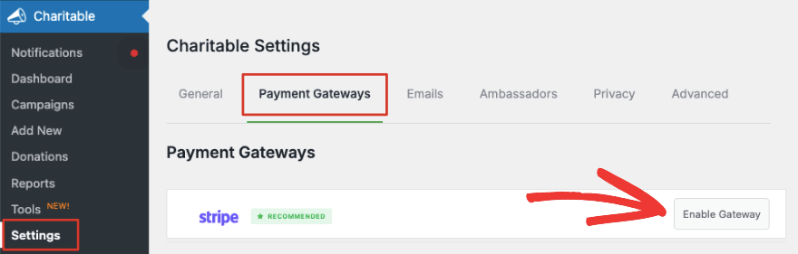
En el panel de administración de WordPress, navega a la pestaña Charitable » Configuración » Pasarelas de Pago. Verás la pestaña de Stripe junto con una opción para 'Habilitar Pasarela'.
Antes de habilitar esto, también verás una opción para activar el 'Modo de Prueba' debajo de la lista de pasarelas. Recomendamos usar el Modo de Prueba al habilitar una nueva pasarela para asegurarte de que has configurado todo correctamente antes de lanzar tu sitio.
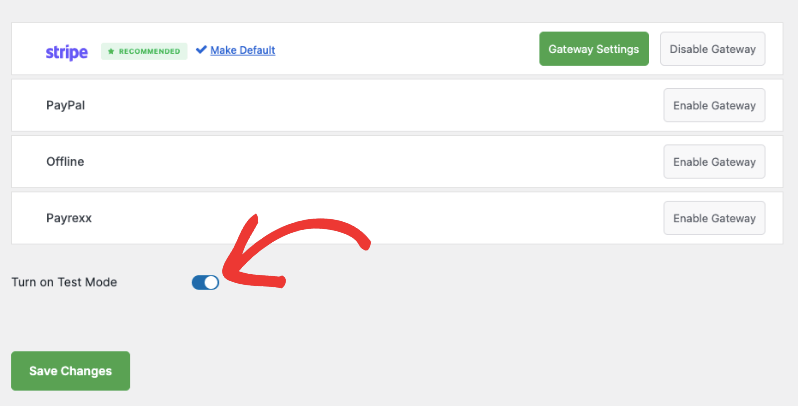
Asegúrate de hacer clic en el botón 'Guardar Cambios' para activar el modo de prueba.
Ahora puedes hacer clic en el botón 'Habilitar Pasarela' junto a Stripe y serás llevado automáticamente a la página de Configuración de Stripe.
Nota: Cuando habilitas una pasarela, aparecerá un botón verde de 'Configuración de Pasarela'. Puedes usarlo para acceder a la página de Configuración por tu cuenta siempre que lo necesites.
Conectar tu cuenta de Stripe
En la siguiente p ilde{}^{a}gina, puedes a ounicolas>adir una etiqueta para esta pasarela. Ya est ilde{a} rellenada con ounicolas>Stripe por ti, pero puedes cambiarla si lo necesitas.
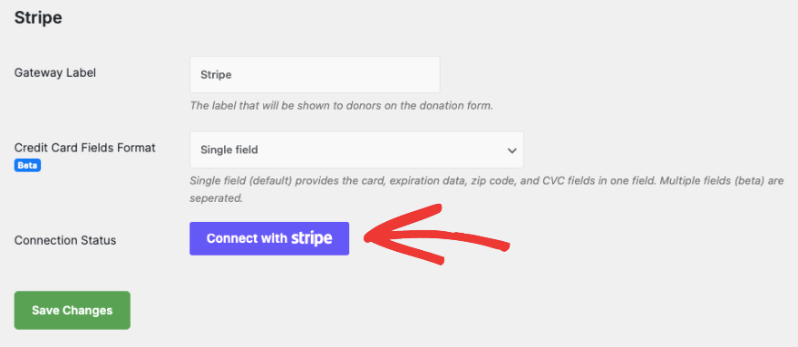
Nota: Hay una comisión del 3% por cada transacción además de los cargos de Stripe si estás usando Charitable Lite. Para eliminar el cargo adicional del 3%, necesitarás actualizar a Charitable Pro.
Debajo de esto, ver ilde{as} el formato de los campos de tarjeta de cr ilde{}^{e}dito. Esto te permite decidir c ilde{}^{o}mo quieres que los clientes introduzcan la informaci ilde{}^{o}n de su tarjeta de cr ilde{^{e}}dito. Hay 2 opciones aqu ilde{^{i}}:
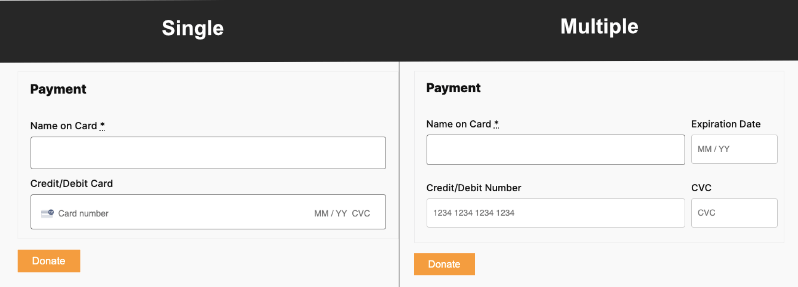
- Campo ounicolas>único solicita el n ounicolas>umero de la tarjeta, la fecha de caducidad, el c ounicolas>odigo postal y los campos CVC en un solo campo.
- Campos m ounicolas>últiples crea un campo separado para cada elemento.
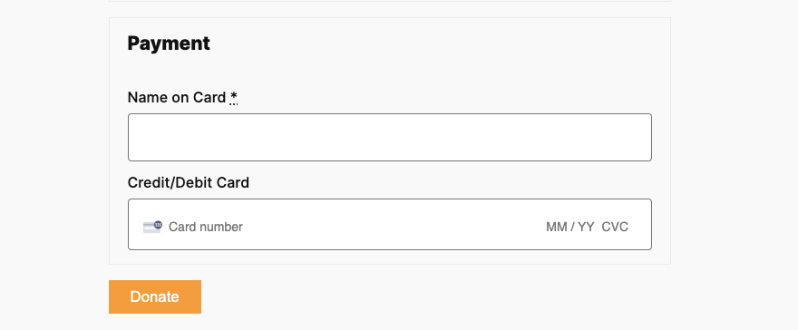
As ilde{^{i}} es como se ver ilde{^{a}} en el front-end:
Después de elegir el formato de Campos de Tarjeta de Crédito, haz clic en el botón 'Conectar con Stripe'.
Esto te llevar ilde{a} a la p ilde{a}gina de Stripe donde puedes iniciar sesi ilde{}^{o}n en tu cuenta. Si no tienes una cuenta, puedes introducir tu direcci ilde{}^{o}n de correo electr ounicolas>nico y podr ilde{as} registrarte para obtener una cuenta de Stripe.
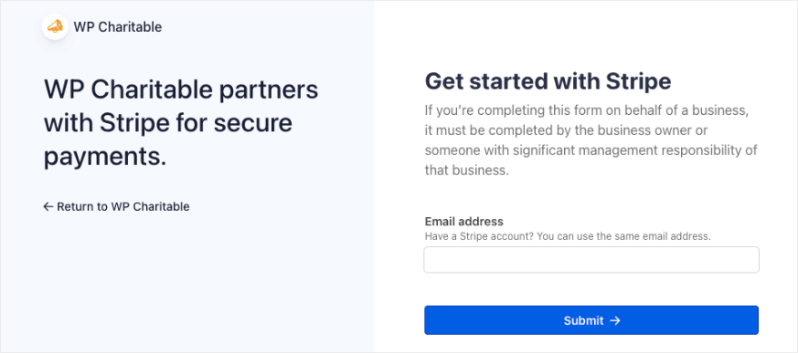
Una vez que hayas iniciado sesi ilde{}^{o}n en tu cuenta de Stripe, usa el enlace ounicolas>Volver a WP Charitable a la izquierda. Esto te llevar ilde{a} de vuelta a tu panel de WordPress y ver ilde{as} que el estado de la conexi ounicolas>n deber ilde{a} decir ounicolas>Conectado en modo de prueba o ounicolas>Conectado en modo en vivo, dependiendo del modo que hayas elegido anteriormente.
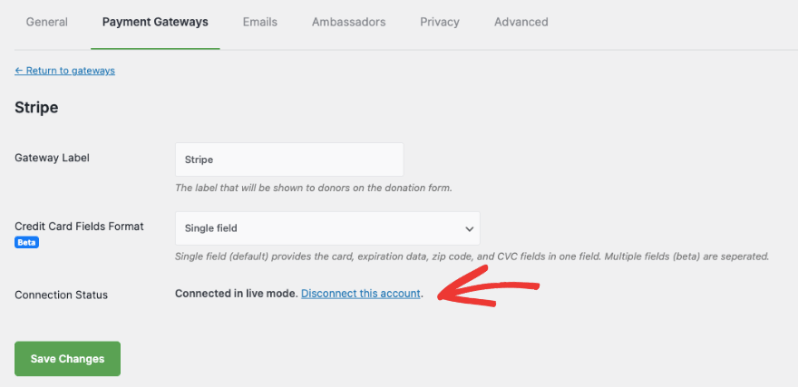
Si alguna vez necesitas eliminar esta cuenta de Stripe, puedes usar el enlace 'Desconectar esta cuenta' aquí.
Ahora estás listo para empezar a aceptar donaciones usando la pasarela de pago de Stripe.
Configuración de Stripe dentro de tu campaña
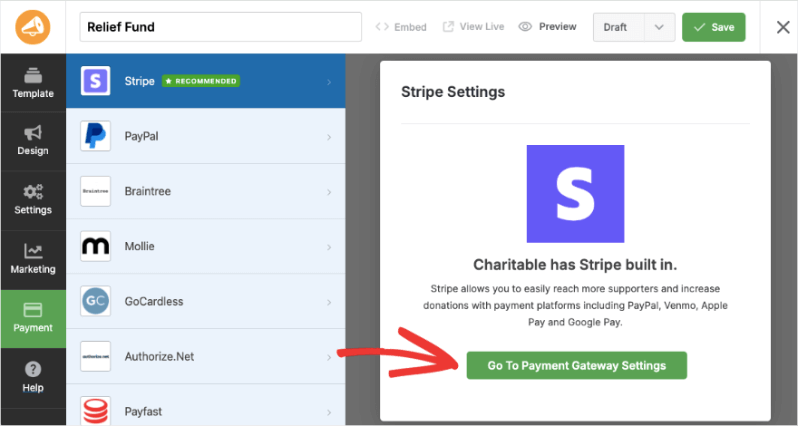
Cuando creas una campaña de recaudación de fondos con Charitable, en la pestaña Pago del menú izquierdo, verás que Stripe está habilitado. Si necesitas ajustar la configuración, hay un botón de acceso fácil aquí que te lleva directamente a la página de Configuración de la Pasarela de Pago.
Cuando publiques tu campaña, dependiendo de las opciones de pago que hayas habilitado con Stripe, aparecerán en tu formulario de donación así:
Eso es todo. Estás listo para crear tus campañas de recaudación de fondos y aceptar donaciones a través de Stripe. Aquí tienes la guía sobre Cómo Crear una Campaña de Recaudación de Fondos.
¿Buscas configurar otras opciones de pago? Dirígete a nuestra página de documentación para Configurar Pasarelas de Pago.
Preguntas frecuentes
¿Tienes alguna pregunta sobre el uso de Stripe en Charitable? Consulta la lista a continuación para ver nuestras preguntas más frecuentes. Si tu pregunta no aparece aquí, por favor contáctanos.
¿Almacena Charitable los números de tarjeta de crédito?
No. Charitable no almacena números de tarjeta de crédito ni información de facturación sensible similar.
¿Puedo cambiar el aspecto de los campos de tarjeta de crédito de Stripe?
Puedes alterar la apariencia a través de CSS personalizado. Charitable también ofrece para Stripe un "nombre/CC" (estándar) y una opción de formulario múltiple (cuatro campos para introducir la información de la tarjeta de crédito de Stripe).
¿Qué comisiones están asociadas al uso de Stripe en Charitable?
Stripe tiene un cargo por transacción que varía según el país. Consulte los precios de Stripe para obtener más detalles.
Si está utilizando Charitable con una licencia válida (consulte nuestra página de precios), no hay comisiones ni cargos adicionales más allá de los de Stripe.
Además de los precios de Stripe, Charitable cobra una comisión adicional del 3% por transacción. Esta comisión se anula si está utilizando Charitable con una licencia activa.
¿Es compatible Charitable con las donaciones recurrentes con Stripe?
Sí, Más información sobre nuestro complemento de donaciones recurrentes.


