Charitable Documentation

Learn how to make the most of Charitable with clear, step-by-step instructions.

An Introduction To Setting Up A Team In Ambassadors

When Ambassadors is setup to allow campaign creators to create fundraisers for existing campaigns, this opens up the possibility for campaign creators to create or join teams. Teams let your supporters fundraise together.

Before Starting – Enable Your Emails

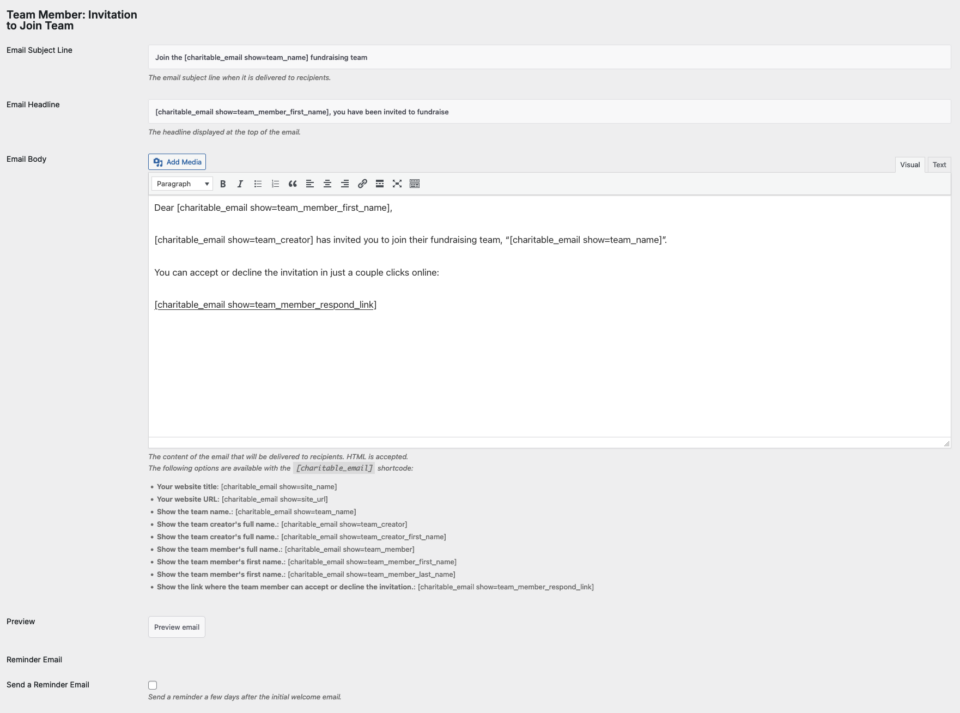
Before testing or allowing people to create peer-to-peer campaigns (and teams) it’s important to make sure the emails you want to send are enabled in Charitable’s email settings. This likely includes the email that sends out the team emails to those invited by team captains:

You can customize messages in these invites, and even setup reminder emails.
The First Step
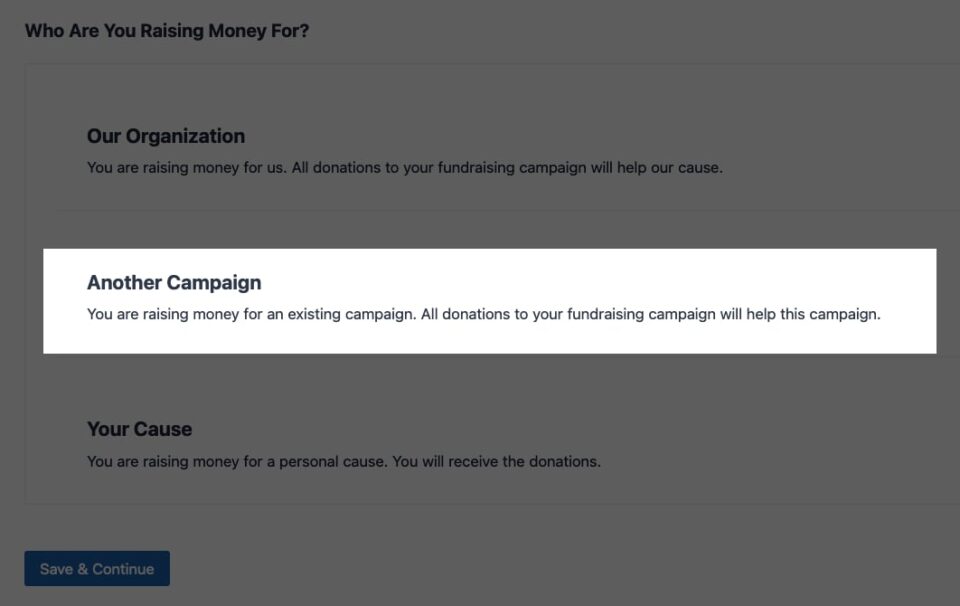
Charitable Ambassadors has full support for fundraising teams. When setting up their fundraiser, your campaign creators can choose whether they would like to fundraiser on their own, join a team (if one already exists), or start a new team.
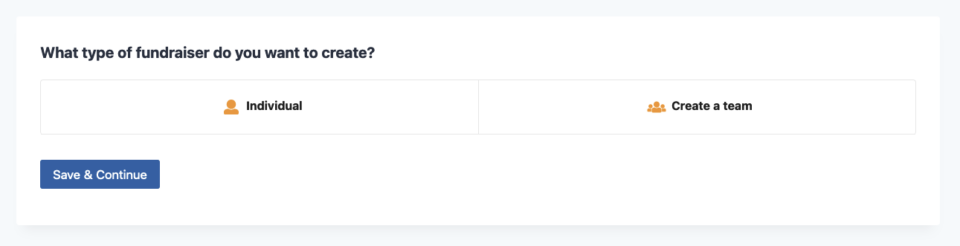
A campaign creator having the choice of creating a team to raise money for another campaign

Creating A Team

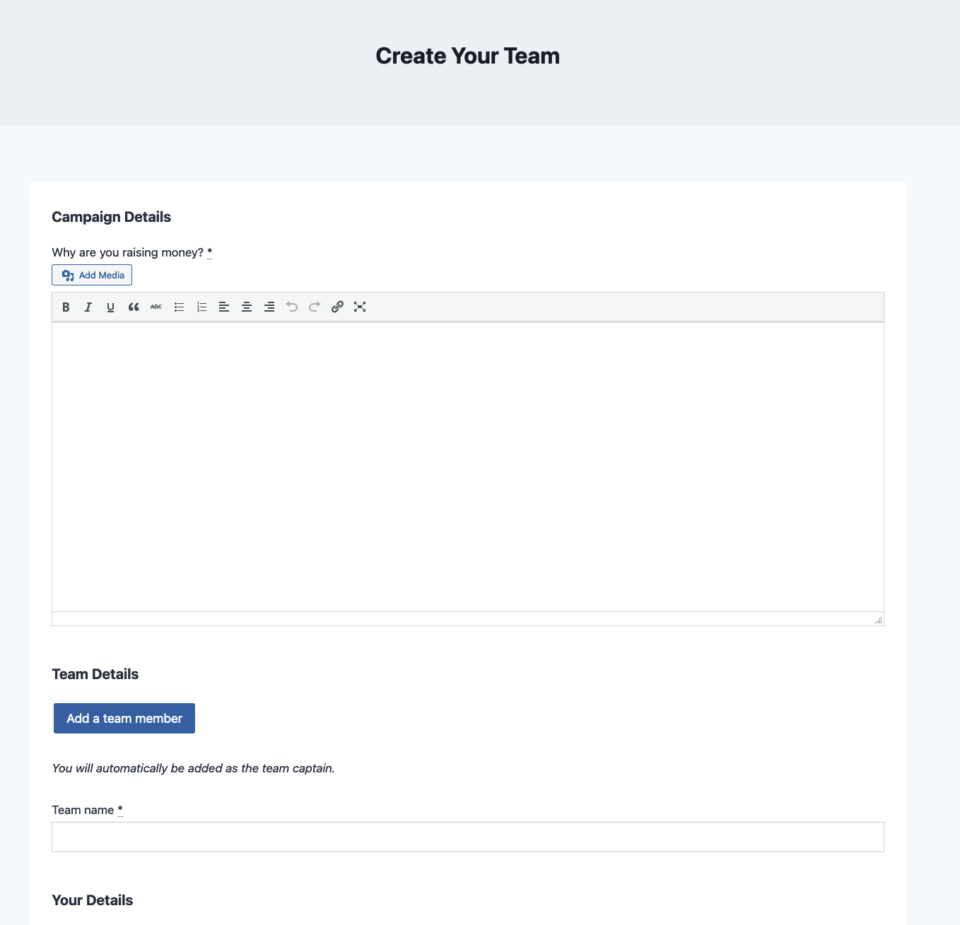
When campaign creators create a team, they are presented with a screen that allows them to provide, among other things:

  • A reason why they are raising the money.
  • The name of the team.
  • Personal information of the person who is submitting.

The individual creating the team will automatically be added as the team captain. The team captain has the ability on this screen to also add additional team members (providing an email address, first name, and last name). There is no limit of the number of team members that can be added on this screen.

Once the creator (team leader) has filled out the form on the screen, they have option to save and preview or go straight to submission. When you preview, you have the option of editing the fundraiser or submitting it. Note that if you added when you preview a fundraiser, team members might not appear in this preview.

Accepting An Invite

Team members who got the invite email (which you setup at the start) should see a message similar to this, which allows them to join the team or decline the request.

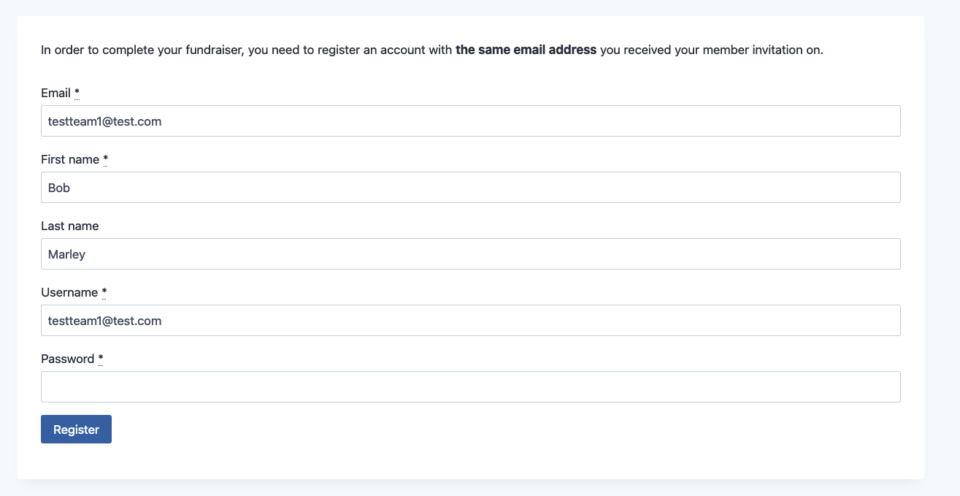
Joining the team requires the user to fill out some basic information including their email, name, and password (they are in fact registering for an account with your WordPress site).
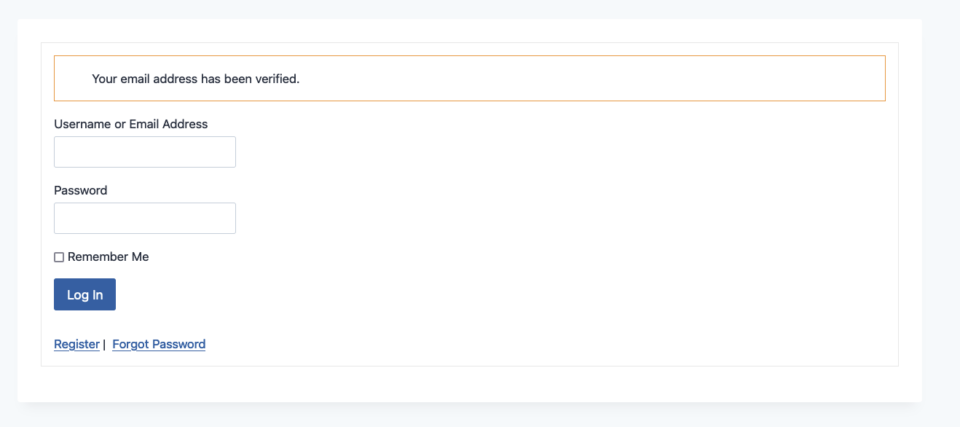
Once this the form is filled out, it’s likely the user will have to confirm the submission by responding to an email sent to them. Once they click on the link in that email and then they should be redirected in their browser to the website with a “your email address has been verified” message and (for security reasons) instructed to login with their username and password.

Team members can view their own campaigns when logged in (depending on Charitable settings from the admin, the team member might see campaigns pending until they are approved).
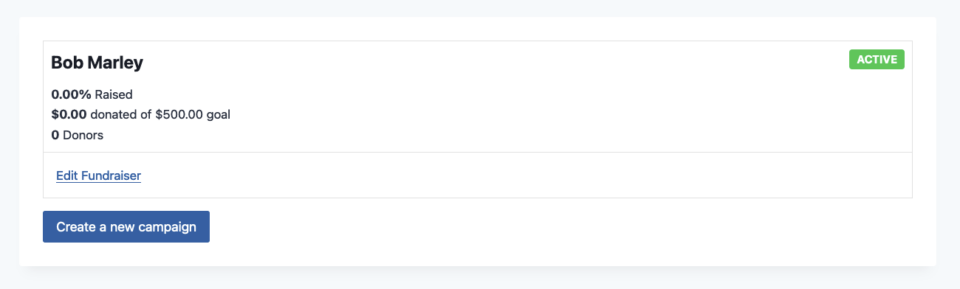
Team Member Campaigns And Team Campaigns
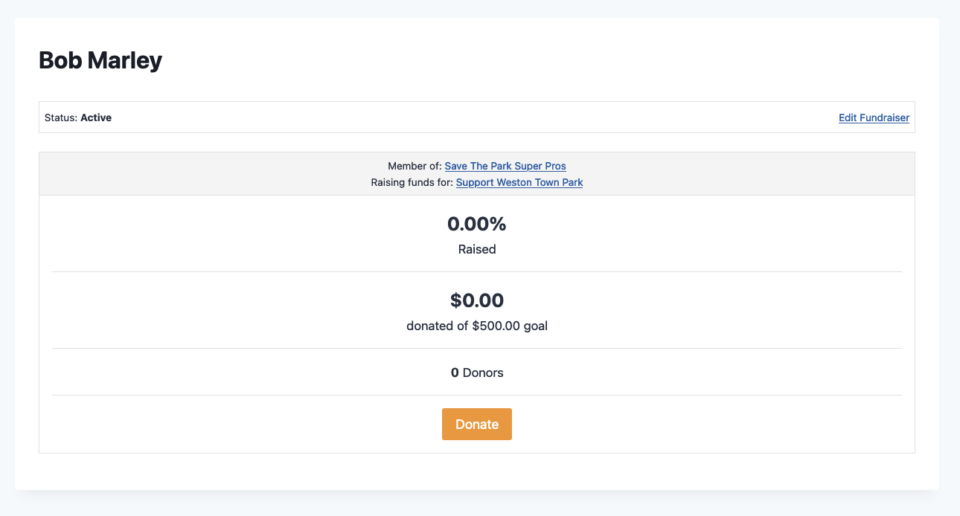
A simple view of a team members campaign page

Every team member has their own campaign – this allows the team member to perform their own marketing and donation gathering toward the goal of adding to raising money for the team. Their campaign page shows what team they are a member of and ultimately who they are raising funds for.

So suppose Bob in the above example got a $100 donation to their personal campaign from a donor (Tom):
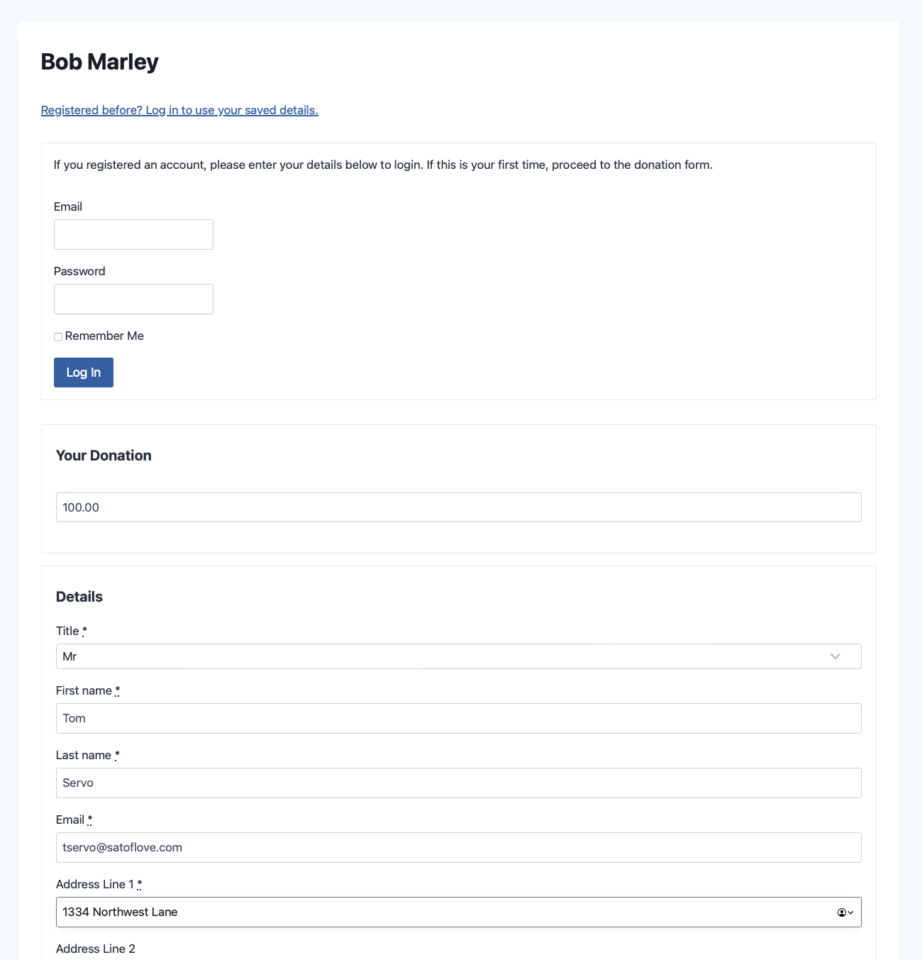
A donor Tom is giving $100 to Bob Marley a team member of Save The Park Super Pros team In this example the user isnt registering

Tom gets a receipt on this screen… and Bob gets $100 in his campaign, which is added to the team’s total.
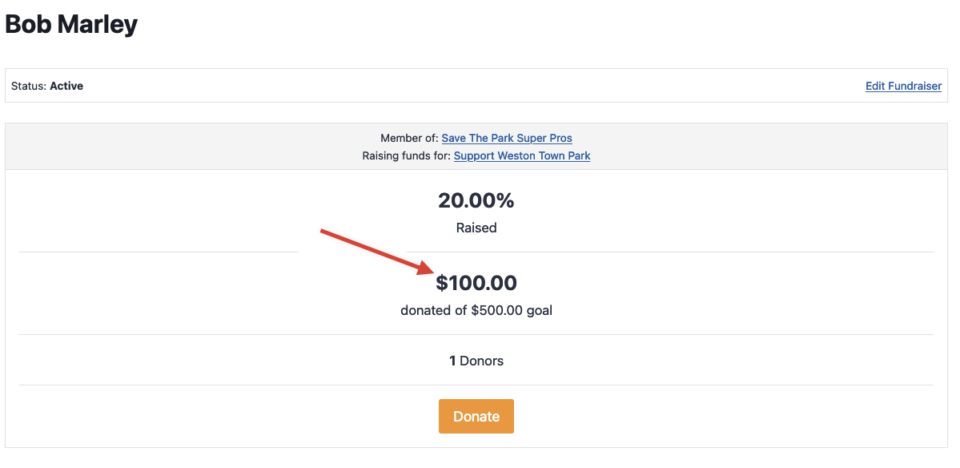
Upon getting the $100 from Tom Bobs donation total is increased

Team Page

The team page shows the active campaign total (in this example this includes Tom’s $100 donation to Bob). Also notice the team members are listed on this page. The team also has a chance to promote this page to recruit additional team members.
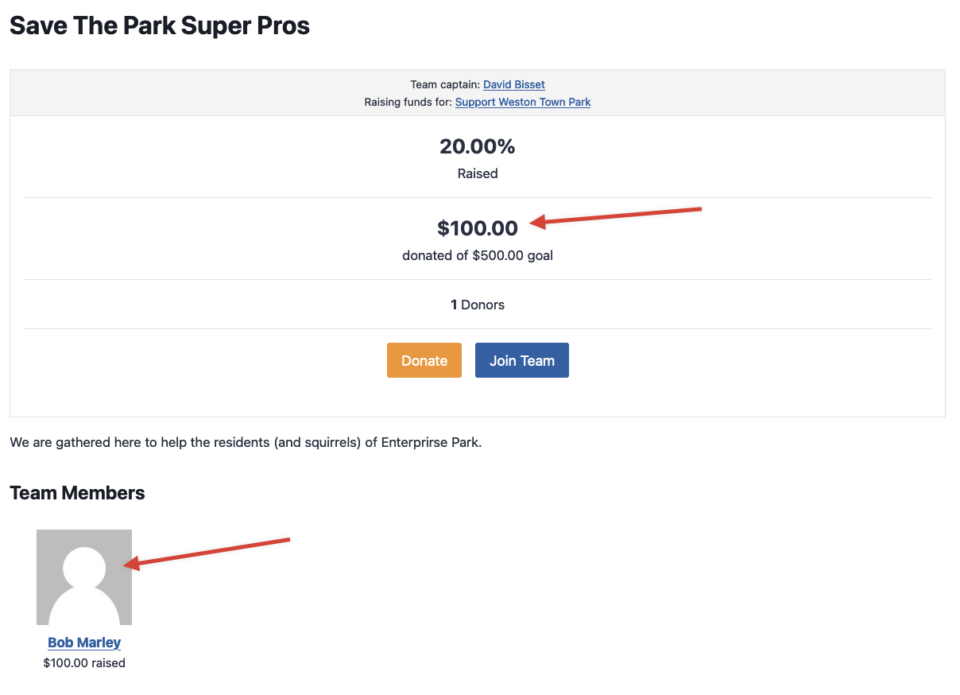
Screenshot of a simple version of a team campaign form Notice the $100 donation from Tom to Bob and the mention of Bob as a team member with the amount Bob has raised

Team Shortcodes

Charitable offers a [charitable_team_members] shortcode adds a grid showing a particular fundraising team’s members.

Conclusion

We hope this explains how teams and team members are created and work to raise funds for existing campaigns. Let us know if you have questions or if you want to see something covered in more detail in our documentation.

Still have questions? We’re here to help!

Last Modified:

What's New In Charitable

🔔 Subscribe to get our latest updates
📧 Subscribe to Emails

Email Subscription

Join our Newsletter

We won’t spam you. We only send an email when we think it will genuinely help you. Unsubscribe at any time!

Integration New

Add Image Galleries to Fundraising Campaigns With Envira Gallery

Showcase the impact of your mission like never before. We are excited to announce our brand-new integration with Envira Gallery, the best WordPress gallery plugin, designed to help you tell your story through powerful, high-performance visuals.

The Ultimate Storytelling Experience

A picture is worth a thousand words – and now, it’s worth even more for your fundraising. Connect your visual impact directly to your cause by creating stunning, responsive galleries that engage donors and drive contributions.

🖼️ Visual Impact: Easily create beautiful, fast-loading galleries to show your nonprofit’s work in action, from field reports to event highlights.

🔗 Seamless Connection: Link gallery images directly to your fundraising campaigns, making it effortless for inspired visitors to go from viewing a photo to making a donation.

📱 Perfectly Responsive: Whether your donors are on a phone, tablet, or desktop, your galleries will look professional and load lightning-fast, ensuring a smooth experience on every device.

Integration New

👉🏻 New Divi Integration In Charitable Pro

Bring the power of Charitable directly into your favorite page builder and maintain total creative control with our brand-new Divi integration.

The Ultimate Design Experience

No more switching back and forth or relying on complex shortcodes. Use dedicated Divi modules to build, style, and launch high-converting donation pages without ever leaving the Divi Builder.

⚡ Native Divi Modules: Effortlessly drag and drop your donation forms, progress bars, and campaign details exactly where you want them.

⚙️ Visual Customization: Tweak colors, fonts, and spacing using Divi’s familiar design settings to ensure your fundraiser matches your brand perfectly.

🚀 Live Visual Editing: See your changes in real-time. What you see in the builder is exactly what your donors will see, ensuring a seamless giving experience every time.

donation form New

👉🏻 New Campaign Selector For Donation Forms

Take your campaign management to the next level. Find the perfect fundraiser for any page and stay in your creative flow with our new Campaign Selector integration.

The Ultimate Selection Tool

No more hunting for IDs or creating one page for every donation form. Use the new Campaign Selector to allow users to switch to a campaign with no code.

⚡ Instant Search: Quickly find any campaign leaving your page or post.

⚙️ Editor Agnostic: Whether you’re using the Block Editor, Elementor, or WPBakery, selecting your campaigns is now a unified experience.

🚀 Real-Time Previews: See exactly which campaign you’ve selected instantly, ensuring your donors always see the right cause.

Integration New

WordPress Command Palette Integration

Take your fundraising workflow to the next level. Speed up your site management and stay in your creative flow with our new WordPress Command Palette integration.

Supercharge Your Workflow
Navigate your fundraising dashboard faster than ever.

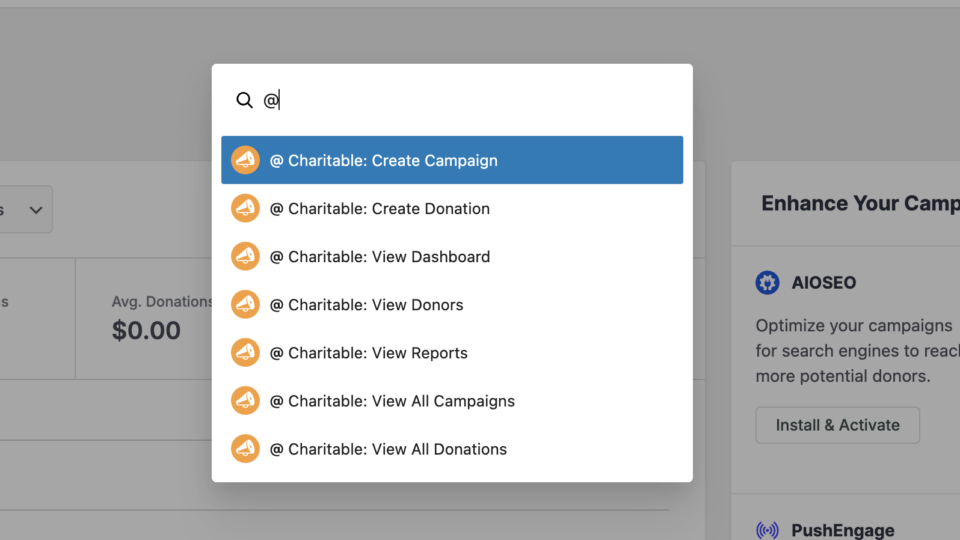
The Ultimate Keyboard Shortcut Hit Cmd + K (or Ctrl + K) to launch the Command Palette and manage your campaigns instantly.

⚡ Instant Navigation: Jump directly to your Campaigns, Donations, or Settings from anywhere in the editor.

➕ Quick Create: Start a new fundraising campaign or add a manual donation with a single command.

Efficiency Redefined
The tools you need, exactly when you need them.

⚙️ Contextual Actions: See relevant Charitable commands based on whether you’re editing a page or viewing your reports.

🚀 Seamless Integration: Built directly into the WordPress core experience for a lightweight, native feel.

Improvement New Security

📣 New Security Features

We’ve introduced a suite of new security tools to give you total control over who accesses your forms, plus a new way to tidy up your database.

Advanced Security Suite

Layered protection: Cloudflare, ReCAPTCHA, IP Controls, and Rate Limiting.

We have overhauled our security settings to stop bots without blocking real donors.

  • 🤖 Flexible Protection: Choose between Google reCAPTCHA v3 or the privacy-first Cloudflare Turnstile to block bots invisible.

  • 🚦 Rate limiting: Stop spam floods by limiting how many submissions an IP address can make in a set timeframe.

  • 🛑 Total control: Use the new IP Blacklist to block bad actors instantly, or the IP Whitelist to let your team bypass checks during testing.

The Clean Donation Tool

Go from “Testing” to “Live” in seconds.

Finished setting up your site and need to get rid of all those test transactions?

  • 🧹 Sweep it clean: Bulk delete test donations and donor records with a single click.

  • 📉 Accurate reporting: Ensure your revenue stats are 100% accurate for launch day.

  • ⚙️ Reset sequences: Automatically resets sequential invoice numbering.