Braintree is a payment service created by PayPal that allows you to accept donations securely on your website, while giving your donors the flexibility of paying via PayPal, Venmo (in the US), credit or debit cards, or digital wallets such as Google Pay and Apple Pay.
Installation
Installing Charitable Braintree is the same as installing any other Charitable extension. If you’re not sure how to do that, we recommend first reading our guide to installing Charitable extensions.
Activate the gateway
After you have installed and activated the Charitable Braintree plugin, you need to activate it as a payment gateway. If you are on the Plugins page, you can do this directly from there by clicking on the “Activate Braintree gateway” link:

Alternatively, you can activate the gateway through the Payment Gateways settings page:
- Go to Charitable > Settings > Payment Gateways
- Click on Enable Gateway in the Braintree block.
Settings
To take payments with Braintree, you will need to configure Charitable with your Braintree settings.
- Go to Charitable > Settings > Payment Gateways.
- Click on Gateway Settings.
If you don’t have a Braintree account yet, now is the time to set one up: https://www.braintreepayments.com/
Setting up your API keys
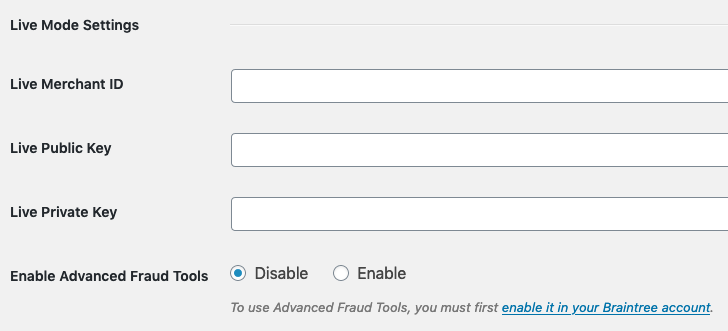
When you first log into your Braintree account, or if you have never made any transactions through it, you will see your Merchant ID, Public Key and Private Key displayed immediately once you sign in:
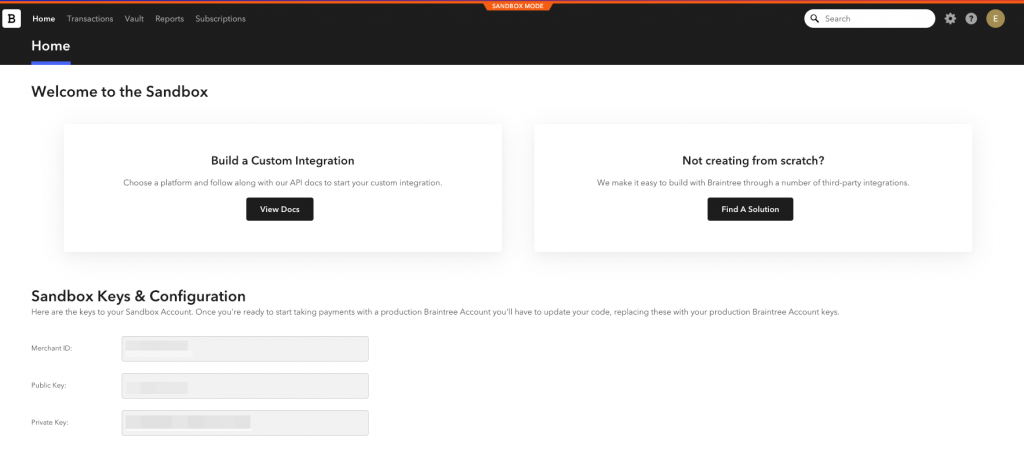
Copy and paste these keys into your Charitable settings.
If you do not see this when you log into your Braintree account, you can follow the instructions below to find the relevant details:
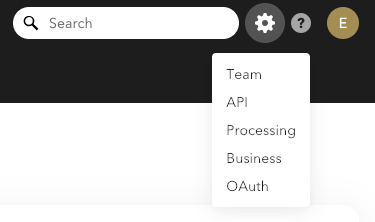
- In the top right corner of your Braintree dashboard, click on the gear icon and then click on API.
- You’ll find your public key under the “API Keys” section at the top. If no API keys appear, click Generate New API Key.
- Click on the View link in the Private Key column. On the following screen, you will see your Private Key, Merchant ID and Public Key listed.

Using Braintree in Test Mode
To test out how Braintree works, we recommend testing it first with a sandbox account. You can create a sandbox account at https://sandbox.braintreegateway.com
You will find your Public Key, Private Key and Merchant ID in the same way as for a live account (see instructions above). Copy and paste these into the “Test Mode Settings” section in your Charitable Braintree settings.
Setting up additional payment methods
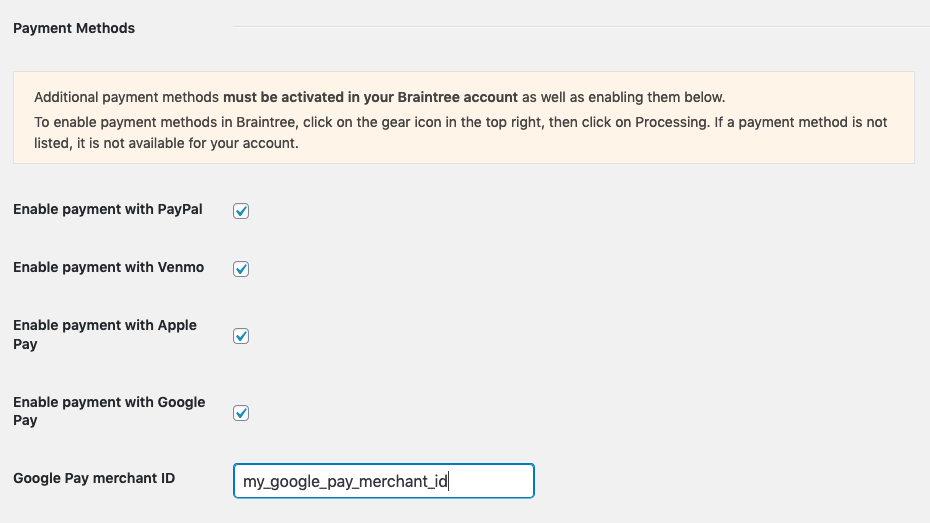
Besides card payments, you can accept payments made with PayPal, Venmo (US only), Apple Pay and Google Pay.
In order to accept these payment methods, you will need to activate the payment methods in Braintree as well as in your Charitable settings.
Step 1: Enable payment methods in Braintree
- In the top right corner of your Braintree dashboard, click on the gear icon and then click on Processing.
- On the Processing page, enable any payment methods you wish to add support for. Charitable’s integration currently supports PayPal, Venmo, Apple Pay and Google Pay.
Note: Venmo is only available for US-based Braintree accounts, so you may not see it as an option to be enabled.
Step 2: Enable payment methods in Charitable
Once you have enabled the payment methods in Braintree, you can activate them in Charitable by simple checking the box:
Enable 3D Secure
Charitable integrates seamlessly with Braintree’s 3D Secure 2 functionality, which reduce fraud, improve security and helps meet Strong Customer Authentication (SCA) requirements. To enable it, simply check the box:

Recurring Donations setup
If you are using Braintree alongside our Recurring Donations extension, there are some additional setup steps.
Create a recurring billing plan
In order to create a recurring donation through Braintree, you need to have a billing plan. When someone starts a recurring donation, a subscription will be created for them, using this plan.
Note: Even though the plans you create in Braintree will have a set price, this is a default value. For individual subscriptions, a donor subscription can override these values. For this reason, it’s possible to use a single recurring billing plan for all recurring donations of the same period created through your website.
To create a billing plan in your Braintree dashboard:
- In the top navigation, click on Subscriptions.
- At the top of the page, click on Plans.
- If you are creating a new plan, click on + Create A Plan; if you are adding a new plan, click on + New Plan.
- For the plan settings, enter your plan’s name, default price, currency, and billing frequency. You may also prefer to specify a plan ID and description, though both are optional. All other settings should be left empty or unchanged.
- Click on Create.
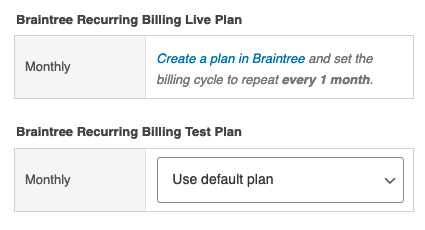
Once you have created your plan, return to your website’s dashboard and navigate to the Braintree settings page (Charitable > Settings > Payment Gateways > Braintree Gateway Settings). Scroll down to the “Recurring Billing” section:
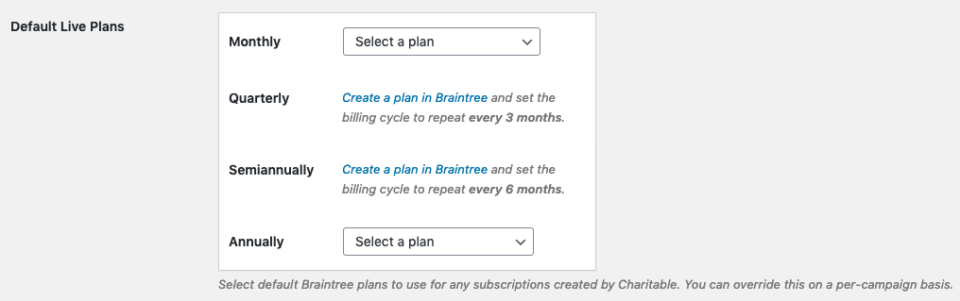
Select the default billing plans you would like to use for each recurring donation period, both for Live Mode and Test Mode. For test mode, you will need to create billing plans in your Braintree sandbox dashboard.
Using different plans for different campaigns
You may find it useful to define different recurring billing plans for different campaigns. For example, this can make it easier for you to find all recurring donations to a specific campaign in your Braintree dashboard.
To do this, you will first need to create as many plans as you require in your Braintree dashboard by following the steps described above. You can leave the default plan settings in Charitable unchanged.
To change the recurring billing plan used for a specific campaign, edit the campaign in your WordPress dashboard. Under the “Recurring Donations” section, select your preferred billing plan to use for the campaign. Note that there are separate settings for Live and Test Mode.
Adding a webhook
When a donor has a recurring donation, Braintree can send notifications to your website via a webhook whenever important subscription-related events happen, such as:
- A renewal has been charged
- The recurring donation has been cancelled
- Braintree failed to process the most recent renewal
Without a webhook, Charitable would not be alerted to these events, so it is important to add a webhook.
- In the top right corner of your Braintree dashboard, click on the gear icon and then click on API.
- Click on the Webhooks link at the top.
- Click + Create a New Webhook to add your webhook.
- For “Destination URL”, enter your website URL appended by /charitable-listener/braintree/. For example, if your website is example.com, your Destination URL will be https://example.com/charitable-listener/braintree/.
- Under “Notifications”, check all options under “Subscription”.
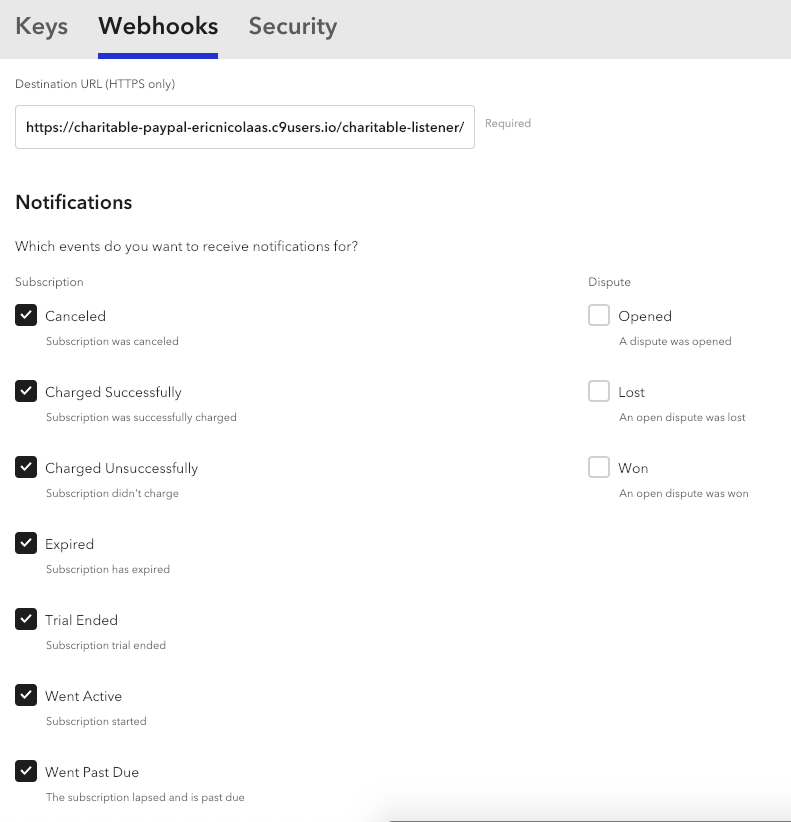
Once you have added the webhook, click on Check URL to make sure the webhook is set up properly and can reach your website. Your server should respond with a 200 status.
If you are using the Braintree Sandbox to test things out, we also recommend adding a webhook in your sandbox account, following the same process.