
Vous souhaitez permettre aux donateurs de payer avec Apple Pay ou Google Pay via Mollie ? Charitable Mollie 1.1.0 ajoute un panneau de statut qui indique exactement quels portefeuilles sont actifs sur votre compte, et ce guide vous explique comment les activer.
Avant de commencer
Apple Pay et Google Pay pour Mollie s'appuient sur la configuration standard de Charitable Mollie. Avant de continuer, assurez-vous d'avoir :
- Charitable Mollie 1.1.0 ou une version ultérieure installé et activé.
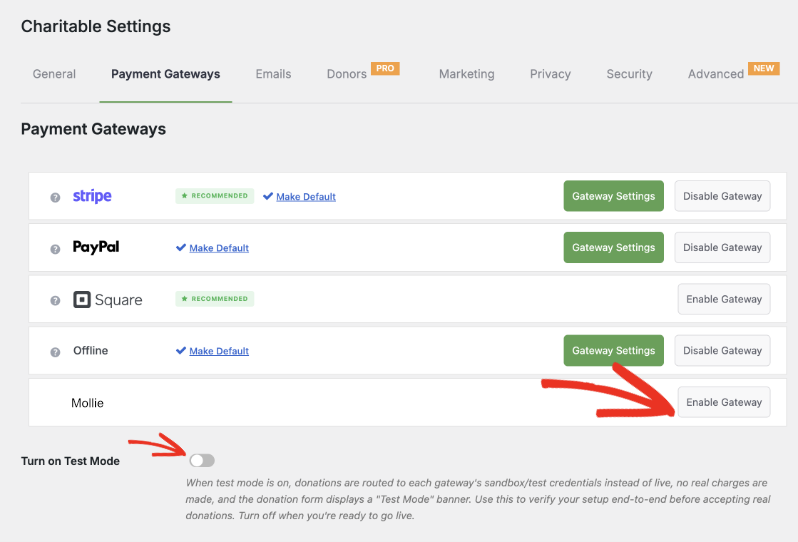
- La passerelle Mollie activée dans Charitable » Paramètres » Passerelles de paiement.
- Vos clés API Live et Test Mollie saisies et enregistrées dans les Paramètres de passerelle de Mollie.
Remarque : Vous n'avez pas encore installé Mollie ou vous avez besoin d'aide pour trouver vos clés API ? Suivez d'abord le guide de configuration complet de Charitable Mollie, puis revenez ici.
Note importante : Apple Pay et Google Pay sont également disponibles via les passerelles Stripe et Square. Ce guide couvre leur activation spécifiquement pour Mollie.
Activation d'Apple Pay et Google Pay dans votre tableau de bord Mollie
Apple Pay et Google Pay sont activés dans Mollie, pas dans Charitable. Mollie gère l'affichage des boutons de portefeuille et la vérification du donateur au moment du paiement ; le rôle de Charitable est de soumettre le don une fois que le donateur l'a confirmé. Voici comment les activer :
- Connectez-vous à votre Tableau de bord Mollie.
- Dans le menu, allez à Méthodes de paiement.
- Trouvez Apple Pay et Google Pay dans la liste et activez chacun d'eux.
- Enregistrez vos modifications dans le tableau de bord Mollie.
Vous n'avez rien à ajouter à votre formulaire de don pour que cela fonctionne. Une fois qu'un portefeuille est activé dans Mollie, il apparaît automatiquement au moment du paiement pour les bons visiteurs : Apple Pay sur Safari et iOS, Google Pay sur Chrome et Android.
Confirmation du statut dans Charitable
Charitable Mollie 1.1.0 ajoute un panneau Apple Pay et Google Pay à vos paramètres de passerelle Mollie afin que vous puissiez vérifier ce qui est en ligne sans quitter votre tableau de bord WordPress.
Allez à Charitable » Paramètres » Passerelles de paiement » Mollie.
Assurez-vous que la passerelle est activée ici. Activez le mode test si vous souhaitez tester les paiements avant de les mettre en ligne,
Dans les Paramètres de passerelle, entrez vos clés API et connectez-vous à Mollie (si vous ne l'avez pas déjà fait).
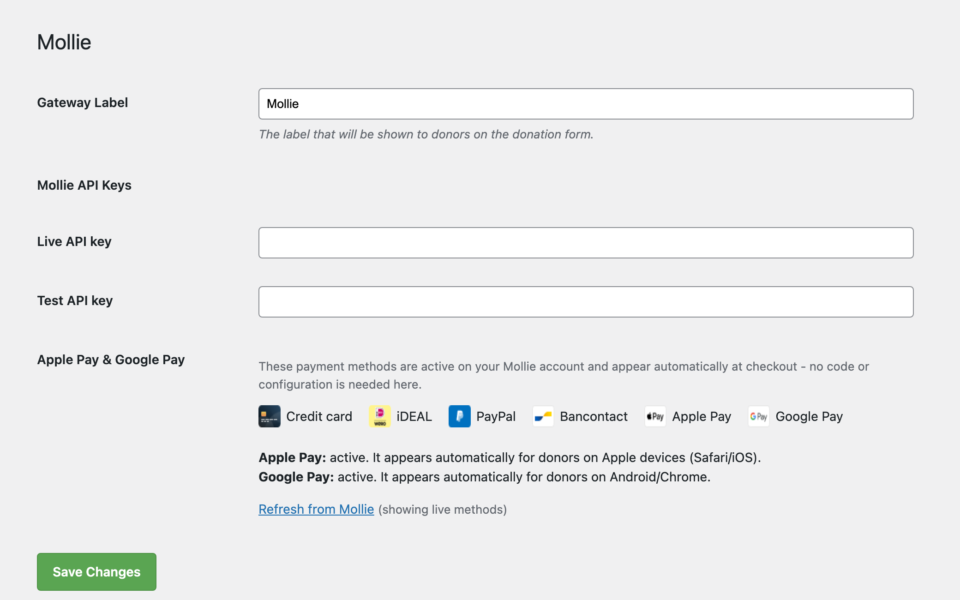
Recherchez le panneau Apple Pay et Google Pay. Chaque portefeuille est marqué comme actif ou inactif en fonction de votre compte Mollie connecté.
Si un portefeuille apparaît comme inactif, cliquez sur le lien fourni pour accéder directement à ce paramètre dans votre tableau de bord Mollie.
Vous avez effectué une modification dans Mollie ? Cliquez sur Actualiser depuis Mollie pour vérifier à nouveau l'état de votre compte sans recharger la page.
Tests avant la mise en ligne
Comme pour tout changement de paiement, testez-le avant d'accepter de vrais dons.
- Dans Charitable » Paramètres » Passerelles de paiement, cochez le paramètre « Activer le mode test » et enregistrez vos modifications.
- Visitez un formulaire de don sur votre site depuis un appareil compatible avec Apple Pay ou Google Pay, et lancez un don de test.
- Confirmez que le bouton du portefeuille apparaît et que le paiement de test se termine.
- Accédez à Charitable » Donations et confirmez que le don de test est marqué comme Payé.
- Désactivez le mode test lorsque vous êtes prêt à accepter des dons en direct.
Astuce de pro : Testez sur un appareil mobile réel si possible. Les boutons de portefeuille dépendent du navigateur et de l'appareil qui reconnaissent une carte enregistrée, et il est plus facile de le confirmer sur un appareil réel plutôt que sur un navigateur de bureau simulant un appareil mobile.
Ce que les donateurs voient au moment du paiement
Une fois les deux portefeuilles activés, les donateurs accèdent au paiement hébergé de Mollie comme d'habitude après avoir soumis votre formulaire de don. Si leur navigateur et leur appareil le prennent en charge, ils verront un bouton Apple Pay ou Google Pay à côté de vos autres options de paiement. En appuyant dessus, ils peuvent confirmer le don avec Face ID, Touch ID, une empreinte digitale ou le code d'accès de leur appareil, au lieu de saisir les détails de la carte.
Si le navigateur ou l'appareil d'un donateur ne prend pas en charge l'un ou l'autre portefeuille, il verra simplement vos autres méthodes de paiement disponibles. Rien ne change pour eux, et rien ne casse sur votre formulaire.
Annulations et le filtre charitable_mollie_cancel_url
Si un donateur initie un paiement via Mollie et annule à mi-chemin, il est renvoyé vers la page d'annulation de don de votre site. Cela s'applique à Apple Pay, Google Pay et à toute autre méthode de paiement Mollie.
Si vous devez envoyer les donateurs annulés ailleurs, par exemple vers une page personnalisée « nous aimerions toujours votre soutien », utilisez le filtre charitable_mollie_cancel_url. Il reçoit l'objet du don, vous pouvez donc construire une URL basée sur la campagne, le donateur ou tout autre détail du don.
Remarque : Ce filtre est une option destinée aux développeurs et nécessite l'ajout d'un petit extrait de code à votre site, généralement dans un plugin personnalisé ou le fichier functions.php de votre thème.
FAQ sur Apple Pay et Google Pay de Mollie
Dois-je ajouter quelque chose à mon formulaire de don ? Non. Une fois Apple Pay et Google Pay activés dans votre tableau de bord Mollie, ils apparaissent automatiquement au moment du paiement. Il n'y a rien à configurer dans le constructeur de formulaires Charitable.
Le panneau Apple Pay & Google Pay affiche un portefeuille comme inactif. Que dois-je faire ? Cliquez sur le lien à côté de ce portefeuille pour accéder directement au paramètre dans votre tableau de bord Mollie, activez-le là-bas, puis cliquez sur Actualiser depuis Mollie dans Charitable pour mettre à jour le statut.
Pourquoi le bouton du portefeuille ne s'affiche-t-il pas lorsque je le teste ? Les boutons de portefeuille n'apparaissent que sur les navigateurs et appareils pris en charge : Apple Pay sur Safari et iOS, Google Pay sur Chrome et Android. Si vous testez sur un navigateur non pris en charge, vous ne verrez pas le bouton, et c'est normal.
Y a-t-il des travaux de conformité PCI supplémentaires requis de mon côté ? Non. Apple Pay et Google Pay fonctionnent via le paiement hébergé de Mollie, donc les données de carte ne touchent jamais votre serveur, et aucune conformité supplémentaire ou configuration de domaine n'est requise.
Puis-je utiliser Apple Pay et Google Pay avec d’autres passerelles ? Oui. Apple Pay et Google Pay sont également pris en charge via les passerelles Stripe et Square. Ce guide couvre uniquement leur activation pour Mollie.
C’est fait ! Vous avez appris à configurer Apple Pay et Google Pay avec Mollie.
Ensuite, vous voudrez peut-être lire le guide complet de configuration de Charitable avec Mollie ou en savoir plus sur la configuration d’autres passerelles de paiement.
Pas encore sur Charitable Pro ? Vous pouvez obtenir jusqu’à 50 % de réduction lorsque vous vous inscrivez ou passez à Charitable Pro. Nous voulons nous assurer que vous puissiez essayer les fonctionnalités de collecte de fonds avancées comme les dons récurrents, la récupération des dons, et plus encore à un coût considérablement réduit.
Rejoignez plus d’un million d’utilisateurs satisfaits de Charitable Pro aujourd’hui. Chaque achat est accompagné d’une garantie de remboursement de 14 jours, vous assurant un soutien à chaque étape.
Si vous avez des questions ou besoin d’aide, notre équipe de support est prête à vous aider à tirer le meilleur parti de ces nouvelles fonctionnalités.
Liens utiles
🤝 Obtenez de l’aide quand vous en avez besoin
📑 Trouvez le guide dont vous avez besoin
Parcourez le Hub de documentation →
⬇️ Téléchargez des stratégies éprouvées, des idées de campagnes et des outils d'experts
Obtenez le Kit de collecte de fonds →
🔗 Laissez votre assistant IA faire le travail de collecte de fonds pour vous.
Connect Charitable à votre assistant IA →
💸 Obtenez des ressources gratuites pour la collecte de fonds
Rendez-vous sur le Hub de collecte de fonds Charitable →
🤔 Des questions sur Charitable ?
FAQ Charitable →
Besoin d'aide pour comprendre les termes et le jargon des organisations à but non lucratif ?
Consultez notre glossaire des organisations à but non lucratif→




