Souhaitez-vous afficher l'une de vos campagnes sur une autre page de votre site WordPress – votre page d'accueil, une page « À propos », ou n'importe où en dehors de l'URL de la campagne elle-même ? Le shortcode [campaign] intègre une campagne complète – exactement comme conçue dans le constructeur de campagnes visuel, y compris la mise en page, l'histoire, la barre de progression, la liste des donateurs et le formulaire de don – sur n'importe quel article, page ou zone de widget.
Ce guide vous guidera à travers les étapes pour intégrer une seule campagne à l'aide du shortcode.
Avant de commencer, assurez-vous que Charitable est installé et activé sur votre site, et que vous avez créé au moins une campagne.
Dans ce guide
- Ce que fait le shortcode [campaign]
- En quoi il diffère des autres shortcodes de campagne
- Trouver l'ID de votre campagne
- Intégrer une campagne spécifique
- Utiliser id="current" dans les modèles personnalisés
- Utiliser l'assistant d'intégration à la place
- Tester votre campagne intégrée
- Exemples de shortcodes
- 1. Intégrer une campagne spécifique
- 2. Mettre en avant une campagne sur votre page d'accueil
- 3. Intégrer plusieurs campagnes sur une seule page
- 4. Utiliser id="current" dans un modèle de constructeur de thème
- 5. Ajouter la campagne dans un constructeur de page
- 6. Intégrer dans une barre latérale ou une zone de widget
- 7. Appeler le shortcode depuis PHP dans un modèle personnalisé
- Questions fréquemment posées
Ce que fait le shortcode [campaign]
Le shortcode [campaign] rend une page de campagne complète en ligne – partout où le shortcode apparaît. Il utilise la même mise en page que celle que vous avez conçue dans le constructeur de campagnes visuel, de sorte que la version intégrée corresponde à ce que les visiteurs verraient sur l'URL de la campagne elle-même.
Ceci est utile lorsque vous souhaitez qu'une campagne soit présente à plusieurs endroits. Un exemple courant : mettre en avant votre campagne la plus active sur la page d'accueil du site, tout en gardant la campagne accessible à son propre URL dédié pour le partage.
Remarque : Le shortcode rend la campagne entière, y compris le formulaire de don. Si vous ne souhaitez que le formulaire de don (sans l'histoire, l'en-tête ou la barre de progression), utilisez plutôt [charitable_donation_form].
En quoi il diffère des autres shortcodes de campagne
Charitable inclut plusieurs shortcodes liés aux campagnes, et il est facile de les confondre. Voici comment choisir le bon :
[campaign]– Intègre une campagne complète (mise en page du constructeur visuel). Utilisez ceci lorsque vous souhaitez qu'une campagne spécifique soit mise en avant sur une autre page.[campaigns]– Affiche une grille ou une liste de plusieurs campagnes. Utilisez ceci pour une page d'archive de campagnes ou une page « toutes les causes ». Voir la documentation [campaigns].[charitable_donation_form]– Intègre uniquement le formulaire de don pour une campagne – pas d'histoire, pas de barre de progression, pas de liste de donateurs. Utilisez ceci lorsque vous avez déjà rédigé le contenu de votre page et que vous avez seulement besoin du formulaire. Voir le guide d'intégration du formulaire de don.
Trouver l'ID de votre campagne
Chaque campagne possède un identifiant unique. Pour le trouver, rendez-vous dans Charitable » Campagnes dans votre administration WordPress. L’identifiant apparaît dans la liste des campagnes à côté du titre de chaque campagne.
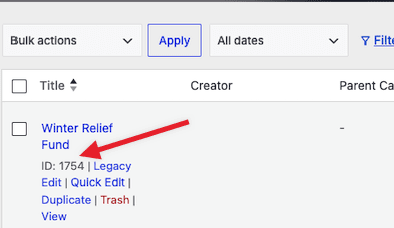
Remarque : Assurez-vous de copier l’identifiant numérique – pas le titre ou le slug de la campagne. Le shortcode ne fonctionnera pas avec un nom de campagne.
Intégrer une campagne spécifique
Une fois que vous avez l’identifiant de la campagne, vous pouvez insérer le shortcode n’importe où où l’éditeur WordPress accepte les shortcodes – articles, pages, zones de widgets ou parties de modèles.
Le shortcode de base ressemble à ceci :
[campaign id="123"]Remplacez 123 par l’identifiant réel de votre campagne. Lorsque la page se charge, Charitable affichera la mise en page complète de la campagne à la place du shortcode.
Pour l’ajouter via l’éditeur de blocs, insérez un bloc Shortcode et collez-y le code. Pour les constructeurs de pages comme Elementor, Divi ou WPBakery, utilisez le widget shortcode du constructeur – chaque constructeur majeur en inclut un.
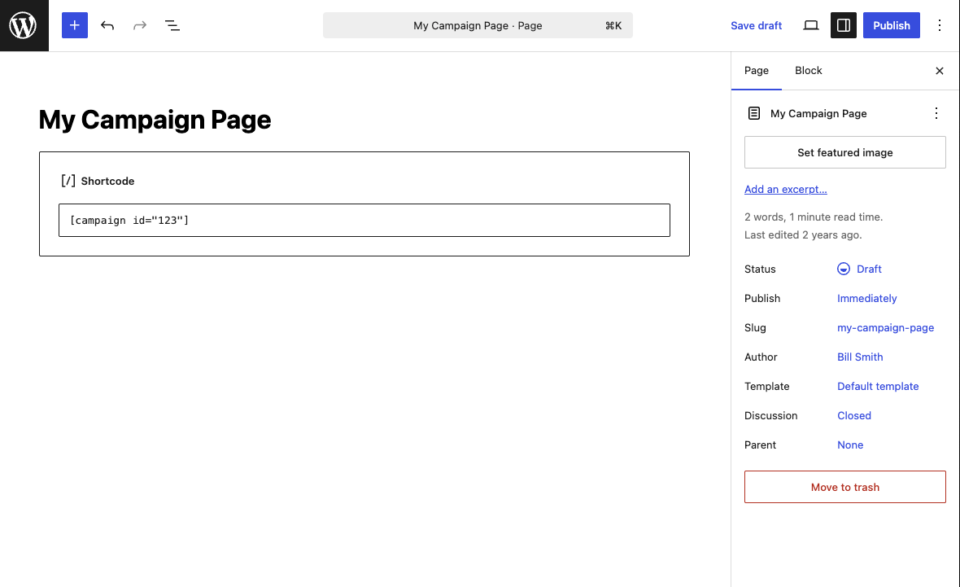
Remarque : Si l’identifiant de la campagne n’existe pas – ou si la campagne a été supprimée ou mise en brouillon – le shortcode n’affichera rien. Vérifiez toujours l’identifiant avant de publier la page.
Utilisation de id=”current” dans les modèles personnalisés
Pour les développeurs et les auteurs de thèmes, l’attribut id accepte une valeur spéciale : "current". Lorsqu’il est défini ainsi, le shortcode affiche la campagne en cours de visualisation lors de la requête actuelle.
[campaign id="current"]Ceci est utile dans les modèles personnalisés de campagne unique, où vous souhaitez que le shortcode affiche dynamiquement la campagne en cours – sans coder en dur un identifiant. Si l’article actuel n’est pas une campagne, le shortcode n’affichera rien.
Remarque : Vous n’aurez pas besoin de cette valeur pour l’intégration de pages normales. C’est une commodité pour les développeurs pour les modèles qui parcourent les articles de campagne.
Utiliser l'assistant d'intégration à la place
Si vous préférez ne pas travailler directement avec les shortcodes, Charitable inclut un assistant d’intégration qui effectue la même tâche avec une interface guidée. Depuis le constructeur de campagne, recherchez le bouton Intégrer en haut de l’écran. L’assistant vous permet de choisir une page existante ou d’en créer une nouvelle, et il insère le shortcode pour vous.
L’assistant est le chemin le plus simple pour les utilisateurs non techniques. L’approche par shortcode est plus rapide si vous savez déjà où vous voulez que la campagne apparaisse et quel identifiant de campagne vous avez besoin.
Tester votre campagne intégrée
Après avoir enregistré la page, visualisez-la sur le front-end et confirmez que la campagne apparaît comme prévu. La version intégrée doit être identique à la page de la campagne elle-même – même en-tête, même contenu de l’histoire, même comportement du formulaire de don.
Soumettez un don de test via le formulaire intégré pour confirmer qu’il traite correctement. Les dons effectués via une campagne intégrée sont enregistrés pour la même campagne que les dons effectués sur l’URL propre à la campagne – il n’y a pas de suivi séparé.
C'est tout ! Vous savez maintenant comment intégrer une campagne complète sur n'importe quelle page ou publication à l'aide du shortcode [campaign]. Ensuite, vous voudrez peut-être lire la documentation du shortcode [campaigns] si vous souhaitez afficher une grille de plusieurs campagnes, ou parcourir la catégorie complète Widgets & Shortcodes pour plus d'options d'intégration.
Exemples de shortcodes
Le shortcode [campaign] n'a qu'un seul attribut – id – mais il peut être utilisé de diverses manières selon l'endroit où vous souhaitez que la campagne apparaisse. Les exemples ci-dessous couvrent les scénarios les plus courants.
1. Intégrer une campagne spécifique
L'utilisation la plus simple du shortcode. Remplacez 123 par l'ID de campagne réel de votre liste de campagnes.
[campaign id="123"]2. Mettre en avant une campagne sur votre page d'accueil
Le même shortcode fonctionne pour une intégration sur la page d'accueil. Déposez-le dans le contenu de la page d'accueil (ou un modèle de page d'accueil) pour présenter votre campagne la plus importante au-dessus de la ligne de flottaison.
[campaign id="42"]Note : Certains thèmes appliquent une largeur de contenu à la page d'accueil qui est plus étroite qu'une page standard. Si la campagne intégrée semble à l'étroit, passez la page d'accueil à un modèle pleine largeur.
3. Intégrer plusieurs campagnes sur une seule page
Vous pouvez utiliser le shortcode plus d'une fois sur la même page. Chaque instance affiche sa propre campagne, séparée par le contenu que vous placez entre elles.
[campaign id="42"]

<h2>Or support our second cause:</h2>

[campaign id="55"]
Note : L'intégration de nombreuses campagnes sur une seule page augmentera le poids de la page. Pour les listes plus longues, le shortcode [campaigns] est une option plus légère.
4. Utilisation de id=”current” dans un modèle Theme Builder
Lorsque vous créez un modèle de campagne unique personnalisé dans Divi Theme Builder, Elementor Theme Builder ou un thème enfant, utilisez le mot-clé current afin que le shortcode affiche la campagne que le visiteur est en train de consulter.
[campaign id="current"]5. Ajouter la campagne dans un constructeur de page
Les constructeurs de pages comme Elementor, Divi et WPBakery incluent tous un widget ou un module de shortcode. Le même shortcode y est placé, exactement comme vous l'écririez dans l'éditeur WordPress.
[campaign id="123"]Note : Dans l'éditeur en ligne de WPBakery, un id vide affichera un espace réservé « Veuillez sélectionner une campagne dans la liste déroulante pour prévisualiser ». Une fois que vous publiez, l'espace réservé est remplacé par la campagne.
6. Intégrer dans une barre latérale ou une zone de widget
Pour les zones de widgets, ajoutez un bloc Shortcode (widgets basés sur des blocs) ou un widget Texte hérité et collez le shortcode à l'intérieur.
[campaign id="123"]Note : Les mises en page des campagnes sont conçues pour les zones de contenu pleine largeur. Les barres latérales étroites peuvent entraîner un enroulement maladroit de la mise en page – envisagez d'utiliser un shortcode Bouton de don ou un shortcode Barre de progression pour les emplacements de barre latérale à la place.
7. Appeler le shortcode depuis PHP dans un modèle personnalisé
Pour les développeurs qui créent des modèles personnalisés, le shortcode peut être rendu directement à partir de PHP à l'aide de la fonction do_shortcode() de WordPress.
<?php echo do_shortcode( '[campaign id="123"]' ); ?>Pour afficher la campagne actuelle dans une boucle de modèle de campagne unique personnalisée :
<?php echo do_shortcode( '[campaign id="current"]' ); ?>Questions fréquemment posées
Puis-je intégrer la même campagne sur plusieurs pages ?
Oui. Le shortcode peut être utilisé sur autant de pages que vous le souhaitez, et tous les dons effectués via l'une de ces pages seront enregistrés pour la même campagne.
La campagne intégrée utilisera-t-elle la même mise en page que l'originale ?
Oui. Le shortcode utilise la mise en page que vous avez créée dans le constructeur de campagnes visuelles. Toute modification que vous apportez à la conception de la campagne apparaîtra automatiquement partout où le shortcode est utilisé.
La campagne intégrée inclut-elle le formulaire de don ?
Oui. La campagne complète – histoire, barre de progression, liste des donateurs et formulaire de don – s'affiche ensemble. Si vous ne souhaitez que le formulaire de don, utilisez plutôt [charitable_donation_form] .
Que se passe-t-il si la campagne est définie comme brouillon ou supprimée ?
Le shortcode n'affichera rien. La page elle-même se chargera toujours – mais la section de la campagne sera vide. Confirmez toujours que la campagne est publiée avant de l'intégrer.
Puis-je intégrer une campagne dans un widget de la barre latérale ?
Oui. Ajoutez un bloc Shortcode (ou un ancien widget Texte) à la zone de widgets et collez le shortcode. Gardez à l'esprit que la mise en page de la campagne est conçue pour des zones de contenu pleine largeur, elle peut donc sembler à l'étroit dans une barre latérale étroite.