
Charitable incluye funcionalidad de compartir en redes sociales integrada que facilita a tus colaboradores la difusión de tu campaña y su progreso.
Antes de empezar, asegúrate de tener el plugin Charitable instalado y activado en tu sitio de WordPress.
Sigue esta guía si aún no lo has hecho: Cómo Instalar Charitable »
La función de compartir en redes sociales está disponible tanto en Charitable Lite como en Charitable Pro.
En esta guía
Paso 1: Añadir el Bloque para Compartir en Redes Sociales
Primero, abre Charitable en tu panel de WordPress y crea una campaña »
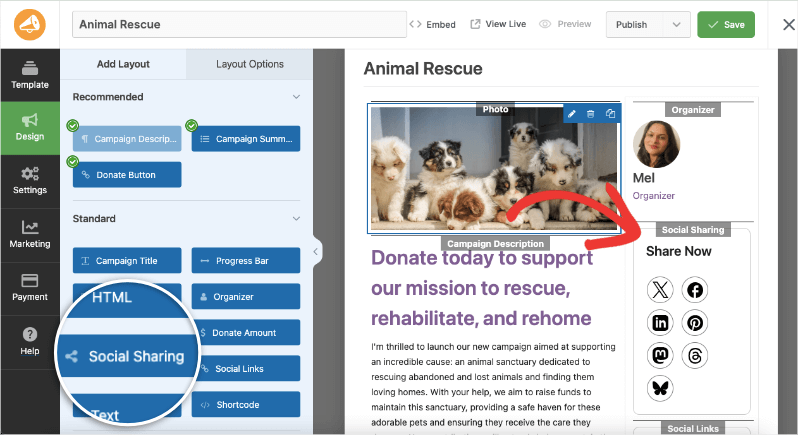
Dentro del constructor de campañas, verás una vista previa de tu campaña a la derecha, junto con un menú de bloques a la izquierda.
Arrastra y suelta el bloque para Compartir en Redes Sociales en el diseño de tu campaña donde desees que aparezca.
Paso 2: Seleccionar Opciones de Redes Sociales
Cuando selecciones el bloque para Compartir en Redes Sociales en la vista previa de tu campaña, se abrirá un menú de configuración en la barra de tareas izquierda. Aquí, puedes añadir un titular para este bloque que aparecerá en tu campaña.
Debajo, puedes activar/desactivar opciones de redes sociales marcando las casillas junto al nombre de la plataforma.
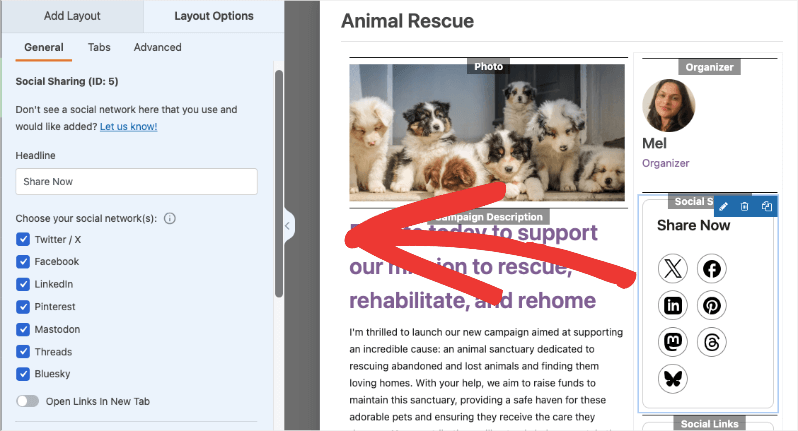
También puedes elegir abrir estos enlaces en una nueva pestaña.
Las plataformas admitidas incluyen:
- X (Twitter)
- YouTube
- Threads
- Bluesky
- Mastodon
Solo aparecerán en tu página de campaña las redes sociales que actives.
Haz clic en el botón Guardar cambios en la esquina superior derecha de tu pantalla. Ahora visita tu campaña y prueba estos enlaces.
Cuando un donante haga clic en el enlace, le llevará a esa plataforma de redes sociales y añadirá automáticamente el enlace a tu campaña.
También te puede interesar leer nuestra guía para instalar extensiones de Charitable.
Preguntas Frecuentes sobre Compartir en Redes Sociales
¿Qué es la función Enlaces Sociales?
La función de compartir en redes sociales te permite añadir fácilmente los enlaces de las redes sociales de tu organización a las páginas de tu campaña de recaudación de fondos. Los colaboradores pueden encontrar y seguir rápidamente tus perfiles, ayudándote a construir una comunidad en línea más fuerte.
¿Necesito instalar algún plugin adicional para añadir enlaces sociales?
¡No! La función de compartir en redes sociales de Charitable funciona directamente. No se requieren plugins adicionales.
¿Puedo añadir enlaces sociales a la campaña después de que se publique?
¡Sí! Puedes editar tus campañas en cualquier momento y activar/desactivar los enlaces para compartir en redes sociales. Los cambios se guardan al hacer clic en el botón Guardar.
Hice cambios en la configuración, pero no se muestran. ¿Qué debo hacer?
Haz siempre clic en "Guardar Cambios" despu ilde{n}s de realizar cualquier modificaci ilde{³}n. Si los cambios a ilde{1}n no aparecen, intenta borrar la cach ilde{n} de tu sitio web si est ilde{1}s usando un plugin de cach ilde{n}.
¿Puedo personalizar la apariencia de mi bloque para compartir en redes sociales?
Sí. Selecciona el bloque para Compartir en Redes Sociales dentro del constructor de campañas. Luego, en el menú de configuración de la izquierda, abre la pestaña Avanzado. Aquí encontrarás opciones para personalizar el tamaño, la fuente, el color y más.
¿Cuál es la diferencia entre Charitable Lite y Pro?
Charitable Lite es gratuito pero incluye una comisi ilde{³}n de transacci ilde{³}n del 3%. Los planes Pro eliminan esta comisi ilde{³}n e incluyen funciones avanzadas como donaciones recurrentes, gesti ilde{³}n de donantes, recaudaci ilde{³}n de fondos de persona a persona y m ilde{1}s pasarelas de pago.
¿Dónde puedo obtener ayuda si tengo problemas?
- Usuarios gratuitos: Utiliza los foros de soporte de WordPress.org
- Usuarios Pro: Ponte en contacto directamente con el soporte para recibir asistencia prioritaria
- Documentación: Consulta la completa biblioteca de documentación
- Comunidad: Únete al boletín y sigue los canales sociales para obtener consejos y actualizaciones
¿Hay tutoriales en vídeo disponibles?
¡Sí! Suscríbete al canal de YouTube de Charitable para obtener tutoriales paso a paso e historias de éxito.
¿Necesitas soporte? ¿Tienes alguna pregunta? Si eres un usuario lite/gratuito de Charitable, puedes contactar a nuestro equipo en los foros de soporte de WordPress.org. Si tienes una licencia activa, no dudes en contactarnos directamente para soporte prioritario.


