
Braintree es un servicio de pago de PayPal que permite a los donantes pagar con tarjeta de crédito o débito, PayPal, Venmo (solo en EE. UU.), Apple Pay, Google Pay o un método de pago local como iDEAL y Bancontact. Esta guía te muestra cómo instalar el complemento, conectar tu cuenta de Braintree y configurar todos los ajustes en la página de configuración de la pasarela.
Braintree está disponible en el plugin Charitable Pro – Todos los planes (Basic, Plus, Pro y Elite)
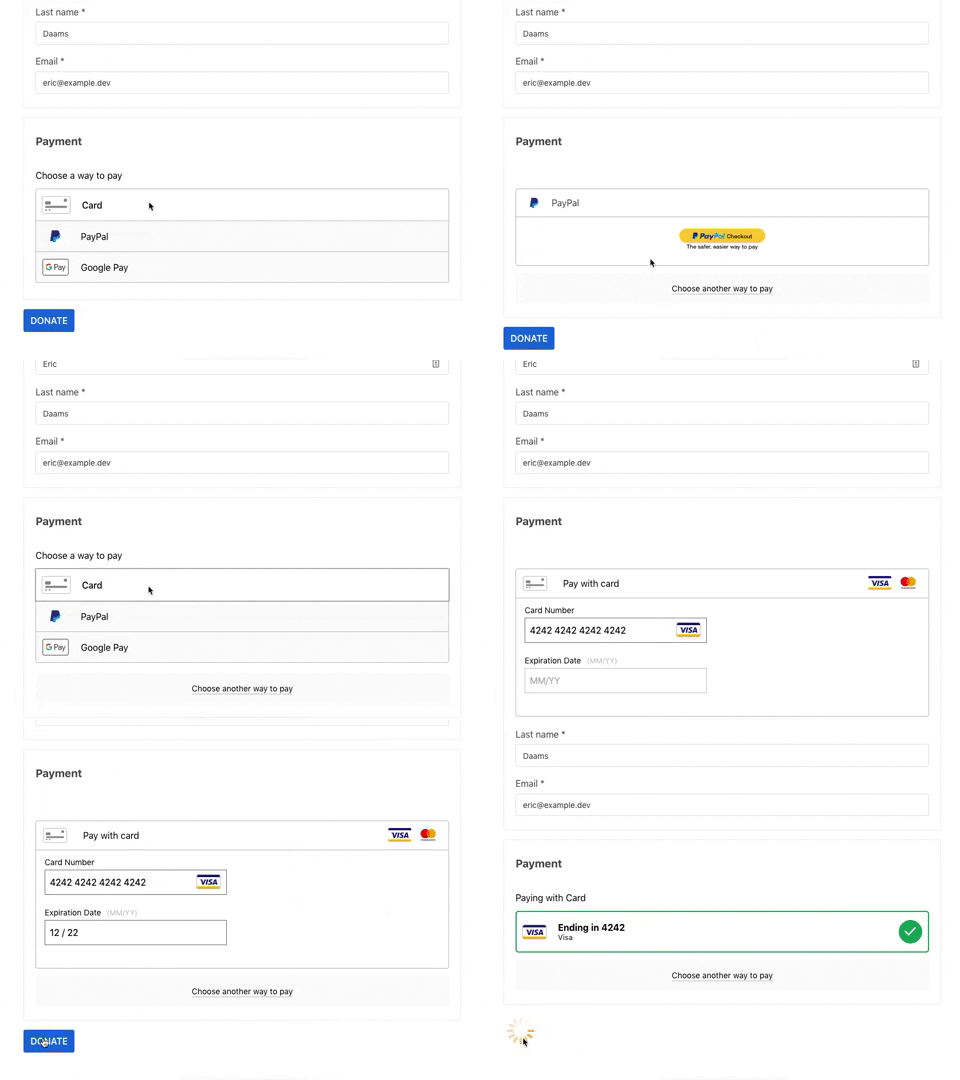
Aquí tienes la interfaz de usuario de Braintree:
¿Qué hay en esta guía?
- Requisitos mínimos
- Instalación del complemento Braintree
- Habilitación de la pasarela
- Añadir tus credenciales de API
- Habilitación de herramientas avanzadas contra el fraude
- Habilitación de métodos de pago adicionales
- Activación de métodos de pago locales
- Habilitación de 3D Secure
- Configuración de webhooks
- Configuración de planes de facturación recurrentes
- Compatibilidad con varias divisas
- Cómo Braintree te ofrece seguridad y privacidad de datos completas
- Preguntas frecuentes sobre Braintree
Requisitos mínimos
- PHP 7.4+
- Caridad 1.6.43
Además, se deben instalar las siguientes extensiones de PHP:
- curl
- dom
- hash
- openssl
- xmlwriter
Instalación del complemento Braintree
Instalar Braintree es lo mismo que instalar cualquier otro complemento de Charitable. Ve a Charitable » Complementos, busca Braintree en la lista y haz clic en “Instalar complemento”. Una vez que termine de instalarse, haz clic en “Activar”.
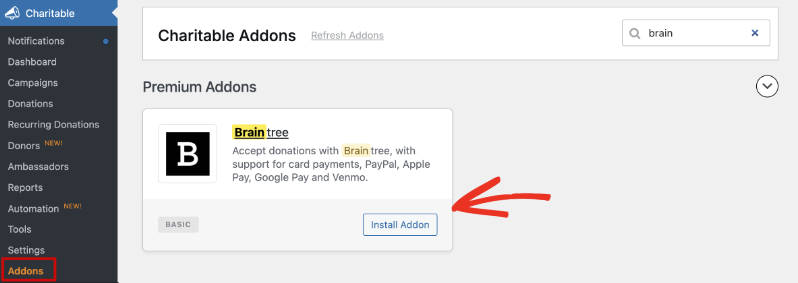
Nota: Si nunca antes has instalado un complemento de Charitable, consulta nuestra guía para instalar extensiones de Charitable para obtener más detalles.
Habilitación de la pasarela
Ve a Charitable » Ajustes » Pasarelas de pago. Verás Braintree listado entre las opciones de pasarela disponibles.
Haz clic en “Habilitar pasarela” junto a Braintree.
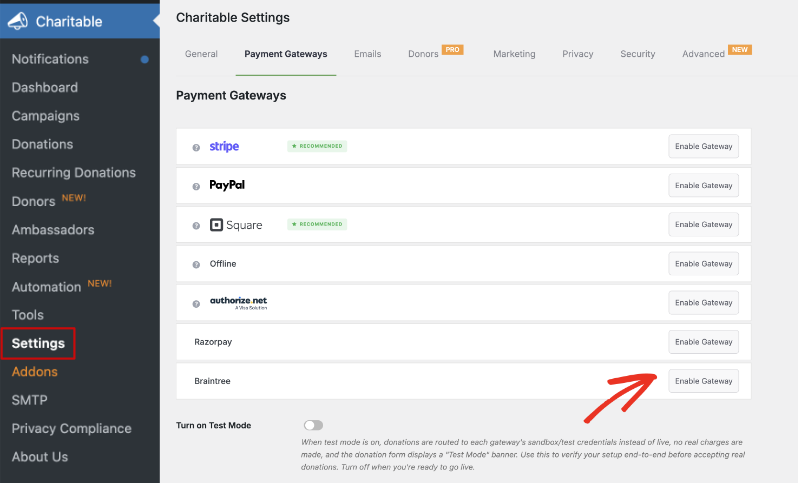
Después de que la página se recargue, aparece un nuevo botón “Ajustes de pasarela” junto a Braintree. Haz clic en él para abrir la página de configuración de la pasarela, donde añadirás tus credenciales y configurarás el resto de las opciones que se describen a continuación.
Consejo profesional: Observa el interruptor “Activar modo de prueba” en la parte inferior de la pestaña Pasarelas de pago. Actívalo y cada pasarela habilitada, incluida Braintree, dirigirá las donaciones a sus credenciales de sandbox o de prueba en lugar de a las reales. No se realizarán cargos reales y tu formulario de donaciones mostrará un banner de “Modo de prueba”. Úsalo para probar tu configuración de principio a fin y, a continuación, desactívalo antes de empezar a aceptar donaciones reales.
Añadir tus credenciales de API
En la parte superior de la página de configuración de Braintree, verás el campo Etiqueta de pasarela. Esta es la etiqueta que ven tus donantes al elegir un método de pago en el formulario de donación. Por defecto es “Braintree”, pero puedes cambiarla por lo que quieras.
Debajo de la Etiqueta de pasarela, encontrarás Configuración del modo en vivo y Configuración del modo de prueba:
- Configuración del modo en vivo: Usa las credenciales de tu cuenta de Braintree en vivo. Las donaciones procesadas aquí cargan tarjetas y cuentas reales.
- Configuración del modo de prueba: Usa las credenciales de una cuenta sandbox de Braintree. Las donaciones procesadas aquí son simuladas, por lo que no se mueve dinero.
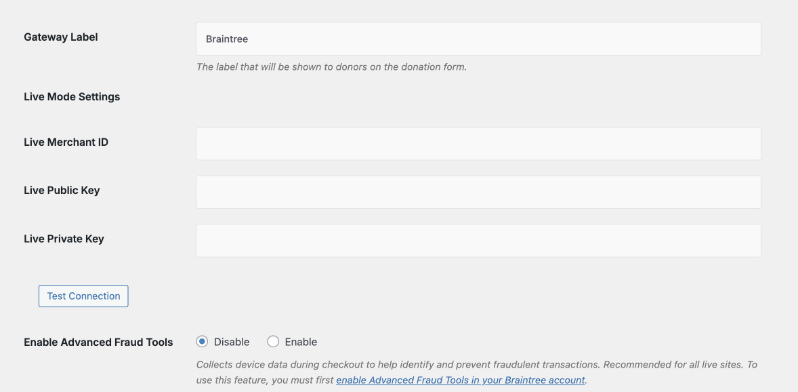
Cada conjunto de configuraciones, en vivo y de prueba, necesita los mismos tres valores: un ID de comerciante, una Clave pública y una Clave privada. Aquí te explicamos cómo encontrarlos en tu Panel de control de Braintree.
Encontrar tu ID de comerciante, clave pública y clave privada
- Inicia sesión en tu Panel de control de Braintree.
- Haz clic en el icono del engranaje en la esquina superior derecha y, a continuación, haz clic en “API”.
- En la sección “Claves de API”, encontrarás tu Clave pública directamente. Si aún no aparecen claves, haz clic en “Generar nueva clave de API”.
- Haz clic en “Ver” en la columna Clave privada. En la siguiente pantalla, verás tu Clave privada, ID de comerciante y Clave pública listados juntos.
- Copia cada valor en el campo correspondiente en Charitable y, a continuación, haz clic en “Probar conexión” para confirmar que Charitable puede acceder a tu cuenta de Braintree antes de guardar.
Nota: Braintree ha estado implementando un Panel de control rediseñado, por lo que algunas etiquetas de menú pueden verse ligeramente diferentes a lo descrito aquí. Si no puedes encontrar una configuración donde esta guía dice que debería estar, consulta los propios artículos de soporte de Braintree o utiliza la barra de búsqueda en tu Panel de control.
Para probar Braintree antes de pasar a producción, crea una cuenta sandbox gratuita en sandbox.braintreegateway.com. Encontrarás tu ID de comerciante, Clave pública y Clave privada de sandbox de la misma manera que se describe arriba. Cópialos y pégalos en Configuración del modo de prueba.
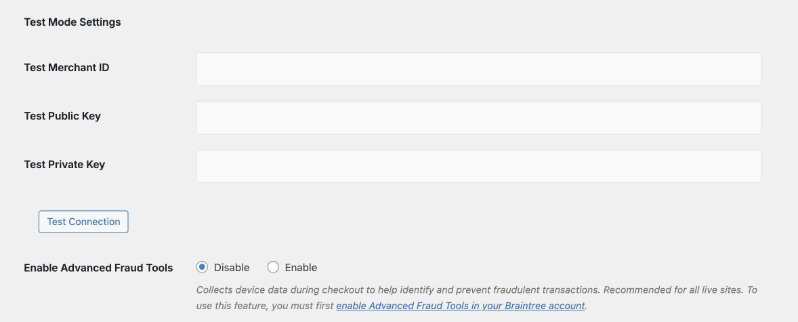
Cuando hayas añadido tus credenciales, haz clic en “Guardar cambios”.
Habilitación de herramientas avanzadas contra el fraude
Herramientas avanzadas contra el fraude recopila datos del dispositivo durante el proceso de pago para ayudar a identificar y prevenir transacciones fraudulentas. Recomendamos activarla para cualquier sitio en producción.
Nota importante: Esta función tiene disponibilidad limitada y restricciones regionales por parte de Braintree, por lo que no es un simple interruptor en el panel. Ponte en contacto con el soporte de Braintree para confirmar que tu cuenta es elegible y que la tienen activada antes de habilitarla en Charitable.
Una vez que Braintree confirme que está activa en tu cuenta, selecciona “Habilitar” junto a Habilitar herramientas avanzadas contra el fraude en Configuración del modo en vivo (y Configuración del modo de prueba, si deseas probarla también en tu cuenta sandbox), y luego haz clic en “Guardar cambios”.
Habilitación de métodos de pago adicionales
Además de los pagos con tarjeta, Braintree te permite aceptar PayPal, Venmo, Apple Pay y Google Pay. Cada método debe estar activado en tu cuenta de Braintree, así como en Charitable. Si un método no aparece como opción en Braintree, no está disponible para tu cuenta.
Paso 1: Habilitar métodos de pago en Braintree
- En tu Panel de control de Braintree, haz clic en el icono del engranaje en la esquina superior derecha y, a continuación, haz clic en “Procesamiento”.
- Activa los métodos de pago que desees aceptar.
Nota: Venmo solo está disponible para cuentas Braintree con sede en EE. UU. Una cuenta sandbox puede activarlo al instante para realizar pruebas, pero una cuenta real necesita enviar una solicitud, que incluya los detalles de tu negocio y el volumen de transacciones esperado, y esperar la aprobación de Braintree. Solicita con antelación si deseas que Venmo esté listo para el lanzamiento, ya que la aprobación no es instantánea.
Nota importante: Apple Pay requiere más que un interruptor. Desde la misma página de Procesamiento, ve a Apple Pay » Opciones y añade tu Certificado de Comerciante de Apple. Apple Pay no funcionará en el proceso de pago hasta que eso se haya hecho.
Paso 2: Habilitar métodos de pago en Charitable
Una vez que un método de pago esté activado en Braintree, marca su casilla en Métodos de pago en la configuración de Charitable Braintree.
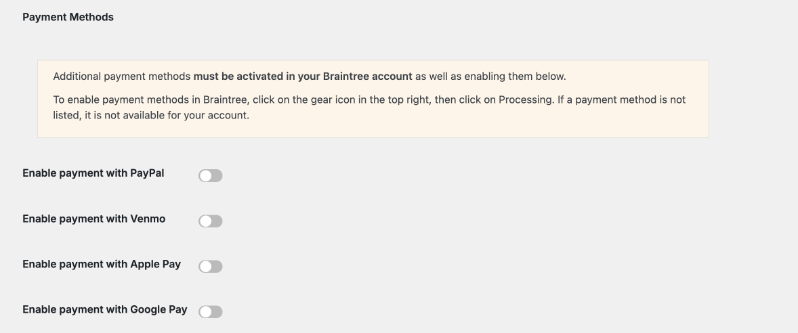
Activación de métodos de pago locales
Los métodos de pago locales aparecen automáticamente debajo del formulario de tarjeta una vez que la divisa de tu sitio coincida con la divisa admitida por un método. Charitable admite actualmente seis métodos de pago locales a través de Braintree:
- iDEAL – Solo EUR. Países Bajos.
- Bancontact – Solo EUR. Bélgica.
- EPS – Solo EUR. Austria.
- BLIK – Solo PLN. Polonia.
- Przelewy24 – PLN o EUR. Polonia.
- MyBank – Solo EUR. Italia, Portugal.
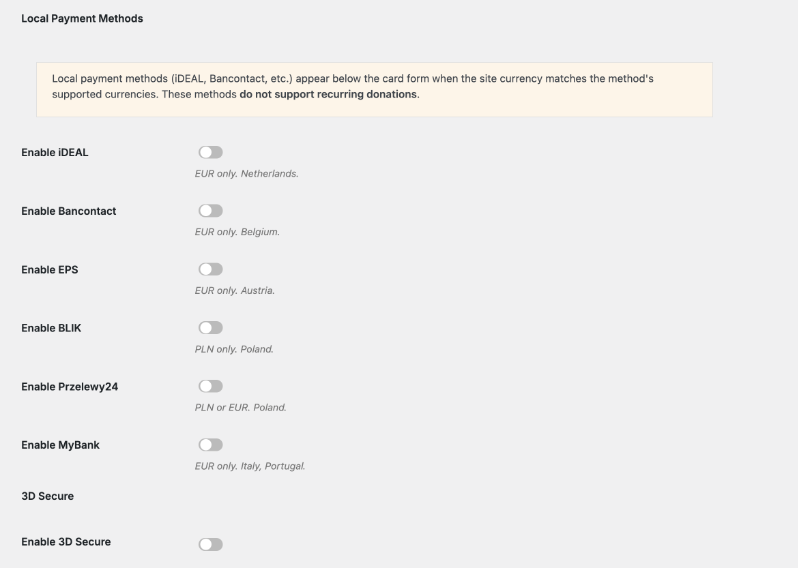
Nota importante: Los métodos de pago locales no admiten donaciones recurrentes. También se liquidan de forma asíncrona, pasando de pendiente a pagado después de que el donante confirme con su banco, por lo que necesitarás una webhook configurada (cubierta a continuación) para que Charitable capture el estado final del pago.
Para una visión más detallada de cómo funcionan los métodos de pago locales para los donantes, consulta nuestra guía sobre el uso de pagos locales de Braintree.
Habilitación de 3D Secure
Charitable se integra con la funcionalidad 3D Secure 2 de Braintree, que reduce el fraude, mejora la seguridad y ayuda a cumplir los requisitos de autenticación reforzada de clientes (SCA) en los pagos con tarjeta.
Nota importante: 3D Secure se activa automáticamente en una cuenta sandbox de Braintree, pero una cuenta real necesita contactar con el soporte de Braintree para que se habilite, ya que la disponibilidad depende de tu región y configuración de cuenta. No es un simple interruptor de autoservicio por parte de Braintree.
Una vez que Braintree confirme que 3D Secure está activo en tu cuenta real, marca la casilla "Habilitar 3D Secure" en la configuración de Charitable Braintree y haz clic en "Guardar cambios".
Configuración de webhooks
Braintree utiliza una webhook para notificar a tu sitio web cada vez que ocurre un evento relacionado con una suscripción, como un cargo de renovación, la cancelación de una donación recurrente o un fallo en una renovación. Si utilizas métodos de pago locales, Braintree también utiliza la webhook para informar a Charitable cuando un pago pendiente finalmente se liquida.
Sin una webhook, Charitable nunca se entera de estos eventos, por lo que vale la pena configurar una incluso si aún no estás seguro de si la necesitarás.
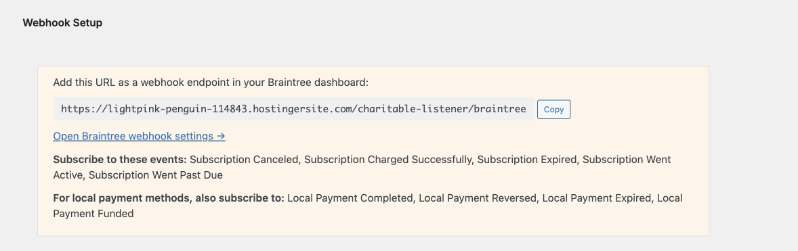
- En Configuración de Webhook en la configuración de Charitable Braintree, haz clic en "Copiar" para copiar la URL de la webhook.
- Haz clic en “Abrir configuración de webhooks de Braintree” (o, en tu Panel de control de Braintree, haz clic en el icono del engranaje en la parte superior derecha, luego haz clic en “API” y después en la pestaña “Webhooks”).
- Haz clic en “Crear nuevo webhook”.
- Pega la URL que copiaste de Charitable en el campo URL de destino.
- En Notificaciones, suscríbete a: Suscripción cancelada, Suscripción cobrada correctamente, Suscripción caducada, Suscripción activa y Suscripción vencida.
- Si utilizas métodos de pago locales, suscríbete también a: Pago local completado, Pago local revertido, Pago local caducado y Pago local financiado.
- Haz clic en “Comprobar URL” para confirmar que el webhook puede llegar a tu sitio web. Tu servidor debería responder con un estado de
200.
Nota: La creación de un webhook requiere el permiso “Gestionar webhooks” en tu cuenta de usuario de Braintree. Si no ves la opción para crear uno, pide a quien administre tu cuenta de Braintree que te conceda ese permiso o que configure el webhook por ti.
Si utilizas el entorno de pruebas de Braintree para probar tu configuración, repite estos mismos pasos en tu cuenta de pruebas para que las donaciones de prueba también activen el webhook.
Configuración de planes de facturación recurrentes
Si utilizas Braintree junto con el complemento de Donaciones recurrentes de Charitable, necesitarás un plan de facturación en Braintree antes de que los donantes puedan iniciar una donación recurrente. Cuando alguien inicia una donación recurrente, Braintree crea una suscripción para ellos, utilizando este plan como plantilla.
Nota: El precio de un plan en Braintree es solo un valor predeterminado. Charitable puede anularlo para suscripciones individuales, por lo que normalmente puedes arreglártelas con un plan por período de facturación (diario, mensual, etc.) en lugar de un plan separado para cada importe de donación.
Creación de un plan en Braintree
- En la navegación superior de tu Panel de control de Braintree, haz clic en “Suscripciones” y luego en “Planes”.
- Haz clic en “+ Crear un plan”.
- Introduce el nombre del plan, el precio predeterminado, la divisa y la frecuencia de facturación. Un ID de plan y una descripción son opcionales. Deja el resto de la configuración como está.
- Haz clic en “Crear”.
Selección de tus planes predeterminados en Charitable
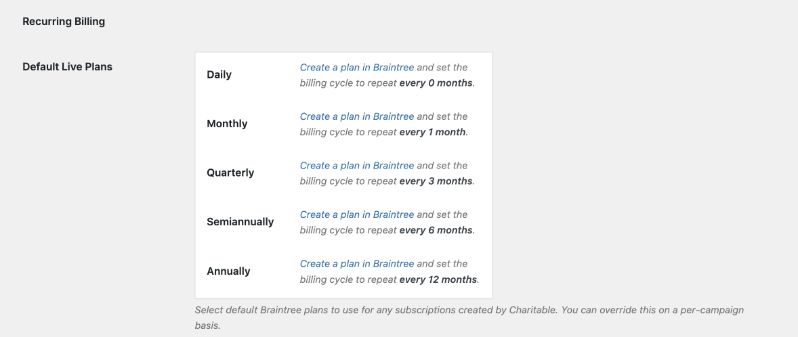
De vuelta en la configuración de Charitable Braintree, desplázate hasta Facturación recurrente. En Planes predeterminados en producción, selecciona el plan de Braintree que deseas utilizar para cada período de donación recurrente que ofrece Charitable: Diario, Mensual, Trimestral, Semestral y Anual.
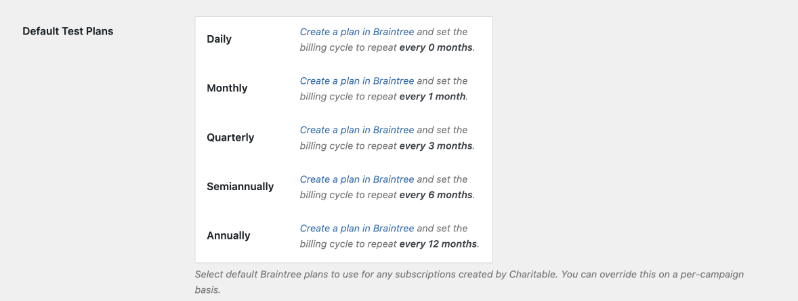
Repite esto en Planes predeterminados de prueba, utilizando los planes creados en tu cuenta de pruebas de Braintree, para que puedas probar las donaciones recurrentes antes de pasar a producción.
Solo necesitas establecer un valor predeterminado para los períodos que realmente ofreces a los donantes. También puedes anular el plan predeterminado para una campaña específica desde la configuración de Donaciones recurrentes de esa campaña, lo cual es útil si prefieres hacer un seguimiento de las donaciones recurrentes de una campaña por separado en tu panel de control de Braintree.
Compatibilidad con varias divisas
Nota importante: Una cuenta de comerciante de Braintree no acepta varias divisas de forma predeterminada. Antes de poder aceptar donaciones en una divisa distinta a la predeterminada de tu cuenta, ponte en contacto con Braintree para que te configuren IDs de cuenta de comerciante específicos para cada divisa.
Una vez que Braintree confirme que una divisa es compatible con tu cuenta, ve a Divisas múltiples en la configuración de Charitable Braintree y marca la casilla junto a esa divisa en Divisas compatibles.
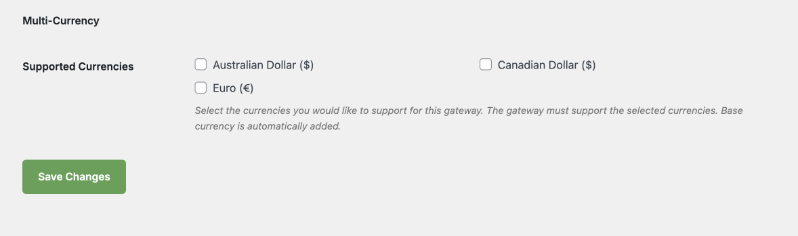
La divisa base de tu sitio se añade automáticamente y no se puede desmarcar. Marcar una divisa que Braintree no ha configurado para tu cuenta provocará que las donaciones en esa divisa fallen, así que confírmalo primero con Braintree.
Cómo Braintree te ofrece seguridad y privacidad de datos completas
Los datos del titular de la tarjeta se gestionan de forma nativa en el sistema seguro de Braintree, utilizando claves de cifrado múltiples con conocimiento dividido y control dual.
Esto ofrece a las organizaciones sin ánimo de lucro la seguridad de saber que la información financiera de sus donantes es privada y segura.
Las contraseñas nunca se almacenan directamente en la base de datos, y toda la comunicación de la API y el Panel de Control entre los comerciantes y Braintree se realiza utilizando TLS (Transport Layer Security), lo que protege completamente los datos de sus donantes.
Braintree está disponible en el plugin Charitable Pro a partir del plan Básico.
¿Todavía no tienes Charitable Pro? Puedes obtener hasta un 50% de descuento al registrarte o actualizar a Charitable Pro. Queremos asegurarnos de que puedas probar las funciones avanzadas de recaudación de fondos como Donaciones Recurrentes, Recuperación de Donaciones y más a un costo significativamente reducido.
Únete a más de un millón de usuarios satisfechos de Charitable Pro hoy mismo. Cada compra viene con una garantía de devolución de dinero de 14 días, asegurando que estés respaldado en cada paso del camino.
Si tienes alguna pregunta o necesitas ayuda, nuestro equipo de soporte está listo para ayudarte a sacar el máximo provecho de estas nuevas funciones.
Preguntas frecuentes sobre Braintree
¿Necesito mi propia cuenta de Braintree para usar este complemento?
Sí. El complemento Braintree de Charitable se conecta a una cuenta que creas directamente con Braintree. Si aún no tienes una, regístrate en braintreepayments.com antes de empezar.
¿Está Venmo disponible para donantes fuera de los Estados Unidos?
No. Venmo solo funciona con cuentas Braintree con sede en EE. UU. y donantes de EE. UU. Los donantes de otros lugares deberán usar una tarjeta, PayPal u otro método compatible.
Activé 3D Secure o Herramientas avanzadas contra el fraude en Charitable, pero no parece funcionar. ¿Por qué?
Ambas funciones deben estar habilitadas o aprobadas en el lado de Braintree primero. Si no has contactado con el soporte de Braintree para confirmar que tu cuenta es elegible y activar la función, el interruptor en Charitable no tendrá nada a lo que conectarse.
¿Puede un donante configurar una donación recurrente con un método de pago local como iDEAL?
No. Los métodos de pago locales solo admiten donaciones únicas. Un donante que quiera donar de forma recurrente deberá pagar con tarjeta, PayPal u otro método compatible con donaciones recurrentes.
¿Necesito una webhook si no estoy usando donaciones recurrentes ni métodos de pago locales?
No estrictamente, pero aún así recomendamos añadir una. Se requiere una webhook si usas Donaciones recurrentes u ofreces algún método de pago local, ya que Charitable depende de ella para recibir actualizaciones de estado de ambos.
¿Puedo aceptar una divisa que Braintree aún no ha configurado para mi cuenta?
No. Ponte en contacto primero con Braintree para que se cree un ID de cuenta de comerciante para esa divisa. Marcar la divisa en Charitable antes de que Braintree confirme que está lista provocará que esas donaciones fallen.
Más documentación
- Instalación de extensiones de Charitable
- Configuración de pasarelas de pago
- Cómo usar Braintree Local Payments
Enlaces Útiles
🤝 Obtenga ayuda cuando la necesite
Conéctese con el Soporte al Cliente →
📑 Encuentre la guía que necesita
Explore el Centro de Documentación →
⬇️ Descarga estrategias probadas, ideas de campañas y herramientas de expertos
Obtén el Kit de Recaudación de Fondos →
💸 Obtén recursos gratuitos de recaudación de fondos
Ve al Centro de Recaudación de Fondos de Charitable →
¿Tienes preguntas sobre Charitable?
Preguntas frecuentes de Charitable →
¿Necesita ayuda para entender la terminología y la jerga de las organizaciones sin ánimo de lucro?
Consulte nuestro Glosario de organizaciones sin ánimo de lucro→


