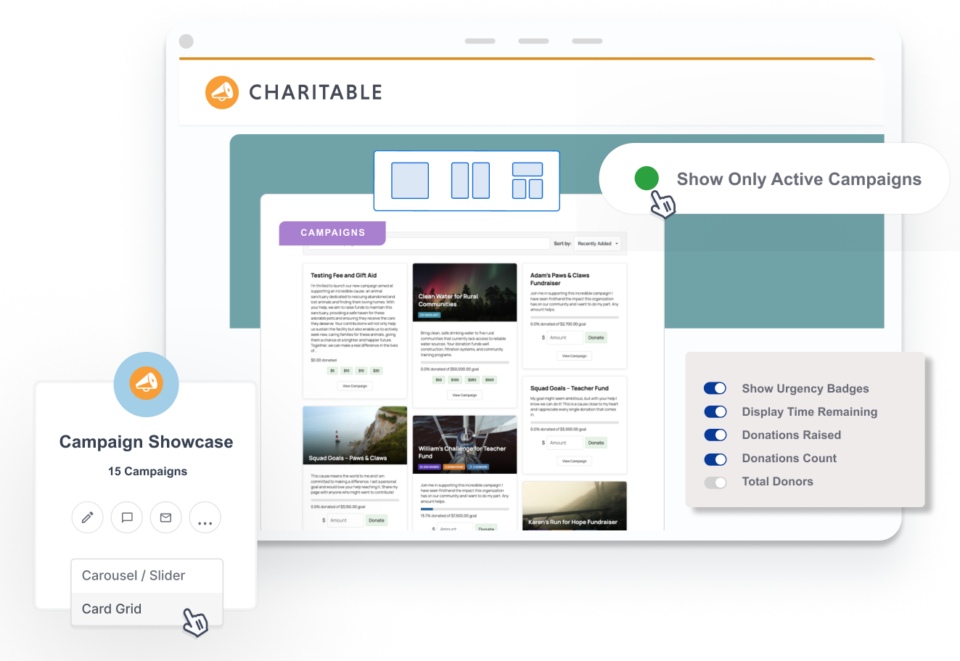
The [campaigns] shortcode allows you to display a collection of campaigns within your posts or pages.
Parameters
number: The number of campaigns to show. Set this to-1to show all campaigns. Defaults to the number of posts you show on blog pages.orderby: The order in which campaigns are displayed. Options includepost_date,popularandending. As of version 1.4, you can also use any of the options thatWP_Queryaccepts. Defaults topost_date.order: Change the direction in which campaigns are ordered. AcceptsDESCorASC. Defaults toDESC.category: Only show campaigns within certain categories, identified by the category slug. Pass multiple category slugs as a comma separate list to include more than one category.tag: Only show campaigns with certain tags, identified by the tag slug. Pass multiple tag slugs as a comma separated list to include more than one tag. Introduced in Charitable Pro.creator: Only show campaigns created by a certain user. User must have their user ID passed.exclude: Exclude specific campaigns by their ID. Pass multiple IDs as a comma separated list to exclude more than one.include_inactive: Include campaigns that have expired by setting this to1ortrue. Defaults tofalse.status: Filter campaigns by status. Options includeactive(only active campaigns),ended(only ended campaigns), orall(all campaigns regardless of status). This parameter takes precedence overinclude_inactive. Introduced in Charitable Pro.columns: Choose how many columns you want to display the campaigns in. Supports any number between 1 and 4. Defaults to2.button: Choose whether you want to show a Donate button (the default), a read more link (button="details"), or nothing at all (button="0").id: Show specific campaigns. You can provide a single number or multiple IDs as a comma separated list.parent_campaigns: Only show child campaigns of the specified parent campaign IDs. Pass multiple IDs as a comma separated list. Introduced in Charitable Pro 1.8.5.parent_only: Show only parent campaigns (top-level campaigns with no parent). Set to1ortrueto enable. This parameter takes precedence overparent_campaigns. Introduced in Charitable Pro.description_limit: Limit the number of words displayed from the campaign description. Accepts any positive integer. Defaults to100. Introduced in Charitable Pro.responsive: Scale campaigns to a single-column layout on smaller screens. Set this to0to turn off the responsive behaviour, or specify a custom breakpoint with a px or em value. The default breakpoint is768px.masonry: Display the campaigns in a masonry layout (like Pinterest). Set this to1to enable the masonry layout. Defaults to0.pagination: Enable or disable pagination for the campaigns list. Set to true to enable pagination, false to disable. Defaults to false. Introduced in Charitable Pro 1.8.6.1.pagination_position: Control where the pagination appears relative to the campaigns list. Options include top, bottom, or both. Defaults to bottom. Introduced in Charitable Pro 1.8.6.1.pagination_prev_next: Control whether to show Previous/Next links in the pagination. Set to true to show these links, false to hide them. Defaults to true. Introduced in Charitable Pro 1.8.6.1.pagination_first_last: Control whether to show First/Last page links in the pagination. Set to true to show these links, false to hide them. Defaults to true. Introduced in Charitable Pro 1.8.6.1.pagination_mid_size: Control how many page numbers to show on each side of the current page. Accepts any positive integer. Defaults to 2. Introduced in Charitable Pro 1.8.6.1.
Usage
Default usage:
[campaigns]
Include expired campaigns:
[campaigns include_inactive=1]
Show 30 campaigns:
[campaigns number=30]
Order campaigns by the amount of money they have raised:
[campaigns orderby=popular]
Order campaigns by how soon they are ending (soonest to end is shown first):
[campaigns orderby=ending]
Only show campaigns within the “environmental issues” category:
[campaigns category=environmental-issues]
Only show campaigns with specific tags:
[campaigns tag=urgent,featured]
Only show campaigns by the user with ID 33:
[campaigns creator=33]
Display campaigns in 3 columns:
[campaigns columns=3]
Show a “read more” link for campaigns:
[campaigns button="details"]
Only display the campaigns with IDs of 33 and 44:
[campaigns id=33,44]
Show only child campaigns of parent campaign with ID 30:
[campaigns parent_campaigns=30]
Show only parent campaigns (top-level campaigns):
[campaigns parent_only=1]
Filter by campaign status (show only active campaigns):
[campaigns status=active]
Filter by campaign status (show only ended campaigns):
[campaigns status=ended]
Limit campaign description to 50 words:
[campaigns description_limit=50]
Turn off responsive styling:
[campaigns responsive=0]
Set a custom breakpoint of 600px for responsive styling:
[campaigns responsive=600px]
Enable pagination (4 campaigns per page):
[campaigns
    number="4"
    pagination="true"
    pagination_position="bottom"
    pagination_prev_next="true"
    pagination_first_last="true"
    pagination_mid_size="2"
]
Extra parameters added by extensions
Ambassadors
If you’re using Charitable Ambassadors version 2.0 or above, there are additional parameters you can use to filter which campaigns are shown:
parent: Show only the child campaigns of a specific parent campaign. This is an alias forparent_campaignswhen using Charitable Ambassadors. Pass multiple IDs as a comma separated list.fundraiser_type: Show only fundraiser campaigns of a specific type. Options include:individual– Individual fundraisers for existing campaigns.team– Team fundraisers for existing campaigns.team-member– Team member campaigns.fundraiser– Any campaign for an existing campaign or the organization.personal– Any campaign for a personal cause.
fundraiser_type_not: Exclude fundraiser campaigns of a specific type. Pass multiple types as a comma separated list. Introduced in Charitable Ambassadors 2.1.0.fundraise_button: If set tofalse, the Fundraise button will not be shown. Set it to your preferred button text if you would like to show the button. Defaults tofalse.join_team_button: If set tofalse, the Join Team button will not be shown. Set it to your preferred button text if you would like to show the button. Defaults tofalse.
Usage
Show campaigns that are a child of the parent campaign with ID 30:
[campaigns parent=30]
Only show team fundraiser campaigns:
[campaigns fundraiser_type=team]
Only show personal campaigns:
[campaigns fundraiser_type=personal]
Exclude individual fundraisers:
[campaigns fundraiser_type_not=individual]
Show the “Fundraise” and “Join Team” buttons in the campaign grid:
[campaigns fundraise_button="Fundraise" join_team_button="Join Team"]Geolocation
If you have Campaigns Geolocation installed, you can display campaigns on a Google Map, with some additional parameters:
map: Set to1ortrueto display campaigns on a map. Defaults tofalse.width: Set how wide you want your map to be. This must be passed as a valid CSS width (400px, 100%, etc). Defaults to100%.height: Set how high you want your map to be. This must be passed as a valid CSS height. Defaults to500px.zoom: Set the initial zoom level you would like your map to display at. Defaults toauto, with the zoom level based on the pins that have been added to the map.
Usage
Display campaigns on a map width a width of 900px, height of 600px and zoom level set to 5:
[campaigns map=1 width=900px height=600px zoom=5]