Charitable Documentation

Learn how to make the most of Charitable with clear, step-by-step instructions.

Setting Up Square Webhooks

Would you like Charitable to receive real-time updates when a payment is completed or refunded through Square? With Square webhooks enabled, your forms can stay in sync with Square so payment statuses are always up to date.

This guide will show you how to easily connect Square webhooks with Charitable, ensuring your website stays in sync with your Square activities.

Before you get started, be sure to install Charitable on your WordPress site. After that, connect your site to your Square account.

Understanding Webhooks

Webhooks are a way for Square to notify Charitable when an event happens in your account, like a payment being updated or refunded. Once enabled, Charitable listens for these events so your site can reflect changes in payment status automatically.

With Square webhooks set up, you don’t need to manually check or update your form entries after a transaction is processed. Whether a payment goes through, is refunded, or partially returned, your Charitable dashboard will stay up to date based on the latest information from Square.

Enabling Webhooks in Charitable

Here are the steps we’ll follow in this guide:

Step 1: Enabling Square Payments

To get started, open your WordPress admin area and go to Charitable » Settings » Gateway Payments tab.

Here, you’ll see a list of available payment gateways that you can enable/disable with just a click. In case Square payments has not yet been enabled, click on the ‘Enable Gateway’ button here.
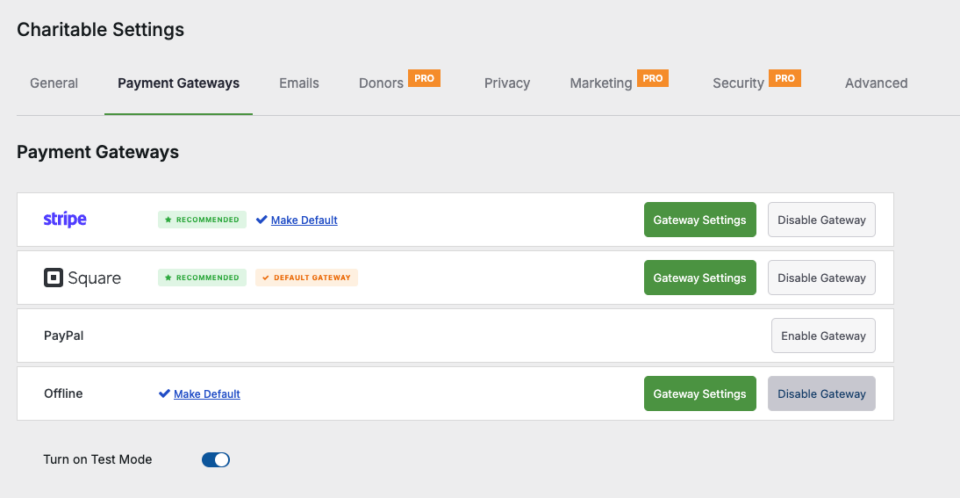
Once enabled, a green ‘Gateway Settings’ button will appear. Click on it to go to the next step.

Step 2: Connecting to Square

On the Square Gateway Settings page, you’ll see a Connection Status section with a button that reads “Connect to Square Account”. Select it and it will open up the Square login page.
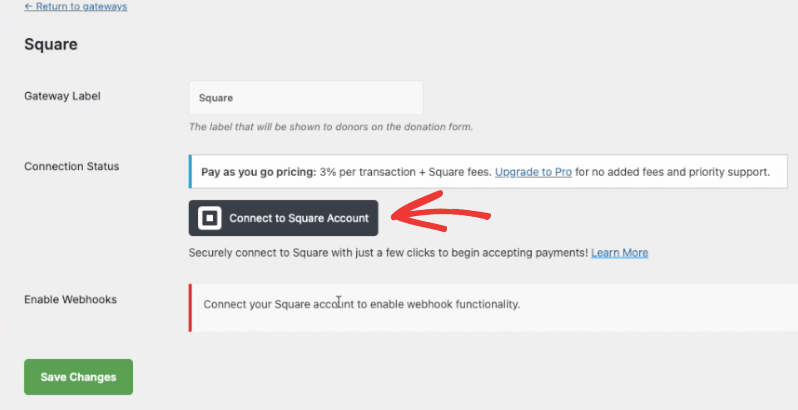
Connect to Square

Enter your credentials and log in to your Square account. You’ll see a page that asks you to grant permission to Charitable.

Select “Allow” and Charitable will sync with Square.
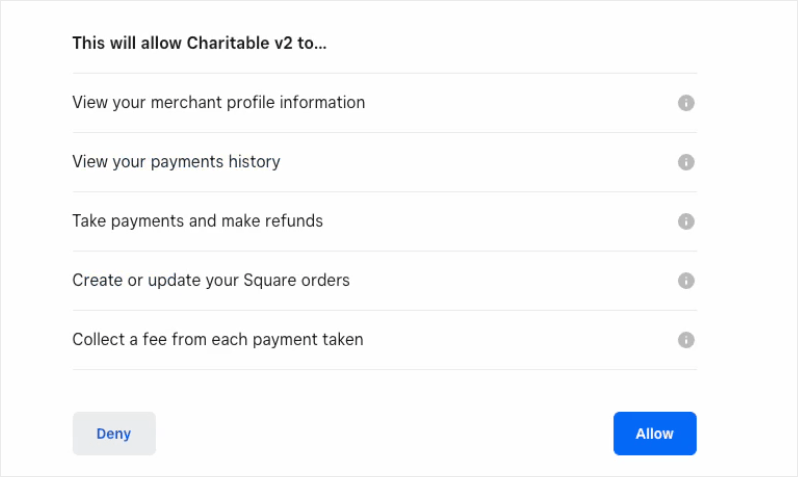
Grant permission in Square

When connected, you’ll be directed back to the Square Gateway Settings page in Charitable.

Charitable will automatically fetch your business locations, and you can select them from a dropdown menu here. This gives you the ability to switch locations as and when you need.
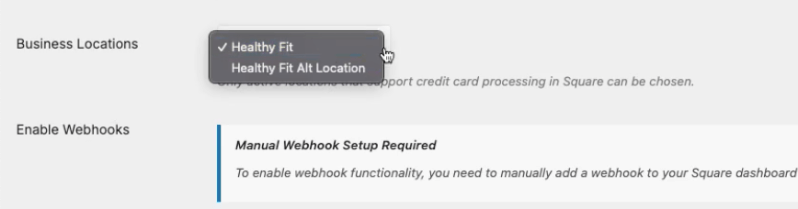
Business location in Charitable Square

Step 3: Enabling Webhooks in Square

We’ve made it as easy as possible to enable webhooks with Square. It’s just a copy and paste. Simply follow the steps below.

First, in the same Square Gateway Settings page, you’ll see an Enable Webhooks section.

Here, there is a webhook URL available. You’ll need to add this inside your Square dashboard. Click on the clipboard icon to quickly copy it.
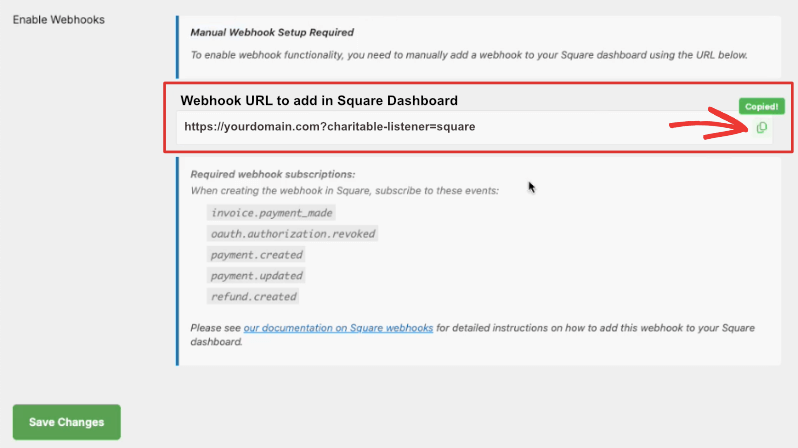
Grab the webhook url in Charitable

Go to your Square dashboard, and open the Webhooks » Subscriptions tab.

Here, you’ll see all the webhooks you’ve set up.
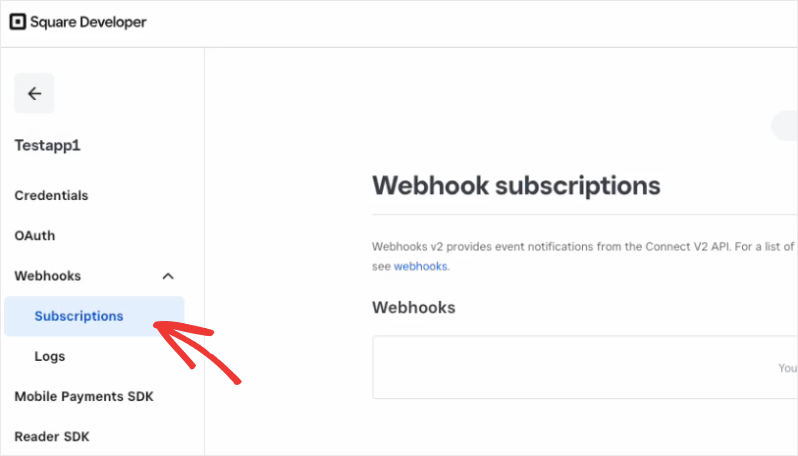
Webhook subscriptions in Square

Choose the ‘Add subscription’ button to create a new webhook.
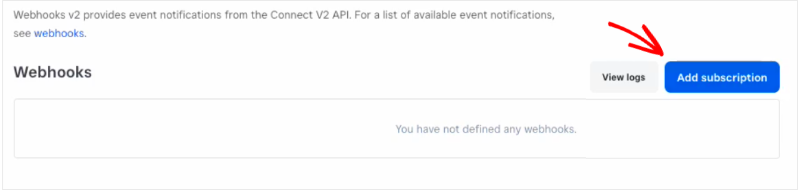
Add subscription

Now, you can add a name for your webhook so you can easily recognize it in the future.

Below that, paste the URL you copied.
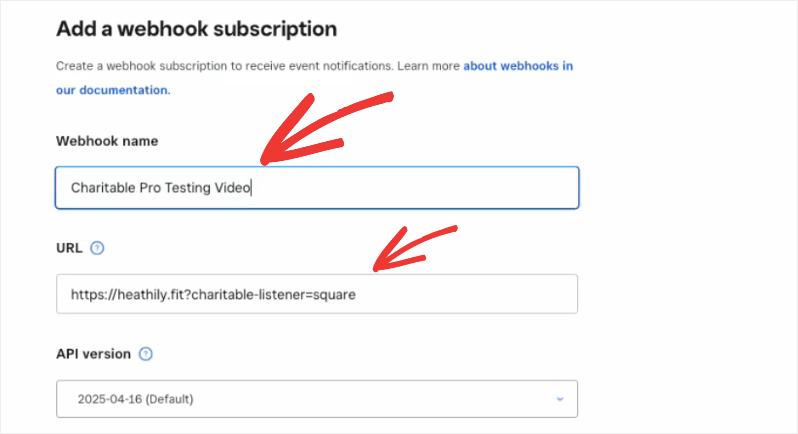
Add webhook in Square settings

Now there’s one more step here. You’ll see a list of Events below this.

You’ll need to select 5 specific events here:

  • invoice.payment_made
  • oauth.authorization.revoked
  • payment.created
  • payment.updated
  • refund.created
Choose webhook subscriptions in square

You can find the events required inside your Charitable dashboard. Below the webhook URL you copied, you’ll see the list of required webhook subscriptions.
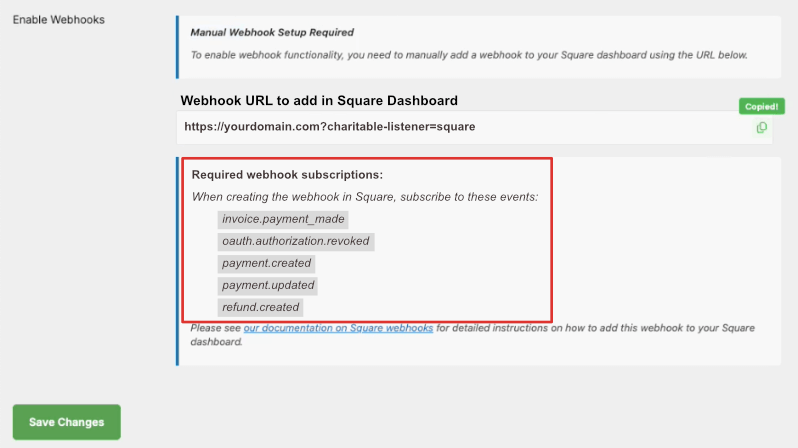
Required webhooks

Once you’ve chosen these events in your Square dashboard, hit the ‘Save’ button at the top to save your new webhook.
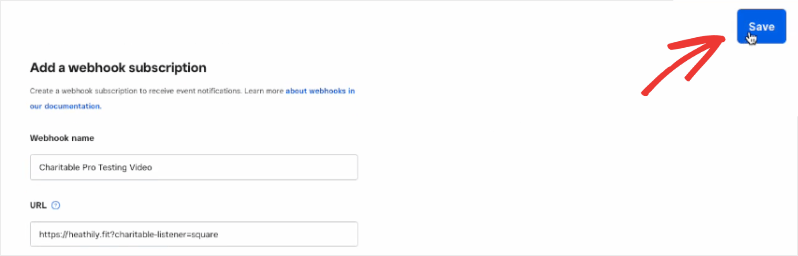
Save button in Square webhooks

That’s it! You’ve connected your Charitable account to Square webhooks.

Now you can go to the Webhooks » Subscriptions tab., and you’ll see the webhook you’ve just set up.
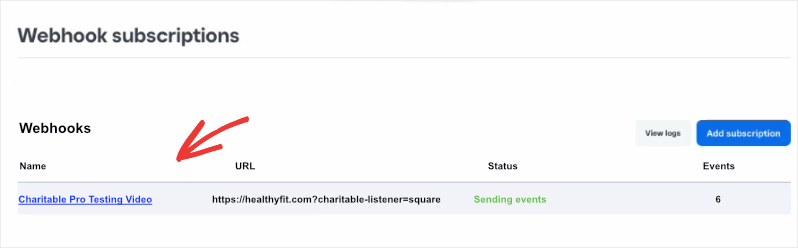
Webhook appears in dashboard

Make sure you ‘Save Changes’ inside the Square Gateway Settings page in your WordPress admin panel as well.

We recommend making one or two test donations to make sure your connection is working fine.

Now, when a donor makes a contribution using Square payments, it will appear in the donation receipt like so:
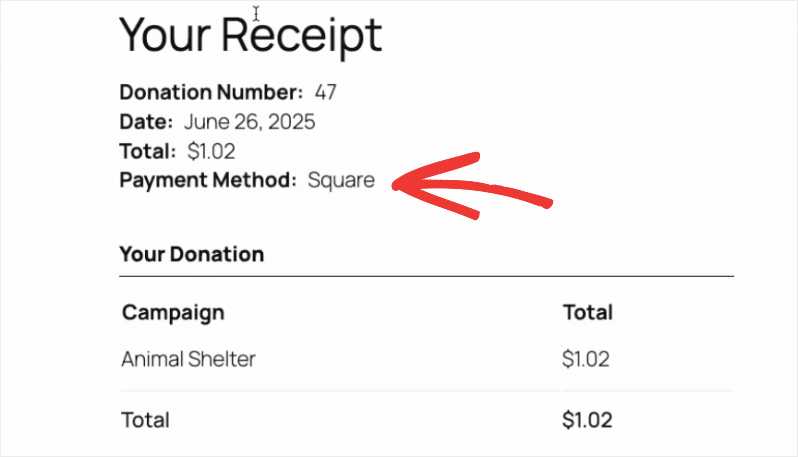
Viewing Square Donations inside Charitable

When a donation is made, the transaction details will be recorded by Charitable.

You can access this under Charitable » Donations.

Here you can see all donations made through all payment gateways you’ve enabled on your site.

Charitable displays the donation details such as the name, email address, amount donated, payment gateway, campaign, and status.

This gives you a bird’s eye view of all donations received.
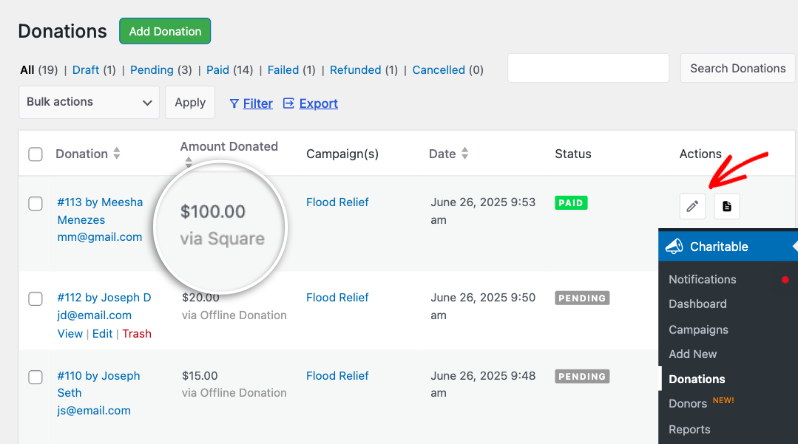
Square donation record

Any transactions made through the Square payment gateway will also appear in your Square dashboard under the Payments & invoices » Transactions tab, like this:
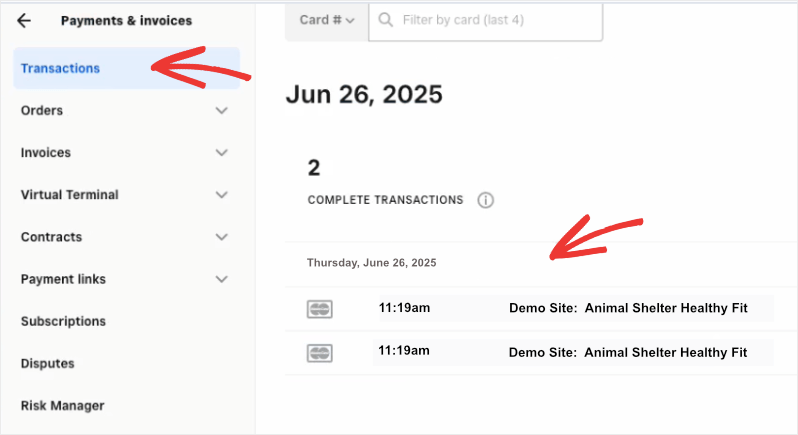
Square transaction complete

Next, we’ll show you how to issue Square refunds.

Refunding Donations Made With Square

Charitable makes it easy for you to issue refunds on any donation made through Square. Go to Charitable » Donations and edit the donation record you need to refund.

On the right taskbar, under the Donations Actions section, choose the ‘Refunded’ status from the drop down menu.
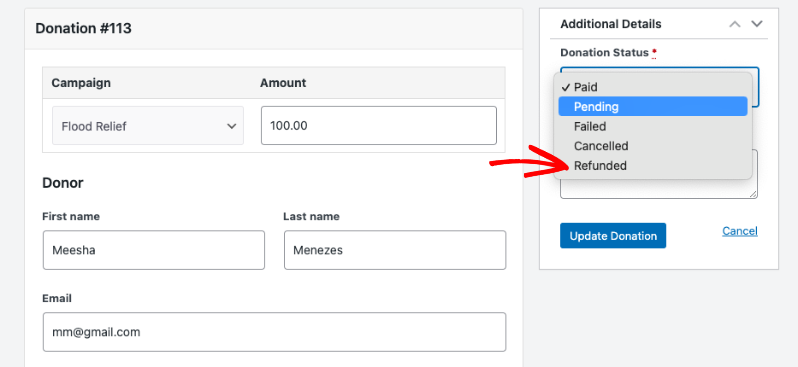
Donation record

You’ll see a checkbox appear to ‘Refund in Square automatically’. Check this box and click on the ‘Update Status’ button.
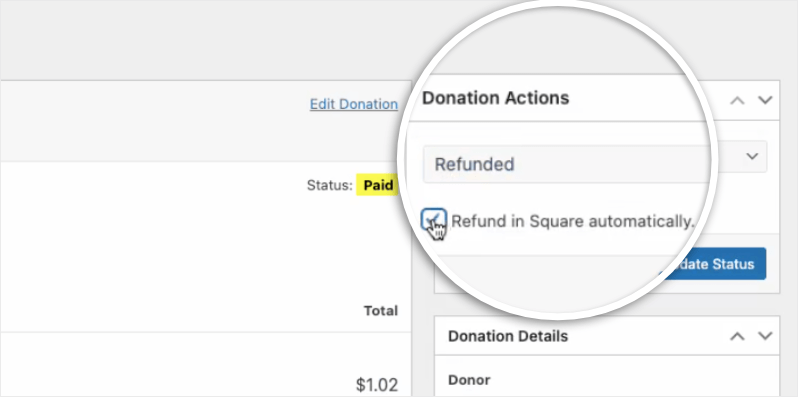
Refund Square transaction

That’s it. You’ll see the refund activity appear in the activity log on the same page.
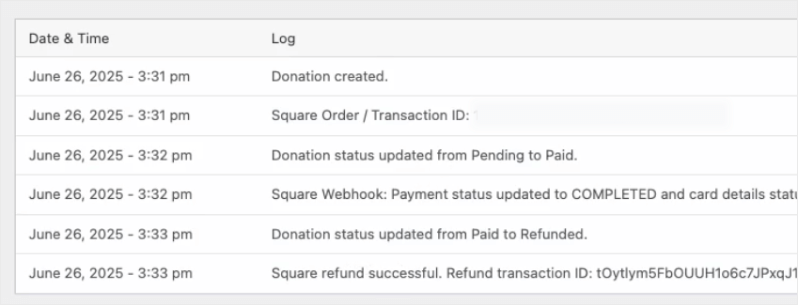
Square donation records

The refund will be issued by Square. You can visit your Square dashboard and see that the refund payment has been made.
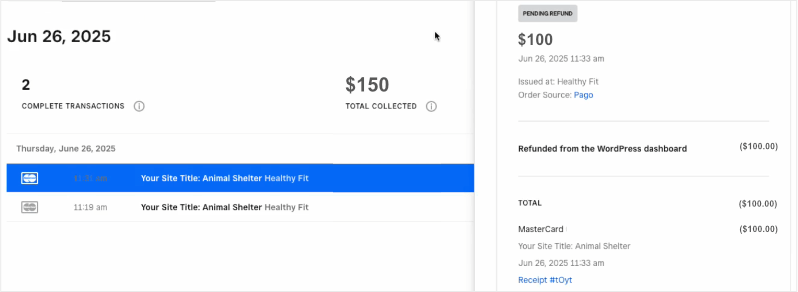
Refund inside Square

Now you know how to set up Square webhooks with Charitable.

Frequently Asked Questions

These are answers to some of the top questions we see about setting up Square webhooks in Charitable.

How do I enable Square payments in Charitable?

In your Charitable dashboard, go to Settings » Payment Gateways and enable the Square payment gateway. Then follow our Square Setup guide to complete the connection.

Do I need to set up webhooks for both Test Mode and Live Mode?

Yes, Square provides separate credentials for Sandbox (Test) and Production (Live) environments. Be sure to use the correct access token based on whether Test Mode is enabled in your Charitable settings.

Can I enable multiple payment gateways along with Square?

Yes, Charitable makes it possible enable multiple payment gateways. You can also enable specific gateways for different campaigns.

Next, would you like to learn more about creating campaigns in Charitable? Check out our tutorial on creating your first campaign with Charitable.
Still have questions? We’re here to help!

Last Modified:

What's New In Charitable

🔔 Subscribe to get our latest updates
📧 Subscribe to Emails

Email Subscription

Join our Newsletter

We won’t spam you. We only send an email when we think it will genuinely help you. Unsubscribe at any time!

Integration New

WordPress Command Palette Integration

Take your fundraising workflow to the next level. Speed up your site management and stay in your creative flow with our new WordPress Command Palette integration.

Supercharge Your Workflow
Navigate your fundraising dashboard faster than ever.

The Ultimate Keyboard Shortcut Hit Cmd + K (or Ctrl + K) to launch the Command Palette and manage your campaigns instantly.

⚡ Instant Navigation: Jump directly to your Campaigns, Donations, or Settings from anywhere in the editor.

➕ Quick Create: Start a new fundraising campaign or add a manual donation with a single command.

Efficiency Redefined
The tools you need, exactly when you need them.

⚙️ Contextual Actions: See relevant Charitable commands based on whether you’re editing a page or viewing your reports.

🚀 Seamless Integration: Built directly into the WordPress core experience for a lightweight, native feel.

Improvement New Security

📣 New Security Features

We’ve introduced a suite of new security tools to give you total control over who accesses your forms, plus a new way to tidy up your database.

Advanced Security Suite

Layered protection: Cloudflare, ReCAPTCHA, IP Controls, and Rate Limiting.

We have overhauled our security settings to stop bots without blocking real donors.

  • 🤖 Flexible Protection: Choose between Google reCAPTCHA v3 or the privacy-first Cloudflare Turnstile to block bots invisible.

  • 🚦 Rate limiting: Stop spam floods by limiting how many submissions an IP address can make in a set timeframe.

  • 🛑 Total control: Use the new IP Blacklist to block bad actors instantly, or the IP Whitelist to let your team bypass checks during testing.

The Clean Donation Tool

Go from “Testing” to “Live” in seconds.

Finished setting up your site and need to get rid of all those test transactions?

  • 🧹 Sweep it clean: Bulk delete test donations and donor records with a single click.

  • 📉 Accurate reporting: Ensure your revenue stats are 100% accurate for launch day.

  • ⚙️ Reset sequences: Automatically resets sequential invoice numbering.

donation form New

🏗️ Visual Donation Form Builder

Building the perfect donation form just got easier. We have completely reimagined how you create forms with a new drag-and-drop interface.

Design Visually, in Real-Time

No coding, no guessing. Just point, click, and build.

Say goodbye to confusing settings pages. You can now edit your form and see exactly what your donors will see, instantly.

  • 🖱️ Drag & Drop: Easily add fields like names, addresses, or file uploads by dragging them exactly where you want them.

  • 🎨 Customize everything: Click any field to tweak labels, placeholders, and requirement settings on the fly.

  • 👁️ Live preview: See your changes immediately as you make them—ensure your form flows perfectly before you hit publish.

Flexible & Powerful

Works with all your existing campaigns.

  • 🧩 Deep customization: Add custom HTML, shortcodes, or CSS classes for advanced branding.

  • ⚙️ Smart fields: Collect exactly what you need with support for dropdowns, checkboxes, dates, and hidden fields.

Leaderboards New

🏆 Donor Leaderboards!

Turn your fundraising into a community event. Recognize your most generous supporters and inspire friendly competition with our new leaderboard tools.

Gamify Your Fundraising

Celebrate your top donors and encourage others to climb the ranks.

Create a public “Hall of Fame” to give your donors the recognition they deserve.

  • 🎨 Two stunning layouts: Choose the List View for a clean, data-rich table or the Card View for a modern, visual grid with avatars.

  • 🥇 Automatic highlights: The top 3 supporters get special Trophy and Crown icons to make them stand out.

  • 🧩 Place it anywhere: Add it to any page using the new Gutenberg Block, or drop it directly into your campaign using the Visual Builder.

Total Customization

You decide what to show and what to hide.

  • ⚙️ Flexible data: Choose to display or hide donation amounts, donor counts, or avatars.

  • 🔄 Lifetime stats: Works seamlessly with Recurring Donations to show a donor’s all-time total impact.

Improvement New templates

🎨 New Templates & List Builder

Launch faster and design better. We’ve added three professional campaign templates and a versatile new content block to help you tell your story.

3 New Campaign Templates

Ready-to-use designs for specific fundraising needs.

Don’t start from scratch. Pick a template tailored to your cause and launch in minutes.

  • 🎄 Holiday Fundraiser: A warm, festive design perfect for year-end giving, toy drives, or food pantries.

  • 🎓 School Fundraiser: Built for PTAs and sports teams. clearly highlights goals like playground upgrades or classroom tech.

  • Church Fundraiser: A trustworthy layout designed for building funds, mission trips, and tithes.

The New “List” Block

Organize your campaign details without writing code.

Make your campaign pages easier to scan and more visually engaging with our new builder block.

  • 📝 Flexible layouts: Choose from 3 distinct styles to display sponsorship levels, donation perks, or project goals.

  • 🎨 Rich customization: Add colorful headlines, support for emojis, and unlimited list items.

  • 👣 Smart footers: Include a built-in footer for extra context or a final Call to Action.