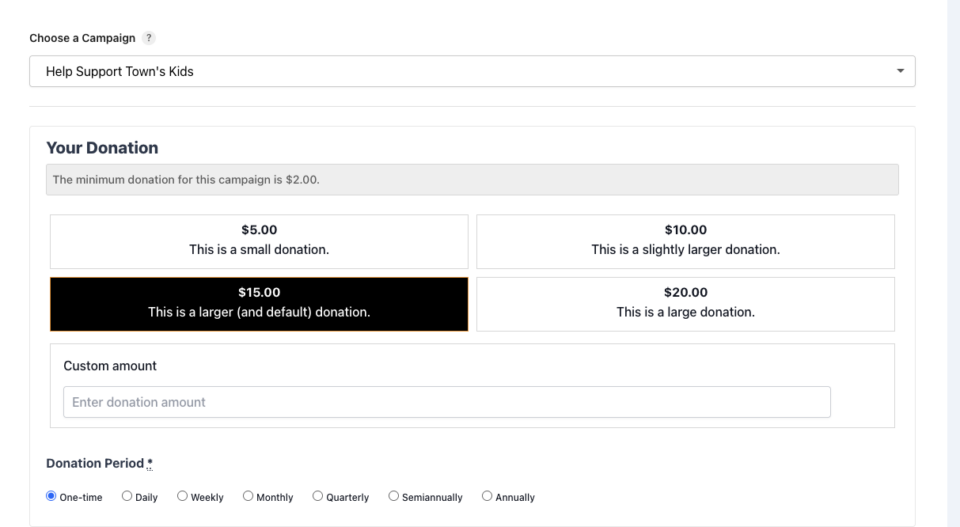
The Campaign Updates feature in Charitable (via the Campaign Updates extension) lets you publish progress updates for your campaigns, display them on campaign pages, and email donors who have opted in. Donors can subscribe at donation time and unsubscribe per campaign.
Table of Contents
- Key Features
- Why Use Campaign Updates?
- See It In Action
- Getting Started
- Requirements
- Activation
- The “I Want to Receive Updates” Donation Form Checkbox
- Adding and Managing Updates
- Featured Updates
- Campaign Builder Field
- Campaign Updates Settings Tab
- Sending Emails to Subscribers
- Unsubscribe and Re-subscribe
- WordPress Filters and Hooks (Developers)
- Troubleshooting
- FAQs
Key Features
- Campaign-specific updates – Publish progress, milestones, and urgent news per campaign.
- Three update types – General, Milestone, and Urgent (with distinct styling).
- Featured updates – Highlight one update at a time at the top of the list.
- Donor opt-in – “I want to receive updates” checkbox on the donation form (when conditions are met).
- Email notifications – Send update emails to opted-in donors (manual or automatic).
- Draft support – Save updates as drafts before publishing.
- Display options – Show updates via Campaign Builder field (carousel, list, or feed) or shortcode.
- Unsubscribe / re-subscribe – Per-campaign unsubscribe links in emails; one-click re-subscribe page.
Why Use Campaign Updates?
- Engagement – Keep donors informed and connected after they give.
- Trust – Show how funds are used and milestones reached.
- Re-engagement – Urgent or milestone updates can encourage repeat giving.
- Compliance – Opt-in and unsubscribe are built in for consent and list hygiene.
See It In Action
Video: Campaign Updates overview – checkbox, adding updates, featured, settings, and emails.
Getting Started
Requirements
- Charitable Pro (version that includes or supports the Campaign Updates extension).
- WordPress 5.0 or later.
- PHP 7.4 or later.
Activation
Campaign Updates is available with the appropriate Charitable plan. Once the Campaign Updates plugin is installed and activated, the feature is available. No separate activation step is required beyond enabling it per campaign (see Campaign Updates Settings Tab).
The “I Want to Receive Updates” Donation Form Checkbox
The donation form can show a checkbox such as: “I want to receive updates about this campaign’s progress.” When checked, the donor is recorded as opted in to campaign update emails for that campaign.
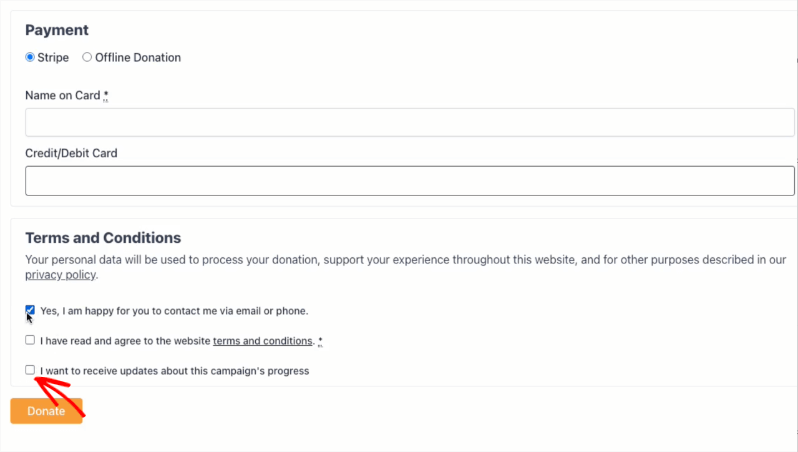
When the checkbox appears
All of the following must be true:
- Campaign Updates is enabled for the campaign
In the campaign’s Campaign Builder, open the Settings tab (sidebar: Campaign Updates). Under Display Settings, turn Enable Campaign Updates ON. Save the campaign if needed. - Contact consent is enabled in Charitable
Go to Charitable → Settings → Privacy. Enable the Contact consent option and set the consent checkbox label (e.g. “Yes, I am happy for you to contact me via email or phone.”). Save. - The donation form shows the Terms & Conditions / consent section
The Campaign Updates checkbox is added to the same area as contact consent (Terms & Conditions section).
For visual (campaign) forms: ensure the form includes a Privacy policy (or equivalent) field so that the terms/consent section is rendered.
For legacy forms: with contact consent enabled in Privacy settings, the consent area is shown automatically. - Consent database upgrade is complete
Charitable stores consent in the donor tables. If your site was upgraded from an older version, ensure any donor/consent database upgrades have been run (usually automatic after updating).
Summary checklist
| Requirement | Where to check |
|---|---|
| Campaign Updates enabled for this campaign | Campaign → Campaign Builder → Settings → Campaign Updates → Enable Campaign Updates = On |
| Contact consent enabled globally | Charitable → Settings → Privacy → Contact consent = On, label set |
| Form shows terms/consent section | Visual form: add Privacy policy field. Legacy: automatic when contact consent is on. |
| Consent upgrade complete | Run updates; check Charitable → Tools / system status if unsure. |
If the checkbox does not appear, go through each item above. The Settings tab in Campaign Updates will show a warning (⚠️) if contact consent or the privacy field is missing.
Adding and Managing Updates
Updates are created and edited from the Campaign Builder when editing a campaign.
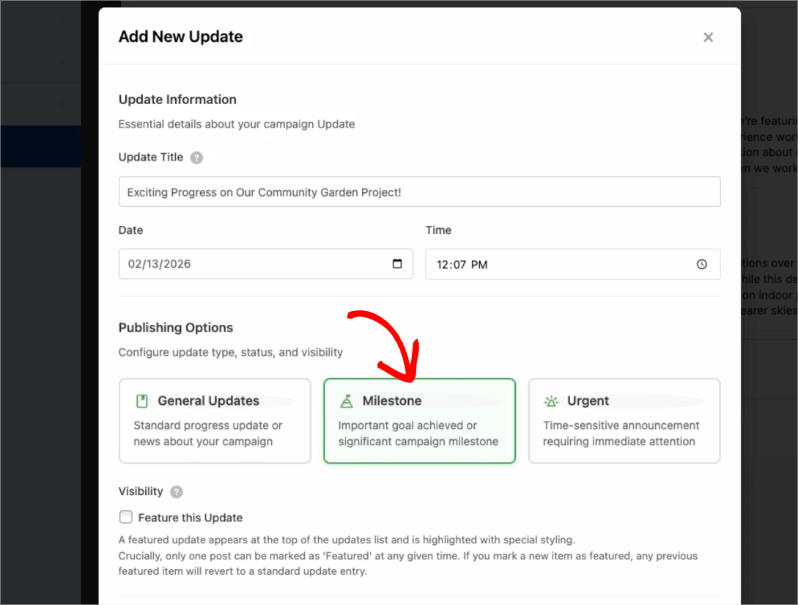
Opening the add/update modal
- Edit the campaign in WordPress.
- Open the Campaign Builder tab.
- In the left sidebar, click Campaign Updates (Settings panel).
- In the Updates Feed tab, click Add First Update or Add New Update.
- The Add New Update modal opens.
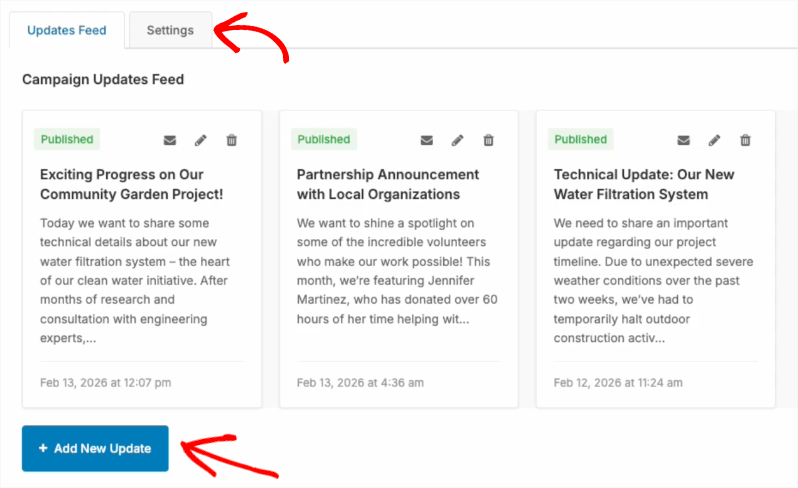
Modal sections and fields
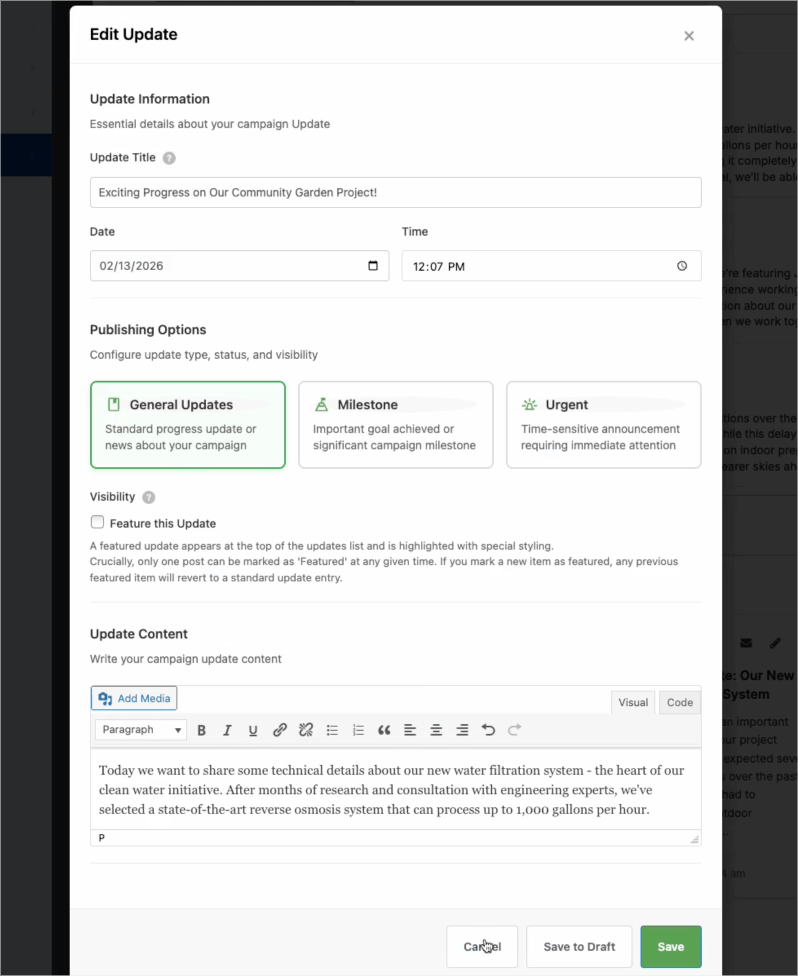
1. Update Information
- Update Title – Required. Short headline for the update (e.g. “We hit 50% of our goal!”).
- Date – Publication date (defaults to today).
- Time – Publication time (defaults to current time).
2. Publishing Options
- Update type (choose one):
- General – Regular progress or news.
- Milestone – Important achievements or goals reached.
- Urgent – Time-sensitive or critical information.
- Feature this Update – Check to make this the single “featured” update (see Featured Updates).
3. Update Content
- Rich-text editor for the main update body (formatting, links, etc.).
Buttons
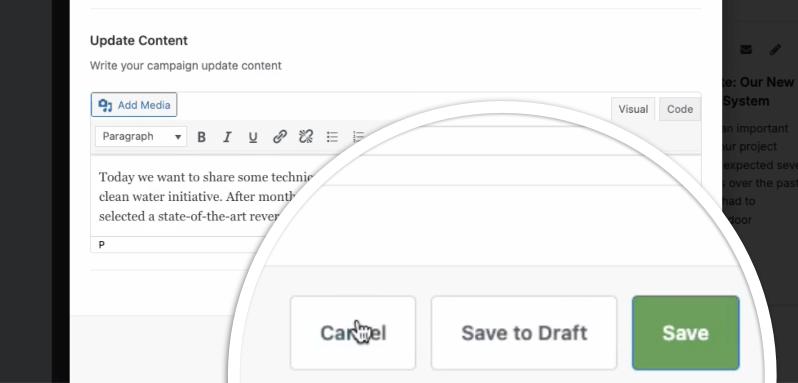
- Cancel – Close without saving.
- Save to Draft – Save with status Draft. Drafts are not shown on the front end and are not sent by email. You can edit and publish later.
- Publish – Save with status Published. The update appears in the feed and can be included in emails (depending on Campaign Updates Settings).
Editing or deleting an update
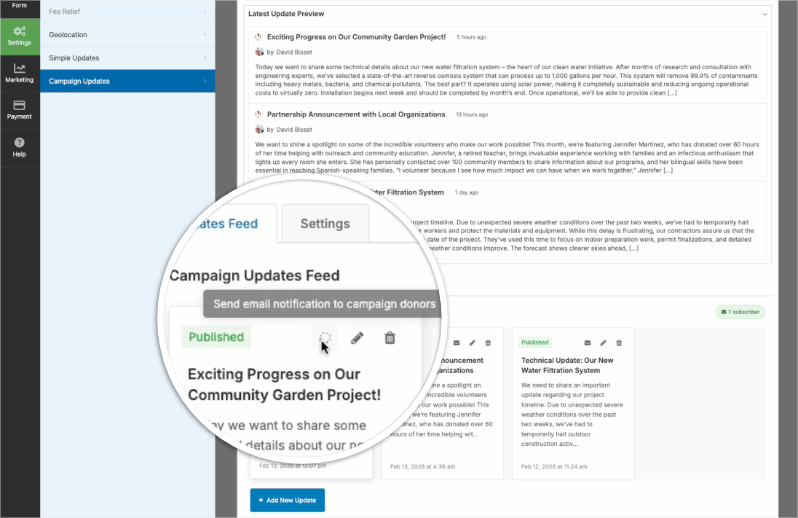
In the Updates Feed list, each update card has:
- Edit – Opens the same modal with the update’s data; use Save or Save to Draft to update.
- Delete – Confirmation dialog, then the update is removed.
- Send email (envelope icon) – Opens the email send dialog for that update.
Featured Updates
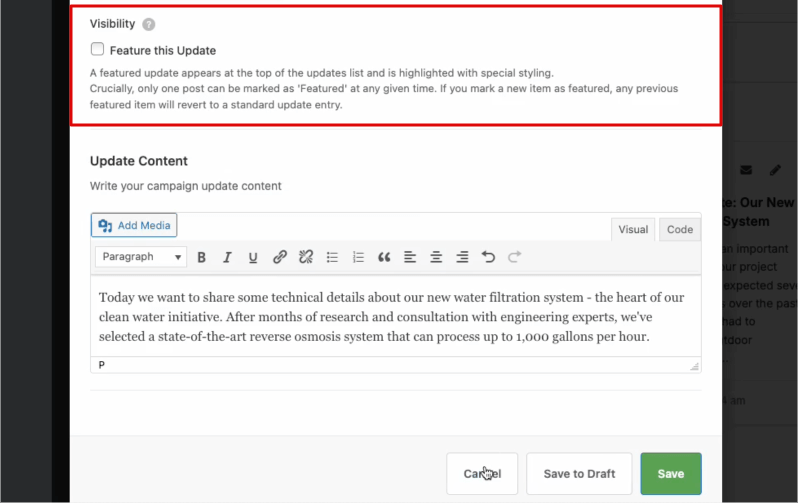
What “featured” means
- A featured update is shown at the top of the updates list and can be styled differently (e.g. highlighted).
- Only one update per campaign can be featured at a time.
If you mark a different update as featured, the previous featured update becomes a normal (non-featured) update.
When to use it
- Use featured for the single most important current update (e.g. “We reached our goal!” or “Final week – we need your help”).
- Use Update type (General / Milestone / Urgent) for categorization; use Featured for prominence.
How to set it
In the add/edit update modal, under Publishing Options, check Feature this Update, then save (Publish or Save to Draft). To “un-feature,” edit the update and uncheck Feature this Update, then save.
Campaign Builder Field
The Campaign Updates field is a Design (layout) field in the Campaign Builder. It controls how the list of updates is displayed on the campaign page.
Adding the field
- Edit the campaign → Campaign Builder tab.
- In the Design panel, click Add Fields (or equivalent).
- Find Campaign Updates (e.g. under Pro fields).
- Add it to the layout where you want the updates to appear.
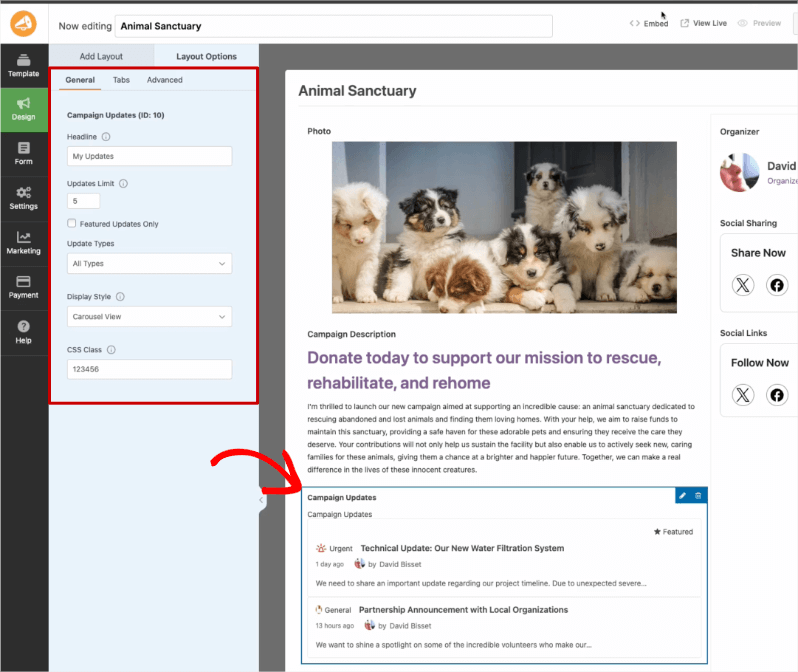
Field settings
| Setting | Description |
|---|---|
| Label | Heading shown above the updates block (e.g. “Campaign Updates”). |
| Updates Limit | Maximum number of updates to show. Leave empty or 0 for no limit (respects campaign-level content limit if set). |
| Featured Updates Only | If enabled, only the featured update is shown. |
| Update Types | Filter by type: All Types, General Only, Milestones Only, Urgent Only. |
| Display Style | Carousel View – Slideshow with navigation. List View – Fixed-height cards (recommended for 3 or fewer). Feed View – Full content in a timeline. |
| CSS Class | Optional space-separated classes for custom styling. |
The campaign-level Content Limit (in Campaign Updates → Settings) acts as a default cap; the field’s Updates Limit can override it for that block.
Campaign Updates Settings Tab
In the Campaign Builder sidebar, Campaign Updates has two tabs: Updates Feed (list + add) and Settings.
Display Settings
- Enable Campaign Updates – Master switch. Must be On for:
- The donation form “I want to receive updates” checkbox to appear for this campaign.
- Updates to show on the front end and in the feed.
- Update emails to be sendable for this campaign.
- Content Limit – Default maximum number of updates to display (e.g. 5). Individual Campaign Updates fields can override. Set to 0 for no limit.
Email Notifications
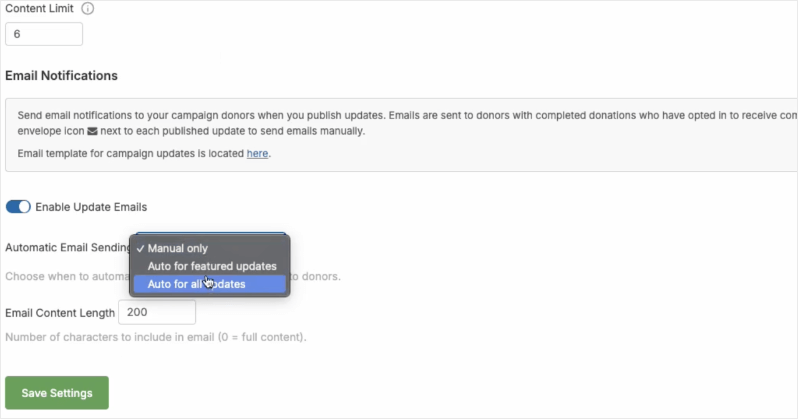
- Enable Update Emails – Allow sending campaign update emails to donors for this campaign. Requires the Campaign Updateemail to be enabled in Charitable → Settings → Emails.
- Automatic Email Sending
- Manual only – Emails are sent only when you click the envelope icon for an update.
- Auto for featured updates – Publishing (or updating to) a featured update triggers an email to subscribers.
- Auto for all updates – Every published update triggers an email.
- Email Content Length – Number of characters of the update body to include in the email (0 = full content). Helps keep emails concise.
The Settings tab shows warnings if:
- The Campaign Update email is disabled in Charitable email settings.
- Contact consent is not enabled in Privacy settings.
- The campaign form does not include a privacy/consent field (so new donors cannot opt in).
Sending Emails to Subscribers
Who receives emails
Only donors who:
- Have completed at least one donation to that campaign, and
- Have contact consent and campaign updates consent recorded (e.g. checked “I want to receive updates” at donation time), and
- Have not unsubscribed from that campaign’s updates
Sending a single update (manual)
- In the campaign’s Campaign Builder → Campaign Updates → Updates Feed, find the published update.
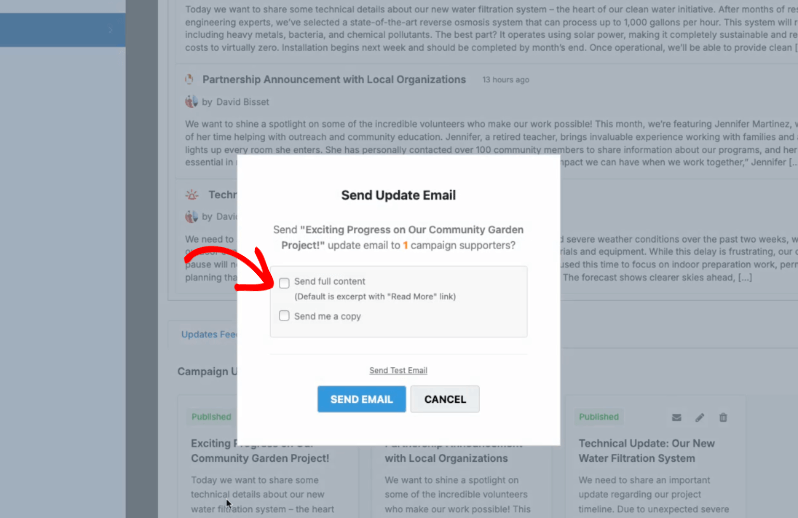
- Click the envelope icon on the update card.
- In the dialog:
- Choose whether to send full content or an excerpt (based on Email Content Length).
- Optionally check Send a copy to admin and enter the email address (e.g. your own) to receive a copy.
- Confirm send. Subscribers (and optionally the admin) receive the email.
Sending a test email to yourself
- Click the envelope icon for a published update (same as above).
- In the same dialog, use the Send Test Email link.
- The test is sent to the currently logged-in user’s email address. No subscriber list is used; it’s for layout and content checks.
You can also use Send a copy to admin when sending to subscribers to receive a copy of the real email.
Automatic sending
If Automatic Email Sending (in Campaign Updates → Settings) is set to:
- Auto for featured updates – When you publish an update and mark it Feature this Update (or change an existing update to featured), an email is sent automatically to subscribers.
- Auto for all updates – Every time you publish an update, an email is sent automatically.
Manual only means no automatic emails; you must use the envelope icon each time.
Unsubscribe and Re-subscribe
Unsubscribe
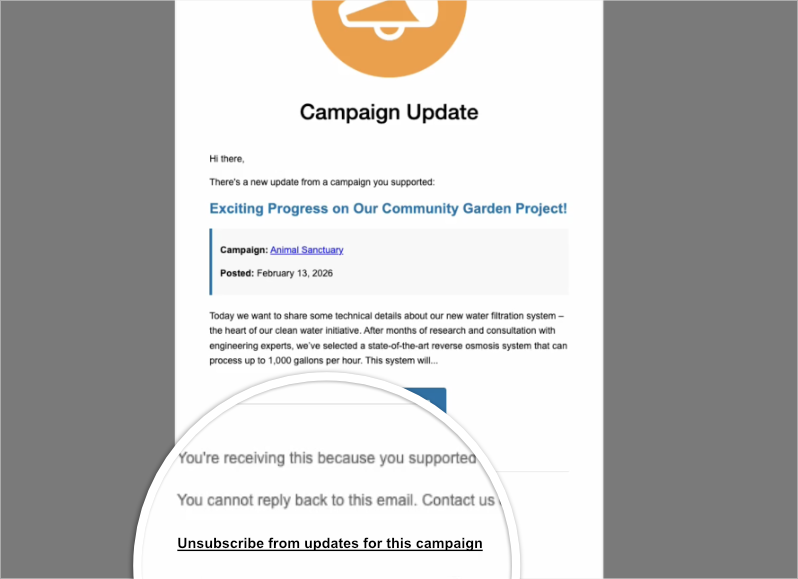
Every campaign update email to a donor includes an Unsubscribe link. It is campaign-specific: unsubscribing removes the donor only from that campaign’s update emails.
- Clicking the link marks that donor as unsubscribed for that campaign.
- They see a confirmation page (e.g. “You have been unsubscribed from [Campaign name] campaign updates”).
- The same page can offer a Re-subscribe link (see below).
Re-subscribe
- From the unsubscribe confirmation page, the donor can click Re-subscribe to start receiving updates for that campaign again.
- Re-subscription can also happen automatically: if a donor who had unsubscribed from a campaign makes a new donation to that campaign, they are automatically re-subscribed to updates for it.
One-click unsubscribe (email clients)
Emails include standard List-Unsubscribe headers so compatible email clients can show a one-click “Unsubscribe” action. That action uses the same campaign-specific unsubscribe URL.
WordPress Filters and Hooks (Developers)
These filters and actions are part of the public API for customizing behavior and output.
Filters
| Filter | Purpose | Parameters |
|---|---|---|
charitable_campaign_updates_default_checked | Whether the “I want to receive updates” checkbox is checked by default. | (bool) Default false. |
charitable_campaign_updates_consent_label | Label text for the campaign updates consent checkbox. | (string) Default: “I want to receive updates about this campaign’s progress.” |
charitable_campaign_updates_require_contact_consent | Whether the updates checkbox is disabled until contact consent is checked (two-tier behavior). | (bool) Default true. |
charitable_campaign_update_types | Definitions of update types (general, milestone, urgent). | (array) Type key => label, description, icon, color. |
charitable_campaign_updates_content_limit | Campaign-level content limit (max updates to display). | (int) Limit, (int) campaign_id. |
charitable_campaign_updates_query_args | Query args used to fetch campaign updates. | (array) query_args, (array) args. |
charitable_campaign_updates_container_classes | CSS classes on the updates container. | (array) classes, (int) campaignid, (array) viewargs. |
charitable_campaign_updates_title | Section title (e.g. “Campaign Updates”). | (string) title, (int) campaignid, (array) viewargs. |
charitable_campaign_update_classes | CSS classes on a single update element. | (array) classes, (WP_Post) update, (array) args. |
charitable_campaign_update_item_classes | CSS classes on the update item wrapper. | (array) classes, (WPPost) update, (array) viewargs. |
charitable_campaign_update_excerpt | Excerpt text for an update. | (string) excerpt, (WPPost) update, (int) wordcount. |
charitable_campaign_update_time_ago | “Time ago” text for the update date. | (string) timeago, (WPPost) update. |
charitable_campaign_update_title | Title of a single update. | (string) title, (WPPost) update, (array) viewargs. |
charitable_campaign_update_unsubscribe_message | Message shown after unsubscribe. | (string) message, (int) donorid, (int) campaignid. |
charitable_campaign_update_resubscribe_message | Message shown after re-subscribe. | (string) message, (int) donorid, (int) campaignid. |
charitable_campaign_updates_show_resubscribe_link | Whether to show the re-subscribe link on the unsubscribe page. | (bool) Default true. (int) donorid, (int) campaignid, (string) campaign_title. |
charitable_email_campaign_update_name | Email type name (e.g. “Campaign Update Notification”). | (string) name. |
charitable_campaign_update_email_subject | Subject line of the campaign update email. | (string) subject, (int) campaignid, (WPPost) update, (object) campaign, (object) email instance. |
charitable_campaign_updates_field_format | Campaign Builder field output (format). | (array) field, (array) fielddata, (array) campaigndata. |
charitable_campaign_updates_field_validate | Campaign Builder field validation. | (array) field, (array) fielddata, (array) campaigndata. |
charitable_can_user_manage_campaign_updates | Whether the current user can manage campaign updates. | (bool) Default true. (int) campaign_id. |
Actions
| Action | When it runs |
|---|---|
charitable_campaign_update_item_start | Before rendering a single update item. (WPPost) update, (array) viewargs. |
charitable_campaign_update_item_end | After rendering a single update item. (WPPost) update, (array) viewargs. |
charitable_campaign_update_content_before | Before the update content body. (WPPost) update, (array) viewargs. |
charitable_campaign_update_content_after | After the update content body. (WPPost) update, (array) viewargs. |
charitable_campaign_update_header | After the update header (in feed view). (WPPost) update, (array) viewargs. |
charitable_campaign_update_footer | After the update footer. (WPPost) update, (array) viewargs. |
charitable_campaign_updates_before | Before the updates list. (array) updates, (int) campaignid, (array) viewargs. |
charitable_campaign_updates_after | After the updates list. (array) updates, (int) campaignid, (array) viewargs. |
charitable_campaign_updates_before_list | Before the list container. (array) updates, (int) campaignid, (array) viewargs. |
charitable_campaign_updates_after_list | After the list container. (array) updates, (int) campaignid, (array) viewargs. |
charitable_campaign_updates_before_item | Before each update in the loop. (WPPost) update, (int) campaignid, (array) view_args. |
charitable_campaign_updates_after_item | After each update in the loop. (WPPost) update, (int) campaignid, (array) view_args. |
charitable_campaign_updates_no_updates_found | When no updates exist for the campaign. (int) campaignid, (array) viewargs. |
charitable_campaign_update_meta_saved | After update post meta is saved (admin). (int) postid, (WPPost) post. |
charitable_campaign_updates_builder_loaded | When the Campaign Updates builder UI has loaded. |
charitable_campaign_updates_installed | After plugin install. (string) version. |
charitable_campaign_updates_activated | On plugin activation. |
charitable_campaign_updates_deactivated | On plugin deactivation. |
Template overrides can be placed in the active theme under charitable/campaign-updates/ (e.g. campaign-updates.php, campaign-update-item.php). The unsubscribe/resubscribe confirmation page can be overridden via the plugin’s campaign-unsubscribe.php template and associated loading logic.
Troubleshooting
Checkbox “I want to receive updates” does not appear
- Confirm Enable Campaign Updates is On for that campaign (Campaign Builder → Settings → Campaign Updates).
- Confirm Contact consent is enabled under Charitable → Settings → Privacy and the label is set.
- Ensure the donation form shows the terms/consent section (visual form: add Privacy policy field; legacy: contact consent on is enough).
- Ensure donor/consent database upgrades have run.
Updates do not show on the campaign page
- Confirm Enable Campaign Updates is On for the campaign.
- Add the Campaign Updates field to the campaign layout in the Campaign Builder (Design) and save.
- Check Updates Limit and Update Types on the field; ensure there are published updates that match.
No one receives emails / Test email works but subscribers don’t
- In Charitable → Settings → Emails, ensure the Campaign Update email is enabled.
- In the campaign’s Campaign Updates Settings tab, ensure Enable Update Emails is On.
- Confirm donors have both contact consent and campaign updates consent (they checked the box when donating).
- If using automatic sending, check Automatic Email Sending (featured only vs all).
- Donors who unsubscribed from that campaign will not receive emails until they re-subscribe or donate again.
Unsubscribe link does not work
- Ensure links are not stripped by your email or security plugins.
- Check that the unsubscribe URL is present in the email template (Charitable → Settings → Emails → Campaign Update).
FAQs
Can I have more than one featured update per campaign?
No. Only one update per campaign can be featured at a time. Marking another as featured clears the previous one.
Do draft updates get emailed?
No. Only published updates are shown on the site and can be sent (manually or automatically).
Where is the email template edited?
Charitable → Settings → Emails → select Campaign Update. You can edit subject and body and use the available merge tags (e.g. update title, content, campaign name, donor name).
Is unsubscribe per campaign or site-wide?
Per campaign. Unsubscribing from one campaign does not affect other campaigns the donor supported.
Can I re-subscribe someone manually?
The plugin re-subscribes when the donor makes a new donation to that campaign. For manual re-subscription you would need custom code or a tool that clears the donor’s campaign_email_preferences for that campaign.
Documentation version: 1.0. Modeled after Donor Leaderboard.