
Möchten Sie Ihrer Spendenkampagne einen Countdown-Timer hinzufügen?
Ein Kampagnen-Countdown-Timer kann ein Gefühl der Dringlichkeit erzeugen und Spender dazu anregen, jetzt zu spenden und nicht zu zögern.
Er schließt die Lücke, in der ein Spender denkt, er würde später zurückkommen, um die Spende zu tätigen, dann passiert das Leben und er kehrt nicht zurück.
In diesem Leitfaden zeige ich Ihnen, wie Sie mit nur wenigen Klicks einen Kampagnen-Countdown-Timer zu Ihren Spendenkampagnen hinzufügen. Kein Code oder Entwickler erforderlich.
Wir gehen Schritt für Schritt vor, damit Sie lernen, wie Sie ihn von Grund auf einrichten, an das Design Ihrer Kampagne anpassen und konfigurieren, was passiert, wenn der Timer Null erreicht.
Die meisten Leute haben ihn in weniger als fünf Minuten live.
Hinweis: Um diesem Leitfaden folgen zu können, benötigen Sie eine WordPress-Website. Wenn Sie diese noch nicht eingerichtet haben, empfehle ich Ihnen, diesem Tutorial hier zu folgen:
Was ist in diesem Leitfaden enthalten?
Warum Countdown-Timer das Spenderverhalten ändern
Die meisten Leute schieben Dinge auf. Dazu gehört auch das Spenden.
Wenn jemand liest „Kampagne endet am 31. Dezember“, spürt sein Gehirn diese Frist nicht wirklich. Es denkt nur – ja, das mache ich später. Und später bedeutet normalerweise nie.
Ein Countdown-Timer ändert das komplett.
Wenn jemand sieht, wie „1 Tag, 7 Stunden, 22 Minuten“ in Echtzeit herunterzählt, fühlt es sich nicht mehr wie ein Datum im Kalender an, sondern wie etwas, das tatsächlich passiert. Die Frage ändert sich von „soll ich spenden?“ zu „Moment, wie viel Zeit habe ich eigentlich noch übrig?“
Diese Veränderung ist wichtig.
Und es geht nicht darum, jemanden auszutricksen. Die meisten Spender, die spenden wollen, aber es nicht tun, sagen nicht Nein zu Ihrer Sache – sie sind nur beschäftigte Menschen, die abgelenkt wurden und vergessen haben. Der Timer gibt wirklich interessierten Menschen den Anstoß, den sie brauchen, um ihre Absicht umzusetzen.
Außerdem sieht es so aus, als ob etwas passiert. Eine Kampagne mit einem Live-Countdown wirkt aktiv und dringend. Eine Kampagne ohne kann das Gefühl vermitteln, dass sie einfach… da sitzt. Für einen Erstbesucher, der entscheidet, ob er Ihnen vertrauen soll, macht diese Energie einen Unterschied.
Der Timer arbeitet leise im Hintergrund, bei jedem Seitenaufruf, für jeden Besucher. Sie stellen ihn einmal ein und er erledigt den Rest.
Was der Kampagnen-Countdown-Timer tut
Bevor wir zu den Schritten kommen, hier ein kurzer Überblick darüber, was wir heute erstellen werden:
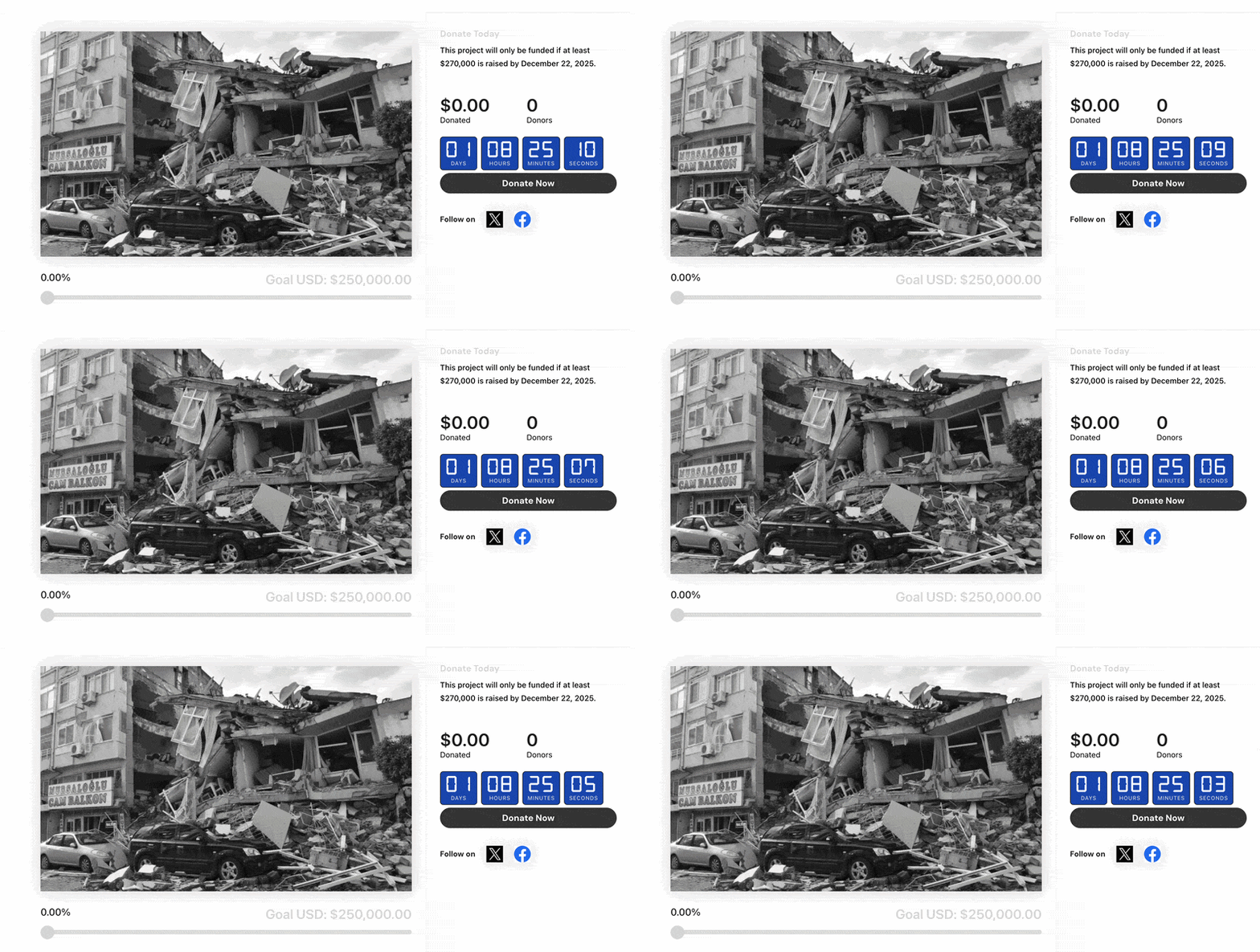
Hier ist, was der Timer tatsächlich beinhaltet, damit Sie wissen, was Sie bei der Konfiguration erwartet.
- Live Countdown-Anzeige: Zeigt Tage, Stunden, Minuten und Sekunden, die in Echtzeit heruntergezählt werden. Liest automatisch das Enddatum Ihrer Kampagne aus, sobald es festgelegt ist.
- Feiereffekte: Löst Konfetti- oder Feuerwerk-Animationen aus, wenn die Kampagne Null erreicht. Eine kleine Berührung, die die Frist zu einem denkwürdigen Moment macht.
- Text-Label für Enddatum: Wählen Sie, ob das Schließungsdatum der Kampagne über dem Timer, darunter oder gar nicht angezeigt werden soll.
- Volle Farbkontrolle: Legen Sie individuelle Farben für den Zifferntext, den Labeltext, den Hintergrund und den Rahmen fest. Passen Sie Schriftgrößen und Radius des Rahmens im Einstellungsbereich an, ohne CSS zu benötigen.
- Konfigurierbares Endverhalten: Wenn der Timer Null erreicht, wählen Sie, ob eine benutzerdefinierte Nachricht angezeigt, der Timer bei 00:00:00:00 angehalten oder der Block vollständig ausgeblendet werden soll.
- Benutzerdefinierte abgelaufene Nachricht: Schreiben Sie den genauen Text, den Spender sehen, wenn Ihre Kampagne endet. Standardmäßig steht dort „Kampagne beendet“, aber Sie können alles schreiben, was zu Ihrer Geschichte passt.
- Vollständig responsiv: Funktioniert auf jeder Bildschirmgröße ohne zusätzliche Konfiguration.
Alles oben Genannte ist in jedem Charitable Pro-Plan enthalten, ohne dass etwas hinter einer höheren Stufe gesperrt ist. Wenn Sie Basic, Plus, Pro oder Elite haben, verfügen Sie über den vollständigen Funktionsumfang.
Lesen Sie mehr über den Kampagnen-Countdown »
Was Sie vor dem Start benötigen
Zwei Dinge sind erforderlich.
- Erstens benötigen Sie eine WordPress-Website.
- Zweitens benötigen Sie das Charitable Pro-Plugin, das auf Ihrer Website installiert und aktiviert ist. Hier ist eine Anleitung zur Installation »
Wenn Sie Charitable Pro bereits auf Ihrer Website haben, stellen Sie sicher, dass Sie Ihr Charitable Pro-Plugin auf die neueste verfügbare Version aktualisieren. Gehen Sie in WordPress zu Dashboard » Updates und suchen Sie nach Charitable. Wenn ein Update ansteht, installieren Sie es zuerst.
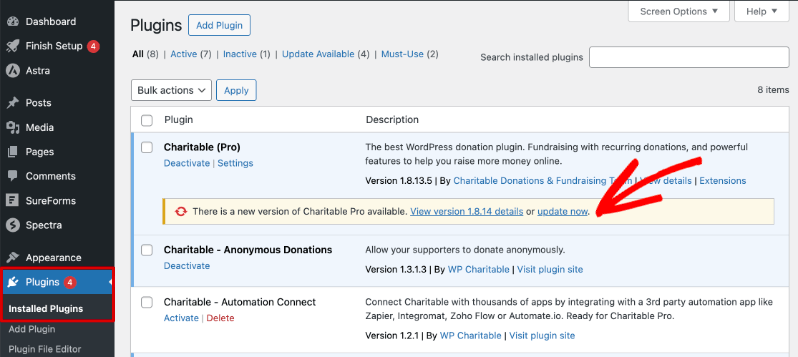
Neue Funktionen wie diese werden mit Versionsupdates ausgeliefert. Wenn Sie also die neueste Version verwenden, stellen Sie sicher, dass alles, was Sie in diesem Tutorial sehen, tatsächlich in Ihrem Builder verfügbar ist.
So fügen Sie den Countdown-Timer hinzu (Schritt für Schritt)
Schritt 1: Öffnen Sie Ihre Kampagne im Builder
Gehen Sie in Ihrem WordPress-Dashboard zu Charitable » Kampagnen. Sie können den Countdown-Timer zu jeder bestehenden Kampagne oder zu einer brandneuen hinzufügen. Um eine neue Kampagne zu erstellen, klicken Sie auf Neu hinzufügen, wählen Sie eine Vorlage und rufen Sie den Kampagnen-Builder auf.
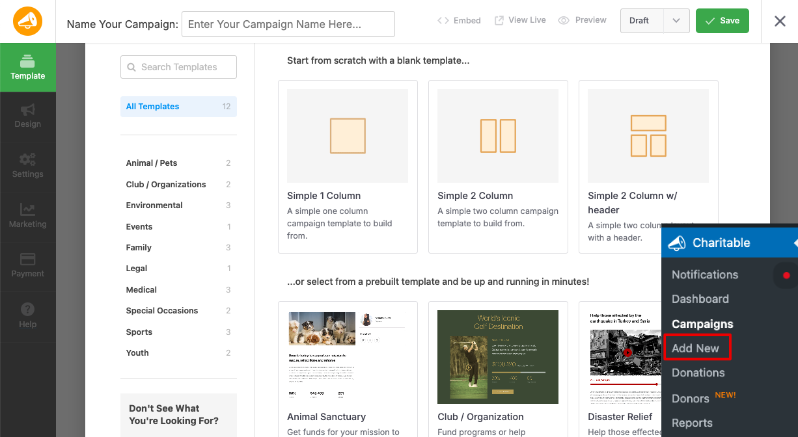
Um eine bestehende Kampagne zu bearbeiten, fahren Sie mit der Maus über ihren Namen und klicken Sie auf Bearbeiten.
Der Kampagnen-Builder öffnet sich mit Ihrem Kampagnenlayout in der Mitte und dem Layout-Panel auf der linken Seite. Dort fügen Sie den Countdown-Block hinzu.
Schritt 2: Fügen Sie den Countdown-Block hinzu
Finden Sie im linken Panel den Abschnitt Layout hinzufügen. Scrollen Sie nach unten zur Gruppe Pro und klicken Sie auf Countdown. Der Block wird Ihrer Kampagnen-Leinwand hinzugefügt. Sie können ihn überall hinziehen, wo er in Ihrem Kampagnenlayout am sinnvollsten ist. Die meisten Kampagnen platzieren ihn nahe oben, in der Nähe der Kampagnenziel-Leiste, damit er das Erste ist, was Spender sehen.
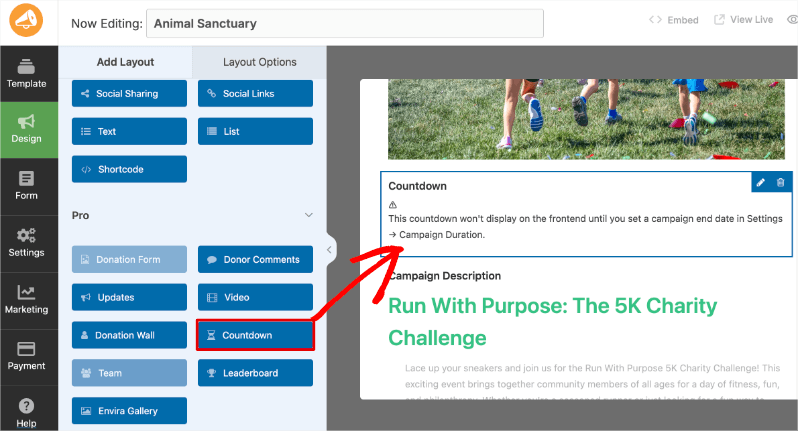
Nachdem Sie den Block hinzugefügt haben, sehen Sie möglicherweise einen Hinweis, dass der Countdown auf der Frontend-Seite erst angezeigt wird, wenn ein Kampagnen-Enddatum festgelegt ist. Das ist zu erwarten. Der nächste Schritt kümmert sich darum.
Schritt 3: Legen Sie das Enddatum Ihrer Kampagne fest
Klicken Sie im linken Bereich auf Einstellungen und öffnen Sie dann Allgemeine Einstellungen. Suchen Sie das Feld Enddatum und geben Sie das Schlussdatum und die Schlusszeit Ihrer Kampagne ein. Der Timer liest dieses Feld automatisch. Sobald Sie speichern, beginnt die Vorschau im Builder mit der Anzeige des Countdowns.
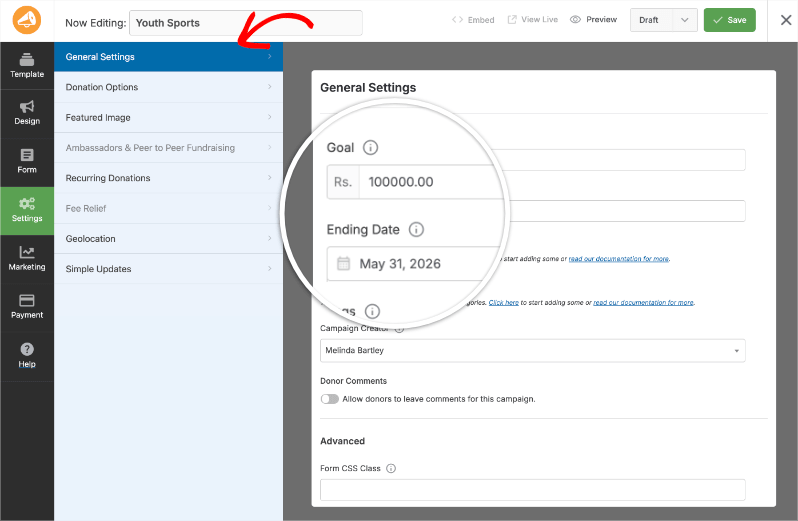
Wenn Sie beim Erstellen der Kampagne bereits ein Enddatum festgelegt haben, können Sie diesen Schritt überspringen. Der Timer übernimmt das dort bereits eingetragene Datum.
Hinweis: Wenn Sie kein Enddatum eingeben, kann der Countdown-Timer nicht funktionieren. Der Timer liest dieses Datum, um den Countdown auszuführen. Wenn kein Enddatum festgelegt ist, wird der Block im Kampagnen-Builder angezeigt, aber nicht auf der Live-Seite.
Schritt 4: Layout-Optionen anpassen
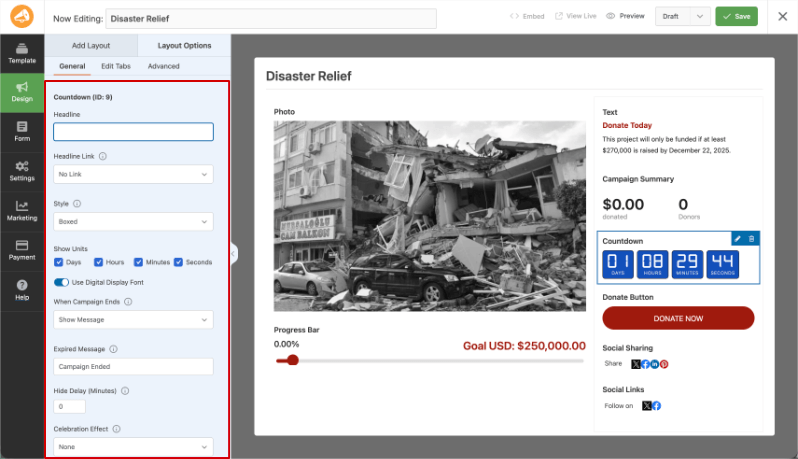
Klicken Sie im linken Bereich zurück zur Registerkarte Design. Klicken Sie im Kampagnen-Canvas auf den Countdown-Block, um ihn auszuwählen. Klicken Sie dann im linken Bereich auf Layout-Optionen. Hier finden Sie alle Anpassungsmöglichkeiten.
Überschriften und Styling
Von hier aus können Sie den Text der Überschrift über dem Timer ändern, den Anzeigestil anpassen und alle Einstellungen für Aussehen und Verhalten in den folgenden Abschnitten durchgehen. Nehmen Sie sich ein paar Minuten Zeit, um das Panel zu erkunden, bevor Sie speichern. Die meisten Einstellungen werden sofort im Canvas als Vorschau angezeigt.
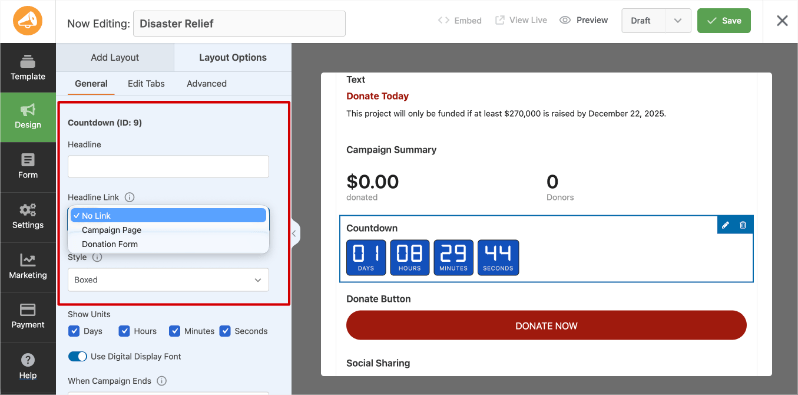
Zuerst können Sie Ihre eigene Überschrift hinzufügen und einen Link zur Spendenformular oder zur Kampagnenseite einfügen.
Darunter können Sie einen "Boxed"- oder "Inline"-Stil wählen.
Als Nächstes können Sie auswählen, welche Zeiteinheiten angezeigt werden sollen, einschließlich Tagen, Stunden, Minuten und Sekunden. Ich empfehle die Verwendung der "Digital Display Font", da sie moderner aussieht.
Was passiert, wenn die Kampagne endet
Als Nächstes können Sie festlegen, was passiert, wenn der Timer 0 erreicht. Charitable ermöglicht Ihnen:
- Nachricht anzeigen: Der Countdown wird durch eine von Ihnen geschriebene Textnachricht ersetzt. Dies ist die durchdachteste Option. Sie können Spender danken, Ergebnisse bekannt geben oder die Aufmerksamkeit auf Ihre nächste Kampagne lenken. Wenn Sie diese Option wählen, füllen Sie das Feld Ablaufnachricht darunter aus. Der Standardtext lautet „Kampagne beendet“, aber schreiben Sie etwas, das zu Ihrer Geschichte passt: „Danke, wir haben unser Ziel erreicht“ oder „Das Matching ist beendet, aber Sie können trotzdem spenden“ ist besser als ein generischer Platzhalter.
- Timer auf Null halten: Die Anzeige friert bei 00:00:00:00 ein. Dies ist eine einfache Option, die kommuniziert, dass die Kampagne geschlossen ist, ohne das visuelle Element vollständig zu entfernen.
- Countdown ausblenden: Der Block verschwindet von der Seite, wenn die Kampagne endet. Verwenden Sie dies, wenn die Seite nach Ablauf der Frist übersichtlich aussehen soll oder wenn Sie die Kampagnenseite für die Nachverfolgung von Spendern nach der Kampagne live lassen möchten.
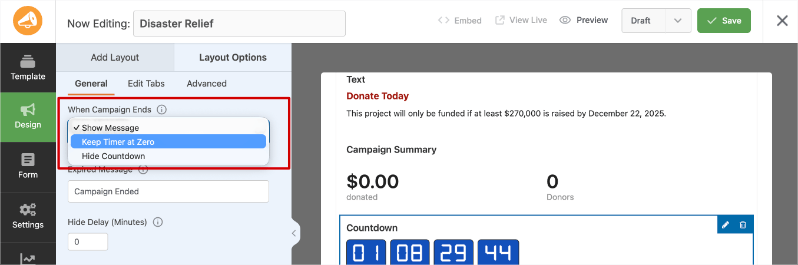
Wenn die Kampagne endet, können Sie diese Aktion auch um einige Minuten verzögern. Dies ermöglicht es Spendern, Last-Minute-Spenden zu tätigen, auch wenn der Timer abgelaufen ist.
Fügen Sie einen Feuchtigkeitseffekt hinzu
Wählen Sie unter Feuchtigkeitseffekt aus, was passiert, wenn Ihre Kampagne Null erreicht. Ihre Optionen sind Konfetti, Feuerwerk oder Keine. Beide animierten Optionen lösen einen Ausbruch visueller Energie aus, wenn der Timer abläuft. Es ist ein kleines Detail, aber es verwandelt ein ansonsten flaches „0:00:00:00“ in einen bemerkenswerten und teilenswerten Moment.
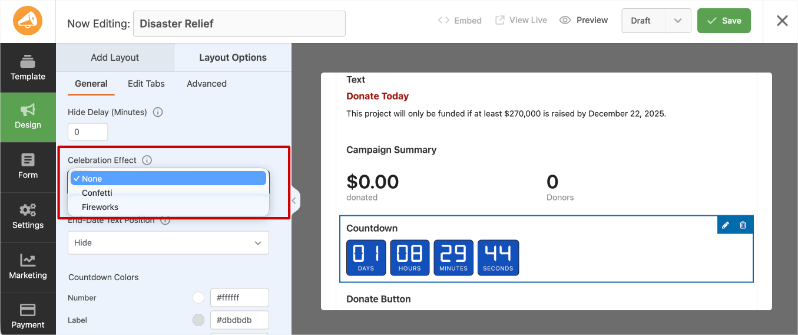
Für Spendenkampagnen zum Jahresende oder Kampagnen mit einer Frist für ein Matching-Geschenk ist Feuerwerk oft gut geeignet. Für kleinere Gemeinschaftskampagnen wirkt Konfetti leichter.
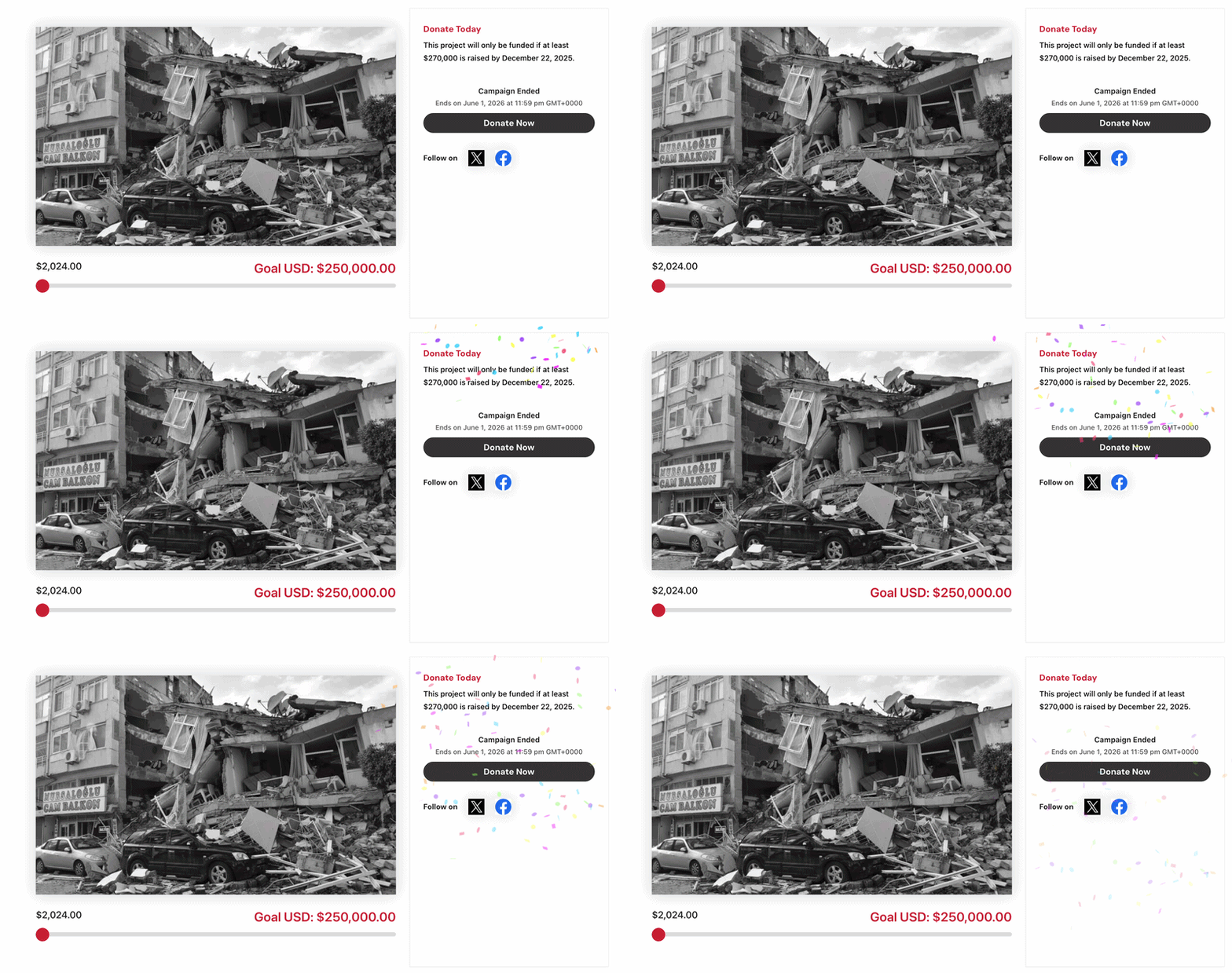
So sieht Konfetti aus. Es ist einfach und kleiner.
So sieht Feuerwerk aus.
Das ist eine große Feier für diejenigen, die groß feiern wollen!
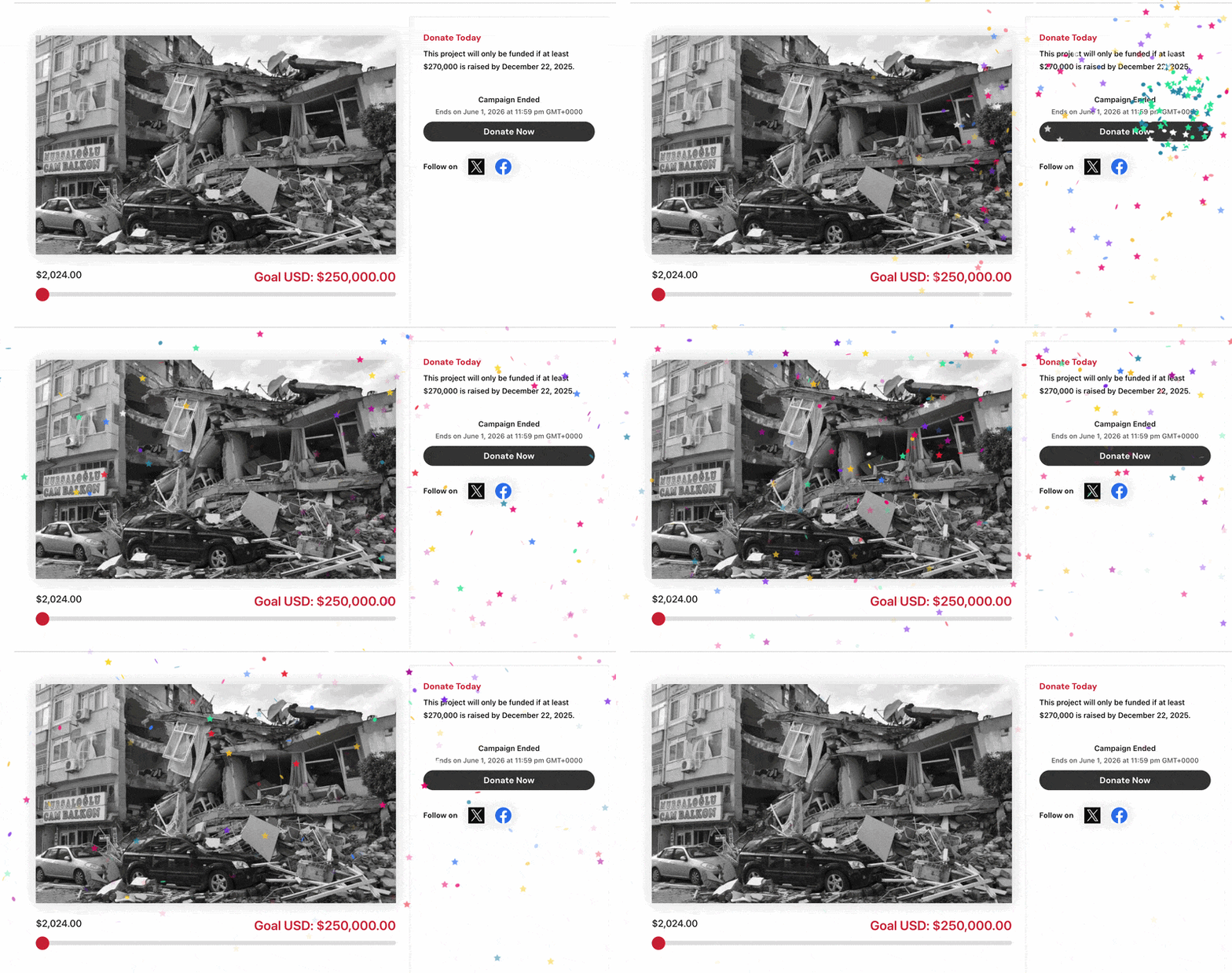
In jedem Fall erhalten Spender, die sich auf der Seite befinden, wenn der Timer Null erreicht, einen Zieleinlaufmoment statt nur einer Zahlenänderung.
Position des Enddatum-Textes festlegen
Das Dropdown-Menü Position des Enddatum-Textes steuert, ob das Enddatum Ihrer Kampagne über dem Timer, darunter oder gar nicht angezeigt wird. Die Anzeige des Datums schafft Klarheit für Spender, die die genaue Frist ausgeschrieben haben möchten und nicht nur eine tickende Zahl.
Wenn Sie es ausblenden, bleibt die Anzeige übersichtlicher und der Countdown spricht für sich.
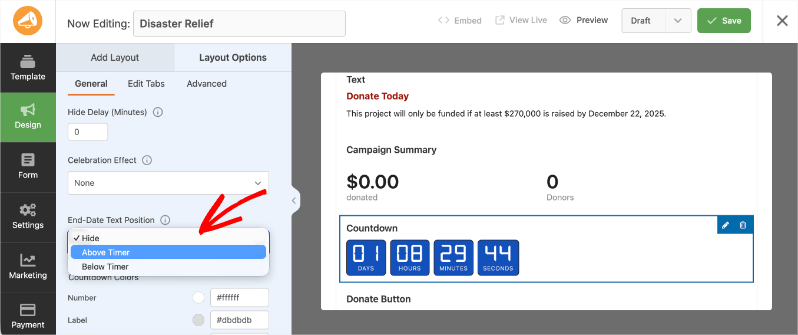
Für die meisten Kampagnen ist die Anzeige des Datums unter dem Timer die klarste Option. Spender sehen zuerst den Countdown, dann das spezifische Datum als Bestätigung. Aber hier gibt es keine falsche Antwort.
Sehen Sie sich beide Optionen in der Vorschau an und wählen Sie, was für das visuelle Layout Ihrer Kampagne besser passt.
Countdown-Farben anpassen
Unter Countdown-Farben können Sie unabhängige Farben für den Zahlentext, den Labeltext (Tage, Stunden, Minuten, Sekunden), den Hintergrund und den Rahmen festlegen. Schriftgröße und Radius des Rahmens sind ebenfalls hier zu finden.
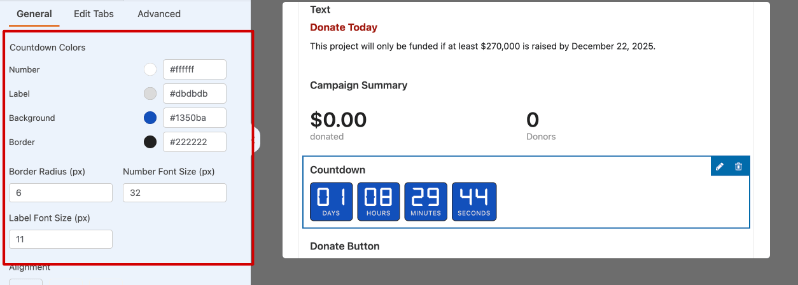
Hier wird aus dem Timer aus einem generischen Widget, das aussieht, als würde er zu Ihrer Kampagne gehören.
Passen Sie die Farbe Ihrer Zahlen an die Primärfarbe Ihrer Kampagne an, wählen Sie einen Hintergrund, der sich ausreichend abhebt, um ihn auf Mobilgeräten gut lesen zu können, und passen Sie den Radius des Rahmens an, wenn Sie abgerundete Ecken anstelle einer rechteckigen Form wünschen.
Die Leinwand aktualisiert sich in Echtzeit, während Sie Anpassungen vornehmen. So können Sie schnell iterieren, ohne speichern und in einem separaten Tab eine Vorschau anzeigen zu müssen.
Schritt 5: Speichern und Vorschau anzeigen
Klicken Sie im oberen rechten Bereich des Kampagnen-Builders auf Speichern. Klicken Sie dann auf Vorschau, um Ihre Kampagnenseite in einem neuen Tab zu öffnen und den Timer so zu sehen, wie Ihre Spender ihn sehen werden. Überprüfen Sie ihn auch auf Ihrem Handy. Der Timer ist vollständig responsiv, aber es lohnt sich zu bestätigen, dass er auf einem kleinen Bildschirm gut lesbar ist, bevor Ihre Kampagne live geht.
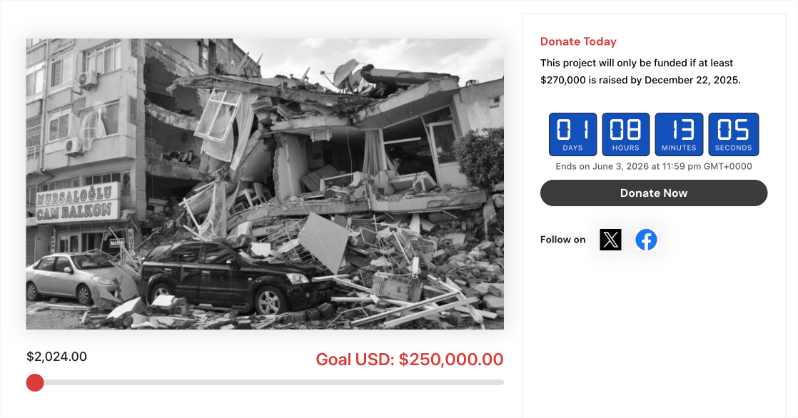
Das ist die vollständige Einrichtung. Von Anfang bis Ende haben die meisten Leute den Timer in weniger als fünf Minuten konfiguriert und live geschaltet. Wenn in der Vorschau etwas nicht stimmt, gehen Sie zurück zu den Layout-Optionen, nehmen Sie Anpassungen vor und speichern Sie erneut. Es gibt keine Begrenzung, wie oft Sie iterieren können, bevor die Kampagne live geht.
Tipps, um mehr aus Ihrem Timer herauszuholen
Die grundlegende Einrichtung schaltet den Timer live. Diese Tipps machen ihn effektiver.
Positionieren Sie den Timer dort, wo die Spender zuerst landen
Ziehen Sie den Countdown-Block in die Nähe des oberen Bereichs Ihres Kampagnen-Layouts, idealerweise direkt unter Ihrem Kampagnentitel oder über dem Spendenformular. Spender entscheiden in den ersten Sekunden auf jeder Seite, ob sie sich engagieren. Der Timer muss in dem Bereich sein, den sie sofort sehen, nicht unter einer langen Beschreibung vergraben, zu der sie vielleicht nie scrollen.
Kombinieren Sie den Timer mit einer passenden Geschenknachricht
Ein Countdown-Timer ist am wirkungsvollsten, wenn er an eine feste Frist gebunden ist, die reale Konsequenzen für den Spender hat. Ein Kampagnen-Enddatum ist effektiv. Ein Ablaufdatum für eine Spendenaktion mit Spendenabgleich ist wirkungsvoller. „Alle Spenden werden bis zum 31. Dezember verdoppelt“ wird deutlich überzeugender, wenn es mit einem Timer kombiniert wird, der den Spendern genau zeigt, wie viele Stunden dieser Spendenabgleich noch verfügbar ist. Die Kombination aus finanziellem Anreiz und sichtbarer Dringlichkeit ist eine der stärksten Konversions-Setups, die auf einer Spendenseite verfügbar sind.
Schreiben Sie Ihre Ablaufnachricht, bevor die Kampagne beginnt
Das klingt kleinlich, ist aber wichtig. Wenn Sie die Option „Nachricht anzeigen“ wählen, ist der Text, den Spender sehen, wenn Ihre Kampagne endet, der letzte Eindruck, den Ihre Kampagne hinterlässt. Schreiben Sie etwas Absichtsvolles. Bedanken Sie sich bei den Spendern namentlich, wenn Sie ein dynamisches Feld verwenden können. Teilen Sie ein schnelles Ergebnis mit: „Wir haben es geschafft. 347 Spender haben zusammen 28.400 US-Dollar gesammelt.“ Oder leiten Sie weiter: „Diese Kampagne ist beendet. Helfen Sie uns, diese Arbeit das ganze Jahr über fortzusetzen.“ Die Standardeinstellung „Kampagne beendet“ beizubehalten, ist jedes Mal eine verpasste Gelegenheit.
Verwenden Sie eine Farbe, die Kontrast schafft, keine Dekoration
Der Timer muss auf einen Blick lesbar sein, besonders auf Mobilgeräten. Wählen Sie eine Zahlenfarbe und eine Hintergrundkombination mit genügend Kontrast, damit die Ziffern bei direkter Lichteinstrahlung auf einem Handybildschirm klar erkennbar sind. Ein dunkler Hintergrund mit hellen Zahlen oder ein heller Hintergrund mit dunklen Zahlen funktionieren beide zuverlässig. Wenn Sie die Farben des Timers zu eng an die Designpalette Ihrer Kampagne anpassen, kann dies eine schöne Grafik ergeben, die bei schlechten Lichtverhältnissen niemand lesen kann.
Erwähnen Sie den Timer in Ihrer Kampagnen-E-Mail und Ihren Social-Media-Posts
Die Dringlichkeit, die der Timer auf der Seite erzeugt, wird verstärkt, wenn Sie die Spender vorbereiten, bevor sie ankommen. „Es sind noch 48 Stunden bis zum Ende unserer Kampagne, und Sie können genau sehen, wie viele Minuten noch verbleiben, wenn Sie die Seite besuchen“, gibt den Spendern einen Grund, Ihre Kampagnenseite zu besuchen, anstatt nur auf „Spenden“ in einer E-Mail zu klicken. Der Timer ist Teil des Erlebnisses. Stellen Sie sicher, dass Ihre Kommunikation ihn auch so behandelt.
Das ist alles! Das ist die ganze
Häufig gestellte Fragen
Funktioniert der Countdown-Timer, wenn ich kein Kampagnen-Enddatum festlege?
Nein. Der Timer liest das Enddatum Ihrer Kampagne, um den Countdown durchzuführen. Wenn kein Enddatum festgelegt ist, wird der Block im Kampagnen-Builder angezeigt, aber nicht für Besucher auf der Live-Seite. Gehen Sie zum Kampagnen-Builder, klicken Sie auf „Einstellungen“, öffnen Sie „Allgemeine Einstellungen“ und füllen Sie das Feld „Enddatum“ aus. Sobald Sie gespeichert haben, beginnt der Timer automatisch mit dem Countdown.
Kann ich den Countdown-Timer zu einer bestehenden Kampagne hinzufügen, die bereits läuft?
Ja. Öffnen Sie eine beliebige bestehende Kampagne im Kampagnen-Builder, finden Sie den Countdown-Block im Pro-Bereich des Panels „Layout hinzufügen“, klicken Sie darauf, um ihn hinzuzufügen, und konfigurieren Sie ihn genau wie in diesem Tutorial beschrieben. Der Timer wird auf der Kampagnenseite live geschaltet, sobald Sie speichern. Es ist nicht notwendig, eine neue Kampagne zu erstellen oder etwas neu zu starten.
Was passiert mit dem Timer, wenn ein Spender die Seite nach Beendigung der Kampagne besucht?
Was auch immer Sie in der Einstellung „Wenn die Kampagne endet“ konfiguriert haben.
- Wenn Sie Nachricht anzeigen gewählt haben, sehen die Spender Ihren benutzerdefinierten Text.
- Wenn Sie Timer auf Null halten wählen, sehen die Besucher die eingefrorene Anzeige 00:00:00:00.
- Wenn Sie Countdown ausblenden wählen, verschwindet der Timer-Block und die Seite wird ohne ihn gerendert. Alle drei Optionen sind beabsichtigt und werden sauber angezeigt. Kein defekter Zähler oder leerer Platz.
Kann ich den Countdown-Timer gleichzeitig für mehrere Kampagnen verwenden?
Ja. Sie können einen Countdown-Timer zu so vielen Kampagnen hinzufügen, wie Sie gerade durchführen. Jeder Timer liest das Enddatum der Kampagne, auf der er sich befindet. Es gibt keine Begrenzung, wie viele Kampagnen gleichzeitig einen aktiven Countdown haben können.
Ist der Kampagnen-Countdown-Timer für Charitable Lite verfügbar?
Nein. Der Countdown-Timer ist für alle Charitable Pro-Tarife verfügbar: Basic, Plus, Pro und Elite. Wenn Sie derzeit Charitable Lite nutzen und diese Funktion hinzufügen möchten, erhalten Sie mit dem Upgrade auf einen beliebigen kostenpflichtigen Tarif Zugang ab 69 US-Dollar pro Jahr für eine einzelne Website, mit einer 14-tägigen Geld-zurück-Garantie für jeden Tarif.
Kann ich die Farben und das Design ändern, nachdem die Kampagne bereits live ist?
Ja, jederzeit. Öffnen Sie die Kampagne im Builder, wählen Sie den Countdown-Block, gehen Sie zu Layout-Optionen und passen Sie jede gewünschte Einstellung an. Speichern Sie, wenn Sie fertig sind. Die Änderungen werden sofort auf der Live-Kampagnenseite wirksam. Es ist nicht notwendig, die Kampagne offline zu nehmen oder eine neue zu erstellen.
Wird der Countdown-Timer meine Kampagnenseite verlangsamen?
Nein. Der Timer ist leichtgewichtig und in den bestehenden Code von Charitable integriert. Er lädt keine zusätzlichen Skripte oder Bibliotheken von Drittanbietern. Die Auswirkungen auf die Seitengeschwindigkeit sind vernachlässigbar. Wenn Sie eine Website mit anderen Leistungsproblemen betreiben, sollten diese separat angegangen werden, aber der Countdown-Timer selbst trägt nicht nennenswert dazu bei.
Ein Live-Countdown-Timer ist eines dieser Features, das klein erscheint, bis man es auf seiner Kampagnenseite sieht. Dann ist es schwer vorstellbar, ohne ihn zu starten. Die Einrichtung dauert fünf Minuten und er arbeitet leise im Hintergrund während der gesamten Dauer Ihrer Kampagne und drängt jeden Besucher zum Handeln, anstatt zu "Ich komme später wieder".
Wenn Sie noch nicht auf Charitable Pro umgestiegen sind, ist dies eines dieser Features, das das Upgrade zu einer einfachen Entscheidung macht. Jeder Pro-Tarif beinhaltet den Countdown-Timer zusammen mit allen anderen Werkzeugen für die Durchführung ernsthafter Spendenkampagnen auf Ihrer eigenen WordPress-Website, ohne Plattformgebühren, ohne Weitergabe von Spenderdaten an Dritte und ohne Aufgabe der Kontrolle über Ihr Spendererlebnis.
✅ 14-tägige Geld-zurück-Garantie
✅ Transparente Preise
✅ Codefreie Einrichtung
Charitable hat über 1 Million Downloads!
Millionen vertrauen auf Charitable für erfolgreiche Spendenkampagnen. Probieren Sie Charitable noch heute risikofrei aus.
✅ 14-tägige Geld-zurück-Garantie
✅ Transparente Preisgestaltung
✅ Einrichtung ohne Code
Bleiben Sie verbunden für weitere Ressourcen für gemeinnützige Organisationen
Für weitere Tutorials und Videos, die auf gemeinnützige Organisationen zugeschnitten sind, abonnieren Sie unseren YouTube-Kanal. Wir veröffentlichen regelmäßig Expertentipps, Schritt-für-Schritt-Anleitungen zu Online-Spenden, Fundraising-Strategien und praktische Ressourcen, die Ihrer Organisation zum Erfolg verhelfen.
🗞️ Erhalten Sie wöchentliche Tipps und exklusive Anleitungen in Ihrem Posteingang
Melden Sie sich für unseren Newsletter an →
🎥 Sehen Sie sich Schritt-für-Schritt-Tutorials und Erfolgsgeschichten an
Abonnieren Sie unseren YouTube-Kanal →
👩🏽💻 Vernetzen Sie sich mit unserer Community und erhalten Sie tägliche Einblicke in gemeinnützige Organisationen
Folgen Sie uns auf LinkedIn →
🥳 Lustige Reels und Einblicke in gemeinnützige Organisationen
Folgen Sie uns auf Instagram →
👀 Aufschlussreiche & unterhaltsame Videos, die Ihnen helfen, Ihre Sache voranzubringen
Folgen Sie uns auf TikTok→
🌎 Abonnieren und folgen Sie uns für allgemeine Fundraising-Tipps
Holen Sie sich Fundraising-Tipps auf TikTok →
Leistungsstarke Fundraising-Ressourcen
🤖 Nutzen Sie Charitable mit Ihrem KI-Assistenten
Erfahren Sie mehr über Charitable + KI →
⬇️ Laden Sie bewährte Strategien, Kampagnenideen und Experten-Tools herunter
Holen Sie sich das Fundraising-Kit →
💸 Holen Sie sich kostenlose Fundraising-Ressourcen
Besuchen Sie den Charitable Fundraising Hub →
🤔 Haben Sie Fragen zu Charitable?
Charitable FAQs →
🏎️ Probieren Sie Charitable aus
Erstellen Sie Ihre Charitable Demo →
Verstehen Sie Begriffe und Jargon von gemeinnützigen Organisationen
Glossar für gemeinnützige Organisationen→
% Suchen Sie nach Angeboten und Rabatten für gemeinnützige Organisationen?
Beste Angebote und Rabatte für gemeinnützige Organisationen →





Hinterlassen Sie eine Antwort