
Les mises à jour simples vous permettent de partager facilement des informations importantes sur la progression de votre campagne, d'exprimer votre gratitude à vos supporters, d'assurer la transparence sur l'utilisation des fonds et de tenir tout le monde informé des développements liés à votre cause.
Ces mises à jour apparaissent directement sur la page de votre campagne, garantissant ainsi que les donateurs existants et les contributeurs potentiels puissent rester informés de l'impact de votre mission.
Ce guide vous montre comment utiliser les mises à jour simples dans vos campagnes Charitable.
Prérequis
- Plugin Charitable Pro installé et activé sur votre site WordPress
- Les mises à jour simples sont incluses dans tous les plans Charitable Pro. Vous devez être sur le plan Basic ou supérieur.
Dans ce guide
Étape 1 : Ajouter le bloc Mises à jour simples
Tout d'abord, ouvrez Charitable dans votre tableau de bord WordPress et créez une campagne »
Dans le constructeur de campagne, vous verrez un aperçu de votre campagne à droite, ainsi qu'un menu de blocs à gauche.
Choisissez le bloc Mises à jour et faites-le glisser dans votre campagne à l'endroit où vous souhaitez qu'il apparaisse.
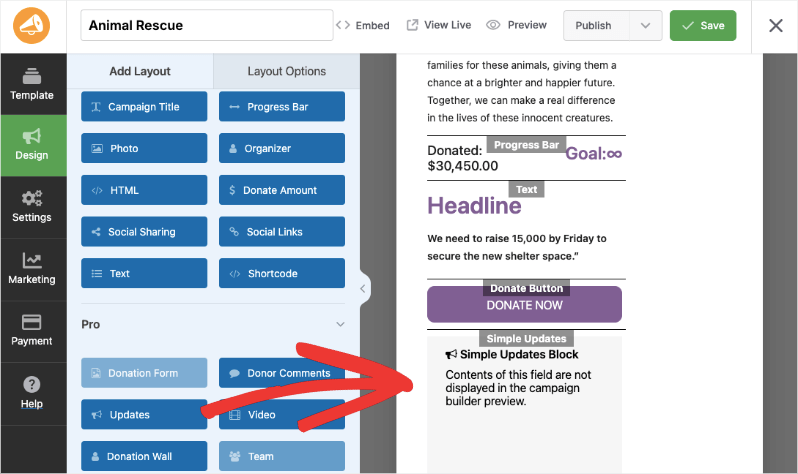
Cliquez sur le bouton Enregistrer en haut à droite de l'écran.
Étape 2 : Ajouter votre message
Dans le menu de gauche, ouvrez l'onglet Paramètres. Vous verrez une liste de sous-onglets, y compris les Paramètres généraux, les Options de don et la Géolocalisation.
Ouvrez l'onglet Mises à jour simples. Ici, il y a une zone de texte où vous pouvez entrer votre message.
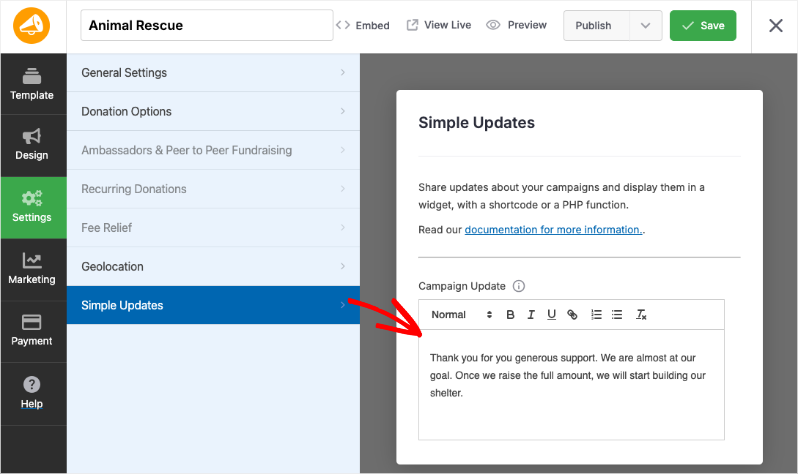
Les mises à jour simples fournissent un éditeur de texte enrichi qui vous permet de formater vos messages avec :
- Texte en gras pour l'emphase
- Texte en italique pour l'emphase stylistique
- Texte souligné pour la mise en évidence
- Puces pour organiser l'information
- Liens URL pour diriger les supporters vers des ressources pertinentes ou des informations supplémentaires
Cette flexibilité de formatage garantit que vos mises à jour sont visuellement attrayantes et faciles à lire, vous aidant à communiquer efficacement avec vos donateurs et supporters.
Lorsque vous avez terminé, cliquez sur le bouton Enregistrer en haut.
Visitez maintenant votre campagne en direct et vous verrez la mise à jour apparaître.
Afficher les mises à jour avec un shortcode
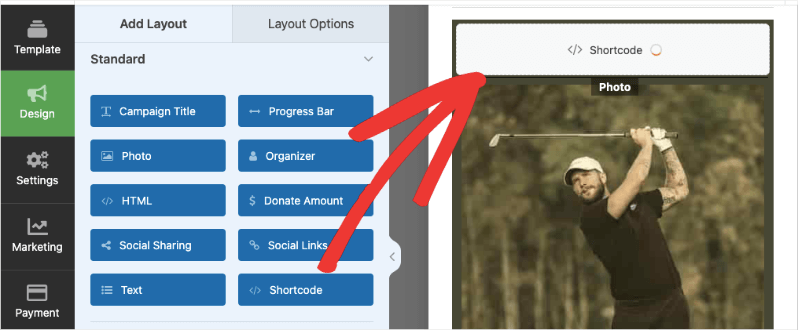
Vous pouvez également ajouter les mises à jour à n'importe quelle zone de contenu à l'aide du shortcode [campaign_updates]. Dans cet exemple, nous avons ajouté un bloc de shortcode à la campagne :
Lorsque vous cliquez sur le bloc, l'onglet Options de mise en page s'ouvre pour le bloc de shortcode. Vous pouvez ajouter un titre, le shortcode et toute classe CSS si vous le souhaitez.
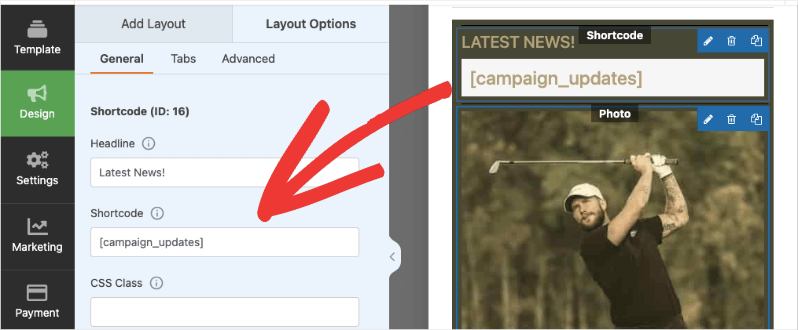
Vous pouvez également ajouter un ID de campagne au shortcode en tant que paramètre, ce qui vous permet d'afficher les mises à jour d'une campagne spécifique. Ceci est utile lorsque vous affichez les mises à jour sur une page ou un article séparé. Par exemple :
Vous pouvez également ajouter des ID spécifiques à la campagne à vos mises à jour simples si vous les ajoutez ailleurs sur votre site :
[campaign_updates campaign_id=16]
Vous pouvez trouver l'ID de votre campagne en regardant l'URL de la page où vous la modifiez.
https://demosite.com/wp-admin/?page=charitable-campaign-builder&campaign_id=16.
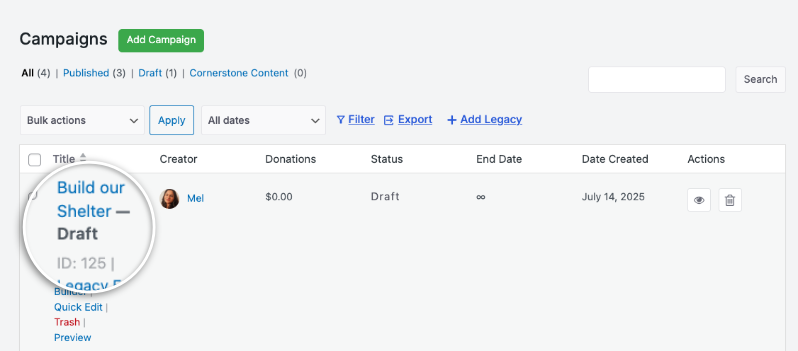
L’ID de la campagne est également disponible dans l’onglet Charitable » Campagnes. Placez votre curseur sur le nom de la campagne et l’ID apparaîtra.
Intégrer avec une fonction PHP
Si vous êtes à l'aise avec un peu de PHP, vous pouvez intégrer les mises à jour avec une simple fonction PHP.
$campaign_id = 11;

charitable_simple_updates_template_campaign_updates( 11 );
Cette fonction affichera les mises à jour — vous n’avez pas besoin d’utiliser echo ou print pour les afficher.
FAQ sur les mises à jour simples
Ai-je besoin d'installer des plugins supplémentaires pour accepter les dons ?
Non ! Les mises à jour simples de Charitable fonctionnent immédiatement. Aucun plugin supplémentaire requis.
Puis-je ajouter des mises à jour à la campagne après sa publication ?
Oui ! Vous pouvez modifier les mises à jour de campagne à tout moment. Les modifications sont enregistrées lorsque vous cliquez sur le bouton Enregistrer .
J’ai modifié les paramètres, mais ils ne s’affichent pas. Que dois-je faire ?
Cliquez toujours sur « Enregistrer les modifications » après avoir effectué des modifications. Si les modifications n’apparaissent toujours pas, essayez de vider le cache de votre site Web si vous utilisez un plugin de mise en cache.
Puis-je personnaliser l’apparence de mes formulaires de don ?
Oui. Vous pouvez personnaliser les couleurs, les modèles de formulaire (standard ou minimal) et les options d’affichage des champs. Pour une personnalisation plus avancée, consultez la documentation pour le CSS personnalisé et les extraits de code.
Quelle est la différence entre Charitable Lite et Pro ?
Charitable Lite est gratuit mais inclut des frais de transaction de 3 %. Les plans Pro éliminent ces frais et incluent des fonctionnalités avancées telles que les dons récurrents, la gestion des donateurs, la collecte de fonds pair-à-pair, et plus de passerelles de paiement.
Où puis-je obtenir de l'aide en cas de problème ?
- Utilisateurs gratuits : Utilisez les forums de support de WordPress.org
- Utilisateurs Pro : Contactez directement le support pour une assistance prioritaire
- Documentation : Consultez la bibliothèque complète de documentation
- Communauté : Rejoignez la newsletter et suivez les canaux sociaux pour des astuces et des mises à jour
Existe-t-il des tutoriels vidéo ?
Oui ! Abonnez-vous à la chaîne YouTube Charitable pour des tutoriels étape par étape et des histoires de réussite.
Vous avez besoin d’aide ? Vous avez une question ? Si vous êtes un utilisateur lite/gratuit de Charitable, vous pouvez contacter notre équipe sur les forums de support WordPress.org et notre équipe vous répondra rapidement. Si vous avez une licence active, n’hésitez pas à nous contacter directement pour un support prioritaire.


