¿Te gustaría mostrar una de tus campañas en otra página de tu sitio de WordPress: tu página de inicio, una página “Acerca de” o en cualquier lugar fuera de la URL de la propia campaña? El shortcode [campaign] incrusta una campaña completa –exactamente como se diseñó en el constructor visual de campañas, incluyendo el diseño, la historia, la barra de progreso, la lista de donantes y el formulario de donación– en cualquier publicación, página o área de widget.
Esta guía te guiará a través de los pasos para incrustar una campaña individual usando el shortcode.
Antes de empezar, asegúrate de que Charitable esté instalado y activado en tu sitio, y de que hayas creado al menos una campaña.
En esta guía
- Lo que hace el shortcode [campaign]
- Cómo se diferencia de otros shortcodes de campaña
- Cómo encontrar el ID de tu campaña
- Incrustar una campaña específica
- Usar id="current" en plantillas personalizadas
- Usar el asistente de incrustación en su lugar
- Probar tu campaña incrustada
- Ejemplos de shortcodes
- 1. Incrustar una campaña específica
- 2. Destacar una campaña en tu página de inicio
- 3. Incrustar varias campañas en una página
- 4. Usar id="current" en una plantilla de constructor de temas
- 5. Añadir la campaña en un constructor de páginas
- 6. Incrustar en una barra lateral o área de widgets
- 7. Llamar al shortcode desde PHP en una plantilla personalizada
- Preguntas frecuentes
Lo que hace el shortcode [campaign]
El shortcode [campaign] renderiza una página de campaña completa en línea, dondequiera que aparezca el shortcode. Utiliza el mismo diseño que diseñaste en el constructor visual de campañas, por lo que la versión incrustada coincide con lo que los visitantes verían en la URL de la propia campaña.
Esto es útil cuando quieres que una campaña viva en más de un lugar. Un ejemplo común: destacar tu campaña más activa en la página de inicio del sitio, mientras mantienes la campaña accesible en su propia URL dedicada para compartir.
Nota: El shortcode renderiza la campaña completa, incluido el formulario de donación. Si solo deseas el formulario de donación (sin la historia, el encabezado o la barra de progreso), usa [charitable_donation_form] en su lugar.
Cómo se diferencia de otros shortcodes de campaña
Charitable incluye varios shortcodes relacionados con campañas, y es fácil confundirlos. Aquí te explicamos cómo elegir el correcto:
[campaign]– Incrusta una campaña completa (diseño del constructor visual). Usa esto cuando quieras que una campaña específica aparezca en otra página.[campaigns]– Muestra una cuadrícula o lista de varias campañas. Usa esto para un archivo de campañas o una página de “todas las causas”. Consulta la documentación de [campaigns].[charitable_donation_form]– Incrusta solo el formulario de donación de una campaña – sin historia, sin barra de progreso, sin lista de donantes. Usa esto cuando ya hayas escrito el contenido de tu propia página y solo necesites el formulario. Consulta la guía de incrustación del formulario de donación.
Cómo encontrar el ID de tu campaña
Cada campaña tiene un ID único. Para encontrarlo, dirígete a Caritativo » Campañas en tu administrador de WordPress. El ID aparece en la lista de campañas junto al título de cada campaña.
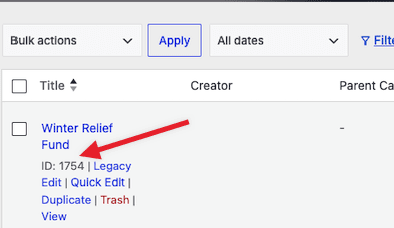
Nota: Asegúrate de copiar el ID numérico, no el título ni el slug de la campaña. El shortcode no funcionará con un nombre de campaña.
Incrustar una campaña específica
Una vez que tengas el ID de la campaña, puedes insertar el shortcode en cualquier lugar donde el editor de WordPress acepte shortcodes: publicaciones, páginas, áreas de widgets o partes de plantillas.
El shortcode básico se ve así:
[campaign id="123"]Reemplaza 123 con el ID de tu campaña real. Cuando la página cargue, Charitable renderizará el diseño completo de la campaña en lugar del shortcode.
Para agregarlo a través del editor de bloques, inserta un bloque de Shortcode y pega el código en él. Para constructores de páginas como Elementor, Divi o WPBakery, usa el widget de shortcode del constructor; todos los constructores importantes incluyen uno.
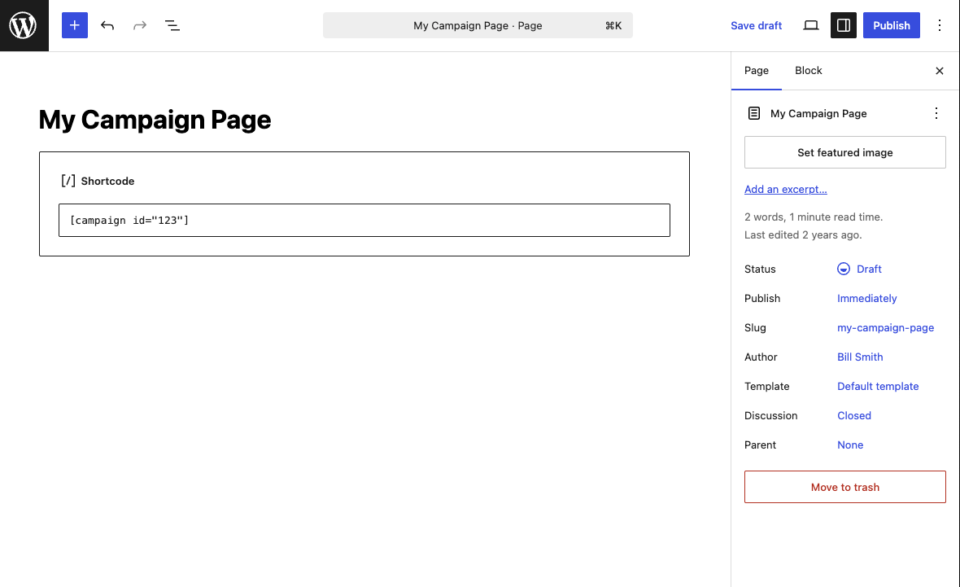
Nota: Si el ID de la campaña no existe, o si la campaña ha sido eliminada o configurada como borrador, el shortcode no mostrará nada. Siempre verifica el ID antes de publicar la página.
Usando id=”current” en Plantillas Personalizadas
Para desarrolladores y autores de temas, el atributo id acepta un valor especial: "current". Cuando se establece de esta manera, el shortcode renderiza la campaña que se esté viendo en la solicitud actual.
[campaign id="current"]Esto es útil dentro de plantillas personalizadas de campaña única, donde deseas que el shortcode renderice dinámicamente la campaña en contexto, sin codificar un ID. Si la publicación actual no es una campaña, el shortcode no mostrará nada.
Nota: No necesitarás este valor para la incrustación normal de páginas. Es una conveniencia para desarrolladores para plantillas que iteran sobre publicaciones de campaña.
Usar el asistente de incrustación en su lugar
Si prefieres no trabajar directamente con shortcodes, Charitable incluye un asistente de incrustación que realiza la misma tarea con una interfaz guiada. Desde el constructor de campañas, busca el botón Incrustar en la parte superior de la pantalla. El asistente te permite elegir una página existente o crear una nueva, e inserta el shortcode por ti.
El asistente es el camino más fácil para usuarios no técnicos. El enfoque del shortcode es más rápido si ya sabes dónde quieres que aparezca la campaña y qué ID de campaña necesitas.
Probar tu campaña incrustada
Después de guardar la página, visualízala en el frontend y confirma que la campaña aparece como se espera. La versión incrustada debería verse idéntica a la página de la campaña: mismo encabezado, mismo contenido de la historia, mismo comportamiento del formulario de donación.
Envía una donación de prueba a través del formulario incrustado para confirmar que se procesa correctamente. Las donaciones realizadas a través de una campaña incrustada se registran en la misma campaña que las donaciones realizadas en la URL propia de la campaña; no hay un seguimiento separado.
¡Eso es todo! Ahora sabe cómo incrustar una campaña completa en cualquier página o entrada utilizando el códecorto [campaign]. A continuación, puede que desee leer la documentación del códecorto [campaigns] si desea mostrar una cuadrícula de varias campañas, o explorar la categoría completa de Widgets y códecsortos para ver más opciones de incrustación.
Ejemplos de shortcodes
El códecorto [campaign] tiene un solo atributo – id – pero se puede usar de diversas maneras según dónde desee que aparezca la campaña. Los ejemplos a continuación cubren los escenarios más comunes.
1. Incrustar una campaña específica
El uso más sencillo del códecorto. Reemplace 123 con el ID de campaña real de su lista de campañas.
[campaign id="123"]2. Destacar una campaña en tu página de inicio
El mismo códecorto funciona para una incrustación en la página de inicio. Colóquelo en el contenido de la página de inicio (o en una plantilla de página de inicio) para destacar su campaña más importante antes de que el usuario tenga que desplazarse.
[campaign id="42"]Nota: Algunos temas aplican un ancho de contenido a la página de inicio que es más estrecho que una página estándar. Si la campaña incrustada parece apretada, cambie la página de inicio a una plantilla de ancho completo.
3. Incrustar varias campañas en una página
Puede usar el códecorto más de una vez en la misma página. Cada instancia muestra su propia campaña, separada por cualquier contenido que coloque entre ellas.
[campaign id="42"]

<h2>Or support our second cause:</h2>

[campaign id="55"]
Nota: Incrustar muchas campañas en una sola página aumentará el peso de la página. Para listas más largas, el códecorto [campaigns] es una opción más ligera.
4. Uso de id=”current” en una plantilla de Theme Builder
Al crear una plantilla personalizada de campaña única en Divi Theme Builder, Elementor Theme Builder o un tema hijo, use la palabra clave current para que el códecorto muestre la campaña que el visitante está viendo.
[campaign id="current"]5. Añadir la campaña en un constructor de páginas
Los constructores de páginas como Elementor, Divi y WPBakery incluyen un widget o módulo de códecorto. El mismo códecorto va dentro de él, exactamente como lo escribiría en el editor de WordPress.
[campaign id="123"]Nota: En el editor en línea de WPBakery, un id vacío mostrará un marcador de posición "Seleccione una campaña del menú desplegable para previsualizar". Una vez que publique, el marcador de posición será reemplazado por la campaña.
6. Incrustar en una barra lateral o área de widgets
Para las áreas de widgets, agregue un bloque de Códecorto (widgets basados en bloques) o un widget de Texto heredado y pegue el códecorto dentro.
[campaign id="123"]Nota: Los diseños de campaña están diseñados para áreas de contenido de ancho completo. Las barras laterales estrechas pueden hacer que el diseño se ajuste de forma extraña; considere usar un códecorto de Botón de donación o Barra de progreso para ubicaciones en la barra lateral en su lugar.
7. Llamar al shortcode desde PHP en una plantilla personalizada
Para los desarrolladores que crean plantillas personalizadas, el códecorto se puede renderizar directamente desde PHP utilizando la función do_shortcode() de WordPress.
<?php echo do_shortcode( '[campaign id="123"]' ); ?>Para renderizar la campaña actual dentro de un bucle de plantilla de campaña única personalizada:
<?php echo do_shortcode( '[campaign id="current"]' ); ?>Preguntas frecuentes
¿Puedo incrustar la misma campaña en varias páginas?
Sí. El códecorto se puede usar en tantas páginas como desee, y todas las donaciones realizadas a través de cualquiera de esas páginas se registrarán contra la misma campaña.
¿La campaña incrustada usará el mismo diseño que la original?
Sí. El shortcode utiliza el diseño que creaste en el constructor visual de campañas. Cualquier cambio que realices en el diseño de la campaña aparecerá automáticamente en todos los lugares donde se utilice el shortcode.
¿La campaña incrustada incluye el formulario de donación?
Sí. La campaña completa (historia, barra de progreso, lista de donantes y formulario de donación) se muestra junta. Si solo deseas el formulario de donación, usa [charitable_donation_form] en su lugar.
¿Qué sucede si la campaña se establece como borrador o se elimina?
El shortcode no mostrará nada. La página en sí se cargará, pero la sección de la campaña estará vacía. Confirma siempre que la campaña esté publicada antes de incrustarla.
¿Puedo incrustar una campaña en un widget de barra lateral?
Sí. Agrega un bloque de Shortcode (o un widget de Texto heredado) al área de widgets y pega el shortcode. Ten en cuenta que el diseño de la campaña está diseñado para áreas de contenido de ancho completo, por lo que puede parecer apretado en una barra lateral estrecha.