Charitable Documentation

Learn how to make the most of Charitable with clear, step-by-step instructions.

How to Set Up Cash App in Charitable

Enabling Cash App payments provides your donors with a convenient and secure way to donate quickly from their phones.

This tutorial will guide you through the process of setting up Cash App payments in Charitable.

Cash App payments can be enabled through the Stripe payment gateway within Charitable.

Note: The Cash App payment method is available exclusively for Stripe accounts registered in the United States.

Step 1: Enabling Stripe Payments

Before you can enable Cash App payments, you must first ensure that Stripe is enabled within Charitable.

In your WordPress dashboard, navigate to Charitable » Settings » Payment Gateways tab.

If Stripe is not already enabled, activate it. Then follow our guide to connect your Stripe account to Charitable.

After enabling Stripe and saving your changes, click the ‘Gateway Settings’ button.

This will open the Stripe configuration page where you can manage various payment methods, including Cash App.
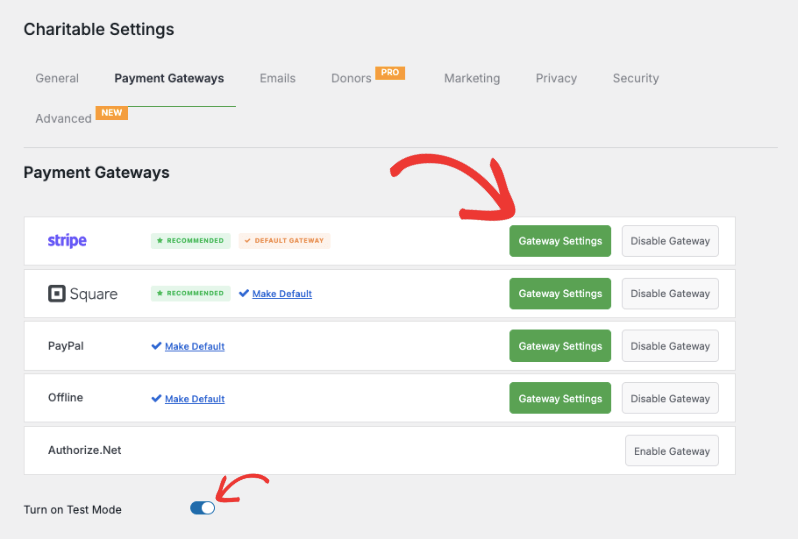
Stripe gateway settings

We recommend turning on Test Mode and saving your changes. This will allow you to thoroughly test the payment process without processing real transactions.

Step 2: Accessing Gateway Settings

Inside the Gateway Settings page, enable Cash App from the list of available payment methods. All you have to do is click the toggle siwtch to turn it on.
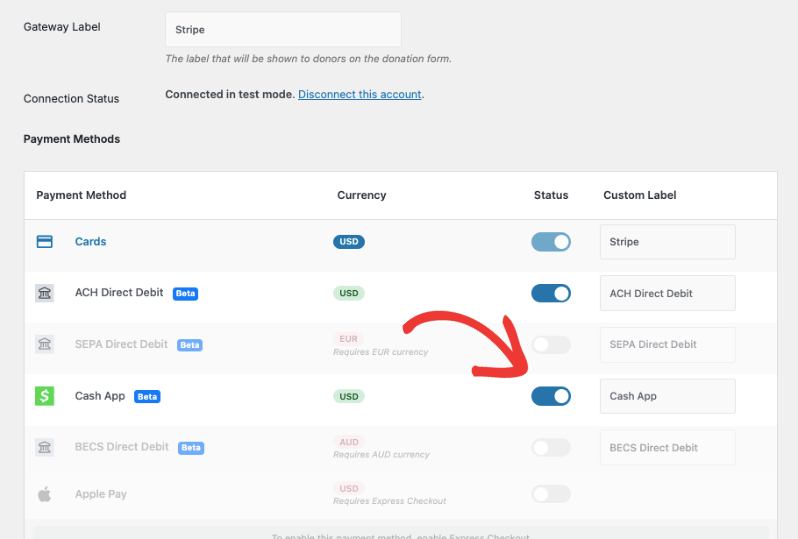
Enable CashApp

On the same page, you can also configure other Stripe settings like Express Checkout and Stripe Checkout.

You can also choose the layout of your credit card fields and how they appear on your donation form.
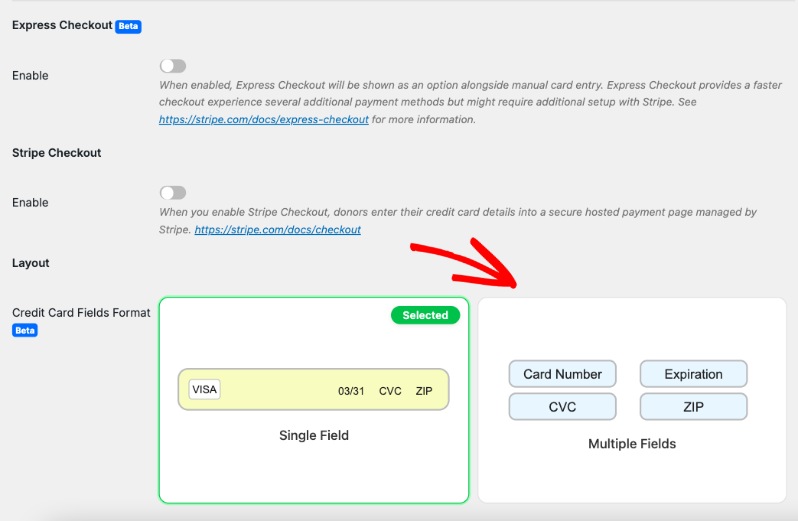
Credit card field formats in donation form

Next, you’ll need to add your statement descriptor. This is the description that will appear on your donors’ bank statements. By default, it shows the campaign title.

Below the statement descriptor settings, you’ll find fields to add your Stripe Live Key and Live Publishable Key, as well as your Test Keys if using Test Mode.
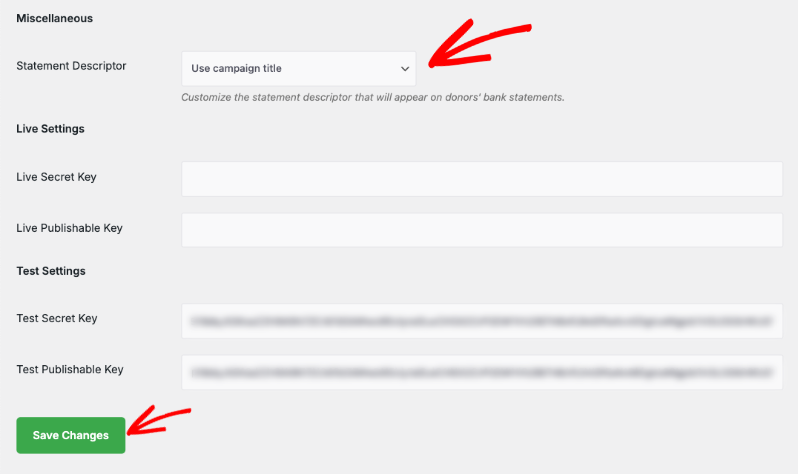
Stripe keys

Remember to save your settings by clicking the ‘Save Changes’ button after making any modifications.

Step 3: Testing Your Cash App Setup

Once you’ve saved your settings, it’s time to test your Cash App integration!

Navigate to a campaign page on your website. Initiate a donation to access the donation form.

In the Payment section, you should now see Cash App as a payment option.
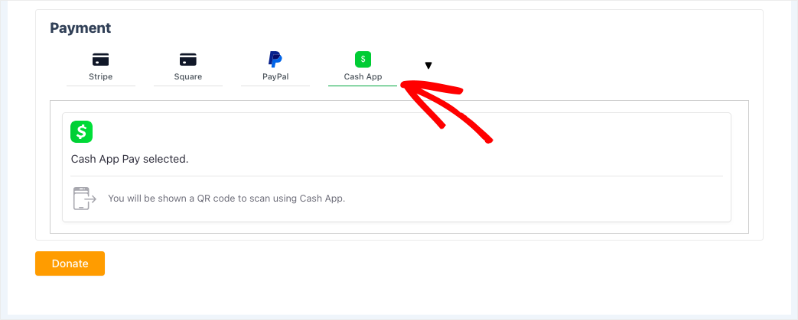
Cash App in payment form

If you don’t see it immediately, a dropdown menu with additional payment options will be available.

Select Cash App here.
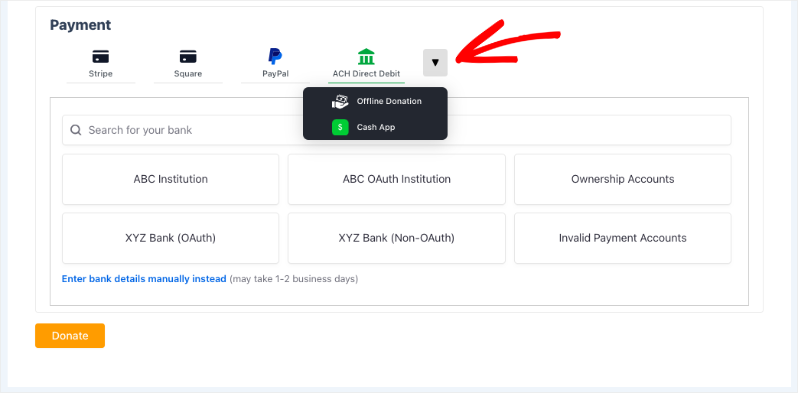
Dropdown menu for more payment options

A Cash App QR code will appear, prompting you to scan with your phone’s camera to pay. Follow the on-screen instructions to complete the donation.

If you are using test mode, you can simulate a scan.
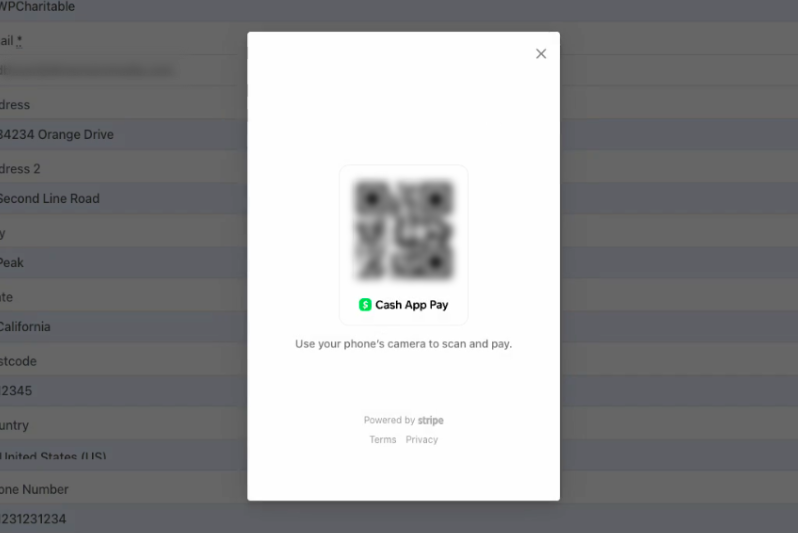
Scan Cash App page

This will take you to the Cash App Pay test payment page.

Here, you can authorize a test payment and even check a fail test payment.
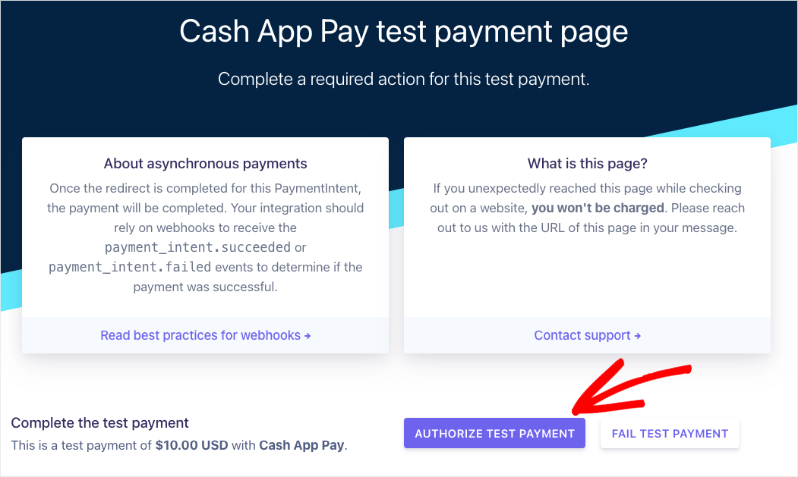
Cash App Pay test payment

When your payment is successful, you’ll see the donation receipt appear on screen.
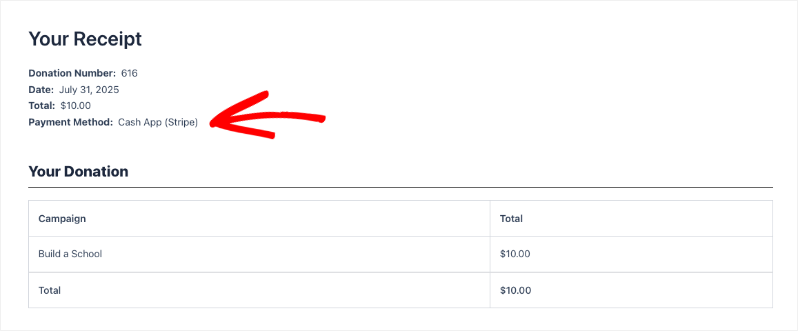
Cash App donation receipt

Congratulations! You have successfully set up and tested Cash App via Charitable!

Viewing Your Cash App Donations

Now that you’ve successfully set up Cash App, let’s explore how to view and manage your donations.

You can find all your donation records under Charitable » Donations. Here, all donations are organized neatly for easy access.
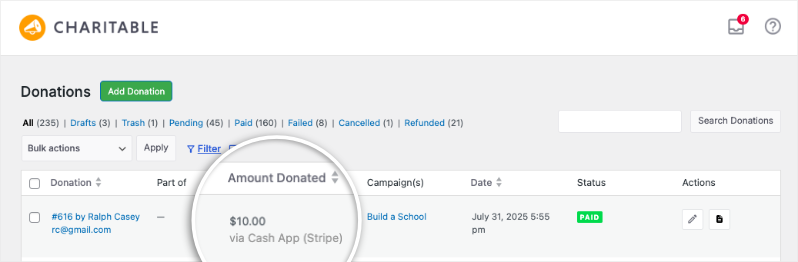
Cash App Payment method used in donations tab

You’ll see key information like the donor’s name, the donation amount, the payment gateway used – in this case, Cash App (Stripe), the campaign name, the date of the donation, and the payment status.

If you click to view or edit a specific donation record, you’ll find detailed payment method information, including the specifics of the Cash App transaction. This allows you to easily review and track payments received via this method.
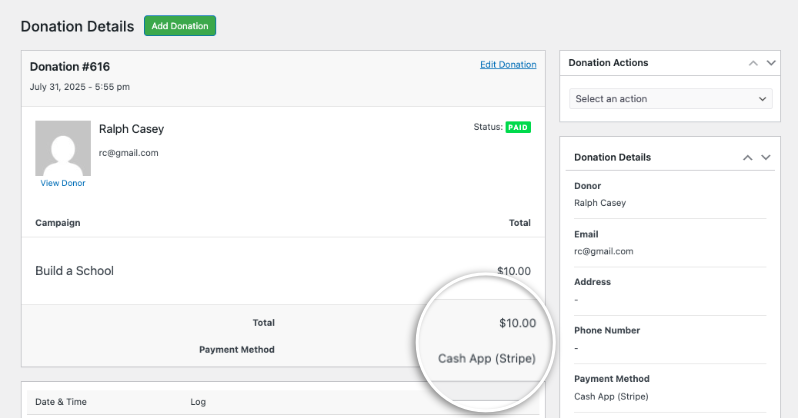
Cash App payment method in donation record

That’s it! You now know how to set up and view your Cash App donations within Charitable.

FAQs – Cash App Payments in Charitable

Here are some frequently asked questions regarding setting up and using Cash App payments in Charitable:

What is Cash App?

Cash App is a secure payment method that allows donors to make donations directly from their phone.

Do I need a separate account to process Cash App?

No, you can process Cash App payments through your existing Stripe account.

What information do you need to provide to enable Cash App?

You will need your Stripe live keys (if applicable) and to ensure Stripe is enabled.

What is a QR code?

A QR code is a code that can be scanned with your phone’s camera to quickly make a payment.

How can I test Cash App Payments?

You can use Stripe’s test mode to simulate a scan and check a success or fail payment.

Where can I view my donation records?

You can view all donations under Charitable » Donations.

Interested in offering more payment options to your donors? See our list of payment integrations »
Still have questions? We’re here to help!

Last Modified:

What's New In Charitable

🔔 Subscribe to get our latest updates
📧 Subscribe to Emails

Email Subscription

Join our Newsletter

We won’t spam you. We only send an email when we think it will genuinely help you. Unsubscribe at any time!

Addon New

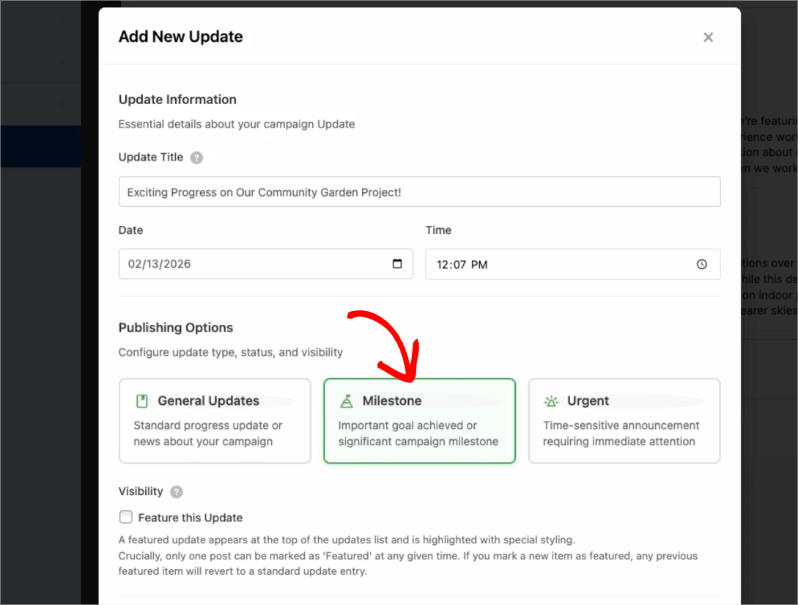
🤯 New Addon: Campaign Updates

Keep your supporters informed and engaged with every step of your progress! Share the ongoing impact of your mission and build lasting trust with your donor community!

The Ultimate Engagement Tool

Fundraising is a journey, not a one-time event. Now, you can easily provide real-time updates directly on your campaign pages, ensuring your donors stay connected to the causes they care about most.

📣 Easy Storytelling: Quickly post text updates, milestones, or field reports to show exactly how donations are being put to work, keeping the momentum alive throughout your fundraiser.

🏗️ Visual Builder Integration: Seamlessly add the Updates block anywhere on your page using our drag-and-drop builder, or use a simple shortcode to display news in widgets and sidebars.

📩 Build Donor Trust: By consistently sharing progress and success stories, you create a transparent giving experience that encourages recurring support and deeper community involvement.

Integration New

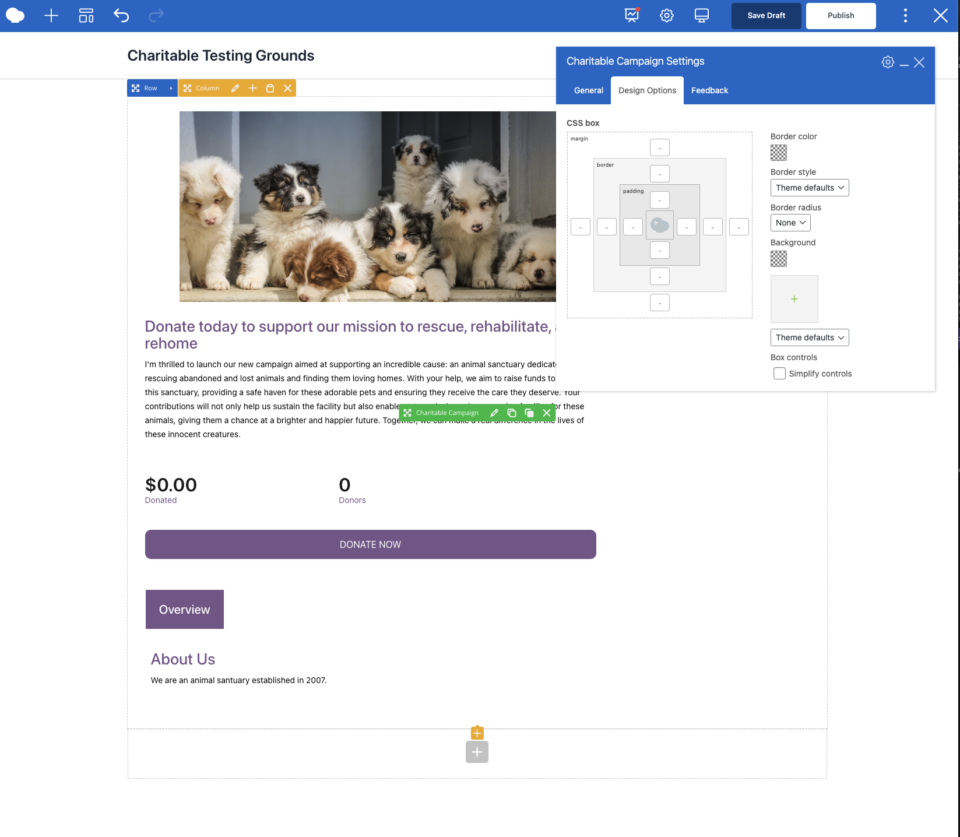
Build Beautiful Fundraising Pages Visually with WPBakery Integration

We are excited to announce our brand-new integration with WPBakery, one of the most popular WordPress page builders, designed to help you create stunning layouts for your campaigns without touching a single line of code.

The Ultimate Design Experience

Designing your nonprofit’s website should be as simple as your mission is powerful. Now, you can bring Charitable functionality directly into your WPBakery workflow, using native elements to build high-converting donation pages and campaign grids in seconds.

🖱️ Drag-and-Drop Building: Easily add donation forms, campaign progress bars, and “Donate Now” buttons to your layouts using the WPBakery elements you already know and love.

🎨 Total Creative Control: Customize the look and feel of your fundraising elements using WPBakery’s native design options. Adjust margins, padding, and borders to ensure your campaigns fit perfectly with your site’s branding.

📱 Seamlessly Responsive: Every element is built to be fully responsive and mobile-friendly, ensuring your donors have a smooth, professional experience whether they are giving from a phone, tablet, or desktop.

Integration New

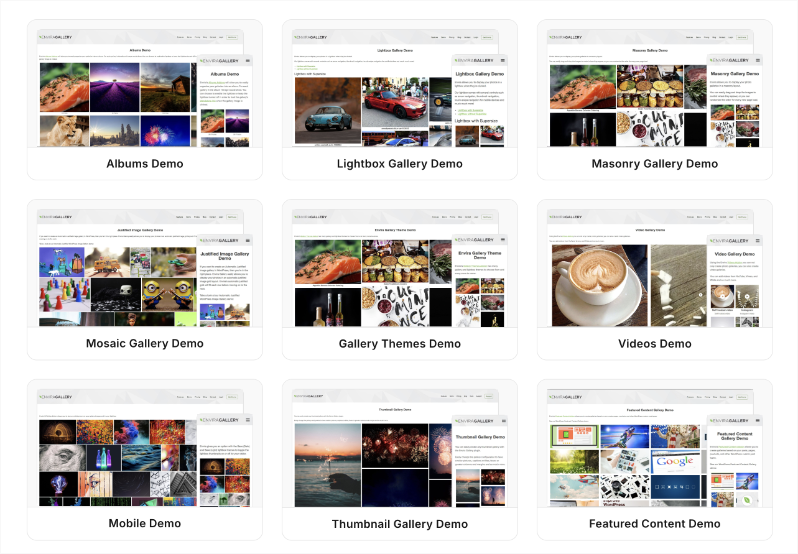
🖼️ Add Image Galleries to Fundraising Campaigns With Envira Gallery

Showcase the impact of your mission like never before. We are excited to announce our brand-new integration with Envira Gallery, the best WordPress gallery plugin, designed to help you tell your story through powerful, high-performance visuals.

The Ultimate Storytelling Experience

A picture is worth a thousand words – and now, it’s worth even more for your fundraising. Connect your visual impact directly to your cause by creating stunning, responsive galleries that engage donors and drive contributions.

🖼️ Visual Impact: Easily create beautiful, fast-loading galleries to show your nonprofit’s work in action, from field reports to event highlights.

🔗 Seamless Connection: Link gallery images directly to your fundraising campaigns, making it effortless for inspired visitors to go from viewing a photo to making a donation.

📱 Perfectly Responsive: Whether your donors are on a phone, tablet, or desktop, your galleries will look professional and load lightning-fast, ensuring a smooth experience on every device.

Integration New

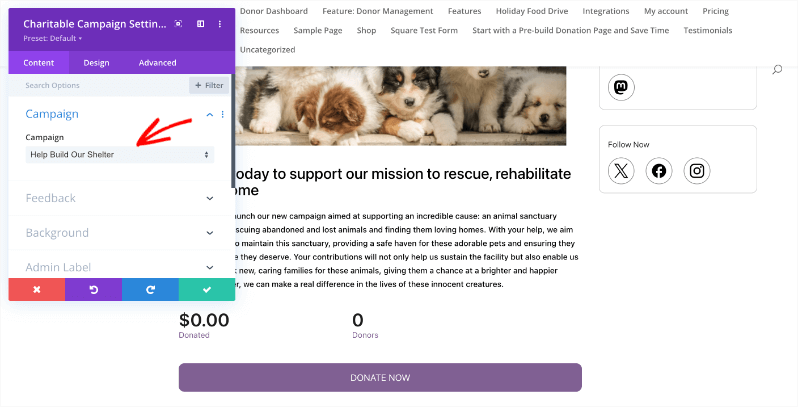
👉🏻 New Divi Integration In Charitable Pro

Bring the power of Charitable directly into your favorite page builder and maintain total creative control with our brand-new Divi integration.

The Ultimate Design Experience

No more switching back and forth or relying on complex shortcodes. Use dedicated Divi modules to build, style, and launch high-converting donation pages without ever leaving the Divi Builder.

⚡ Native Divi Modules: Effortlessly drag and drop your donation forms, progress bars, and campaign details exactly where you want them.

⚙️ Visual Customization: Tweak colors, fonts, and spacing using Divi’s familiar design settings to ensure your fundraiser matches your brand perfectly.

🚀 Live Visual Editing: See your changes in real-time. What you see in the builder is exactly what your donors will see, ensuring a seamless giving experience every time.

donation form New

👉🏻 New Campaign Selector For Donation Forms

Take your campaign management to the next level. Find the perfect fundraiser for any page and stay in your creative flow with our new Campaign Selector integration.

The Ultimate Selection Tool

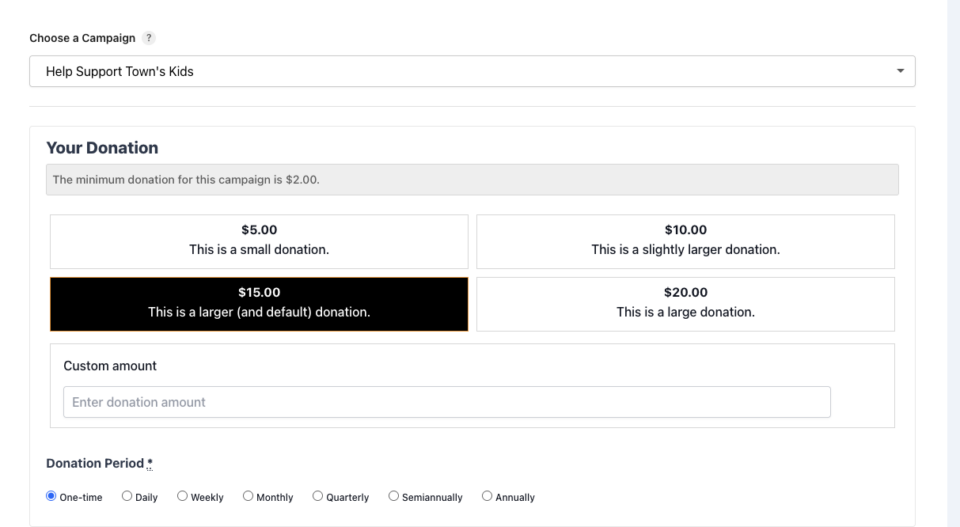
No more hunting for IDs or creating one page for every donation form. Use the new Campaign Selector to allow users to switch to a campaign with no code.

⚡ Instant Search: Quickly find any campaign leaving your page or post.

⚙️ Editor Agnostic: Whether you’re using the Block Editor, Elementor, or WPBakery, selecting your campaigns is now a unified experience.

🚀 Real-Time Previews: See exactly which campaign you’ve selected instantly, ensuring your donors always see the right cause.