

Unser neuestes Plugin ist Charitable Automation Connect, mit dem Sie Informationen über Ihre Kampagnen, Spenden und wiederkehrenden Spenden an Automatisierungsplattformen wie Zapier senden können.
In diesem Blogbeitrag zeige ich Ihnen, wie Sie Charitable, Zapier und Google Kalender integrieren können, um neue Spender automatisch als Teilnehmer für Ihre Google Kalender-Veranstaltung zu registrieren.
Erste Schritte mit Zapier
Zapier ist eine App, mit der Sie automatisierte Workflows erstellen können, die verschiedene Apps verbinden. Mit über 3000 integrierten Apps gibt es unendlich viele Möglichkeiten, wie Sie sie nutzen können.
Automatisierung klingt vielleicht beängstigend, aber Zapier macht es mit einem intuitiven Prozess zum Erstellen Ihrer Workflows (oder Zaps, wie sie im Zapier-Jargon genannt werden) einfach. Sie können einen Zap erstellen, ohne einen Entwickler zu benötigen.
Was ist ein Zap?
Ein Zap verbindet zwei oder mehr verschiedene Apps, um einen automatisierten Workflow zu erstellen.
Der Ausgangspunkt für einen Zap ist ein Trigger. Dies ist das Ereignis, das die Automatisierung auslöst, und normalerweise ist es ein Ereignis, das in einer Drittanbieter-App stattfindet. Zum Beispiel könnte ein Trigger-Ereignis eine neue E-Mail sein, die in Ihrem Gmail-Posteingang ankommt, oder eine neue Einreichung eines Kontaktformulars auf Ihrer Website.
Der andere Teil Ihres Zap ist eine Aktion, die stattfindet, nachdem ein Trigger-Ereignis aufgetreten ist. Wie bei Triggern sind Aktionen Ereignisse, die in Drittanbieter-Apps stattfinden, und Sie können mehr als eine Aktion in den Workflow aufnehmen, sodass ein einzelnes Trigger-Ereignis eine Reihe von Aktionen nacheinander auslösen kann.
Hier passiert die Zapier-Magie. So können Sie eine neue E-Mail nehmen und sie Ihrer To-Do-Liste für den Tag hinzufügen oder auf jede neue Einreichung eines Kontaktformulars antworten, indem Sie die E-Mail-Adresse des Absenders zu Ihrem CRM hinzufügen.
Sie können auch bedingte Workflows erstellen. Möchten Sie zum Beispiel vielleicht nicht *jede* neue E-Mail zu Ihrer To-Do-Liste für den Tag hinzufügen, sondern nur E-Mails von Ihrem Chef?
Bietet Zapier spezielle Preise für gemeinnützige Organisationen?
Obwohl Zapier einen kostenlosen Plan hat (und er mit der Zapier-Integration von Charitable funktioniert), haben wir festgestellt, dass Sie für die meisten Anwendungsfälle die Funktionen und Freigrenzen der kostenpflichtigen Pläne benötigen. Der Starter-Plan ist der günstigste Plan und kostet 20 USD pro Monat.
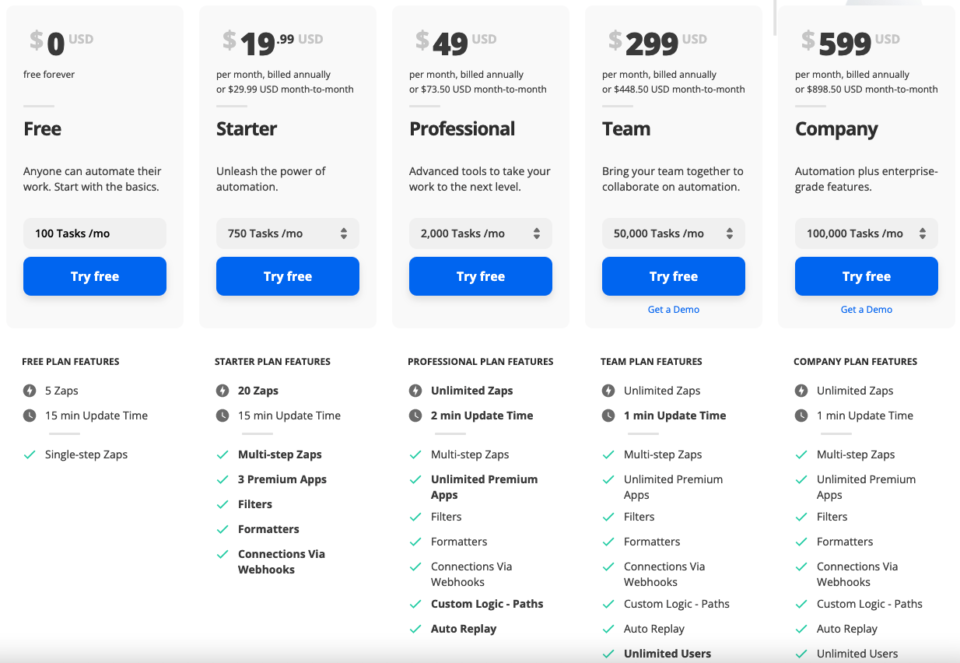
Natürlich zählt jeder Cent für gemeinnützige Organisationen. Glücklicherweise bietet Zapier gemeinnützigen Organisationen einen Rabatt von 15 % auf seine kostenpflichtigen Pläne.
Der Rabatt ist auf Antrag erhältlich, und Sie müssen Zapier einen Nachweis über den gemeinnützigen Status Ihrer Organisation vorlegen können.
Beantragen Sie Ihren 15% Rabatt
Eine Einführung in Google Kalender für gemeinnützige Organisationen
Google Kalender ist Teil der beliebten Sammlung von Online-Apps, die Google für Organisationen aller Formen und Größen entwickelt hat. Ihre Organisation kann ihn verwenden, um wichtige Termine und Besprechungen im Auge zu behalten, Veranstaltungen zu verwalten oder Freiwillige zu koordinieren.
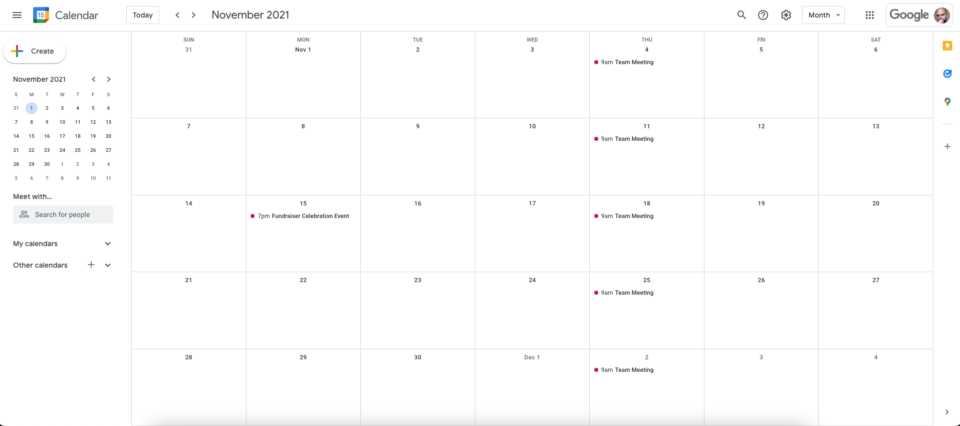
Das Schöne an Google Kalender ist, dass Sie sowohl private als auch öffentliche Kalender führen können. Private Kalender können leicht so eingeschränkt werden, dass sie nur von anderen Mitgliedern der Organisation eingesehen werden können, während öffentliche Kalender für jedermann zugänglich sind.
Wir mögen auch die Art und Weise, wie Google Kalender mit einer anderen App von Google, Meet, der Alternative von Google zu Zoom, verknüpft ist. Dies macht Google Kalender zu einer guten Möglichkeit, Besprechungen zu organisieren oder sogar eine virtuelle Spendenveranstaltung von Angesicht zu Angesicht einzurichten.
Das Beste daran ist, dass Google Kalender in Google Workspace enthalten ist, das für gemeinnützige Organisationen kostenlos ist. Neben Kalender bietet Google Workspace Zugriff auf Apps wie Gmail, Meet, Drive, Docs, Sheets und vieles mehr.
Wie bei Zapier müssen Sie einen Antrag stellen, um gemeinnützigen Zugang zu erhalten, und Sie müssen Nachweise über den gemeinnützigen Status Ihrer Organisation vorlegen.
Verwalten einer Spendenveranstaltung in Google Kalender
Nachdem wir nun die Grundlagen von Zapier und Google Kalender behandelt haben, sehen wir uns an, wie wir die Zapier-Integration von Charitable nutzen können, um Spender zu einer Spendenveranstaltung einzuladen.
Unser Endziel ist es, Spender automatisch zur Teilnahme an unserer Spendenveranstaltung einzuladen.
Mit Zapier als Vermittler zwischen Charitable und Google können wir das ganz einfach erreichen – ganz ohne Code zu schreiben.
1. Erstellen Sie ein neues Ereignis in Google Kalender
Um zu beginnen, gehen Sie zu Google Kalender:
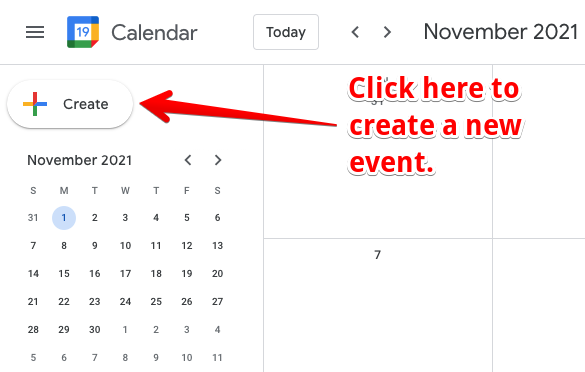
Sie können ein neues Ereignis hinzufügen, indem Sie auf das Datum klicken, an dem Sie das Ereignis hinzufügen möchten, oder indem Sie auf die große Schaltfläche Erstellen in der oberen linken Ecke klicken:
Richten Sie als Nächstes Ihr Ereignis ein:
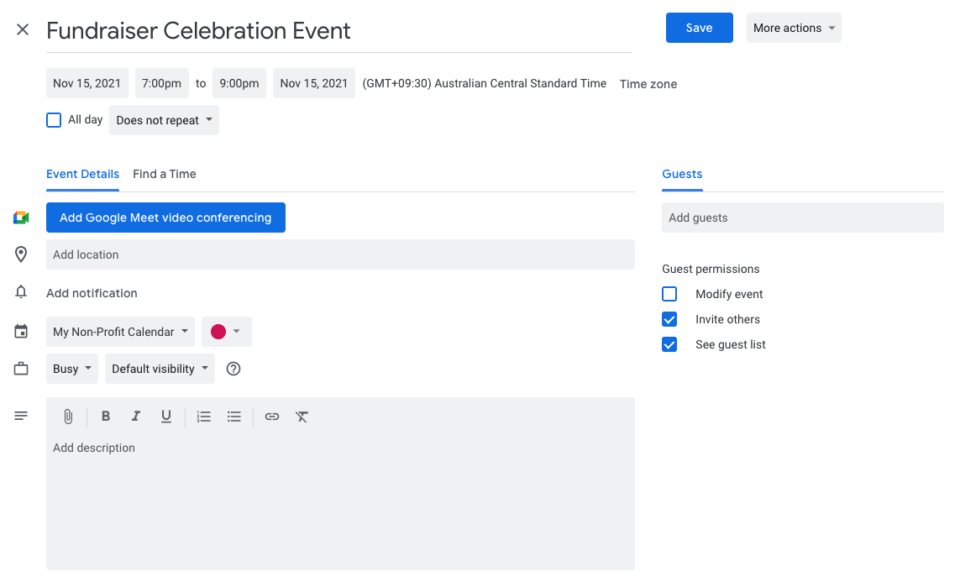
Das Erstellen eines Ereignisses ist ein relativ einfacher Vorgang, bei dem Sie einen Titel festlegen, das Datum, die Start- und Endzeit des Ereignisses angeben, einen Ort angeben, optional die Google Meet-Videokonferenz aktivieren und eine detailliertere Beschreibung des Ereignisses erstellen können.
Stellen Sie bei der Einrichtung Ihres Ereignisses sicher, dass die richtige Zeitzone verwendet wird!
2. Installieren und aktivieren Sie Charitable Automation Connect
Als Nächstes melden wir uns bei unserem WordPress-Dashboard an und holen uns das Charitable Automation Connect Plugin.
Automation Connect ist eine Erweiterung für Charitable, was eine schicke Art ist zu sagen, dass es sich um ein reguläres WordPress-Plugin handelt, das entwickelt wurde, um die Funktionen von Charitable zu erweitern, unserem kostenlosen WordPress-Spenden-Plugin.
Da Automation Connect eine kostenpflichtige Erweiterung ist, müssen Sie zuerst eine Lizenz erwerben. Den besten Wert finden Sie in einem der Charitable-Pakete, die alle Automation Connect und eine Reihe anderer Charitable-Erweiterungen enthalten, die weitere Zahlungsoptionen, Unterstützung für wiederkehrende Spenden, E-Mail-Marketing-Tools, Peer-to-Peer-Fundraising und mehr bieten.
Heben Sie Ihr Online-Fundraising auf ein neues Level
Charitable ist das am besten bewertete und günstigste WordPress-Spenden-Plugin. Rüsten Sie Ihre WordPress-Spendenaktionen noch heute auf.
Charitable Automation Connect installieren
Sobald Sie das Automation Connect Plugin haben, können Sie es über Ihr WordPress-Dashboard installieren:
- Laden Sie Ihre Erweiterung über den Link in Ihrer Kaufbeleg-E-Mail oder von Ihrer Konto-Seite auf wpcharitable.com herunter.
- Gehen Sie in Ihrem WordPress-Dashboard zu Plugins > Neu hinzufügen.
- Klicken Sie dann oben auf der Seite auf die Schaltfläche Plugin hochladen.
- Wählen Sie die zuvor heruntergeladene ZIP-Datei aus und klicken Sie auf Jetzt installieren.
- Aktivieren Sie Charitable Automation Connect.
Damit haben Sie alles erledigt, was auf der WordPress-Seite zu tun war. Automation Connect ist jetzt aktiv und Sie können Charitable mit Zapier verbinden.
3. Richten Sie die Charitable Zapier-Integration ein
Noch nicht bei Zapier angemeldet? Für die nächsten Schritte benötigen Sie ein Konto. Klicken Sie hier, um sich anzumelden.
Die Charitable-Integration mit Zapier befindet sich in einer nur auf Einladung verfügbaren Phase. Sie können sie über den folgenden Link nutzen:
https://zapier.com/developer/public-invite/145749/3951e2d476c62199212c9731642ed145/
Klicken Sie auf der folgenden Seite auf die Schaltfläche Einladung annehmen & Zap erstellen, um die Charitable-Integration zu Ihrem Zapier-Konto hinzuzufügen:
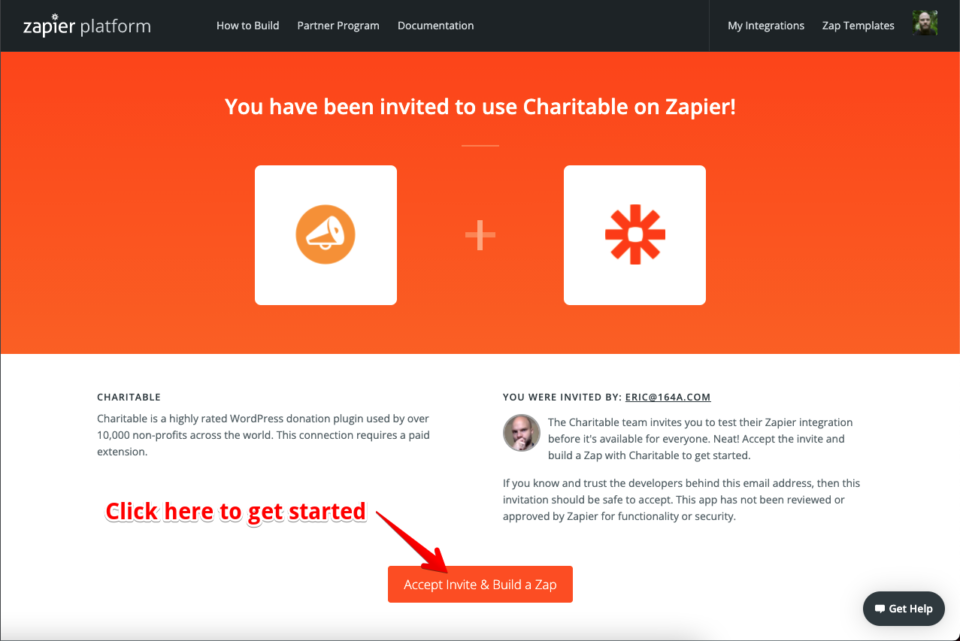
4. Erstellen Sie einen neuen Zap, um Spender zur Teilnahme an der Spendenveranstaltung einzuladen
Damit ist es Zeit, unseren Zap einzurichten. Klicken Sie in der oberen linken Ecke auf die Schaltfläche Zap erstellen (auf kleineren Bildschirmen wird die Schaltfläche durch eine große + Schaltfläche ersetzt, wie unten gezeigt):
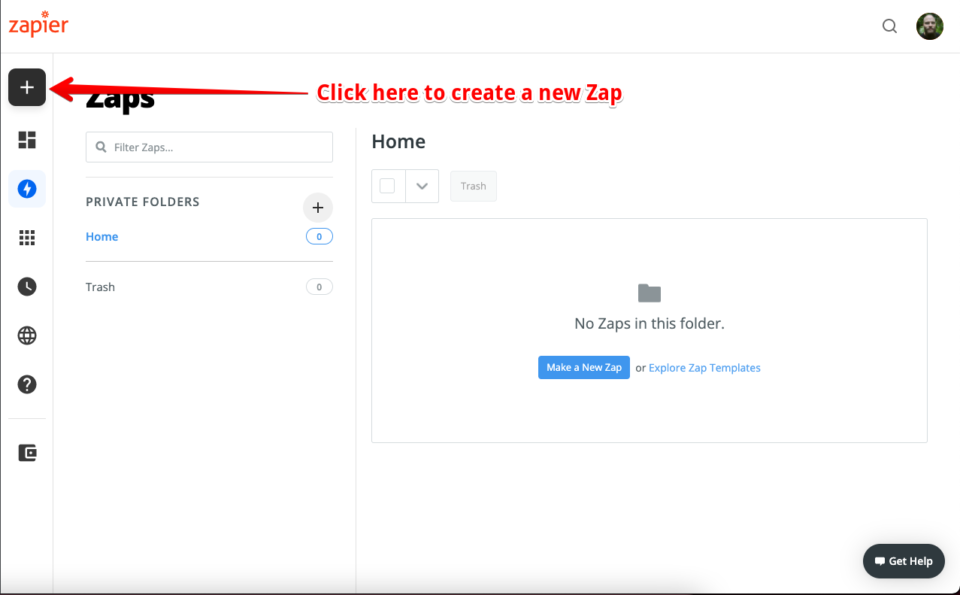
Richten Sie den Trigger des Zap ein
Wie bereits besprochen, beginnt ein Zap mit einem Trigger. Der Trigger unseres Zaps ist ein Ereignis in Charitable – eine neue Spende.
Suchen Sie im Suchfeld nach „charitable“ und wählen Sie es dann als App aus:
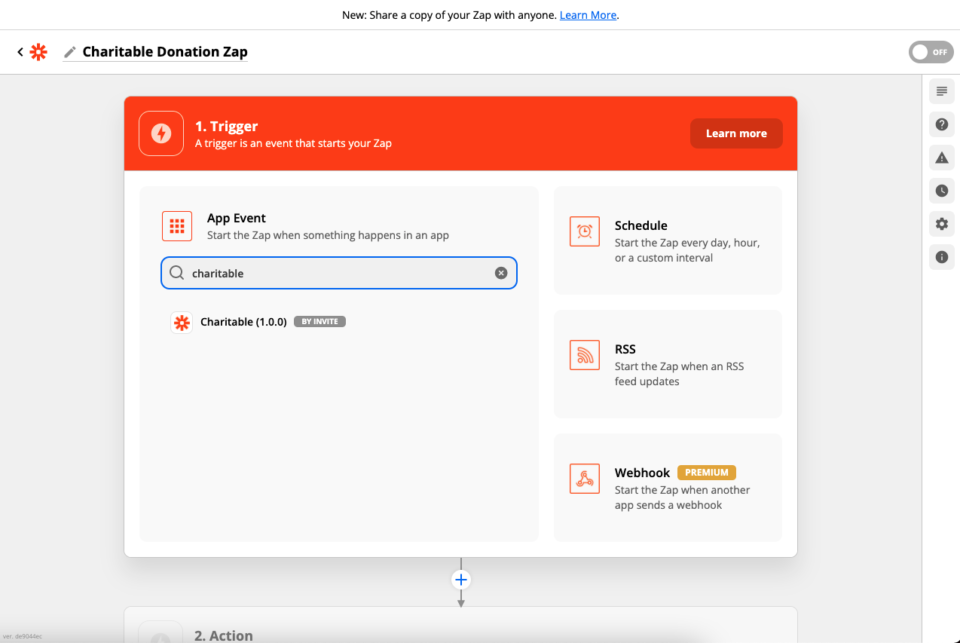
Als Nächstes wählen wir unser Trigger-Ereignis. In diesem Schritt wählen wir aus, auf welche Charitable-Ressource (Spende, Kampagne oder wiederkehrende Spende) sich das Trigger-Ereignis bezieht. In Kürze wählen wir das spezifische Ereignis aus (eine neue Spende, eine gelöschte Kampagne usw.):
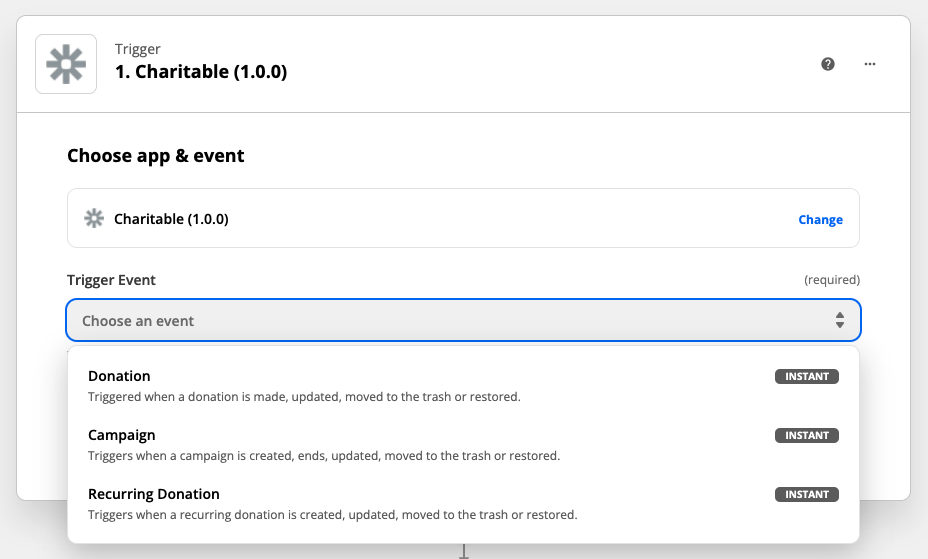
Wenn Sie die Charitable Zapier-Integration zum ersten Mal verwenden, müssen Sie Ihre Website mit Zapier verbinden. Klicken Sie auf Bei Charitable anmelden.
In dem sich öffnenden Formular werden Sie aufgefordert, Details einzurichten, damit Zapier auf Ihr Charitable-Konto zugreifen kann. Um es klarzustellen: Dies ist Ihr Konto auf Ihrer WordPress-Website – nicht Ihr Konto auf wpcharitable.com.
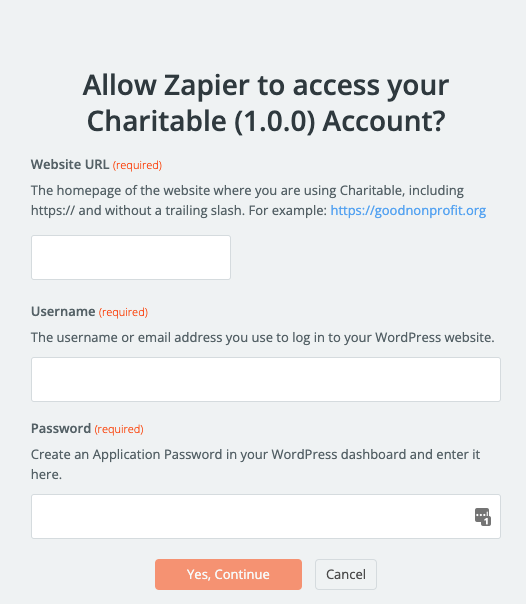
Geben Sie im Feld Website-URL die Homepage-URL der Website ein, auf der Sie Charitable installiert haben. Achten Sie darauf, https:// am Anfang einzufügen und den Backslash am Ende wegzulassen.
Geben Sie im Feld Benutzername den Benutzernamen oder die E-Mail-Adresse ein, mit der Sie sich bei Ihrem WordPress-Dashboard anmelden.
Für das Feld Passwort könnten Sie Ihr normales WordPress-Passwort verwenden, aber aus Sicherheitsgründen empfehlen wir dringend, ein Anwendungspasswort einzurichten, das ausschließlich von Zapier verwendet wird.
Ein Anwendungspasswort einrichten
Das Erstellen eines Anwendungspassworts ist ein einfacher 3-Schritte-Prozess:
1. Gehen Sie in Ihrem WordPress-Dashboard zu Benutzer > Profil.
2. Scrollen Sie nach unten und klicken Sie auf Neues Anwendungspasswort hinzufügen.
3. Kopieren Sie das Passwort und fügen Sie es in Zapier ein.
Klicken Sie nach dem Ausfüllen dieser Details auf Ja, fortfahren.
Im nächsten Schritt können Sie das spezifische Ereignis auswählen, das Ihren Workflow startet. Für Spenden gibt es vier Optionen:
- Wenn eine Spende erstellt wird.
- Wenn eine Spende aktualisiert wird.
- Wenn eine Spende in den Papierkorb verschoben wird.
- Wenn eine Spende aus dem Papierkorb wiederhergestellt wird.
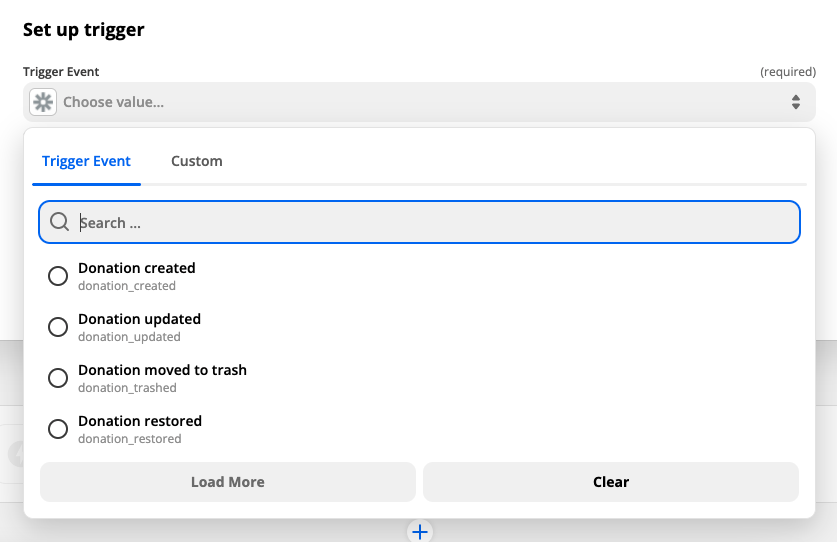
In unserem Fall wählen wir das Ereignis „Spende aktualisiert“. Während „Spende erstellt“ besser passen könnte, möchten wir sicherstellen, dass Spender erst dann als Teilnehmer hinzugefügt werden, wenn ihre Spende bezahlt wurde. Spenden beginnen standardmäßig als „Ausstehend“, sodass zum Zeitpunkt des Ereignisses „Spende erstellt“ die Zahlung noch nicht bestätigt ist.
Später verwenden wir einen Filter, um sicherzustellen, dass die Spende bezahlt wird, bevor der Spender als Teilnehmer hinzugefügt wird.
Wenn Sie damit fertig sind, klicken Sie auf Weiter und dann im nächsten Schritt auf Trigger testen, um sicherzustellen, dass alles funktioniert.
Richten Sie die Aktion ein
Wie oben erwähnt, möchten wir Spender erst dann als Teilnehmer hinzufügen, wenn sie ihre Spende abgeschlossen haben. Um dies zu erreichen, können wir das Filter-Tool in Zapier verwenden. Klicken Sie im Abschnitt „Aktion“ in der rechten Spalte auf Filter:
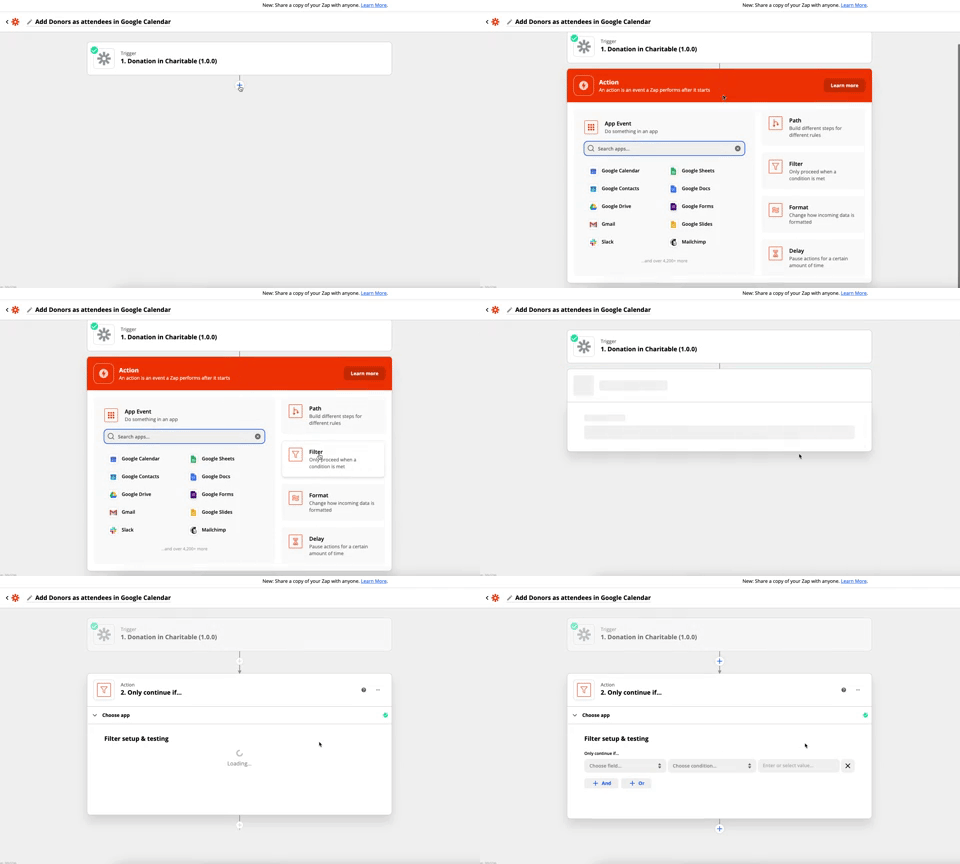
Richten Sie als Nächstes den Filter ein, indem Sie das Feld „Spendenstatus“ für den Filter auswählen und sicherstellen, dass es genau mit „charitable-completed“ übereinstimmt:
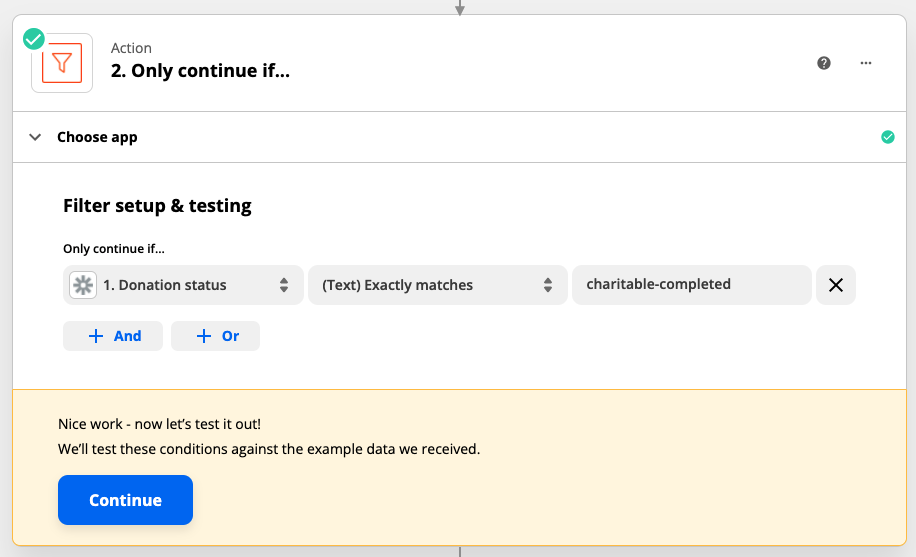
Klicken Sie auf Weiter, um den Filter zu testen. Zapier sollte Ihnen mitteilen, dass der Zap mit den von Charitable bereitgestellten Testdaten fortgesetzt worden wäre.
Wenn Sie damit fertig sind, können wir mit der Einrichtung unserer Google Kalender-Aktion fortfahren. Klicken Sie auf das + Symbol am unteren Rand des Zap-Prozesses, um eine neue Aktion hinzuzufügen, und suchen Sie dann nach Google Kalender.
Wenn Sie dies getan haben, klicken Sie auf „Ereignis auswählen“ und wählen Sie „Teilnehmer hinzufügen“ als Aktionsereignis für Ihren Zap aus:
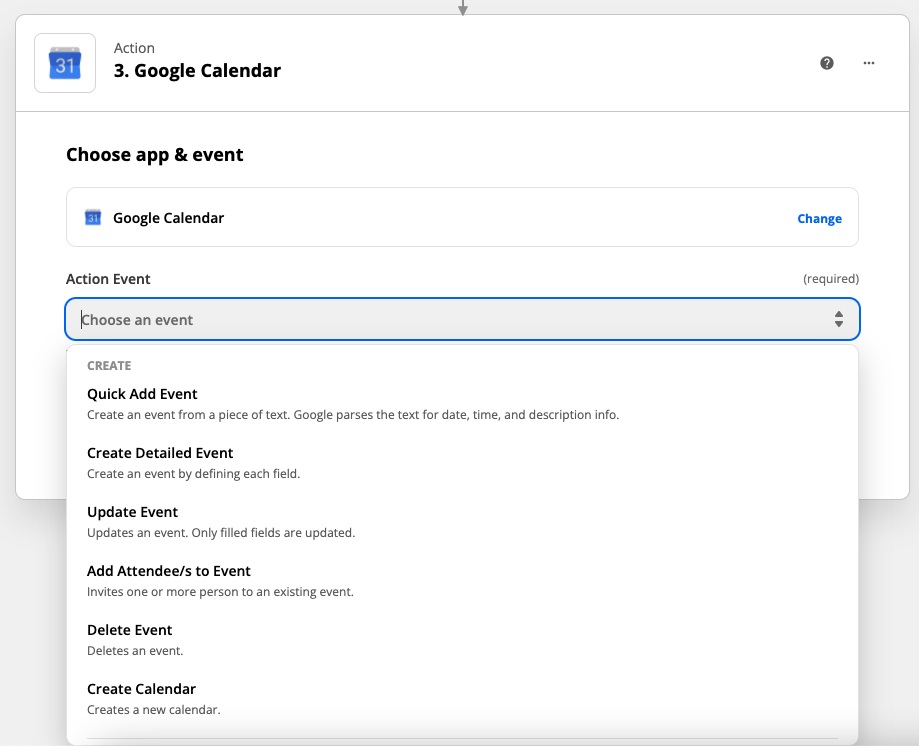
Klicken Sie auf Weiter, um das Aktionsereignis zu speichern und mit dem nächsten Schritt fortzufahren.
Wenn Sie die Google Kalender-Integration in Zapier zum ersten Mal verwenden, müssen Sie Ihr Google-Konto verbinden, damit Zapier auf Ihre Kalender zugreifen und Teilnehmer zu Ereignissen hinzufügen kann.
Fahren Sie als Nächstes mit den letzten Schritten zur Einrichtung Ihrer Aktion fort, indem Sie Ihren Google Kalender auswählen und das zuvor erstellte Kalenderereignis für Ihre Spendenveranstaltung auswählen.
Wählen Sie schließlich für das Feld „Teilnehmer“ das von Charitable gesendete E-Mail-Datenfeld aus:
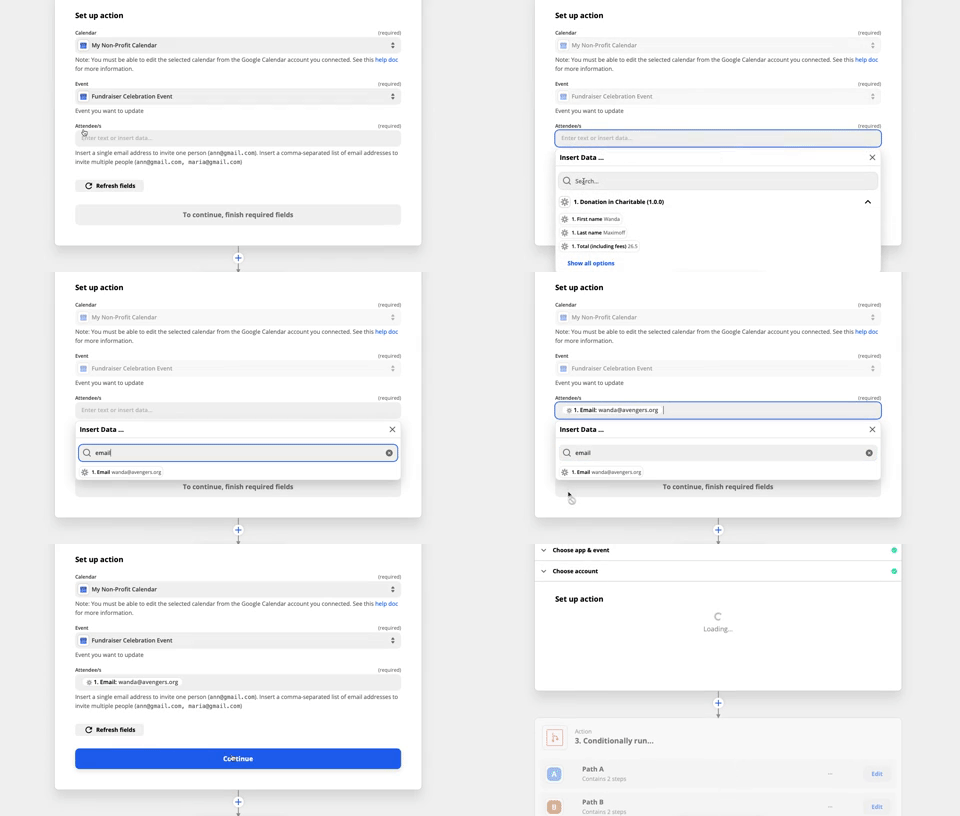
Wenn Sie damit fertig sind, klicken Sie auf Weiter, um den Aktionsschritt mit den Testdaten zu testen. Wenn erfolgreich, sollten Sie einen neuen Teilnehmer zu Ihrem Ereignis im Google Kalender hinzugefügt sehen. Vergessen Sie nicht, ihn vor dem Abschluss zu entfernen. 🙂
Schließlich schalten Sie Ihren Zap live, indem Sie auf Zap aktivieren klicken. Von nun an wird jeder neue Spender auf Ihrer Website automatisch zu Ihrem Google Kalender-Ereignis hinzugefügt. Magie!
Bonus-Tipp: Machen Sie das Ereignis exklusiv für Ihre größten Spender
Unser Zap ist jetzt so eingerichtet, dass er mühelos Teilnehmer zu unserem Ereignis hinzufügt, aber wir möchten ihn vielleicht so anpassen, dass nur unsere Top-Spender als Teilnehmer hinzugefügt werden. Indem wir die zuvor verwendete Filteraktion erweitern, können wir dies ganz einfach tun:

Im gezeigten Beispiel laden wir nur Spender ein, die mehr als 100 US-Dollar gespendet haben, um an der Veranstaltung teilzunehmen.
Automatisieren Sie Ihre gemeinnützige Organisation noch heute mit Charitable
Wie Sie gesehen haben, ist Charitable Automation Connect ein leistungsstarkes neues Tool für Non-Profits. Sie können damit automatisierte Workflows erstellen, wie den, den wir hier beschrieben haben, aber es gibt noch so viel mehr Möglichkeiten.
Da Charitable die Integration mit Zapier nahtlos handhabt, können Sie Charitable ganz einfach mit jeder der Tausenden von Apps verbinden, mit denen Zapier integriert ist – ohne eine einzige Zeile Code zu schreiben.
Heben Sie Ihr Online-Fundraising auf ein neues Level
Charitable ist das am besten bewertete und günstigste WordPress-Spenden-Plugin. Rüsten Sie Ihre WordPress-Spendenaktionen noch heute auf.





Hinterlassen Sie eine Antwort